Pin Tool Browser Windows
The Pin Tool lets you invoke the following Pin Tool browser windows:
|
Browser Window
|
Description
|
|
Pin Browser
|
Lists all pins that are available in the design.
|
|
Label Browser
|
Lists all labels that are available in the design.
|
|
Net Shapes Browser
|
Lists all net shapes that are available in the design.
|
Pin Browser
The Pin Browser lists all the top-level and level-1 pins that are available in the current layout design. The interface includes a pins list and a few additional options to customize the display of pins. Use the Search box to filter the pins in the pins list.
|
Field
|
Description
|
|
Pins List
|
The pins list includes the following information about top-level and level-1 pins.
|
|
Pin Name/Instance Name
|
Specifies the pin or instance name. The pin entries are expressed in the format termName:pinName:figName. The pins list also includes names of iterated bus pins. By default, bus pins are in the collapsed state.
To expand buses, select the required bus pins, right-click, and select Bus – Expand Selected Buses from the shortcut menu. To collapse buses, choose Bus – Collapse Selected Buses from the shortcut menu.
|
|
LPP
|
Specifies the layer-purpose pair on which the pin is drawn. You can edit the value directly in the Pin Browser. Click Apply to move pins to the new LPP in the database, and therefore in layout canvas.
|
|
Width and Height
|
Specifies the width and height of the pin. You can edit these values directly in the Pin Browser. Press Enter to accept the new value. Click Apply to update the revised pin dimension in the layout canvas.
|
|
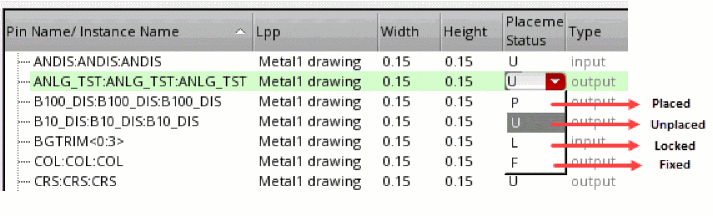
Placement Status
|
Represents the placement status of the pins. You can reset the value directly in the Pin Browser. Valid values are Placed, Unplaced, Locked and Fixed.
|
|
Direction
|
Specifies the pin term direction: input, output, or input/output. It is a read-only column.
|
|
Signal Type
|
Specifies the signal type of a pin’s net. You can edit the signal type of a net. It automatically updates the signal type of all the pins that share the same top-level net.
|
|
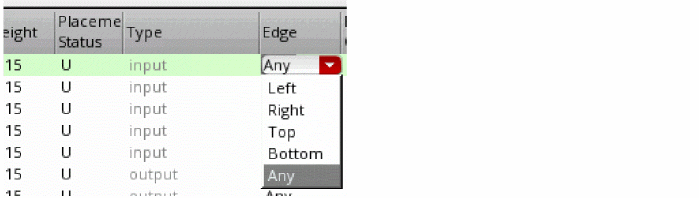
Edge
|
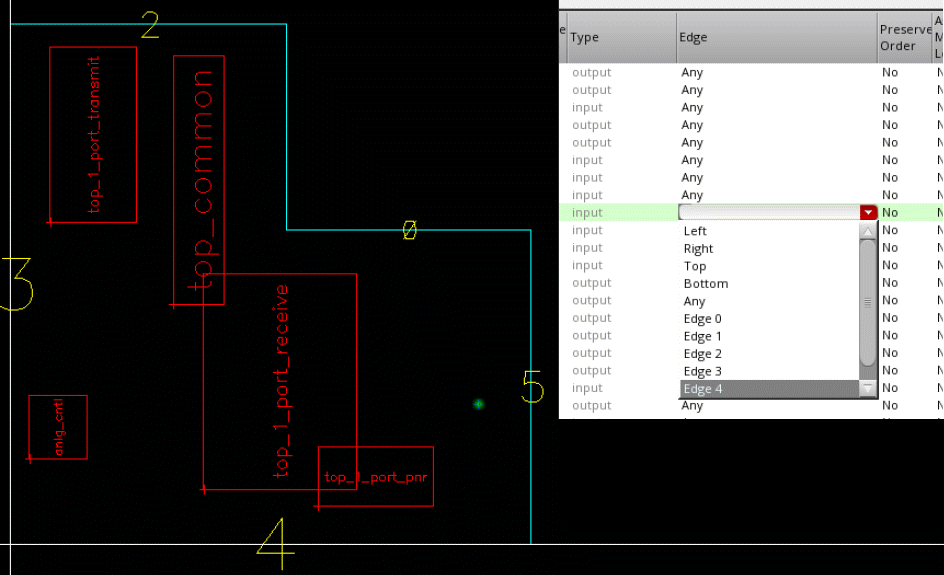
Indicates the edge alignment constraints set on the pins. The constraint is honored by various Virtuoso engines, such as the pin optimizer, pin planner, and constraint-aware editing engines. You can change the Edge directly in the Pin Browser. Valid values are Left, Right, Top, Bottom and Any.
In case of a rectilinear PR boundary, when you select the Edge field, the edge numbers are displayed in the layout canvas, which makes it easy for you to identify the required edge.
|
|
Preserve Order
|
Indicates whether the pin order specified in the Alignment constraint must be honored during pin placement. If selected, pins on the same edge are placed in the same order as they are listed in the Pin Browser.
|
|
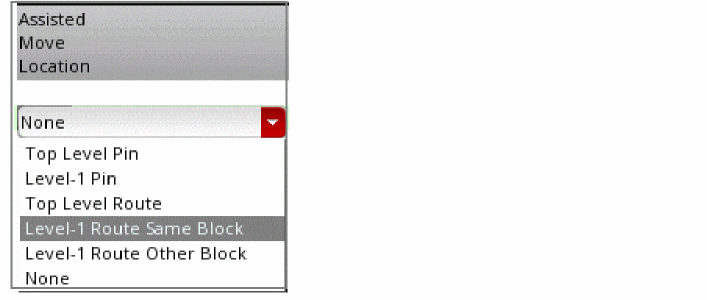
Assisted Move Location
|
(Virtuoso Layout Suite EXL) Specifies the location to which pins have been moved using the assisted move feature. You can run assisted move to re-position these pins. The available assisted move locations are:
See Repositioning Pins Using Assisted Move.
|
|
PGG
|
Specifies the name of the pin group guide that controls the placement of the pin. Pins that are associated with pin group guides cannot be edited directly in the Pin Browser, and are therefore displayed in gray.
Click the PGG name in the Pin Browser to open the Pin Group Guide form, make the required changes, apply the changes, and close the form.
This column is hidden by default. To display the PGG column, right-click the column headers, and select the column for viewing.
|
|
Refresh
|
Updates the values as per the changes made in the Pin Group Guide form.
|
|
Has Label
|
Specifies whether a label or text display is attached to the pin. You can create or delete pin labels in the Pin Browser.
See Creating and Deleting Pin Labels in the Pin Tool.
|
|
Schematic
|
Specifies whether the top-level pins exist in the corresponding schematic cellview. This information is displayed only if the schematic view is open. The value is not editable.
|
|
Search
|
Filters the pins in the Pin Browser. For example, if you type a string P in the Search box, only the pins with their names starting with letter P are listed. As you type additional strings, the search results are further refined.
|
|
Total Pins
|
Views the total number of pins below the pins list. It is the sum of the top-level and level-1 pins in the list.
|
|
|
Change the order of the pins by moving them up or down in the list.
|
|
Refresh
|
Replicates the changes in the Pin Browser when pin attributes have been changed outside the Pin Tool .
|
|
Apply
|
Propagates the changes you made in the Pin Browser to the layout canvas.
|
|
Close
|
Closes the Pin Tool.
|
Bus Submenu
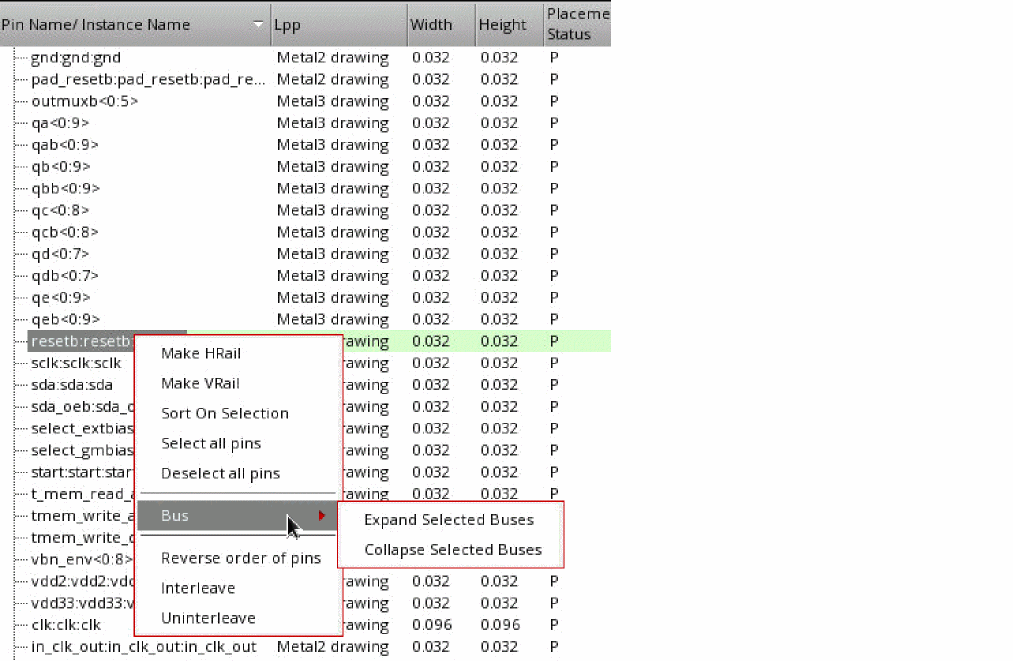
The shortcut menu in the Pin Browser includes a Bus submenu as shown in the following image.
It lets you manage bus pins using the following commands:
|
Field
|
Description
|
|
Expand Selected Buses
|
Expands the selected bus to display bits of the bus in ascending or descending order. For example, a collapsed bus with one entry is represented as MyBus<0:3>. An expanded bus with four entries is represented as MyBus<0> MyBus<1> MyBus<2> MyBus<3>.
|
|
Collapse Selected Buses
|
Collapses the bits of the selected bus into a single full bus entry. For example, an expanded bus MyBus<0> MyBus<1> MyBus<2> MyBus<3> is collapsed as MyBus<0:3>.
|
|
Ascending Order
|
Sorts pins of the selected bus in ascending order in the Pin Tool. The selected bus must be in expanded state. The order of bus pins in the layout remains unchanged.
|
|
Descending Order
|
Sorts pins of the selected bus in descending order in the Pin Tool. The selected bus must be in expanded state. The order of bus pins in the layout remains unchanged.
|
|
Select Even Bits
|
Selects bus pins with even numbering, for example ABC<0>, ABC<2>, and ABC<4>, in the Pin Browser and in the layout canvas. This option can be used to selectively edit even or odd bits of a bus. For example, you can use this option to move all even bits of a bus to the METAL1 layer and odd bits to the METAL2 layer.
|
|
Select Odd Bits
|
Selects bus pins with odd numbering, for example ABC<1>, ABC<3>, and ABC<5>, in the Pin Browser and the layout canvas. This option can be used to selectively edit even or odd bits of a bus. For example, you can use this option to move all even bits of a bus to the METAL1 layer and odd bits to the METAL2 layer.
|
Label Browser
The Label browser includes the following information about labels:
|
Field
|
Description
|
|
Text
|
Specifies the label name.
|
|
LPP
|
Specifies the layer and purpose on which the label is drawn.
|
|
Origin
|
Specifies the coordinates of the lower left corner of the label. The Origin and the Justification values together determine the label position. You can edit the value directly in the Label Browser.
|
|
Height
|
Specifies the height of the label. You can edit the value directly in the Label Browser.
|
|
Rotation
|
Specifies the orientation of the label. You can edit the value directly in the Label Browser.
|
|
Justification
|
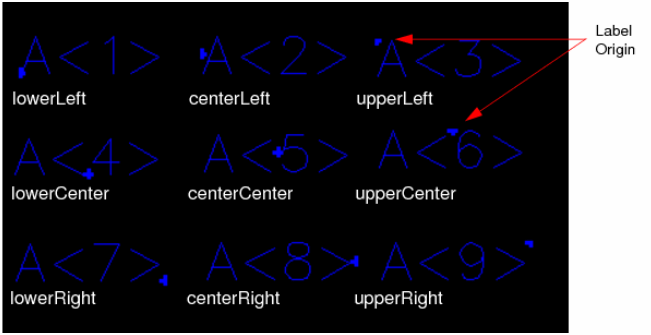
Specifies the position of the label origin with respect to the label position. You can edit the value directly in the Label Browser. The following figure shows the various justification values that are available.
|
|
Overbar
|
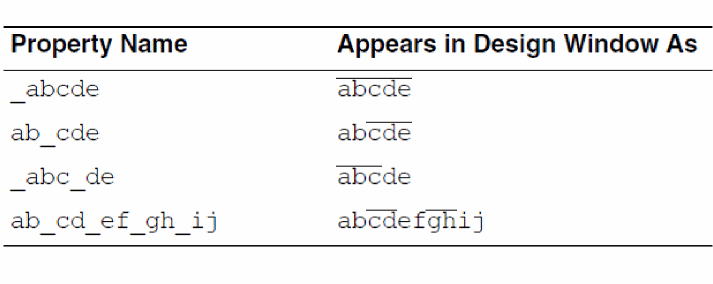
Indicates how the underscore characters in the label text strings must be displayed. When set to false, underscores are displayed as underscores; when set to true, underscores are displayed as overbars on the text string as shown in the following examples:
You can edit the value directly in the Label Browser.
|
|
Drafting
|
Prevents the label from being rotated more than 90 degrees when set to true,. You can edit the value directly in the Label Browser.
|
|
Attached to Pin
|
Denotes whether the label is attached to any pin in the cellview.
|
|
Pin Created for Label
|
Specifies whether pins have been created for the labels.
|
|
The Total Labels
|
Shows the total number of labels in the top cellview.
|
|
Refresh
|
Reflects attribute changes made outside the Pin Tool.
|
|
Apply
|
Reflects the changes you have made in the layout canvas.
|
Net Shapes Browser
The Net Shapes browser displays the following information about the nets in the current cellview:
|
Field
|
Description
|
|
Net Name
|
Lists the net names.
|
|
Pin Figures
|
Specifies the number of pin figures that are connected to the net. These values cannot be edited in the Net Shapes Browser.
|
|
Refresh
|
Reflects attribute changes made outside the Pin Tool to propagate the changes in the Net Shapes Browser.
|
|
Total Nets
|
Shows the total number of nets in the top cellview.
|
Related Topics
The Pin Tool Browsers
Selecting Pins and Editing Pin Attributes in the Pin Tool
Creating and Deleting Pin Labels in the Pin Tool
Return to top