
8
Pin Tool
Virtuoso Floorplanner includes the Pin Tool, which is a unified interface for all pin-related tasks, such as creating pins, resizing pins, planning and optimizing pins, editing pin attributes, and setting their location constraints.
Before launching the Pin Tool, ensure that the blocks in the design are placed. You can then use the Pin Tool to define the pin location constraints, alignments, and pin group guides, and set the pin attributes.
Choose Floorplan – Pin Tool or click the Pin Tool button in the Floorplanning toolbar to launch the Pin Tool.
In Layout EXL and higher tiers, choose Plan – Pin Planning – Pin Tool.
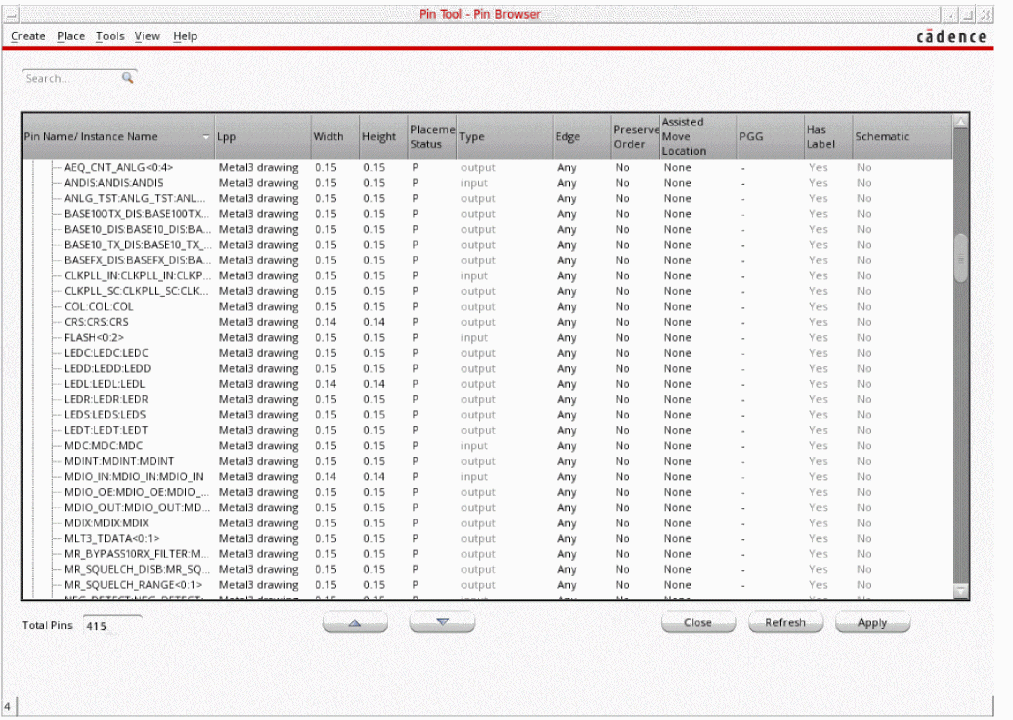
The Pin Browser appears, which lists all the top-level and level-1 pins that are available in the current layout design.
Related Topics
Promoting Pins in the Pin Tool
Planning and Optimizing Pins Using the Pin Tool
Applying Uniform Pin Spacing Using the Pin Tool
Specifying Pin Spacing Based on the Number of WSP Tracks
Customized SKILL Hooks to Resize Pins in the Pin Tool
Electrically Aware Pins in the Pin Tool
Pin and Label Information in the Pin Tool
Merging Pins using the Pin Tool
Repositioning Pins Using Assisted Move
Return to top