
Floorplanner Command-Line Flow
Instead of using the GUI commands, you can use the Floorplanner command-line SKILL APIs to generate a layout from a schematic in a hierarchical manner. These APIs are entered in the CIW. The following figure illustrates the overall design flow for developing a layout from a schematic in a hierarchical manner.
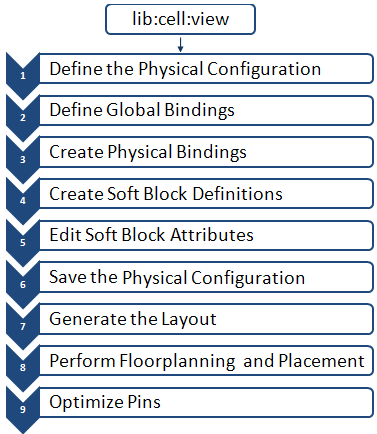
Each step in the design flow uses a set of SKILL APIs. The lib:cell:view, which represents the name of the library, cell, and view to be referenced in the schematic, is the input for the process.
The description of the APIs used in each step is as follows.
-
Define the Physical Configuration (physConfig)
Use the cphCreatePhysConfig API to create a physical configuration (physConfig) corresponding to the specified top-levellib:cell:view. A physConfig comprises multiple files that store design-specific overrides such as the schematic expansion rules and the instance mapping rules. -
Define Global Bindings
Use the cphSetViewList API to set the logical switch view list for the physical configuration view associated with the specified ID. The list specifies the view names used to descend into a hierarchical design to find schematic views.
Use the cphSetStopList -
Create Physical Bindings
Use the cphSetCellPhysicalBinding API to set the physical binding for a specified logical cell in the physical configuration associated with the given ID. -
Create Soft Block Definitions
Use the cphSbDefineSoftBlock API to define a soft block in the physConfig.This API creates CPH data for the soft block to be generated in the layout by using the logicallib:cell:view. The initial I/O pins are automatically generated in the layout and their attributes are configured based on the environment variables. -
Edit Soft Block Attributes
After defining soft blocks in the CPH, use the following APIs to further customize the soft blocks as per your requirements.-
Viewing Soft Blocks and Pin Attributes
Use the following APIs to view soft block and pin attributes.- cphSbGetSoftBlocks: Returns a list of defined soft blocks that correspond to the specified g_physConfigId
-
cphSbGetSoftBlockId: Returns the ID of the soft block corresponding to the specified physConfig and physical
lib:cell:view - cphSbGetFilteredIOPins: Filters and displays pin IDs based on the specified arguments
- cphSbGetAllIOPins: Returns a list of all pin IDs associated with a specific soft block
- cphSbDisplayAllIOPinsInfo: Returns the pin information for all pins corresponding to the specified Physical configuration ID and soft block ID
- cphSbDisplayBoundaryInfo: Displays valid boundary attributes such as the boundary type (rectangle or polygon), area, polygon points, aspect ratio, width, height, and utilization
- cphSbGetIOPinId: Returns the pin ID for a specific soft block
- cphSbGetIOPinName: Returns pin name and soft block name; helps verify whether a pin exists
- cphSbDisplayIOPinInfo: Returns all information related to the specified pin
- cphSbDisplayObstruction: Displays information related to the specified obstruction
- cphSbDisplayAttributes: Displays the block type, inherited view list, and stop view list of the specified block
-
Customizing Soft blocks
After viewing the soft block and pin attributes, you may want to customize them. All updates to the soft blocks and pin attributes are stored in the physConfig.
The following environment variables are honored when editing soft blocks and pins.
Depending on the shape and structure of the soft block that you want to edit, choose one of the following APIs:- Polygon mode: cphSbSetPolygonalBoundary
- Rectangle mode: cphSbSetRectangularBoundary
- Rectangle mode with utilization input: cphSbSetRectangularBoundaryUtil
The following are some additional APIs that you can use to edit soft blocks.- cphSbEditIOPin: Edits attributes of an I/O pin located at a specific physical location, which is specified as an argument
- cphSbEditIOPinById: Edits an I/O pin with a specific pin ID
- cphSbAddIOPin: Adds a new I/O pin to the soft block
- cphSbDefineIOPinLabelFlag: Creates I/O pin labels.
- cphSbDelIOPin: Deletes an I/O pin located at a specific physical location
- cphSbDelIOPinById: Deletes the I/O pin with a specific pin ID
- cphSbGetAllIOPins: Returns a list of all pin IDs associated with the specified soft block
- cphSbGetIOPinId: Returns the required pin ID. After retrieving the required pin IDs, you can use the cphSbEditIOPinById or cphSbDelIOPinById to edit or delete the retrieved pins.
- cphSbIsValidIOPin: Verifies whether a pin exists in a soft block
- cphSbDefineObstruction: Adds an obstruction or blockage within a soft block
- cphSbDelObstruction: Deletes an obstruction from a soft block
- cphSbEditSoftBlockAttributes: Edits the block type, inherited view list, and stop view list
- cphSbLoadSoftBlocks: Loads soft block data from the specified floorplan property file. When soft blocks are loaded, the instance and cell bindings between schematic and physical views of blocks are re-established based on the specifications in the floorplan property file.
- cphSbSaveSoftBlocks: Saves soft block data to the specified floorplan property file
- cphSbRemoveSoftBlock: Removes the soft block that is associated with the specified ID
- cphSbDefineCovObstruction: Defines cover obstructions
- cphSbDelCovObstruction: Deletes cover obstructions
- cphSbDisplayCovObstructionInfo: Displays information about cover obstructions
- cphSbHasCovObstruction: Checks for the presence of cover obstructions in a soft block
-
Viewing Soft Blocks and Pin Attributes
-
Save the Physical Configuration
The configuration settings remain as the transient data until you save them to the disk. Use the cphSaveConfig API to save the current physical configuration settings. You can save the settings at any point when configuring the physical hierarchy. The saved settings take effect the next time you generate or update the layout view. -
Generate the Layout
After customizing soft blocks, use the vfpCPHGenPhysicalHierNoPropFilevfpCPHGenPhysicalHierNoPropFile API to generate the physical hierarchy. Soft layouts and soft abstracts are created in the layout canvas corresponding to the configuration that you defined. -
Perform Floorplanning and Placement
After generating the physical configuration in the layout canvas, you can perform the following floorplanning and placement tasks:- I/O Placement: I/O Placement is a row-based placement methodology in which you perform the following tasks in sequence:
- Floorplanning and Placement: Floorplanning and placement involves placing all instances in a design and minimizing the overall wire length and chip area. Depending on the type of instances that you want to place, choose from the following automatic placement tools:
During floorplanning and placement, you may need to further edit soft block attributes, such as the boundary, pins, and obstructions.
In Edit Soft Block Attributes, updates to the soft block and pin attributes were stored in physConfig. At that point, the instances were not available on the layout canvas. However, in Perform Floorplanning and Placement, modifications are made to instances after they are generated on the layout canvas.
Instead of using the GUI to run the floorplanning commands, you can use the following command-line APIs to perform the corresponding editing tasks.
Soft Block Boundaries- vfpSbSetPolygonalBoundary: Modifies the co-ordinates of polygonal soft blocks
- vfpSbSetRectangularBoundary: Modifies the co-ordinates of rectangular soft blocks
Editing I/O Pins- vfpSbEditIOPin: Edits attributes of an existing I/O pin
Editing Obstructions- vfpSbDefineObstruction: Adds obstructions
- vfpSbDeleteObstruction: Deletes obstructions
Editing Soft Block Attributes- vfpSbEditSoftBlockType: Modifies the block type of soft blocks
-
Optimize Pins
In this step, you optimize the pins. Pin Optimizer optimizes the positions of top-level and soft block pins to achieve the shortest possible aggregated net length.
Use the vpaOptimizePins command-line API to run pin optimization without opening the Pin Optimization GUI.
Example
This example uses APIs to define and edit soft blocks and pins before generating the physical hierarchy.
In this example, the following environment variables are set before starting the physical configuration. These environment variables provide default values for layer, pin height, and pin width to be applied when defining individual blocks and pins.
envSetVal("layoutXL" "initIOPinLayer" 'string "metal1 pin")
envSetVal("layoutXL" "initPinHeight" 'float 2.0)
envSetVal("layoutXL" "initPinWidth" 'float 2.0)
The first step in the design flow is to define a physConfig by using the lib:cell:view of the layout and schematic as parameters. A unique physConfig ID is returned. In the following code, the physConfig ID for the top-level soft block is assigned to variable cphId.
cphId = cphCreatePhysConfig("design" "top_level" "physConfig_example" "design" "top_viewtest" "schematic")
Next, you define soft blocks by using the cphSbDefineSoftBlock API. This API creates CPH data for the soft block to be generated in the layout by using the specified logical lib:cell:view. Here, sbID is the top-level block and sbB1 and sbB2 are other design-level soft blocks.
sbId = cphSbDefineSoftBlock(cphId
          "design"
       "top_level"
       "layout_example"
       ?logLib "design"
       ?logCell "top_level"
       ?logView "schematic"
       )
sbB1 = cphSbDefineSoftBlock(cphId
          "design"
       "block1"
       "layout_example"
       ?logLib "design"
       ?logCell "block1"
       ?logView "schematic"
       )
sbB3 = cphSbDefineSoftBlock(cphId
          "design"
       "block3"
       "layout_example"
       ?logLib "design"
       ?logCell "block3"
       ?logView "schematic"
       )
After defining soft blocks, their boundaries are defined.
foreach(sb list(sbB1 sbB3)
     cphSbSetRectangularBoundary(cphId sb 50 50)
  )
cphSbSetRectangularBoundary(cphId sbId 400 400)
Here, the foreach(sb list(sbB1 sbB2) function includes the IDs of all the soft blocks for which boundaries need to be created. The cphSbSetRectangualarBoundary specifies that the boundary should be rectangular in shape. The parameters of this API are the physConfig ID, the soft lock ID, and the dimensions of the rectangular boundary.
foreach(pinId cphSbGetAllIOPins(cphId sbId)
The cphSbGetAllIOPins API retrieves the IDs of all the pin located at the top level. The parameters for this API are the physConfig ID (cphId) and the corresponding soft block ID (sbId). The dimensions of the pins are based on the values you specified when defining the environment variables. If required, you can edit the dimensions of the pins by using the cphSbEditIOPinByIdcphSbEditIOPinById API. You can also use this API to you can create and edit pins for the remaining soft blocks.
cphSbEditIOPinById(cphId pinId ?lpp "metal3 drawing" ?width 10.0 ?height 10.0 ?sigType "signal")
foreach(pinId cphSbGetAllIOPins(cphId sbB1)
cphSbEditIOPinById(cphId pinId ?lpp "metal1 drawing" ?width 5.0 ?height 5.0 ?sigType "signal")
)
foreach(pinId cphSbGetAllIOPins(cphId sbB3)
cphSbEditIOPinById(cphId pinId ?lpp "metal1 drawing" ?width 3.0 ?height 3.0 ?sigType "signal")
)
After specifying all required configuration settings, the configuration settings are saved to the disk.
cphSaveConfig(cphId)
The final step is to generate the physical hierarchy in the layout canvas without specifying the floorplan property file using the
vfpCPHGenPhysicalHierNoPropFile("design" "top_level" "schematic" "design" "top_level" "layout_example")
The lib:cell:view of the schematic and layout are specified as the parameters.
You can now perform floorplanning, placement, and pin optimization.
Related Topics
Perform Floorplanning and Placement
Return to top