The Floorplanner Toolbar, Menu Commands, and Workspace
The Floorplanner commands are available in Virtuoso Layout Suite on the Floorplan toolbar and in the Floorplan menu. The Floorplan menu is available by default in the layout window. The Floorplan menu provides commands to manipulate hierarchy and define floorplans.
To view the Floorplan commands:
-
Click the Floorplan menu in the layout window.
In Virtuoso Layout Suite EXL and higher tiers, all Floorplan commands are available under the Plan menu.
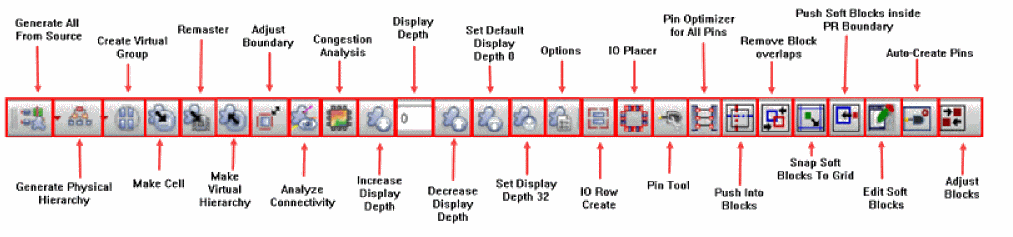
The Floorplan toolbar is used to invoke the Floorplanner commands. The Floorplan toolbar is available by default as shown in the graphic.
Using the Floorplan toolbar commands, you can create a rough topology of the design rather than the final layout solution. The Floorplan toolbar also includes additional commands to update soft blocks, import predefined information from source physical cellviews, create soft pins, snap pins, analyze connectivity, and set floorplanning global options.
The following table describes the usage of different Floorplan commands:
|
Command
|
Description
|
|
Physical Hierarchy Generation Methods
|
Allows you to generate a physical hierarchy from the logical hierarchy in a schematic. It also creates soft layouts and soft abstracts in the layout canvas corresponding to the configuration view generated by CPH.
|
|
Reinitializing a Floorplan
|
Makes a collection of design objects based on their cellType and places them around the design boundary. You can use the command to reinitialize a layout and alter the state of different design objects simultaneously.
|
|
I/O Planning and Placement
|
Allows you to optimize the IO position, placing I/Os and macros.
|
|
Block Placement
|
Enables you to automatically place all hard and soft blocks in a design and minimize the wire length and chip area.
|
|
Soft Blocks
|
Allows you to update soft blocks, remove soft block overlaps, snap soft blocks to the routing grid or manufacturing grid, pull soft blocks to the core area, and to push the top-level implementation of power structures, including metal shapes and poly layers, into the block level.
|
|
Pin Group Guides
|
Allows you to create pin groups, assign them to full or partial edge(s), and apply process constraints, such as layer range and spacings, to the entire pin group through a dedicated pin group guide constraint.
|
|
Pin Tool
|
Enables you to perform all pin-related tasks, such as creating pins, resizing pins, planning and optimizing pins, editing pin attributes, and setting their location constraints.
|
|
Pin Optimization
|
Positions the pins of blocks in a manner that helps obtain the shortest possible net length at a particular level in the design.
|
|
Auto-Create Pins
|
Searches for net shapes in a design and creates boundary and buried pins automatically on these net shapes.
|
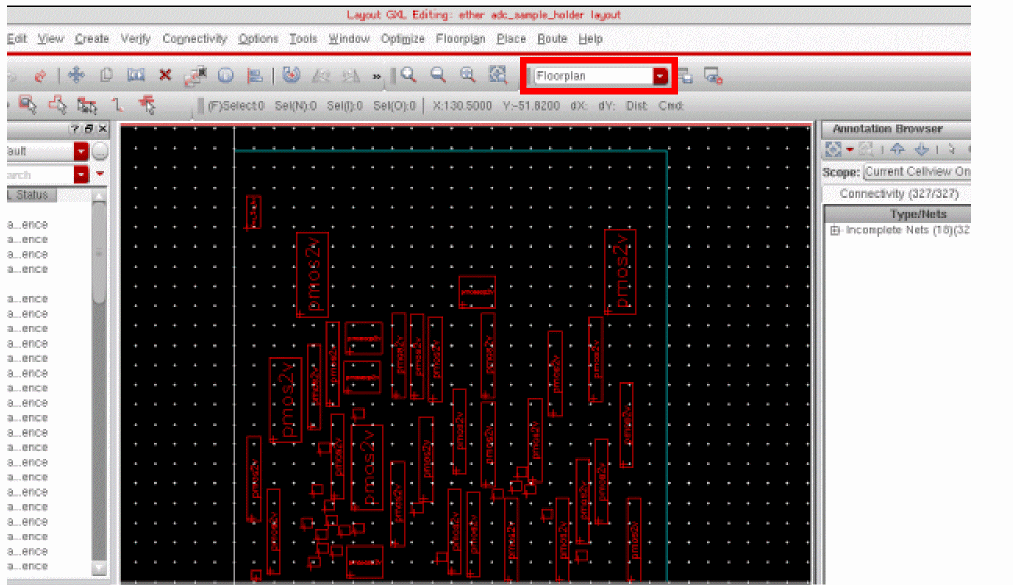
Floorplanner has its own workspace that shows the canvas, the toolbars, the Navigator and Property Editor assistants, and Annotation Browser.
Related Topics
Navigator
Property Editor
Annotation Browser
Return to top