
Editing View Properties
To edit the properties associated with a view:
- On the Library Manager form, select the view whose properties you want to edit.
-
Choose Edit – Properties.
The View Property Editor form appears.
If you do not have write permission for the selected cell, the View Property Viewer appears instead of the View Property Editor. You can display but not edit the properties.The properties of the selected view appear at the bottom of the form.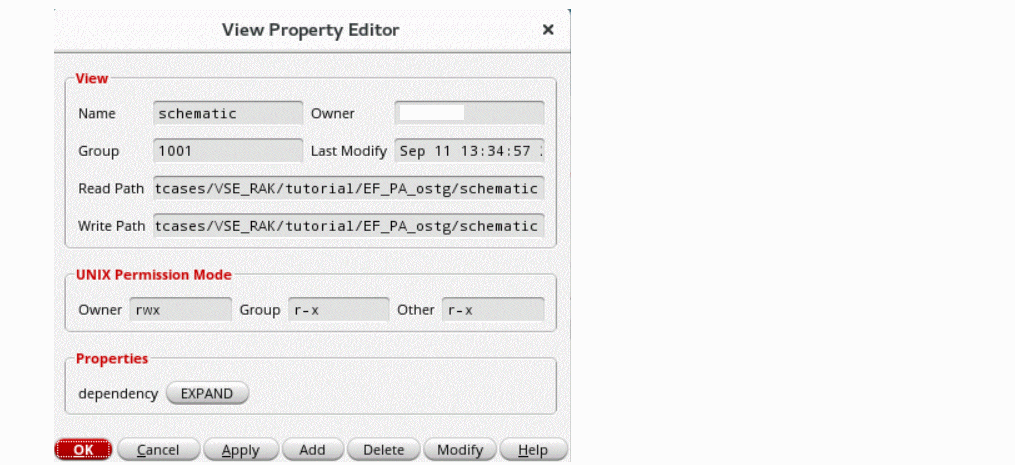
-
In the View Property Editor form, you can add, delete, and modify view properties:
- To add a property, click Add.
-
To delete a property, select the property and click Delete.
The selected property is removed from the form. - To modify a property, select the property and click Modify.
The dependency property shown above has an Expand button. If you click Expand, the Hierarchy Property Editor form appears. You can perform similar operations to those outlined above on this form.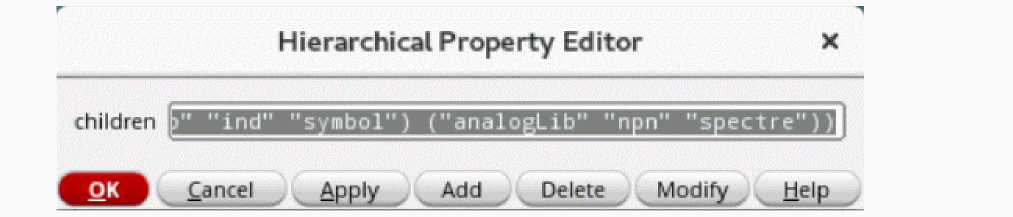
- Click Apply.
Related Topics
Adding Properties to a Library, Cell, or View
Modifying Properties of a Library, Cell, or View
Return to top