Adding Properties to a Library, Cell, or View
You can add properties to a library, cell, or view from the Library/Cell/View Property Editor form that appears when you choose Edit – Properties.
To add properties:
-
On the Library/Cell/View Property Editor form, click Add.
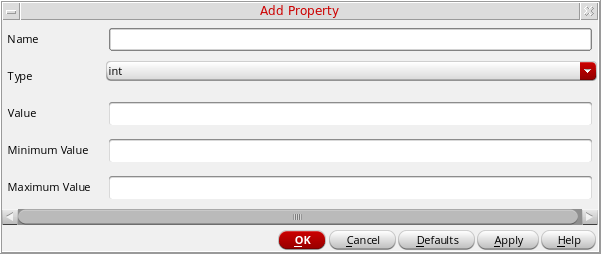
The Add Property form appears.
-
In the Name field, type a name for the property.
-
In the Type drop-down list, select from the set of available property types.
The type you select determines the fields that appear on the Add Property form:-
If you select int, float, or time from the Type field, the subsequent fields are Value, Minimum Value, and Maximum Value.
-
If you select string from the Type field, the subsequent fields are Value and Possible Choices.
-
If you select boolean, ILExpr, ILList, NLPExpr, netSet, fileName, or hierProp from the Type field, the subsequent field is Value.
-
Type appropriate values in the remaining field or fields that appear based on the Type you selected in the previous step.
|
Type
|
Field
|
Valid Values
|
|
int
|
Value
Minimum Value
Maximum Value.
|
Any integer value
The values specified in the Minimum Value and Maximum Value fields define an inclusive range for a property value. The Value is the default value and must be in the specified range. You can specify infinity (no limit over 0), -infinity (no limit under 0), or leave the field blank to reflect no limit on the value.
|
|
float
|
Value
Minimum Value
Maximum Value
|
Any floating-point value
|
|
time
|
Value
Minimum Value
Maximum Value
|
Time and date values
|
|
string
|
Value
Possible Choices
|
Any string (no quotation marks) or no string
Additional comma-separated list of strings (no quotation marks) or no strings
\"string\"
-
If you leave the Value field blank, you must also leave the Possible Choices field blank; the result is that any string can be specified as a valid value for this property
-
You may specify Value without specifying Possible Choices; the result is that Value is the default string and any other string can be specified as a valid value for this property
-
If you specify strings in both the Value and the Possible Choices fields, the result is a a drop-down list containing the only valid values for the property with Value as the default selection
-
You cannot leave the Value field blank and type a string in the Possible Choices field.
|
|
|
boolean
|
Value
|
TRUE, true, t, yes, FALSE, false, nil, or no
|
|
ILExpr
|
Value
|
SKILL expression
|
|
ILList
|
Value
|
SKILL list
|
|
NLPExpr
|
Value
|
Expression evaluated by the netlister substitution language
|
|
netSet
|
Value
|
|
|
fileName
|
Value
|
Any valid file name string
|
|
hierProp
|
Value
|
A valid list of properties
|
-
Click OK.
The added property name and its value or values appear at the bottom of the Library/Cell/View Property Editor form as follows:
|
Value Set
|
Appearance
|
|
Value
Minimum Value
Maximum Value
|
The value you specified in the Value field appears in an editable field to the right of the property name at the bottom of the Property Editor form; the value range defined by Minimum Value and Maximum Value appear between the property name and the field like this:
propertyName (minVal:maxVal) [_value________]
|
|
Value and Possible Choices
|
The appearance depends on what you typed in the fields as follows:
-
If you left the Value field blank, a blank field appears to the right of the property name at the bottom of the Property Editor form
-
If you specified a Value and left the Possible Choices field blank, the value appears in a field tothe right of the property name at the bottom of the Property Editor form
-
If you specified both a Value and Possible Choices, these values appear in a drop-down list to the right of the property name at the bottom of the Property Editor form with Value as the default selection
|
|
Value alone
|
The value appears in an editable field to the right of the property name at the bottom of the Library/Cell/View Property Editor form
|
Related Topics
Add Property Form
Editing Library Properties
Editing Cell Properties
Editing View Properties
Return to top