
Renaming Files
- Depending on your viewing mode:
- Select the file you want to rename.
-
Choose Edit – Rename.
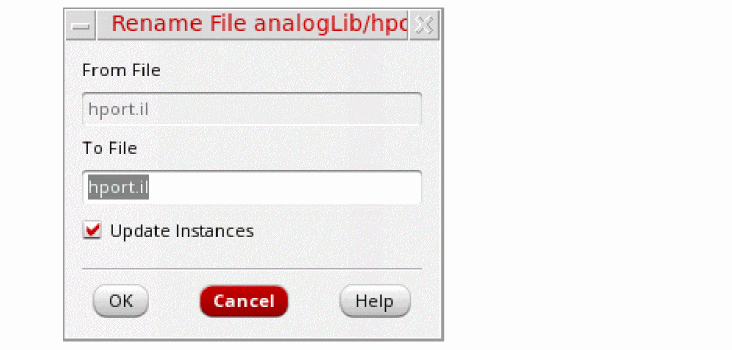
The Rename File form appears. The name of the file you selected appears in the From File field.
-
In the To File field, type the new name for the file.
The new file name cannot duplicate an existing file name in the library. - Click OK.
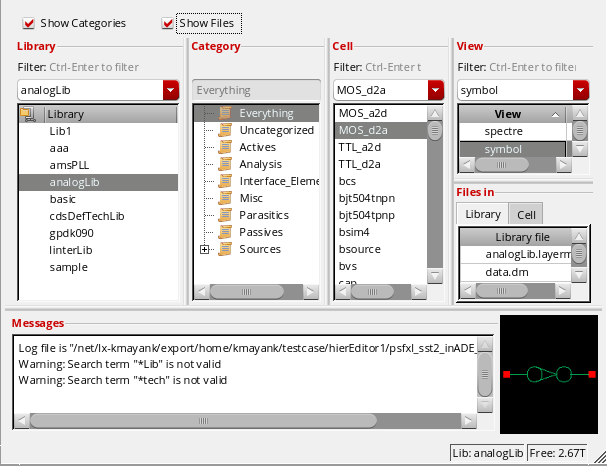
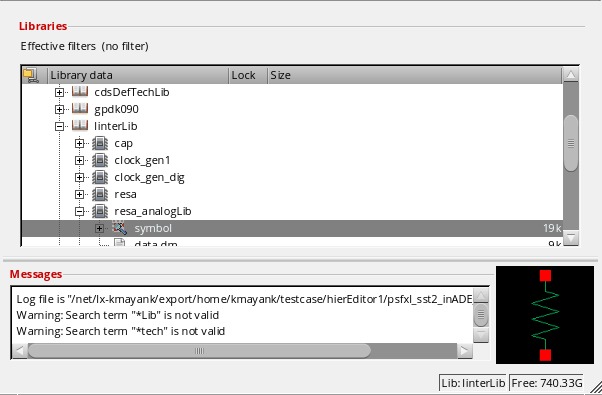
The Library Manager changes the name of the selected file (From File) to the new name (To File).
If you are working with a design-managed file, the Rename Cell File dialog box shows an additional section.
Related Topics
Controlling the Display of Library Information
Return to top