
Renaming a View
- Select the view you want to rename.
-
Choose Edit – Rename.
The Rename View form appears.
The name of the view you selected appears in the From View field. The entire cellview path appears in the title banner of the form.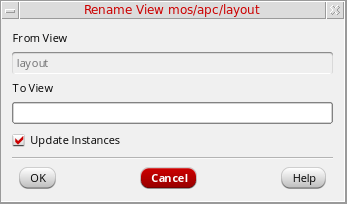
-
In the To View field, type the new name for the view.
The new view name cannot duplicate an existing view name for the cell. -
Deselct Update Instances.
-
When Update Instances is selected, the Library Manager overwrites any occurrences of the From View name with the To View name.
If you renamesymboltosymbolA(for example), all instances of…/projectLib/buff/symbolare changed to…/projectLib/buff/symbolA. -
When Update Instances is unselected, the Library Manager keeps references to the From View name.
If you renamesymboltosymbolAwith Update Instances unselected, instances of…/projectLib/buff/symbol(for example) remain the same such that they become unbound instances unless you replace thesymbolview.
-
When Update Instances is selected, the Library Manager overwrites any occurrences of the From View name with the To View name.
- Click OK.
The Library Manager changes the name of the selected view (From View) to the new name (To View).
If you are working with a design-managed library, the Rename Library dialog box shows an additional section.
Related Topics
Return to top