
Creating a New Library in the Library Manager
To create a new library using the Library Manager, follow these steps:
-
In the Library Manager, choose File – New – Library. Alternatively, you can click inside the Library list box and press
Ctrl+Non the keyboard.
You can also type the name of the library in the Library field of the Library Manager window and pressCtrl+Nto open the New Library form. In this case, the Name field in the New Library form is automatically populated with the name that you have entered in the Library field of the Library Manager window.
The New Library Form is displayed.Creating a new or temporary library within an existing library is not allowed. This is because any directories within a library are handled as cells.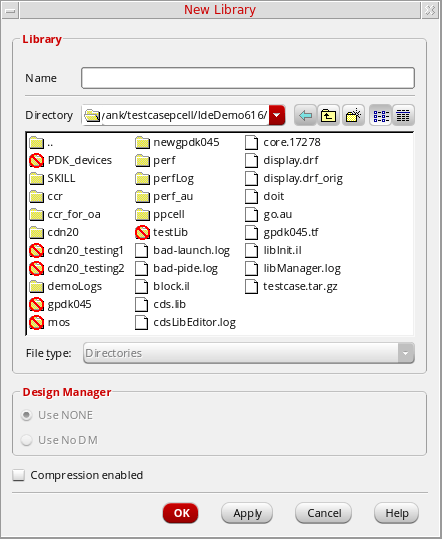
-
In the Name field, type the name of the library you want to create.
The new library name cannot be the same as another library. -
Use the Directory navigation tools to specify the destination directory in which you want to create the new library. You can also type a directory path in the Directory field. You must have write permission in the directory where you want to create a library.
If you want the library to be under design management control, you must create it in a managed project area. In the Design Manager group box, specify whether you want to use a design management system.-
If you want to use your design management system, select Use <design management system> (the default).
When you have the Design Management setup for the new library, the default DM choice can be specified by a cdsenv variable, "ddserv.lib" "dmChoice". If that value matches one of the DM specifications given for theDMTYPEin thecdsinfo.tagfile, then the cdsenv value is picked as the default in the New Library form.
The software suggests a design management system if it has been specified with the DMTYPE property in acdsinfo.tagfile that is not library-specific but included in the search path. While creating a new library, the design management (DM) information is stored in thecdsinfo.tagfile by default when the DM tool is installed. - If you do not want to use design management, select Use No DM.
These options gets disabled unless a design management system is available for selection. -
If you want to use your design management system, select Use <design management system> (the default).
- You can select the Compression Enabled check box to write OpenAccess data to this library in a compressed format.
-
Click OK.
The Technology File for New Library form is displayed.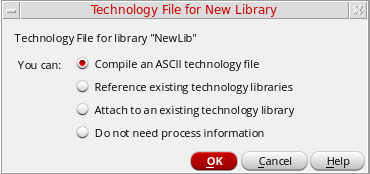
- Choose one of the following technology file options to proceed:
Related Topics
Compressing a Library Using Library Manager
Technology File for New Library Form
Return to top