
1
Configuring the Virtuoso Studio Design Environment
The Virtuoso Studio Licensing and Configuration User Guide describes how to configure the Virtuoso® Studio software as well as provides the following information about the environment:
- Executables needed to run the software - see and Setting the Installation Path for Cadence Tools for more information
- Operating system requirements - see Product Tier Features and Verifying Your System Configuration for more information
- Directory hierarchy for storing executables and data files - see Virtuoso Studio Design Environment Hierarchy and Setting the Installation Path for Cadence Tools for more information
- Key licensing characteristics - see Virtuoso Studio Design Environment Licensing Setup for more information
This user guide is aimed at developers and designers of integrated circuits and assumes that you are familiar with:
- The Virtuoso Studio and application infrastructure mechanisms designed to support consistent operations between all Cadence® tools.
- The applications used to design and develop integrated circuits in the Virtuoso Studio, notably, the Virtuoso Layout Suite, and Virtuoso Schematic Editor.
The Virtuoso Studio design environment technology file.The following topics are discussed in this chapter:
- Virtuoso Studio
- Advanced Features and Token Licenses
- Methods to Track Token Licenses
- Software Product License Management Form
- Product Tier Features
- Virtuoso Studio Design Environment Hierarchy
- Virtuoso Studio Design Environment Licensing Setup
Use the Cadence Installation Guide and Cadence License Manager to install the Virtuoso® Studio software and configure the licenses.
Virtuoso Studio
Virtuoso Studio provides a seamless transition from one Virtuoso Studio design environment to another with help of the common user interface (UI) and the automated license checkout process.
This platform provides a unified front-to-back design environment. The front-end design environment consists of Virtuoso Schematic Editor® (VSE) and ADE product families. The back-end consists of the Virtuoso Layout Suite® (VLS) product family.
Each of the product families contains applications in a tiered packaging structure, and conform to common and consistent licensing behavior and operation.
Overview of Virtuoso Studio Product Families
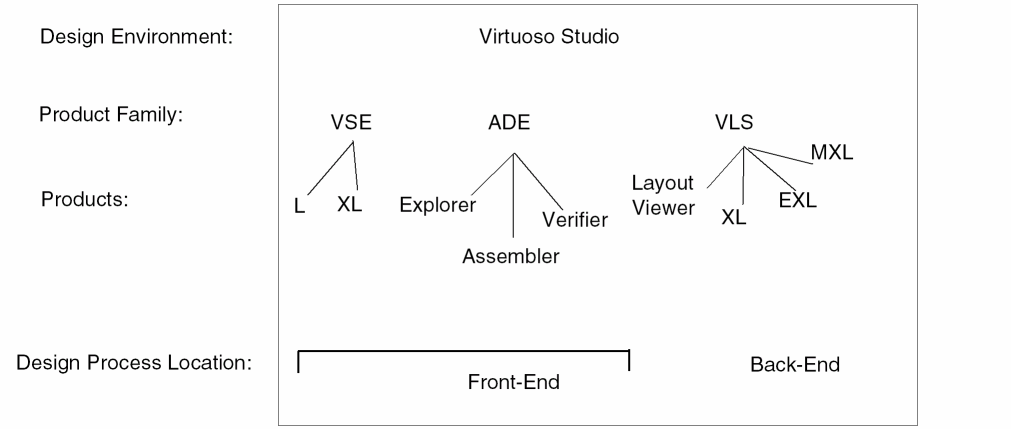
Virtuoso Studio Licensing
When you purchase a Virtuoso product, you also purchase licenses that entitle you to use the applications that are part of that product. Most of these licenses are floating licenses that are available to anyone in the work group. They are checked out from a central license pool at the beginning of work and checked back in when work is done. A few licenses might be restricted to specific users or servers.
When you run Virtuoso software, you are more likely to use applications in combination with each other and the software checks out the necessary licenses automatically when you run the command to start an application. Alternatively, you can check licenses in and out from the Command Interpreter Window (CIW).
Application Levels of Virtuoso Studio License
Some Virtuoso applications are available at two or three different levels. The most basic read-only tier is Viewer, unassisted tier is L; the standard, assisted tier is XL; the advanced, automated tiers are EXL and MXL. Each higher tier provides additional features with more automated design assistance and you can also set the default application level for a cellview.
The following table shows the tiers for various Virtuoso applications:
The file your_install_dir/share/license/products.dfII contains product numbers and feature strings for Virtuoso software licenses.
You can check out and use applications of different levels together. The software always checks out the highest level license you need. If you descend in your design hierarchy, the software maintains the application level you are using.
If your attempt to check out a particular license level fails, the program asks whether you want to check out the next “higher-tiered” license. For example, if you cannot check out a license for Layout XL, the program asks whether you want to check out a higher-tiered license to run the Layout application. Your answer can be Session, Skip, Always, or Never. The Session and Skip options are stored in the memory. If you answer Always, the program automatically tries for a higher-tiered license without asking you again. If you answer Never, the program never tries for a higher-tiered license and never asks you again.The Always and Never options are automatically written in the .cdsenv file. When Always and Never options are used, current values for the licenses VLSAdvOpt_UseNextLicense (95511) and VLSAdvStd_UseNextLicense (95512) are used.
For L, XL, and EXL applications, such as Schematic, you can check out licenses one per user, host, display. You can open more than one session with a single license.
For GXL applications in the Layout applications, the software allocates tokens for the features you use.
Types of Licenses
- User, host, and display (UHD) licenses: The L, XL, EXL, and MXL product tiers have UHD licenses.
- Job (J)-based and token-based licenses: The Layout GXL product offers flexible licensing that can be used to invoke Layout XL and enable some advanced features in the Layout XL and EXL tiers. These are job-based (J) licenses which cannot be shared.
License Consumption in Product Tiers
Product Tier: L
The L product tier offers basic design creation and implementation capabilities.
| Base Product Name | License Feature Name | License Type |
|---|---|---|
Product Tier: XL
The XL product tier contains IC design products that introduce new technologies and advancements in design automation. The XL tier offers tightened linkage between design and implementation phases in the areas of creation, analysis, implementation, and repair.
| Base Product Name | License Feature Name | License Type |
|---|---|---|
Product Tier: EXL
The EXL product tier offers full access to all the Layout XL functionality in addition to providing access to all the functionality that was accessible under Layout EAD in previous releases. The Layout EXL product tier is also the default application for advanced applications such as concurrent layout editing, design planning, congestion analysis and interactive simulation driven routing.
Layout EXL is also the minimum base application required for fully integrated access to layout tools and flows facilitating advanced layout design at 5nm process nodes and below.
For more information on enabling the EAD workspace and engines within Layout EXL, see Virtuoso Electrically Aware Design Flow Guide
| Base Product Name | License Feature Name | License Type |
|---|---|---|
Only one base license per product family tier is checked out at a time. As a result:
-
The VLS EXL tier does not require an VLS XL tier license. A higher checked out license allows you to run lower-tier applications. For example, you can run VLS XL and VLS EXL in the same session with only a VLS EXL license checked out. However, the higher checked out license will remain checked out until all VLS windows are closed.
The following license is required in addition to the base license:- Token-based features in VLS GXL can be launched from the VLS XL or VLS EXL tier. (Tokens per Feature (VLS GXL))
Product Tier: MXL
The MXL product tier is the highest tier for layout application introduced in the Virtuoso Studio IC 23.1 release. It offers full access to all the Layout EXL functionality in addition to the integrated automated placement and routing solutions with unified interface to cater to all the design styles across both mature and advanced process nodes.
The Layout MXL tier is also the default cockpit for designing the integrated circuits in the context of the larger system-level design by providing technologies to address heterogeneous design, such as co-design and multi-fabric electromagnetic and thermal analysis.
Products that are not Tier-Based
| Product Name | License Feature Name | License Type |
|---|---|---|
For information on the specific features in each of the product tiers, see Software Product License Management Form: Diagnostics Tab.
Additional Feature Licenses
Some product features require you to check out additional licenses on top of the base product license for the product you are using.
Similarly, advanced node features require the Virtuoso_Adv_Node_Opt_Layout (Product Number 95511), the Virtuoso_Adv_Node_Opt_Lay_Std (Product Number 95512),or the Virtuoso_Adv_Node_Layout_GAA (Product Number 95513) license.
Some of the additional licenses are not needed in the MXL tier as shown in table below.
You can start applications in each Virtuoso product family using one of the following methods:
- File – Open and File – New from the CIW
- Library Manager
- Launch menu from the design windows
- File – Open and File – New from the design windows
- Hierarchy Editor
- Navigator Assistant
- History
- Bookmarks
Choosing Default Applications
Use one of the following methods to open a design in a specific product family tier and keep that setting as the default upon startup:
- File – Open and File – New from the CIW.
- Library Manager.
- File – Open and File – New from the design windows
- File – Set Default Application from the design windows
To set the default application using any of the methods above:
- Choose the desired application in the Application field.
-
Select the Always use this application for this type of file option.
This field is mapped to the environment variables
In the event that the default application is not a base application (L tier), only the license of the chosen application will be checked out, not the base application. Only one of the base licenses in a given family is ever checked out at any one time.
Setting the CDS_Netlisting_Mode Environment Variable
When working in ADE, you need to set the CDS_Netlisting_Mode SHELL environment variable to Analog using one of the following methods:
-
Type the following at the command line prior to launching
virtuoso
setenvCDS_Netlisting_Mode=Analog -
Type the following SKILL in the command interpreter window (CIW)
setShellEnvVar("CDS_Netlisting_Mode=Analog")
cdsSetNetlistMode()
t
cdsGetNetlistMode()
"Analog"
Design Framework II Licenses
Product licenses 111 and 95011 (Virtuoso_Adv_Node_Framework) are checked out at workbench start and while performing the following activities:
- Starting Virtuoso applications in either graph or non-graph mode
- Launching routines that interact with design framework II® (DFII) data (for example, CDF, Pcells, and param)
-
Accessing Cadence data using
itkDb - Launching open simulation system (OSS) netlisters
In the event of a DFII license failure at startup, the Virtuoso application exits and an error message is displayed in the CIW as well as a log file.
License Check Out/Check In Behavior
License Usage When Using Interactive Commands
-
Product Tier: L
In the L product tier, if a schematic design is opened in read-only mode or changed to read-only mode by choosing File – Make Read Only, no license checkout is required.
However, when a schematic design is opened for editing or when it is made editable by choosing File – Make Editable in the application window, theVirtuoso_Schematic_Editor_Llicense is checked out. -
Product Tier: XL
In the XL product tier, theVirtuoso_Layout_Suite_XLlicense is checked out when a layout is opened. An additionalVirtuoso_Adv_Node_Opt_Layout,Virtuoso_Adv_Node_Opt_Lay_Std, orVirtuoso_Adv_Node_Layout_GAAis checked out when the layout design contains Advanced Node features (). These licenses are checked in when all layout windows are closed, including all Layout Viewer, Layout XL, and Layout EXL windows. -
Product Tier: EXL
In the EXL product tier, opening a design in Layout EXL checks out aVirtuoso_Layout_Suite_EXLlicense. An additionalVirtuoso_Adv_Node_Opt_Layout,Virtuoso_Adv_Node_Opt_Lay_Std, orVirtuoso_Adv_Node_Layout_GAAis checked out when the layout design contains Advanced Node features (). -
Product Tier: MXL
In the MXL product tier, opening a design in Layout MXL checks out aVirtuoso_Layout_Suite_MXLlicense. An additionalVirtuoso_Adv_Node_Opt_Layout,Virtuoso_Adv_Node_Opt_Lay_Std, orVirtuoso_Adv_Node_Layout_GAAis checked out when the layout design contains Advanced Node features (). - GXL Feature
When you launch a GXL-based feature from the XL or EXL tier, the following token license activities occur:
- A token license is checked out during the execution of a command from a selected feature menu or toolbar.
- A token license is checked in automatically after completion of a command for some features.
The Context and Window – Toolbar menus do not affect the state of a token license. These menus are navigation aids and are not linked to license activity.
For all of the Virtuoso GXL features, with the exception of the Custom Digital Placer and Floorplanning, licenses are checked in after completion of the command. For the Custom Digital Placer and Floorplanning, the license is checked in only when the task is disabled or the XL or EXL session is exited.
License Usage When Using Non-Interactive Commands
Non-interactive, lengthy, and batch commands check out the license at the beginning of the command and automatically check in the license upon completion of the command activity. This model applies to automatic placers and routers.
License Activity for Various Applications
License Requirements for Advanced Node and Advanced Methodologies Features
When you open or edit a design, the application checks if there is constraint or design element in use that requires the use of the layout advanced option license and the application requests for that license to be checked out. This license is referred to as the minimum data license. These licenses are listed in the table below from highest capability to the lowest capability.
The following table lists the license requirements for different advanced node features:
|
Technology database contains a layer with more than two masks |
|
|
Layout XL cellview or the technology database contains WSP data. |
|
|
Cellview or technology database contains a constraint or constraint parameter that requires 95511 license.
See |
|
|
Technology database contains a layer with 2 masks and no layer with more than 2 masks. |
|
|
Cellview or technology database contains a constraint or constraint parameter that requires 95512 license.
See |
|
Advanced Node License Checkout Order
The checkout order of these licenses is controlled by the VLSAdvOptLicenseCheckoutOrder cadence environment variable. The default checkout order is:
"license" "VLSAdvOptLicenseCheckoutOrder" 'string "95512 95511 95513"
The license checkout order works when the license checkout request is being processed. This process always starts from the first license in the list until it finds a license that meets the checkout requirement and is available for checkout.
As you can use VLSAdvOptLicenseCheckoutOrder to change checkout order based on your requirements, Virtuoso takes the requesting license and goes over the checkout order value until it finds the first value that meets the requirements and can be checked out successfully.
You can also reset the checkout order using the controls in the Software Product License Management Form: Ordering Tab.
Virtuoso Visualization and Analysis XL and ADE Licenses
Virtuoso Visualization and Analysis tool runs only in the XL mode, which supports all the features of Virtuoso Visualization and Analysis L and XL from previous releases. It follows the license check out procedure given below.
- If Virtuoso Visualization and Analysis XL is opened from within ADE Explorer or ADE Assembler, it shares the same license tokens as that of the product.
-
If Virtuoso Visualization and Analysis XL is opened in stand-alone mode or from Virtuoso, it can either check out the Virtuoso Visualization and Analysis XL license or a tier of Maestro license, depending upon the preferences you set in the VIVALicenseCheckoutOrder
cdsenvvariable. By default, this variable is set toVIVA,ADE,Verifierwhich results in the following license check out tasks being performed:- Checks out the Virtuoso Visualization and Analysis XL license.
- If the checkout operation in the previous step fails, checks out a Maestro (Virtuoso ADE Explorer or Virtuoso ADE Assembler) license according to the checkout order specified in the checkoutOrder .cdsenv variable.
If this variable is set toADE,VIVA,Verifier, the license check out tasks are performed in the following order:- Checks out the license of ADE Explorer or ADE Assembler according to the checkout order specified in the checkoutOrder .cdsenv variable.
- If the checkout operation in the previous step fails, checks out the Virtuoso Visualization and Analysis XL license.
- When Virtuoso Visualization and Analysis XL is opened in stand-alone mode or from Virtuoso, the tool releases license when all the Virtuoso Visualization and Analysis XL windows are closed.
- When Virtuoso Visualization and Analysis XL is opened from within ADE and you close the ADE window, the Virtuoso Visualization and Analysis XL process holds the ADE license and continues to operate until all the main windows are closed.
License Usage in ADE Explorer and ADE Assembler
Depending on the run mode and feature being used ADE Explorer and ADE Assembler require different licenses. The following table describes the license consumption:
Table 1-1 License Checkout Behavior for ADE Explorer and ADE Assembler
| Action | License Checkout Preference Order (depending on the availability) |
|---|---|
|
Check in |
|
In addition to the Virtuoso ADE Assembler license, you would require the Virtuoso_Variation_Option (95265) license for the following advanced options in Virtuoso ADE Assembler:
- High-sigma MC analysis to identify the worst-case behavior.
- Sensitivity accuracy and mismatch contribution.
- Assisted Yield Improvement flow.
- Advanced Optimization algorithms.
When running a large number of parallel jobs from ADE Explorer or Assembler, the Virtuoso Simulation Expansion Option (95290) license is required for every increment of 400 jobs. Also, Virtuoso ADE Simulation Manager (95237) license is required to enable maximum simulation throughput and responsiveness in ADE Assembler.
License Checkout When Running the Virtuoso Schematic and Verilog Driven Mixed-Signal Flow
To run the Virtuoso Schematic and Verilog Driven Mixed-Signal Flow, you must set the CDS_ENABLE_VMS environment variable before starting Virtuoso.
License Checkout While Running the Electrically Aware Design (EAD) Flow
While running simulations in Virtuoso ADE Assembler to generate electrical data and save datasets for the EAD flow, in addition to the base license for Virtuoso ADE Assembler, the EAD flow requires either of the following licenses:
-
Virtuoso_Layout_Suite_EXL(Product Number 95800) -
Virtuoso_Variation_Analysis_Op(Product Number: 95510)
You can change the default license checkout order using the EADdatasetCheckoutOrder environment variable.
License Checkout for Virtuoso Photonics Platform
To enable the photonics flows, you can set either the Virtuoso_Photonics_Platform shell or the Virtuoso_Photonics_Option environment variable.
After setting the Virtuoso_Photonics_Platform variable, when you start Virtuoso, an attempt is made to check out and initialize the Virtuoso_Photonics_Platform license (Product Number 95551). If this license is available, you will not need separate licenses for Virtuoso CurvyCore technology, Virtuoso Schematic Editor, Virtuoso Layout Suite, and Analog Design Environment features.
Alternatively, you can also set the Virtuoso_Photonics_Option environment variable to enable the photonics features. After setting this environment variable, when you start any Virtuoso application, such as Virtuoso, stream, itkDB-based binaries, an attempt is made to check out and initialize the Virtuoso_Photonics_Option license (Product Number 95550). Subsequently, as you open editing cockpits, relevant product licenses will be checked out (for example, VLS-EXL for layout editing), as needed.
In both the cases, if the specified license is not found, the launch of the executable fails.
To enable Virtuoso CurvyCore technology, you would need the Virtuoso_MultiTech_Framework license in addition to the Virtuoso_Photonics_Option license. However, in case of Virtuoso_Photonics_Platform license, Virtuoso CurvyCore technology is enabled automatically.
License Checkout for Virtuoso MultiTech Framework
To enable Virtuoso MultiTech Framework, you need to set the shell environment variables Virtuoso_MultiTech.
After setting one of the above shell environment variables, when you start Virtuoso, the following licenses are checked out:
- Cadence Design Framework II (Product Number 111)
-
Virtuoso_Adv_Node_Framework(Product Number 95011) -
Virtuoso_MultiTech_Framework(Product Number 95022)
License Check out for Virtuoso RF IC Design Solution
One of the following Cadence EM Solvers:
Virtuoso Layout Suite EXL includes:
-
Virtuoso_Adv_Node_Frameworklicense feature. - The Electromagnetic Assistant and the interface to EM solvers.
License Check out for Virtuoso RF System Design Solution - Module Layout in Virtuoso
-
Virtuoso_MultiTech_Framework -
Virtuoso_Schematic_Editor_XL -
Virtuoso_Layout_Suite_EXL -
Clarity_3DSolver
Virtuoso Layout Suite EXL includes the Electromagnetic Assistant and the interface to EM solvers.
You must set the following shell environment variable before you launch Virtuoso:
This environment variable is not needed in Layout MXL.
License Check out for Virtuoso RF System Design Solution - Module Layout in Allegro
-
Virtuoso_MultiTech_Framework -
Virtuoso_Schematic_Editor_XL - Allegro Package Designer Plus
- SiP Layout Option
-
Clarity_3DSolver
You must set the following shell environment variable before you launch Virtuoso:
License Checkout for Virtuoso Power Manager
License Checkout When Running PVS-CV in Virtuoso
When running Physical Verification System (PVS) Constraint Validation (CV) in Virtuoso, the following license is checked out in addition to the base product licenses, which are checked out depending on the requirement of other features being used:
License Checkout When Running Virtuoso IPVS
Virtuoso Integrated Physical Verification System (IPVS) requires the following licenses:
- Virtuoso_DRC_Opt: Virtuoso Integrated Physical Verification System Option for Virtuoso Layout Suite license (Product Number: 96400)
- Phys_Ver_Sys_Results_Mgr: Cadence Physical Verification System Results Manager (Product Number: 96240)
- Virtuoso_IPVS_Adv_Ana_Opt: Virtuoso Integrated Physical Verification System Advanced Analysis Option (Product Number:96310)
License Checkout for Running Third-party Simulators
For running third-party (non-MMSIM) simulators in ADE product family (Explorer/Assembler) the Virtuoso® Analog Oasis Run-Time Option license (OASIS_Simulation_Interface, Product Number 32100) is required. Prior to usage, the simulator must be authorized for integration into the simulation environment. To integrate a commercially available simulator contact Cadence Connections (connections@cadence.com) and to integrate a proprietary simulator, contact Cadence Customer Support.
Once the integration is complete, the Oasis Run-Time Option license will be checked out and held during netlisting and simulation. The license is checked back in when the netlisting and simulation run is complete.
License Checkout When Running Express Pcell in Virtuoso
The Express Pcell capabilities are available through Cadence Design Framework II (Product Number 111) without a need to check out the VLS XL license.
Abstract Generator License Usage
Abstract Generator requires the Virtuoso_Layout_Suite_XL, Virtuoso_Layout_Suite_EXL, or Virtuoso_Layout_Suite_MXL and Virtuoso_Adv_Node_Opt_Layout, Virtuoso_Adv_Node_Opt_Lay_Std, or Virtuoso_Adv_Node_Layout_GAA licenses.
License Checkout When Running Design Planning and Analysis
Design Planning and Analysis requires Virtuoso_Layout_Suite_EXL and 12 GXL Tokens or Virtuoso_Layout_Suite_MXL.
Pcells and License Usage
Pcell Interoperability and Performance: The actions of saving, editing, or opening a database using Core Cached Pcells capability, from either the GUI or SKILL and from any application, causes a Virtuoso_Layout_Suite_XL license to be checked out.
Process Rule Editor: The use of the Process Rule Editor, or associated SKILL function, to save, edit, or open a techDB or design object requires a Virtuoso_Layout_Suite_XL or Virtuoso_Schematic_Editor_XL license to be checked out.
Summary of License Checkout Behavior
The following table summarizes the license check-out behavior for different product features:
Table 1-2 Summary of License Check-Out Behavior
Setting License Check Environment Variables
There are a range of license check environment variables that can be used for detailed license checkout reporting. For example, you can set an environment variable to report whether a license check is taking too long or if a particular license or token has been checked out.
These license environment variables, as shown in an example for each below, can be set in one of two ways:
-
Using
setenvbefore running Virtuoso. -
Using the SKILL function setShellEnvVar() during a Virtuoso session.
-
CDS_LIC_PRINT_FILTER
This environment variable can contain a string with the names of license features and token capabilities, for detailed license checkout reporting using the format:
"Feature1:Token1,Token2,...:TokenN,Feature2, ...,FeatureM"
IfCDS_LIC_PRINT_FILTERis not defined, the license feature “111” will be the default.
You can obtain a list of all registered token capabilities by examining the content of the Software Product License Management Form: Token Usage Tab.
For example:setenv CDS_LIC_PRINT_FILTER "111, Virtuoso_Layout_Suite_XL, Virtuoso_Layout_Suite_GXL:VLS_GXL"
setShellEnvVar("CDS_LIC_PRINT_FILTER=111, Virtuoso_Layout_Suite_XL, Virtuoso_Layout_Suite_GXL:VLS_GXL")
You can also use a number of aliases with theCDS_LIC_PRINT_FILTERenvironment variable to cover multiple feature settings:
When setting theCDS_LIC_PRINT_FILTERenvironment variable value, you can also combine application names and aliases, for example:setenv CDS_LIC_PRINT_FILTER "Virtuoso_Layout_Suite_XL,vseall,adeall":virtuoso
setenv CDS_LIC_PRINT_FILTER "vlsall,vseall,adeall,111":virtuoso
-
CDS_LIC_PRINT_TIME
This boolean environment variable can be set to output the time (in milliseconds) to the CIW that is taken during a license check-out process. The values that can be set forCDS_LIC_PRINT_TIMEare 0 (do not print time) and 1 (print time), the default being 1.
For example:setenv CDS_LIC_PRINT_TIME 0 or setShellEnvVar(“CDS_LIC_PRINT_TIME=0”)
-
CDS_LIC_PRINT_ALWAYSThis boolean environment variable can be set to output messages for a particular license feature each time that license feature is checked out. The values that can be set forCDS_LIC_PRINT_ALWAYSare 0 (do not print each time) and 1 (print each time), the default being 0.IfFor example:CDS_LIC_PRINT_ALWAYSis not defined, or its value is 0, the message will be output only one time to the CIW.setenv CDS_LIC_PRINT_ALWAYS 1 or setShellEnvVar(“CDS_LIC_PRINT_ALWAYS=1”)
-
CDS_LIC_TIMER_INTERVAL
This environment variable is used to set the number of seconds required to pass, for a license search, before a timeout occurs. If the license check time exceeds the value ofCDS_LIC_TIMER_INTERVAL, a message will be output to the CIW informing you that the check time has been exceeded. The default value is 15 seconds.
For example:setenv CDS_LIC_TIMER_INTERVAL 10 or setShellEnvVar(“CDS_LIC_TIMER_INTERVAL=10”)
-
CDS_LIC_PRINT_TYPE
This environment variable can be set to output all license call related messages (information and warning) to the CIW, or only the warning messages. If the value ofCDS_LIC_PRINT_TYPEis set to “warn”, then only warning messages will be output to the CIW. If set to “all”, both information and warning messages will be output. The default is “warn”.
For example:setenv CDS_LIC_PRINT_TYPE “all” or setShellEnvVar(“CDS_LIC_PRINT_TYPE=all”)
-
CDS_LIC_TIMEOUT_DIALOG
This environment variable is used to display the timeout dialog when the license checkout time of a license feature, as defined byCDS_LIC_PRINT_FILTER, exceeds the timer interval specified byCDS_LIC_TIMER_INTERVAL. The value ofCDS_LIC_TIMEOUT_DIALOGcan be either “1” (which will display the dialog) or “0” (which will not display the dialog). The default value is “0”. -
CIC_ENABLE_LIC_PERF
This environment variable tests the license checkout performance of license features. If the license checkout time exceeds the specified threshold, a warning message is printed to the CIW.
For example:setenv CIC_ENABLE_LIC_PERF "limit=0.08 pings=4 interval=0.5"
Where,
limit=[time]is the threshold value for checkout time (in seconds).
pings=[count]is the number of pings sent to the license server. When this option is set, a specified number of pings will be sent to each license server (defined in CDS_LIC_FILE), when the license request time exceeds the threshold value. The default is0, which means no pings are sent to the license server.
interval=[time]defines the time interval (in seconds) between pings.
The results from the ping commands are printed to the CIW.
-
Advanced Features and Token Licenses
The advanced technology features in the XL and EXL tiers are accessed by tokens or multi-feature licenses which are defined by a multi-feature license model.
A token is one copy of a multi-feature license. Each feature requires a specific number of tokens. GXL multi-feature licenses are Job-based (J) licenses which are not shared between processes.
GXL Multi-Feature License Tokens
A specific number of tokens is required to access advanced features in Virtuoso_Layout_Suite_XL and Virtuoso_Layout_Suite_EXL. Tokens are not needed when same features are accessed from the Layout MXL tier.
If all of your license tokens are currently in use, or you have insufficient tokens to access a particular feature, additional tokens can be obtained by contacting your local Cadence representative. The following table lists the tokens needed for the VLS GXL multi-feature licenses:
Table 1-3 Tokens per Feature (VLS GXL)
Important Points to Note
- All of the features listed in Table 1-3 can be started in the XL, EXL, or MXL window.
- VPLGen: Using any of the Virtuoso Parameterized Layout Generator commands or Virtuoso Layout Generator commands to create, edit, or update a VPLGen or VLGen causes one VLS GXL token to be checked out. This GXL token remains checked out for the duration of the VLS XL or EXL session.
- Slotting does not require any GXL tokens in the Layout EXL and Layout MXL tier.
Virtuoso Space-based Router Tokens
Some Virtuoso Space-based Router features, such as viewing, navigation, and DRC checking, can be run from Virtuoso Layout Suite XL or EXL without additional licensing. Space_based Router tokens are required to perform routing and other tasks that modify the routing and routing environment, based on the number of nets in the design. When you invoke the first command that requires Space_based Router tokens, the tokens are checked out and are not released until you exit Virtuoso Space-based Router.
Some Virtuoso Space-based Router commands can use multiple processors in one workstation to accelerate processing. Additional Space_based Router tokens are required for the additional processors. The below table shows the number of additional tokens that you will need, based on the number of processors, or threads, that you want to use. License tokens can be reserved globally for use by all commands in a session or can be checked out as needed for a command. Tokens Per Feature: VSR for Automatic Routing (Space_based_Router)
| Number of Nets | Number of Processors | Number of Tokens |
For example, if your design has 100,000 nets and you want to run Virtuoso Space-based Router using six (6) processors, you will need 48 Space_based Router tokens, 24 for the net count plus 24 for the thread count.
Methods to Track Token Licenses
The following methods can be used to track token license activity.
lmstat Command
The lmstat command can be used to track token license activity from the command line. It reports activity for one license server only. Use the following arguments with the lmstat command.
|
List info about specified (or all) feature(s) from the increment line in the license file |
|
|
Allow communications with an old server that uses communications version 1.2 or earlier |
|
Example
-
Type the following in a shell window:
lmstat -c <
For example,license.file> -f "<feature.name>"lmstat -c sj234flex4 -f "Virtuoso_Layout_Suite_GXL"
-
Review the output.
In this example,designer1on hostlne2has theVLS_GXLlicense checked out (4 tokens).
For more information about the
lmstatcommand, see the Cadence License Manager.ThetokenPrintCapabilitiesSKILL function that printed the details of registered token licenses, including the number of tokens required for each capability and whether or not it is in use, no longer prints the token details. It will be deprecated in a future release. For more information ontokenPrintCapabilities, refer to the Virtuoso Studio Design Environment SKILL Reference.
Software Product License Management Form
You can use the Software Product License Management form to manage the licensing activity.
-
Select Options – License in the CIW. The Software Product License Management form is displayed. In this form, you can get all the Cadence-product license related information.
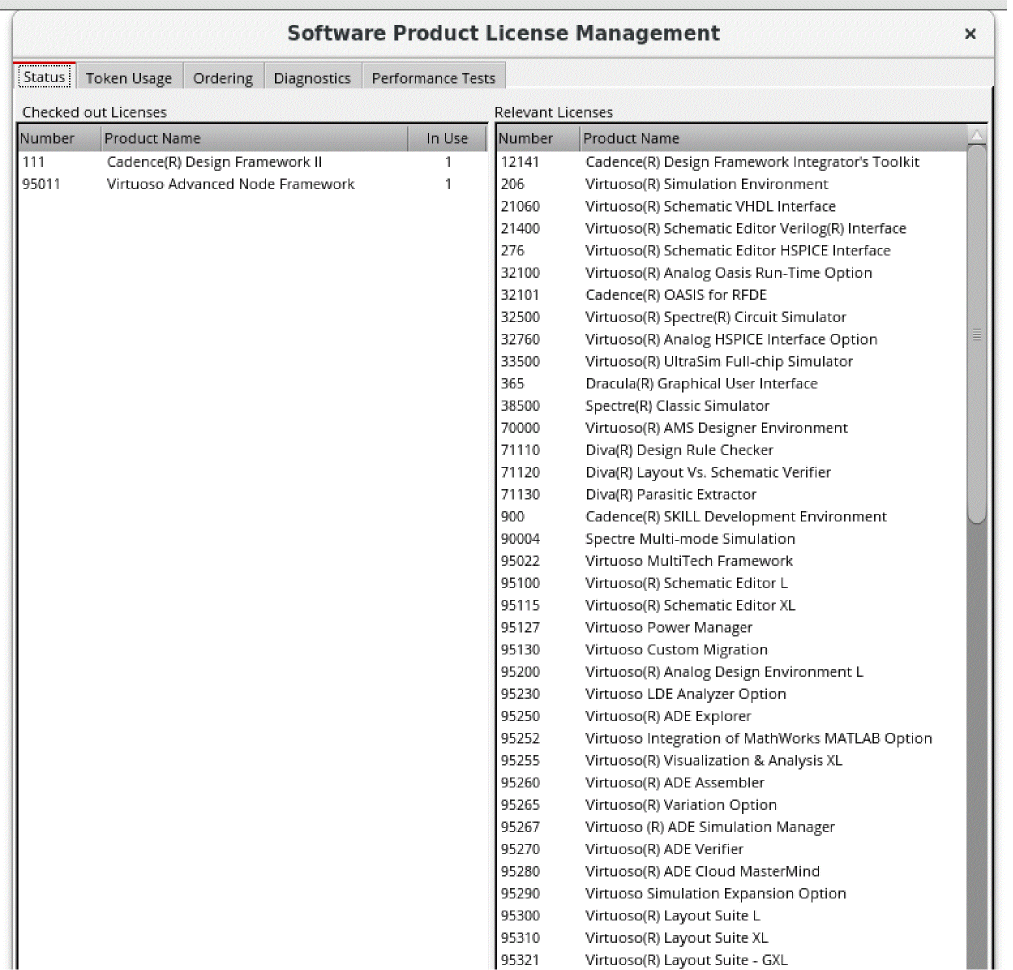
The form contains the following tabs to handle the licensing process:
- Status: Displays the license status in two panes – Checked Out Licenses and Relevant Licenses. For more information, see the Software Product License Management Form: Status Tab.
- Ordering: Contains the options related to license ordering. For more information, see the Software Product License Management Form: Ordering Tab.
- Diagnostics: Contains the options for configuring the license diagnostic settings. For more information, see the Software Product License Management Form: Diagnostics Tab.
- Performance Tests: Contains the options to run a diagnostic test that determines the license-checkout performance on a feature-by-feature basis and across each license server. The tests can be looped and repeated over a period of time to calculate the average, median, max, and min times for each checkout. For more information, see the Software Product License Management Form: Performance Tests Tab.
Software Product License Management Form: Status Tab
To open the Software Product License Management form - Status tab
-
Select Options – License in the CIW. The Software Product License Management form is displayed with the Status tab selected by default.
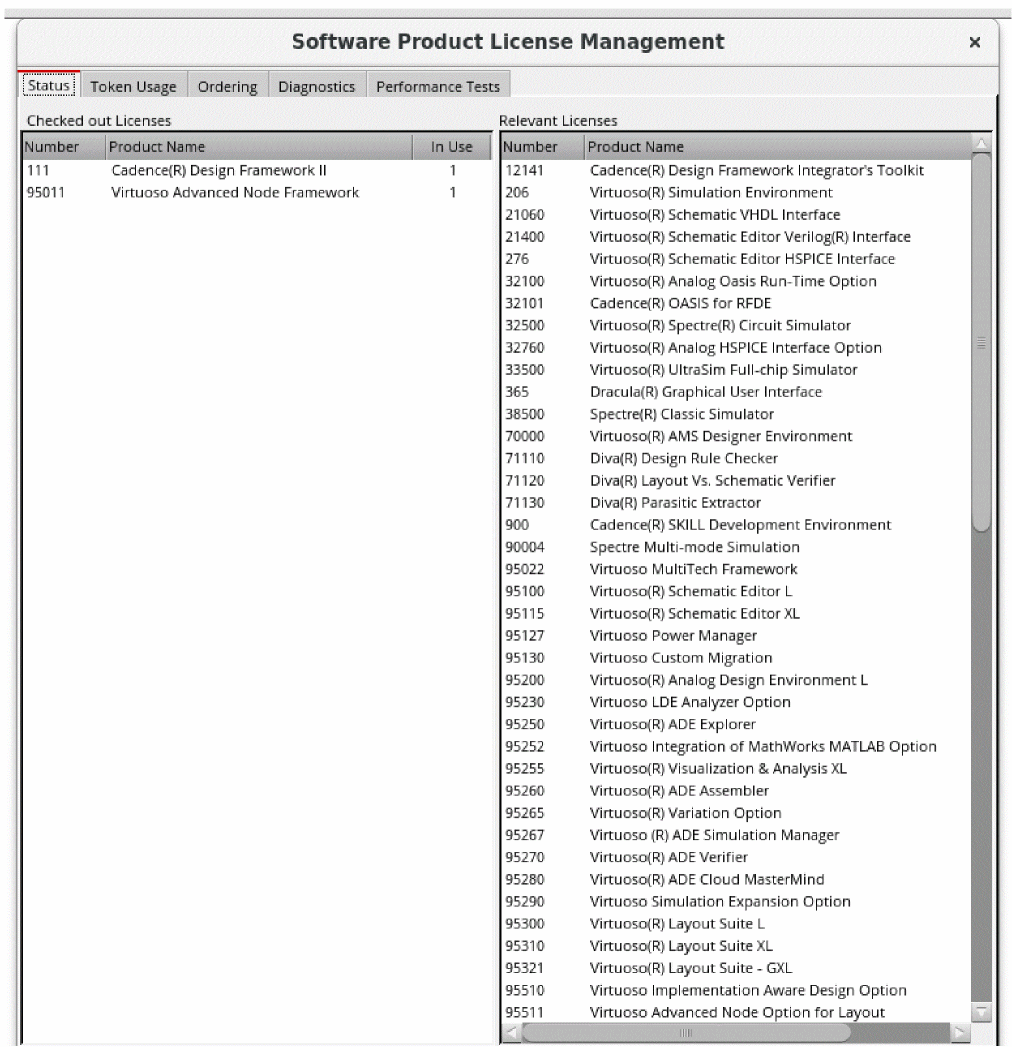
Checking the License Status
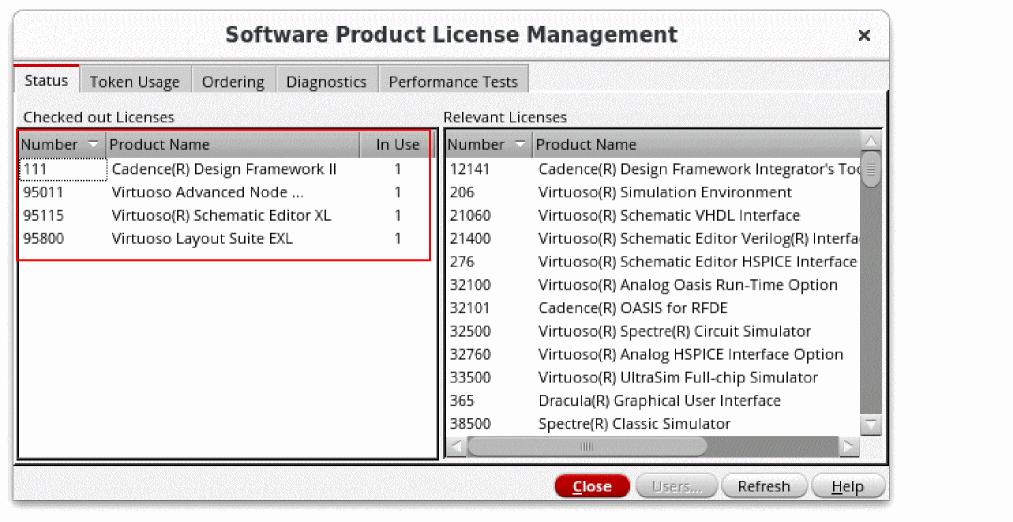
You can check the license status using either of the following ways:
-
Use the Checked Out Licenses pane of the Status tab.
This pane lists the licenses that are currently checked out, and their count.
-
Run the
lbuiGetCheckedOutLicensesSKILL function to return a list of checked out licenses, which appear in the Checked Out Licenses pane.
The list contains each license feature name and the number of licenses (tokens) checked out. In addition, the license activity information gets recorded in theCDS.logfile. This log file can be used later for creating reports to analyze the license usage.
For more information onlbuiGetCheckedOutLicenses, refer to the Virtuoso Studio Design Environment SKILL Reference.
Viewing Relevant Licenses
The Relevant Licenses pane on the Status tab lists the DFII licenses relevant to all of the tools incorporated into the workbench.
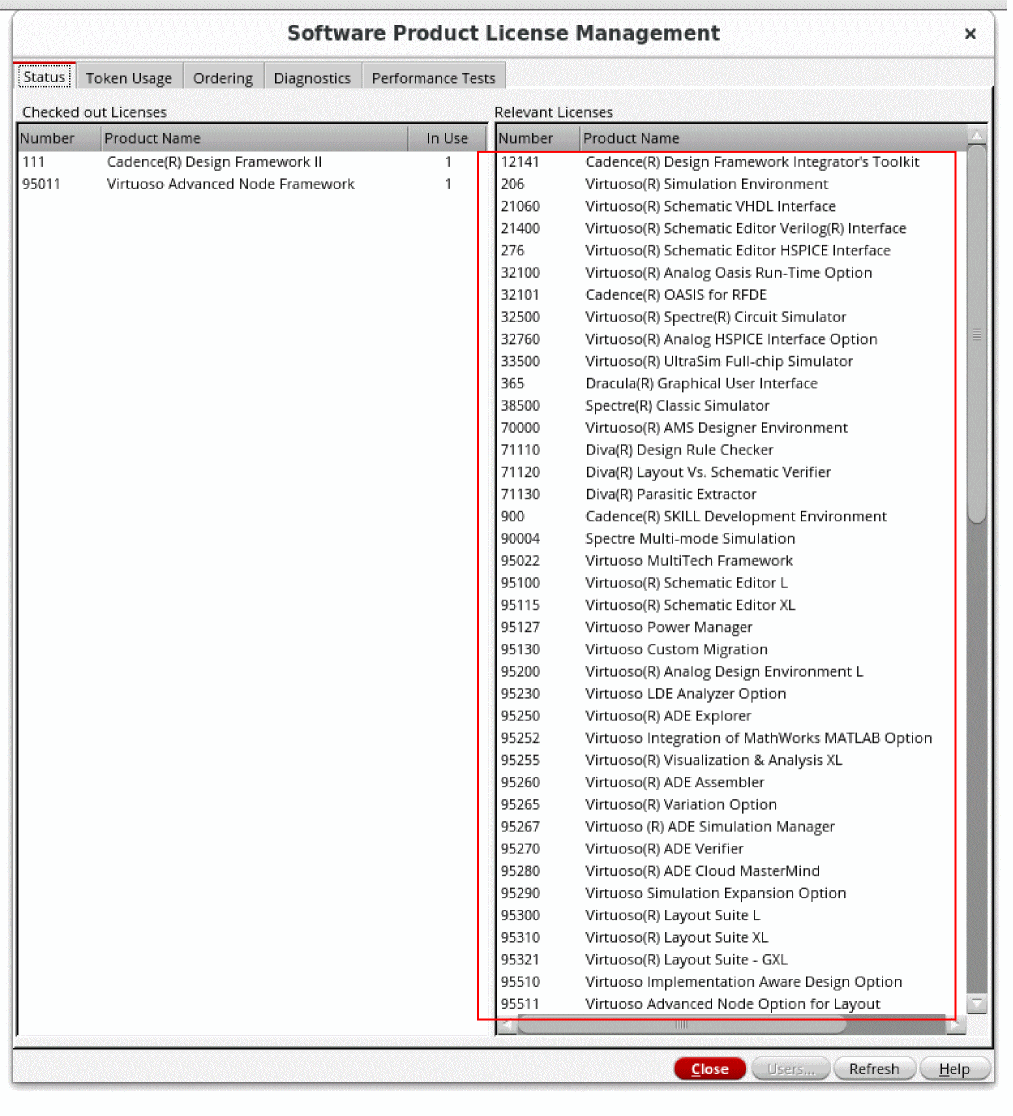
 ) next to the Number, Product Name, or In Use column headers.
Viewing Solution-based Licenses
Licenses checked-out for a solution can be viewed when you set the specific environment.
The following licenses are checked out when the Virtuoso Photonics solution is enabled:
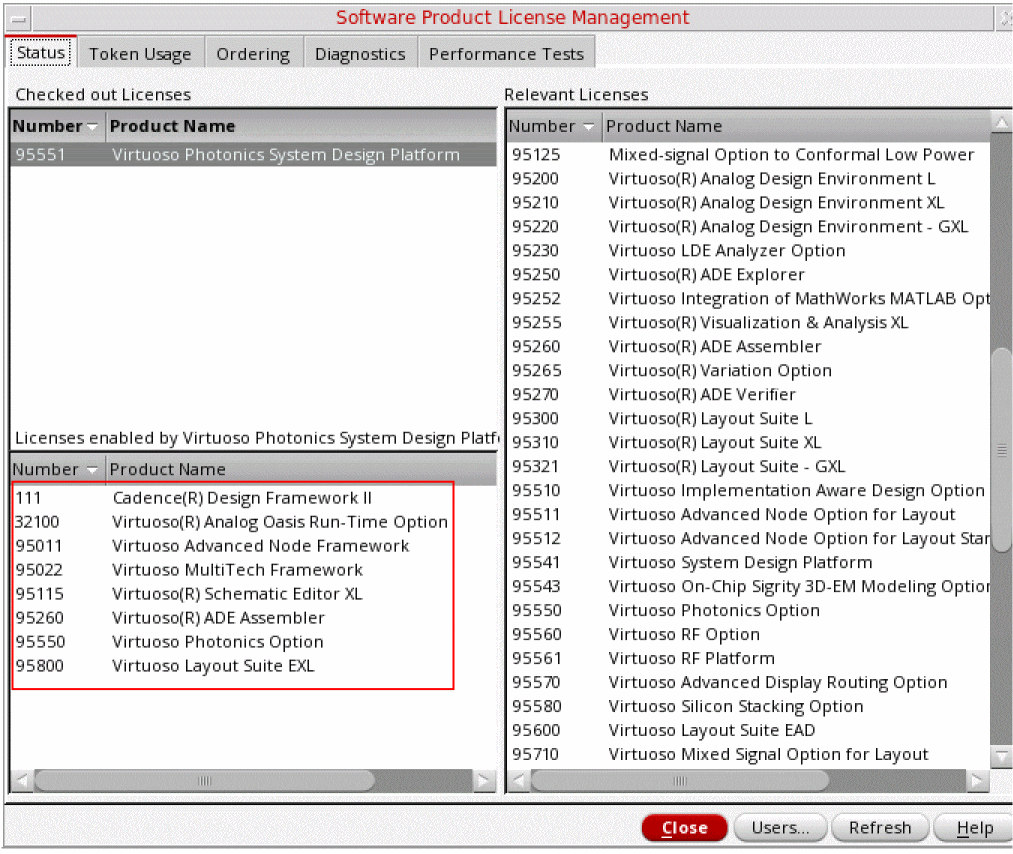
The following licenses are checked out when the Virtuoso RF solution is enabled:
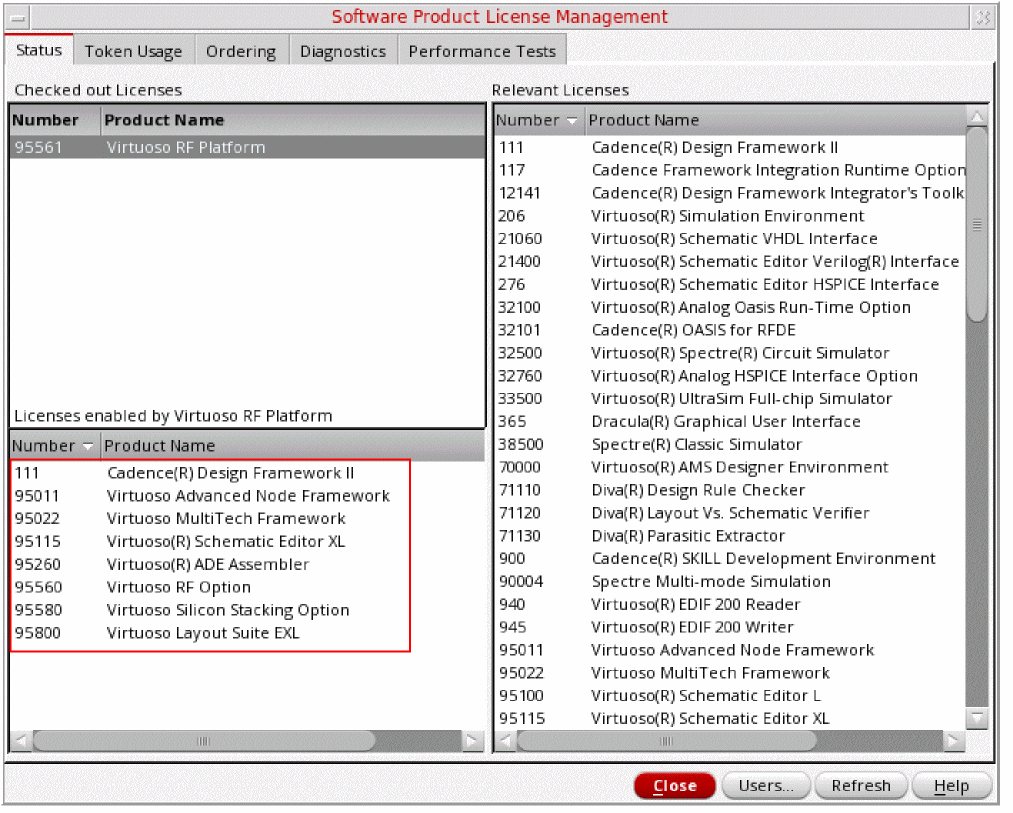
Adding Custom Products to the Status Tab
To add custom products and their license information to the Status tab, set the CDS_PRODUCTS_DFII_LIC_UI shell variable. The CDS_PRODUCTS_DFII_LIC_UI variable points to the file where the information about the custom products and license is stored in the following format:
<Product Number><separator><Product Name><separator><License Feature Name><endl>
where,
<separator> is ':'
and
is '\n'
Here, the definition for the custom product and license information use this format in one line and any blank lines are ignored.
Refreshing the License Status
To update the Checked Out Licenses and Relevant Licenses panes, click Refresh.
This action will update the Checked Out Licenses and Relevant Licenses lists to show the current list of products being run, and the respective license count, along with any changes to the available license list since the initial access of the Software Product License Management form.
Displaying the License Usage Information
You can display the license status using either of the following ways:
-
Select a license from one of the lists on the Software Product License Management Form and click Users to display the License Use form.The Users button is disabled by default. It gets enabled when you select a license in the Software Product License Management form and click Refresh.The License Use form displays the license usage information (for example: user logins, host names, display time, number of licenses, and license version) for the selected licenses, independent of the license-checkout status. Information in this form is read from the license servers that are defined in the
CDS_LIC_FILEand is extracted from more than one license server. If you do not have any licenses for a selected feature in any license file, the License Use form will display total and available licenses as “0”.
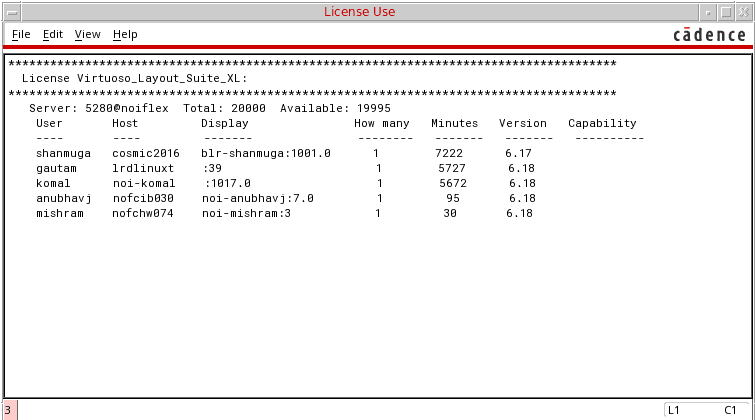 You can display the license usage information of more than one license in the License Use form. To do so, hold the CTRL key to select multiple licenses or hold the SHIFT key to select a contiguous range of licenses before clicking Users.Hold the CTRL or SHIFT key and click to deselect any previously highlighted licenses before choosing a new license for viewing in the License Use form.
 -
Run the
lbuiPrintLicenseUseReportSKILL function to display the license usage report (for example: user logins, host names, display time, number of licenses, and license version) in the CIW or the specified output log file.
For more information onlbuiPrintLicenseUseReport, refer to the Virtuoso Studio Design Environment SKILL Reference.
Software Product License Management Form: Token Usage Tab
The Token Usage tab displays the number of tokens required to run each capability of the Virtuoso Layout Suite GXL and the respective usage status.
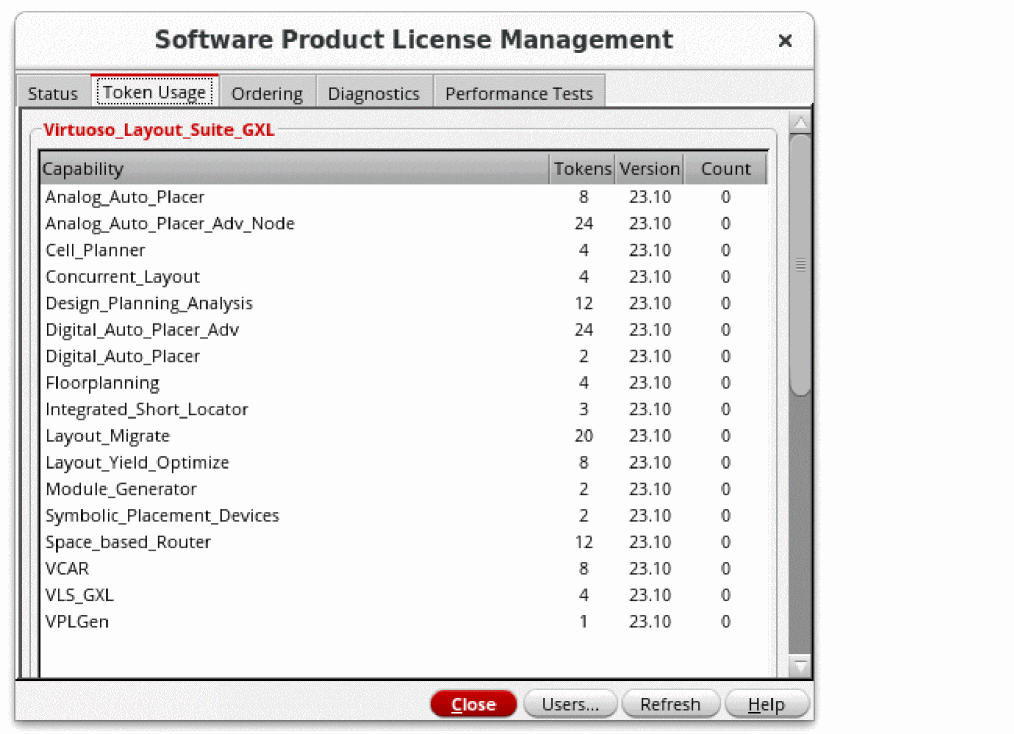
- When an application that requires tokens is being launched, the Total Tokens and Total available tokens fields on the Token Usage form display the message “Collecting data from server”. This message is replaced with the token information once the launching process of the application completes.
- The L and XL product tiers have user, host, and display (UHD) based licenses. If you are using the same host and the same display, you can use the same L or XL license for multiple sessions of an application. However, the GXL tier uses job-based licenses, which are not shared. It means that each run of a GXL feature will check out the required number of tokens and multiple runs will require multiple sets of tokens. For more information on tokens, and licensing in general, see Advanced Features and Token Licenses
Software Product License Management Form: Ordering Tab
The Ordering tab provides an interface for defining the license checkout order of the Virtuoso application tiers.
Each of the product families (Schematic, Layout, Layout Option, ADE, and VIVA) contains applications in a tiered packaging structure. Each higher-tier application provides additional features with more automated design assistance.
Only one license per product family tier is checked out at a time. Lower-tier applications require either their own tier license or a higher-tier license to run. For example, you can run VLS XL and VLS EXL in the same session with only a VLS EXL license checked out. If an attempt to check out the license of a lower-tier application fails, the application looks for a higher-tier license. You can set the license checkout order using the Ordering tab, as shown below.
To view and use the displayed controls and buttons:
-
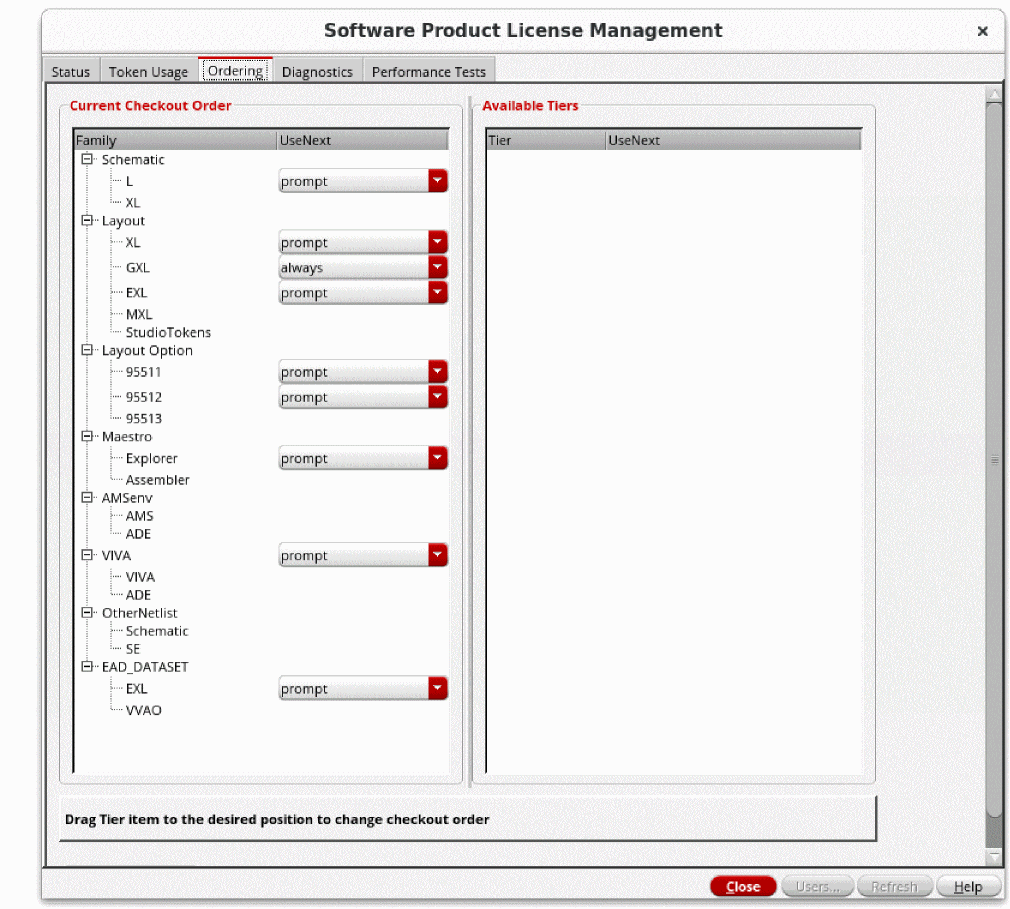
Click the Ordering tab in the Software Product License Management form. The Ordering tab has two panes: Current Checkout Order and Available Tiers.
-
Current Checkout Order:
Displays the list of product families along with their current checkout order and UseNext settings.
Family: Lists the names of the product license families. For example, Schematic, Layout, Layout Option, ADE, AMSenv, VIVA, and EAD_DATASET.
To change the checkout order of a product family, click and drag the required tier up or down to move it to the desired location.The GXL and EXL tiers in the Layout family cannot be separated; they must appear together in the checkout order.UseNext: Displays the UseNext setting, which controls whether to check out the next available license for Virtuoso tier-based applications when the license required for a requested application is not available.
If a tiered application has an associated UseNext setting, a drop-down list appears next to its name. If you reorder a tier within the product family, the UseNext drop-down moves along with it.
The UseNext drop-down list provides the following options:- prompt: Confirm before checking out a higher-tier license.
- always: Always check out the higher-tier license (as per selected checkout order).
- never: Never check out the higher-tier license and display an error message instead.
When prompt is set as the UseNext drop-down value and the license for a requested application is not available, the Next License dialog box displays, which lets you check out a higher tier license, subject to availability. Four options are offered: Session, Skip, Always, or Never.-
Session: Checks out a higher-tier license, if available, for the current session. If a higher-tier license is unavailable, the Next License dialog box will only be displayed once. However, a new virtuoso session will cause the dialog box to display again.
The Session option does not override the setting in the local .cdsenv file and updates only the internal or in-memory value of the correspondingUseNextLicense.cdsenv variable. Because of this, the Session response is applicable for the current session only. However, if you want to restore the Next License dialog box settings in the same session, reset theUseNextLicense.cdsenv variable topromptusing theenvSetValfunction in the CIW or select prompt from the UseNext drop-down list. - Skip: Skips the next license. For example, if L license is not available, and you click Skip in the Next License dialog box, the XL license will be skipped and an attempt to check out the GXL license will be made.
- Always: Virtuoso will always try to check out the next license, if the requested license is not available. The Next License dialog box is not displayed again when virtuoso is restarted.
- Never: Virtuoso will never try to check out the next license, if the requested license is not available. The Next License dialog box is not displayed again when virtuoso is restarted.
The Always and Never options are stored in the following environment variables in ~/.cdsenv as soon as they are set.
For example,license VLSXL_UseNextLicense string "prompt"/"always"/"never" license VSEL_UseNextLicense string "prompt"/"always"/"never"
If a license is not available warning messages will be displayed in the CIW. -
Available Tiers:
By default, the Current Checkout Order pane displays all applicable tiers for each product family. However, you can choose to deselect a tier and remove it from the current checkout order list by dragging and moving it to Available Tiers.If there is only one tier in the family tree, you are not allowed to remove it from the Current Checkout Order list by dragging and moving it to Available Tiers list, because a family tree cannot be empty.When you select a product family in the Current Checkout Order pane, you can see the current checkout order of its tiers in the left pane and the list of available (applicable) tiers in the right pane. For example, in the image below, the XL tier for the product family Schematic has been moved to the Available Tiers for: Schematic pane.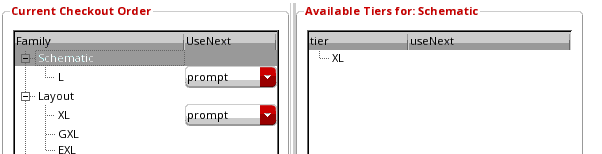
-
Current Checkout Order:
-
Click Save to File to save the selected options in the
.cdsenvfile. You can also edit your preferences in the.cdsenvfile.
Software Product License Management Form: Diagnostics Tab
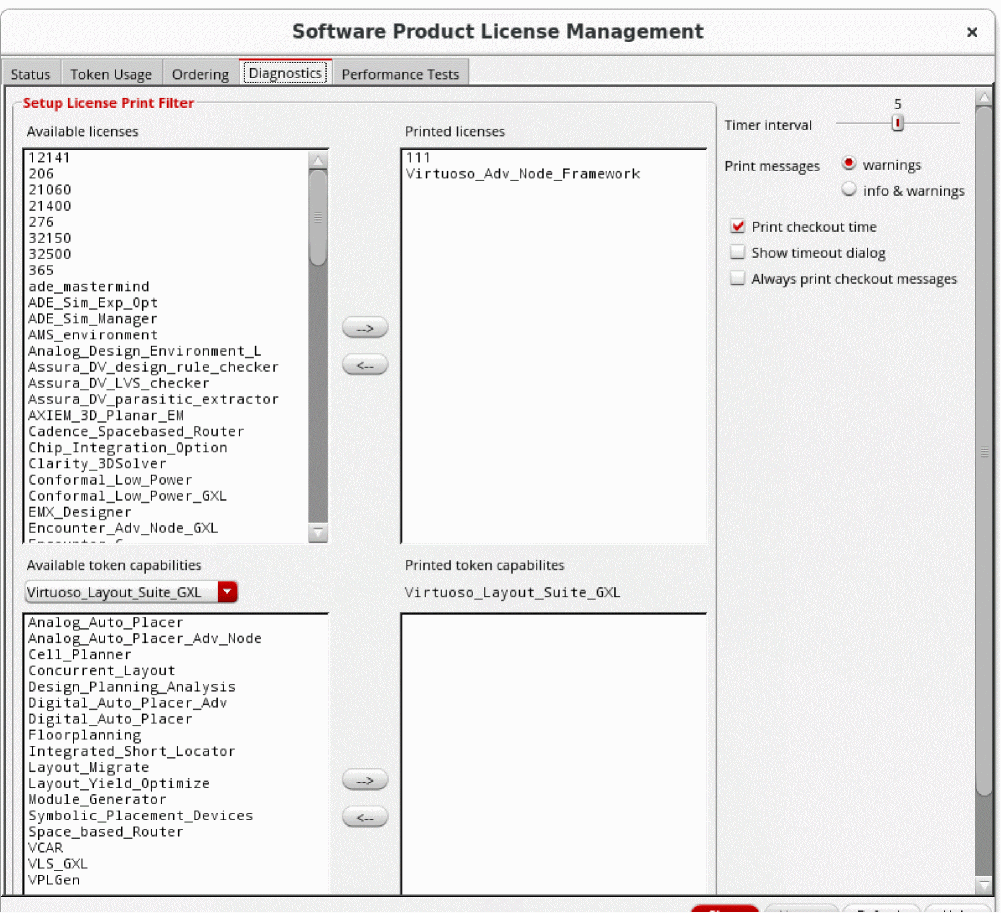
The Diagnostics tab provides an interface for setting the parameters needed for license-checkout reporting. For example, you can set these parameters to report whether a license check is taking too long or if a particular license or token has been checked out. By using the options available in this tab, you can set the values of the license diagnostic variables without needing to remember the shell variable names.
-
Click the Diagnostics tab in the Software Product License Management form to view and use the displayed panes and controls.
Software Product License Management Form: Performance Tests Tab
In an environment where you have licenses served across multiple servers spread over a network, there can be significant delays during the application start up because Cadence applications search all the license servers to acquire a license.
In such situations, you can run a diagnostic test from the Performance Tests tab to test the license checkout performance on a feature-by-feature basis and across each server. This tab is an interface to the perf_test utility.
-
Click the Performance Tests tab in the Software Product License Management form to use the displayed controls and buttons.
For testing the network latency, selecting the Cadence Design Framework II license is sufficient. However, if you suspect that a particular license feature is taking more time to check out, you can select the required license feature name for testing.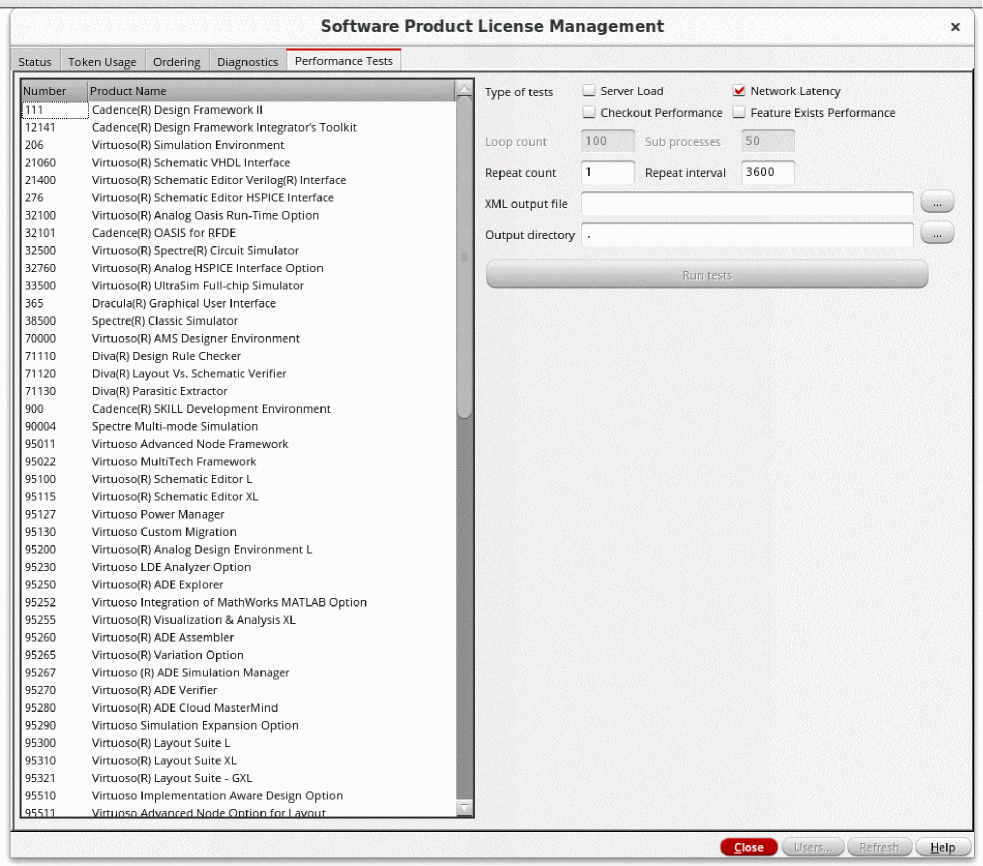
Product Tier Features
The following table shows the feature details included in each application.
- ✓ Specifies that the feature is included with the Base Product .
-
✓+ Specifies that the feature requires both Base Product and Option .
The following table lists the features available in the ADE product family:
- ✓* Specifies not all features within the GUI are available to OASIS integrated (third-party) simulators. Contact Cadence CPG Marketing team for individual situations.
-
✓* Specifies that the feature may also require Legato Reliability Solution license.
Hardware and Software Requirements
For hardware and software requirements needed to run the Virtuoso Studio, see Hardware and Software Requirements in the Virtuoso Studio Design Environment User Guide.
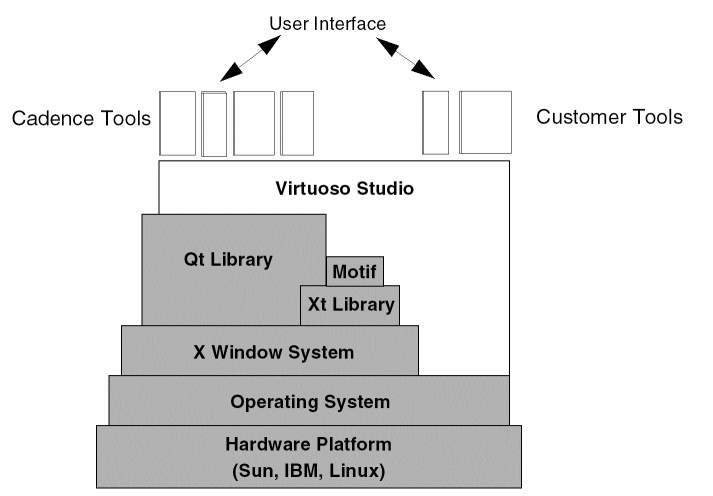
Software Layers
The figure below shows how the Virtuoso Studio resides on top of several layers of software (bottom layer is your hardware platform).
| For More Information | Refer to |
|---|---|
Virtuoso Studio Design Environment Hierarchy
The software uses the following directory hierarchy to store executables and data files.
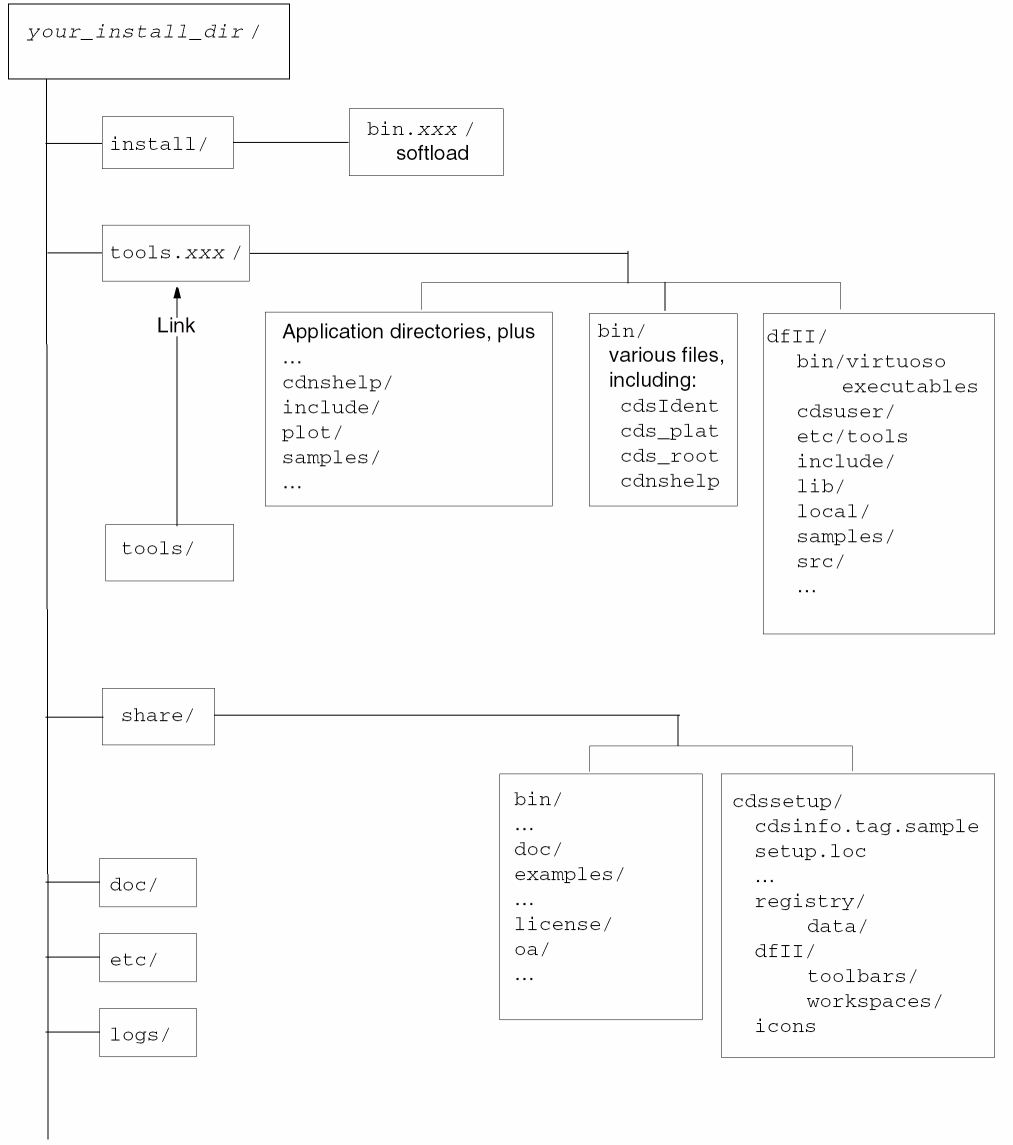
The your_install_dir/tools/dfII directory includes the directories listed below. The files in these directories depend on which Cadence® products are installed.
Virtuoso Studio Design Environment Executables
Virtuoso Studio design environment executables include:
-
virtuoso: All Virtuoso software executables are integrated into one executable called
virtuoso. Both 32- and 64-bit platform variants exist for thevirtuosoworkbench. -
dbAccess:
dbAccessis a non-graphical UNIX command-line executable for using the core SKILL functionality and accessing DFII OpenAccess design and technology file data. You can also use this executable to debug Pcells and verify that they run in other environments and have no dependencies on product packages or licenses.dbAccesssupportsdb,dd,rod, andtechfunctions. Since it does not have a graphical user interface, it does not supporthiandgefunctions.
Command Switches
dbAccess [{-32 | -64 | -32only | -64only | -3264 | -6432}] [-quiet3264][-debug3264] [-platplatform] [-v3264] [-help3264] <[-loadfileName] [-cdslib fileName]>
Description
If you do not provide a command-line option,dbAccessswitches to interactive mode and accepts commands from the keyboard orstdin.
In addition,dbAccessaccepts the Virtuoso command-line options, such as:
However, it ignores options that require a graphical user interface.
Example
Suppose you have a SKILL file,listLibs.il, which includes commands to display the libraries specified in thecds.libfile. If acds.libfile is not present, the defaultcds.libfrom the installation directory is used.
The file contents are as follows:
foreach(lib ddGetLibList() printf("%s\n" lib~>name))
Now, if you run thedbAccesscommand and loads this SKILL file, the following output is displayed on a terminal window:dbAccess -load listLibs.il
Virtuoso Framework License (111) was checked out successfully. Total checkout
time was 0.64s.
cdsDefTechLib
basic
US_8ths
rfLib
rfExamples
ahdlLib
analogLib
functional
The above output is generated using the defaultcds.libfrom the installation directory.
Virtuoso Studio Design Environment Licensing Setup
The key licensing characteristics of the Virtuoso Studio design environment are outlined in the following table.
| Licensing Characteristic | Virtuoso Studio Design Environment |
|---|---|
|
See the Cadence License Manager |
|
CDS_LIC_FILE. If a license cannot be found on any of the servers specified in the CDS_LIC_FILE, the license search will continue to look through the LM_LICENSE_FILE. If you do not want a license search to continue beyond the CDS_LIC_FILE, you need to set the CDS_LIC_ONLY environment variable which will instruct Virtuoso to ignore the LM_LICENSE_FILE.For more information about license files and variables, see the Cadence Installation Guide and Cadence License Manager.
Frequently Asked Questions Related to Virtuoso Studio Licensing
The following table answers frequently asked licensing questions:
Return to top