
Highlighting and Deleting Empty Modgen Rows and Columns
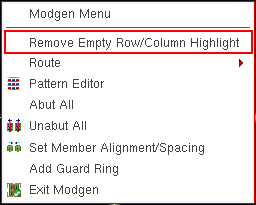
An empty row or column is highlighted in the Modgen editor window. The highlighting is on by default. When highlighting is on, the shortcut menu displays the Remove Empty Row/column Highlight option to turn the highlighting off as shown in the figure below.
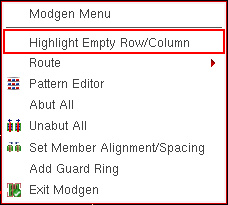
When highlighting is off, the shortcut menu displays the Highlight Empty Row/Column option to turn the highlighting on, as shown in the figure below.
These options are displayed in the shortcut menu when:
However, the placement of this option in the shortcut menu is different in both these cases.
When you perform an undo operation in the Modgen editor window, the highlighting, if on, gets automatically turned off.
Alternative SKILL Function: mgHilightEmptyRowColumnCB
The Zoom to Fit  option also includes empty rows and columns in the Modgen editor window even if they are at the outer edges of the window.
Deleting Empty Rows and Columns
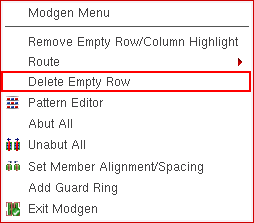
As a part of interactive Modgen editing, you can delete empty rows or columns from the Modgen editor window. To delete empty rows, you need to right-click the empty row and select the Delete Empty Row option from the shortcut menu, as shown in the figure below.
To delete empty columns, you need to right-click the empty columns and select the Delete Empty Columns option.
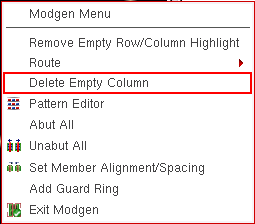
If you right-click at the location where an empty row and an empty column are overlapping, then both these options are displayed in the shortcut menu. You can select any of these options to either delete the row or column.
These options are displayed in the shortcut menu when:
Alternative SKILL Functions: mgDeleteEmptyRowColumnCB, mgDeleteAllEmptyRowColumnCB.
Related Topics
Placing Modgen Members Interactively
Adding Empty Rows and Columns to Modgens
Adding Empty Rows and Columns to Modgens
Selecting Rows and Columns in Modgens
Selecting Rows and Columns in Modgens
To move or swap the entire row or column, you may need to select the entire row or column.
- Select the instance in a row.
- Right-click the instance, point to Select Row/Column, and select Select Entire Row.
- The entire row will be selected.
- Select the instance in a column.
- Right-click the instance, point to Select Row/Column, and select Select Entire Column.
- The entire column will be selected.
Alternative SKILL Function: mgSelectRowColCB
Related Topics
Placing Modgen Members Interactively
Adding Empty Rows and Columns to Modgens
Highlighting and Deleting Empty Modgen Rows and Columns
Return to top