
3
Customizing the Simulation Environment (SE)
The Simulation Environment (SE) controls all steps of the simulation process. It lets you manage the complex series of steps required to run a simulation, making simulation appear to be a single-step process to the designer.
SE can be customized using the Cadence standard language, SKILL. This is the same language and syntax used to customize the output of the Flat Netlister (FNL) and the Hierarchical Netlister (HNL). In addition to the commands available in SKILL, database access functions are also available. These commands have been enhanced with additional commands and functions specific to running simulations.
This chapter explains the strategy behind SE, how it works, and how to customize it to run your simulator.
SE Goals
A designer typically uses several design analysis tools throughout the design cycle: tools to verify timing, simulate the design at various levels, and verify the physical against the logical design. In traditional computer-aided design (CAD) systems, each of these tools was separate, distinct, and had a separate non-standard user interface. In addition, running each design analysis tool frequently required several steps. These include generation of a netlist, sometimes translating the netlist from a standard format such as Electronic Design Interchange Format (EDIF) to the syntax required by the simulator, creating input stimulus in the syntax required by the analysis tool, and translating the results to either a user-readable format, or converting the output to a syntax required by other display tools. The designer needs to manually perform many of these steps.
SE simplifies this process. SE provides a single user interface designers can use to access all their design analysis tools. Cadence uses SE to provide the interface to all of the simulators it supports. With the Open Simulation System (OSS), you can use SE to interface your design analysis tool into the Cadence system, and provide your designers with the same consistent user-friendly interface.
Underlying the visible user interface is a simulation interface framework. This framework provides functions to perform the steps required in the simulation process. When you specify default values for the parameters used by these functions, the functions alter their behavior to perform the steps required by your application. Integrating your application into SE consists of specifying these parameters, which consist of a set of SKILL variables and functions. Designers never need to know the details of this framework because they see only the user interface. However, to add your simulator into this framework, you must thoroughly understand the framework.
This chapter explains how SE works, and then shows how to customize it to run your simulator. Before continuing, you need to do the following:
-
Familiarize yourself with the simulation user interface.
Before you can customize SE, you should have an in-depth knowledge of running simulations using the Cadence system. To do this, first read the Simulation Environment Help. Then, design a few small circuits and simulate them using SE. -
Acquire a working knowledge of SKILL.
SE is customized using the Cadence standard language, SKILL. Before you attempt to customize SE, you must have a working knowledge of SKILL. First, read the Cadence SKILL Language User Guide. Then, write a few small programs in SKILL and run them in SE or using SKILL in the Cadence graphics environment. -
Acquire a working knowledge of database access functions.
Database access functions are the SKILL level database access functions available from Cadence. You do not need to understand the structure of the Cadence database to customize SE to run your simulator; however, you can use these features to develop advanced simulation interfaces. Read the Virtuoso Design Environment SKILL Reference to become familiar with the Cadence database structure and the functions available to access it. Then, write a small program to access the design database. -
Customize HNL or the FNL netlisting.
The first step to performing a simulation is generating a netlist suitable as input to your simulator. Before customizing SE, customize either HNL or FNL to generate a netlist in the syntax required by your simulator. This process is described in the “Customizing the Hierarchical Netlister (HNL)” and “Customizing the Flat Netlister (FNL)” chapters in this manual. These chapters also explain how and why name mapping is performed in the Cadence system. This knowledge is required to understand the name translation steps performed during a simulation. -
Familiarize yourself with the probe file.
Error backannotation is performed using probes. You can store error messages from your simulator in a file that can later be graphically displayed on the design. The format of this file is documented in the “Probe File Format” section of the Graphics Editor chapter of the Virtuoso Design Environment SKILL Reference.
SE Steps
SE performs several steps during the simulation process. This section includes an explanation of the following major steps and their functions:
- Run Directory Initialization
- Netlisting
- Simulation Input Translation
- Running the Simulator
- Simulator Output Translation
Run Directory Initialization
When a simulation is run on the Cadence system, all inputs and outputs of the simulation process are contained in a single directory. This directory is called the Simulation Run Directory (or run directory). The first step in the simulation process is to ensure required files exist in this directory. Most design analysis tools require instructions as to what actions are to be performed. These instructions are stored in the control file. You can provide a default set of instructions in a file, and then whenever your designers request creation of a new run directory, SE copies this file into that directory. In addition, you can perform more sophisticated control file creation. For example, you could read in the design, and for every terminal in the top level of the design, create a default set of stimuli.
Netlisting
Netlisting is the process of converting the connectivity of a design into a textual description suitable as input to a design analysis tool. Netlisting is the most complex step in integrating your simulator into the Cadence system. Therefore, the details of these steps are contained in separate chapters. The “Customizing the Flat Netlister (FNL)” and “Customizing the Hierarchical Netlister (HNL)” chapters in this manual describe in detail how to customize the output of the Cadence-provided netlisters. In addition, the “Customizing the Flat Netlister (FNL)” chapter in this manual explains the modifications required to SE to run the netlister.
Name mapping is frequently performed by the netlisters. The Cadence system allows you flexibility in naming components of your design. These names are occasionally not valid in the syntax of the target design analysis tool. In addition, when generating a flat netlist, a new name must be generated to uniquely identify a device contained in a hierarchical design. The designer never needs to know what name was assigned by the system; only the designer-assigned names are of concern. Part of the SE functionality automatically translates between these names as needed by the application.
Simulation Input Translation
As mentioned in the previous “Netlisting” section in this chapter, names in the netlist are frequently not the names the designer placed in the design. However, the names in the netlist are the only ones the design analysis tool recognizes. To enable the designer to specify the same names in the design and the input to the simulator (stimulus and commands), the control file is translated before it is provided as input to the simulator. Any names that were mapped to a different name during the netlisting process are then substituted with the name used for the netlist. This way, the designer does not need to know the names used in the netlist, and the simulator is always presented a consistent set of names.
Running the Simulator
Once the input for the simulator has been prepared, the simulator is run. Tools are provided within SE to specify the UNIX® command to run your simulator. SE then runs the simulator, and waits for it to complete execution. When the simulator has completed, the simulator output needs to be prepared for analysis by the designer. The simulation output is in the textual form.
Simulation Output Translation
The simulator text output also requires translation. The names in the output file referencing the design are the same ones that appeared in the netlist. These may not be the same names as those entered in the design; therefore, the names need to be converted back to the names the designer entered.
How SE Works
SE has both a graphics environment, Cadence graphics, and a non-graphics environment, Simulation Interface (SI). Designers can perform all simulation functions in either environment. For example, they can generate netlists, run name translations, and complete simulations by entering commands from menus in the Cadence graphics environment. They can also perform these tasks by starting SI in UNIX and entering commands.
In the Cadence graphics environment, designers can run simulation functions in the foreground or in the background after running the Initialize command from the Simulation menu. For example, if they run the netlist command in the foreground, the Cadence graphics environment is locked while the netlist is generated. If they run netlist in the background, they can continue to issue other commands.
In SI, designers can run simulation in either batch or enter commands to a command interpreter. If they enter the si command with the -batch option, the program initializes itself and runs the single command they specify following the -command option. If they do not enter a command, SI runs the complete simulation process. If designers want to run the simulation and be prompted for commands, they enter the si command without the -batch option. A SKILL command interpreter is invoked when the program has been initialized. Designers can then run any SKILL or SE function. In this mode, unlike batch mode, designers can enter more than one command.
Figure 3-1 Steps Performed During SILOS Simulation
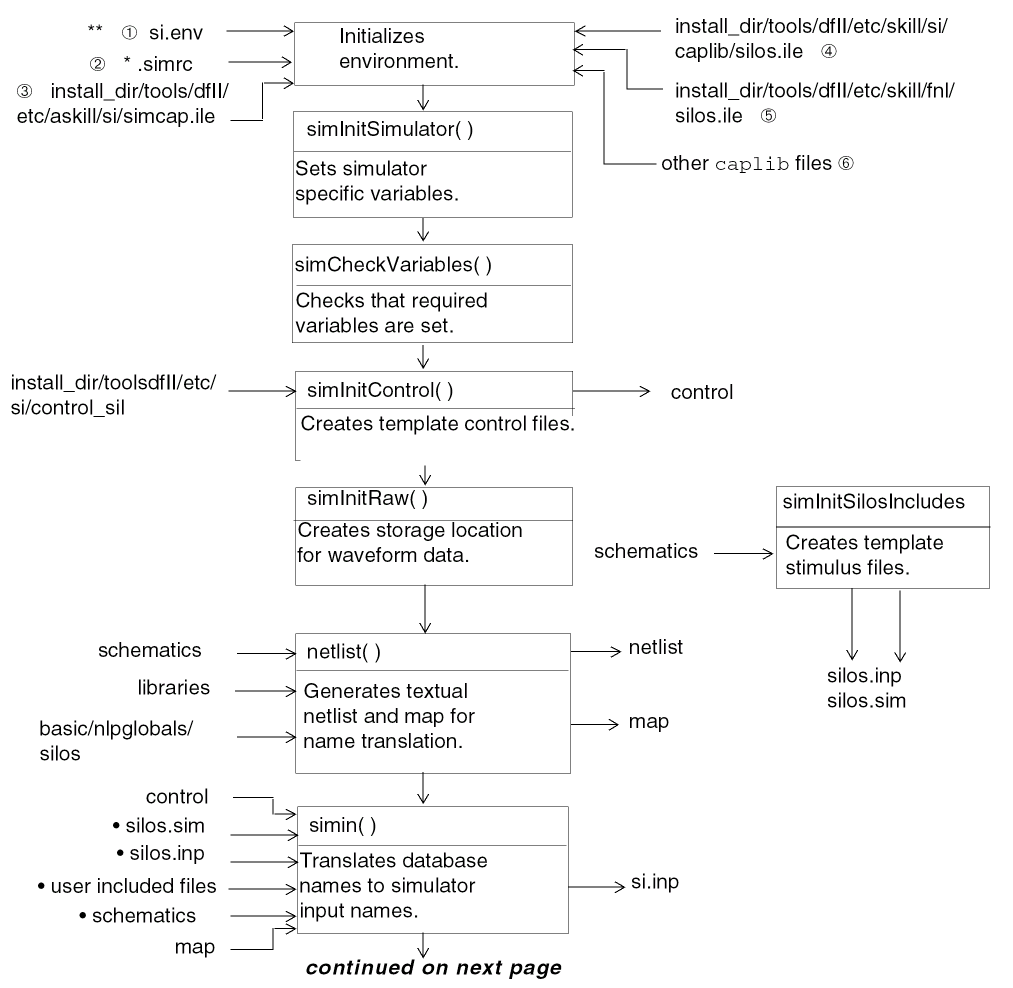
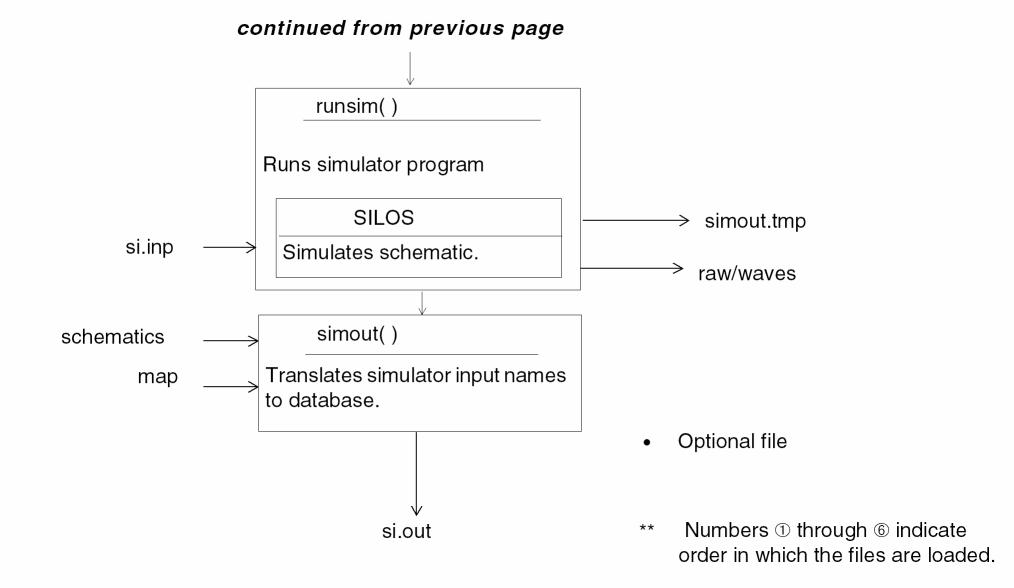
SE Initialization
All the files provided as part of the simulation environment are stored in the install_dir/tools/dfII/etc/skill/si/caplib directory. This directory is relative to the hierarchy in which your Cadence software has been installed. For example, if your software has been installed in the /usr1/cds directory, these files would be located in the /usr1/cds/etc/skill/si directory. This directory also contains the caplib directory, the SE capabilities library.
/tools/dfII/etc… The name of the directory is relative to where you install the Cadence software. When you see such a reference, replace the word install_dir with the file system pathname to where the software is installed. SE loads files in the following order to initialize the simulation environment:
si.env
.simrc
simcap.ile
simulator-specific SE customization
simulator-specific FNL customization
caplib files
How SE Locates Customization Files
All the customization files are searched through the Cadence Setup Search File mechanism (CSF) that uses the setup.loc file for customized search paths. The setup.loc file is an ASCII file that specifies the locations to be searched and the order in which they should be searched.
To specify the files that should be found through CSF, create an ASCII file, csfLookupConfig, in any directory. This directory should be listed in your setup.loc file. In the csfLookupConfig file, specify the files that should be found through CSF. An example of a csfLookupConfig file is as follows:
INCLUDE si/<simulator>.ile
INCLUDE hnl/<simulator>.ile
INCLUDE hnl.ile
INCLUDE .simrc
You can access sample csfLookupConfig.sample and the default setup.loc files from your_install_dir/share/cdssetup directory. The default setup.loc file specifies a default search order, which includes commonly-used storage locations.
The CSF search mechanism is used for the following files:
-
<simSimulator>
.ile/ <simSimulator>.il -
hnl.ileandhnl.il -
All those files which are loaded using
simLoadNetlisterFiles(for FNL)
The following files are excluded from the CSF search mechanism because they expect a specific directory order. Also because other applications may have files with the same name as these are generic names.
-
caplib/util.il -
caplib/getfterms.il -
caplib/init.ile -
caplib/siminout.il -
caplib/simulate.il -
caplib/remote.il -
caplib/netlist.il
For more information about the CSF search mechanism, the csfLookupConfig and setup.loc file format refer to Chapter 3, Cadence Setup Search File: setup.loc of the Application Infrastructure User Guide.
If you have not defined an entry for a global file, say .simrc, in the csflookupConfig file, then .simrc is searched for in the following order:
$SIMRC/.simrc
$ossSimUserSiDir/.simrc
dfII/local/.simrc
Current UNIX directory/.simrc
~/.simrc
The search stops when the first instance of the file is found. Other files are not loaded, unless the identified file loads them, allowing for tiered loading or for the local CAD group to alter or disallow the search mechanism. If it does not exist, no error is generated.
If you do not want to use the CSF search mechanism, then you can continue to set the shell environment variable $ossSimUserSiDir to point to $CDS_SITE/si or any other directory. You can also use the hnl and fnl specific shell environment variables, ossSimUserHnlDir and ossSimUserFnlDir to specify a different directory containing the .ile files.
The si.env File
The si.env file is read in from the simulation run directory. This file is used to instruct SE which design to simulate and which simulator to use. In addition to the default information SE stores in this file, you can instruct SE to save any application-specific variables here by using the variable simSimulatorSaveVars. The file is overwritten by the SE function simPrintEnvironment() each time a simulation is run, and any other information stored in this file that SE has not been informed of is lost. The si.env file is used to communicate environment information between SE and the Cadence graphics program.
The .simrc File
You can use the .simrc file to customize simulations. This file lets you set your defaults for the simulation variables. It overrides the contents of the si.env file. Therefore, the .simrc file provides a mechanism to set the defaults at the user or flow level. This file is optional and is loaded if it exists.
If you want to use another file, instead of .simrc, to customize simulations for a specific flow, use the UNIX environment variable ossUserSimrc to set the path of that custom file. For example, the following command sets mysimrc as the custom file.
The functionality provided by ossUserSimrc lets you customize the simulation environment to suit the specific requirements of different flows, without changing your .simrc file. If ossUserSimrc is not set, then the default CSF mechanism is used to load the simulation customization file.
The simcap.ile File
The simcap.ile file is read in from the install_dir/tools/dfII/etc/skill/si directory. This file is written in SKILL syntax and contains general variable default settings and function definitions. It is provided by Cadence as part of the simulation environment, and should not require modification to integrate your simulator. In addition to setting defaults, at the end of this file are calls to functions defined in SE. These functions are executed as the file is loaded. The simcap, caplib, hnl, fnl code is searched for in the following order:
install_dir/tools/dfII/local/[si,hnl,fnl]install_dir/tools/dfII/etc/skill/[si,hnl,fnl]
This order lets you to build an interface without modifying Cadence- provided software hierarchy.
The overall file loading process is described in more detail following these definitions of the initialization files.
Simulator-Specific SE Customization
A file with the same name as the simulator and the .ile suffix is loaded from the install_dir/tools/dfII/local/si/caplib or install_dir/tools/dfII/etc/skill/si/caplib directory. For example, when running a SPICE simulation, a file with the name spice.ile is loaded from that directory. This file contains all the default variable settings specific to running a SPICE simulation. This is the file that you must create for SE to recognize your simulator. The command to load this file is contained in the simcap.ile file, and is executed when the simcap.ile file is loaded.
Simulator-Specific Flat Netlister (FNL) Customization
A file with the same name as the simulator and the .ile suffix is loaded from the install_dir/tools/dfII/local/fnl or install_dir/tools/dfII/etc/skill/fnl directory. For example, when running a SPICE simulation, a file with the name spice.ile is loaded from that directory. This file contains all the default variable settings and function definitions used by FNL to output the netlist in your simulator's syntax. For more information on this file, refer to the “Customizing the Flat Netlister (FNL)” chapter in this manual. This file is optional and is loaded if it exists. If it does not exist, no error is generated.
In addition to the files previously described in this section, the init.ile, netlist.ile, siminout.ile, simulate.ile and a few other files are loaded from the install_dir/tools/dfII/etc/skill/si/caplib directory. These files are loaded in the following order:
-
install_dir
/tools/dfII/etc/skill/si/caplib/util.ile -
install_dir
/tools/dfII/etc/skill/si/caplib/getfterms.ile -
install_dir
/tools/dfII/etc/skill/si/caplib/init.ile -
install_dir
/tools/dfII/etc/skill/si/caplib/siminout.ile -
install_dir
/tools/dfII/etc/skill/si/caplib/simulate.ile -
install_dir
/tools/dfII/etc/skill/si/caplib/remote.ile -
install_dir
/tools/dfII/etc/skill/si/caplib/netlist.ile
Besides defining global functions and default variable settings, the simcap.ile file contains calls to functions that complete the initialization of the simulation environment. These function calls are at the end of the file and are executed as the file is being loaded. The first function to be called is simInitSimulator. The simInitSimulator function calls a function that you must write to set certain variables to values appropriate for running your simulator. This function must have the same name as your simulator and should be defined in a file that also has the same name as your simulator. This file should be stored in the install_dir/tools/dfII/local/si/caplib directory. A complete description of what this function and file must contain is in the “Simulator-Specific SE Customization File” section in this chapter.
Next, the simCheckVariables function is executed. This function checks if the following variables have been defined:
simSimulator
simRunDir
simCellName
simLibName
simViewName
simNlpGlobalLibName
simNlpGlobalCellName
simViewList
simStopList
simSedFile
simCommand
These variables are required to enable SE to run a simulation. The first eight variables are defined in the si.env environment file and by SE. The remaining variables must be defined in the simulator-specific SE customization file you must write.
That completes the initialization sequence performed by SE. At this point, control is either passed to the top-level SKILL command interpreter, and SE can be instructed to run specific commands, or the command specified when SE was invoked is executed.
SE Execution
Once the simulation environment has been initialized, command execution begins. If SE is being run interactively, you are prompted to issue commands. You can then set variables and call any function defined in the simulation environment. If SE is being run in a batch mode, it executes a single command. You can optionally specify the command to be executed when you invoke SE (for more information refer to the Simulation Environment Help). This command can be any function defined in the simulation environment, for example, netlist or simin. If no command is specified, the default is to run a complete simulation, which is equivalent to executing the sim function.
SE runs a complete simulation by executing the sim function that is defined in the install_dir/tools/dfII/etc/skill/si/caplib/simulate.ile file. (A detailed description of this function is in the “SE Functions” section in this chapter.) A complete simulation consists of executing any steps required by the simulator being used including preparing the simulator input, running the simulator, and output post-processing. The order of steps performed is determined by the value of the simActions variable which is an ordered list of the functions to be executed when running a complete simulation. The default value is the following:
'(simCheckVariables()
simInitRunDir()
netlist()
simin()
runsim()
)
If this sequence is not suitable for running your simulator, you can change the default by setting the simActions variable in your simulator-specific SE customization file. If any of the functions specified in this list fails to complete successfully (does not return t), the simulation process is halted. Once all of the functions have been executed, SE stops executing, and the simulation has completed.
Following is a description of the steps performed by each of these functions:
simCheckVariables( )
Checks that certain variables required by SE are defined:
simSimulator
simRunDir
simCellName
simLibName
simViewName
simViewList
simStopList
simSedFile
simCommand
simNlpGlobalLibName
simNlpGlobalCellName
This function is also executed as part of the simulation environment initialization sequence and again as part of the simulation sequence because the designer has the ability to run SE interactively. In doing so, it is possible for the designer to damage the environment, for example, by setting the listed variables to a nil value. By calling this function again, we reduce the chance that the environment has been corrupted to the point that simulation is not possible.
simInitRunDir( )
Executes the initialization sequence specified by the simInitRunActions variable. By default, this is executing the simInitControl( ) and simInitRaw( ) functions. In addition, you can add new functions to create default input stimulus based on the design.
The simInitControl function copies the default simulator control file into the simulation run directory if a control file does not already exist. If you want to provide a default simulator input file (template) for your designers, you must write the template file and place it in the install_dir/tools/dfII/local/si directory. Then, in your simulator-specific SE customization file, you must tell SE the name of that file. These files are described in detail in the “Necessary Files to Integrate your Simulator” section in this chapter. The simInitRaw function creates the raw directory used for storage of simulator waveform output in the simulation run directory. The name of the raw directory cannot be altered because it is the standard location used by the Cadence waveform display program to locate waveform data when displaying waveform results.
netlist( )
Generates the textual netlist representing the connectivity of the design to be simulated. This netlist is later used as input to the simulator. Which design is netlisted, and how the hierarchy is traversed (including whether HNL or FNL is used), is determined by global variables. For running LVS in the batch mode using si, the command to be used is sim instead of netlist(). This is the case with formatters like auCdl. These variables can be set in your simulator-specific SE customization file.
simin( )
Translates the designer-specified names in the simulator input file into the names used in the netlist. Since the names to be translated are determined by the designer, you do not need to make any changes to use this function.
runsim( )
Runs the simulator. First the simCommand variable is evaluated. This variable defines the actions to be performed to run the simulator. It should be set in your simulator-specific SE customization file. When the simulator has finished executing, the simOutWithArgs function is called which translates the netlister-assigned names for nets and instances in the given input files to the corresponding designer-specified names in the given output files. Since there is no fixed syntax to simulator output, you must instruct SE with a sed input file how to determine which names require translation. The sed files are described in the “Files Needed to Integrate your Simulator” section in this chapter.
Files Needed To Integrate Your Simulator
To fully integrate your simulator using SE you must create the following files:
Simulator-Specific SE Customization File
Template Control File
Name Translation File
The following sections explain the purpose of each file, its contents, and its expected location.
Simulator-Specific SE Customization File
The first step in customizing SE to run a new simulator is to define the environment and steps to execute.
-
Create a file with the same name as the new simulator and the
suffix
.ile. -
Place the file in the install_dir
/tools/dfII/local/si/caplibdirectory. - Write the necessary SKILL procedures.
- Set the needed variables for running SE.
encrypt command. This command is available in your development version of SE before you distribute the SKILL file to your designers.All files for the simulation are stored in the run directory. Because designers can start the Simulation Environment from any location in the file system, all accesses to files in the run directory must be made using full pathnames. If you cannot specify full pathnames for the files your application requires or produces (for example, if an output file from your application has a fixed name), you must make sure that the process that runs the application changes the current working directory to the run directory before the application is started. The examples in the following sections show you how to do this.
Example of Customizing SE To Run a New Simulator
As an example of how to customize SE to run a new simulator, follow the steps given in this section for the creation of the simulator-specific SE customization spice.ile file for the SPICE simulator. The name of the file differs for each simulator integrated. For example, if you are integrating a simulator called SILOS, this file is called silos.ile.
Set the Switch and Stop Lists
This spice.ile file must contain the default values for the switch and stop lists used when netlisting. For a description of switch and stop lists, refer to “FNL Flattening Process” section in the “Customizing the Flat Netlister (FNL)” chapter in this manual. The netlist function uses the simViewList and simStopList variables. The designer should not be allowed to set these variables directly. Instead, the designer sets switch and stop lists on a per-simulator basis by setting variables for the lists whose names include the name of the simulator. This way the designer can set default values for switch and stop lists for several different simulators in the .simrc file. The following is an example of how to set the default values of these variables for SPICE:
; Set the default SPICE-specific view switch
;list for netlisting.
simSetDef( 'spiceSimViewList,'("spice" "schematic") )
; Set the default SPICE-specific stopping
;view list for netlisting.
simSetDef( 'spiceSimStopList,'("spice") )
Instead of setting these variables using an equals sign (=), the simSetDef function is called. This function sets the specified variable only if it has not already been set, or has been set to nil. This allows the designer to override the default by setting the variable in the .simrc file in the home login directory.
Next, you must set the variables used by the netlist function from the simulator-specific versions of these variables using the following commands:
; Set the view switch list used for netlisting.
simViewList = spiceSimViewList
; Set the stopping view list used for netlisting.
simStopList = spiceSimStopList
Now the equal sign is used instead of the simSetDef function. This is because the designer is not allowed to set these variables directly.
Set the Default Control File
Tell SE the name of the simulator input control file template. This file is copied into the run directory when the directory is being created by SE. The control file template is explained in the “Template Control File” section later in this chapter. The name of the template file is control.spi. The following example shows how the simSetDef variable is set:
; Set the name of the default SPICE control file ;template.
simSetDef('simDefaultControl "control.spi")
Set the sed Input Filename
SE must be told the name of the sed input file used for simulator output name translation. This is done by setting the simSedFile variable to the name of the sed file to be used. In the following example, the file is called sed.spi. What this sed file should contain is explained in the “Name Translation File” section later in this chapter. Following is an example of how to set the simSedFile variable:
; Set the sed script filename to trigger name ;translations.
simSedFile = prependInstallPath("local/si/sed.spi")
The simSedFile variable is set to the return value of the prependInstallPath function. This function prepends the install path of the Cadence software to the filename given as argument, thereby creating a full file system pathname. The filename the simSedFile variable is set to must be a full pathname.
Set the global cellview
SE must also be instructed which global cellview to use when running FNL. The global cellview is a database view that instructs FNL how the netlist is to be formatted. Refer to the “Customizing the Flat Netlister (FNL)” chapter in this manual. The name of the cell is determined by the simNlpGlobalCellName variable. The name of the view is usually the name of your simulator. This information is stored in the simNlpGlobalLibName, simNlpGlobalCellName and simNlpGlobalViewName variables. The first two are set to defaults by SE; the simNlpGlobalViewName variable must be set by you. The following is an example of how to set this variable for later use by the netlist function.
; Set the default name of the global view
;used for netlisting.
simSetDef('simNlpGlobalViewName "spice")
Set the Simulator Function
All the variable settings so far described are placed inside the spice.ile file, outside any function so that the variables are defined as the file is loaded.
The spice.ile file must also contain one function, which must have the same name as the simulator. In the following example, the function must therefore be called spice. This function is called by SE during the initialization phase and again before a simulation is run. Because SE can be run in an interactive mode, the designer can change at any time the values of the simulator-specific variables described in the “Simulator-Specific SE Customization File” section in this chapter. To ensure that the designer's changes also alter the variables used by SE, about which the designer is not informed (for example, simViewList), this function must reset those variables from their simulator-specific equivalents. The following two lines should be placed in the spice function:
simViewList = spiceSimViewList
simStopList = spiceSimStopList
In addition to resetting these variables, the spice function must set the simCommand variable. This variable is evaluated by the runsim function to run the simulator. The value of this variable must be a SKILL expression. It should be a command that runs the simulator, and returns t if the simulator completed successfully, or nil if the simulator detects errors. You can use the simExecute function to execute a UNIX command. This function returns t if the command given as argument completes with an exit status of zero (0), otherwise it returns nil. The UNIX command you execute can then invoke your simulator. If your simulator takes its input from stdin, you can redirect its input from the file containing the input stimulus for your simulator.
The simulator input file is called si.inp. The textual output of the simulator should be redirected to a file named simout.tmp, which is then translated by the runsim function. In addition, the simCommand variable can include any run line arguments required by your simulator.
The following is an example of how to set the simCommand variable to run the SPICE simulator:
simCommand = 'prog( (tmpCmd )
; Run the SPICE simulator
sprintf(tmpCmd "cd %s; exec spice -r raw/waves.tmp
   < st.inp > simout.tmp 2>&1" simRunDir)
return(simExecute(tmpCmd))
)
cd simRunDir command. This causes the child process that runs the simulator to change the current working directory to the simulation run directory. If the simulator reads in a file or writes a file using a relative pathname, such as netlist, that file will be in the simulation run directory.
The simCommand variable can also perform other required preprocessing or postprocessing. For example, it can remove old waveform data before the simulator is run. This ensures that old results are not confused with a new simulation run. Set the simCommand as follows:
simCommand = 'prog( (tmpCmd)
; Remove old waveform file
simDeleteRunDirFile("raw/waves")
simDeleteRunDirFile("raw/waves.tmp")
; Run the SPICE simulator
sprintf(tmpCmd "cd %s; exec spice -r raw/waves.tmp
< st.inp > simout.tmp 2>&1" simRunDir)
return(simExecute(tmpCmd))
)
An example of how to use the simActions variable to do this can be found in the complete spice.ile file in
Set the Unbind Variables
To enable designers to simulate in the foreground, the SKILL simulation environment must be loaded into the Cadence graphics environment. This includes defining all SKILL functions and variables used in a simulation interface. The names of these functions and variables may conflict with those used in another simulation interface. For example, both the SPICE and the SILOS interfaces can define the simActions variable. If designers use SPICE and then use SILOS, they will get error messages when the simulator-specific code for the SILOS interface is loaded because the simActions variable has been defined for SPICE. To avoid this problem, SE unbinds all functions and variables it defines. Then it reloads the appropriate interface files when designers change simulators. The unbinding and loading of files occurs when designers execute the Initialize command from the Simulation menu.
All functions and variables defined by Cadence-supplied interfaces and SE will be unbound and redefined as needed. You must provide a list of all of the functions and variables you define. There are separate lists for functions and variables defined in the Hierarchical Netlister, the Flat Netlister, and SE. The following sections describe the variables you must define for SE.
simSimulatorUnbindVars
The simSimulatorUnbindVars variable specifies the variables you define in your spice.ile file that must be unbound when simulators are switched. You should include any global variable you set in this list. Of primary importance are those that you set using the simSetDef function. If you do not include a variable in this list, designers will get warning messages indicating this variable has already been defined, and the correct value for the variable will not be used when they switch to a different simulator.
Set this variable to a list containing the names of all of the variables you define. Define this variable in the caplib file outside of any function definition. The following is an example of how to set this variable for SPICE:
simSetDef('simSimulatorUnbindVars, '(spiceSimViewList
   spiceSimStopList
   simDefaultControl
)
)
simSimulatorUnbindFuncs
The simSimulatorUnbindFuncs variable specifies the functions you define in your spice.ile file that must be unbound when simulators are switched. You should include any functions you define in this list. Of primary importance are those that you define using the simIfNoProcedure function. If you do not include a function in this list, the correct function may not be used when designers switch simulators.
Set this variable to a list containing the names of all of the functions you define. Define the variable in the caplib file outside of any function definition. The following is an example of how to set this variable for SPICE:
Figure 3-2 Using simCommand To Run SPICE and the Waveform Translator
simSetDef( 'simSimulatorUnbindFuncs, '(spice) )
simCommand = 'prog( (cmd fileName)
   ; Remove old waveform file
   simDeleteRunDirFile("raw/waves")
   simDeleteRunDirFile("raw/waves.tmp")
   ; Run the SPICE simulator
   sprintf(cmd "cd %s;exec spice -r raw/waves.tmp <si.inp>
                        simout.tmp 2>&1" simRunDir)
   if( simExecute(cmd) == nil then
      simPrintError( "si: Spice did not complete without errors." )
      return(nil)
   )
   ; If a non-empty waveform file was created, then translate it
   ; into WSF syntax using the program spi2wsf
   sprintf(fileName "%s/raw/waves.tmp "simRunDir)
   if( isFile(fileName) then
      if( fileLength(fileName) != 0) then
         sprintf(cmd "cd %s;exec spi2wsf raw/waves.tmp > raw/
            waves "simRunDir)
         if( ! simExecute(cmd) then
            simPrintError( "si: Can't translate raw/waves.tmp
               into wsf.\n" )
            return(nil)
         )
      )
      simDeleteRunDirFile("raw/waves.tmp")
   )
return(t)
)
Complete Sample SPICE Customization File
The last thing that must be placed in the spice function is a call to the simPrintEnvironment SE function. This function writes the current environment to the si.env file.
Figure 3-3 is a complete example of a simulator-specific SE customization file for the SPICE simulator.
Figure 3-3 Complete Example of SPICE SE Customization File
;
; This file contains the function that defines the sequence of
; steps for performing a spice simulation.
;
; Set the default SPICE-specific view switch list for netlisting.
simSetDef( 'spiceSimViewList,'("spice" "schematic") )
; Set the default SPICE-specific stopping view list for netlisting.
simSetDef( 'spiceSimStopList,'("spice") )
; Set the view switch list used for netlisting.
simViewList = spiceSimViewList
; Set the stopping view list used for netlisting.
simStopList = spiceSimStopList
; Set the name of the default SPICE control file template.
simSetDef('simDefaultControl "control.spi")
; Set the sed script filename to trigger name translations.
simSedFile = prependInstallPath("local/si/sed.spi")
; Set the default view name of the global view used for netlisting.
simSetDef('simGlobalViewName "spice")
;Set the lists of functions and variables that must be unbound when
;environments (simulators) are changed.
simSetDef('simSimulatorUnbindFuncs '(spice))
simSetDef('simSimulatorUnbindVars '(spiceSimViewList
spiceSimStopList simDefaultControl)
)
;
; spice() -
; This function sets thesimViewListandsimStopListvariables to
; the simulator-specific values in "spiceSimViewList" and
; "spiceSimStopList" respectively. Then thesimCommandvariable
; is set to the commands required to run a SPICE simulation.
; This includes running the SPICE simulator and waveform
; translation. The simulator is not really run by
; this function, this function only sets the command to run it.
; Example:
; spice()
simIfNoProcedure( spice()
   ; Set the switch and stop lists from the simulator-specific
   ; variables for SPICE in case the user has modified them when
   ; running SE interactively.
simViewList = spiceSimViewList
simStopList = spiceSimStopList
simCommand = 'prog( (cmd fileName)
   ; Remove old waveform file
      simDeleteRunDirFile("raw/waves")
      simDeleteRunDirFile("raw/waves.tmp")
   ;    Run the SPICE simulator
sprintf(cmd "cd %s;exec spice -r raw/waves.tmp < si.inp > simout.tmp 2>&1" simRunDir)
if( ! simExecute(cmd) then
   simPrintError( "si: Spice did not complete without errors.")
   return(nil)
)
; If a non-empty waveform file was created, then translate it
; into WSF syntax using the program spi2wsf
sprintf(fileName "%s/raw/waves.tmp "simRunDir)
if( isFile(fileName) then
   if( fileLength(filename) ! = 0) then
      sprintf(cmd "cd %s;exec spi2wsf raw/waves.tmp>raw/waves "simRunDir)
      simPrintError( "si: Can't translate raw/waves.tmp into wsf.\n" )
      return(nil)
   )
   simDeleteRunDirFile("raw/waves.tmp")
)
return(t)
)
; Rewrite the environment file to ensure that it reflects the
; values used to run the simulation in case any values have
; been modified by the user while running SE interactively.
simPrintEnvironment()
)
Alternate SPICE caplib File
simCommand variable, the simActions variable is now set. This is done because you want a set of functions other than the default to be executed when running a SPICE simulation. Most of the functions are the same; the only difference is that the SpiceTranslateWaves function, which performs the waveform translation, has been added after the runsim function. Use of the simActions variable allows you a great amount of flexibility. With it, you can select the functions to be executed when running a simulation, without ever modifying any Cadence-supplied code. In addition, the sequence of functions you select affect only SPICE (in this case) simulations. No other simulations are affected.
Figure 3-4 Performing a SPICE Simulation
; This file contains the function that defines the sequence of
; steps for performing a SPICE simulation.
;
; Set the default SPICE-specific view switch list for
; netlisting.
simSetDef( 'spiceSimViewList,'("spice" "schematic") )
; Set the default SPICE-specific stopping view list
; for netlisting.
simSetDef( 'spiceSimStopList,'("spice") )
; Set the view switch list used for netlisting.
simViewList = spiceSimViewList
; Set the stopping view list used for netlisting.
simStopList = spiceSimStopList
; Set the name of the default SPICE control file template.
simSetDef('simDefaultControl "control.spi")
; Set the sed script filename to trigger name translations.
simSedFile = prependInstallPath("local/si/sed.spi")
; Set the default name of the global view used for
; netlisting.
simSetDef( 'simNlpGlobalViewName "spice")
; Set the default actions to be performed when running a SPICE
; simulation.
simSetDefWithNoWarn( 'simActions,'(simCheckVariables()
                     simInitRaw()
                     simInitRunDir
                     netlist()
                     simin()
                     runsim()
                     SpiceTranslateWaves()
                  )
)
;Set the lists of functions and variables that must be unbound when
;the environments (simulators) are changed.
simSetDef('simSimulatorUnbindFuncs'(SpiceTranslateWaves))
simSetDef('simSimulatorUnbindVars'(SpiceSimViewList piceSimStopList             simDefaultControl)
)
;
; SpiceTranslateWaves() -
; This function translates the SPICE waveform raw/waves.tmp
; output file into WSF syntax, and places it in the raw/waves
; file for use by waveform display.
;
; Example:
; SpiceTranslateWaves()
simIfNoProcedure( SpiceTranslateWaves()
   prog( (fileName cmd)
      ; If a non-empty waveform file was created, then translate
      ; it into WSF syntax using the program spi2wsf
      sprintf(fileName "%s/raw/waves.tmp "simRunDir)
      if( isFile(fileName) then
         if( fileLength (fileName) != 0) then
            sprintf(cmd "cd %s;exec spi2wsf raw/waves.tmp>raw/
                     waves "simRunDir)
            if( ! simExecute(cmd) then
               simPrintError( "si: Can't translate raw/
                     waves.tmp into wsf.\n" )
               return(nil)
            )
         )
         simDeleteRunDirFile("raw/waves.tmp")
      )
   )
)
; This function sets the simViewList and simStopList variables to
; the simulator-specific values in "spiceSimViewList" and
; "spiceSimStopList" respectively. Then the simCommand variable
; is set to the commands required to run a SPICE simulation. The
; simulator is not really run by this function, this function
; only sets the command to run it.
;
; Example:
; spice()
simIfNoProcedure( spice(cmd)
   ; Set the switch and stop lists from the simulator-specific
   ; variables for SPICE in case the user has modified them when
   ; running SE interactively.
simViewList = spiceSimViewList
simStopList = spiceSimStopList
simCommand = 'prog( ()
      ; Remove old waveform file
      simDeleteRunDirFile("raw/waves")
      simDeleteRunDirFile("raw/waves.tmp")
      ; Run the SPICE simulator
   sprintf(cmd "cd %s;exec spice -r raw/waves.tmp < si.inp >
            simout.tmp 2>&1"simRunDir)
   if( ! simExecute(cmd) then
      simPrintError( "si: Spice did not complete without
            errors.\n" )
      return(nil)
   )
   return(t)
)
; Rewrite the environment file to ensure that it reflects the
; values used to run the simulation in case any values have
; been modified by the user while running SE interactively.
simPrintEnvironment()
)
Template Control File
When the simulation run directory is created, part of the process of initializing the directory is copying in a template control file. The control file is the simulator input file which is translated by the simin function as part of the simulation process to produce the si.inp file. This translation is required because of the name mapping performed during the netlisting process. The si.inp file is then used as input to the simulator. You are not required to create a template control file, but it gives your designers a starting point when creating their simulator stimulus.
When simin translates the control file, all text in the control file is copied to the si.inp file, unless it is surrounded by square brackets ( [ ] ). An opening square bracket ( [ ) signals that the following text up to the closing square bracket ( ] ) is to be interpreted. The entire expression is replaced by the resulting interpreted value. Following the opening square bracket ( [ ) should be one of the following command characters:
You can use any of these six expressions in your template control file. With the exception of the above substitution expressions, the control file you create must be in the syntax required by your simulator. The simin function does not translate syntax. Its main purpose is to allow designers to enter the same names they did in their designs when generating simulator input. Using this translation mechanism, designers never need to know the netlister-assigned names.
Figure 3-5 shows a sample control file template for SPICE.
Figure 3-5 Sample SPICE Control File Template
* Spice template control file
.options acct opts nopage limpts=1000
.width in=80 out=80
[ !spice.inp ]
[ !spice.sim ]
[ !netlist ]
.end
The name of this file must be the same as the name you assigned to the simDefaultControl variable in your simulator-specific SE customization file. In control.spi. It is customary to name the control file control, suffixed with part of the simulator name. When you have finished writing this file, place it in the /cds/local/si directory.
Name Translation File
The textual simulator output contains the netlister-assigned names. To make the output more readable for the designer these names must be translated back to the names assigned in the schematic. This translation is performed by the simout function which is the inverse of simin. The simout function translates the netlister-assigned names in the simout.tmp file back to the designer-assigned names, and places the result in the si.out file. The syntax required to trigger these translations is the same as for simin. All text in the simout.tmp file is copied verbatim to the si.out file, unless text is surrounded by square brackets ( [ ] ). The opening square bracket ( [ ) signals that the following text up to the closing square bracket ( ] ) is to be interpreted. The entire expression is replaced by the resulting interpreted value.
Following the opening square bracket ( [ ) should be one of the following command characters:
Because names requiring translation are not output by the simulator surrounded by square brackets, you must insert these into the file so that the required names are translated. This is done using the UNIX sed function. You must provide the sed input file that inserts the correct substitution characters. For a description of the sed command language, refer to the UNIX manuals that come with your computer. Your sed script must parse the simulator's text output, and detect any names requiring translation. These names must then be surrounded by square brackets ( [ ] ), and the correct command character must be inserted after the opening square bracket ( [ ). For example, if the name “netname” must be translated back to the designer-assigned name for the net, the sed script must replace the word “netname” with “[#netname]” so that the simout function translates it.
Figure 3-6 shows how the sed script is used in the output name translation process.
Figure 3-6 Output Name Translation
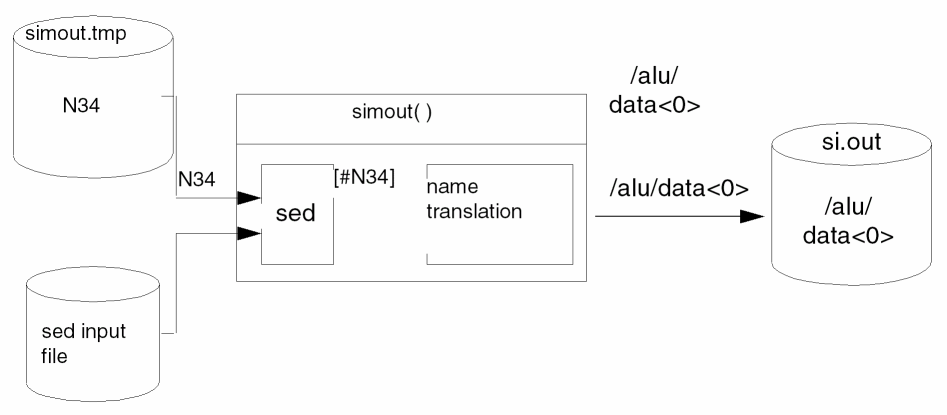
Depending on the output syntax of your simulator, and the netlister-assigned names it requires, the sed script can be either simple or complex.
For example, the following is the complete sed script required for the text output of the SILOS simulator:
s/\(N [ 0-9 ] [ 0-9 ]*\ )/[#\1]/g
s/\(I [ 0-9 ] [ 0-9 ]*\)/[$\1]/g
Figure 3-7 is a partial sed script for SPICE output.
Figure 3-7 Partial sed Script for SPICE Output
/INPUT LISTING/,/^\.END/{
   /^\./{
      s/V(([0-9][0-9]*\)*,*\([0-9][0-9]*\)*)/V([#\1],[#\2])/g
      s/V((*\[0-9][0-9]*\)*)/V([#\1])/g
      s/V\([RIMP]\)(*\([0-9][0-9]*\)*,([0-9]
            [0-9]*\)*)/V\1([#\2],[#\3])/g
      s/V\([RIMP]\)(*\([0-9][0-9]*\)*)/V\1([#\2])/g
      s/VDB(*\([0-9][0-9]*\)*,*\([0-9][0-9]*\)*)/
            VDB([#\1],[#\2])/g
      s/VDB(*\([0-9][0-9]*\)*)/VDB([#\1])/g
}
/^[K\*]/b
/^[CLRFHVID]/s/\([0-9][0-9]*\)*\([0-9][0-9]*\)/[#\1][#\2]/
/^[JQ]/s/\([0-9][0-9]*\)*([0-9][0-9]*\)*\([0-9]
[0-9]*\)/[#\1][#\2][#\3]/
}
/(*\([0-9][0-9]*\))/s/(*\([0-9][0-9]*\))/([#\1])/g
/*$#[0-9][0-9]*/s/$#\([0-9] [0-9]*\)/[$1]/g
You can test your sed script by taking an existing textual output file from your simulator and running your sed script on it by issuing the following UNIX command:
sed -fsed_file_name<simulator_output_file_name>file_name
Then edit the file_name file and make sure that all names requiring translation are surrounded by square brackets ( [ ] ) and have the correct command character following the opening square bracket ( [ ).
The name of this sed file should be the same as the one used to set the simSedFile variable in the simulator-specific SE customization file (spice). In sed.spi file. It is customary to name this sed file sed, suffixed with the first three letters of the name of the simulator used, for example, sed.spi.
If you can modify the simulator itself to produce names in the output file with the necessary name translation syntax, then you do not need to write a sed file.
SE Naming Conventions
SE follows the Cadence standard naming conventions for SKILL code. The first letter of all variable and function names is lowercase. The remainder of the name is also lowercase except for the first letter of each word which is uppercase.
To ensure you do not use any of the same names used within SE, it is recommended that you begin all variable and function names with an uppercase letter. Then make the remainder of the name lowercase, except for the first letter of each word. This makes variable names effortless to read and ensures that SE does not alter the value of your variables.
SE Variables
The following is a list of global variables which are defined in SE:
simActions
Default list of functions to be executed in order to run a complete simulation. If these functions do not provide the proper sequence of steps to be performed for a particular simulator, the variable can be set in the simulator-specific file stored in the local/si/caplib directory with the same name as the simulator. You can set this variable outside any function or in the function of the same name as the simulator.
Defined in: local/si/caplib/simulate.ile
Default: ( simCheckVariables()
      simInitRunDir()
      netlist()
      simin()
      runsim()
)
simAlwaysAddPrefixInInstName
Always prefixes the instance name with the namePrefix of the device type. If set to nil, and if the instance name already starts with the name prefix, then the instance name is not changed. For example, if a resistor instance name is R0, and the namePrefix is R, the instance name is not changed to RR0.
When set to true, all instance names are always prefixed with the namePrefix. OSS maintains a table mapping the original name to the new names. Therefore, OSS stores the instance name mapping for R0 as R0 RR0. Since OSS keeps a record of old and new instance names, it is also possible to backannotate, which is not possible if the netlister generates the prefixed instance names.
Defined In: .simrc, libInit.il, or a customer SKILL file loaded in a Virtuoso session
Default value: nil
Example: simAlwaysAddPrefixInInstName = t
You can override the simAlwaysAddPrefixInInstName variable to always add the prefix for hierarchical instances but not for primitives, by using the following procedure:
procedure(auCdlAlwaysAddPrefixInInstName()
;;do not always add prefix to primitives
if(hnlIsAStoppingCell( hnlCurrentMaster ) then
simAlwaysAddPrefixInInstName = nil
else
;;always add prefix to hierarchical instances
simAlwaysAddPrefixInInstName = t
)
)
simCapUnit
Scaling factor for capacitance. Refer to the netlister documentation for details of how the value is used.
Defined in: etc/skill/si/simcap.ile
Default: 1.0e-15
simCellName
Name of the top-level cellname of the design.
Defined in: si.env
Default: myCell
simCellViewModifiedAction
When this variable is set to warning or ignore, netlisting continues when some edits are made to a writable schematic that does affect the connectivity of the design. If however, this variable is set to error or is not specified in the .simrc, an error message is displayed and netlisting discontinues.
Defined in: .simrc
simCheckNetCollisionAction
Detects and reports errors caused by name collision due to net name mapping. It takes on the following values with the corresponding action:
-
ignore: Generates no warning or error message. The colliding nets are quietly remapped to new net names. -
info: Generates an info message for each net name collision. The collided nets are remapped, and the netlist is created. -
warning: Generates a warning message for each net name collision. The collided nets are remapped, and the netlist is created. -
error: Generates an error message in case of net name collision and aborts the netlist. You need to remap collided nets and create the netlist.
simCleanFileList
List of files to delete from the current run directory when the simCleanRun() function or clean run menu command is executed. The simCleanFileList variable should be set to a list of file names, for example,
simCleanFileList='("save.cmm" "save.sim")
Defined in: simulator-specific file in local/si/caplib directory.
Default: nil
simCommand
Actions to perform to run the simulator used for this simulation. This variable is used by the runsim() function to run the simulator.
Defined in: simulator-specific file in local/si/caplib directory.
Default: None
simCommand = 'prog( (cmd)
simDeleteRunDirFile("raw/waves")
sprintf( cmd "cd %s" "exec pacsim si.inp 2>&1 >simout.tmp"simRunDir)
if( ! simExecute(cmd) then
simPrintError("si: Pacsim did not complete without errors. \n" )
return(nil)
)
return(simPacsimRawToWaves( "waves.tmp" ) )
)
simCompleteMessage
Default completion message printed by the sim() function. This message is printed if the function does not have an error during execution.
Defined in: etc/skill/si/simcap.ile
Default: "Simulation completed successfully."
simControlFile
Full pathname to control file template usually stored in the etc/si directory.
Defined in: etc/skill/si/simcap.ile
Default: nil
Example: simControlFile = "/usr2/companyDefaults/etc/si/control.sil"
simDefaultControl
Relative pathname to the default control file template.
Defined in: etc/skill/si/simcap.ile
Default: nil
Example: simDefaultControl = "control.sil"
simDefaultRunDir
Relative pathname to the default simulation run directory.
Defined in: etc/skill/si/simcap.ile
Default: nil
Example: simDefaultControl = "silos.run1"
simDefaultSimulator
Name of the default simulator. You can use this variable to set the name of the default simulator in your site.
Defined in: etc/skill/si/simcap.ile
Default: nil
Example: simDefaultControl = "silos"
simDetectPCellFailure
Detects evaluation errors in Pcells when modifications are made at any level of hierarchy in the design before netlist generation.
-
Ignore: No Pcell evaluation failures are detected or reported. This might result in an erroneous netlist. -
Callback: Default. Detects all Pcell evaluation failures by triggering a database callback. An erroneous netlist is generated, and errors are reported by the netlister. -
Label: Detects all Pcell evaluation failures in labels belonging to the master Pcell. Netlist generation is stopped when a failure is detected and reported. -
Both: Detects bothCallbackandLabelPcell evaluation failures. Netlist generation is stopped when a failure is detected and reported.
Example
simDetectPCellFailure = "Ignore"
simDetectPCellFailure = "Label"
simDetectPCellFailure = "Both"
simDoNetlist
Non-nil if a new netlist should be generated.
Defined in: etc/skill/si/simcap.ile
Default: t
simDoNotForkNetlist
If set to nil, the netlist function will be forked and run under a new process. This variable is only used when netlisting does not run in the graphics program. Netlisting in the graphics program is never run under a forked process.
Defined in: etc/skill/si/simcap.ile.
Default: nil
simFailedMessage
Default completion message printed by the sim() function. This message is printed if the function has an error during execution.
Defined in: etc/skill/si/simcap.ile
Default: "Simulation did not complete."
simGenWarnings
Variable to indicate whether to generate warnings for user overrides of simulator initialization. This variable is used by the simSetDef() function.
Defined in: etc/skill/si/simcap.ile
Default: t
simHost
Host name of the computer on which the simulator is to be run. This variable is used only for remote simulation.
Defined in: etc/skill/si/simcap.ile
Default: simHost = "localhost"
simHostDiffers
Variable is nil if the remote host used for simulation has an identical binary storage format; otherwise, it is t. This variable is used only for remote simulation.
Defined in: etc/skill/si/simcap.ile
Default: nil
simIgnoreTerm
OSS reads the nlAction property on terminals and ignores the terminals while netlisting if the simIgnoreTerm variable is set to true and the nlAction property is set to ignore. If the simIgnoreTerm variable is not set or is set to nil, OSS does not read the nlAction property on the terminals.
Defined in: simulator-specific file in local/si/caplib directory or .simrc file.
Default: nil
simResolveStopCellImplicitConns
By default, the netlister propagates the explicit inherited connections to the upper level of the hierarchy and does not consider the implicit inherited connections for stopping cellviews, In such cases, the instance line in the netlist only contains the explicit inherited connections.
To promote implicit inherited connections to the upper level of the hierarchy of stopping cells, set the simResolveStopCellImplicitConns flag to t in the .simrc file.
When simResolveStopCellImplicitConns is set to t, the netlist contains both the explicit and implicit inherited connections of stopping cellviews at the instance line.
When set to t, this flag can also be used with the following flags:
-
If you set the
simPrintInhConnAttributesvariable tonil, it creates pseudo ports at the top level, wherever required. - For stopping cells, the netlister evaluates both implicit and explicit inherited connections defined at the top level of the switch master. You can also use the hnlUserStopCVList flag to define stopping cells.
Defined in: .simrc file.
Default: nil
simInitRunActions
List of functions to call when initializing a new run directory. If you want a different sequence of steps when a run directory is initialized for your tool, you must redefine this variable in your tools caplib file.
Defined in: etc/skill/si/caplib/init.ile
Default: simInitRunActions = '(simInitControl()simInitRaw())
simInstNamePrefix
String prefix that should be used when outputting FNL-assigned instance names. If nil, only numbers are output.
Defined in: etc/skill/si/simcap.ile
Default: nil
Example: simInstNamePrefix = "I"
simLibName
The name of the library containing the top-level cellview of the design.
Defined in: si.env
Default: "myLib"
Example: simLibName = "testLib"
simMaxNetlistErrors
Specifies the maximum number of errors that can be encountered during netlisting before netlisting aborts. Currently, FNL, not HNL, observes this variable.
Defined in: etc/skill/si/simcap.ile
Default: 25
Example: simMaxNetlistErrors = 50
simModelNamePrefix
String prefix used when outputting FNL-assigned model names. If this is set to nil, only numbers are output.
Defined in: etc/skill/si/simcap.ile
Default: nil
Example: simModelNamePrefix = "Model"
simNetlistHier
Non-nil if the netlist should be hierarchical.
Defined in: etc/skill/si/simcap.ile
Default: nil
simNetNamePrefix
String prefix that should be used when outputting FNL-assigned node names. If nil, only numbers are output.
Defined in: etc/skill/si/simcap.ile
Default: nil
Example: simNetNamePrefix = "N"
simNlpGlobalCellName
Name of the cell containing the global netlist format property definitions for FNL.
Defined in: etc/skill/si/simcap.ile
Default: "nlpglobals"
simNlpGlobalLibName
Name of the library containing the global netlist format property definitions for FNL.
Defined in: etc/skill/si/simcap.ile
Default: "basic"
simNlpGlobalViewName
Name of the view containing the global cellview netlist format property definitions for FNL.
Defined in: simulator-specific file in local/si/caplib or etc/skill/si/caplib
Default: None
simNotIncremental
When set to t, HNL will try to netlist in non-incremental mode if the target simulator formatter will allow it to.
Defined in: etc/skill/si/simcap.ile
Default: nil
simPcellPrefix
String prefix for all Pcells. If set to nill or not defined, there will be no impact on the existing Pcell names.
Defined in: .simrc
Default: nill
Example: Pcell name Xpcell246Y is renamed to myPrefix_Xpcell246Y in the netlist.
simPinGlobals
When set to t, the top-cell sub-circuit header as well as other cells list all global nets that are physically connected to at least one instance terminal and all resolved inherited terminals. All these new terminals propagate upwards until the top cell. Global nets that are floating or not connected to any instance terminal (but may be connected to pins only) are not listed in either the top cell or the sub-circuit of the current cell.
Defined in: .simrc
Default: nil
Example: simPinGlobals=’t
simReNetlistAll
When set to t, will force HNL (when running in incremental mode) to renetlist all cells used in the design.
Defined in: etc/skill/si/simcap.ile.
Default: nil
simViewName
Name of the top-level view of the design.
Defined in: si.env in the simulation run directory
Default: "myView"
Example: simViewName = '("verilog")
simViewList
List of views to attempt to open for each cell when traversing the design hierarchy during netlisting and name translation (simin(), simout()). This variable must be set by the function of the simulator name, for example, silos( ), to be the simulator-specific view list. For example, the silos() function sets it as follows:
simViewList = silosSimViewList
Defined in: etc/skill/si/simcap.ile
Default: "si: no view list has been specified."
simRunDir
Directory in which SE data is stored.
Defined in: bin/si and also in the Cadence graphics program
Default: depends on simulator and design
Example: simRunDir = "/mnt2/dave/alu_simulations/silos1"
simRunningInSi
Variable to indicate SKILL code is being executed in bin/si. If this variable is set to nil, then you can make use of SKILL functions that require graphics (such as hiDisplayForm( ) ). By testing the value of this variable, you can write SKILL code that can be run in both SE and the Cadence graphics program.
Defined in: bin/si and also in the Cadence graphics program
Default: t in bin/si; nil in the Cadence graphics program
simSedFile
Name of the sed input script used by the simout() and simOutWithArgs() simulator output name translation functions. This sed input script must surround each name that requires translation in the simulator output file with square brackets ( [ ] ) and insert the correct command character after the opening bracket ( [ ). For example, if the name netname must be translated back to the designer-assigned name for the net, the sed script must replace the word netname with [#netname] so that the simout function translates it. For more information, refer to the simout() or simOutWithArgs() functions.
Defined in: simulator-specific file in local/si/caplib
Default: depends on simulator
Example: simSedFile = "/cds/local/si/sed.sil"
simSimulatorSaveVars
List for symbols whose values you want written to the environment file, in addition to the default variables. The type of the value will be checked, and the proper format will be printed into the si.env file.
Defined in: simulator-specific file in local/si/caplib
Default: nil
Example: simSimulatorSaveVars = '(compareSchematic compareLayout)
simSimulatorUnbindFuncs
Specifies the functions in your simulator-specific caplib file that must be unbound when designers switch simulators. Define this variable in the caplib file outside of any function definition. Set it to a list of the names of all functions you define. If you do not include a function in this list, the correct function might not be used when designers switch simulators.
Defined in: simulator-specific file in local/si/caplib
Default: depends on simulator
Example: setting this variable in the caplib/silos.ile file.
simSetDef( 'simSimulatorUnbindFuncs,'( silos simInitSilosIncludes ))
simSimulatorUnbindVars
Specifies the variables in your simulator-specific caplib file that must be unbound when designers switch simulators. Define this variable in the caplib file outside any function definition. Set it to a list of the names of all global variables you define. If you do not include a variable in this list, designers will get warning messages indicating this variable has already been defined, and the correct value for the variable will not be used when they switch to a different simulator.
Defined in: simulator-specific file in local/si/caplib
Default: depends on simulator
Example: setting this variable in the caplib/silos.ile file.
simSetDef( 'simSimulatorUnbindVars, '(silosSimViewList
   silosSimStopList
   simDefaultControl silosBinary
   simSilosSave simNetNamePrefix
   simInstNamePrefix
   simModelNamePrefix
   )
)
simStopList
List of views that are valid stopping points for expansion used during netlisting. This variable must be set by the function of the simulator name, for example, silos(), to be the simulator-specific stopping list. For example, the silos( ) function sets it as follows:
simStopList = silosSimStopList
Defined in: simulator-specific file in the local/si/caplib directory.
Default: None
Example: simStopList = '("silos")
simStopNetlistOnPcellFailure
Stops netlist generation if evaluation failures are detected in Pcells when modifications are made at any level of hierarchy in the design.
The Pcell submaster must be created for netlisting to occur. This evaluation can occur either before netlisting, for example, when the corresponding schematic is opened in Virtuoso Schematic Editor, or during netlisting. When a Pcell fails to evaluate, a pcellEvalFailed label is created on the submaster.
Possible values of simStopNetlistOnPcellFailure are:
-
Never: No Pcell evaluation failures are detected or reported. Netlisting is not stopped. This might result in an incorrect netlist. -
CheckNetlistOnly: Detects and reports Pcell evaluation failures that occur during the netlisting process. The detection is performed using a database trigger which adds no performance overhead. Netlisting is terminated. -
CheckNetlistAndSchLabels: Pcell evaluation failures are detected during netlisting and include detection of the labelpcellEvalFailed. In this case, previously detected evaluation failures are also reported. Scanning all labels can be slow and adversely impact performance.
Defined in: simulator-specific file in the local/si/caplib directory.
Default: CheckNetlistAndSchLabels
Example: simStopNetlistOnPcellFailure = '("Never")
simTimeUnit
Scaling factor for delay times. Refer to the “Customizing the Flat Netlister (FNL)” chapter in this manual for details of how the value is used.
Defined in: etc/skill/si/simcap.ile
Default: 1.0e-9
simSimulator
Defined in: si.env in the simulation run directory
Default: "spice"
Example: simSimulator = "spectre"
simSupportDuplicatePorts
Determines whether to remove duplicate ports from a netlist. The value of this variable is t by default and the simulator accepts duplicate ports. If the variable is set to nil, the netlister removes duplicate ports from a netlist.
Defined in: User customization file,.simrc or Virtuoso® Design Environment workbench if running in foreground mode
Default: ‘t
Example: simSupportDuplicatePorts = nil
simSymbolModifiedAction
Indicates whether to report an error, or to generate a warning or ignore, in case the symbol master of an instance is newer than the time the instance was last changed.
The following table lists the valid values of simSymbolModifiedAction, along with the actions that the netlister takes for these values.
Defined in: etc/skill/si/simcap.ile
Default: ignore
Example: simSymbolModifiedAction="warning" ;
SE SKILL Functions
The SKILL functions defined by the simulation environment (SE) let you simplify the integration of your simulator. These functions are in both the Cadence graphics program and the SE program.
For details on the SE SKILL functions, see OSS Functions in the Digital Design Netlisting and Simulation SKILL Reference.
SE Graphics Variables
You can use the following SE graphics variables to determine what SE does at the end of a batch job:
simPostAnalysisProcessingFunc
simDoNotDisplayDialogBox
These variables let you register a function to be called after a batch job started in SE completes. For example, you could have SE clean up the run directory or generate required files for the next steps in the design analysis process.
To use this feature, you must write your post-analysis processing function and register your function with SE through the simPostAnalysisProcessingFunc variable. SE uses this variable to call your registered function.
The following example shows you how to register a function for SE to call at the end of a batch job:
procedure( b( paramA )
   println( paramA->status )
    println( paramA->rundir )
    t
)
simPostAnalysisProcessingFunc = 'b
Function b is the function you want SE to call. It must accept one parameter, which is a property list with two properties, status and rundir.paramA>status returns a string indicating the status of the completed batch job: succeeded, failed, or killed. paramA->rundir returns the pathname of the run directory in which the batch job was started.
The assignment statement simPostProcessingFunc = 'b is where your function is reassigned.
By default, SE brings up a dialog box at the end of a batch job indicating the completion status of the job. If you do not want SE to bring up the dialog box, set simDoNotDisplayDialogBox, to t.
simDoNotDisplayDialogBox
If set to t, stops SE from displaying a dialog box that notifies the designer that the batch job has finished.
Defined: etc/skill/si/simcap.ileDefault: nil
simPostAnalysisProcessingFunc
Used to call the postprocessing function you registered with SE. This postprocessing function is called after a batch job completes.
Defined: etc/skill/si/simcap.ileDefault: nil
Return to top