
7
Customizing the Flat Netlister (FNL)
Most simulators and design analysis tools require a textual description of the design to be analyzed as input. Some of these tools require this description to be completely flat. This type of a network description is called a “flat netlist.” A flat netlist contains a complete description of the devices used in the design, their delays, and the connectivity between these devices. In addition, the flat netlist may contain model descriptions, which are ways of setting the parameters of a simulator primitive view for a device (for example, the saturation current IS and ohmic resistance RS of a diode in SPICE). A flat netlist must not contain any hierarchy. This requirement means that descriptions for a cell used in the design and references to the cell later in the netlist are not output. Instead, the contents of each cell are output every time the cell is referenced.
The Flat Netlister (FNL) is a Cadence tool to produce flat netlists. FNL flattens the design and presents the data in a simplified form for use by output formatting instructions. You can write these instructions to produce a new netlist syntax suitable as input to your simulator. Output formatting can be performed using the Cadence standard language, SKILL, the netlister's own substitution expressions, or a combination of both. FNL substitution expressions are a compact and simple language which can be used to format the netlister output without any understanding of the Cadence database structure. It can be used for most of your formatting needs. For more complex formats, it may be necessary to use SKILL instructions to produce some of the output. The full capability of SKILL is available for use in writing your format functions. In addition, several functions and variables specific to netlisting have been added. These functions give you complete access to the design database, as well as to the internal structure of the netlister. To use some of these functions effectively, you need to understand the basic structure of the Cadence database as described in the
This chapter describes how FNL works, how the design is flattened, how and why names are generated, and how the output is formatted. Included in the explanation of output formatting is a description of the substitution expression syntax and the SKILL functions specific to the netlister which you can use to simplify customizing the FNL output. After netlister functionality is explained, the steps you must perform to modify the netlister output for a new syntax are explained. There is also a description of recommended library structure pertaining to netlisting and the modifications that need to be made to the Simulation Environment (SE) if you are netlisting for a new simulator. Examples of library elements from the SPICE library and the formatting instructions used to output the connectivity for these devices to the netlist file are at the end of this chapter.
Net within them. Read the descriptions of these variables carefully. As the descriptions state, they probably return data about signals and not about nets.How FNL Works
FNL consists of two parts: the first part contains the output formatting instructions that you must provide; the second part contains the database traversal routines provided by Cadence.
Formatting Instructions
When netlisting begins, a cell, usually called nlpglobals, is read, and the output formatter is initialized. Along with preparing internal data structures, the primary formatting properties that can be defined only in this cellview are searched for, and if found, they are precompiled for later formatting of each device and net. Which formatting properties are found determines whether the netlist contains certain types of data. The primary formatting properties are shown here:
NLPcompleteElementString
NLPcreateModelString
NLPcreateNetString
NLPnetlistHeader
NLPnetlistFooter
NLPLineLength
NLPLinePrefix
NLPLinePostfix
NLPsingleLineCommentString
These are the only predetermined property names that the netlister searches for to format the netlist, and the global cellview is the only place searched for their values. (Refer to the “Global Cellview (nlpglobals) Contents” section in this chapter for a description of these properties.) If any other property value is placed in the netlist, one of these properties must specify the necessary search to find that property value and the way it should be formatted in the netlist.
Database Traversal Routines
Next, the design hierarchy is read into memory, and an internal view of the design is built that can be traversed as if the design had been flattened. Flattening is the process of replacing each instance, or reference to a device, with the contents of that device. This process is explained in detail in the “FNL Flattening Process” section in this chapter.
As the design is flattened, the names of all of the instances and nets must be expanded to ensure that each device is still uniquely identifiable by its name within the design. This is done by preceding the name of each instance (or net) with the name of the instance that contains it and separating the names with a slash (“/”). For example, if you place two inverters in your design, one called “inv1” and the other called “inv2,” and each contains a transistor called “trans1,” the flattened design contains two instances of transistor “trans1,” one with the name “/inv1/trans1,” and the other with the name “/inv2/trans1.” In a large hierarchical design, these names can quickly become too large for most simulators to accept. Therefore, as the design is flattened, each instance and net is assigned another name acceptable to the target simulator. This name is created by taking a prefix, which you can specify, and suffixing it with a unique number. This name relation is stored in a name map which the Cadence system can read and use to translate between the two names. Your users never need to see the name that was created for the restrictive name space of a simulator.
During this process certain consistency checks (such as terminal mismatches between levels of hierarchy) are performed. If there are no errors in this process, the output formatting begins. The flattened design data, which is now in core, is traversed again. As each device and net is encountered, one of the properties which must be defined in the global cellview is evaluated. (Refer to the “Formatting Instructions” section in this chapter.) This property must be either a substitution expression () or a SKILL function (ilExpr). If the property is a substitution expression, it specifies for the netlister how to output the connectivity for the current device or net. If the property is a SKILL function, it is evaluated, and the SKILL command either outputs any needed information to the netlist file directly or returns a value which the netlister outputs to the netlist file. The use and syntax of substitution expressions is explained in the “Formatting Substitution Expressions” section in this chapter. Netlist formatting using SKILL, including the extra functions and variables that have been added to simplify this process, are explained in the “SKILL Formatting” section in this chapter.
FNL Naming Conventions
Properties with predetermined names that the netlister searches for are prefixed with the letters NLP and are searched for only in the global cellview. (Refer to the “Global Cellview (nlpglobals) Contents” section in this chapter.) To avoid any confusion concerning which functions refer to these properties, as well as any property name conflicts, do not prefix your property names with the letters NLP. If you are using an existing simulation interface supported by Cadence, then netlisting format properties can also be found on the simulation primitive for each device.
All of the SKILL functions and variables defined in the netlister begin with the letters fnl. The name is lower case, except for the first letter of each word, which is upper case. To avoid variable or function name conflicts, do not prefix your function or variable names with the letters fnl. Predefined netlister functions and variables are explained in the “SKILL Formatting” section in this chapter.
FNL Flattening Process
The Cadence netlister “flattens” a design hierarchy and produces an expanded description of the design chosen for simulation. The way the design hierarchy is “expanded” to produce the netlist as well as the syntax of the netlist depend on the simulator used. For example, when generating a network description for input to the SILOS simulator, you may want the description to be at the logical gate level, since SILOS is capable of simulating such primitives as AND gates and AOIs. If you want to run a SPICE simulation on the same design, the network description must be expanded down to the transistor level, since SPICE has no understanding of logic gates.
Schematics usually consist of instances of symbols connected by nets. When expanding a schematic for input to a simulator, the symbol instances must be associated with their corresponding schematics or netlisting views so that the target simulator can understand the components in the design.
Locating an Instance of a Device
First, each instance (occurrence) in the schematic (represented by the symbol instance) must be located. The cds.lib file contains the path list that your design library, which contains the top-level schematic of the design, and reference libraries are located in. Each instance of the master (symbol) could be located in either the design library or the reference library. If the instance of the master is from one of the reference libraries, the instance maintains the referenced library's name. Therefore, it is important to put the same library path and library names in the cds.lib file. This maintains consistency if you run your simulation from within the Cadence-provided environment. When the netlister finds an instance of a device in a schematic, it tells the design manager to locate the library containing the device. The library is specified in the cds.lib file. Once the netlister locates the device in the specified library, it continues the design hierarchy expansion process. If the netlister does not locate the device, it generates an error message because it cannot create a netlist.
Switching Views
Once the device referred to in the schematic has been located, the symbol instance for the device needs to be associated with its corresponding schematic or simulator primitive. This process is called switching views. The list of valid views to be used for switching is defined by the SE simViewList variable. Each view in this list, along with the device's name, comprise an identification that is searched for in the specified library. If no identification (cell's name and view's name) in the simViewList is found in the specified library, an error message is generated, and no netlist can be produced.
Stopping Views
A view that is the most detailed description desired for simulation is called a stopping view. The list of valid stopping views is defined by the SE simStopList variable. If the view located in the previous switching views step corresponds to one specified in the simStopList, the expansion process for this instance is stopped, and the connectivity information for this instance is printed to the netlist file. If the view does not correspond to a stopping point, the expansion process continues, and you return to the step of locating all of the instances contained in this cellview.
The following are the SE variables that control the expansion process:
simLibName
The library name containing the top schematic of the design.
simViewList
The “viewing switch list.” Each of the views in this list is searched for in the order it is listed in the library. The first view found is switched in place of the symbol.
simStopList
The “stopping point view list.” The view found in the simViewList is checked to see if it is in this list. If it is, expansion stops. If it is not, the expansion process is applied to the new view.
simViewList and simStopList are the variables used by SE and the netlister internally. Users cannot set the variable directly. The simViewList and simStopList variables can be set only on a per-simulator basis. To override the default view list or stop list, users set the corresponding list for the simulator they are using in their .simrc file, and the appropriate internal list is set to the same value by each simulation interface. The “Modify the Simulation Environment (SE)” section in this chapter explains how to set these lists.The following are examples of the variables controlling expansion:
simViewList = '("spice" "schematic")
simStopList = '("spice")
Stop on a cell with a view named "spice." Otherwise, expand to the cell with view name "schematic."
simViewList = '("spice" "cmos.sch" "schematic")
simStopList = '("spice")
Stop if the cell's view name is “spice”. Otherwise, expand the view “cmos.sch” or “schematic”.
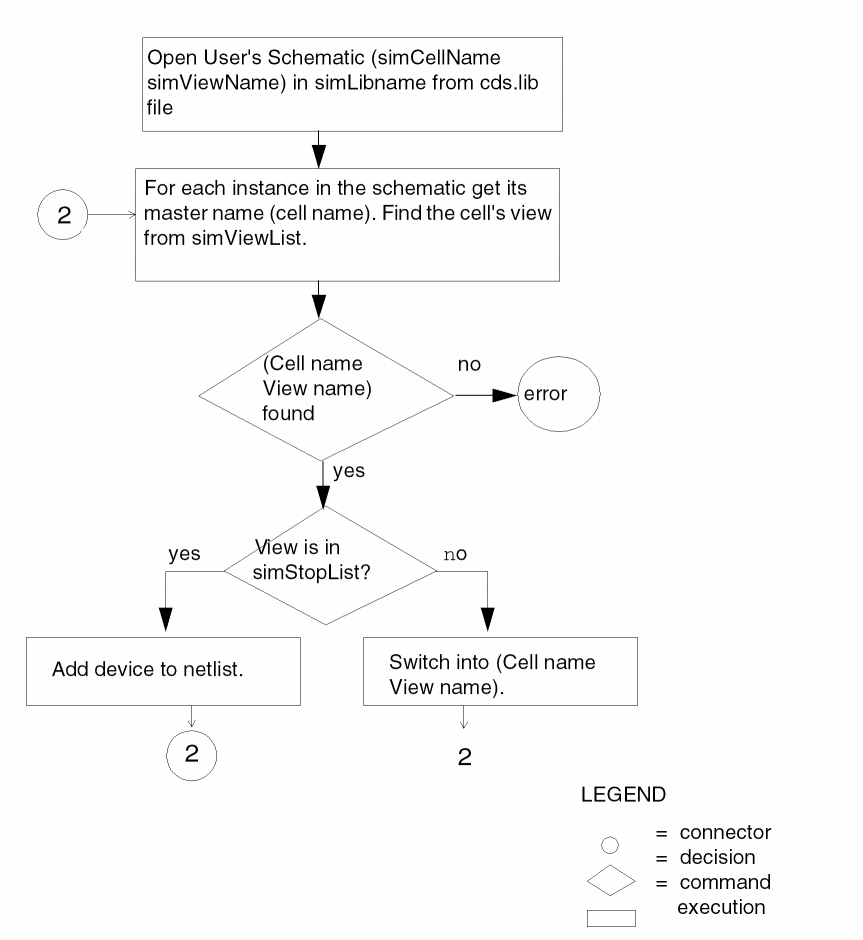
The concise algorithm for turning a design hierarchy into a netlist is explained next.
Opening a Design
Open the design (simCellName simViewName) in the simLibName library.
Locating a Cellview
For each instance in the current schematic, get the cell name (master name) of the instance, then take each of the names in turn from the list of views (simViewList), and look for the specified cellview in the available reference libraries.
Expand or Format
If you find a cellview with a view name from the simViewList, check to see if the view name is also in the simStopList. If the view name is a stopping point, write out the instance in the netlist file. If you do not find a view name from the simViewList, generate an error message. If the view name does not appear in the simStopList, repeat the Locating Cell View step to expand the cellview.
Global Nets
During the flattening process, if two nets in the same or different cellviews of the design hierarchy are called netName and are marked as global, then both nets are assigned the same name by the netlister. Because simulators make connections by name, both nets are perceived as electrically equivalent by the simulator.
Support of Multiplicity Factors for Flat Netlisters
Multiplicity factor means that for a given instance on which this property is specified, the instance will be treated as an array of instances with the upper limit being the number specified by this property. This is also referred to as m-factor and is denoted by an integer value.
This feature was introduced for customers to avoid keeping multiple copies of the same design for simulation and verification purposes since FNL till now didn’t support this property. The support of this feature will enable users to specify the property on the instance with the SKILL variable useMfactorToIterateInstances set to t and the instances will be connected in parallel. The user can specify the following variable in the .simrc file.
SKILL Variable: useMfactorToIterateInstances
This variable when set to true (t) will direct OSS to handle the instances which have the m-factor set to some integer value as iterated instances and thus the instance will appear in the flattened netlist, number of times as specified by the value of the m-factor. If this variable is set to false (nil), OSS will continue its default behavior and ignore the m-factor properties set on the instances.
For simulation purposes, there would not be any change needed because this variable will not impact the default behavior of the hierarchical netlisters.
FNL Name Map
As explained in the “Database Traversal Routines” section in this chapter, the netlister automatically generates new names for each instance and net to avoid problems with names not being acceptable in a simulator input syntax. These names are generated by suffixing a prefix with a unique number. You can specify the netlister prefixes by setting variables in SE as explained in the “Modify the Simulation Environment (SE)” section in this chapter. The netlister automatically stores the cross-references between these two sets of names in a “map” file. You do not need to add the names to this map. If you need to know either name for a signal or instance, the functions and variables to retrieve this information are listed in the “Formatting Substitution Expressions” and “SKILL Formatting” sections in this chapter.
FNL Output Formatting
FNL automatically flattens the design and produces a name map, but it does not output any connectivity until it has been instructed on how to format the netlist. There is no default netlist syntax. The netlist syntax is determined by the property values with fixed names stored in a database cellview called the global cellview, or frequently called nlpglobals. To produce a netlist with the syntax required by your simulator, you must first create this global cellview.
In this global cellview, you add several properties to instruct the netlister how to format various aspects of the netlist. These instructions usually refer to other properties defined on library elements (the primitive views for your simulator) or SKILL procedures that format the output for each device type. You can also add global default format instructions to the global cellview property list. The format instructions on primitive library elements can then refer to, and share, these instructions.
The following sections explain the global cellview, the predefined properties you must create, substitution expression syntax, and SKILL formatting instructions.
Global Cellview (nlpglobals) Contents
The global cellview is basically a schematic. It must contain one instance whose master is (dummy dummy). (This is explained in the “Create Global Cellview” section in this chapter.) It must also contain the netlist formatting instructions. In addition, netlist formatting properties applicable to the entire design can also be stored in the global cellview. This global cellview is a way of storing common format instructions in a single place. For example, there is a property in the global cellview that specifies how each instance should be formatted. This property usually refers to a property on the primitive for each element found in the library; the property contains details on how this device type should be formatted. Formatting instructions that are common to many types of gates, such as formatting the delay characteristics of a logic gate, can also be stored in the global cellview and then referred to by all primitives for logic gates found in your library.
Creating Predetermined Properties
The following list shows all the predetermined property names the netlister searches for to determine the netlist format.
NLPcompleteElementString
NLPcreateModelString
NLPcreateNetString
NLPnetlistHeader
NLPnetlistFooter
NLPLineLength
NLPLinePrefix
NLPLinePostfix
NLPsingleLineCommentString
nlpExpr), and the SKILL expressions (ilExpr) are explained in the two following sections.NLPcompleteElement-String
This property is the most important one in the global cellview because its value instructs the netlister how to format each instance in the design being netlisted. Since FNL is instance-based (as opposed to net-based), this format instruction outputs all of the connectivity for the design. There is no default for this property. If you do not define its value in the global cellview, no connectivity information is placed in the netlist. The property type must be either ilExpr or nlpExpr.
This property value usually refers only to another property placed in the simulation primitive for each device in the library. In the following examples, the property value instructs the netlister to search for another property, which is called NLPElementPostamble in this example (although it can be any string) and uses the value to format the reference to this element. In the Cadence library, this property is located in each primitive.
When this property is evaluated, your formatting instruction has access to two types of property searches: you can specify either a local property search or a search throughout the design hierarchy. The method for specifying the type of property search is explained in the “Formatting Substitution Expressions” and “SKILL Formatting” sections in this chapter. A local property search looks for a property of the specified name only on the primitive instance currently being output to the netlist. A property search throughout the design hierarchy first looks for the property on the primitive instance currently being output to the netlist, then looks on the instance that contains it, and so on up the instance hierarchy. If it does not find the property on any of the instances, it looks for the property on the view switched master of the stopping instance. The stopping instance is the simulator primitive for the device found in the library. If it still does not find the property, it searches the global cellview for a property of this name.
The property search throughout the design hierarchy allows you flexibility in setting defaults, as well as the possibility of overriding them. You can place the default value of a property in the cellview for each library element type and make it specific for that device type, or you can place a default in the global cellview and make it a default for the entire design. You can override the default for all devices below a particular level of hierarchy or on only one instance.
In addition to properties stored in the design, certain netlister-defined properties are also accessible; these properties are defined in the “Formatting Substitution Expressions” and “SKILL Formatting” sections in this chapter.
NLPcompleteElementString = nlpExpr("[@ NLPElementPostamble]\\n")
NLPcompleteElementString = nlpExpr("[@ NLPElementPostamble:%: **No element format property found for element [@ InstPathName]]\\n")
NLPcompleteElementString = ilExpr("SpiceFormatElement()")
NLPcreateModelString
The value of this property instructs the netlister how to format the model description for each device type in the design being netlisted.
This format instruction is evaluated only the first time each device type is encountered. For example, if your design includes two diodes and you defined this property in your global cellview, the property is evaluated only for the first diode encountered. The NLPcompleteElementString property is evaluated for each diode instance.
There is no default for this property, and you do not need to define it if your simulator does not require model descriptions. Model descriptions are required by circuit simulators such as SPICE, but not by most logic simulators. If you define this property in your global cell, its type must be either ilExpr or nlpExpr.
The property value usually only refers to another property placed in the simulation primitive for each library device. In the following example, the property value instructs the netlister to search for the NLPModelPreamble property and uses the value to format the model description for this element type. In the Cadence library, this property is located in each primitive.
When this property is evaluated, your formatting instructions have access to properties stored in the simulation primitive corresponding to the device being output to the netlist and to properties stored in the global cellview. Since only one model statement is output irrespective of how many instances refer to it, it cannot output information stored on any of the device instances. In addition to properties stored in the design, certain netlister-defined properties are also accessible. These properties are defined in the “Formatting Substitution Expressions” and “SKILL Formatting” sections in this chapter.
NLPcreateModelString = nlpExpr("[@ NLPModelPreamble:%\\n]")
NLPcreateModelString = ilExpr("SpiceFormatModel()")
NLPcreateNetString
The value of this property instructs the netlister how to format each signal description in the design being netlisted. Signal descriptions are not required by most simulators that use an instance-based netlist as input (that is, HILO or SPICE). However, signal descriptions can be used as comments in the netlist file to put a cross-reference between user-assigned node names and netlister-assigned node names. The second example is an example of this use.
There is no default for this property, and you do not need to define it if your simulator does not require signal descriptions. If you do define this property in your global cellview, its type must be either ilExpr or nlpExpr.
NLPcreateNetString = nlpExpr("[@ NLPNetFormat:%\\n]")
NLPcreateNetString = nlpExpr("$  [@ NodeNumber] = [@
   NetPathName]\\n")
NLPnetlistHeader
The value of this property instructs the netlister how to format any header information to be placed in the netlist. This property is evaluated before any other information is printed to the netlist file.
There is no default for this property, and you do not need to define it if your simulator does not require any netlist header information. If you do define this property in your global cellview, its type must be either ilExpr or nlpExpr.
NLPnetlistHeader = ilExpr("MysimFormatHeader()")
NLPnetlistFooter
The value of this property instructs the netlister how to format any footer information to be placed in the netlist. This property is evaluated last after all other information is printed to the netlist file and can be used to place any closing information needed in the netlist file. You can also use it to clean up after netlisting. For example, you can call a SKILL function from this property to close any files you opened during the netlist process.
There is no default for this property, and you do not need to define it if your simulator does not require any netlist footer information. If you do define this property in your global cellview, its type must be either ilExpr or nlpExpr.
NLPnetlistFooter = ilExpr("MysimFormatFooter()")
NLPLineLength
FNL automatically folds (or wraps) lines when the line length in the netlist exceeds a specified maximum. The default maximum length is 72 characters. If the line length exceeds this maximum, the netlister searches backwards in the text to be output and inserts a new line at the first blank it encounters. The remaining text is put on the next line (or subsequent lines if the text is still too long to fit on the next line).
To change the default maximum line length, set the NLPLineLength property in the global cellview you are creating to an integer value.
NLPLineLength = 65
NLPLinePrefix
The netlister can automatically continue lines that are too long. If your simulator requires it, the netlister can add any line continuation character at the beginning of the next line. To put a continuation character at the beginning of the next line being continued, set the NLPLinePrefix property in your global cellview to any string value. This property has no default value and is not required by the netlister.
NLPLinePrefix = "+"
NLPLinePostfix
The netlister can automatically continue lines that are too long. If your simulator requires it, the netlister can add any line continuation character at the end of the current line. To put a continuation character at the end of the line requiring continuation, set the NLPLinePostfix property in your global cellview to any string value. This property has no default value and is not required by the netlister.
NLPLinePostfix = "+"
NLPsingleLine-CommentString
In addition to automatically post fixing and prefixing lines that the netlister folds, the netlister can distinguish between comments and other netlist lines. Some simulators do not allow continuation of comments in the netlist. When you put a comment string in the netlist, the netlister folds the line as usual, but instead of inserting a continuation character at the beginning of the new line, it inserts a comment character, converting a single comment which exceeds the simulator internal limit to two or more single-line comments. The NLPsinglLineCommentString property in the global cellview specifies the comment character used by your simulator. The netlister uses this character both to detect if the current output line is a comment and to insert the character at the beginning of a new line if a comment line needs to be broken into more than one line.
There is no default for this property, and you do not need to define it if your simulator allows continuation characters to be used in comments. If you do define this property in your global cellview, it must be a string value.
NLPsingleLineCommentString = "*"
Formatting Substitution Expressions
There are two ways to format the FNL output: You can use either the Cadence standard language, SKILL, or the netlister substitution language. These two languages are completely compatible and can be intermixed. Since netlist formatting is done by evaluating properties, one property could be a substitution expression and could refer to another property which is a call to a SKILL function. This section describes only the netlister substitution language. For details on SKILL formatting, refer to the “SKILL Formatting” section in this chapter.
The property type signals how the netlister should interpret it. If the property type is nlpExpr, the netlister interprets it as a substitution expression. All text in a substitution expression is copied verbatim to the netlist unless it is contained within square brackets ( [ ] ). The opening square bracket ( [ ) signals that the following string must be interpreted and substituted or replaced with another value. The character following the opening square bracket is a command to the netlister. The following is a complete list of the command characters that the netlister understands:
vertical bar ( | )
“at” sign ( @ )
period ( . )
asterisk ( * )
dollar sign ( $ )
pound sign ( # )
backquote ( ‘ )
up arrow ( ↑ )
ampersand ( & )
Refer to the following explanations for details on the use of each character.
The netlister interprets the remainder of the string within the square brackets, as specified by the command character. The netlister then replaces the entire bracketed expression, including the square brackets and command character, with the evaluation of the expression.
The following sections explain the various commands available in a substitution expression, enhanced substitution expression syntax, and special netlister-defined properties that you can access by means of substitution expressions.
Terminal Name Substitution
A vertical bar ( | ) following an opening square bracket signals the netlister that the following string is a terminal name. Thus, the netlister replaces the entire bracketed expression with the netlister-assigned signal name attached to the named terminal of the current instance being output to the netlist. For example, the following format string defines a two-input NAND gate, in the syntax required by the SILOS simulator, with an output pin called Q and inputs called A and B.
[ |Q ] .NAND [ |A] [ |B]
When the netlister processes this format string, the substitution expressions are evaluated and a line like the following is added to the netlist:
N23 .NAND N12 N14
The names substituted are the letter N followed by a number. The netlister generates names by adding a unique number to a user-defined prefix. For more information on how to set these prefixes, refer to the “Modify the Simulation Environment (SE)” section in this chapter.
Property Substitution
An “at” sign (@) or a period (.) following an opening square bracket signals the netlister that the following string is the property name. Thus, the netlister replaces the entire bracketed expression with the property value if it is found. If the property is not found, nothing is output to the netlist. The difference between the “at” sign (@) and the period (.) is where the netlister searches for the property value. If the period (.) is used, the netlister searches only for the property on the instance currently being output to the netlist. If the “at” sign (@) is used, the netlister searches throughout the design hierarchy for the property.
First, the netlister searches on the instance currently being output to the netlist, then it searches on the instance of the cell that contains this instance, and so on up the instance hierarchy. Next, it searches for the property on the current instance master. The master is usually the simulation primitive for this device in the library (that is, the nand2 silos cellview). The final place it searches is the global cellview for your simulator (that is, the nlpglobals silos view). The property search is halted and the value output to the netlist when a property of the specified name is found.
The sample format string is expanded by adding a substitution expression for the gate strength and its rise and fall delay times:
[ |Q ] .NAND[.strg] [ @ tr ] [@ tf ] [ |A] [ |B ]
Next, assume that the strg property with value “/C” exists on the instance of the NAND gate and that the tr and tf properties have values 5 and 8, respectively. When the netlister processes this format string, the substitution expressions are evaluated and a line like the following is added to the netlist:
N23 .NAND/C 5 8 N12 N14
You can define the strg property only on the instance of the NAND gate, whereas the delay properties can be defined either there or on the cell instance that contained the gate. If you did not add any of these properties in your design, the following line would have been added to the netlist:
N23 .NAND N12 N14
Using these property searches, you can parameterize the output of the netlister and allow users to specify parameters and delays to be output to the netlist from within their design.
Netlister-Defined Properties
To simplify netlist formatting, the netlister defines “properties” to provide information needed in most netlists. These properties have reserved names and you cannot set them. If a property of the same name exists in the design, it is ignored, and the netlister-defined value is returned. These properties do not exist in the design hierarchy, and they can be accessed only by querying the netlister. You can output the value of any of these properties in the same manner that user-defined properties are output. For example, to output the netlister-assigned instance name for the device currently being output to the netlist, your substitution expression format string can contain the following expression:
[@ElementNumber ]
The following is the complete list of netlister-defined properties:
ElementNumber
Represents the netlister-assigned name for the current iteration of the current instance being output to the netlist. It is defined only during processing of the NLPcompleteElementString property.
InstPathName
Represents the full user-assigned instance path name of the instance currently being output to the netlist. It is defined only during processing of the NLPcompleteElementString property.
NodeNumber
Represents the netlister-assigned name for the signal currently being output to the netlist. It is defined only during processing of the NLPcreateNetString property.
NetPathName
Represents the full user-assigned signal pathname of the signal currently being output to the netlist. It is defined only during processing of the NLPcreateNetString property. If a net has more than one bit, then the netlister outputs each member of the net separately.
BlockName
Represents the master cellname of the instance currently being output to the netlist. It is defined only during processing of the NLPcompleteElementString and NLPcreateModelString properties.
ModelNumber
Represents the netlister-assigned model name of the model referred to either by the instance currently being output to the netlist or by the model description currently being output. It is defined only during processing of the NLPcompleteElementString and NLPcreateModelString properties.
Net and Instance Name Substitution
The pound sign (#) and dollar sign ($) following an opening square bracket ( [ ) are used as substitutions for netlister-assigned signal and instance names of entities other than the current one being output to the netlist. This situation is required, for example, in processing a SPICE mutual inductor, where the mutual inductance between two instances is expressed. The format string to generate the mutual inductance between the current instance and an instance called inductor2 is shown here:
K [@ ElementNumber] L [@ ElementNumber] L [$inductor2] [@ value]
This string is defined as a property on the current instance, along with the property value. [$inductor2] means substitute the netlister-generated instance name for the instance with the user-assigned name inductor2.
Suppose you have a three-terminal symbol for an NMOS enhancement transistor with its bulk node connected to ground. The beginning of the format string for this symbol might look like:
M [@ ElementNumber] [ |D] [ |G] [ |S] [ #gnd! ]
where [#gnd!] means to substitute the netlister-generated signal name of the global signal gnd!.
The scope of the “#” and “$” substitutions is restricted to the cellview that the netlister was traversing when it encountered the current instance or signal being output to the netlist.
Format Specification
String substitutions can optionally contain a format specification that tells the netlister how to print the value of a property. The format follows the property name to be substituted and is preceded by a colon (:). A percent sign (%) in the format string indicates where to insert the property value. All other text in the format string is copied verbatim to the netlist file. The format is used only if the property exists. If the property is not found, no text is output to the netlist file.
This formatting specification allows you to generate keywords along with property values. For example, for a SPICE transistor with a channel length of 3 microns and width of 12 microns, the format string:
M [@ ElementNumber] [ |D ] [|G ] [ |S ] [ |B] [@ W:W=%] [@ L:L=%]
produces the following line in the netlist file if the properties W and L exist in the instance hierarchy:
M1 1 2 3 0 W=12 L=3
However, if the values of W and L are undefined, the result is:
M1 1 2 3 0
A format string can also contain a second optional format specification. The second format specification is also preceded by a colon (:) and can follow only the first format specification. The second format string is used if the property being searched for is not found. In this case, the meaning of
[@ property:format1:format2 ]
This powerful tool can be used to provide default values and to indicate error conditions. This example provides defaults for property values:
[ |Y ] .INV [@ tr:tr=%:tr=1] [@ tf:tf=%:tf=1] [ |A ]
If the property called tr exists, then the output shows the string tr= followed by its value. If the property does not exist, the output shows the string tr=1. If the property tr is defined on an inverter instance and has a value of 7 but the property tf is not defined, then the substitution expression example results in this entry in the netlist file:
N23 .INV tr=7 tf=1 N32
You can also nest substitution expressions. You can specify that a property is searched for only if another property exists. Nesting of format strings occurs in two ways, direct and indirect.
In the direct case, a string substitution function appears inside another string substitution function, as shown in this example:
[@ prop1: PROP1 = % [@ prop2] ]
This substitution expression instructs the netlister to search for a property called prop1. If it is found, the output shows the string PROP1= followed by the property value. Then, the netlister searches for a property called prop2, and if found, the output shows its value. If the PROP1 property is not found, nothing is output to the netlist, and the netlister does not search for the prop2 property.
In the indirect case, a format string contains a property substitution that has a format string as its value. Consider the following four properties and their values:
tr = 2
tf = 3
SilosDelayTimes = [@ tr]  [@ tf]
SilosFormatString =  [|Y]  .NAND [@ SilosDelayTimes] [ |A ] [ |B ]
This type of substitution expression is one way of producing a format string for a NAND gate in SILOS syntax. If the netlister evaluates this formatting instruction when it encounters a NAND gate in a schematic, the following entry is output in the netlist file:
N34 .NAND 2 3 N12 N5
This indirect substitution expression is basically how the libraries provided with a Cadence simulation interface are structured. The required netlister property NLPcompleteElementString is defined in the global cell SILOS view to refer to a property such as SilosFormatString. This can be done by setting the NLPcompleteElementString property type to nlpExpr and its value to “[@ SilosFormatString].” The SilosFormatString property is then defined in the SILOS view of the NAND2 gate found in the library to be of type nlpExpr and to have a value as in the example. The SilosDelayTimes property is then defined in the global cell SILOS view as well. By placing it in the global cell, it can be shared by many different library elements. In this example, there is little to be gained by doing so, but the real formatting instructions for each library element are more complex. Placing shared properties in a single location not only reduces the size of your library, but it also reduces the number of devices that need to be fixed if an error is detected in formatting delay values.
SilosDelayTimes property in the example was defined in the global cellview, when the property substitution expression value is interpreted and the netlister is instructed to search for the property tr, it begins at the instance currently being output to the netlist, then searches on the instance of the cell that contains the instance of the NAND gate, and so on. The property search using the “at” sign (@) command character is the same, irrespective of where the property is located.Property Scaling
Scaling enables you to use property values from schematics or simulation views for target programs requiring values in different units. For example, TA (the Cadence Timing Analyzer program) and the SILOS simulator both use delay values, but they have different units of time. TA expects time values in seconds, whereas SILOS uses SILOS time units. (A SILOS time unit may be 1 nanosecond, 1 picosecond, or any unit which is convenient.)
Without a scaling capability, you have to enter n sets of time-valued properties, where n is the number of different time scales. This situation is inefficient and leads to inconsistencies between the data used by different target programs. Time-valued properties should be given values in seconds. Then, scaling can be applied in the SILOS netlister formatting strings so that values are converted to SILOS time units before they are written into a SILOS netlist. If all time values are in seconds, then no scaling is required for TA.
The netlister scales are stored in SE variables. Scaling is performed by dividing property values by the value of the appropriate variable. For time scaling, the variable is called simTimeUnit. This variable has a default value of 1E-9, giving a SILOS time unit of 1 nanosecond. (Refer to the “Customizing the Simulation Environment (SE)” chapter in this manual or the Design Analysis User Guide for more information on setting defaults in SE.)
A property to be output by the netlister can be scaled by placing a command character that specifies the type of scaling to be performed before the command character specifying the property search to be used. The following is a description of the scaling factors available and examples of their use. If these scaling factors are not sufficient for your needs, use SKILL formatting instructions to provide any scaling required by your simulator.
Asterisk
The asterisk scaling character (*) instructs the netlister to take the property value if found and divide its value by the value of the SE simTimeUnit variable. The default value of the simTimeUnit variable is 1E-9. The result of this division is then rounded to the nearest integer and output to the netlist. The following is an example of a substitution expression using this scaling:
[*@ tr:% ]
Backquote
The backquote scaling character (‘) instructs the netlister to take the property value if found, multiply it by the value of the SE simCapUnit variable, and then divide the result by the value of the SE simTimeUnit variable (that is, mr*simCapUnit / simTimeUnit). The default value of the simTimeUnit variable is 1E-9 and of the simCapUnit variable is 1E-15. The result of this calculation is a floating-point number rounded to the nearest tenth. The following is an example of a substitution expression using this scaling:
[‘@ mr:% ]
Up arrow
The up arrow scaling character ( ↑ ) instructs the netlister to take the property value if found and divide its value by the value of the SE simTimeUnit variable. The default value of the simTimeUnit variable is 1E-9. This division produces a fixed-point result. The following is an example of a substitution expression using this scaling:
[ ↑@ mr:% ]
Ampersand
The ampersand scaling character (&) instructs the netlister to take the property value if found and divide its value by the value of the SE simCapUnit variable. The default value of the simCapUnit variable is 1E-15. The result is then rounded to the nearest integer and output to the netlist. The following is an example of a substitution expression using this scaling:
[&@ c ]
SKILL Formatting
This section explains the SKILL formatting ability of the netlister. The property type signals how the netlister attempts to interpret it. If the type of a property is ilExpr, the netlister attempts to execute its value as a SKILL expression. Only simple arithmetic operations and SKILL procedures can be executed in an ilExpr formatting instruction. Write your SKILL formatting instructions as SKILL procedures, store them in a file with the same name as your simulator with either an .il or an .ile suffix added. If you prefer to encrypt the file, use the SKILL encrypt function available in SE. If you store this file in the install_dir/tools/dfII/etc/skill/fnl directory, the netlister automatically loads it, and the SKILL functions defined in it can be called from your format instructions.
SKILL formatting allows you greater flexibility than is available using only substitution expression formatting instructions. In addition to the full functionality of the SKILL language, your SKILL formatting instructions have all information stored in the design hierarchy available by means of the SKILL-Level Database Access and netlister-defined functions and global variables. With these database access functions and netlister functions and variables, you can write complex formatting instructions. For example, you can output properties only if the value of another property is within a specified range, perform calculations based on the values of any number of properties, instruct the netlister to output the result into the netlist, manually traverse the connectivity of the design, or query the netlister for information about the design using netlister-defined global variables and functions.
The SKILL procedures you write can output information to the netlist in several ways. There is a netlister function that you can call to output information to the netlist, as well as a SKILL port that can be used to write to the netlist file. You can use either of these to write to the netlist file, but you cannot use both in the same netlist run. In addition, the return value of your procedure is interpreted. The return value is both an error flag and a means of outputting information to the netlist. If the SKILL formatting property returns t, the netlister does not output any information to the netlist file. This is a way of signaling that the procedure executed successfully, and that the formatting instruction has already output any required information to the netlist. If the function returns or evaluates to a SKILL string, fixnum, or flonum, the netlister outputs this value to the netlist file. A return value of nil signals that an error has occurred, and the netlister uses this information to determine that the netlisting process failed.
The following two sections explain the various functions and variables defined by the netlister that you can use in your SKILL formatting instructions. Following these sections is a short example of how SKILL formatting instructions could be used to output the connectivity of a two-input gate into the netlist. A complete output formatting example using the SKILL language is provided at the end of this chapter.
Netlister-Defined Variables
The following global variables are defined by the netlister which you can access as any SKILL variable. Not all are set, depending on the output functions being used. The scope of these variables is the same as their counterparts in the netlister-defined properties used in substitution expressions.
fnlNetlistFile
This variable is a SKILL port, the netlist output file, and is defined throughout the execution of the netlist run. If you write to this port directly, do not use the fnlPrint() function. The fnlPrint() function buffers its output for speed so that it can automatically fold lines that are too long. If you intermix calls to the fnlPrint function and write to the fnlNetlistFile port, the internal buffer for the print function may not be flushed and the netlist becomes garbled.
fnlCurrentNetExtName
This variable is a SKILL string and corresponds to the netlister-defined NodeNumber property. It represents the netlister-assigned signal name for the current signal being expanded. The variable is valid only during evaluation of the NLPcreateNetString property.
fnlCurrentInstExtName
This variable is a SKILL string and corresponds to the netlister-defined ElementNumber property. It represents the netlister-assigned instance name for the current iteration of the current instance being expanded. The variable is valid only during evaluation of the NLPcompleteElementString property.
fnlLineLength
This variable is a SKILL fixnum and corresponds to the netlister-defined NLPLineLength property. It represents the maximum line length in the output netlist. The variable is valid throughout the execution of the netlist run.
fnlLinePrefix
This variable is a SKILL string and corresponds to the netlister-defined NLPLinePrefix property. It represents the continuation string to be output at the beginning of the next line if the current netlist line exceeds the maximum length. The variable is valid throughout the execution of the netlist run; however, it may be nil if you have not set the NLPLinePrefix property.
fnlLinePostfix
This variable is a SKILL string and corresponds to the netlister-defined NLPLinePostfix property. It represents the continuation string to be output at the end of the current line if the current netlist line exceeds the maximum length. The variable is valid throughout the execution of the netlist run; however, it may be nil if you have not set the NLPLinePostfix property.
(("newdefault!" "[@new:%:newdefault!]" "[@VDD:%:newdefault!]") ("new!" "[@VDD:%:new!]") ("netvdd!" "[@VDD:%:netvdd!]")) All SE variables
Any variable or function defined or set in SE can be accessed during netlist formatting by a SKILL format instruction. This feature enables you to write your netlister formatting functions as part of SE and refer to them from formatting properties in the netlister.
Netlister-Defined Functions
The following functions are defined in the netlister and can be called by your output functions. These functions are designed to provide any data used by the netlister that may be needed to format the netlist. Some of the functions listed here may seem similar to the global variables. They appear as functions instead of variables to improve the speed of the netlisting process, since not all of the data may be required by a particular output format.
Some of the functions provide valid results only when used during evaluation of the specified property. For example, there is no “current signal” when expanding an instance, since many signals may connect to a particular instance. Many of the functions also have counterparts as netlister-defined properties. The same restrictions applying to those properties also apply to the corresponding functions. (Refer to the “Formatting Substitution Expressions” section in this chapter.) The major difference between these functions and their corresponding properties is that a substitution expression, such as “[@ tr],” prints the property value to the netlist file, whereas a function returns the property value but does not print the value to the netlist file. You must explicitly call a function to output information to the netlist.
fnlTopCell
Returns the top-level cellview being netlisted. The function takes no arguments and returns a cellview object identifier (d_cellviewId). The function is valid throughout the netlist process. It may be especially useful during evaluation of the NLPnetlistHeader and NLPnetlistFooter properties, where you can use it to output information about the top-level design for the header and footer of the netlist. There is no equivalent netlister-defined property.
fnlCurrentSigPathName
Returns the full pathname of the current signal being expanded. It corresponds to the netlister-defined NetPathName property. As the corresponding property, this function is valid only during evaluation of the NLPcreateNetString property. This function takes no argument and returns a SKILL string. The full signal pathname returned by this function differs from signal ~> name in that all the instance names down the hierarchy to the current signal are included in the name. For example, signal ~>name can be ”dataIn,” while this function returns ”/chip1/ALU/dataIn” to uniquely identify this signal in the flattened design.
fnlCurrentSig
Returns the current signal being expanded. The function takes no arguments and returns a signal object identifier (d_sigId).
fnlSigCdsNameExtName
Returns the netlister-assigned name for the signal name given as an argument. The function is equivalent to the substitution expression “[#name].” As with the matching expression, the signal names allowed as arguments are restricted to the signals in the schematic that the netlister was traversing when it encountered the current instance or to the signals in the top-level design if the function is called during evaluation of the NLPnetlistHeader or NLPnetlistFooter properties. The function takes a string argument and returns a SKILL string if the signal is found. If the signal is not found, nil is returned.
fnlInstCdsNameExtName
Returns the netlister-assigned name for the instance name given as an argument. This function is equivalent to the substitution expression “[$name].” As with the matching expression, the instance names allowed as arguments are restricted to the instances in the schematic the netlister was traversing when it encountered the current instance or to the instances in the top-level design if the function is called during evaluation of the NLPnetlistHeader or NLPnetlistFooter properties. The function takes a string argument and returns a SKILL string if the instance is found. If the instance is not found, nil is returned.
fnlCurrentInst
Returns the current instance being expanded. The function takes no arguments and returns a instance object identifier (d_instanceId). It is valid only during expansion of the NLPcompleteElementString property. Do not use the master field of the resulting instanceId. If you use it, you get the symbol cellview rather than the stopping cellview corresponding to the symbol placed in the schematic. To get the instance master in a format instruction, use the fnlCurrentCell function.
fnlCurrentInstCdsName
Returns the name of the current instance being expanded. The function takes no arguments and returns a SKILL string that is the full instance pathname to the current instance being expanded. The function is valid only during expansion of the NLPcompleteElementString property. The full instance pathname returned by this function differs from instance ~>name in that all the instance names down the hierarchy to the current element are included in the name. For example, instance ~> name can be count1, while this function returns /chip1/ALU/count to uniquely identify this instance in the flattened design.
fnlCurrentCell
Returns the master of the current instance being expanded. The function takes no arguments and returns a cellview object identifier (d_cellviewId). It is valid only during evaluation of the NLPcompleteElementString and NLPcreateModelString properties. The cellview returned by this function may differ from instance ~>master. Do not de-reference the master field of an instance directly in any format instruction evaluated by the netlister. The cellview returned by this function takes into account the view list used during netlisting. This function returns the stopping cellview used to format the netlist, whereas the instance ~> master normally returns the symbol cellview placed in the schematic.
fnlCurrentCellCdsName
Returns the master cell name of the current instance being expanded. The function takes no arguments, returns a SKILL string, and is valid only during evaluation of the NLPcompleteElementString and NLPcreateModelString properties. The function corresponds to the netlister-defined BlockName property.
fnlCurrentModelExtName
Returns the netlister-assigned model name of the current instance being expanded. The function takes no arguments, returns a SKILL string, and is valid only during evaluation of the NLPcompleteElementString and NLPcreateModelString properties. The function corresponds to the netlister-defined ModelNumber property.
fnlGetGlobalSigNames
Returns a list of strings that are the names for all of the global signals contained in the design hierarchy. If the netlister-assigned name is required, you can pass these names to the fnlSigCdsNameExtName() function to translate them during the header or footer evaluation. This function takes no arguments and can be called at any time during the netlisting process.
fnlAbortNetlist()
Aborts netlisting. When the formatter detects an error during netlisting, it calls this function to inform the netlister to abort netlisting.
fnlTermCdsNameExtName( name )
Returns each netlister-assigned signal name for the signal attached to the terminal whose name is given as an argument. The function is equivalent to the substitution expression [ |name ]. As with the matching expression, the terminal names allowed as arguments are restricted to the terminals attached to the current instance. The function takes a string argument and returns a SKILL string if the terminal is found. If the terminal is not found, nil is returned.
fnlTermExtName( terminal bit )
Returns the netlister-assigned name for the signal attached to the bit of the terminal given as an argument. The function is similar to the substitution expression [ |name ]. As with the matching expression, the terminals allowed as arguments are restricted to the formal terminals of the master of the current instance. The function takes two arguments: the first is a FormalTerminal (d_termId), the second is a SKILL fixnum that is the bit of the terminal whose net name you are requesting. The function returns a SKILL string if the requested bit of the terminal is found. If the bit is not found, nil is returned. This function is valid only during the evaluation of the NLPcompleteElementString property.
fnlSearchPropString( propName localSearch )
Returns the SKILL string value of the property whose name is given as an argument. The localSearch argument can be either nil or t. If localSearch is nil, the function call corresponds to the substitution expression \“[@ propName] \” .If the localSearch argument is t, it corresponds to the expression \“[propName].”
This function searches for the properties and evaluates their values as if the property name was used in a substitution expression. Any ilExpr or nlpExpr type properties are fully evaluated, and the result of the evaluation is returned.
If the property is not found, this function returns nil. If the property is found, but there is no output, t is returned. If an error occurs during either the property search or evaluation, a Lisp Error is generated. Errors may occur because of SKILL syntax errors, errors during evaluation of a SKILL expression, netlister substitution expression syntax errors, or by exceeding an internal buffer size. The maximum size of any property value returned by a SKILL expression is 4K characters.
This function is valid only during evaluation of the NLPcreateModelString and NLPcompleteElementString properties.
fnlPrint( string )
Prints its argument to the netlist file. The argument can be either t or nil, which do not add any text to the netlist file and are simply a convenience, or any of the SKILL string, fixnum, or flonum types. The file is the same as defined by the fnlNetlistFile variable. If the argument exceeds the maximum line length of the netlist file (as defined by the NLPlineLength property), the string is broken at white space intervals and new lines are inserted. If the NLPsingleLineCommentString, NLPlinePrefix, or NLPlinePostfix properties are defined, the property values are used to insert comment characters or pre/postfix continuation strings, as needed.
This function is defined throughout the netlist process.
fnlPathList
Takes no arguments and returns a list representing the current instance path down the schematic hierarchy to the current instance or signal being expanded. The returned list is a list of lists, where each sublist is a (inst cellview index) triple (the inst member can also be a signal). You can test this by doing an objType and checking whether it is a signal or an instance. When called during NLPcreateNetString expansion, the second element is a signal; otherwise, it is an instance. The instance/signal pointer is a pointer to the instance or signal being expanded in the prior cellview. The first instance is essentially invalid since it points to the instance of the top-level schematic which the netlister has placed as an instance in the nlpglobals cellview. The cellview pointer is the master cellview for the instance. For a low-level device, it is the stopping cellview, not the symbol; at intermediate levels, it is the schematic, not the symbol. The last element is an index which specifies the current index of an iterated instance. If the inst ~> objType is a signal, then the index value will be zero.
Sample: ((inst cellview index) (inst cellview index) (signal cellview index))
fnlCurrentIteration
Takes no arguments and returns an index of the current iterated instance being expanded. Only an instance can be iterated and placed in the schematic. If the inst ~> objType is a signal, then the index value is zero.
SKILL Formatting Example
The following example is the type of syntax that can be used when formatting the netlist with ilExpr properties. The example shows how formatting different cellviews can be done using SKILL functions and provides a specific example of formatting a two-input AND gate and the needed support functions. Functions and variables not defined in this example are defined by the netlister. For documentation on these, refer to the “Netlister-Defined Functions” and “Netlister-Defined Variables” sections in this chapter.
This example assumes that in the nlpglobals cellview, the NLPcompleteElementString property is type ilExpr and its value is a call to the user-defined SKILL FormatInstance function. When FormatInstance is executed, it searches for the FormatInstanceString property on the stopping cellview of the instance. The FormatInstanceString property is also type ilExpr. For the two-input AND gate, its value is the user-defined SKILL Format2InputGate("AND") function call. The Format2InputGate function also calls the FormatDelayTimes function to format the delay values into the output string. These functions are then defined in the install_dir/tools/dfII/etc/skill/fnl/simulator_name.ile file.
simSetDef( 'fnlFormatterUnbindFuncs
'( FormatInstance
Format2InputGate FormatDelayTimes )
)
; This function locates the format property for each
; device and evaluates it.
procedure( FormatInstance()
fnlSearchPropString("FormatInstanceString" nil)
)
; This function outputs the connectivity
; for a two-input logic gate.
;
procedure( Format2InputGate( gateName )
let( (tmp)
; Print the netlister-assigned name for the net
; attached to terminal
; "Y" followed by the name of this gate.
sprintf( tmp "%s .%s" fnlTermCdsNameExtName("Y")
gateName )
fnlPrint(tmp)
; Print any delay times for this gate.
FormatDelayTimes()
; Print the netlister assigned names for the nets
; attached to the terminals "A" and "B".
sprintf( tmp "%s %s\n" fnlTermCdsNameExtName("A")
fnlTermCdsNameExtName("B"))
fnlPrint(tmp)
)
)
; This function outputs the delay times for a basic logic
; gate.
procedure( FormatDelayTimes()
; Print the value of the rise time property. Note we do not
; check the return value, because fnlPrint will not output
; anything if passed t or nil.
fnlPrint( fnlSearchPropString("tr" nil) )
; Print the value of the fall time property.
fnlPrint( " " )
fnlPrint( fnlSearchPropString("tf" nil) )
)
The following line is added to the netlist file when a two input AND gate is encountered in the design.
N45   .AND   2   3   N63   N64
Customizing FNL Output
Customizing FNL output consists of these steps:
- Read documentation on, and have a working knowledge of, required tools.
- Create a global cellview.
- Create library elements.
- Write SKILL formatting procedures.
- Modify SE to recognize your simulator.
The following sections explain the details of what is required in each step.
Learn Required Information
Before attempting to modify the FNL, read the following material:
- Cadence SKILL Language User Guide
- The “Database Access” chapter of the Virtuoso Design Environment SKILL Reference
- Virtuoso Schematic Editor L User Guide
- Simulation Environment Help
Create Global Cellview
Before you can modify the netlister output, you must create a global cellview. The global cellview is basically a schematic. The netlister uses it as the root of the design being netlisted and as a storage location for global netlist formatting instructions. The default name of this cell is nlpglobals. When netlisting begins, the netlister tells the design manager to locate a library containing the cell with this name. The library is specified in the cds.lib file. This same process is used to flatten the design hierarchy.
To create the global cellview, create a schematic with the cell name nlpglobals and with the view name the same as your simulator name. For example, if your simulator name is spice, create a schematic called (nlpglobals spice). Place this schematic in a library to be included in the library search path used by your designers. Inside of this schematic, place a single instance whose master is (dummy dummy). This device can be found in the Cadence-provided library install_dir/tools/dfII/etc/cdslib/basic. When the netlister flattens the design, this instance is replaced by the design being netlisted. This is the only device that must be placed in the global cellview.
It is possible to place other devices or nets in the global cellview. If any additional devices are placed in the global cellview, every time your formatting instructions for FNL are used, the connectivity for these devices is output to the netlist following the connectivity for the design being netlisted.
Once you have added this device, you must extract and save the schematic. Then, you must define some of the netlist formatting properties you want the netlister to search for in this cellview. To define these, you can use either the property list editor or S/SLG. If you use the property list editor, you must extract and save the schematic when you have finished adding your formatting properties. It is recommended that you use S/SLG to add your netlist formatting properties. With S/SLG you can create a text file specifying the properties you want added to the global cellview (along with any other library elements you create), and simply load the file into the S/SLG program whenever you modify the property values or add new properties.
Since FNL is instance-based, start by adding the NLPcompleteElementString property. This property is the main formatting function for the netlister since it outputs the connectivity for each device. To simplify this format string, it is customary to make its value a substitution expression, which is a search for another property. This second property is then placed on a device in the library with the cell name of the device it represents (that is, inv or nmos) and a view name which is the same as your simulator (that is, spice). The same property is placed on every primitive device in your library, but its value differs for each. The value of the property in each device is the netlister formatting instruction for how to output a reference to this device type in the netlist. For more information on creating these library elements, refer to the “Create Library” section in this chapter.
Once you have added this property to the global cellview, you may want to complete the steps listed in the “Customizing FNL Output” section in this chapter to be able to run the netlister and test your format instruction. You can define any number of the properties the netlister looks for (listed in the “Create Global Cellview” section in this chapter) in the global cellview. It is recommended that you first create a few library elements, modify SE to recognize your simulator, and create a small schematic to test your format instructions. After you have completed the steps required to run the netlister, and it outputs the correct connectivity for your test schematic in the syntax required by your simulator, you can return to this point and complete the global cellview creation.
Completing the global cellview consists of adding properties to format any needed netlist header, netlist footer, and model descriptions, if your simulator requires them.
Create Library Elements
Once you have created the global cellview, the next step is to create a library of simulation primitives. These primitives serve two purposes: the netlister uses them to detect when to stop the flattening process and to define how this specific element type is to be output to the netlist. For example, if the NLPcompleteElementString property in your global cellview was type nlpExpr and had the value “[@ SpiceElementFormat],” you would add a property with the name SpiceElementFormat to every element in your library. This element would then instruct the netlister how to output this type of gate to the netlist. For example, to output the connectivity for a capacitor in the syntax required by the SPICE simulator, the (capacitor spice) element in the library would contain a property whose name is SpiceElementFormat, whose type is nlpExpr, and whose value is:
"C[@ ElementNumber]  [ |PLUS]
[ |MINUS]   poly [@ c]  [@ ic:ic=%]
"
The properties you must place in the simulation primitives in your library are determined by how you write your formatting instructions defined in the global cellview. The netlister does not search for any format instructions on your simulation primitives unless instructed to do so by the properties you define in the global cellview. The only requirement the netlister imposes on these elements is that they contain the same terminals that exist in the corresponding symbol placed in the schematic. This terminal correspondence is guaranteed if you use S/SLG to create your simulation primitives.
Use S/SLG to create all of your simulation primitives. Not only does this ensure that the terminal correspondence between your symbols and primitives are correct, it also allows you to create a text file specifying all of the properties and their values that you want added to each primitive. Then, you can create your entire library simply by loading this file into S/SLG.
Create one or two of these primitives with the correct netlist formatting instructions for your simulator syntax. Then, create a small schematic containing only these elements and complete the steps required to run the netlister on this small design. Once you have netlisted this small design and are satisfied with the results, you can return to this step and complete your library for all of the elements required by your designers.
Write SKILL Formatting Procedures
If you use SKILL formatting instructions to format your netlist, these are the procedures you write and store in a file. Your ilExpr type format properties can refer to these functions directly.
Give the encrypted or non-encrypted version of this file the same name as your simulator suffixed with “.ile” and place it in the etc/skill/fnl directory. This directory is relative to the directory in which your Cadence software is installed. For example, if the si program is stored in the install_dir/tools/dfII/bin directory and your simulator is called spice, then store your functions in the install_dir/tools/dfII/local/fnl/spice.ile file. When you store them in this standard location, they are automatically loaded and available for use by the netlister.
fnlFormatterUnbindFuncs variable to list all functions you define in SKILL to format the netlist. You must use the fnlFormatterUnbindVars variable to list all the variables you define in SKILL to format the netlist. The following sections describe these variables in detail.fnlFormatterUnbindFuncs
The fnlFormatterUnbindFuncs variable specifies the functions you define in your simulator-specific fnl file that must be unbound when the designer switches simulators. You must specify any functions you define. If you do not include a function in this list, the correct function may not be used when the designer switches simulators.
Set this variable to a list containing the names of all of the functions you define. Define this variable in the fnl file for your netlist formatter outside of any function definition. The following is an example of how to set this variable for SILOS in the install_dir/tools/dfII/local/fnl/silos.ile file (because Cadence provides an interface to this simulator, the exact file location is install_dir/tools/dfII/etc/skill/fnl/silos.ile but your interface file should be placed in the location specified):
simSetDef( 'fnlFormatterUnbindFuncs,'(   silosFormatHeader
   silosFormatFooter
      )
)
fnlFormatterUnbindVars
The fnlFormatterUnbindVars variable specifies the variables you define in your simulator-specific fnl file that must be unbound when the designer switches simulators. You must include any variables you define. If you do not include a variable in this list, the correct value may not be used when the designer switches simulators.
Set this variable to a list containing the names of all of the variables you define. Define this variable in the fnl file for your netlist formatter outside of any function definition. The following is an example of how to set this variable for SILOS in the install_dir/tools/dfII/local/fnl/silos.ile file:
simSetDef( 'fnlFormatterUnbindVars,'(   silosPinList
      silosPropList )
)
Modify the Simulation Environment (SE)
FNL is run as part of SE. Before you can run the netlister, you must modify SE to recognize your simulator. You do this by creating a file with the name of your simulator suffixed with “.ile” and placing it in the install_dir/tools/dfII/local/si/caplib directory. This file must contain the default variable settings for variables used by the netlister to flatten a design. The file is written using the Cadence standard language, SKILL. The following example uses the spice simulator. When creating your file, replace the word spice with the name of your simulator and then you are ready to run the netlister.
- Set the default switch and stop lists. The normal procedure is to have a simulator-specific switch and stop list, which the designer can override on a per-simulator basis. Then, use these lists to set the netlister variables. Add the following two lines to the file:
simSetDef( 'spiceSimViewList,'("spice" "schematic") )
simSetDef( 'spiceSimStopList,'("spice") )
The first line sets the default view switching list and the second line sets the default stopping point list. Notice that instead of using the equal sign (=) to set the variables, you call the simSetDef function. This function only sets a variable if it has not already been set. This feature allows the designer to override the default value. This function, along with all other SE functions, is explained in the “Customizing the Simulation Environment (SE)” chapter in this manual. Set both of these variables to a SKILL list of strings.
-
Set the variables used by the netlister. Do this with the following two lines:
simViewList = spiceSimViewList
simStopList = spiceSimStopList
-
Instruct the netlister which global cellview to use and in which library this global cellview is located. The SE
simNlpGlobalCellNamevariable is the global cell name, and the default value isnlpglobals. The SEsimNplGlobalViewNamevariable is the global cell's view name, and it should be the name of your simulator. The SEsimNlpGlobalLibNamevariable is the library name that contains this global element (simNlpGlobalCellName simNlpGlobalViewName). -
Because you are currently only generating a netlist and no name translation of simulator output is to be performed, you must inform SE by setting the
simSedFilevariable:simSedFile = 'simNoSedFile
-
The SE
simActionsvariable controls the steps that are performed when you run a simulation using SE. Setting this variable is not required at this time. However, setting it to verify only the existence of needed variables and run the netlister allows you either to select the netlist or simulate commands and have the system generate only a netlist. As you continue to develop your simulation interface, you may want to modify the default value of this variable to perform additional steps when running a simulation. At this point, you can copy the following to your file:simSetDef( 'simActions,'( simCheckVariables()
netlist()
)
)
-
SE calls a function with the same name as the simulator to be executed as part of the initialization function. The initialization function is to set any needed variables. This function is usually set up to reset many of the variables you have already added to your file. This is because it is possible to run SE interactively. By doing so, the designer can change the defaults for the simulator-specific variables that have been discussed. To ensure that the netlister makes use of these new values, you must reset the previously listed variables. In addition, this function is expected to set the
simCommandvariable. This variable defines the command used to run the simulator. Since the simulator is not to be executed yet, this can be a command to return. At the end of this procedure is a call to thesimPrintEnvironmentfunction. This function writes an environment file that is later used by the Cadence graphics program.
The following is an example of the minimum contents of the function you should define:simIfNoProcedure( spice() simViewList = spiceSimViewList simStopList = spiceSimStopList ; global library name simSetDef( 'simNlpGlobalLibName "sample" ) ; global cell's view name simSetDef( 'simNlpGlobalViewName "spice" ) simCommand = 'prog( () return(t) ) simPrintEnvironment()
)
-
You must specify all functions you define in your
caplibfile with thesimSimulatorUnbindFuncsvariable. Specify all variables you define with thesimSimulatorUnbindVarsvariable. You can use the following settings for the samplecaplibfile:simSetDef( 'simSimulatorUnbindVars ' ( spiceSimViewList spiceSimStopList simActions ) )
simSetDef( 'simSimulatorUnbindFuncs'(spice))
- At this point you are ready to run the netlister. The following section has a complete example of the file you need to create.
Sample caplib File
The following is an example of the file you must create before SE can run the netlister.
-
Change every name that contains the simulator name
spiceto contain the name of your simulator. For example, changespiceSimViewListtoverilogSimViewList. -
You have the option of encrypting or not encrypting the file. Encrypt this file using the SKILL
encryptcommand available in SE. -
Give the file the same name as your simulator suffixed with “.
ile” and place it in theinstall_dir/tools/dfII/local/si/caplibdirectory.
You are now ready to run the netlister. It can be executed as if it were a standard Cadence product. Refer to the Simulation Environment Help for details on how to run a simulation.
; Set the default spice specific view switch list for netlisting.
simSetDef( 'spiceSimViewList,'("spice" "schematic") )
; Set the default spice specific stopping view list for netlisting.
simSetDef( 'spiceSimStopList,'("spice") )
; Set the view switch list used for netlisting.
simViewList = spiceSimViewList
; Set the stopping view list used for netlisting.
simStopList = spiceSimStopList
; Set the default name of the global cell and view used for
; netlisting.
simSetDef( 'simNlpGlobalLibName "sample")
simSetDef( 'simNlpGlobalViewName "spice")
; Signal that no sed input file for name translation exists.
simSedFile = 'simNoSedFile
; Set the default actions to be performed when a simulation is
; run. At this point, verify that the required variables have
; been set, and run the netlister.
simSetDef( 'simActions,'( simCheckVariables()
netlist()
)
)
; Set the list of functions and variables that must be unbound
; when environments (simulators) are switched.

simSetDef( 'simSimulatorUnbindVars '   (   spiceSimViewList
      spiceSimStopList
      simActions)
)
simSetDef( 'simSimulatorUnbindFuncs '(spice))
;
; spice() -
; This function sets the variables "simViewList" and "simStopList"
; to the simulator specific values in "spiceSimViewList"
; and "spiceSimStopList" respectively.
; Then the variable "simCommand" is set to the commands required
; to run a SPICE simulation(at this point, no simulation is run).
; This function is called by SE as part of its initialization process.
simIfNoProcedure( spice()
; Reset the global variables used by the netlister in case the user
; has modified the simulator specific versions by running SE
; interactively.
simViewList = spiceSimViewList
simStopList = spiceSimStopList
simCommand = 'prog( ()
return(t)
)
; Write the environment file in case the user has modified
; the environment while running SE interactively.
simPrintEnvironment()
)
Modify Netlister-Generated Names
The netlister generates new unique names for signals, instances, and models in the flattened design by appending a unique number to a name prefix which you can specify. If you do not specify a prefix, the netlister assigns numbers as new names. There are three variables within SE that allow you to set these name prefixes. Their default value is nil, which instructs the netlister that no name prefix is to be used. If they are set to a string value, that string is used as the prefix.
The three variables are simNetNamePrefix, simInstNamePrefix, and simModelNamePrefix.
simNetNamePrefix
Specifies the name prefix to be used when the netlister generates a unique signal name.
simInstNamePrefix
Specifies the name prefix to be used when the netlister generates a unique instance name.
simModelNamePrefix
Specifies the name prefix to be used when the netlister generates a unique model name.
Set Netlister Name Prefixes
The following is a sample of what you could add to the SE customization file that you placed in the install_dir/tools/dfII/local/si/caplib directory to set the net, instance, and model name prefixes to N, I, and Model, respectively.
; Set the default signal name prefix used for generating
; names when netlisting.
simSetDef('simNetNamePrefix "N" )
; Set the default instance name prefix used for generating
; names when netlisting.
simSetDef('simInstNamePrefix "I" )
; Set the default model name prefix used for generating
; names when netlisting.
simSetDef('simModelNamePrefix "Model" )
FNL Format Example
The following is an example of formatting instructions for the netlister. The example is a simplified version of a portion of the Cadence SPICE™ Simulation Interface. You can enter these examples into your system and run them using the SE sample caplib file given as an example in the “Modify the Simulation Environment (SE)” section in this chapter. As with that file, change all occurrences of the name spice to the name of your simulator before entering them. This is to ensure that you do not overwrite the more complete versions provided by a Spice Simulation Interface.
The following is an S/SLG input file. It can be used to add the netlister properties to the global cellview.
dummy device. (Refer to the “Create Global Cell” section in this chapter for more details.)replaceViewProp = t
lmDefViewProp( nlpglobals spice
NLPLineLength = 65
NLPLinePrefix = "+"
NLPsingleLineCommentString = "*"
NLPElementComment = nlpExpr("* [@BlockName] ( [@ElementNumber] ) = [@InstPathName] ")
NLPcreateNetString = nlpExpr("* [ net @NodeNumber ] = [@NetPathName ] \ n")
NLPcompleteElementString = nlpExpr("[@NLPElementPostamble:%:** No element format property found for element [@InstPathName ] ] \n")
NLPcreateModelString = nlpExpr("[@NLPModelPreamble:%\n ] ")
NLPmosfetModelCard = nlpExpr(".MODEL Model [ @ModelNumber]
[ @modelType] [ @level:level=% ] [@kp:kp=% @gamma:gamma=%] [ @lambda:lambda=% ] ")
"graphicsEditorUnits per userUnit" = 160.0
userUnits = "inches"
)
The following is another S/SLG input file. It can be used to create the netlister library elements to output the connectivity for a capacitor, nmos, and pmos.
symbol view to exist for each of these elements. They are used as templates by S/SLG to ensure that the correct terminal information is added to the new primitive views.lmSimView( nmos symbol spice
NLPElementPostamble = nlpExpr(" [ @NLPElementComment:%\n ] M [@ElementNumber] [ |D ] [ |G ] [ |S ] [ #gnd! ] Model [@ModelNumber] [ @l: l=%]
[ @w: w=%] [ @ic:ic=% ] ")
NLPModelPreamble = nlpExpr(" [ @NLPmosfetModelCard ] ")
gamma = 0.2
"graphicsEditorUnits per userUnit" = 160.0
lambda = 0.02
level = 2
modelType = "nmos"
tox = 6e-07
userUnits = "inches"
)
lmSimView( pmos symbol spice
NLPElementPostamble = nlpExpr(" [ @NLPElementComment:%\n ] M [@ElementNumber ] [|D ] [ |G ] [ |S ] [ #vdd! ] Model [@ModelNumber] [ @l: l=% ] [@w: w=%] [@ic:ic=% ]")
NLPModelPreamble = nlpExpr(" [ @NLPmosfetModelCard ] ")
gamma = 0.4
"graphicsEditorUnits per userUnit" = 160.0
lambda = 0.03
level = 2
modelType = "pmos"
tox = 6e-07
userUnits = "inches"
)
lmSimView( capacitor symbol spice
NLPElementPostamble = nlpExpr(" [ @NLPElementComment:%\n ] C [@ElementNumber] [ |PLUS ] [ |MINUS ] poly [@c ] [@ic:ic=% ] ")
"graphicsEditorUnits per userUnit" = 160.0
userUnits = "inches"
)
If you have used these files to create the corresponding library elements and have added the SE file as described, the following netlist is produced when you run the netlister on the schematic shown in
* net 1 = vdd!
* net 0 = gnd!
* net 2 = /IN
* net 3 = /OUT
.MODEL Model1 pmos level=2 gamma=.4 lambda=.03
* pmos(0) = /1
M0 1 2 3 1 Model1 l=10u w=10u
* capacitor(1) = /2
C1 3 0 poly 1pf
.MODEL Model3 nmos level=2 gamma=.2 lambda=.02
* nmos(2) = /0
M2 3 2 0 0 Model3 l=10u w=10u
Figure 7-1 Inverter Schematic (inv schematic)
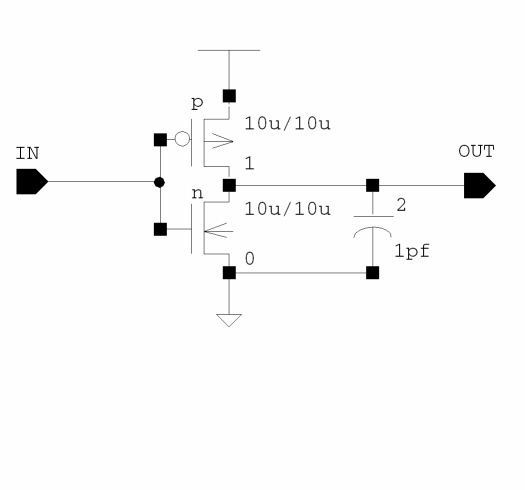
FNL SKILL Functions
For details on the FNL SKILL functions, see OSS Functions in the Digital Design Netlisting and Simulation SKILL Reference.
Return to top