
8
Customizing Post-Layout Simulation
Post-layout simulation is the process of running a simulation on a design with the parasitic parameters obtained from the corresponding physical layout. This is an important process in the design cycle because the results obtained from this process are much more precise compared to simulation on the schematic design alone.
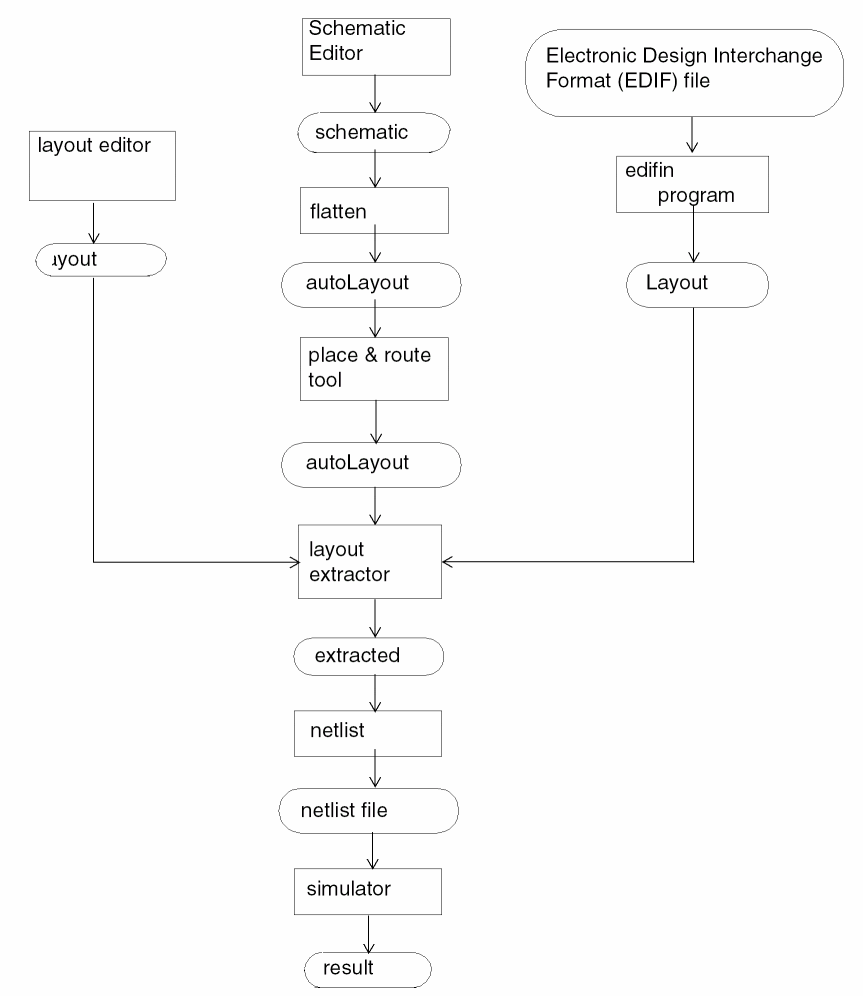
In the Cadence system, you can create physical layouts manually using the layout editor or automatically using the Place and Route tool, and you can translate physical layouts from the Electronic Design Interchange Format (EDIF) format using the edifin program. You obtain the parasitic parameters from the physical layout, using the layout parameter extractor.
Parasitics Extracted by the Layout Extractor
nlpExpr) or by the SKILL command () that conforms to the syntax of your simulator. Refer to the “Customizing the Simulation Environment (SE)” chapter in this manual for more information on the netlist commands.
If this method is sufficient, then just refer to the “Customizing the Simulation Environment (SE)” chapter in this manual for instructions about producing a netlist from the extracted layout view and to the Diva Interactive Verification User Guide for more information on how to extract parasitic parameters from a layout.
Figure 8-1 Using the Layout Extractor To Extract Parasitics
Parasitics Extracted by the Symbolic Layout Parameter Extraction Tool
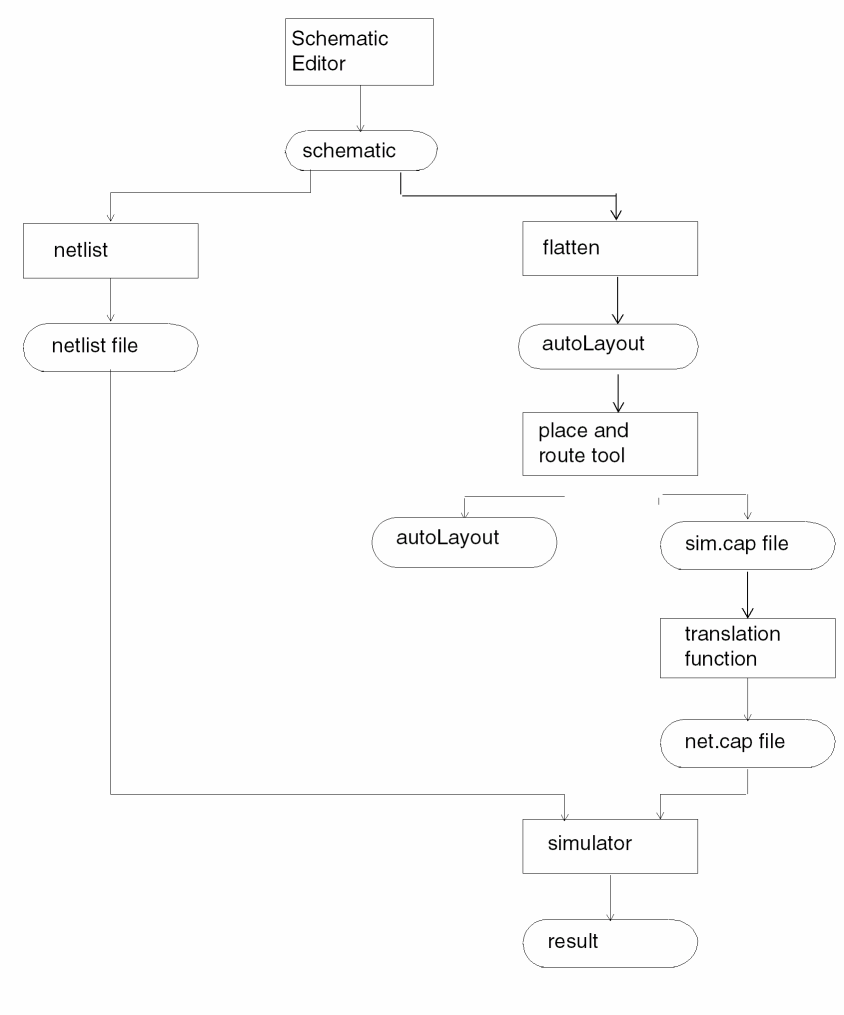
sim.cap. Refer to the Simulation Environment Help for more information on how to create the net capacitance file.
The information in the sim.cap file is translated into the format of your simulator and then merged with the netlist from the schematic as input to your simulator. The net capacitance in the sim.cap file can be displayed on the schematic regardless of which simulator is used. Refer to the Simulation Environment Help for more information on the display functions. Currently, this Place and Route extraction method (shown in Figure 8-2) is supported for the Cadence Timing Analyzer (TA), SILOS II®, and HILO3™. Furthermore, this same method supports both hierarchical and flat netlisting.
The remainder of this chapter describes how to customize this method for your simulator. Before continuing, your simulator should already be integrated into the Cadence system, so you should be familiar with the Simulation Environment (SE) and its requirements. Refer to the “Customizing the Simulation Environment (SE)” chapter in this manual for more information on how to integrate your simulator.
Figure 8-2 Using the Place and Route Tool To Extract Parasitics
Customization Steps
The customizing steps include translating the net capacitance file (sim.cap) to the format of your simulator and merging the translated result with the netlist description. You must write a new function to implement the translation step. This new function should be added to the file having the same name as your simulator plus the “.ile” suffix in the
install_dir/tools/dfII/local/si/caplib directory. To avoid a naming conflict with the simulation interface, the name of the new function should follow the recommended SE naming conventions. That is, the first letter of each word comprising the name should be upper case and the rest of the name lower case, for example, YourSimTranslation.
The following sections describe the net capacitance file, customizing the translation process, customizing the control file to include the translated result, and all the variables and functions that are currently used for the supported simulators.
Net Capacitance File
The format for the net capacitance file is important because the new function needs to parse and format it for your simulator. The net capacitance file format is shown here:
;Net Capacitance File for Lib:testLib Cell:test1
  View:layout
"<net name>"   <capacitance>   ;<comment>
"<net name>"   <capacitance>
;<comment>
"<net name>"   <capacitance>
The first line serves as a header stamp to verify the integrity of the data, and it must be set as shown in the example. The rest of the first line can be any text. Comments must start with a semicolon (;), and they can be placed anywhere in the file. The unit of the capacitance is farad. If necessary, the simCapUnit variable should be used to convert the capacitance to the appropriate unit in your simulator. The <net name> is the full path name of the signal corresponding to the flattened design. For example, a signal name might look like this:
"/cpu/alu1/control"
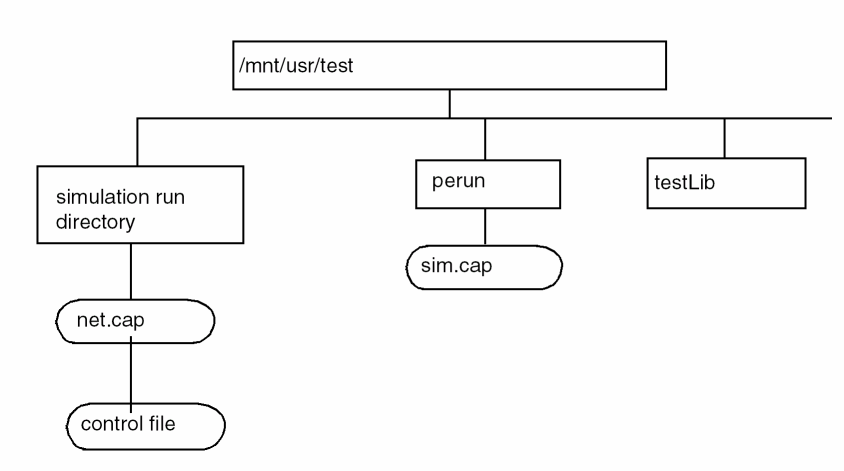
The name of this file must be called sim.cap, and it should be located in the perun directory, contained in the directory that includes the library containing the cellview being simulated.
For example, if the simLibName variable is set to testLib, and testLib is found in the directory /mnt/usr/test, then, by default, the sim.cap file is located in /mnt/usr/test/perun/sim.cap.
If the simCapFileDir variable is not defined, then the system uses the library directory to construct the file system full pathname to locate the sim.cap file. Otherwise, the simCapFileDir variable must contain the full pathname of the sim.cap file. sim.cap file. Refer to the “Variables” and “Functions” sections in this chapter for more information on the simCapFileDir variable.
Figure 8-3 Example of Directories With sim.cap and net.cap Files
Customizing the Translation Process
The primary task in customizing the translation process is to write the function that parses the sim.cap file and translates it into the format of your simulator. For ease of programming, the translated result is always stored in the net.cap file, and it is located in the current run directory. The net.cap file is then merged with the netlist from the schematic as input to the new simulator. Refer to net.cap file, respectively.
YourSimTranslation should be replaced by a name that conforms to the SE naming conventions. This function should be added to the file with the same name as your simulator plus the .ile suffix in the install_dir/tools/dfII/local/si/caplib directory. The location of the function within the file is not important.
Figure 8-4 Sample Translation Process File
; YourSimTranslation
; Function to convert net capacitance file into the format of your
; simulator. The sim.cap file is translated into the file called
; net.cap in the current run directory.
;
; Global Variables
;    simDoPostLayout  - controls the post-layout process.
;
procedure( simDoSilosTranslation()
    prog( (capFile inf outf extName line message)
   ;
   ; Remove old capacitance file.
   ;
   simDeleteRunDirFile( "net.cap" )
   ;
   ; return immediately if post-layout simulation
   ; option is not chosen
   ;
   if( simDoPostLayout == nil return(t) )
   ;
   ; return if can not locate the full path to the sim.cap file
   ;
   if( ( capFile = simCapFileDir ) == nil then
      return( t )
   )
   ;
   ; setup for name mapping
   ;
   if simPreNameConvert(simLibName simLibConfigName             simCellName
               simViewName simVersionName simRunDir) == nil then
      return( nil )
   )
   ;
   ; "sim.cap" file does not exist, just return
   ;
   if ( (inf = infile(capFile)) == nil return(t) )
   ;
   ; verify the header stamp
   ;
   if( ! simCheckHeader(inf) then
      return( nil )
   )
   ;
   ; Output file is called "net.cap"
   ;
   if( (outf = simRunDirOutfile("net.cap")) == nil then
      close( inf )
      return( nil )
   )
   ;
   ; Parse the sim.cap file
   ;
   while( (line = lineread(inf)) != nil
       if( listp(line) then
             if( (! stringp(car(line))) || (! numberp
                  (cadr(line))) then
       sprintf(message "ERROR: illegal file format, %s"
         "expecting \"<net name>\" <value> - ")
       simPrintError( message )
           simPrintErrorLine(line)
       sprintf(message "Line ignored.\n")
       simPrintError( message )
             else
       ;
       ; INSERT YOUR CODE HERE TO:
       ; translate the net name into the mapped name, scale
       ; the capacitance if necessary and print the
       ; information according to the format of your simulator
       ;
             )
        )
   )
   ;
   ; Clean up for name mapping
   ;
   simPostNameConvert()
   close( inf )
   close( outf )
   return( t )
             )
   )
The following is a step-by-step walk-through of the function.
;
;Remove old capacitance file.
;
simDeleteRunDirFile( "net.cap" )
This step prevents old capacitance information from merging with the netlist description.
-
Next, the
simDoPostLayoutvariable is checked. This step is desirable because post-layout simulation is an optional step, and thus, you should be allowed to disable it (by setting the variable tonil). The default value ist. Refer to the “Variables” section for more information on thesimDoPostLayoutvariable.
;
   ;Return immediately if post-layout simulation
;option is not chosen
;
if( simDoPostLayout == nil return(t) )
;
;Return if can not locate the full path to the
;sim.cap file
;
if( ( capFile = simCapFileDir ) == nil then
return( t )
)
;
;Set up for name mapping
;
if( simPreNameConvert(simLibName simLibConfigName
                      simCellName simViewName
                      simVersionName
                      simRunDir) == nil then
           return( nil )
)
;
;"sim.cap" file does not exist, just return
;
if( (inf = infile(capFile)) == nil return(t) )
;
;Verify the header stamp
;
if( ! simCheckHeader(inf) then
               close( inf )
         return( nil )
)
The translation process is terminated if the header stamp is incorrect. Refer to the “Net Capacitance File” section for more information on the header stamp.
The resultant net.cap file is opened in the current run directory for writing.
;
   ;Output file is called "net.cap"
;
if( (outf = simRunDirOutfile("net.cap")) == nil then
        close( inf )
           return( nil )
)
;
   ;Parse the sim.cap file
;
while( (line = lineread(inf)) != nil
            if( listp(line) then
            if( (! stringp(car(line))) ||
                      (! numberp(cadr(line))) then
               sprintf(message "ERROR: illegal file
                  format, %s"
                 "expecting \"<net name>\" <value> - ")
                        simPrintError( message )
                        simPrintErrorLine(line)
                        sprintf(message "Line ignored.\n")
                        simPrintError( message )
           else
                 ;
                       ; INSERT YOUR CODE HERE TO:
                       ; translate the net name into the
                    ;  mapped name, scale the
                       ; capacitance if necessary and print
                 ; out the information
                       ; according to the format of your
                 ; simulator
                       ;
           )
       )
   )
The lineread function returns a line that looks like:
( "<net name>" <capacitance> )
and returns t for a comment line. Thus, the listp function filters out the comment lines.
The <net name> entry corresponds to the full net pathname of the schematic design. Mapping is needed from the <net name> to the name generated by the netlister. The simNetCdsNameExtName function performs the mapping, for example,
extName = simNetCdsNameExtName("/cpu/alu1/control")
The name generated by the netlister is stored in the extName variable. Refer to the “Customizing the Simulation Environment (SE)” chapter for more information on name mapping and the simNetCdsNameExtName function.
Insert the formatting and printing code after the else keyword. The code depends on the capability of your simulator. If your simulator can adjust the fanout loading, due to the capacitance on the net, the net capacitance (obtained from the sim.cap file) can be added to the net directly. Otherwise, you should add an additional grounded capacitor for each net in the sim.cap file. Furthermore, you should adjust the unit of the capacitance if your simulator does not use farads. Finally, you may round off the adjusted result depending on the precision of your simulator.
In the following example, the formatting code fragment for a simulator that can adjust the fanout loading on each net is shown:
extName = simNetCdsNameExtName(car(line))
fprintf(outf ".LOAD %s=%.1f\n" extName
cadr(line)/simCapUnit)
The simulator operates in fanout units. Thus, the unit of the capacitance must be converted from farad to fanout units. You use the simCapUnit variable to do the conversion. Finally, the adjusted fanout unit is rounded off to the nearest tenths.
In another example, the following is the formatting code fragment for adding a grounded capacitor for each net capacitance in the sim.cap file:
extName = simNetCdsNameExtName(car(line))
capDeviceCount = 0
capVal = round(cadr(line)/1.e-15)
fprintf(outf "CAPACITOR(%d) IC%1d(%s);\n" capVal
   capDeviceCount++ extName)
To avoid a naming conflict with the existing instance names, these added capacitors are prefixed by IC and suffixed with a unique number (capDeviceCount). In this case, the grounded capacitor unit is femtofarad, and it must be an integer. Thus, conversion is by dividing the capacitance by 1.e-15 and rounding to the nearest integer.
-
Close the name mapping process.
;
; Clean up for name mapping
;
simPostNameConvert()
-
Finally, the
sim.capandnet.capfiles are closed and the function returnst.close ( inf ) close ( outf ) return ( t )
The following are steps to include this new function.
-
Instruct SE to execute this function during the post-layout simulation process. You should modify the
simActionsvariable to include the new function name. This variable is defined in the file which has the same name as your simulator plus the .ilesuffix and is located in the install_dir/tools/dfII/local/si/caplibdirectory.
ThesimActionsvariable might look like this:; ;Set the default actions to be performed by your ;simulator ; simSetDef( 'simActions,'(simCheckVariables() simInitRunDir() netlist() YourSimTranslation() simin() runSim() )
The new function (YourSimTranslation) should come after thenetlistfunction because your function needs the names generated by the netlister to perform the name mapping. Similarly, the new function should come before thesiminfunction because thesiminfunction merges the translated result (net.cap) with the netlist description. You may add more functions to this list; however, you must preserve the order of the functionsnetlist(),YourSimTranslation(), andsimin( ). The “Customizing the Control File” section in this chapter describes the process of merging thenet.capfile and the netlist file. -
Add
YourSimTranslationto the list of functions to be unbound when the designer switches simulators. Modify thesimSimulatorUnbindFuncsvariable to include the new function. This variable is in the file with the same name as your simulator plus the ”.ile” suffix and is located in the install_dir/tools/dfII/local/si/caplibdirectory. You might want to include other functions in thesimSimulatorUnbindFuncslist. Refer to the “Customizing the Simulation Environment (SE)” chapter in this manual for more information on this variable.
Customizing the Control File
Use the control file to merge the translated result (net.cap) with the netlist description. The control file contains information such as the netlist description, the input stimuli, the simulation time points, and any formatted net capacitance (net.cap). Use the command character “?” to include the content of the net.cap file because this file may not exist. The command character “!” is also used to include a file. However, it generates an error message if the file does not exist. For example, the template control file for the SILOS simulator looks like this:
batch batch.out
input netlist
input .term
$ This is the silos control template file ”control.sil”
[?net.cap]
[!silos.inp]
!type errors
[!silos.sim]
!type errors
.end
exit
The location of the [?net.cap] line depends on your simulator. In most cases, the [?net.cap] line should come after the netlist inclusion because you use the contents of the net.cap file to modify or add to the netlist description.
You should create a template control file similar to the preceding sample file for your simulator so that future simulation runs include the post-layout simulation capability. In addition, all current control files associated with your simulator should be modified to include the [?net.cap] line in the appropriate locations. Refer to the “Template Control File” section of the “Customizing the Simulation Environment (SE)” chapter in this manual for more information related to the control file.
Variables
This section lists all variables used in the post-layout simulation process. You can set the values of these variables in the .simrc file in the
install_dir/tools/dfII/local directory, the directory you start the software in, or your home directory. Refer to the “Customizing the Simulation Environment (SE)” chapter in this manual for more information.
simDoPostLayout
Enables/disables the post-layout simulation process. If the value is nil, then the process is disabled; otherwise, the process is enabled.
etc/skill/si/simcap.ile
simCapFileDir
Defines the full file system pathname of the net capacitance (sim.cap) file.
NONE
"/mnt/usr/test/sim.cap"
simCapUnit
Converts the capacitance unit to the unit used in the target simulator.
etc/skill/si/simcap.ile
Functions
The following section lists all functions used in the post-layout simulation process for the supported simulators. Refer to the “Customizing the Simulation Environment (SE)” chapter in this manual for more information.
simCheckHeader
Refer to chapter “Customizing the Simulation Environment (SE)” chapter in this manual for more information.
Return to top