
9
Generating a Library
Before you can generate a netlist for input to your simulator, you must create a complete library of simulation primitives for your simulator. You must have a symbol view for each simulation primitive in the library to use during schematic entry. You must also have a simulation view for each simulator that is being integrated into the simulation environment.
The simulation view contains formatting information for the Simulation Environment (SE) netlisters. The view may also contain property definitions for default simulation attributes, (such as delays for logic simulation and timing analysis, and transistor widths and lengths for circuit simulation). Depending on how you use the primitives in the Cadence system, you can create other views of them, for example, the layout view and the view.
System-supplied subcircuits are also included in the library. A symbol view for each subcircuit is usually used for schematic entry. There can be a schematic view associated with each subcircuit symbol in the subcircuit design. Whether a schematic view is required or not depends on the simulator. For example, if the simulator can handle subcircuit definitions explicitly (and system-supplied subcircuits can be predefined and saved), a schematic view is not necessary.
To assist with building your own library, Cadence provides the Symbol/Simulation Library Generator (S/SLG) utility program as part of the schematic entry package. S/SLG can generate symbols for schematic entry, as well as generate simulation views. S/SLG reduces the effort required for creating and maintaining the symbol and simulation library. Refer to the Virtuoso Schematic Editor L User Guide for details about S/SLG.
This chapter reviews the library structure used by the Cadence simulation environment and describes the procedure for creating and maintaining libraries for specific simulators.
Library Structure Overview
A library is a collection of design objects. There are two types of libraries: the reference library and the design library. Both libraries have the same internal structures and are accessed through the same mechanism. Design objects in the reference library are verified elements, and you can consider them as standard components. Reference libraries are usually shared among various designs. Although reference libraries can change, they are much more stable than the design objects you are developing. Conversely, design objects in the design library are dynamic, and subject to frequent change.
A design library is organized in four levels, as shown in
Figure 9-1 Structure of Cadence Model Library
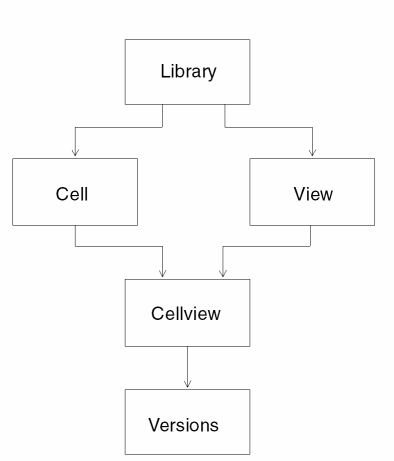
- On the first level, a design library is identified by its location and its name.
- On the second level, a design library can contain a set of cells (NAND gate, NOR gate, etc.) and a set of views (schematic, layout, etc.).
- On the third level, a cellview is a data file that is created in association with a cell and a view.
- On the fourth level, version information is maintained about each cellview.
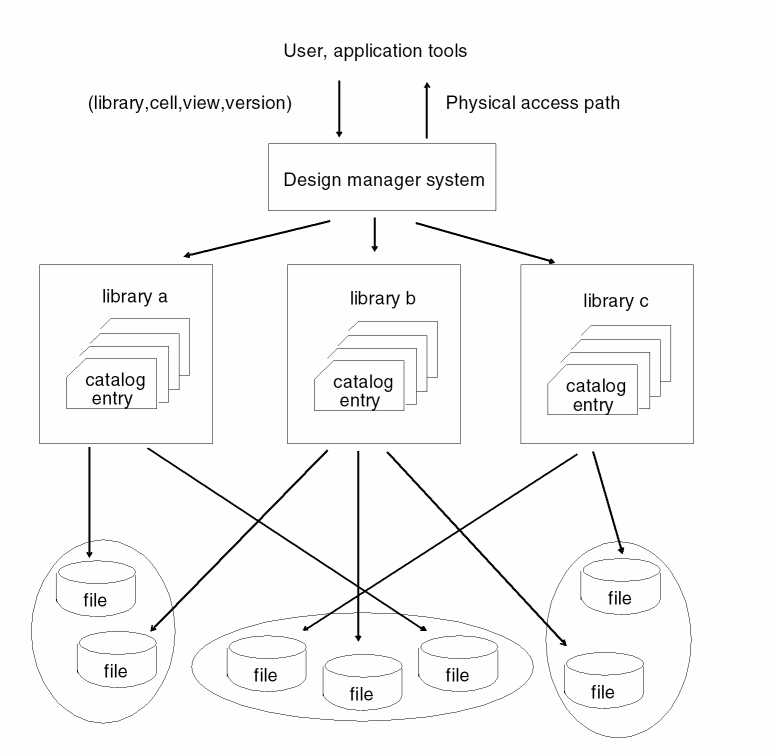
Design data is accessed through a library mapping scheme. Each library keeps a catalog of a cell, view, and version information, together with the access path of the data files. Data files can reside in different directories, or even on different nodes. To access a specific data file, you only need to refer to its logical name, which is defined by the items (library, cell, view, and version).
Figure 9-2 Interaction With the Library
Data Organization
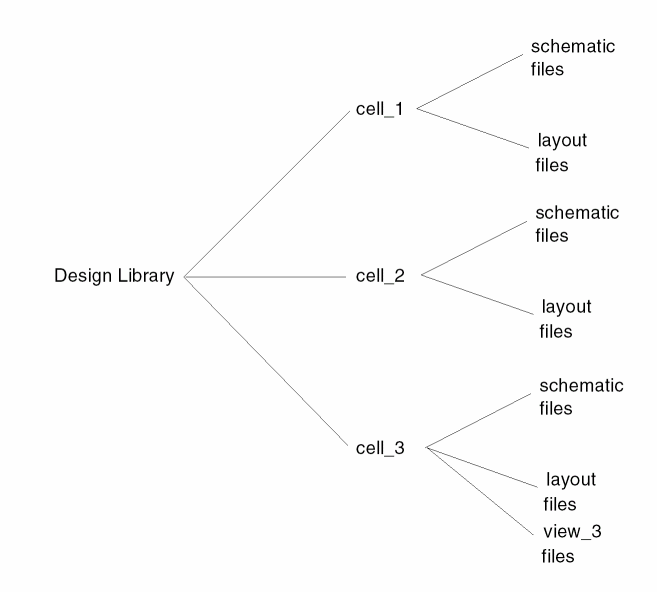
Design library data is located in a system directory, where library files and design management information are kept. Design library provides a logical view of the library data files, and a central location for accessing design data. All design objects are referenced through logical names (e.g., 2-input-NAND). The system maintains a mapping from the logical name to its physical representation (i.e., the directory path. The directory structure of the design library has a default organization, as shown in Figure 9-3.
Figure 9-3 Design Library Directory Structure
Library Directory Contents
The design library directory contains:
- one subdirectory for each cell in the library except those cells which are relocated to other locations.
- one library file, which keeps high-level summary information about the design library. Typical objects stored in the library file are cell catalog, version information of cells, cell status, and technology data.
- one directory for storing library attached files.
- audit trail files.
Logical Name to Physical Path Name Mapping
A logical name is used to identify a design object for both application programs and end users. The logical name of a design object consists of three components:
- cell name
- view type (e.g., schematic, layout...)
- version number (provided by you or the application programmer, or determined by the design management system).
With these three components and a predefined domain (library identifier), the design management system will automatically translate a logical name into a path name leading to the physical storage location of the data file. In addition to the default cellview mapping scheme, you are allowed to have your own customized name mapping function attached to the library through provided SKILL functions. This allows you to fully control the data file allocation scheme.
Cell
The library directory contains cells which are devices to be used in a design. The devices can be the primitives of your simulator. They can also be higher-level building cells, that is, subcircuits made up of primitives or other higher-level building cells. Whether a cell is a simulator primitive or a subcircuit depends on the simulator. Different views of the same cell (schematic and layout) are stored under the same directory so that information associated with a cell is grouped together. Library files containing high-level summary information of design data are stored in the library directory. Cells of a design library are directories one level below the design library. Views of all cells are stored in files in the cell directory.
Each cell is a subdirectory under the design library. The cell subdirectory name is the cellname. Under the cell subdirectory are various views of the device. The cellname should reflect the device name. During schematic editing, the system searches under the callname for symbols for device instances. For netlisting, the SE netlister searches for cells that are device instances in a schematic. Once a cell is located, the SI netlister retrieves netlist formatting information germane to the simulator.
Views
Each device view contains information on that device, and is a subdirectory under the device cell directory. The viewname (the view subdirectory) should reflect the information that the view contains. The Cadence system uses other views. For example, the layout editor uses the layout view. The simulation views, spice, silos, hilo, and ta are for netlisting to simulators that are integrated into the Cadence simulation environment. When you integrate a new simulator, you must create a simulation view for it for each simulation primitive supported by the simulator.
Version
Under each cellview are various versions of the view. Each version of the device is a file under the view directory. The version name is the name of the file. Each version may contain a different version of the device, and the latest version is called “current.”
Library Element Views
Certain views are required when you integrate a simulator to the Cadence environment. This section summarizes the views you must create to invoke a library for that simulator.
Symbol Views
You need to create a cell in the library for each simulation primitive of the simulator being integrated. To design circuits in terms of the simulation primitives, you must create a symbol view for each of them. During schematic editing, symbols of the simulation primitives can be instantiated for building the schematic.
Simulation Views
For each new simulator being integrated into the Cadence environment, you need to define a simulation view for each device that is a primitive of the simulator. For example, in the Cadence sample library, there is a silos view for each SILOS primitive of the SILOS simulator. The viewname should be the same as the simulator.
Each simulation view contains the appropriate netlist formatting properties for the element. These formatting properties enable the SE netlisters to produce netlists with the required syntax. Netlist formatting properties can be either an nlpExpr or an ilExpr property. For example, the silos view of the AND2 gate has the following netlisting properties:
Input_Pin_List  =  nlpExpr("[@lfA:%*][|A]
   [@lfB:%*][|B]") NLPElementPostamble  =
    nlpExpr("[@SILOS_AND_Image]") Pin_Net_Map  =
   nlpExpr("\\n$ 1 [|Y]=Y [|A]=A [|B]=B")
hnlSilosFormatInst  =  "hnlSilosPrintLogGate(\"AND\")"
The required netlist formatting properties and the syntax for format instructions to the SE Flat and Hierarchical netlisters are discussed in the “Customizing the Hierarchical Netlister (HNL)” and “Customizing the Flat Netlister (FNL)” chapters in this manual.
In the simulation view, you can also specify default values for netlist parameters used by the simulator, such as propagation delays and rise and fall delays.
Subcircuit Primitive Views
When you design with subcircuit primitives, in effect you are creating hierarchical designs. A particular simulator may or may not have facilities for handling subcircuit primitives. For simulators such as SILOS, you can define subcircuit primitives and save them in a file. Then you can invoke them in the netlist as if the subcircuits are primitives of the simulator.
For simulators that can handle subcircuit primitives, treat them like simulation primitives in the library. For each subcircuit primitive you create a simulation view of the cell. This view should contain netlist formatting properties for the subcircuit primitive invocation. The view can also have default delays similar to the simulation view for a simulation primitive.
If your simulator cannot handle subcircuit primitives explicitly, you can enter the subcircuit primitive definitions as a schematic view in the Cadence system. You should give this view a special name to designate it as a subcircuit primitive associated with the specific simulator. In particular, this name is required if the library is to be used by multiple simulators with different levels of abstraction in modeling their primitives.
In the Cadence-provided sample library, the cmos.sch views are subcircuits defined in terms of circuit-level primitives. For example, the AND2 cell contains an and2/cmos.sch view which is a transistor-level circuit of the AND2 gate. These views are used by simulators such as SPICE and HSPICE. There are views called gate.sch. For example, the aoi21/gate.sch view is a gate-level circuit for the complex AOI gate. These views are subcircuits defined in terms of logic-level primitives and are used by simulators such as HILO3™. Notice that AOI21 is a primitive for SILOS; therefore, there is also a silos view for the AOI21 gate. When the SE netlisters generate a netlist for SILOS, the aoi21 gate is output as a component. On the other hand, when a HILO3 netlist is generated, the AOI21 gate is output as a subcircuit.
The view switching mechanism in SE enables the SE netlisters to expand the design hierarchy for schematics containing high-level building cells. As discussed in the “Customizing the Flat Netlister (FNL)” chapter in this manual, the simViewList and simStopList SE variables control the hierarchy expansion process during netlisting. Declare the subcircuit view a member of the simViewList. Then, the netlisters can switch into the subcircuit view during expansion, if required. The precise algorithm for view switching is discussed in the “Customizing the Flat Netlister (FNL)” chapter in this manual. For example, if the following declarations for the SE variables simViewList and simStopList are entered in the SPICE simulator,
simViewList  =  '("spice"  "cmos.sch"  "schematic")
simStopList = '("spice")
the netlister stops at cells that have a spice view. If there is no spice view, it expands a cmos.sch view. If neither a spice nor cmos.sch view exists, the schematic view is expanded.
Creating Your Own Library
Cadence supplies a standard sample library to support Cadence tools. This standard library is located in the Cadence hierarchy under the etc/cdslib/samples directory. One way to build a library for your target simulator is to augment the Cadence sample library with information germane to your simulator. This requires adding new cells and symbols for the simulator primitives that are not already in the Cadence sample library. It also requires creating simulation views for all simulation primitives of your simulator.
You can also create your own stand-alone library. You need to create a cell for each simulation primitive. You should create a symbol view and simulation view for each cell. If you use FNL to create a netlist, you should also create an nlpglobals cell, as outlined in the “Customizing the Flat Netlister (FNL)” chapter in this manual. Make sure that the full path names to your libraries are specified in the cell search path.
The S/SLG program supports library creation and maintenance. Use S/SLG for symbol and simulation view generation. Store S/SLG commands for symbol and simulation view generation in a library command file and load them into the S/SLG program for execution. You can run S/SLG either within the Cadence graphics environment or in the UNIX environment. To load an S/SLG command file inside the Cadence graphics environment, you can type in a single command (or a sequence of commands), press [RETURN], and that command (sequence of commands) is immediately executed (refer to the Design Entry manual for the complete procedure). When you prepare a library command file containing a set of S/SLG or IL commands, you can load this file into the S/SLG program. Each command in the file is sequentially executed. To load a file, type the command
lmLoadData( "myFile.lm" "myLib" "" "" "a" )
The lmLoadData command is used to load a given S/SLG command file when running the library management program in the Cadence environment; myFile.lm is the filename; myLib is the library name you are working on.
The lmLoadData function opens the specified library before loading the command file and closes the library when completed. It provides you with a quick way to execute all commands in the command file, however, you must use lmOpenLib() before invoking any S/SLG commands and lmCloseLib() when you are done.
The S/SLG program can be run as a stand-alone program in the UNIX environment. To run commands other than lmDefCell, run S/SLG in the UNIX environment to display output quickly. You can also switch between the stand-alone S/SLG program and the UNIX environment. Refer to the
Symbol Generation
You create a symbol view by drawing a graphic symbol of a device using the Cadence schematic editor. This process lets you create different shapes for device symbols. The procedure for creating symbols with the Cadence schematic editor is discussed in the
Conversely, you can use S/SLG for symbol generation by using its lmDefcell command for drawing symbols. For example, to create a symbol view for an AND2 gate with inputs in1 and in2 and output out, use the command shown here:
lmDefcell( and2
input(in1 in2)
output(out)
)
You can also add other information to the symbol view. Refer to the lmDefcell command.
View Generation
Use the S/SLG lmSimView command to create simulation views. For example, to generate a SILOS view for an AND2 gate using the symbol view of the AND2 gate as a template, use the following command:
lmSimView(  AND2 symbol silos
Input_Pin_List  =  nlpExpr("[@lfA:%*][|A] [@lfB:%*][|B]")
NLPElementPostamble  =  nlpExpr("[@SILOS_AND_Image]")
Pin_Net_Map  =  nlpExpr("\\n$ 1 [|Y]=Y [|A]=A [|B]=B")
hnlSilosFormatInst  =  "hnlSilosPrintLogGate(\"AND\")"
)
In this example, the Input_Pin_List, NLPElementPostamble, and Pin_Net_Map properties are specified for the Flat Netlister (FNL), and the hnlSilosFormatInst property is specified for the Hierarchical Netlister (HNL). For the details on the use of simView, refer to the section Library Management Commands of Appendix C in
The template view (the symbol view in the example), provides terminal information of the device for the simulation view. The terminal declarations must be identical between different views of a cell. The connections between hierarchy and view-switching in netlisting and probing are made by the use of terminal names.
Library Maintenance
Because S/SLG can load text command files, you can add and/or modify the properties specified in a view by editing the text command file, then reloading that file to S/SLG. You can maintain a library by maintaining the text file that created the library.
Furthermore, you can add new properties to a view. For example, to add the display scaling factor to the AND2 symbol view, use the S/SLG command lmDefViewProp as shown here:
lmDefViewProp(  and2 symbol
"DBU per UU"  =  160.0
userUnits  =  "inches"
)
We recommend that you save the S/SLG command files you used to create and modify your library for future library maintenance and update. If you drew your library component symbols manually, your command file should not contain any symbol creation commands. The command file should contain only commands for creating simulation views and for adding properties to views. Save the manually drawn symbols in a separate stand-alone library so that they can be copied for future library update.
Library Update Procedures
The procedure for upgrading the symbol and simulation library to a new release of Cadence software is explained below.
Updating a Modified Sample Library
Use the following procedure to upgrade the Cadence sample library with the modifications you made to the previous version:
- Save your old sample library to a temporary location.
- Install the new Cadence sample library.
- If you drew symbols manually for devices you added to the Cadence sample library, copy them from the saved library into the new sample library.
- If necessary, modify the S/SLG command file to comply with new Cadence software requirements.
-
Invoke S/SLG and load the command file to add simulation views to the newly-released Cadence sample library.
If you drew your symbols manually, they are preserved in the library because your command file does not contain symbol creation commands. Conversely, if you let S/SLG draw the symbols for you, the symbol creation commands are part of the command file, and a set of additional symbol views are recreated.
Updating a Stand-Alone Library
If you created stand-alone libraries, the library upgrading procedure is as follows:
- Update the S/SLG command file you used to create the stand-alone library to conform with any new Cadence software requirements.
- Save a copy of this stand-alone library to a temporary location.
-
Invoke S/SLG and load the command file to recreate the library.
Similar to updating a Cadence sample library, if you drew your symbols manually, they are preserved in the library because your command file does not contain any symbol creation commands. If you let S/SLG draw the symbols for you, the symbol creation commands are part of the command file, and a set of symbol views are recreated in your library.
Example of Updating a Cadence Sample Library
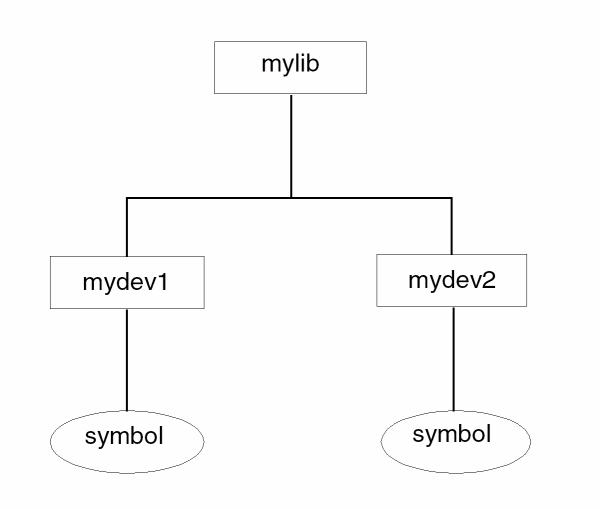
For an example of how to update a sample library, assume that you added new symbols for your own devices and also created new views for your own simulator. The original Cadence sample library is depicted in mydev1, mydev2, and the view mysim into the Cadence sample library. The manually drawn symbols for mydev1 and mydev2 were saved in the stand-alone library mylib. The contents of mylib are depicted in
Figure 9-4 Example of the Cadence Sample Library
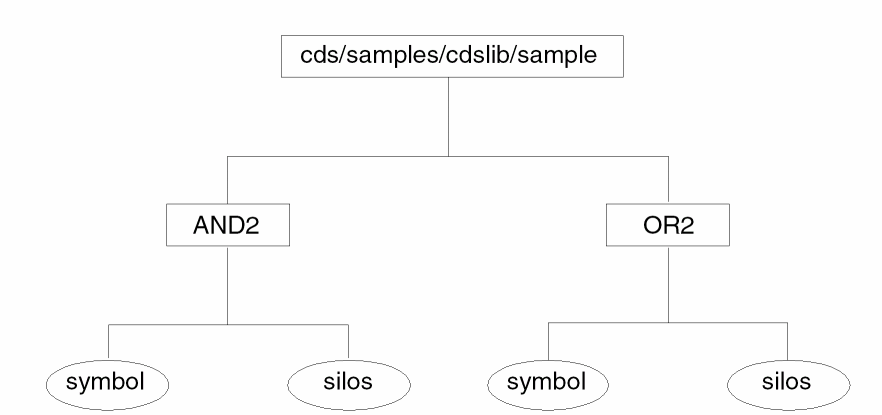
Figure 9-5 Example of the Modified Cadence Sample Library
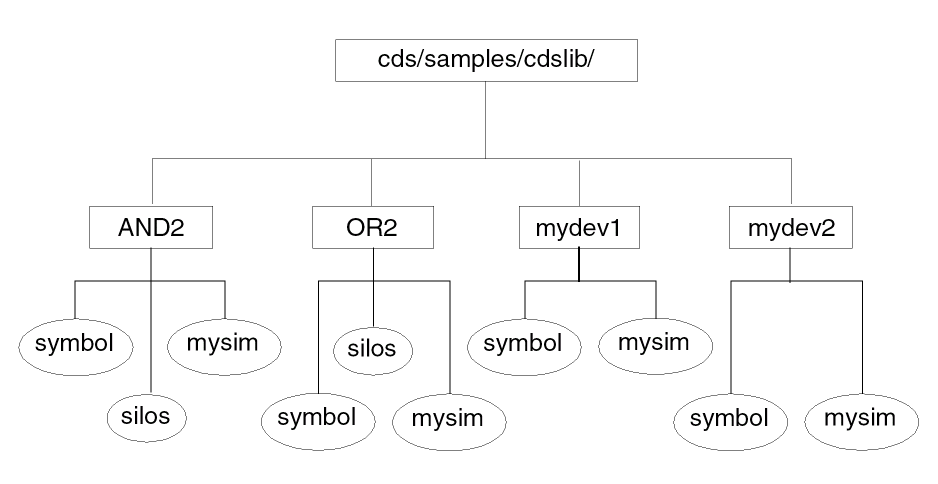
Figure 9-6 Example of a Saved Symbol Library
Use the steps outlined in the “Updating a Modified Sample Library” section in this chapter to update the new Cadence sample library for your simulator. For this example, follow these steps:
-
Save the current Cadence sample library in
cds/samples/cdslib/sampleto a temporary location. -
Install the new release of the Cadence sample library into
cds/samples/cdslib/sample. (Refer to Figure 9-4.) -
Change your directory to the location of
myliband merge the symbols inmylibwith the newly released Cadence sample library. (Refer to Figure 9-6.) You can use therdistcommand to accomplish this, as follows:rdist -c mylib cds7:/cds/samples/cdslib/sample
-
If required, modify the S/SLG command file that generates the mysim views for the
AND2,OR2,mydev1, andmydev2devices to conform with new Cadence software requirements. -
Change your directory to
cds/samples/cdslib/sample. Invoke thelmprogram, and load the command file to add the mysim view to the sample library.
Return to top