
B
Backannotation of dcOp / Transient Values for M-Factor Devices
This appendix looks at the backannotation of dcOp and transient values for multiple factor devices. It describes the process of schematic annotation of operational data associated with m-factor devices.
There are two alternatives open to you in achieving this:
-
Using the
?mfactorRand?mfactorWqrcParameters when extracting a view. Here, you will instruct Cadence Quantus QRC Extraction to merge m-factor devices.
For more information on this option see Grouping M-Factor Devices At Extraction Time. -
Using
opParamExprListto change the CDF of the cell to make use of the new parameters.
For more information on this option see Using opParamExprList Functionality.
Identifying M-Factor Devices
When a backannotation has an m-factored device, and it only processes the first device, a “,..” will be added to the backannotated value and the following, once only, warning message will be issued in the CIW:
“WARNING* Labels with suffix ",.." are on devices which map to multiple devices. Only the value from one device is currently annotated. For more information on displaying alternative values, see the Backannotation of dcOp / Transient Values for M-Factor Devices section in Chapter 1 of the "Virtuoso Parasitic Aware Design User Guide"
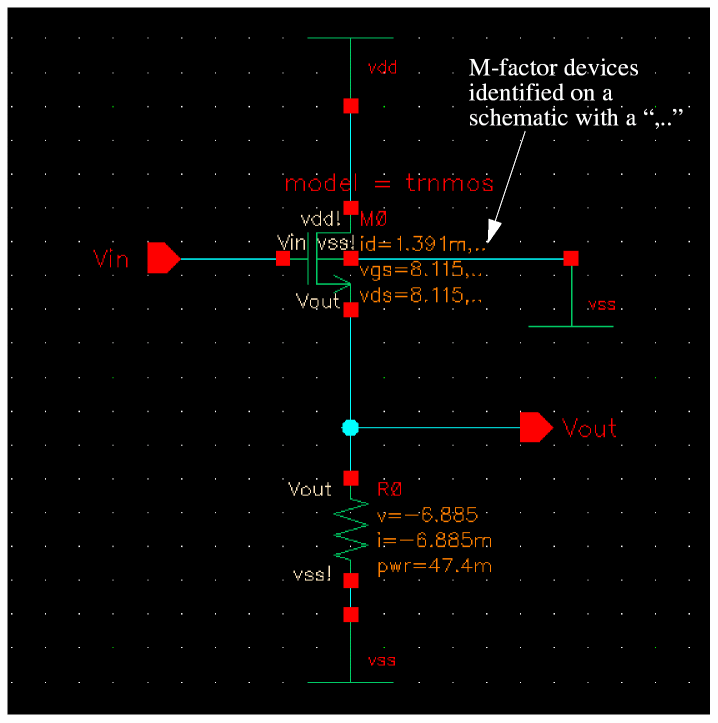
Figure B-1 M-Factor Devices On A Schematic
Once the M-Factor devices have been identified on a schematic, you can choose to display the m-factor devices by Grouping M-Factor Devices At Extraction Time or Using opParamExprList Functionality.
Grouping M-Factor Devices At Extraction Time
This approach relies on the capabilities of Quantus QRC for merging m-factor devices at extraction time. It involves merging m-factor devices so that there would only be one extracted instance per schematic instance.
This means that when backannotation is used, only one value will be displayed, as no m-factor groups are found. You will therefore direct Quantus QRC extraction to merge m-factor devices, which will require the modification of the RSF file.
Modifying the RSF File
A run specification file (RSF) is used to direct the extraction of parasitics during a Quantus QRC extraction run.
In the RSF, you will find a qrcParameter section, which you can modify to provide ?mFactorR and/or ?mFactorW qrcParameters. These parameters are used to group m-factor devices as follows:
-
?mFactorR- reduces the number ofMOSandLDDtransistors in the output netlist by merging parallel transistors in the layout. -
?mFactorW- changes the default behavior of?mFactorRso that merged transistor devices are output to the netlist with widths summed, and no m-factor parameters added.
To modify the RSF file, with the new parameter settings, you edit the M Factor R and M Factor W options in the QRC Parasitic Extraction Run Form.
- Select QRC – Setup QRC.
-
Click the Filtering Options tab.
The Filtering Options tab has M Factor R(eduction) and M Factor W(idth) options that correspond to?mFactorRand?mFactorW. -
Edit the M Factor R(eduction) and M Factor W(idth) options as required.
M Factor R lets you reduce the number ofMOSandLDDtransistors in the output netlist by merging parallel transistors in the layout. The M-Factor is annotated to a transistor in schematic capture, and the resultant layout should contain “m” transistors laid out in parallel. These parallel transistors are designed so that the parasitics from gate-to-gate, source-to-source, and drain-to-drain are minimal. M Factor R uses a specified resistance value to merge all transistors in which the shortest path resistance between the source/drain/gate of adjacent devices is less than the value specified in the?mFactorRvalue.
Activating the M Factor W command will change the default behavior of M Factor R, in that width values will always be summed, regardless of their equivalence, and no M-Factor (m=n) parameter is output to the netlist.
For more information, see the Filtering Options Tab section in the Quantus QRC Extraction Users Manual.
?mFactorR and ?mFactorW settings/values have been provided, Quantus QRC extraction will need to be re-run.Limitations of the Edit RSF Approach
Editing the ?mFactorR and ?mFactorW parameters may not group m-factor devices as required.
-
?mFactorRonly merges transistors that follow a set criteria, for example the transistors must be the same model type, or share the same source/drain/gate and so on. -
?mFactorRonly supportsMOS/LDDtransistors. However, m-factor can be found in other types of devices, for exampleCAPandRES. An alternative solution is therefore required in these cases, such as Using opParamExprList Functionality.
Using opParamExprList Functionality
This method of backannotating m-factor device values requires the use of opParamExprList, and involves you changing the CDF (Component Description Format) of the cell to make use of the new parameters. Here, we process the m-factor device’s parameter values, and provide a new value which summarizes their effect. This is done using a list that contains all of the values associated with the m-factor devices.
After doing this, re-running netlist and simulation again will display the m-factor devices value.
This cannot be an automatic function as the parameters do not have semantic information associated with them.
The following flowchart provides an overview of backannotation of m-factor devices using the opParamExprList functionality. As mentioned, this is the recommended approach.
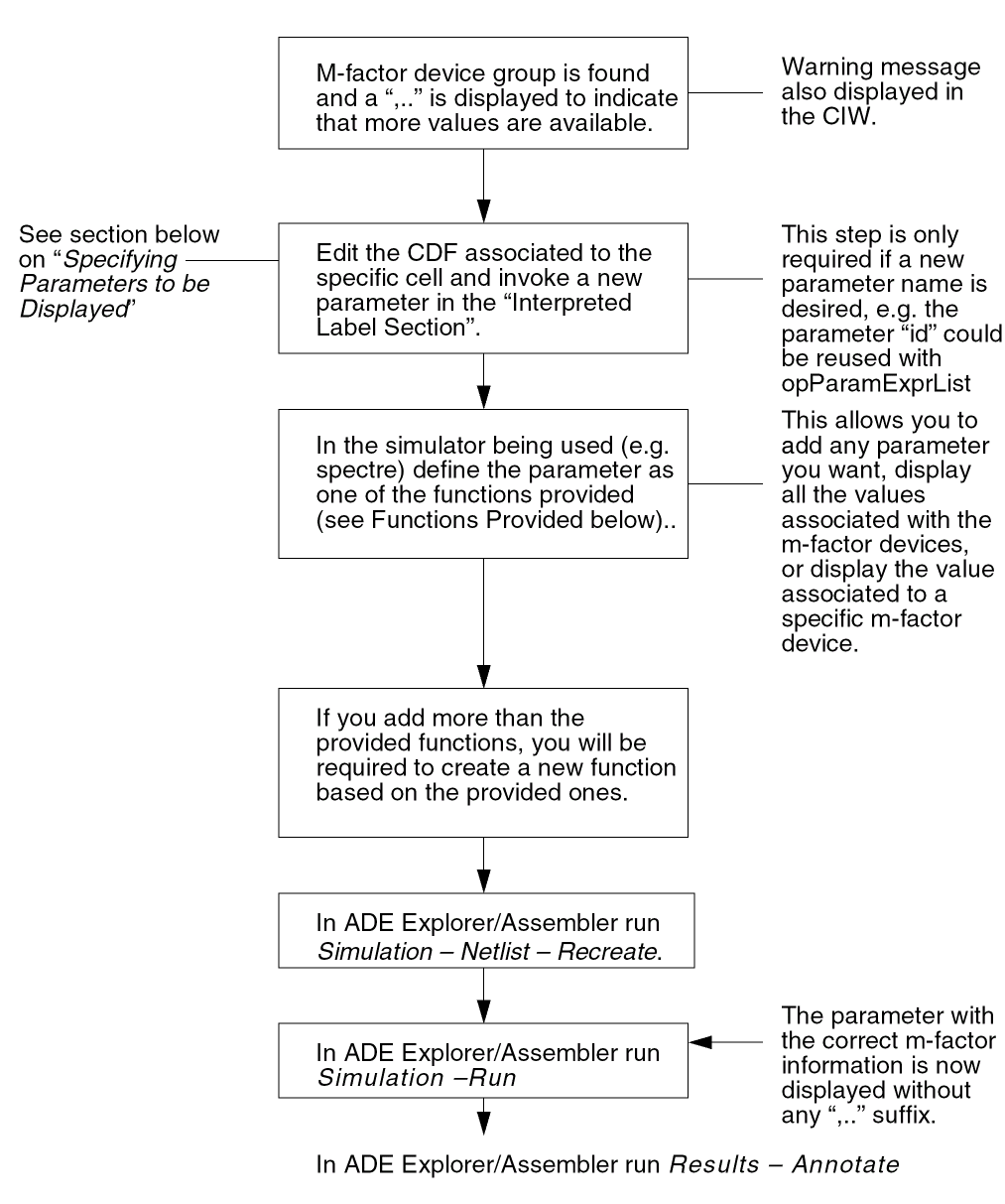
Specifying Parameters to be Displayed
As mentioned, the function opParamExprList is a CDF parameter that allows you to save additional op information. For example, opParamExprList allows you to create a new parameter which sums the “id” of all the m-factor devices. This information can then be displayed using the calculator or layer display mechanism. It is the label display information that is of particular interest to us, as it allows you to display parameter values. The interpreted label cdsParam() allows you to display information about parameter values.
During automatic symbol generation, three cdsParam labels are usually generated. You can however define new labels if required.
To specify which parameter will be displayed in the cdsParam() labels, you will need to edit the CDF of the relevant library cell. To do this:
- From the CIW, select Tools – CDF – Edit to display the Edit Component CDF form.
- Browse to locate the cell whose parameters you want to specify for display.
-
Scroll down to the Interpreted Labels Information section in the Edit Component CDF Form.
In this section you will see the op pointLabelSet field, which will list the parameters to be displayed if paramDisplayMode is set to op point. For example:
You can see above that the op pointLabelSet only has two parameters: “id” which is the current of the cell, and “mFactorF” which is a new parameter defined in theopParamExprList. This new parameter takes into account the m-factor devices, and in this case adds the “id” values of all devices. -
You now need to define the new
mFactorFparameter or, as mentioned above, redefine the existent parameter “id”. The parameter may be defined using one of the Functions Provided, or by creating your own function, which may be based on the provided functionality.
The CDF description of the cell now needs to be modified. -
In the Edit Component CDF form (accessible from the CIW by selecting Tools – CDF – Edit), scroll to the Simulation Information section and click the Edit button to display the Edit Simulation Information form.
In the above screenshot, you can see that the parameter name “id” is defined by aelSumOPParam.
Functions Provided
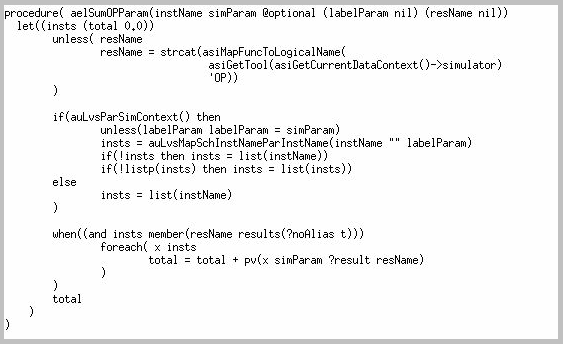
aelSumOPParam
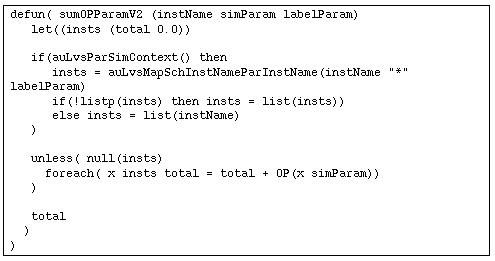
sumOPParamV2
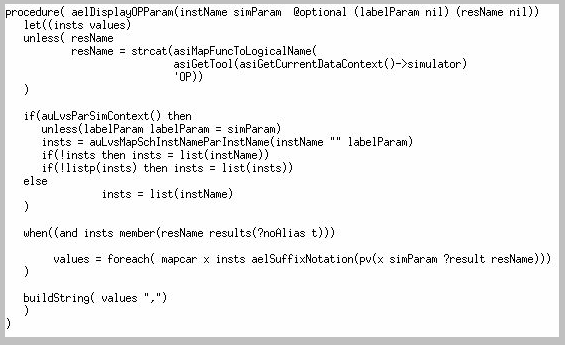
aelDisplayOPParam
Return to top