
SDR Toolbar
SDR is an effective way to find and display nets with accurate current and resistance estimation.
The SDR toolbar is designed to help you with the various simulation driven interactive routing features and settings. The SDR toolbar is installed automatically when you launch Layout EXL from the layout or schematic view. In case it is not available by default in Layout EXL, you can open it using Windows – Toolbars – SDR Toolbar. The buttons on the SDR Toolbar let you access SDR features with a single click.
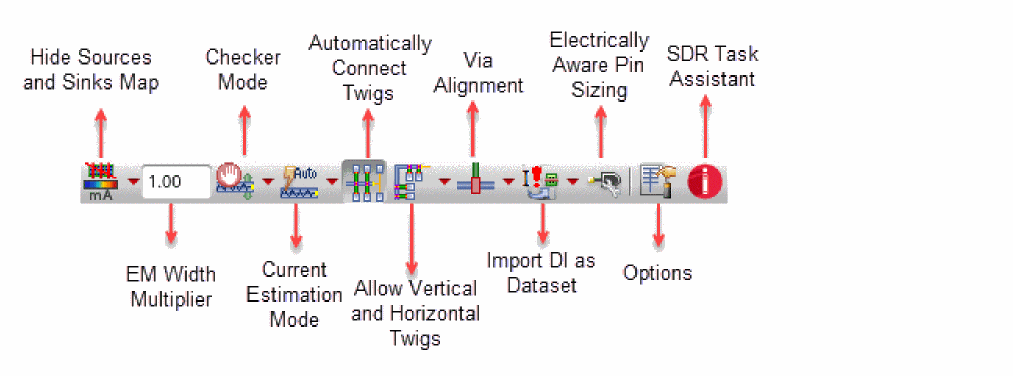
The following table describes the SDR toolbar buttons.
| Icon | Command | Description |
|
Specifies whether or not the source and sink map should be displayed.
Environment Variable: |
||
|
Shows the current distribution across pin clusters as a thermal map. |
||
|
Shows the current distribution on a single pin as a thermal map. |
||
|
Hides the thermal map showing current distribution across pins and clusters. This is the default option. |
||
|
Helps in increasing or reducing the wires width compared to the estimated width required to satisfy the EM value
Environment Variable: |
||
|
Lets you choose the SDR checker mode to be used for current and resistance estimation.
Environment Variable: |
||
|
Estimates the current or resistance in the edited wire and vias according to the EAD settings (dataset, temperature, and current scaling) and automatically calculates the wire width and via cuts to avoid EM or |
||
|
Estimates the current in the edited wire using a color code based on EAD EM violations color settings. The color is computed to represent the EM or |
||
|
Retains the existing wire width and there is no feedback on estimated current or resistance. |
||
|
Lets you control how the current in the edited wire and via is estimated and calculated.
Environment Variable: |
||
|
Estimates the current automatically in the last section of the wire according to the connected objects and flightline targets. |
||
|
Uses the current of all the pins connected by the nearest flightline. |
||
|
Toggles the twig modes between ON and OFF.
Environment Variable: |
||
|
Sets the allowed direction of twigs to either the vertical direction, the horizontal direction, or both. This toolbar button is enabled only when the Automatically Connect Twigs option is set to on.
Environment Variable: |
||
|
Allows twigs to be inserted in both vertical and horizontal direction. |
||
|
Controls the alignment and orientation of vias or via stacks created on each twig over the trunk. You can choose the via alignment depending upon the via direction mode that is selected. The Via Alignment button on the SDR toolbar is enabled only when Automatically Connect Twigs is ON.
Environment Variable: |
||
|
Creates vias or via stacks in the direction of the twig that is vertical and bottom-aligned to the trunk. |
||
|
Creates vias or via stacks in the direction of the twig that is vertical and aligned to the trunk center. This is the default alignment mode. |
||
|
Creates vias or via stacks in the direction of the twig that is vertical and top-aligned to the trunk. |
||
|
Creates vias or via stacks in the direction of the trunk that is horizontal and left-aligned to the twig. |
||
|
Creates vias or via stacks in the direction of the trunk that is horizontal and aligned to the twig center. This is the default alignment mode. |
||
|
Creates vias or via stacks in the direction of the trunk that is horizontal and right-aligned to the trunk. |
||
|
Sets the EAD dataset called
Environment Variable: |
||
|
Imports or updates the EAD dataset called |
||
|
Syncs the DI high current information from the schematic to the layout and then converts it into a dataset. |
||
|
Displays the Electrically Aware Pin Sizing form and the Pin Tool – Pin Browser window. The Electrically Aware Pin Sizing form lets you identify pins that do not meet electrical requirements and automatically fix the reported violations. |
||


Related Topics
Introduction to Simulation Driven Routing
Return to top