
B
Using Compiled-Model Interface
The Spectre® circuit simulator supports dynamic loading of device models. This feature allows you to dynamically load device primitives (stored in shared objects) at run time. This is useful for developing and distributing models.
Installing Compiled-Model Interface (CMI)
CMI is now shipped with Spectre. The installation is done as a manual step after the Spectre product installation.
To install CMI, run the cmiExtract script located in the following directory:
your_install_dir/tools.<platform>/spectre/bin
You must have a valid Spectre CMI license to run this script. You are prompted to specify a directory in which the CMI hierarchy is to be installed, with the default being your_install_dir/tools.<platform>/.
Once the extraction script is complete, the CMI hierarchy can be found in the directory spectrecmi in the specified location. The README files are in the spectrecmi directory and the CMI manual, cmiprint.pdf, is in spectrecmi/doc/. See the CMI manual, Compiled-Model Interface Reference for information on how to proceed.
Configuration File
The Spectre circuit simulator can be configured to load a specific set of shared objects based on the content of a set of configuration files. The default CMI configuration file is shown below.
; The default search path is
;your_install_dir/tools.<platform>/spectre/lib/cmi/%M
; This file is automatically generated.
; Any changes made to it will not be saved.
load libinfineon_sh.so
load libphilips_sh.so
load libphilips_o_sh.so
load libsparam_sh.so
load libstmodels.so
The CMI file allows legal UNIX file paths and Spectre predefined percent codes. For more information on predefined percent codes, see Description of Spectre Predefined Percent Codes.
Configuration File Format
The following commands can be used in the configuration file:
| Command | Action |
|---|---|
|
Removes a shared object from the list of shared objects to load. |
The following examples show the syntax for these commands.
To specify a search path:
setpath path [path2 ...path N]
setpath $HOME/cds/15.1/tools.%O/spectre/lib/%B/cmi/%M
setpath ($HOME/myLib/cmi/%M $HOME/cds/15.1/tools.%O/spectre/lib/%B/cmi/%M)
where %O is expanded to the platform name and %B is expanded to 64bit for the 64-bit version of the software.
To prepend a path:
prepend path [path 2 ... path N]
prepend $HOME/myLib/cmi/%M
prepend ($HOME/myLib/cmi/%M $HOME/cds/15.1/tools.%O/spectre/lib/%B/cmi/%M)
To append a path:
append path [path2 ... path N]
append $HOME/myLib/cmi/%M
append ($HOME/myLib/cmi/%M $HOME/expLib/cmi/%M)
The default search path is the path to the directory that contains Spectre shared objects:$CDS_ROOT/tools.<platform>/spectre/lib/cmi/CMIVersion.
To load a shared object:
load [path/]soname.ext
load libnortel.so
load $HOME/myLib/cmi/%M/libmydevice.so
To unload a shared object:
unload [path/] soname.ext.version
unload libsiemens.so.1
unload $HOME/myLib/cmi/%M/libmydevice.so
The name of the shared object file includes an extension and can also have a version number. The path to the shared object is optional. If you do not specify the path, the Spectre simulator uses the search path from the current configuration file.
A line that begins with a semicolon is a comment and is ignored. Empty lines are allowed and are ignored.
Precedence for the CMI Configuration File
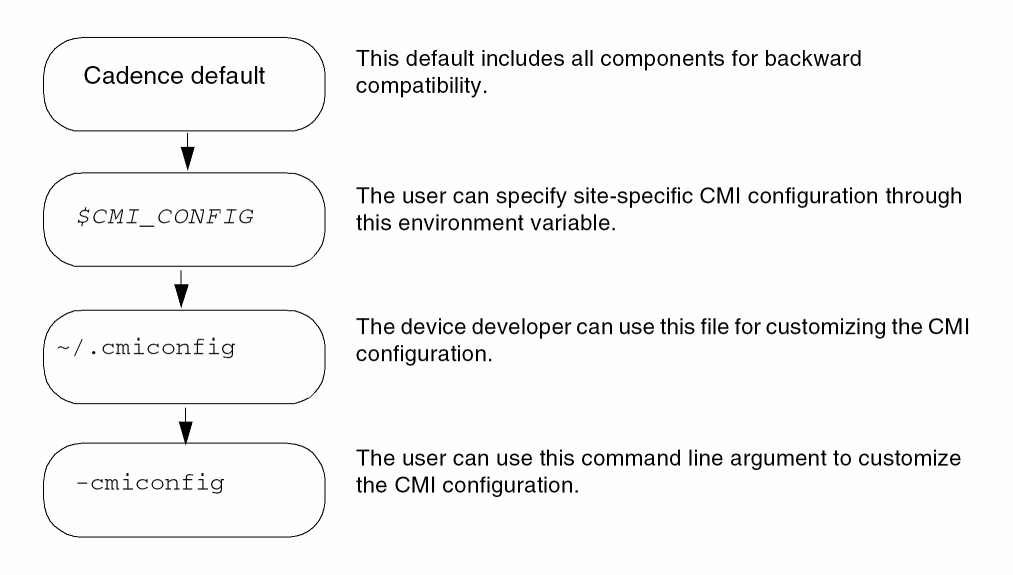
The Spectre simulator reads configuration files in the following order:
- The default Cadence CMI configuration file
-
The configuration file specified by the value of the
$CMI_CONFIGenvironment variable -
The file
$HOME/.cmiconfig, if it exists -
The CMI configuration file specified in the
-cmiconfigargument
Each configuration file modifies the previous configuration.
Configuration File Example
This section contains examples that show how configuration files can be used to customize the list of shared objects that the Spectre circuit simulator loads at run time. The default configuration file includes libinfineon_sh.so, libstmodels_sh.so, libphilips_sh.so, libphilips_o_sh.so, and libsparam_sh.so.
If you need only the ST models, you can create a configuration file called site_cmi_config that loads only libstmodels.so by unloading the other three shared objects:
;default search path is $CDS_ROOT/tools/spectre/lib/cmi/%M
    ;only libstmodels for this site
    ;this file is called site_cmi_config
    unload libinfineon_sh.so
unload libphilips_sh.so
unload libphilips_o_sh.so
unload libsparam_sh.s0
When the environment variable $CMI_CONFIG is set to site_cmi_config, only libstmodels.so is loaded.
A model developer can create a file $HOME/myLib/libmybjt.so consisting of the BJT model under development. To check the results of the BJT under development in libmybjt.so with the BJT503 models in libphilips_sh.so, the developer can create a CMI configuration file in the home directory as follows:
;this is $HOME/.cmiconfig file
 ;I want to include libphilips.so released by Cadence so that
;I can check my BJT with BJT503.
    load libphilips_sh.so
;I also want to include my BJT model from libmybjt.so
    append $HOME/myLib
    load libmybjt.so
CMI Versioning
The version format for CMI is major.minor. The value of major is increased when there are major changes that require CMI developers to recompile their components.
Type spectre -cmiversion to display the current CMI version.
The Spectre circuit simulator checks for CMI version compatibility for each shared object as well as for each primitive. This ensures that
- A shared object is compiled with the latest version of CMI
- The source code for each device primitive is up to date
Checking the CMI Shared Library
Spectre provides a utility cmicheck that enables you to check your CMI libraries before using them. The cmicheck utility is located in the <your_install_directory>/bin directory and can be used as follows:
% spectre +cmicheck[=summary] –cmiconfig <path>
% spectre +cmicheck=all –cmiconfig <path>
spectre +cmicheck=summary displays the following output on your screen:
In addition to the above information, spectre +cmicheck=all, displays information related to each primitive including model and instance parameters.
Return to top