
7
Running Density Analysis
This chapter includes the process of running Density Analysis from Virtuoso and generating Histograms and Density heatmaps.
The content of this chapter is organized as follows:
- Introduction to VIPVS Density Analysis
- Running Density Analysis
- Running Density Analysis on Visible Layers
- Merging Density Analysis Results
Introduction to VIPVS Density Analysis
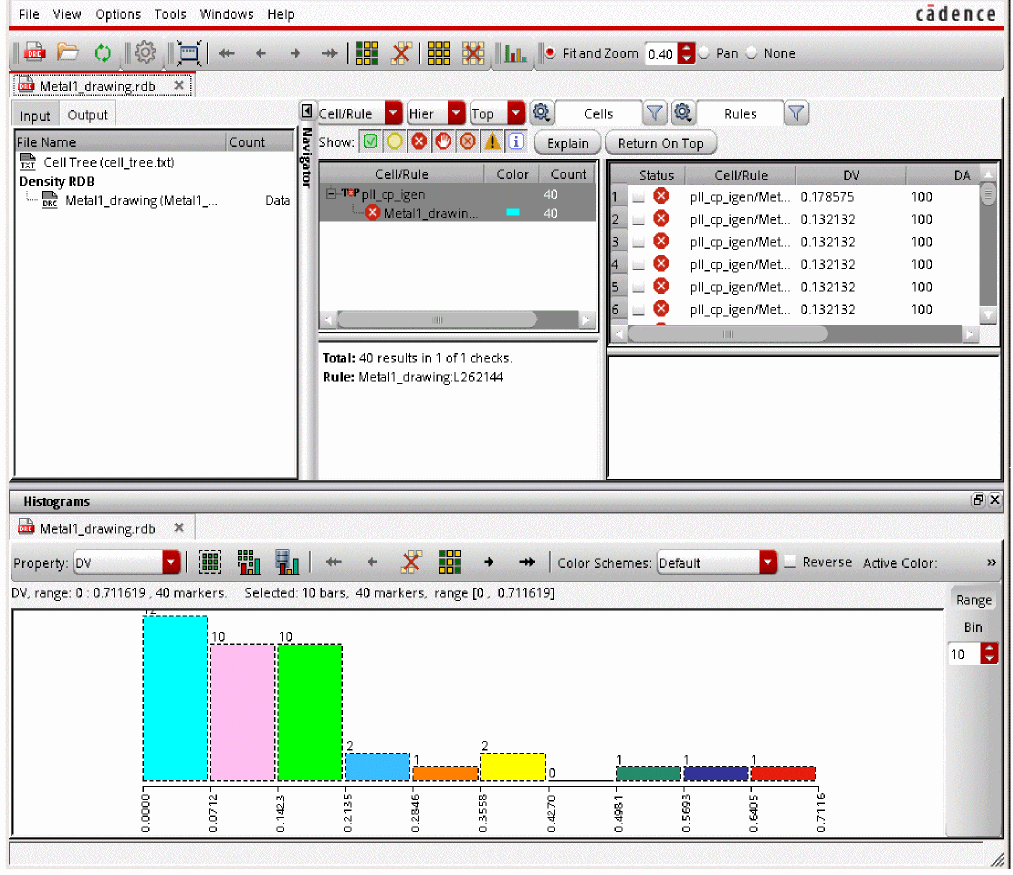
Density analysis generates density results from VIPVS toolbar for required layers. Rule deck is not required. Results are shown in the layout viewer as density heatmap and in PVS Results Viewer as histogram.
You can customize the results per your requirements using the options available in the Density analysis tab of the VIPVS Options form:
Figure 7-1 Density Analysis Tab
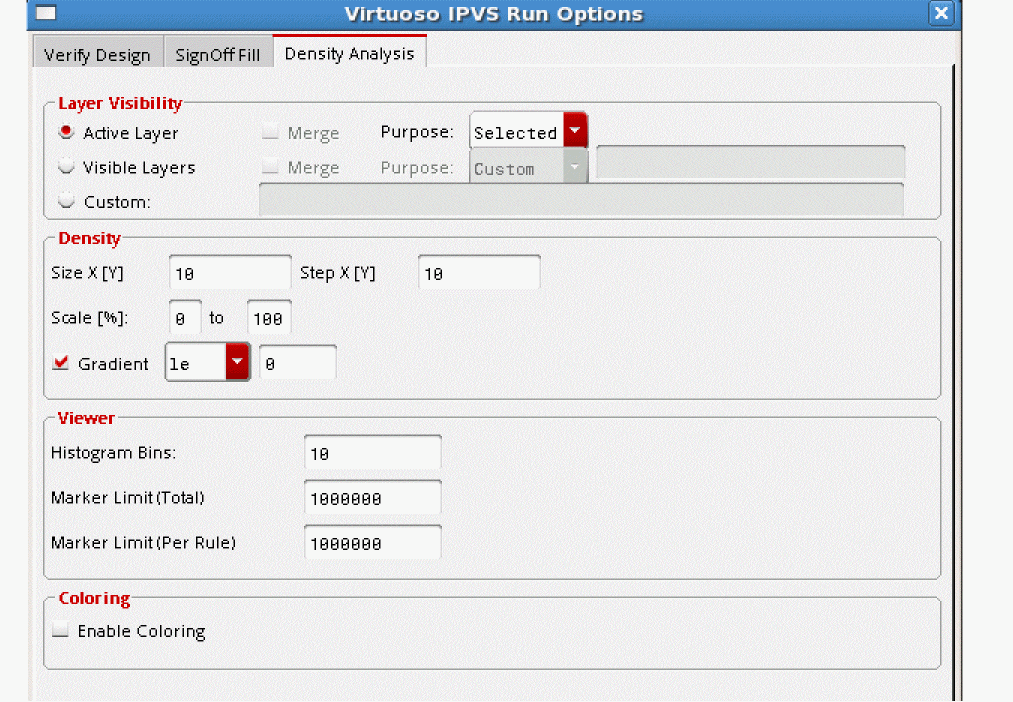
For detailed description of the fields of Density Analysis tab, see Run Settings for Density Analysis.
Running Density Analysis
Perform following steps to do density analysis:
- Click VIPVS Run Options icon on the VIPVS toolbar. The Virtuoso Run Options form opens.
- Select the Density Analysis tab.
-
Make required selections in the Density analysis form as per your requirement, such as for which layers you want to run the density analysis, specifications for the histogram to be generated, and density setup.
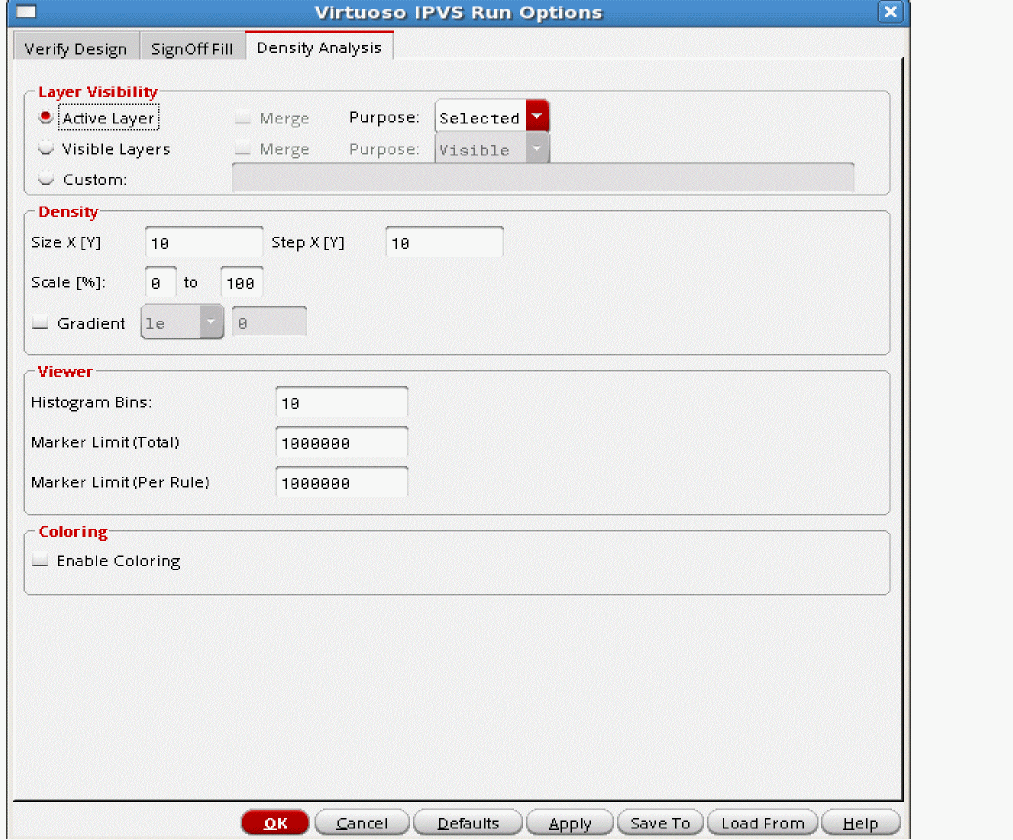
- Click OK to close the Virtuoso IPVS Run Options form.
-
Select Density Analysis from the VIPVS toolbar.

-
Click the Run VIPVS Verify Design icon. On completion of the run, the density heatmap is shown on the layout canvas:
The PVS Results Viewer also opens showing the generated histogram: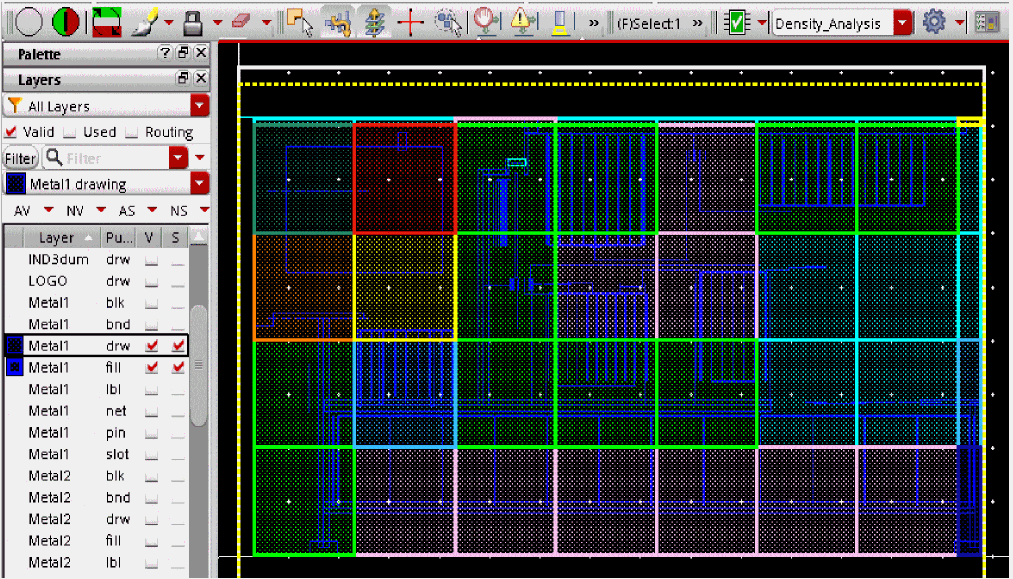
In the steps above the density analysis was run on the active layer. Similarly you can run density analysis on the Visible and Custom Defined layers.
Running Density Analysis on Visible Layers
Perform following steps to run density analysis for visible layers:
-
Set the visibility of the layers to on for which you want to run the density analysis. In this example, two layers
metal1_drawingandmetal1_fillare set to visible. - Click VIPVS Run Options icon on the VIPVS toolbar. The Virtuoso Run Options form opens.
- Select the Density Analysis tab.
-
Select Visible Layers radio button in the Layer Visibility section.
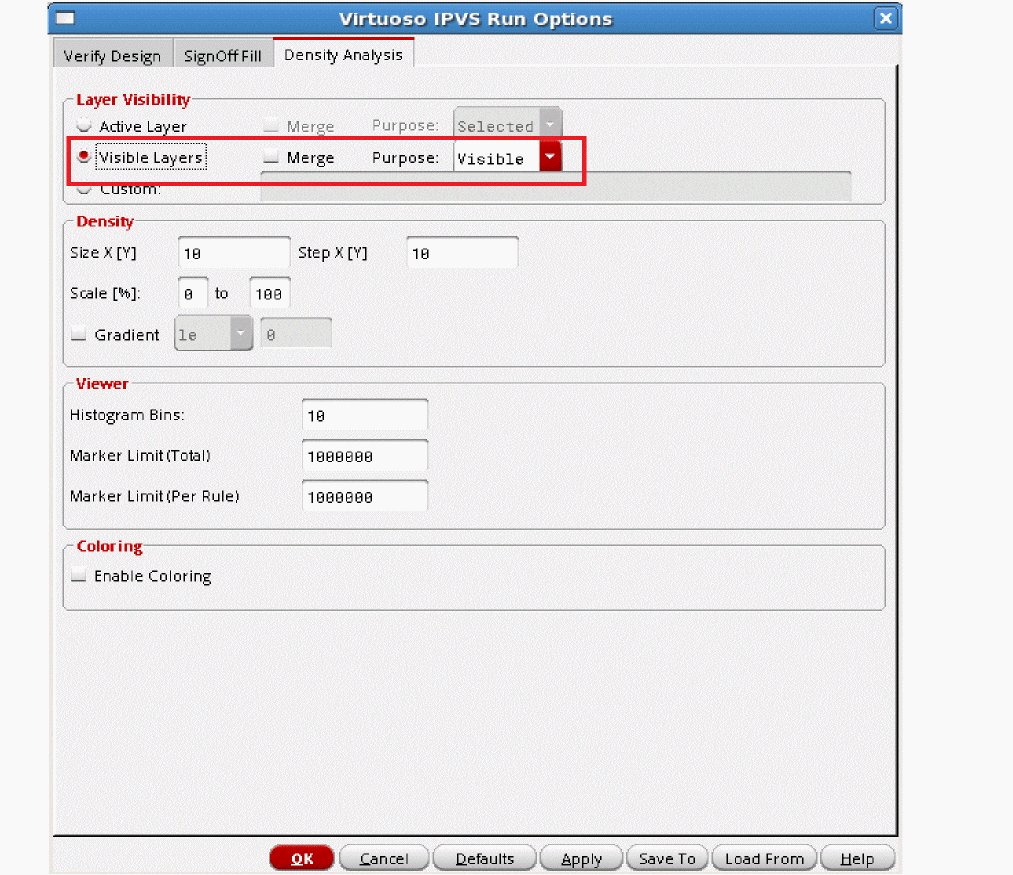
- Click OK to close the Virtuoso Run Options form.
-
Select Density Analysis from the VIPVS toolbar.

-
Click the Run VIPVS Verify Design icon. On completion of the run, the density heatmap is shown on the layout canvas:
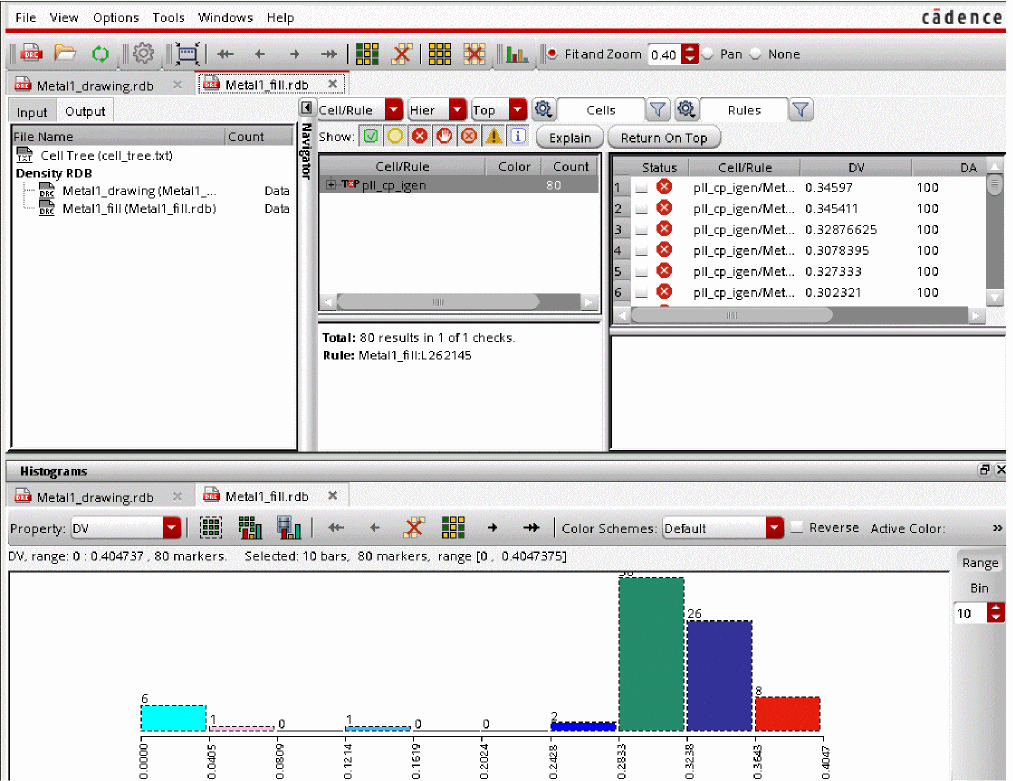
The PVS Results Viewer also opens showing the generated histograms. The PVS Results Viewer shows two tabs for each layer showing two histograms: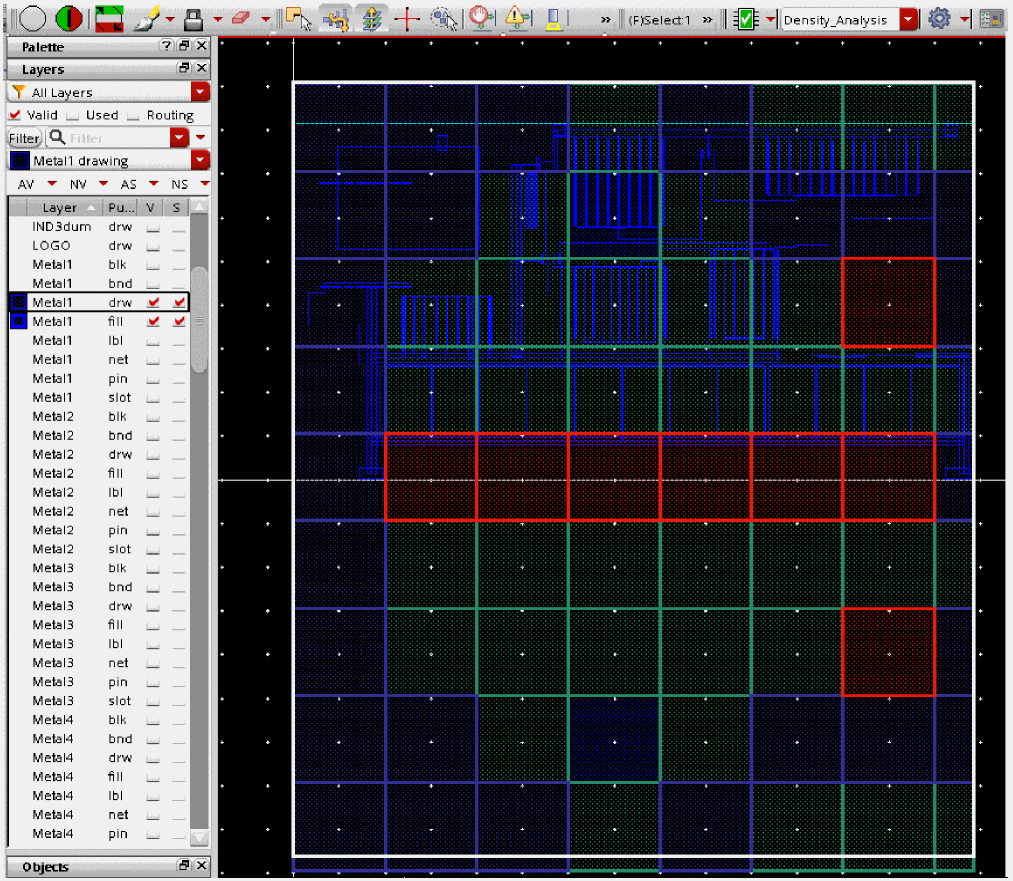
Figure 7-2 Histogram 1 for Metal1_drawing layerFigure 7-3 Histogram 2 Metal1_fill layer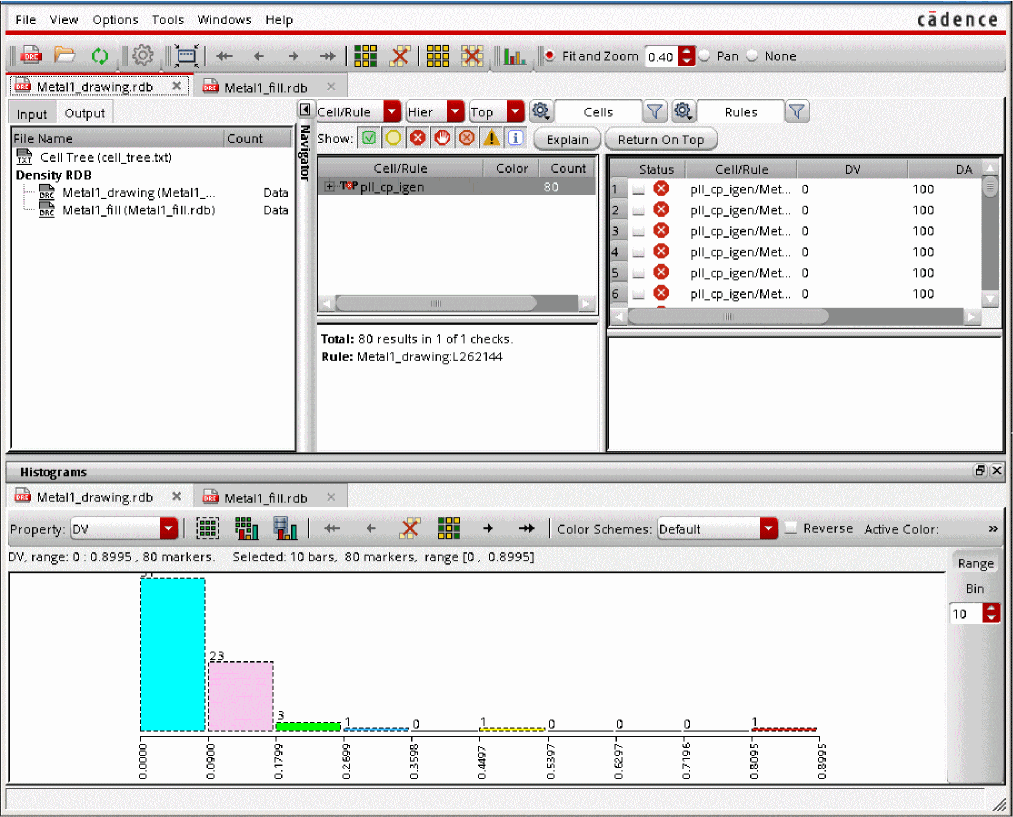
Merging Density Analysis Results
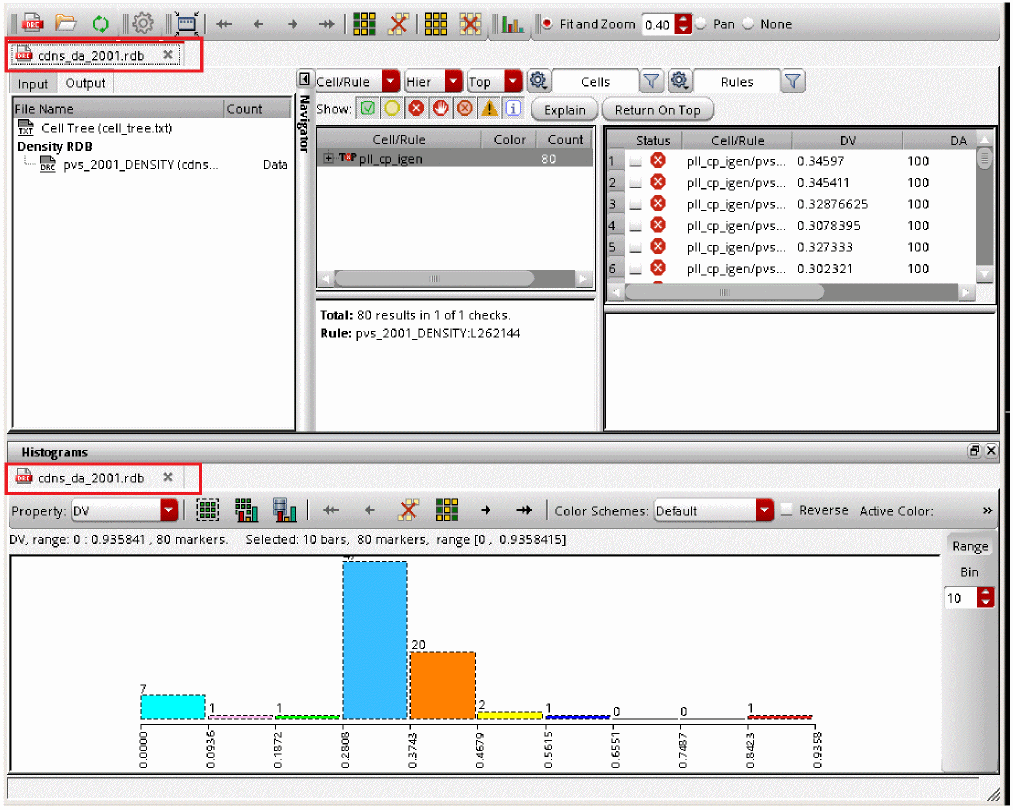
You can merge the run results of the multiple layers using the Merge option in the Density Analysis tab. In this case, the tabs are merged into one and PVS Results Viewer and histogram show result under one tab only.
-
Set the visibility of the layers to on for which you want to run the density analysis. In this example, two layers
metal1_drawingandmetal1_fillare set to visible. - Click VIPVS Run Options icon on the VIPVS toolbar. The Virtuoso Run Options form opens.
- Select the Density Analysis tab.
-
Select Visible Layers radio button in the Layer Visibility section and also select the Merge check box.
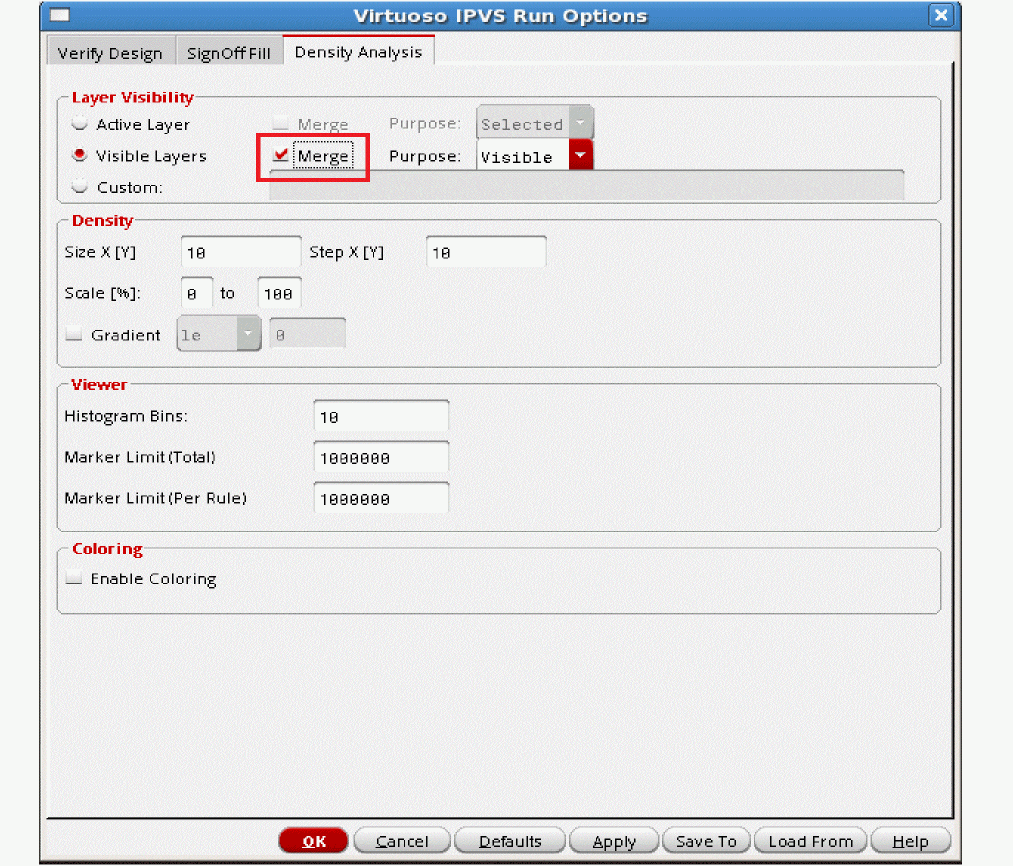
- Click OK to the Virtuoso Run Options form.
-
Select Density Analysis from the VIPVS toolbar.

-
Click the Run VIPVS Verify Design icon. On completion of the run, the density heatmap is shown on the layout canvas:
The PVS Results Viewer opens showing the generated merged histogram: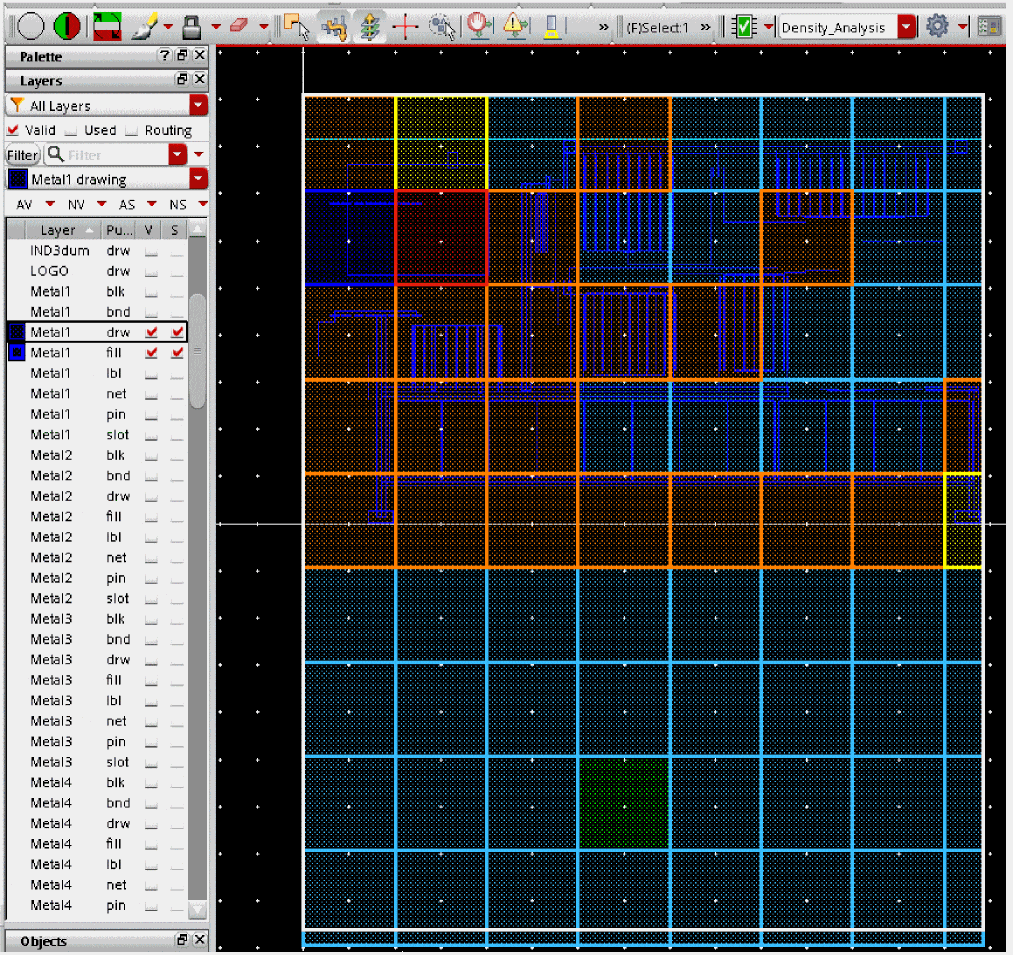
Return to top