
8
Error Viewing
VIPVS supports three type of browsers: one is the Virtuoso native supported Annotation Browser, second is PVS sign-off DRC Debug Environment (DRCDE) and third is PVS Results Viewer. DRCDE is the default browser for VIPVS. This chapter describes the basic setup and customization of the browsers. For details of each browser usage, refer to:
- Annotation Browser: Virtuoso Layout Suite XL User Guide
- DRC Debug Environment: Cadence Physical Verification System User Guide
- PVS Results Viewer: Cadence Physical Verification System User Guide
The content of this chapter is organized as follows:
DRC Design Environment
Quick Start: PV Color Scheme Setup in Virtuoso
Since PVS sign-off DRC Debug Environment’s default color display package is packaged within PVS installation, its color scheme setup is mandatory for DRCDE to operate within Virtuoso correctly.
For details of DRCDE color scheme setup, refer to Setting Colors for DRC Debug Environment in Cadence Physical Verification System User Guide.
Customization
You can customize DRCDE setting through the Preferences form. You can save this setting by clicking Save in the Preferences form. By default, it is saved under ~/.cds_pvsui if PVSUI_SETTING is not set.
For more details on DRCDE customization, refer to the Debugging DRC chapter in Cadence Physical Verification System User Guide.
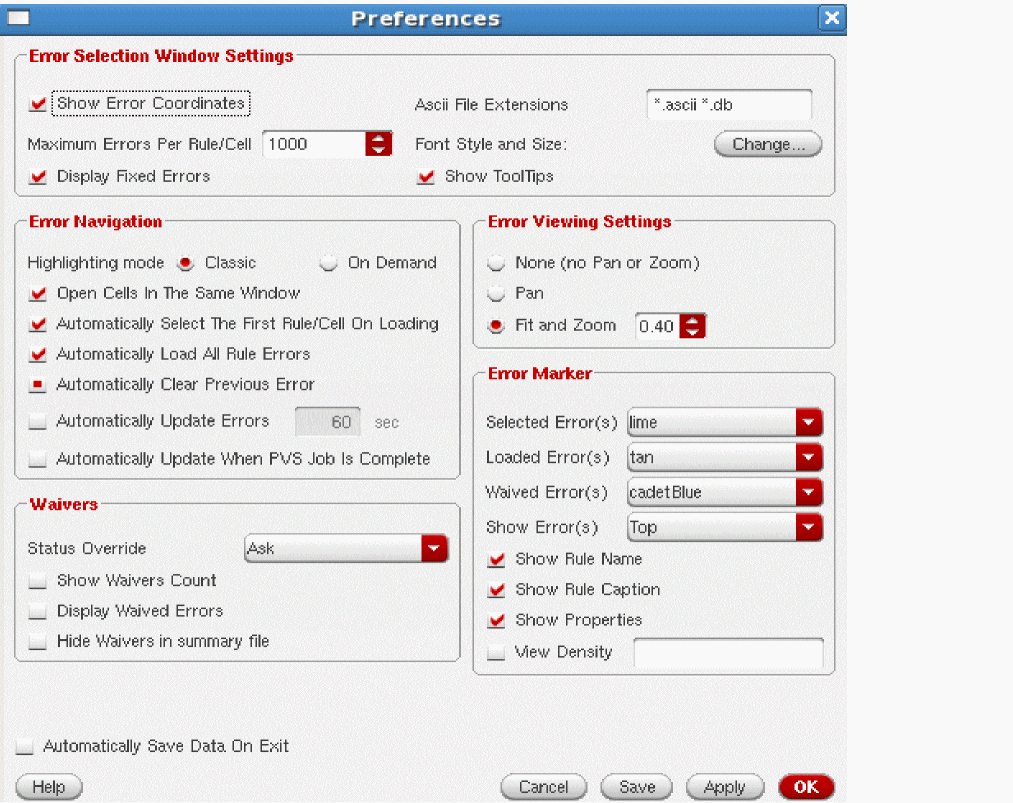
Annotation Browser
Annotation Browser is the native Virtuoso browser for all Virtuoso tools reporting markers. Using this browser, you can run DRC on editable and read-only cellveiw. However, browser will not be invoked like DRCDE after each run. You have to invoke it through Window > Assistants > Annotation Browser in the layout. Once it is invoked, VIPVS violations are populated under the DRC/DFM tab.
Similar to DRCDE, you can customize its setting. Once the customization is complete, you can save the customization through RMB on the Assistant > Settings > Save. By default, it is saved under $PWD/.cadence/dfII/ab/ab.init.
For more details on Annotation Browser usage and customization, refer to Virtuoso Layout Suite XL User Guide.
PVS Results Browser
The PVS Results Browser allows you to view and analyze DRC, Antenna, Density, and ERC violations. For more details on PVS Results Browser usage and customization, refer to Cadence Physical Verification System User Guide.
Return to top