
1
Overview of Virtuoso Visualization and Analysis XL

The Virtuoso® Visualization and Analysis XL is an analog and mixed-signal waveform display tool. This user guide describes this tool in detail and explains how you can use the various features of this tool.
The tool helps you analyze the data generated by your simulator.
The tool consists of the following components:
- Results Browser displays simulation data in the hierarchical arrangement of your design.
- Graph offers features that simplify the processing of your signal data.
- Calculator provides an extensive expression building capability that addresses the needs of a wide variety of analysis types.
This user guide is aimed at developers and designers of integrated circuits and assumes that you are familiar with:
- The Virtuoso Studio design environment and application infrastructure mechanisms designed to support consistent operations between all Cadence® tools.
- The applications used to design and develop integrated circuits in the Virtuoso Studio design environment, notably, the Virtuoso Layout Suite, and Virtuoso Schematic Editor.
- The Virtuoso Studio design environment technology file.
-
Component description format (CDF), which lets you create and describe your own components for use with Layout XL
You can use the Virtuoso Visualization and Analysis XL to browse, evaluate, analyze, and plot the simulation results.
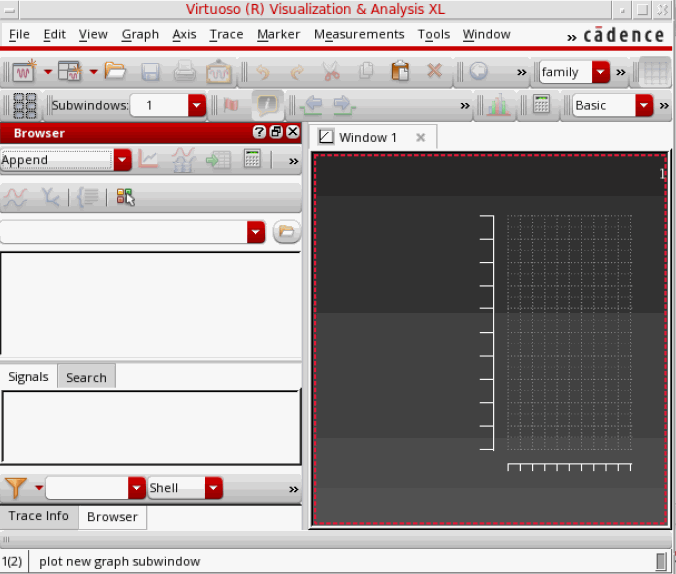
Virtuoso Visualization and Analysis XL tool has the following three components:
Results Browser is used to open the saved simulation results (signals). The signals are displayed in a hierarchical arrangement that corresponds to the hierarchy of your design, making it convenient for you to locate and manage simulation data. For more information about the Results Browser, see Results Browser
Graphs are displayed in the various graph windows and subwindows that can be opened in the graph display area in the Virtuoso Visualization and Analysis XL window. For detailed information about graphs, see Chapter 4, “Working with Graphs.”
Calculator opens in a separate window and is used to create, store, and evaluate expressions for the signals displayed in the Results Browser. For detailed information about Calculator, see Chapter 5, “Working with the Calculator.”
This chapter includes the following sections:
- Opening the Virtuoso Visualization and Analysis XL
- Closing the Virtuoso Visualization and Analysis XL
-
Saving a SessionYou can read the Knowledge Booster Training Bytes blog to learn more about the training videos and online courses available for Virtuoso Visualization and Analysis XL.
Licensing Requirements
Following is the licensing scheme for the Virtuoso Visualization and Analysis XL tool:
Virtuoso Visualization and Analysis XL when opened from ADE Explorer, Assembler, VVO
- When you close the ADE window, the Virtuoso Visualization and Analysis XL continues to hold the ADE license tokens, which are in effect until all Virtuoso Visualization and Analysis XL windows are closed.
Virtuoso Visualization and Analysis XL when opened in stand-alone mode or from Virtuoso:
Checks out either the Virtuoso Visualization and Analysis XL license, ADE license tier, or ADE Verifier license depending on the preferences you have set by using the VIVALicenseCheckoutOrder .cdsenv variable. By default, this variable is set to ViVA, ADE, Verifier.
For more information, see VIVALicenseCheckoutOrder in the CheckoutOrder Variables section of Virtuoso Software Licensing and Configuration User Guide.
Supported Data Formats
The Virtuoso Visualization and Analysis XL can interpret the following data formats.
Points to Note:
- Virtuoso Visualization and Analysis XL does not support WSF format.
-
Virtuoso Visualization and Analysis XL supports the reading of fast signal database (FSDB) file format. To know the latest FSDB version supported by Virtuoso, run the following command:
srrversion -fsdb
Opening the Virtuoso Visualization and Analysis XL
You can start the tool either from within ADE or in the standalone mode. When you open the tool from within ADE, you work on the simulation results for the latest run. However, in the standalone mode, you work on the saved simulation results that can be accessed through the Results Browser.
This section includes the following topics:
- Opening the Tool in Stand-Alone Mode
- Opening the Tool Using CIW
- Opening the Tool Using Virtuoso Analog Design Environment
Opening the Tool in Stand-Alone Mode
To open the Virtuoso Visualization and Analysis XL window from CIW, do the following:
viva[-expr skill |-V |-W |-datadir |-mode XL] | -loglogFileName| -nocdsinit | -noblink | -45 | -noxshm | -nograph | -nographE | -replayinputLog| -restorefileName| -load_graphfileName]
The Virtuoso Visualization and Analysis XL window appears.
When the Virtuoso Visualization and Analysis XL window is opened in the stand-alone mode, the CIW window includes the following options on the menubar:
Opening the Tool Using CIW
To open the tool using CIW, first you need to open Virtuoso and then do the following to open different tools in Virtuoso Visualization and Analysis XL:
- To open the Virtuoso Visualization and Analysis XL tool:
- To open the tool with the Results Browser displayed:
- To open the Virtuoso Visualization and Analysis XL Calculator:
Opening the Tool Using Virtuoso Analog Design Environment
You can open the tool from within ADE Assembler and ADE Explorer.
To know about how to open the graph window from within ADE, see Opening the Graph Window from ADE.
To know about how to open Results Browser from within ADE, see Opening a Results Directory.
To know about how to open Calculator from within ADE, see Opening the Calculator using ADE.
Closing the Virtuoso Visualization and Analysis XL
Saving a Session
When you save a session, the current state of the application is saved. When you reload a saved session, the same windows and settings as in the saved session come up. For more information about the graph attributes that are saved, see Saving and Loading Graphs.
Return to top