
5
Working with the Calculator
The Virtuoso® Visualization and Analysis XL Calculator is a tool that you use to perform calculations on the data generated by a simulator.
This chapter includes the following topics:
- About the Calculator
- Using the Calculator Graphical User Interface (GUI)
- Working with Expressions
- Working with the Calculator in ADE
About the Calculator
Virtuoso Visualization and Analysis XL Calculator is a tool that you use to perform calculations on signals and datasets generated by a simulator. You can also use the Calculator to build expressions on simulation data and can save these expressions for future use.
You can run the Calculator from Virtuoso Visualization and Analysis XL tool or from the Analog Design Environment (ADE). When you run the Calculator from Virtuoso Visualization and Analysis XL tool, you can open the Calculator in the SKILL mode. In both the modes, you use the Results Browser to access simulation results. The simulation results are the signals generated after the simulation is run in a simulation environment, such as ADE and Spectre. To analyze these signals for a particular condition set, you can build expressions in the Calculator and evaluate them.
For example, if you want to calculate the difference between the output signal (Vout) and the input signal (Vin) for a simulation, you can build an expression Vout-Vin by using the Calculator. To build this expression, you can get the expressions for Vin and Vout using the Results Browser.
However, if you are working in ADE and want to build expressions for the latest simulation run to analyze design specifications, you can open the Calculator directly from ADE. You then build the required expressions in the Calculator and import the expressions to ADE before you run the simulation. The expressions are evaluated immediately after you run the simulation. The generated output helps you to modify the simulation circuit.
In ADE, you can use the Calculator to build expressions, which are then evaluated in ADE after the simulation is run. When you run the Calculator from Virtuoso Visualization and Analysis XL tool, you can use the Calculator to both build and evaluate expressions.
When you run the Calculator from Virtuoso Visualization and Analysis XL tool, you work on signals, whereas when you run the Calculator from ADE, you typically work on schematic objects, such as nets and terminals. In addition, when you run the Calculator from ADE, you can open the Results Browser from the Calculator and work on the saved simulation results, if required.
Calculator works in two modes—RPN Mode and Algebraic Mode. The two Calculator modes provide different sets of operations for building and evaluating expressions. The default Calculator type is set to RPN Mode.
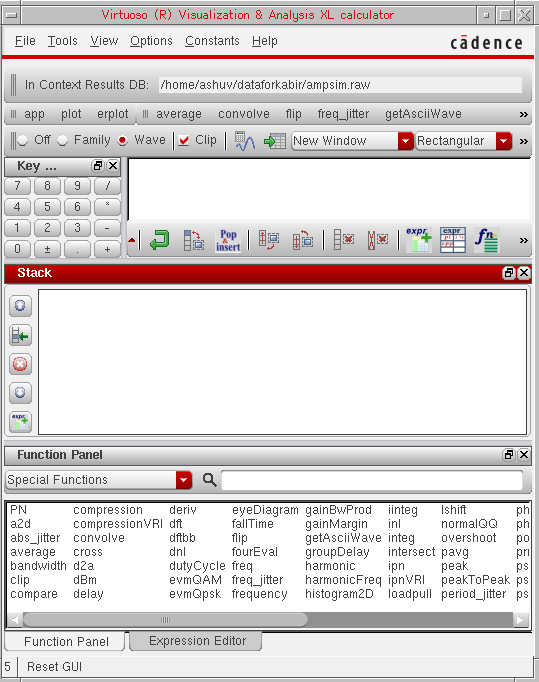
Calculator contains various dockable assistants, a menu bar, a Buffer, and toolbars that you can use to build and evaluate expressions. For more details about these GUI elements, see Using the Calculator Graphical User Interface (GUI).
Opening the Calculator Window
This section describes the different methods that you can use to open the Calculator.
- Opening the Calculator from Virtuoso Visualization and Analysis XL Tool
- Opening the Calculator from CIW in Stand-Alone Mode
- Opening the Calculator from ADE
Opening the Calculator from Virtuoso Visualization and Analysis XL Tool
Depending upon the simulation environment you are working in, you can open the Calculator in the SKILL mode from the Virtuoso Visualization and Analysis XL tool. When you run the Virtuoso Visualization and Analysis XL tool, the Results Browser appears. In the Results Browser, you select the saved simulation results on which you want to build and evaluate expressions.
Opening the Calculator from Virtuoso Visualization and Analysis XL in SKILL Mode
Perform the following steps to open the Calculator from Virtuoso Visualization and Analysis XL in the SKILL mode:
-
Start the Virtuoso Visualization and Analysis XL tool by typing the following command in a terminal window:
viva -expr skill &
The Virtuoso Visualization and Analysis XL window appears. This window consists of Results Browser as an assistant. -
In the Results Browser, select the required signal and do one of the following:
The Calculator window appears. The signal you have selected in the Results Browser appears in the Buffer.
See Selecting Signals and Waveforms to Build Expressions to know how to select a signal in the Results Browser.
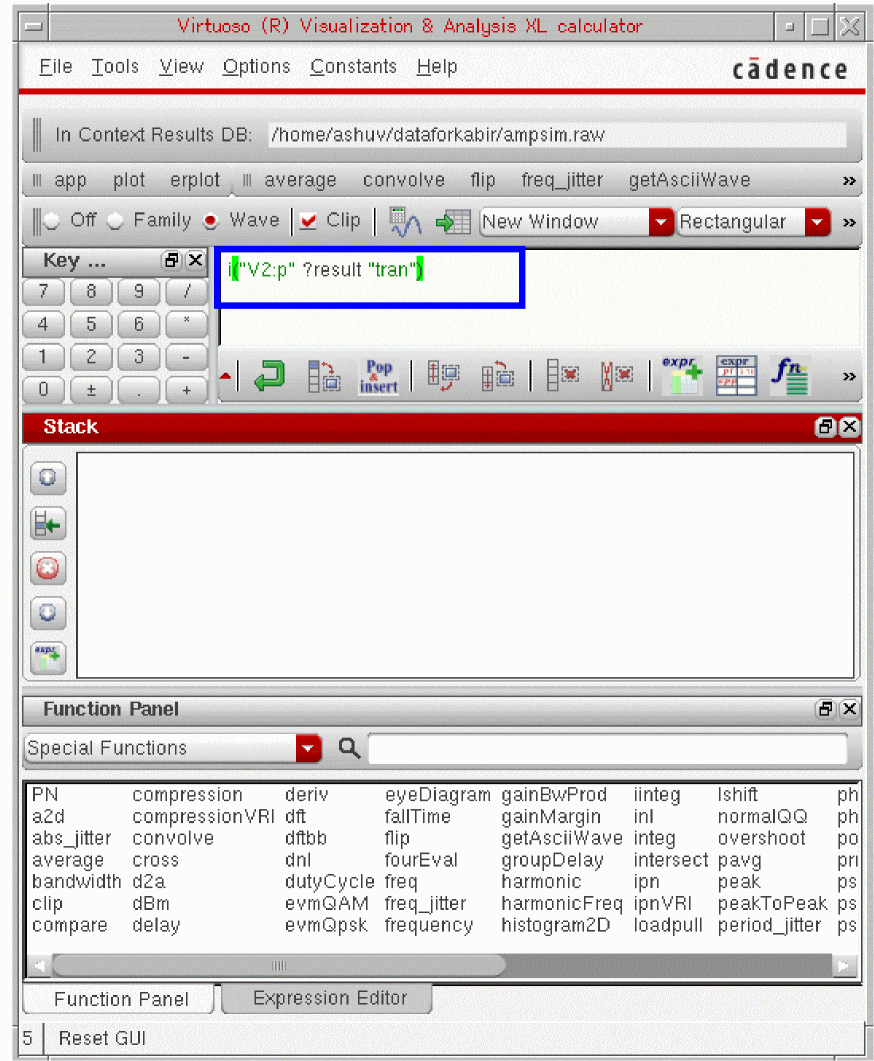
Opening the Calculator from CIW in Stand-Alone Mode
To open the Calculator in the stand-alone mode, perform the following:
-
In the CIW, choose Tools – Calculator.
The Calculator window appears. Click the button to open the Results Browser and select the signal for which you want to build expressions.
Opening the Calculator from ADE
The Calculator can be opened in ADE Explorer and ADE Assembler to build expressions to analyze simulation output. For detailed information about how to open and work with the Calculator in ADE, see Working with the Calculator in ADE.
Using the Calculator Graphical User Interface (GUI)
The Calculator graphical user interface (GUI) consists of various toolbars, a menu bar, a Buffer, a status bar, toolbars, and dockable assistants—Expression Editor, Function Panel, Stack, and Keypad— that you use to build and evaluate expressions. You can show, hide, move, and place the dockable assistants and toolbars anywhere inside or outside the main Calculator window. For example, by default, the Keypad is placed in the lower-right corner of the Calculator window. However, if required, you can drag the Keypad to place it next to the Buffer. When you perform drag-and-drop operations on assistants and toolbars, they are automatically positioned according to the available space.
Choose File – Reset GUI anytime during the session to restore the default placement of toolbars and assistants.
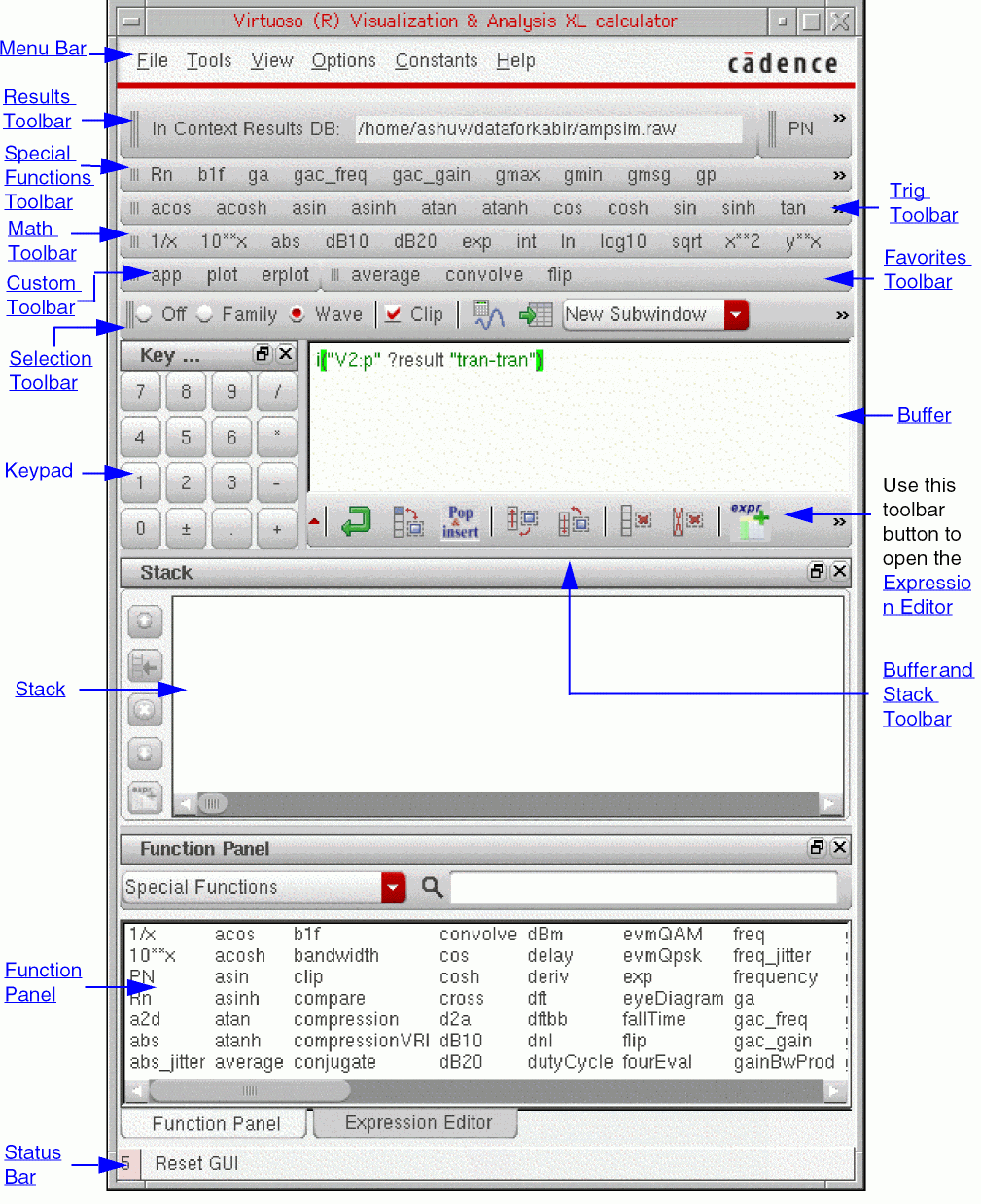
This topic describes the following components of the Virtuoso Visualization and Analysis XL Calculator.
Menu Bar
The menu bar displays the various menus that contain commands for working with the Calculator.

The table below lists a description of the various Calculator menus.
Toolbars
Do one of the following to display the Calculator toolbars that are currently hidden:
- From the View menu, choose the toolbar you want to display.
- Right-click any toolbar and choose the toolbar you want to display.
Calculator has the following toolbars:
- Results Toolbar
- Test Toolbar
- Special Functions Toolbar
- Buffer
- Trig Toolbar
- Math Toolbar
- Custom Toolbar
- Favorites Toolbar
- Schematic Selection Toolbar
- Selection Toolbar
- Buffer and Stack Toolbar
Results Toolbar
The Results toolbar displays the In Context Results DB field.

In Context Results DB
You build expressions using the data files stored in the results directory. A data file contains output signals that are generated after a simulation is run.
The In Context Results DB drop-down list box contains the results directories that are currently open in the Results Browser. By default, the results directory that is set as in-context in the Results Browser is displayed on the top of the list.
You may need to build expressions by using data from one results directory and evaluate the same expression against other results directories. In this case, you can directly open a new results directory from the Calculator by clicking the  (Open Results) button displayed on the right of the Results toolbar. When you click this button, the Select Waveform Database form appears. In this form, browse and select the results directory that you want to open. For more information about this form, see Opening a Results Directory. The results directory that you open from the Calculator becomes the in-context result directory in the Results Browser and Calculator. This new in-context results directory is now used to build or evaluate the expressions.
Enter or the Tab key.When you change the in-context directory in the Results Browser, the In Context Results DB field on the Result toolbar displays the path of the changed in-context directory.
It is recommended that you set the database context to the directory you want to use to build expressions because expressions created using any other result directory may result in an error when evaluated.
If you do not specify a database context directory, the results directory from which you select the first signal becomes the context results directory, and the directory path is displayed in the In Context Results DB field on the Result toolbar.
You can open multiple results directories in the Results Browser, but the In Context Results DB field displays the path of the database context directory. For example, if the database context directory is set to the psf results directory, this field displays the following value:
Now, if you select a signal from the psf results directory, the corresponding expression in the Buffer does not include the results directory name.
However, if you select a signal from a results directory that is not the database context directory, the corresponding expression in the Buffer includes the results directory name.
v(\\7.net7” ?result “tran” ?resultsDir “./viva_psf)
Here, ?resultsDir “./viva_psf” is the name of the results directory from which the signal is selected.
v(I7.net7” ?result “tran)is now displayed as v(I7.net7” ?result “tran).Special Functions Toolbar
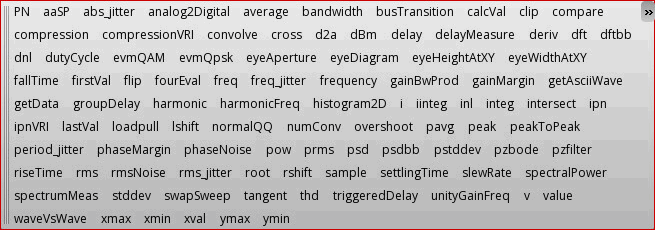
The Special Functions toolbar displays all special functions, such as analog2digital, average and bandwidth. By default, this toolbar is hidden and when you select to show the toolbar, it is displayed next to the Result toolbar. To view the complete list of functions, click the arrow button on the toolbar.
The Function Panel displays the special functions by default.
RF Functions Toolbar
This toolbar displays the set of RF functions, such as Rn, that can be used while building expressions in the Buffer. This toolbar is hidden by default.

Trig Toolbar
This toolbar displays the set of trigonometric functions, such as acos, that can be used while building expressions in the Buffer.

The Trig toolbar is hidden by default. You can set the trigToolBar .cdsenv variable to hide or show the toolbar.
Math Toolbar
This toolbar displays the set of mathematical functions, such as log, that can be used while building expressions in the Buffer.

The Math toolbar is hidden by default. You can set the mathToolBar .cdsenv variable to hide or show the toolbar.
Custom Toolbar
This toolbar displays the modes in which the results generated by evaluating expressions can be plotted. With the Custom toolbar, you can also work on the expressions that are saved in Stack or Expression Editor. This toolbar is hidden by default.

When you click this button, the Buffer contents are appended to the expression table in the Expression Editor. The Buffer is populated with the latest entry in the Stack. To plot or calculate an expression listed in the expression table, select the expression and click the Eval button.
When you click this button, the expression in the Buffer is plotted in the append mode in the selected graph window.
The plot command is also available in the Tools menu.
When you click this button, the Buffer contents are plotted in the selected graph in the replace mode.
Favorites Toolbar
The Favorites toolbar displays the functions that are set as favorite functions in the Function Panel. By default, this toolbar is displayed next to the Custom toolbar and does not contain any function. You can add frequently used functions to this toolbar for quick access.
To add a function to the Favorites toolbar:
To delete a function from the Favorites toolbar:
When you add a function as a favorite, it is simultaneously added to the Favorites toolbar and to the Favorites category in the Function Panel.
wsFavorite file in the cdssearch path or in the.cadence directory available under your home directory. When you open a favorite function, the tool first checks this file in the cdssearch path, and if this it is not found, it checks the .cadence directory.Test Toolbar
The Test toolbar is available only when the Calculator is opened from ADE. For more information, see Test Toolbar.
Schematic Selection Toolbar
This toolbar displays a set of function buttons, such as vt (voltage transient), that you can apply to schematic objects to build expressions. For more information about the Schematic Selection toolbar, see Schematic Selection Toolbar.

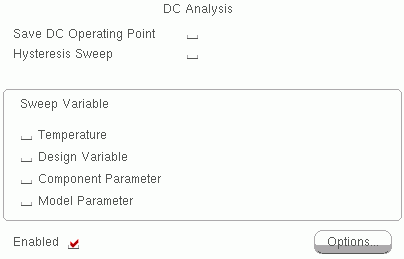
Following are the four cases that describe how vdc and vs work based on the fields selected in the DC Analysis form:
-
Case 1—When the Save DC Operating Point check box is selected and a Sweep Variable is set,
vdc("node_name")returns the voltage of the DC operating point, which is a scalar value, andvs("node_name")returns a waveform of the DC sweep. -
Case 2 and 3—When the Save DC Operating Point check box is enabled or disabled and no variable is swept,
vs("node_name")returns the voltage of the DC operating point, which is a scalar value, andvdc("node_name")also returns a scalar value. -
Case 4—When Save DC Operating Point check box is disabled and a Sweep Variable is set,
vdc("node_name")returns a waveform of the DC sweep andvs("node_name")also returns a waveform.
Selection Toolbar
You can use the Selection toolbar to select a signal from the Results Browser or the graph window. The selected signal is displayed in the Buffer. You then use the tools available on the Selection toolbar to evaluate the selected signal and to define the simulation output format.

The Selection toolbar includes the following options:
Off
If selected, the Calculator does not import the following to the Buffer:
- Signals selected in the Results Browser
- Nets selected in the schematic design
- Traces selected in the waveform graph window
Family
If selected, it prompts you to select a signal from a parametric dataset in the Results Browser or a trace from a set of parametric leaf waveforms. This option is used to build expressions for the entire signal family.
Wave
If selected, it prompts you to select a signal in the Results Browser or a trace in the graph window. This option is used to build expressions for the selected trace.
Clip
If selected, the Calculator works on the visible x-axis range of the trace. When you plot the trace after selecting Clip, the graph window displays only the clipped part of the trace. If you want the Calculator to work on the complete trace, clear the clip check box before importing the signal to the Buffer.
The Clip check box is selected by default. However, you can use the clipSelectionMode .cdsenv variable to change the default behavior of the check box.
signalSelection .cdsenv variable to disable the options.This button is used to evaluate the expression displayed in the Buffer. If the result is scalar, it is displayed in the Buffer. If the result is a waveform, it is plotted in the graph window.
This button is used to display the results of the evaluated expressions in a table.
 Plot Destination
You can use this drop-down list box to specify the window used to plot the result. The list has the following destination options:
- Append – Adds the result to the selected graph window
- Replace – Replaces the graph in the selected graph window (or subwindow) with the result
- New Subwindow – Plots the result in a new subwindow in the selected graph window
- New Window – Plots the result in a new graph window
 Graph Type
You can use this drop-down list box to specify the type of graph to be used to plot the result. The list has the following graph types available:
You can use this button to reopen the Results Browser.
Buffer and Stack Toolbar
This toolbar contains the buttons that help to perform operations on the Buffer and Stack contents. By default this toolbar is displayed below the Buffer and next to the keypad.
The table below describes all the toolbar buttons.



Buffer
The Buffer provides an area where you can create or edit expressions that are used to analyze the output data or signals generated after a simulation is run. Buffer is a fixed assistant and is displayed next to the Keypad. When you select a signal from the Results Browser, the signal appears in the Buffer. You can now use this signal to build an expression.
While creating or editing expressions in the Buffer, you can use the Keypad, Stack, Function Panel, and Expression Editor assistants or use the keyboard.
After you have created or evaluated the expressions, you can save the expressions by moving them from the Buffer to the Stack or Expression Editor.
-
To push the Buffer contents to the Stack, press Enter or select
 on the Buffer and Stack toolbar.
 -
To move the Buffer contents to the Expression Editor, click the
 button on the Buffer and Stack toolbar.
After you move the Buffer contents to the Stack or Expression Editor, the Buffer still displays those contents. When you provide a new input to the Buffer to build another expression, the Buffer displays the new entry.
To delete a single character in the Buffer, press the Backspace or Delete key.
If you want to edit an expression saved in the Stack, move the expressions to the Buffer. When you double-click an expression in the Stack, the expression is moved to the Buffer replacing the previous Buffer contents. You can also drag expressions from Stack or Expression Editor to the Buffer.
Expressions saved in the Expression Editor are edited in the expression table.
The Buffer supports the following features:
- Function Names Auto-Completion
- Multiline Expressions
- Color Coding
- Dependent Expressions
- Incomplete Parentheses, Quotation Marks, and Expressions
Function Names Auto-Completion
The Buffer supports auto-completion of function names. When you type the first three letters of a function name in the Buffer, all function names starting with these letters are displayed. You select the required function to complete the function name.
To display a list of functions starting with a particular letter, type the letter in the Buffer and press Ctrl+E from the keyboard.
Multiline Expressions
Long expressions that cannot fit in one line in the Buffer can be created as multiline expressions. To create multiline expressions, place the insertion point before the character where you want to start a new line and press Alt+Enter from the keyboard.
Multiline expressions are moved to the Stack or Expression Editor as a single expression. They are saved and maintained in multiple lines but are treated as a single expression when run.
Color Coding
To differentiate between the various parts of an expression in the Buffer, you can specify different display colors for different parts of the expression, such as results directory, dataset names, functions, node names, data access functions, numbers, brackets, operators, and strings.
-
To set the Buffer color coding, click Options – Edit Buffer Color.
The Select Color form appears.
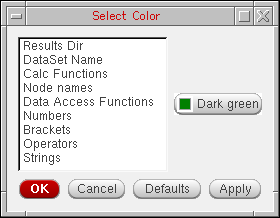
- Select the category for which you want to set the color.
- Click the color button on the right to display the available color set.
- Click the ellipses (...) button to expand the color set.
- Select the required color.
- Click Apply.
If you do not specify the color settings, the expression is displayed in the default color set.
Dependent Expressions
Dependent expressions are the expressions that contain more than one expression. For example, E2=4+E1, where E1=2+3. In this case E2 is a dependent expression because to evaluate the value of E2, you first need to calculate expression E1.
You can create dependent expressions using the Buffer and can store them in the expression table in the Expression Editor.
For more information about how to work with dependent expressions, see Building Dependent Expressions.
Incomplete Parentheses, Quotation Marks, and Expressions
When you build an expression in the Buffer, the Calculator checks for missing parentheses, incomplete quotation marks, and incomplete expressions. For example, when you type the opening (left) parenthesis, it is highlighted in red to indicate that it needs to be closed. After you type the closing (right) parenthesis, the parenthesis pair is highlighted in green or in a color that you have configured for parentheses. If you do not correctly close a pair of parenthesis, the Buffer considers the expression as incomplete.
Similarly, expressions that do not contain the closing quotation mark are also considered incomplete, and the entire string after the opening quotation mark, including the quotation mark, is displayed in red. In addition, expressions ending with an operator are also considered incomplete.
You cannot push incomplete expressions to the Stack or Expression Editor. If you press Enter to move the incomplete expression in the Buffer to the Stack, the insertion point is placed in the next line in the Buffer assuming that you are building a multiline expression.
To check if all parenthesis pairs in an expression are complete, place the insertion point after each opening parenthesis and observe the color of the highlight—if the pair is complete, it is highlighted in green.
Assistants
Calculator contains the following assistants, which help in building and evaluating expressions:
Stack
Stack is an area where you can store the expressions created in the Buffer.
The table below describes the buttons available to the left of the Stack window.


Pushing Expressions onto the Stack
After you make an entry into the Buffer, you can move the contents to the Stack. To push the current expression onto the Stack click the Enter key or the
button.
Displaying the Stack
Click  on the Buffer and Stack toolbar to show or hide the Stack.
Clearing Stack and Buffer
There are several ways to clear the Buffer and Stack:
- To remove an item from the Stack without deleting the item from the Buffer, press the Delete Key.
-
To clear the Buffer without deleting the item from the Stack, click the
 button.
 -
To delete an item from both the Buffer and the Stack, click the
 button.
For more information about the buttons that help you perform Stack and Buffer operations, see the Buffer and Stack Toolbar.
The showStack .cdsenv variable determines whether the Stack is displayed by default.
The default number of items stored in the Stack is 8. However, you can set the StackSize .cdsenv variable to define the Stack size.
Function Panel
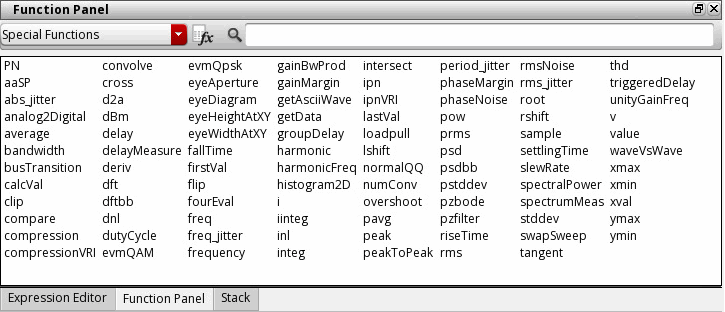
This assistant displays a list of functions. The functions displayed are determined by the function category selected in the Function Panel drop-down list box.
Function Categories in the SKILL Mode
The following table lists the function categories available in the SKILL mode.
| Category | Functions Available |
|---|---|
|
Displays all the available functions, except for the user-defined functions |
|
|
Displays the functions that you specify as favorites. To add a function to the Favorites list, right-click the required function in the Function Panel and choose Add to Favorites. |
|
|
1/x, 10**x, abs, dB10, dB20, exp, int, ln, log10, sqrt, x**2, and y**x |
|
|
db10, db20, imag, mag, phase, real, phaseDeg, phaseDegUnwrapped, phaseRad, phaseRadUnwrapped, and conjugate |
|
|
Rn, b1f, ga, gac_freq, gac_gain, gmax, gmin, gmsg, gp, gpc_freq, gpc_gain, gt, gumx, kf, loadStability, nc_freq, nc_gain, nf, nfmin, rn, s11, s12, s21, s22, and sourceStability |
|
|
average, bandwitdth, clip, compare, compression, compressionVRI, convolve, cross, dBm, delay, deriv, dft, dftbb, dnl, dutyCyle, evmQAM, evmQpsk, eyeDiagram, falltime, flip, fourEval, freq, freq_jitter, frequency, gainBwProd, gainMargin, getAsciiWave, getData, groupDelay, harmonic, harmonicFreq, histogram2D, iinteg, integ, intersect, ipn, ipnVRI, lshift, overshoot, peak, peakToPeak, period_jitter, phaseMargin, phaseNoise,pow, psd, psdbb, pzbode, pzfilter, riseTime, rms, rmsNoise, root, rshift, sample, settlingTime, slewRate, spectralPower, stddev, tangent, thd, unityGainFreq, value, xmax, xmin, xval, ymax, and ymin |
|
|
ifreq, ih, it, pir, pmNoise, pn, pvi, pvr, spm, totalNoise, vf, vh, vt, ypm, and zpm |
|
|
acos, acosh, asin, asinh, atan, atanh, cos, cosh, sin, sinh, tan, and tanh |
|
|
Includes the functions you define. For more information, see Appendix E, “Defining New SKILL Functions,”. |
|
|
Displays the Expression Editor where you can save and build expressions. For more information, seeExpression Editor. |
For more information about the listed above, see Appendix B, “Calculator Functions.”
The category displayed by default in the Function Panel is Special Functions. You can change the default category by using the defaultCategory .cdsenv variable.
Using Functions in the Function Panel
The Function Panel has two types of functions:
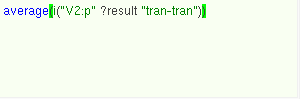
If you select a single-parameter function, it can be applied directly to the Buffer contents. For example, average is a single parameter function. When you select this function, it is displayed in the Buffer and the Buffer contents become the function arguments.
If you select a multi-parameter function, the parameter panel for the function appears.
For example, if you select the multi-parameter function, slewRate, the various parameters that the function requires appear in the parameter panel, grouped under the function name as shown in the figure below. You can now specify the various parameter values. By default, the parameters contain the values that are set as defaults for that function.
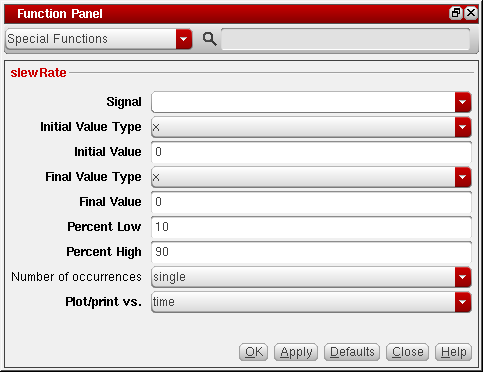
The Signal drop-down list maintains a record of all previously selected signals in the current session. It also includes Buffer as one of the options. If you select Buffer, the Buffer contents are displayed as the Signal parameter value.
The default number of signals stored in the drop-down list is 8. However, you can set the signalHistorySize .cdsenv variable to change the number of signals stored.
After you specify the parameter values for the selected function, you can do one of the following:
Searching for a Function
You can use the Search field in the Function Panel to search for any function.
The function search supports category-based search. For example, if you select Math in the function category drop-down list and search for a specific function, the search is run only on the Math category. To search for a function all the categories, select All.
The function search also supports regular-expressions-based search, for example, you can specify a to search for the function names that contain the letter a or A and specify ^a to search for function names that begin with the letter a.
To view the online help for a function, right-click the required function in the Function Panel and choose Help.
Expression Editor
You can move expressions from the Buffer or Stack assistants to the Expression Editor and can store them for future use. The Expression Editor stores expressions in an expression table.
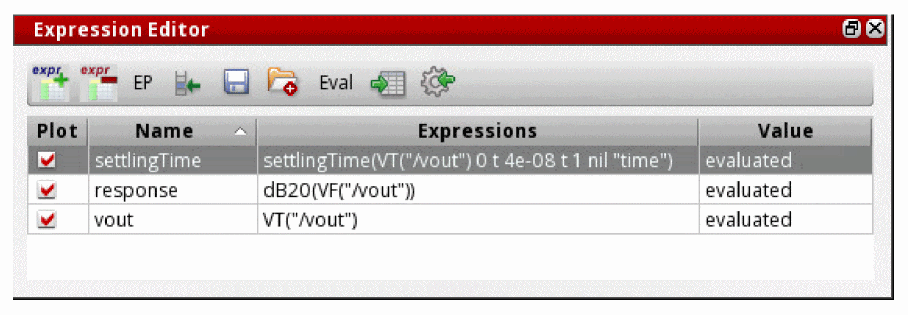
To open the Expression Editor, do the following:
 button on the Buffer and Stack toolbar.
The following table describes the buttons available in the Expression Editor.


Adding Expressions to the Expression Editor
To add an expression to the Expression Editor, do one of the following:
-
From the Buffer. click the
command on the Buffer and Stack toolbar.
-
From the Stack, select the required expression and click the expr+ command on the left to move the selected expression to the Expression Editor.
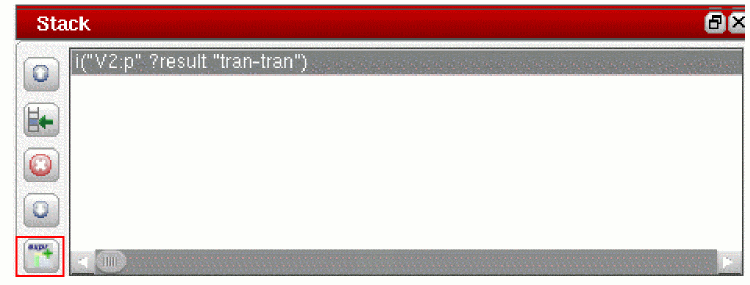
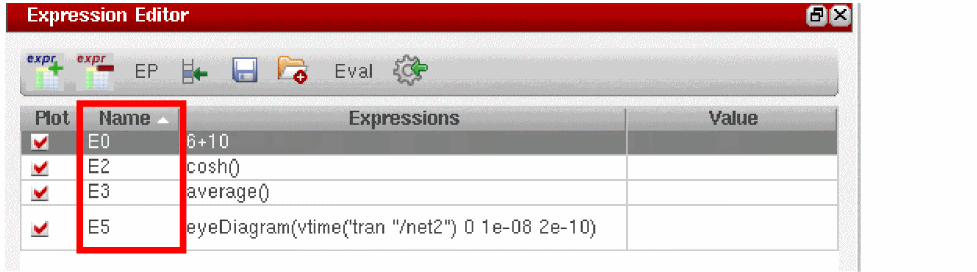
When you add an expression to the expression table, the Expression Editor associates a name (signal alias) with the expression—the default expression names are E1, E2, and E3, and so on. If required, you can modify the default expression names. Expression names support alphanumeric values and the first letter of an expression name must be an alphabet.
In Expression Editor, you can also plot circular graphs by selecting the required circular graph type from the Graph Type drop-down list on the Selection toolbar.
Editing Expressions in the Expression Editor
To edit an expression in the Expression Editor, double-click the row you want to edit.
Deleting Expressions from the Expression Editor
To delete an expression from the Expression Editor, select the expression you want to delete by selecting the check box associated with the expression and click the  button or press the Delete key.
For more information about how to work with expressions in the Expression Editor, see Working with Expressions.
Sorting Expressions in the Expression Editor
You can sort the expressions listed in Expression Editor based on the expression names or text. To sort the expressions in increasing or decreasing order, click the arrow symbol displayed with each column heading in the expression table.
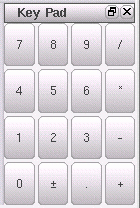
Keypad
The Keypad contains buttons for numbers and simple arithmetic functions. If you define any function buttons, they too are displayed on the Keypad.
To define a function button and associate a function with it, type the following command in the CIW:
userButton=envSetVal(“viva.calculator” “userButtonX” ‘string “button_name;function_name”)
userButtonX defines button number that you want to map to a function. You can define a maximum of 12 function buttons. Therefore, the value of X can be a number from 1 through 12
button_name is the name of the function button that you want to display on the Keypad.
function_name is the name of the function that you want to associate with the button.
For example, if you want to display the average function on the Keypad with the button name MyAvg, in the CIW type:
userButton=envSetVal(“viva.calculator” “userButton1” ‘string “MyAvg;average)
The defined function button is displayed on the Keypad.
The Keypad is displayed by default. You can change the default behavior by using the showKeypad .cdsenv variable.
Status Bar
The status bar displays the status of the action performed in the Calculator window. It also displays warning and error messages. An example is shown in the figure below.

Setting Calculator GUI Using .cdsenv Variables
The variables in the .cdsenv file determine the default behavior of the Calculator. Thereafter, the local defaults override the .cdsenv variables if .cdsenv is set to true:
Following are the environment variables that you use to define the settings for Calculator assistants:
- showKeyPad
- showStack
- rpnMode
- clipSelectionMode
- signalSelection
- plotStyle
- defaultCategory
- mathToolBar
- TrigToolBar
- schematicToolBar
- schematicAnalyses
- userButton
- xLocation
- yLocation
- width
- height
Working with Expressions
You can build expressions in the Calculator in the RPN and algebraic modes. After the expressions are created, you can edit, save, load, or delete them using the Expression Editor, Stack, and Buffer.
This section contains the following topics which explain how you can work with expressions:
- Selecting Signals and Waveforms to Build Expressions
- Building Expressions in the Buffer
- Editing an Expression in Buffer
- Building Dependent Expressions
- Saving Expressions
- Dragging Expressions across Buffer and Assistants
- Loading Expressions from an Expression File
- Evaluating and Plotting Expressions
- Creating Custom Calculator Functions
- Working with the Calculator in ADE
Selecting Signals and Waveforms to Build Expressions
To build and evaluate an expression, you need to select a signal in the Results Browser or in the graph window. This section describes the following two ways that you can use to select signals:
Selecting Signals from the Results Browser
- Ensure that the Family, which is a set of parametric leaf waveforms, or Wave option on the Selection toolbar is selected.
-
Choose Tools – Browser.
The Results Browser window appears. -
In the left panel of the Results Browser, double-click the required results directory.
The associated datasets appear in the list view to the right. -
Double-click the required dataset.
The associated signals are displayed. -
Right-click the required signal and choose Calculator.
The signal is displayed in the Buffer along with the dataset name. For example:
v("vin" ?result "tran")
Here, vin is the name of the signal.
?result “tran is the dataset from which the signal is selected. This tran dataset contains the signals generated during the transient analysis of a simulation.
When you send a signal from the Results Browser to the Calculator, the selected signal is displayed in the Buffer. Now, when you send another signal from the Results Browser to the Calculator, the previous signal is pushed onto the stack and the new signal is displayed in the Buffer.
When you select multiple signals in the Result Browser and send them to the Calculator window, the recently selected signal is displayed in the Buffer and all other signals are pushed to the Stack.
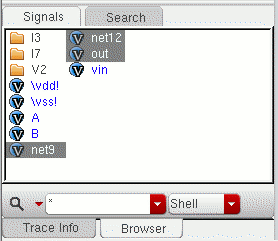
For example, if you select three signals in the order—net9, net12, and out— in the Results Browser (as shown in the figure), the signal out is displayed in the buffer and the signals net9 and net12 are pushed to the stack.
Selecting Traces from the Graph Window
Perform the following steps to select a trace:
- Ensure that the Wave option on the Selection toolbar is selected.
-
In the graph window, select the trace for the signal you want to add to the Calculator. By default, the Calculator works on the visible X-axis range of a zoomed-in trace. If you want the Calculator to work on the complete trace, deselect the clip check box before importing the signal to the Buffer.
An expression for the selected trace appears in the Buffer.
- Ensure that the Family option on the Selection toolbar is selected.
-
In the graph window, select a parametric trace.
An expression for the parametric family appears in the Buffer.
Building Expressions in the Buffer
You can build expression in the Calculator in the following two modes:
To set the Calculator to work in RPN or Algebraic mode, choose Options – Mode – RPN Mode/Algebraic Mode.
This section describes how to build expressions in the RPN and Algebraic modes, how to use functions from the Function Panel while building expressions, and how to add constants or design variables to the expressions.
- Building Expressions in the RPN Mode
- Building Expressions in the Algebraic Mode
- Examples of Building Expressions
- Adding Constants to Expressions
- Adding Design Variables to the Buffer
Building Expressions in the RPN Mode
RPN is the default Calculator mode, which can also be set by using the .cdsenv variable.
In the RPN mode, you write expressions without using parenthesis to define priorities for evaluating operators.
To understand this better, consider the following expression:
(3 + 5) * (7 - 2)
In this expression, the parentheses tell you to first add 3 to 5, then subtract 2 from 7, and finally multiply the two results. In the RPN mode, you list the numbers and operators one after the other to form a stack, instead of using parentheses. For example, the above expression is written as follows in the RPN mode:
3 5 + 7 2 - *
To build this expression, you perform the following Buffer and Stack operations:
- Add 3 to the Buffer and press Enter to push it to the Stack.
- Add 5 to the Buffer.
- Apply the + operation. This pops the topmost item, 3, from the Stack and moves it to the Buffer. The Buffer now has the following expression: 3+5. Now when you press any key from the keypad, this expression is pushed to the Stack.
- Add 7 to the Buffer and push it to the Stack. The Stack contains: 7, 3+5
- Add 2 to the Buffer.
- Apply the - operation. This pops the topmost item, 7, from the Stack and moves it to the Buffer. The Buffer now contains the expression: 7-2.
-
Apply the * operation. This pops the topmost item, 3+5, from the Stack and moves it to the Buffer and the following expression is created in the Buffer: (3+5)*(7-2).
Building Expressions in the Algebraic Mode
To change the Calculator mode to algebraic, choose Options – Algebraic Mode.
In the Algebraic mode you build expressions from left to right. When you click an operator or a function, the operator or function is added to the Buffer to the right of the cursor.
To build an expression in the Algebraic mode:
- Ensure that the Wave button on the Selection toolbar is selected.
- Select a signal. For more information, see Selecting Signals and Waveforms to Build Expressions
-
Click the function you want to use.
- If you select a single-parameter function, it appears in the Buffer.
-
If you select a multi-parameter function, the parameter panel for the function appears. Enter the required information and click OK.
The expression is displayed in the Buffer. For more information, see Using Functions in the Function Panel.
-
On the Selection toolbar, click the
 button to evaluate the expression.
If the expression evaluates to a scalar, the result appears in the Buffer. If the expression evaluates to a signal, the graph window appears with a trace for the evaluated expression.
Examples of Building Expressions
This section describes how you can build expressions in the RPN and Algebraic mode.
Example of Building Expressions in the RPN Mode
Suppose you want to build an expression in the RPN mode that multiplies two signals:
- Select the first signal, signal1, from the Results Browser. The signal is displayed in the Buffer.
- Select another signal, signal2, from the Results Browser. This pushes signal1 to the Stack and the Buffer displays signal2.
-
Click * on the Keypad to multiply signal1 and signal2. This pops signal1 from the Stack and the following expression is created in the Buffer:
signal1*signal2 -
Click
on the Selection toolbar to evaluate the expression. If the result is a scalar, it is displayed in the Buffer. If the result is a waveform, it is plotted in the graph window.
Example of Building Expressions in the Algebraic Mode
To build the same expression in the Algebraic mode, you perform the following steps:
- Select the first signal, signal1, from the Results Browser. The signal is displayed in the Buffer.
- Press Enter to move signal1 to the Stack.
- Select another signal, signal2, from the Results Browser. The signal is displayed in the Buffer.
- Click * on the Keypad to multiply signal1 and signal2. The Buffer now contains the following expression: Signal2*
- Pop Signal1 from the Stack. This creates the following expression in the Buffer: signal2*signal1
-
Click
on the Selection toolbar to evaluate the expression. If the result is a scalar, it is displayed in the Buffer. If the result is a waveform, it is plotted in the graph window.
Example of Building Expressions Using Functions in Function Panel
Suppose you want to build an expression for measuring the delay between an input and output signal by using the delay function. This example assumes you are working with the SKILL Calculator in the RPN mode:
- Ensure that the Wave option on the selection toolbar is selected.
-
In the Results Browser window, right-click the required input signal and choose Calculator. The following signal is displayed in the Buffer.
v("vin" ?result "tran") -
In the Function panel, select the
delayfunction from the Special Functions category. The parameter panel fordelayappears.
In the parameter panel, v("vin" ?result "tran"), which is the last selected signal, appears in the Signal1 field. -
In the Results Browser, right-click the
outsignal and choose Calculator. The following signal appears in the Buffer:
v("out" ?result "tran") -
In the Function Panel, do the following:
- In the Signal 2 drop-down list, select Buffer. The Buffer content, which is the out signal that you selected, appears in Signal2.
- In the Edge Type1 field, choose rising
- In the Edge Type 2 field, choose rising.
Ensure that the following values appear in the parameter list:
Field Name Value Field Name Value 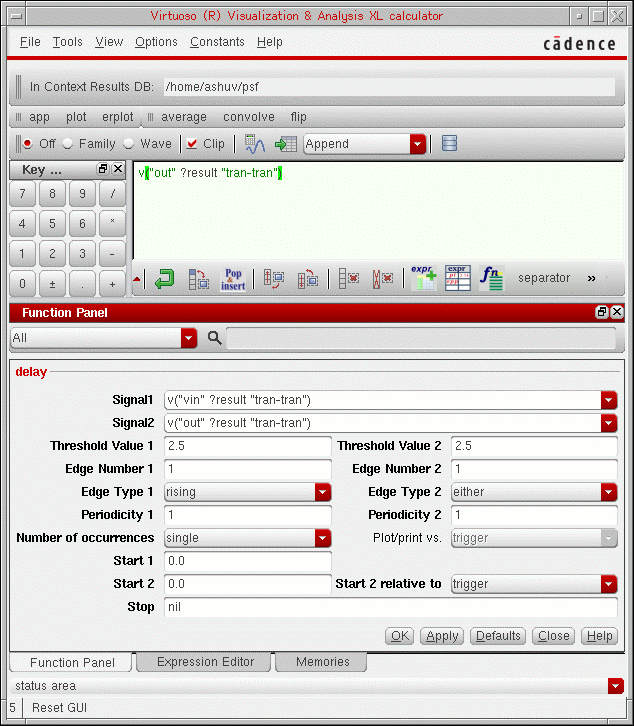
-
Click Apply. The following expression appears in the Buffer:
delay(v("vin" ?result "tran") 2.5 1 "rising" v("out" ?result "tran") 2.5 1 "rising" 0 0 nil nil) -
Click
on the Selection toolbar to evaluate the expression. If the result is a scalar, it is displayed in the Buffer. If the result is a waveform, it is plotted in the graph window.
Adding Constants to Expressions
To add a constant to an expression in the Buffer:
-
From the Constants menu, select a constant. The constant appears in the Buffer.
For example, if you want to add the Boltzmann constant to a signal displayed in the Buffer, select Bolzmann from the Constants menu. Boltzmann appears in the Buffer and the signal is pushed to the top of the Stack. Apply the + operation. This pops the signal from the top of the Stack and builds the following expression in the Buffer:
v("\\vss! " ?result "tran")+boltzmann
For more information about constants, see Appendix D, “Constants.”
Adding Design Variables to the Buffer
You can use design variables in the expressions when the Calculator is opened in the SKILL mode. When you open a simulation result in the Results Browser, the Results Browser displays a directory named variables that contains design variables for the simulation. To select design variables, do the following:
- Select the Wave option on the Selection toolbar.
- In the Results Browser, select the required design variable from the variables directory.
The selected design variable appears in the Buffer as shown in the figure below.

Editing an Expression in Buffer
After an expression is created in the Buffer, you can do one of the following to modify the argument values of function applied in the expression:
- Type the new values for the function arguments in the Buffer. To do this, you must know the function syntax and the valid argument values.
-
Press the
Ctrlkey and click the function name in the Buffer. The function is opened for editing in the Function Panel, where you can modify the argument values. After the changes are done, click the Update button to update the expression in the Buffer.
Consider the example below in which theabs_jitterfunction is applied on theoutsignal in the Buffer.
When you place the pointer on the function name, the expression becomes an active link. Now, if you click the function name, the function is opened in edit mode in the Function Panel, as shown in the figure below:
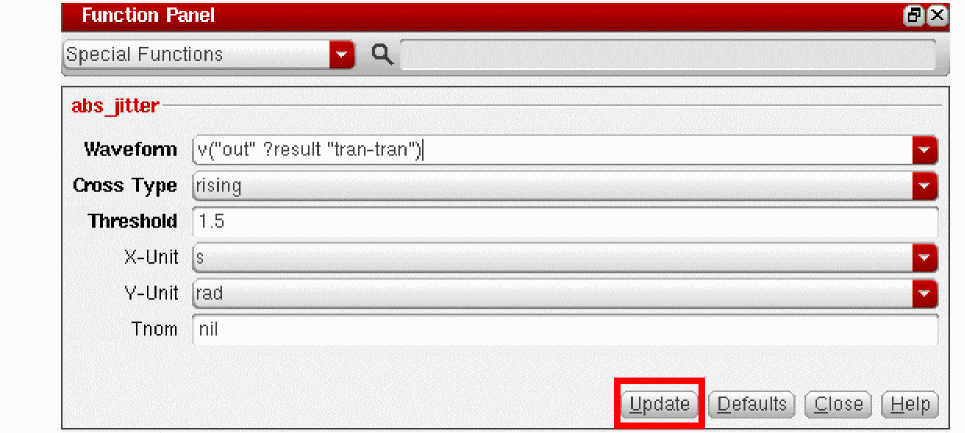 To edit the function manually in the Buffer, click the function name. The cursor appears at the position where you clicked in the Buffer. You can then edit the function manually.You can next modify the values of the function arguments. When done, click the Update button to update the expression in the Buffer.
The method explained above is useful in the following cases:- When you do not know the syntax and the valid values of the function arguments you want to edit.
-
When you work on long expressions that include nested functions. For example, the expression below includes four functions:
loadpull,compression,dB20, andharmonic. If you want to modify the argument values of a particular function in this expression, you need to click only the function name and the function appears in the Function Panel in edit mode.If you want to calculate harmonic on some other signal, you just need to click the
harmonicfunction in the Buffer and it is opened for editing in the Function Panel, where you can specify a different signal.
Important Points to Note:- The function template cannot be opened upon clicking the function in the Buffer if a function is applied incorrectly in the Buffer or if the function arguments do not match the original arguments in the template. An error message is displayed in this case.
- You can edit only predefined functions in the Buffer using this functionality. If you have defined your own function, you need to edit the function manually in the Buffer.
- You cannot edit a function expression if it is invalid or blank.
Building Dependent Expressions
Dependent expressions are the expressions that contain more than one expression.
Suppose you want to compare the clip results of input and output signals that are generated during transient analysis. To create a single expression for this task is a tedious process because the task is complex and requires you to perform multiple operations. Therefore, you can divide the task into subtasks and create separate expressions for each subtask. You can then use the names associated with the expressions for the various subtasks to create the final expression.
-
Select the input and output signals from the Results Browser. The expressions for the signals are displayed in the Buffer. Move the expressions for the signals from the Buffer to the Expression Editor and save them with names sig1 and sig2 in the expression table.
sig1=v("in_p" ?result "tran")
sig2=v("out" ?result "tran") -
Next, in the Buffer, create expressions to apply the clip function on both the signals, sig1 and sig2. Store the expressions created for the clip function in the Expression Editor with names cl_s1 and cl_s2.
cl_s1=clip(sig1 150n 200n )
cl_s2="clip(sig2 150n 200n ) -
Finally, in the Buffer, create an expression to compare the clip results for sig1 and sig2 by using the expression names cl_s1 and cl_s2. Move this expression from the Buffer to the Expression Editor and save it with the name comp_s1s2.
comp_s1s2=compare(cl_s1 cl_s2 0.0 0.0 )
The expressions created in the expression table for each step are shown in the figure below.
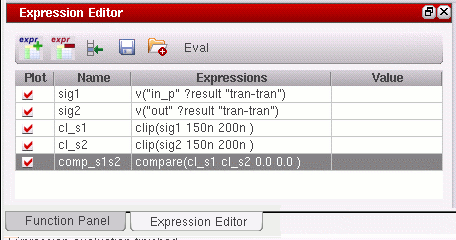
From this example, you can see how dependent expressions simplify the task of creating long and complex expressions.
Note the following when you create dependent expressions:
- Expressions can be created in any order, irrespective of the dependencies. In the above example, it is not necessary to define expression E1 before expression E2.
- An expression can be dependent on multiple expressions. For example, E2=E1+E3. Similarly, multiple expressions can be dependent on the same expression. For example, E2=5*E1 and E3=2+E1. Here, both E2 and E3 are dependent on E1.
-
While creating dependent expressions, ensure that there is no cyclic dependency between the expressions. The following are expressions with cyclic dependency because the expressions are dependent on each other:
E1=2+E2,
E2=5*E1 - While evaluating or plotting a dependent expression, it is not required to evaluate or plot all expressions on which the dependent expression is based.
- Error messages and warnings, if any, are displayed in the CIW.
By default, the plot check box in the expression table is selected for all expressions, indicating that the expressions have already been evaluated and plotted. If the expression is scalar, the result is displayed in the expression table and if the expression is a waveform, the result is plotted in the graph window.
To plot an expression again or to edit an expression, move the expression from the Expression Editor to the Buffer. To do this, deselect the plot check box and click the Copy Expression to Calculator Buffer button in the Expression Editor. This moves the expression name (signal alias) to the Buffer. To move the entire expression to the Buffer, drag the expression from the Expression Editor to the Buffer.
To evaluate expressions in the expression table, click the Eval button. The corresponding result column displays the results generated. If you do not want to evaluate any expression, clear the corresponding plot check box.
Saving Expressions
This section describes how you can save expression created in the Buffer to a file and to the Expression Editor. This section covers the following topics:
Saving Expressions to a File
To save an expression in the Expression Editor to a file, perform the following steps:
-
In the Expression Editor, click the
 button.
The Save expressions to file form appears.
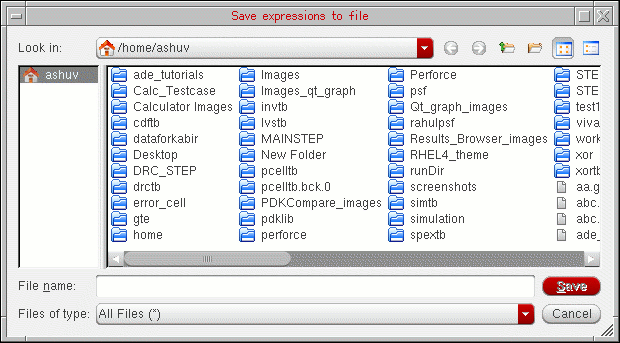
- In the Look in field, select the directory where you want to save the expression file.
- Do one of the following:
-
Click Save.
The Virtuoso Visualization and Analysis XL tool saves the expression list to the file.
To automatically save the expressions in the current session to the defaultVarFileName file when you close the Calculator or exit the Virtuoso Visualization and Analysis XL tool, set the writeDefaultVarFileOnExit.cdsenv variable to true.
Saving Expressions to the Expression Editor
You can save expressions created in the Buffer to the Expression Editor. To add an expression from the Buffer to the Expression Editor, click the
command on the Buffer and Stack toolbar. For more information, see Expression Editor.
Dragging Expressions across Buffer and Assistants
Calculator supports the following drag-and-drop operations:
- You can drag expressions from the Expression Editor and place them into any text area. If you drag expressions outside the Calculator window without specifying any destination text file, you are prompted to provide a filename and its location. You can create a new text file or you can append expressions to an existing text file.
- You can drag expressions from the Expression Editor to the Buffer.
- You can drag expressions from the Stack to the Expression Editor to add these expressions to the expression table in the Expression Editor. However, you cannot drag expressions from the Expression Editor to add them to the Stack. To drag expressions from the Expression Editor to the Stack, you need to first drag the expressions from the Expression Editor to the Buffer. You can then press Enter to push the expressions to the Stack.
- If you drag multiple expressions at a time from the Expression Editor to the Buffer, the first expression is added to the Buffer and the remaining expressions are moved to the Stack.
- When you drag expressions from the Expression Editor or Stack to the Buffer, the expressions are appended to the current expression in the Buffer.
You cannot perform drag-and-drop operation on expressions in the Buffer. To move expressions from the Buffer to the Expression Editor or Stack, use Buffer and Stack toolbar buttons.
Loading Expressions from an Expression File
You can load an expression file to the expression table in the Expression Editor. The file that you load replaces the current set of expressions in a session, and you lose any unsaved information.
To load an expression file to the Expression Editor, perform the following steps:
-
In the Expression Editor, click
 .
.
The Read expressions from file form appears.
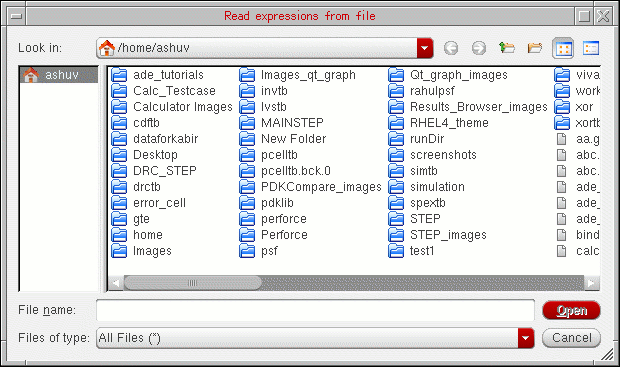
- In the Look in field, select the directory which contains the required expression file.
- Do one of the following:
-
Click Open.
The Virtuoso Visualization and Analysis XL tool loads the specified expression file.
If the readDefaultVarFileOnStartup.cdsenv variable is set to true, The Virtuoso Visualization and Analysis tool automatically loads the defaultVarFileName file.
Evaluating and Plotting Expressions
You can evaluate or plot the expressions in the Buffer and the Expression Editor. When you evaluate or plot expressions in the Buffer and if the result is a scalar, it is displayed in the Buffer. If the result is a waveform, it is displayed in the graph window.
When you evaluate or plot expressions in the Expression Editor and if the result is a scalar, it is displayed in the Value column in the expression table. If the result is a waveform, it is displayed in the graph window.
To evaluate and plot an expression in the Expression Editor,
- In the Expression Editor, select the expressions you want to evaluate and plot by selecting the plot check box corresponding to the expression.
-
Click the
 button.
The Calculator evaluates and plots the selected expressions.
Displaying Results in a Table
You can display the results in a table after evaluating expressions.
On the Selection toolbar, you can use the following options to select the destination table where the results are displayed:
- Append—Adds the result to an existing table
- Replace—Replaces the existing table with the result
- New Window—Displays the result in a new table
- New Subwindow—Displays the result in a new table
You can display the expressions or results evaluated by the Buffer in a table.
To display results in a table, do one of the following
-
Click the
 button on the Selection toolbar.
The Results Display Window appears. -
Choose Tools – Table.
The Results Display Window appears.
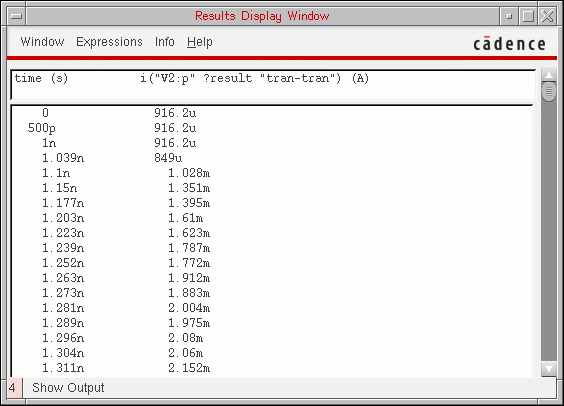
Creating Custom Calculator Functions
The Function Panel in Calculator provides a set of standard functions that you can use to evaluate and analyze waveform results. You can also create your own functions (custom functions) and add them in the Function Panel. Before you start, you must have a SKILL file in which the SKILL definition of the function you want to create is defined.
The creation of custom Calculator function involves two parts:
- Specify a SKILL file, which includes the SKILL definitions of the functions you want to create. This SKILL file is mandatory, which means if a SKILL file is not available, you cannot create the custom function.
-
Create the user-interface template for the custom function, which includes information about function arguments and their valid values. You can either use the same SKILL file, or specify a separate
.ocnfile to add the UI template.
This section includes the following topics to describe the custom Calculator functions in detail:
- Adding Custom Calculator Functions
- Using the Calculator Function Template UI Builder Form
- Viewing Custom Functions
- Sharing Custom Functions
Also see: Sharing Custom SKILL Calculator Functions
Adding Custom Calculator Functions
To add a custom function, perform the following steps:
-
In the Function Panel, click the
 button. The Add Custom Calculator Function form is displayed.
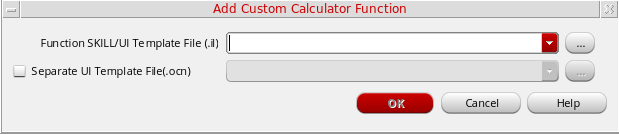
-
In this form, in the Function SKILL File/ UI Template File (.il) field, specify the name of the SKILL (
.il) or SKILL++ (.ils) file in which the SKILL code of the function to be created is defined. You can also click the ellipses button to select the SKILL file from the Select SKILL File form. All the files that you specified in the previous session are listed in this drop-down. As an example, consider that atest.ilSKILL file is specified in this field that includes the definition of thepsd(power spectral density) function. After you specify the SKILL file, the Create New button appears next to this field.
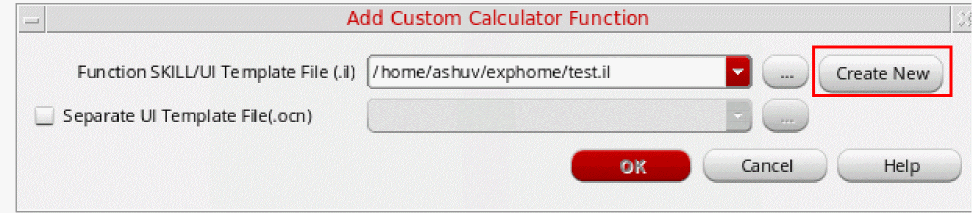
-
To define or use the template UI file, which includes the information about the template (user-interface) of the function to be created, you have the following two options:
-
Use the SKILL file selected in the Function SKILL/UI Template File field.
This option is useful when you have multiple functions defined in the SKILL file. It helps you create or use the same UI template for all the SKILL functions, without the need to create or use individual.ocnfiles for each function.
When you use this option, if the UI template does not exist in the specified SKILL file, click the Create New button displayed next to this field to define the UI template. When you click this button, the Calculator Function Template UI Builder form appears, as shown in the figure below. For more information about how to use this form, see Using the Calculator Function Template UI Builder Form.
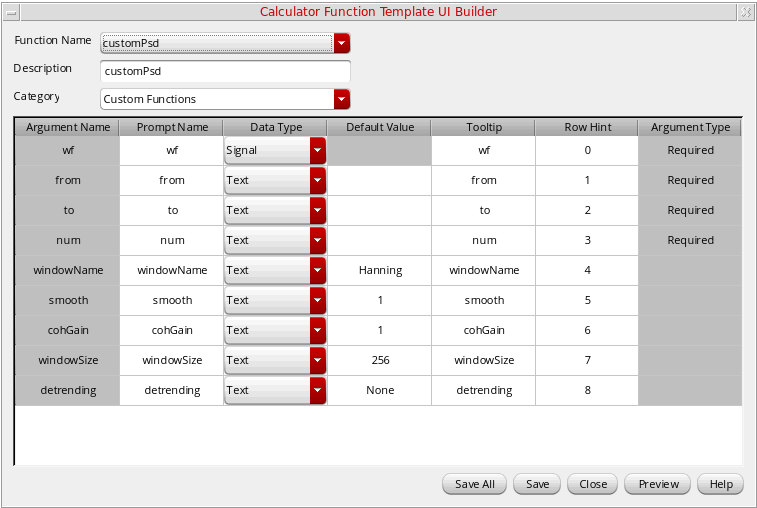
-
Specify a new UI template
.ocnfile in the Separate UI Template File (.ocn) field, which includes information about the template (user-interface) of the function to be created. You can also click the ellipses button to select the SKILL file from the Select Template File form.
If you do not have an existing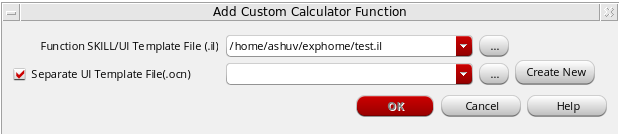
.ocnfile corresponding to the function that you want to create, click the Create New button, which is displayed next to this field, to create a new.ocnfile based on the definitions in the specified SKILL file. This button becomes active after you specify the SKILL file.
If you already have an.ocnfile, you can specify the path of the file. The Create New button is then changed to Edit UI, as shown in the figure below. You can click the Edit UI button to edit the UI defined in the specified SKILL file.
When you click Create New or Edit UI button, the Calculator Function Template UI Builder form appears. For more information about how to use this form, see the next section.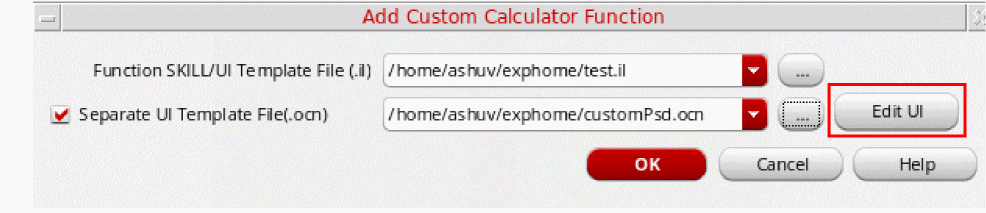
-
Use the SKILL file selected in the Function SKILL/UI Template File field.
Using the Calculator Function Template UI Builder Form
You can use this form to define the UI template for the custom Calculator function. This form includes a list of argument values as specified in the given SKILL file. For example, for the customPsd function defined in the test.il SKILL file selected in step1, the following form fields appear:
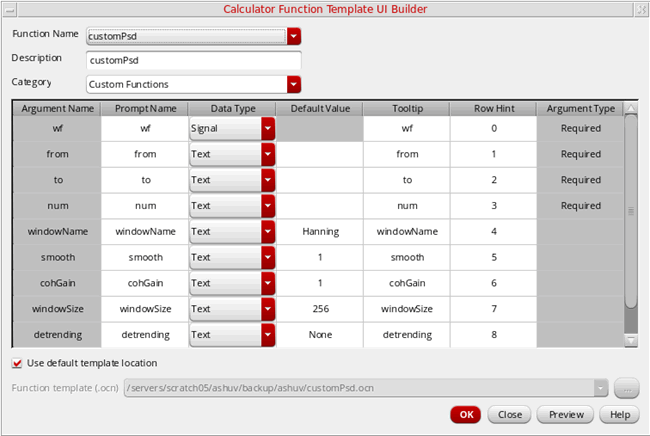
In this form, specify the following field values:
- Function Name—From this drop-down list, select the name of the function for which you want to create the UI template. It includes the names of all the functions defined in the SKILL file you selected in the Add SKILL Functions form.
- Description—Provide a brief description about the function you selected in the previous step.
-
Category—In this drop-down list, select the category in which you want to list the function in the Function Panel. When you are defining a user-defined custom function, select
Custom Functions. You can also add a new category in the Function Panel by typing the name of the category in this field. The function you create is displayed under this category.
An argument table is displayed below the category fields that by default displays the argument and their attributes, such as name, type, value, and so on, which are defined in the SKILL file. You can modify these arguments according to your requirements. - Argument Name—Lists the argument names specified in the SKILL file for the selected function. You cannot change the argument name values. In most of the functions, the first argument is always a waveform.
- Prompt Name—Lists the UI names corresponding to the argument names that you want to display in the function template. By default, prompt names are the same as the argument names; however, you can modify them and make them more informative.
-
Data Type—Includes a drop-down list box to select the data types you want to use for the given argument. The data types can be as follows:
-
Signal—Represents the primary waveform or a signal. -
Text—Respresents a text box. -
Cyclic—Represents a drop-down list box. When you specify the data type as cyclic, you must provide a value in the Default Value field. -
Integer—Represents an integer value. -
float—Represents a floating point value. -
Net—Represents a waveform or a signal. -
Terminal—Represents a terminal value. -
Port—Represents a port.
-
-
Default Value—Lists the default value that you want to specify for each field. The value you specify in this field is displayed in the function UI. To specify the options for the cyclic data type fields, you can specify a comma-separated list of options in this field. For example, the Window Type is a cyclic field and you can specify the values in the following format:
“Hanning”, “Kaiser”, “Rectangular”. The first value you specify becomes the default value. - Tooltip—Specifies the tooltip that you want to display when you hover the pointer on the given field.
- Row Hint—Specifies the row number in which you want to place a given field. If you want to display two or more fields side-by-side in the same row, you can specify the same row number in this field.
-
Argument Type—Lists the type of the argument fields that are defined in the SKILL file. Argument types can be
Required,Optional, andKeyed. You cannot change these argument types. -
Use Default Template Location—Select this check box if you want to save the
.ocnfile at the default location, which is the same directory in which the SKILL file is saved. If you want to specify another location to save the.ocnfile, browse and specify the new location in the Function template (.ocn) field. By default, this check box is selected, which means that the UI template is saved with the SKILL file.
This form includes the following buttons:
- OK—Apply the changes and close the form.
-
Save All—Save the UI template settings for all the SKILL functions defined in the specified SKILL file. For example, if the SKILL file contains four functions, the UI template is created for all the four functions.
-
Save—Save the UI template for only the function you selected in the Function Name field.
- Close—Close the form without saving.
-
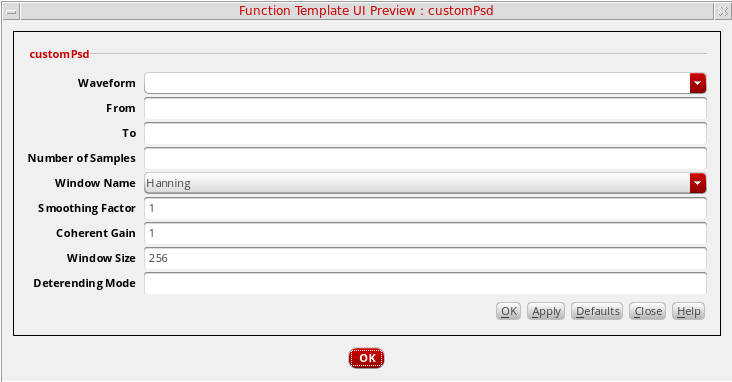
Preview—View the structure of the new UI that you have specified in the above fields. For example, for the
customPsdfunction UI defined in the above fields, the following preview appears. To close the preview, click OK.
- Help—Opens the documentation.
The specified customPsd function and its template is added to the Function Panel of the Calculator. To view this function, open Function Panel and select the Custom Functions category.
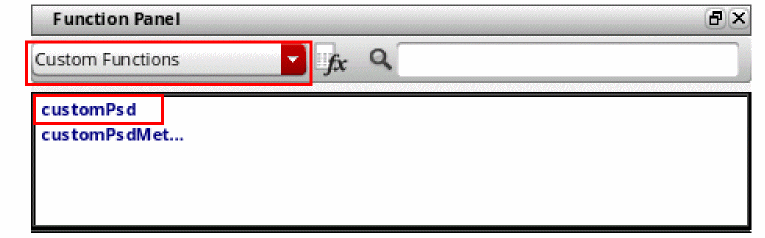
Viewing Custom Functions
When you add the custom functions, they appear in blue in the Function Panel as shown in the figure above. For example, when you click the customPsd function, the function UI is opened in Function Panel with the arguments you specified in the .ocn file.
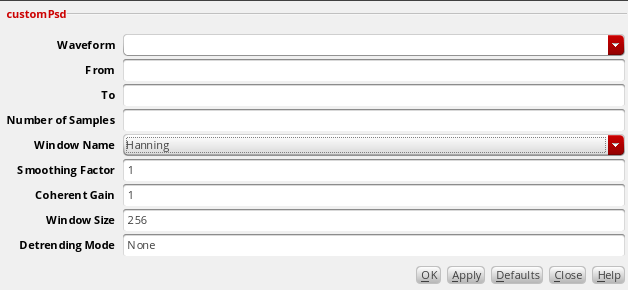
Now, you can use this function to create and evaluate expressions. By default, the information about custom functions is saved at the following location: ~/.cadence/dfII/viva/customCalcFunctions.ini.
In addition, you can also use the following SKILL function to add a function template to the Function Panel of Calculator:
awvLoadCustomCalcFunction(?fileName filename ?funcName funcName ?templateFileName templateFileName)
For more information about this SKILL command, see awvLoadCustomCalcFunction in Virtuoso Visualization and Analysis XL SKILL Reference.
Sharing Custom Functions
You can also create custom functions and share them between multiple users. To do this, perform the following steps:
-
Create a central file,
central.ini. -
In this file, add the
awvLoadCustomCalcFunctionfunction to create the custom functions. -
In the
.cdsinitfile, add theawvLoadSharedCustomFunctionsFilefunction to share and load the custom function created in the previous step.
awvLoadSharedCustomFunctionsFile("~/central.ini")
The shared custom function appears in red on Function Panel.
Working with the Calculator in ADE
While working in ADE, if you want to analyze simulation results, you can directly build expressions by opening the Virtuoso Visualization and Analysis XL Calculator from the ADE window and build expressions by using the simulation data generated during the latest run.
This section covers the following topics:
Opening the Calculator using ADE
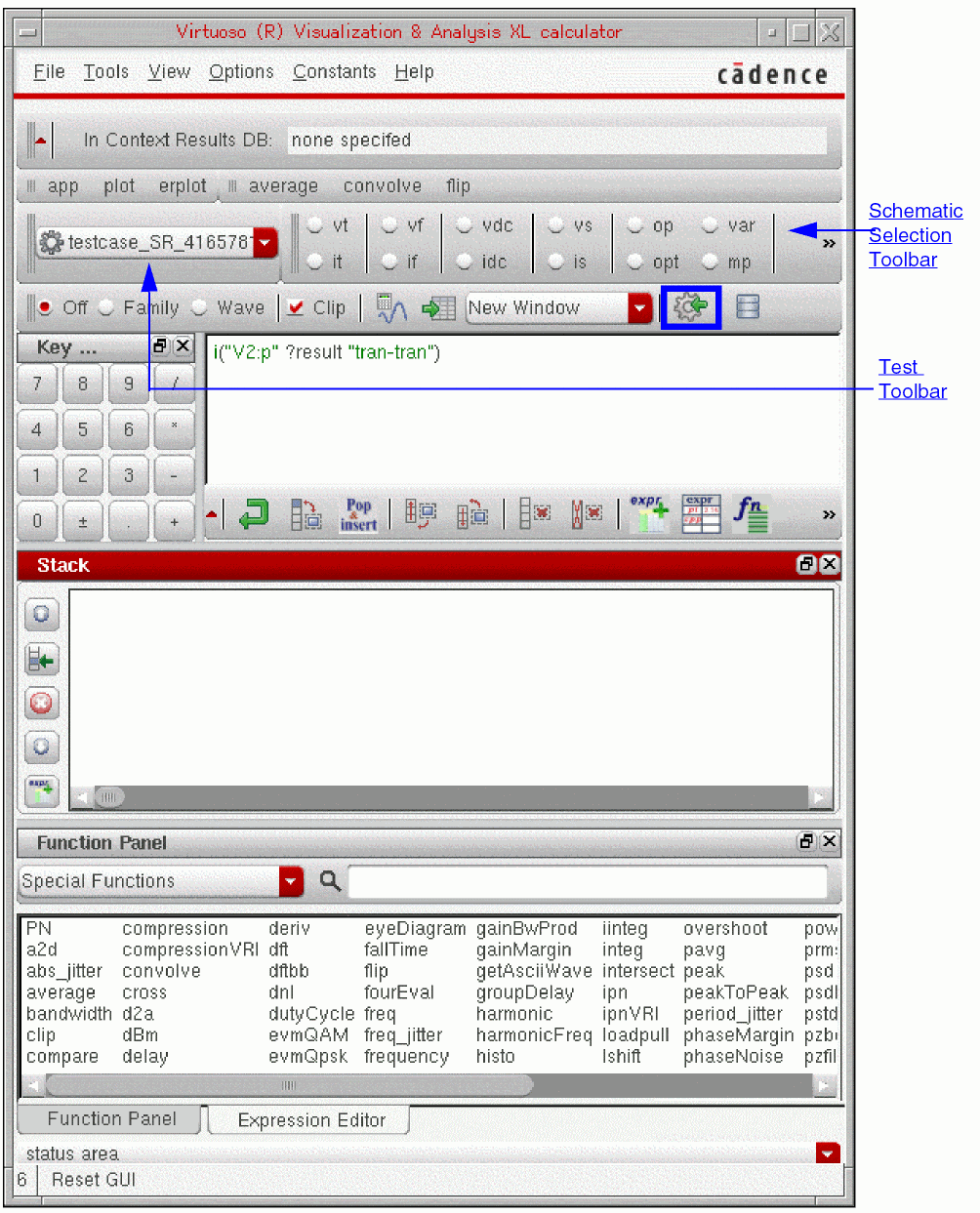
When you open the Calculator from ADE, it displays some additional GUI components, such as Schematic Selection toolbar, Test toolbar. The Schematic Selection toolbar contains a set of standard functions, such as vt for voltage transient, that can be applied on the schematic objects, such as nets, terminals, and flip-flops, to build expressions. The Test toolbar contains the path of the simulation directories available for the current simulation run.
When you select a function on the Schematic Selection toolbar, the schematic design view opens. In the schematic design view, select a schematic object on which you want to perform this function. The complete expression for the selected function and the selected schematic object is created in the Buffer. For more information about how to select a schematic object, see Working with Expressions in ADE.
While working in the ADE environment, you can open the Calculator by using any of the following two methods:
Opening the Calculator from ADE Explorer
To open the Calculator from the ADE Explorer, open ADE Explorer and do one of the following:
- Choose Tools – Calculator
-
In the ADE Explorer Output Setup pane:
-
Click Expression from the drop-down list. A new row of type
expris added in the Outputs Setup tab.

- In the Details column, either directly type an output expression or click the ellipses button to open the Calculator to add an output expression.
-
To move the expression created in the Buffer to ADE Explorer, click click the
 button.
The Calculator window appears. Notice the Schematic Selection toolbar and the Send to ADE button on the Selection toolbar in the figure below, which appear when the Calculator is opened from ADE Explorer. -
Click Expression from the drop-down list. A new row of type
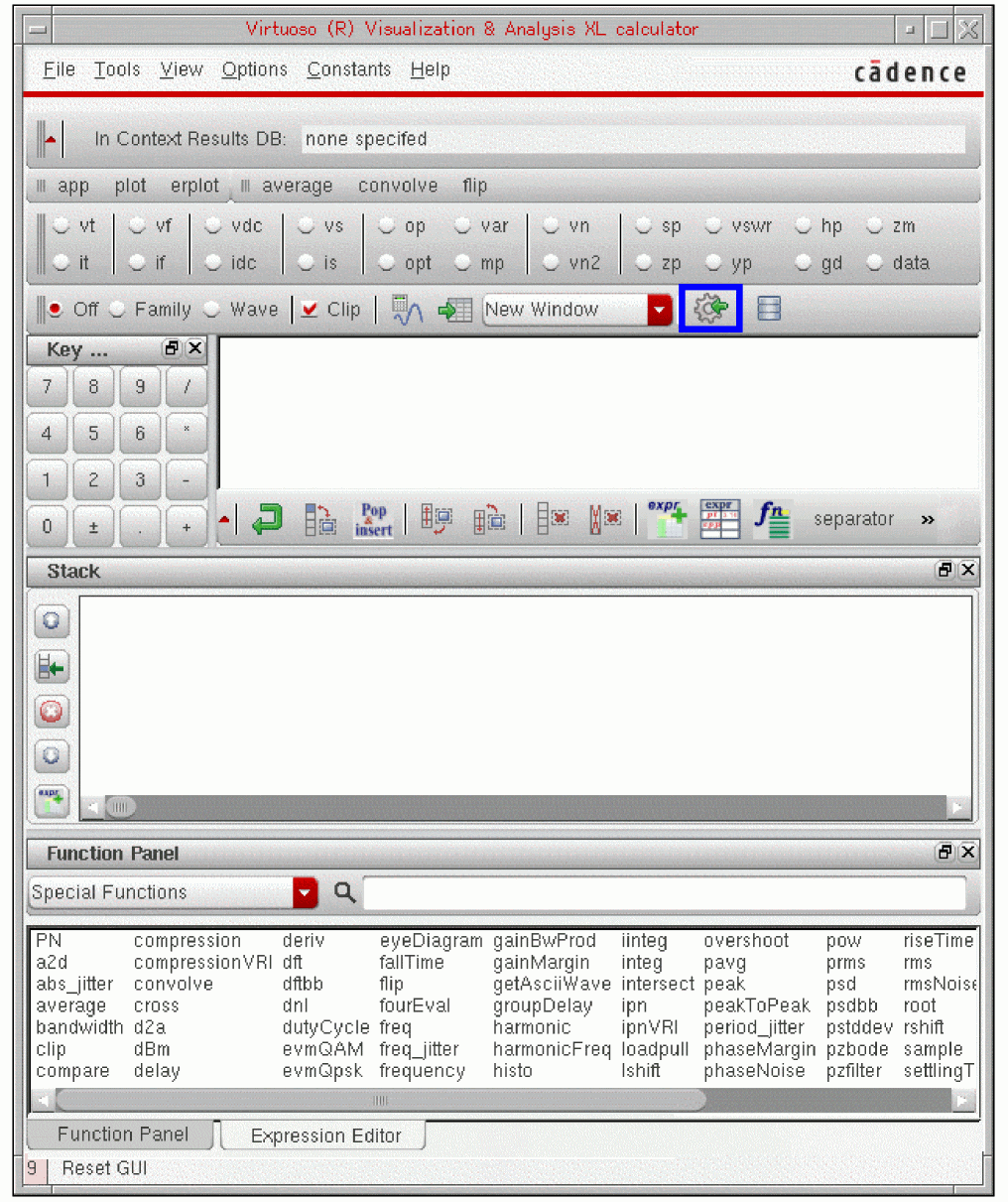
For more information about the Schematic Selection toolbar, see “Schematic Selection Toolbar”.
For more information about Send to ADE toolbar button, see Send to ADE Button.
For information about the Calculator menu and toolbar options, see “Using the Calculator Graphical User Interface (GUI)”.
Opening the Calculator from ADE Assembler
To open the Calculator in ADE Assembler, open the ADE Assembler window and do one of the following:
-
Choose Tools – Calculator
Alternatively, you can open the Calculator window by clicking the button in the ADE Assembler window.
 -
On the Outputs Setup tab:
- Select Type as expr.
-
Double-click anywhere in the Expression/Signal/File column and then click the ellipses (...) button.
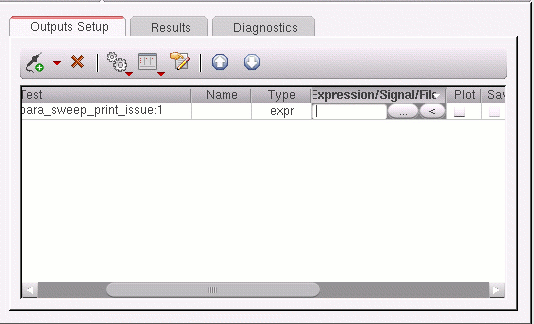
After you have created the required expression in the Buffer, you can move the expression to ADE Assembler for evaluation. To move the expression to ADE XL, in the Calculator window, choose Tools – Send Buffer to ADE Outputs. The expression is displayed in the Output Setup window of ADE Assembler and is evaluated after you run the simulation.
In ADE Assembler, you can simultaneously work on multiple test directories in a session. To select a test directory, select it from the Test drop-down list in the Calculator window.
For more information about the Schematic Selection toolbar, see Schematic Selection Toolbar.
For more information about the Calculator menus and toolbar options, see “Using the Calculator Graphical User Interface (GUI)”.
Additional Features in ADE
When you open the Calculator in ADE, the Calculator GUI displays the following additional features:
Schematic Selection Toolbar
This toolbar displays a set of standard functions that can be applied on the schematic objects to build expressions. When you click a function button on the toolbar, the schematic design view appears. In the schematic design view, select a schematic object on which you want to apply the selected function. When you select the schematic object, an expression is created and displayed in the Buffer.
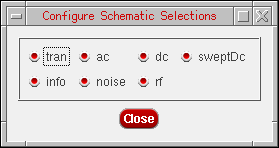
By default, the toolbar displays the function buttons for all simulation analyses types. However, you can configure the Schematic Selection toolbar to display function buttons for the selected analyses types.
To display the function button for a particular analysis type, do one of the following:
- Right-click in the toolbar area and choose Configure selections.
- Choose View – Configure Schematic Selection Toolbar.
The Configure Schematic Selections form appears. Select the simulation analyses types for which you want to display function buttons on the Schematic Selection toolbar.
 button shown in the Result toolbar to hide the Schematic Selection toolbar.
The following table lists the available function buttons:
| Button | Description |
|
Design variables (ADE design variables). For information about using design variables with Calculator functions, see Adding Design Variables to Expressions |
|
The Schematic Selection toolbar can also be displayed using the schematicToolbar .cdsenv variable.
The function buttons for all analyses types are displayed by default which can be changed by setting the schematicAnalyses .cdsenv variable.
Creating Expressions For DC Operating Point Functions
You can use Calculator to create expressions for DC operating point functions, such as OS and OT, that you want to save during a simulation run in ADE Explorer. After the expressions are created, you can send them back to the Outputs Setup pane of the ADE Explorer window. These expressions are then evaluated, saved, or plotted after the simulation run is complete.
As a prerequisite step, do one of the following:
-
Specify the operating points that you want to save in the Save Operating Points pane of the ADE Explorer window. The operating points are listed as shown in the figure below.
For more information about how to add operating points and specify parameters to be saved for each operating point, see Saving Operating Points in Virtuoso ADE Explorer User Guide.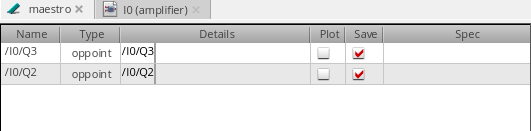
- Run a simulation in ADE Explorer without specifying the operating points.
- In the In Context Results DB field in Calculator, specify the results directory path that contains the simulation results.
Now, perform the following steps to create expressions for DC operating point functions:
-
In the Outputs Setup tab of ADE Explorer, click Expression from the drop-down list. A new row of type
expris added in the Outputs Setup tab.
- In the Name column, specify the name for the expression output.
-
In the Details column, either directly type an output expression or click the ellipses button to open the Calculator to add an output expression. Alternatively, choose Tools – Calculator to open the Calculator.
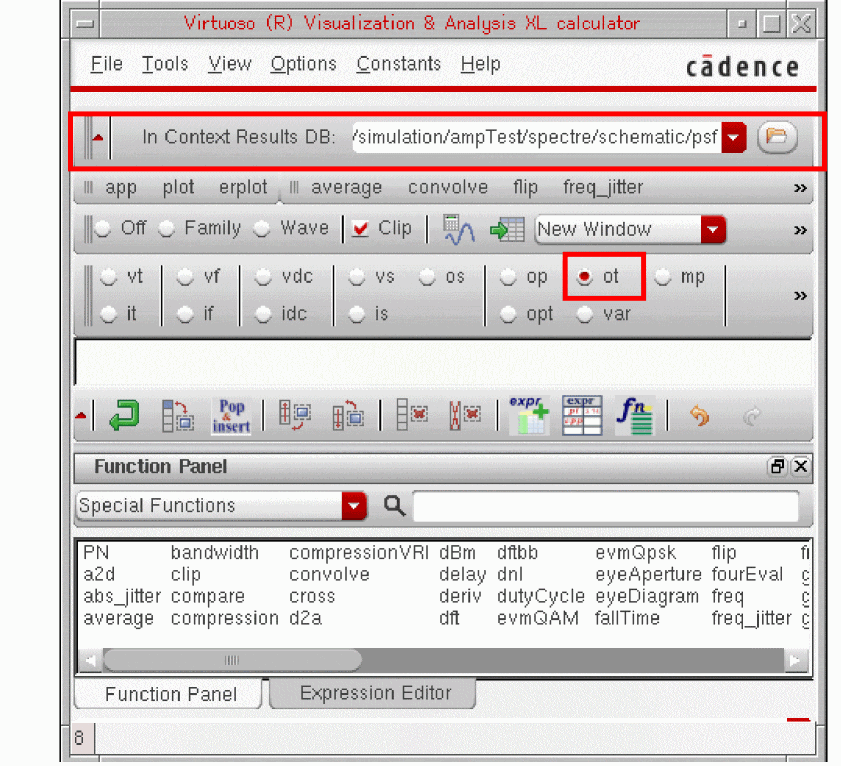
The Calculator window appears with the In Context Results DB field set to the results directory that has been saved in the current ADE Explorer setup.
-
To create an expression for the
OTfunction, select ot on the Schematic Selection toolbar. The design is opened in the schematic window as shown in the figure below.
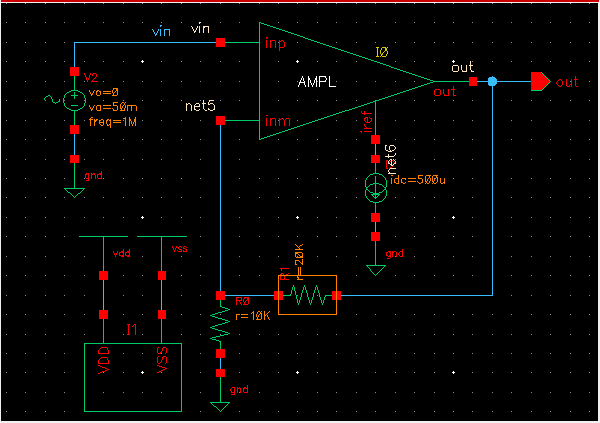
-
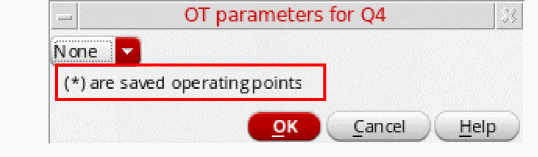
Select an instance. The OT parameters for <instance_name> form appears. This form lists all the operating point parameters in a drop-down list. If you select an instance that is not added to the Save Operating Points tab of the ADE Explorer window, the drop-down list in this form contains
None.
If you already have some operating points saved for the OS and OT instances, they are displayed with an asterisk (*) prefix in the drop-down list (see the figure below).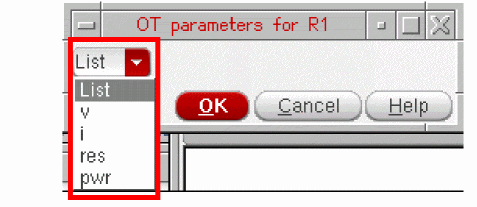
-
Select the parameter for which you want to build expressions. For example, if you select current (
i), the following expression is created in the Buffer:OT("/R1","i") -
After building an expression, do one of the following:
- In the Calculator window, choose Tools – Send Buffer Exploression to ADE Outputs.
-
Click the Send Buffer Exploression to ADE Outputs button
 available on the Schematic Selection toolbar.
 -
In the ADE Explorer Outputs Setup pane, click the
to paste the expression from the Buffer.
The expression appears in the Details field. - Change the Plot and Save check boxes for the expression, if required.
- Run the simulation. The specified expressions are plotted in the graph window if the corresponding Plot check box is selected.
Test Toolbar
This field is displayed on the left of the Schematic Selection toolbar if you open the Calculator from ADE Asembler.
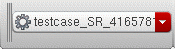
The Test field lists the different set of results directories available in the current session, which you can use to build expressions. The results directory in which you are working currently is displayed on the In Context Results DB field. If you select another test directory from the Test list, the In Context results DB field displays continues to display the results directory for which the context in ADE XL is set.
The .cdsenv variable controls the display of the Test field.
Send to ADE Button
This toolbar button is displayed on the Selection toolbar.
You can use this toolbar button to move expressions that you create in the Buffer by using the simulation data for the current run to the ADE Outputs section for further analysis.
Working with Expressions in ADE
This section describes how to select a schematic object to build an expression and how to evaluate expressions in ADE.
Selecting Schematic Objects
Before you build an expression in the Calculator, you first need to select a schematic object in the schematic design view. After you select the schematic object, the corresponding expression is created in the Buffer.
Perform the following steps to select a schematic object:
-
On the Schematic Selection toolbar, click the required schematic function button.
The schematic design view appears. -
Select an object in the schematic design view. The function selected in the Calculator is applied to the selected schematic object and an expression is created in the Buffer.
For some function, such as var, a form with additional options appears before the object is sent to the Buffer.
Adding Design Variables to Expressions
In ADE, you can add design variables from the schematic to the expression that you build in the Calculator.
To add a design variable to the expression, perform the following steps:
-
On the Schematic Selection toolbar, select the var option.
The Virtuoso Schematic Editing window opens and a form named Select an Instance appears. -
Select an instance on the schematic.
The design variables for the instance are displayed in the Select an Instance form. -
Select the design variable that you want to add to your expression and click OK.
The selected design variable appears in the Buffer as follows:
VAR("CAP")
Evaluating Expressions
You can load the expressions created using the Calculator into the ADE Outputs Setup window. The purpose of Virtuoso Visualization and Analysis XL Calculator in ADE is to build expressions for the current simulation run.
When the Calculator is opened from ADE, the expressions are based on the schematic objects; therefore the expressions cannot be evaluated in the Buffer. Instead the expressions are evaluated in ADE immediately after the simulation is run and the results are displayed in the ADE Outputs Setup window. You can use the results to analyze the circuit design. For more information about how to import results to the ADE, see Opening the Calculator using ADE.
Reloading Expressions using ADE
You can reload a saved expression in the Calculator while running simulation in ADE Explorer and Assembler.
For example, if you run a simulation in ADE and create expressions in the Expression Editor, such as E0 = VT("/vin") and E1 = E0 + 1, where expression E1 is dependent on E0 and evaluate these expressions by clicking the Eval button in the Expression Editor. The output signals are plotted in a graph window.
Now, if you run the simulation again with different dataset values, the new values for E0 and E1 are generated in the ADE Outputs section. To update these expression values in the Virtuoso Visualization and Analysis XL graph window, choose File – Reload. The updated values for E1 and E0 are displayed in the graph window.
Return to top