
Creating Slots
Metal slots are the holes that you create in the metal layer to relieve the stress that results from heat generation, especially in large metal shapes. Creating slots in large shapes improves the structural integrity of shapes, making them less likely to fracture because of constant expansion (heating) and contraction (cooling).
The following figure shows a rectangle with slots and illustrates the various slot parameters.
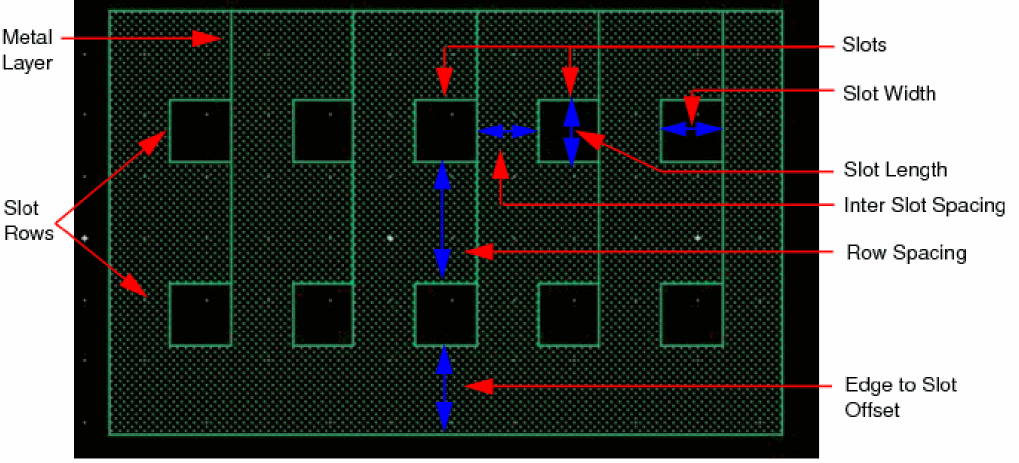
You use the Create Slot command to create slots in existing rectangle and path shapes. You can also create slots while creating rectangle and path shapes. The Create Slot command is available only for rectangles and paths.
To create slots in an existing rectangle or path that does not have slots:
- In the layout window, choose Create – Slot.
-
Press
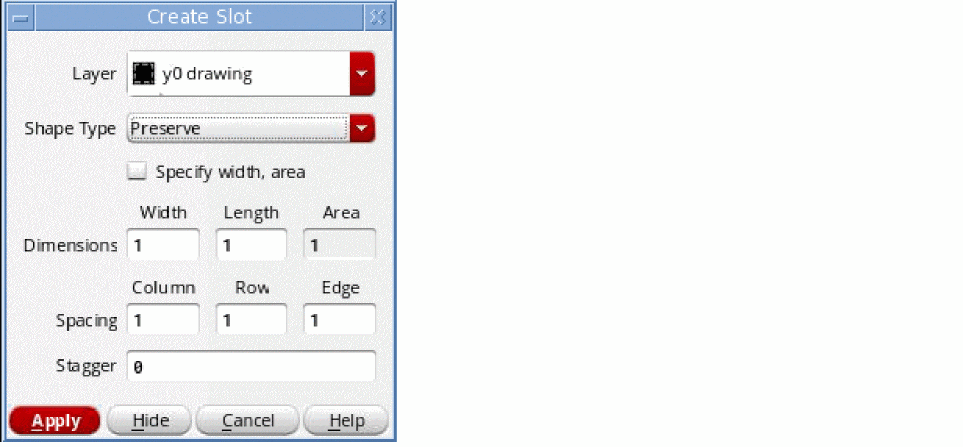
F3to open the Create Slot form.
-
Select a layer-purpose pair from the Layer list.
The layer-purpose pair information is required if the resulting shape with slots is a ROD object. - Set Shape Type as Preserve, Convert to Polygon, or Convert to ROD based on the type of shape you want to create after slots are added to it.
-
Specify Width/Length or Width/Area.
If you select the Specify width, area check box, the Length and Area fields are available, else the Width and Length fields are available. - Specify slot dimensions in the Width and Length or Width and Area fields.
- Specify the values as required in the Spacing Column, Row, Edge, and Stagger fields.
-
On the canvas, click an existing rectangle or path that does not have slots. You can also select multiple shapes to create slots in them. The selected shapes can be a mix of ROD objects and polygons.
If the rectangle or path that you select already contains slots, a message is displayed in the CIW, informing you to select only the rectangles and paths that do not have slots.
Slots are created in the selected shape. You can continue to select more rectangles or paths to create slots in them. - Press Esc or click Cancel in the form to finish creating slots.
You can use the lxShapeSlotting function to create slots on metal shapes.
Related Topics
Return to top