
Editing Slots
The Edit Slot command applies only to slotted shapes that are created by using the Create Slot, Create Rectangle, or Create Path commands.
To edit slots in an existing rectangle or path:
-
On the layout canvas, click the rectangle or path containing the slots.
You can select multiple shapes containing slots to simultaneously edit the slots in all the selected shapes. The selected shapes can be a mix of ROD objects and polygons. -
Choose Edit – Advanced – Slot.
The Edit Slot form opens and is populated with the values of the slots in the selected shapes.
Alternatively, you can first open the form, and then select one or more shapes for editing the slots they contain.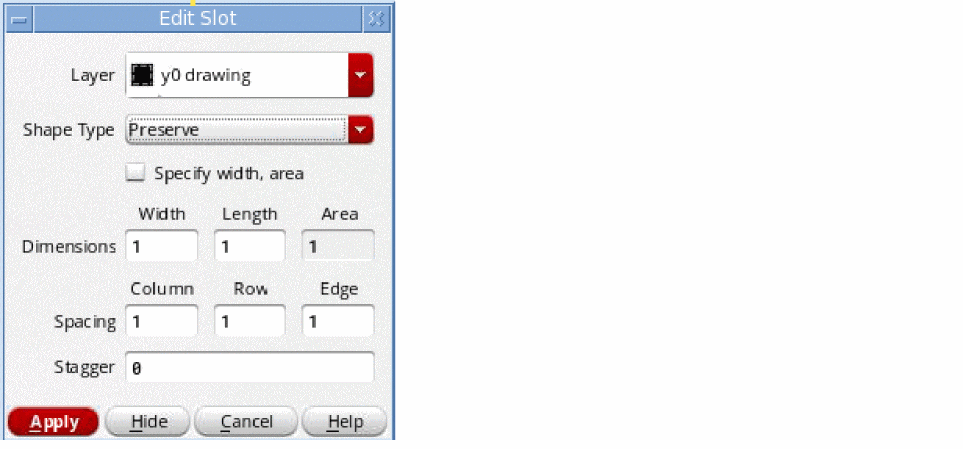
- From the Shape Type list, select Preserve, Convert to Polygon, or Convert to ROD based on the required resultant shape type.
- Update the values in the different fields as required.
-
Click Apply.
The values specified in the form are applied to the slots in the selected shapes. -
Press
Escor click Cancel in the form to finish editing the slots.
Related Topics
Return to top