
Create Path Form
The Create Path form lets you create a path in the specified window. The form contains the following tabs.
| Tab | Description |
|---|---|
|
Enables you to define the settings for creating a path with slots. This tab is available when the Enable Metal Slotting option is selected on the Path Options tab. See the Create Slot Form for a description of fields and options. (Virtuoso RF Option) The fields in the Slot Options tab are not supported for curved shapes. |
Path Options
The following table describes the fields available on the Path Options tab of the Create Path form:
| Field | Description |
|---|---|
|
Enables you to specify the path width. The path width that you specify must be greater than the minimum width ( |
|
|
Uses for all segments of the path the width that you specify in the Width field, even when you change layers. If the Fixed Width check box is not selected, the path width is reset to the minimum width (minWidth) defined in the technology file for the layer when you change layers. If you click the Defaults button, it deselects the Fixed Width check box and resets the Width field to the minimum width (minWidth) defined in the technology file for the current layer. |
|
|
Determines the edge of the path that you create: left, center, or right. If you set a path offset, Justification determines the edge of the path that is offset from the points you enter. |
|
|
Offsets the edge that you use to create the path from the entered points. Select the path edge to offset from the Justification list. |
|
|
Controls how the path ends are created.
|
|
|
Enables you to specify a beginning and an ending extension when End Type is set to variable. |
|
|
Creates the path as a relative object design (ROD) object.
When the Create as ROD Object option is selected, the path with slots is created as a ROD object with subrectangles as subparts. When the Diagonal option is selected in the ROD Subpart form, it specifies whether to create subrectangles on diagonal portions of the path. This option works only when diagonal path segments are 45 degrees and all subrectangles on the path are square.
|
|
|
Makes available the Slot Options tab. On this tab, you specify the settings for creating a path with slots. Environment variable: slotEnablePath |
|
|
Controls how path segments snap to the grid.
Following are some Snap Mode examples: 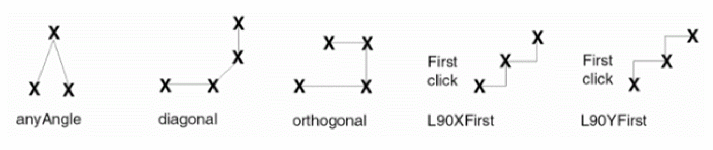 To switch between the L90XFirst and L90YFirst snap modes while creating a path, click the middle mouse button. |
|
|
Enables you to create paths that enclose acute angles. This check box is available only when Snap Mode is set to anyAngle. When this check box is not selected, you can create paths with angles ranging from 90 degrees through 180 degrees. |
|
Related Topics
Return to top