Ruler Shortcut Menu
Right-clicking in the design display area when the Create Measurement command is active displays the Ruler shortcut menu. The shortcut menu offers the following options:
|
Field
|
Description
|
|
Smart snapping off
|
Identifies and snaps ruler to objects in the vicinity of the pointer, based on the settings in the Gravity Controls section of the Layout Editor Options Form. The settings in the Gravity Controls section are applied only if Gravity On is selected. If Gravity On is not selected, ruler snapping to objects is disabled. In that case, you define the start and end points of a ruler by clicking at exact points in the design display area.
|
|
Snap to Edges
|
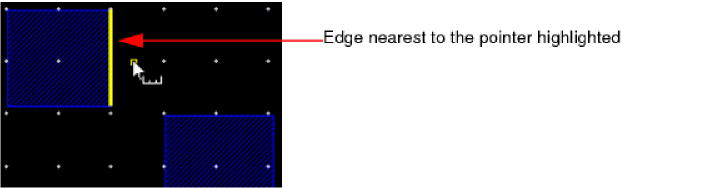
Highlights the nearest edge within the aperture distance from the pointer. Edges are highlighted depending on the option (All, Edge, Centerline) selected in the Edges section of the Snapping Options tab of the Create Measurement form. Up to five target edges in proximity of the pointer can be highlighted in succession by pressing the Spacebar key. Click to snap the pointer to the highlighted edge.
|
|
Snap to Points
|
Highlights the points if they are within the aperture distance from the pointer. Points are highlighted depending on the option (All, Vertex, Nexus, Edge Midpoint) selected in the Points section of the Snapping Options tab of the Create Measurement form. Up to five target points in proximity of the pointer can be highlighted in succession by pressing the Spacebar key. Click to snap the pointer to the highlighted point.
|
|
Snap to Edges and Points
|
Highlights all the types of edges and points if they are within the aperture distance from the pointer. The edges and points that are highlighted include:
-
Point Types: All, Vertex, Nexus, Edge Midpoint
-
Edge Types: All, Edge, Centerline
Up to eight targets in proximity of the pointer can be highlighted in succession by pressing the Spacebar key. Click to snap the pointer to the highlighted target. If a point and an edge are both potential targets, then the point is highlighted before edges.
|
|
Snap to Mid Point of distance between 2 targets
|
Highlights the nearest edge within the aperture distance from the pointer. After you click (twice) to snap the pointer to two such edges, the pointer snaps to the mid point of the distance between the points snapped at the two edges. To identify the target edges, you can press the Spacebar key to highlight in succession up to five target edges in proximity of the pointer.
|
|
Edge measurement
|
Lets you enable the edge measurement mode for rulers. Edge measurement mode allows you to click an edge of an object and a measurement is drawn with the two vertices as the two ends. The first click lets you select the edge and the second click lets you place the measurement on the canvas.
|
|
Label bold font
|
Enables you to display the ruler label in bold face.
|
|
Label background color
|
Enables you to select the background color of the ruler label.
|
|
Options
|
Opens the Create Slot Form to configure global ruler settings.
|
Related Topics
Create Slot Form
Rulers
Return to top