
Create Tab
Use the Create tab to create the vias at the suggested locations in your design.
The following table describes the options available on the Create tab of the Auto Via Assistant.
| Field | Description |
|---|---|
 |
|
 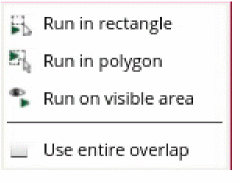 |
Creates vias in a rectangular area, polygon area, or the entire visible area. Select the Use entire overlap to use the entire overlapped area for creating vias. |
 |
|
|
This section provides options to create vias for a selected set of nets, exclude selected nets, and exclude power and ground nets. |
|
|
Specifies the net to be used when creating vias. Environment Variable: viaAutoViaOnSelectedNets |
|
|
Excludes the specified nets when creating vias. Environment Variable: viaAutoViaExcludeNetsName |
|
|
Excludes the power and ground nets when creating vias. Environment Variable: viaAutoViaExcludePowerAndGroundNets |
|
|
Displays the constraint override options. Environment Variable: viaShowAllConstraintOverride |
|
|
Specifies the minimum number of cuts to be automatically created for overlapping areas between shapes. Environment Variable: viaOverrideMinNumCutsConstraint, viaAutoViaMinNumCuts |
|
|
Specifies the alignment of vias using the alignment choices Auto, Top left, Top center, Top right, Center left, Center center, Center right, Bottom left, Bottom center, Bottom right, Edge align, Two edge align, or Two edge align center. The default is Auto . Environment Variable: viaOverrideAlignmentConstraint, viaAutoViaAlignment |
|
|
Specifies the preferred orientation for the cut class. The choices are Auto, Horizontal, Vertical, or Same-orientation. Environment Variable: viaOverrideCutClassOrientConstraint, viaCutClassOrientation |
|
|
Specifies the preferred direction for the cut box as Auto, Horizontal, or Vertical. The default is Auto. |
|
|
Specifies the preferred enclosure direction for the via engine in auto mode as XY, Wire, Min area, Horizontal, or Vertical. Environment Variable: viaOverrideCutArrayDirConstraint, viaAutoViaCutArrayDirection |
|
|
Specifies whether the via is placed on the centerline. Environment Variable: viaOverrideOffCenterViaConstraint, viaPreventOffCenterVia |
|
|
Adds a metal layer to the via. Environment Variable: viaOverrideAddMetalConstraint, viaEnableAddMetal |
|
|
Lets you get a bigger cut size at the cost of more added metal outside the overlap. Environment Variable: viaOverrideMaximizeCutsConstraint, viaMaximizeCuts |
|
|
This section provides options to optimize the via creation process. |
|
|
Prevents the creation of a via if it introduces DRC violations with it’s neighboring shapes. If this option is not selected, the via is created even if it introduces DRC violations with it’s neighboring shapes. Environment Variable: viaEnableDRCCheck |
|
|
Places a via with a smaller cut class if a larger via is not DRC aware. Environment Variable: viaTryWithSmallerCutClass |
|
|
Places a bridge via according to the topology. If the bridge via is invalid, a basic via is created. Environment Variable: viaAttemptToUseBridgeVias |
|
|
Prevents the creation of a via if it introduces DRC violations on the overlap. If this option is not selected, the via is created even if it introduces DRC violations on the overlap. Environment Variable: viaFixOverlapShapeViolations |
|
|
Species the processing options to be used during via analysis. The choices are Distribute on multi CPU, or Single CPU. Environment Variable: viaMultiProcessMode |
|
|
Specifies the number of CPUs to be used during via analysis. Environment Variable: viaMultiProcessNumCPU |
|
|
This section provides options to create annotations displayed in the Auto Via tab of the Annotation Browser. |
|
|
Enables annotations when creating vias. Environment Variable: viaEnableAnnotation |
|
|
Creates annotations on vias that add metal to the design. Environment Variable: viaAnnotateViasWithAddedMetal |
|
|
Creates annotations on vias that do not add metal to the design. Environment Variable: viaAnnotateViasWithNoAddedMetal |
|
|
Creates annotations on overlaps on which vias have not been created because they add a metal or create DRC violations. Environment Variable: viaAnnotateViasNotRetained |
|
|
Creates annotations on overlaps for which no via is generated. Environment Variable: viaAnnotateOverlapsWithNoValidSolution |
|
|
This section provides options to specify the maximum stack depth and creating vias in group. |
|
|
Searches the overlap with the same number of transitions or less than the specified number. You can specify the value of the maximum stack depth. Environment Variable: viaMaxStackDepth |
|
|
Specifies whether the via is created in a group. The choices are None, New figGroup, Virtual_0. Environment Variable: viaCreateInGroup |
|
Related Topics
Auto Via Assistant Options Form
Analyzing a via using Auto Via Assistant
Creating a via using Auto Via Assistant
Return to top