
Displaying Object Properties
To display the properties of an object:
-
In the layout window, choose Edit – Basic – Properties. Alternatively, you can press the
Qkey or click the Edit Properties icon on the Edit toolbar. You can also right-click at any free space on the design canvas to display the Layout shortcut menu and select Properties.
 -
Select one or more objects on the canvas.
The Edit Properties form opens, displaying the selected objects. Markers are also listed in the selection tree.
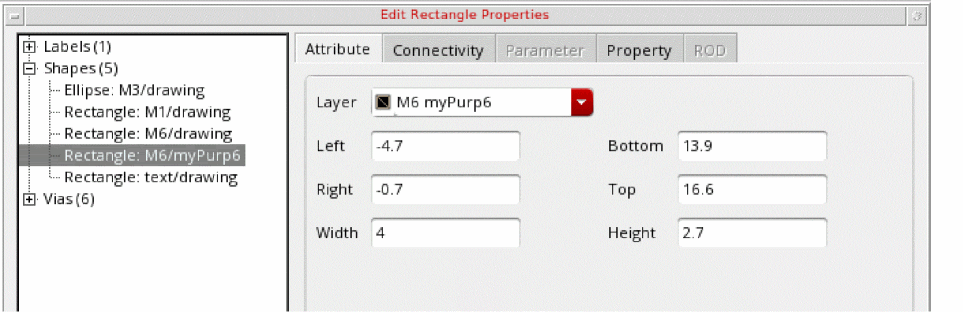
- Click the appropriate tab in the form to view attributes, connectivity, parameters, or user-defined properties.
-
Click the appropriate icons on the form to perform actions on objects. You have the option to hide or show the selection tree, deselect highlighted objects from the canvas, keep highlighted objects and deselect others from the canvas, go to the previous or the next object in the tree, or select all objects in the tree.
You can use the Up and Down arrow keys on the keyboard to go to the next or previous object in the selection tree. The title and contents of the form vary depending on the object you select.
The number of objects selected on the canvas and in the selection tree is also displayed on the form .
. -
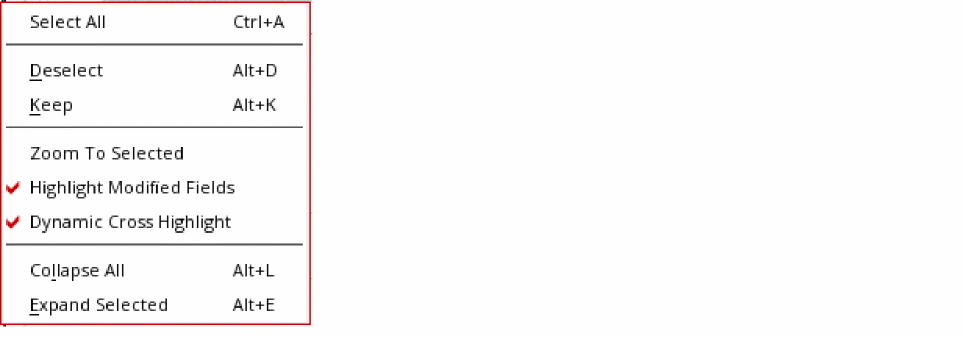
Right-click in the selection tree to display property editor shortcut menu. You have the option to select or deselect all objects in the selection tree, zoom to the selected object on the canvas, highlight the modified fields in the form, and expand or collapse nodes in the selection tree.
- Click Cancel to close the form.
Related Topics
Return to top