
The Voltus-XFi Results Browser Graphical User Interface
The Voltus-XFi Results Browser lets you visualize and debug the EM IR results generated for a design.
The following section explains the Voltus-XFi Results Browser interface:
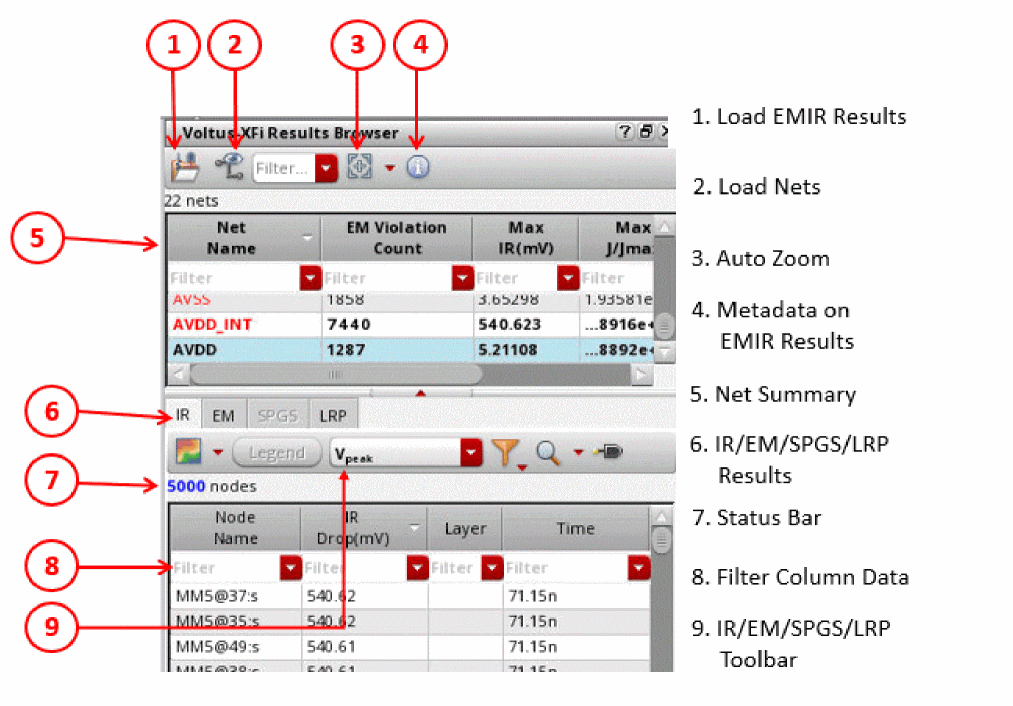
- Load EMIR Results Database - Allows you to browse and select the EM-IR database to be loaded from the output directory.
- Load Nets - Allows you to load and view the nodes/resistors/paths for the selected net. Select a net from the Net Summary table and click Load Nets. You can load multiple nets by using Shift-Click or Ctrl-Click.
-
Auto Zoom - Controls whether the Auto Zoom function of the Voltus-XFi Results Browser is set to Fixed mode or Minimal mode. The slider defines a ratio specifying how much of the available canvas area is occupied by the merged bounding box of the selected markers after the zoom is performed. For example, if you set it to 4, the ratio is 1/4; if you set it to 10, the ratio is 1/10, and so on.
- Fixed - Applies the ratio to the bounding box of all the selected markers. So, if set to 4, the merged bounding box of all the selected markers occupies 1/4 of the canvas area after the Auto Zoom is performed.
- Minimal - Defines a minimum zoom level that will ensure all the selected nodes are visible in the canvas. For example, assume the scale is set to 4. If the merged bounding box of the selected markers is greater than the canvas size, the display zooms out so that the bounding box fits in the canvas.
-
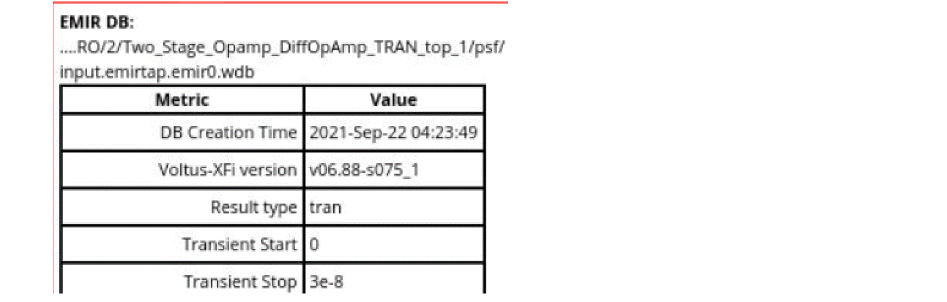
Metadata on EM-IR Results Database - Opens the following form that gives the metadata information about the EM-IR database, such as result type, simulation temperature, and hierarchy.
-
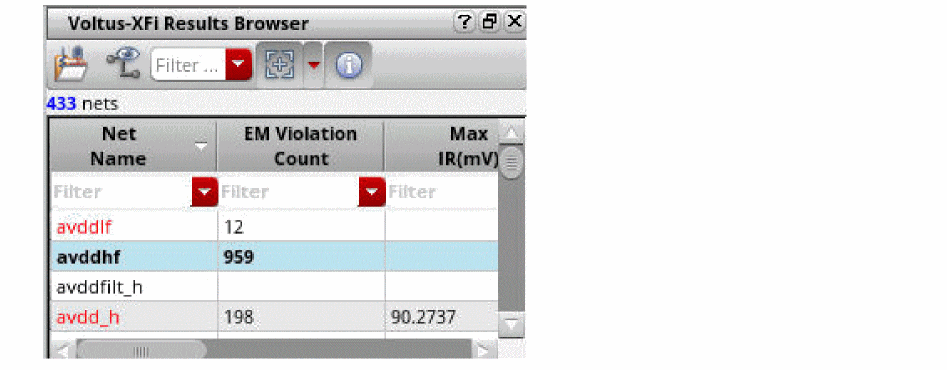
Net Summary - Gives a summary of all the nets in the design for which the EM-IR analysis is done. The nets with EM violations/high IR drop values are displayed in red font. This section includes columns for the net name, maximum IR drop value, EM violation count, number of parasitic resistors, and total capacitance for each net. Each of the columns can be sorted in ascending or descending order. You can view the details of the selected net in the IR, EM, SPGS, and LRP tabs.
The Net Summary section displays only those IR/EM columns for which the analysis is done. For example, column name Max IR avg will be shown only if the average IR drop analysis was enabled in the simulation run. To display/hide a column, right-click on the column header and select the column name.
-
IR Drop/EM/SPGS/LRP Results - The results section has 4 tabs:
- IR - Gives the detailed IR drop information about the net selected in the Net Summary section. This section displays only the first 5000 rows, listing the nodes with top 5000 IR values. When multiple nets are selected, this section displays the top 5000 rows across all selected nets. The section includes the node name, IR drop value, layer on which the node is located, location (x, y coordinates of the node), and time for IR drop. This tab is visible for static and dynamic analyses.
- EM - Gives detailed electromigration information about the net selected in the Net Summary section. This section displays only the first 5000 rows, listing the resistors with top 5000 J/Jmax violations. The section includes the resistor name, current density limit, resistance value, layer on which the resistor is located, location (x1, y1, x2, y2 coordinates of the resistor), width of the resistor, length of the resistor, max DC current, path length, number of via cuts, and via cut area. This tab is visible for static and dynamic analyses.
- SPGS - Displays the resistance between the global pin and all taps ordered highest to lowest. The resistances calculated by SPGS are electrically equivalent resistances, and not the summation of resistors. The section includes column names, such as the R effective value, node name, layer on which the node is located, and DSPF layer name. This tab is visible only for SPGS analysis.
-
LRP - Displays the LRP for a net. This tab is enabled only when you load a single net, not applicable for loading multiple nets. Click Compute LRP
 to calculate the LRP for all nodes of the net. When you select a node in the LRP table, the violation marker is highlighted in the layout. This tab is visible for static and dynamic analyses.
An example is shown below.The white line indicates LRP for the nodes on the selected net.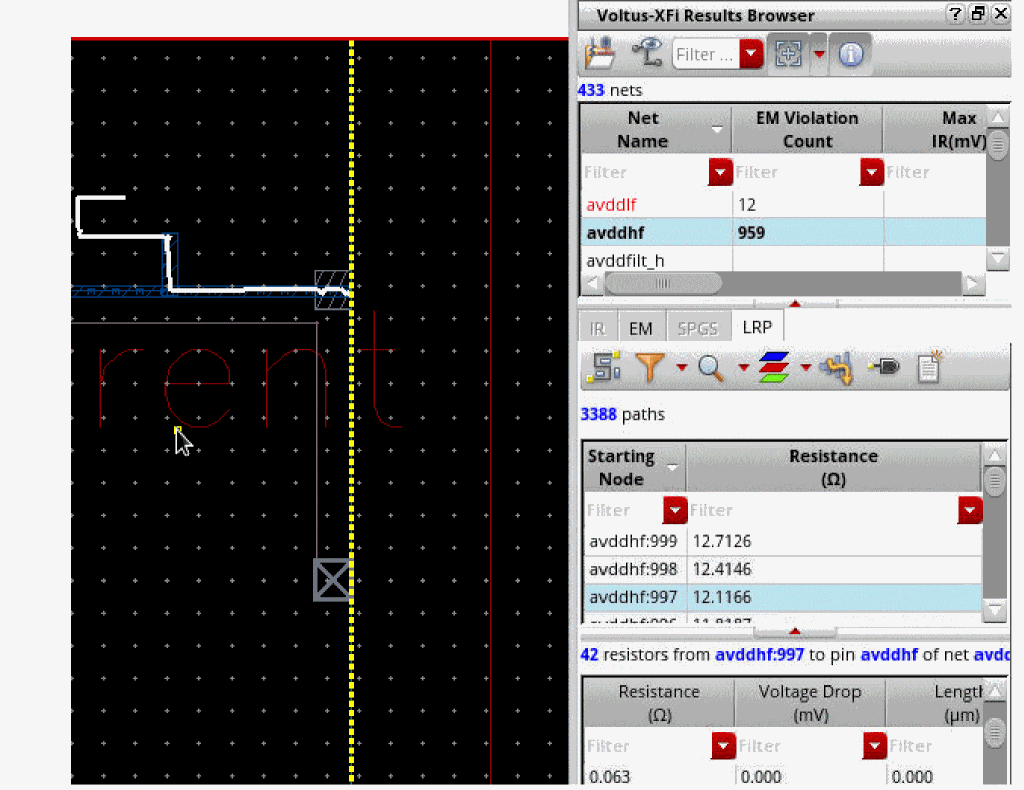
- Status Bar - Status Bar displays useful information such as number of rows in the IR /EM/SPGS/LRP sections, confirmation message to load powergated group of nets together, queried region information, and loading nets status. The number of nets in a design are displayed in the Net Summary section, the number of nodes is displayed in the IR and SPGS tabs, the number of resistors is displayed in the EM tab, and the number of paths is displayed in the LRP tab.
-
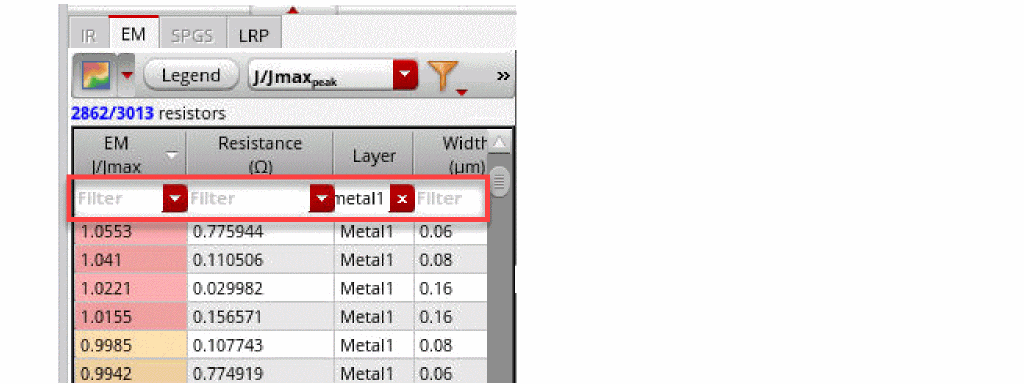
Filter Column Data - The Filter field on top of each column heading allows you to filter column values based on the string you enter. Example: If you have 695 rows appearing in the EM tab and you want to filter out the layer metal1, enter metal1 in the Layer field. The EM tab displays only those rows with layers starting with metal1.
-
IR/EM/SPGS/LRP Analysis Toolbar - The analysis toolbar contains the following icons:
Icon Icon Name Function Controls the display of the selected plot type for the net selected in the Net Summary table. You can also control the transparency of the plot by using the Min-Max slider, accessed by clicking the drop-down button.
Displays the violation range for the EM-IR results. A continuous RGB gradient is used to highlight the worst violation regions in the design. The vast range of color options provided by the RGB gradient makes it easier to view a range of violations in the layout.
Displays the list of plots supported.
When the IR tab is selected, the following types of IR drop analysis results plots are available:
- Peak IR Drop (Vpeak)
- Average IR Drop (Vpeak)
- Transistor Peak IR Drop (Vtappeak)
- Transistor Average Current (Itapavg)
- Transistor RMS Current (Itaprms)
- Transistor Peak Current (Itappeak)
When the EM tab is selected, the following types of EM analysis results plots are available:
Controls the layers to be displayed in the layout. You can click the drop-down button to select specific layers, show/hide all layers, show only via layers, and show all device layers.
When the Show Device Layers option is selected from the drop-down button, the device layers from the self-heating effect (SHE) analysis parameter file will be displayed along with the DSPF layers. The Show Device Layers option is applicable only to the EM SHE plots.
Allows to query the EM-IR results for the selected net. You can click the drop-down button to query results for either an area or a shape, and then make the selection in the layout. Depending upon whether the query is for IR drop or EM analysis, the corresponding results (nodes/resistors) are displayed in the IR or EM tab.
Enables or disables the display of thermal data and plots. This option is specific to the EM tab.
Computes LRP values for all nodes of the selected net. This information is populated in the LRP table.
Specifies to short specific layers for LRP analysis. For details, see Performing LRP Analysis.
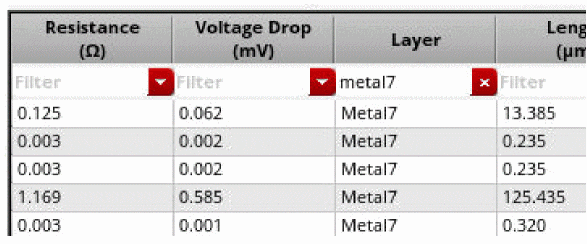
Allows to view the combined resistance values for a layer in the resistance path table. When this option is clicked, all the resistors on a layer, metal or via, will be merged into one segment for the purpose of LRP reporting. In the image below, the resistors on layer Metal 7 are shown in the resistor path table.
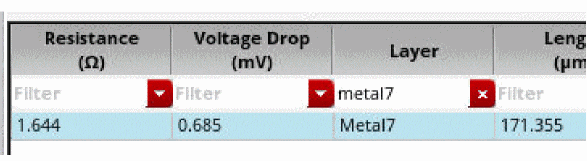
In the following image, the resistors for the layer Metal 7 are combined to display the resistor path for the segment.
Generates LRP report for the selected node. Click Print Report to specify the name of the report file and then click Save. The report opens in the console.






Related Topics
- Visualizing EM-IR Analysis Results using Voltus-XFi Results Browser
- Displaying and Hiding Voltus-XFi Results Browser
- Performing LRP Analysis
Return to top