Getting Familiar with the Interface
The Voltus-XFi UI allows designers to seamlessly switch between different tasks like setting up, running the flow, and viewing the results. The left pane facilitates navigation and the right pane displays information about the specific task.
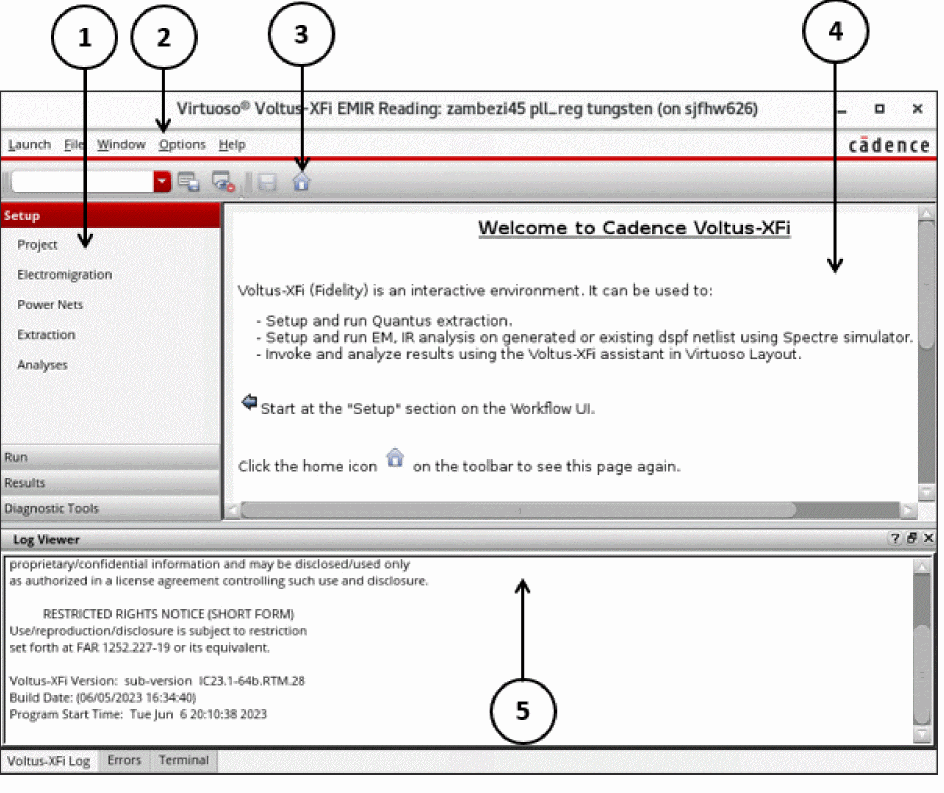
The Welcome Screen, as shown in the following figure, is displayed on launching Voltus-XFi.
|
1--Task Pane
|
2-- Menus
|
|
3--Toolbar
|
4--Main Window
|
|
5--Log Viewer
|
|
This display contains three main parts: a task pane on the left, which is always available; a main window on the right, whose content changes as you select items from the task pane; and a log viewer across the bottom, which displays the consolidated logs for the run. These parts are described in the following sections.
Task Pane
The task pane on the left side of the display is always present and facilitates navigation in the UI. When you first access the Voltus-XFi GUI, the Setup tab is selected by default.
|
Tab Name
|
Function
|
|
Setup
|
Allows to set up a project, specify power and signal nets to be analyzed, parasitic extraction, electromigration and thermal analysis settings, and simulation details.
|
|
Run
|
Allows to specify extraction and simulation setups to run.
|
|
Results
|
Allows to load IR drop and EM analysis results on the main Virtuoso layout.
|
|
Diagnostic Tools
|
A utility to ensure that the extracted DSPF file is compatible with the simulation requirements before using the file in the EM-IR flow.
|
Menus
The following table describes the menu items for Voltus-XFi:
|
Menu Name
|
Menu Options
|
|
Launch
|
Allows you to launch the following Virtuoso applications:
-
ADE Explorer
-
ADE Assembler
-
Layout XL
-
Layout EXL
-
Schematics L
-
Schematics XL
|
|
File
|
-
New - Opens the New File form. This is the same form that appears when you choose File -> New -> Cellview from the CIW to create a new cellview. You must select tungsten from the Type drop-down list to create a Tungsten view.
-
Open - Opens the Open File form to access an existing cell view.
-
Close - Closes the Voltus-XFi application.
-
Save A Copy - Opens the Save a Copy form so you can save a copy of the current Tungsten setup database to a different location.
-
Make Readable - Lets you switch between read-only and edit modes.
-
Bookmarks - Allows you to bookmark design views and return to them during the current or future sessions.
-
Close All - Closes all active cellviews.
|
|
Window
|
-
Assistants - Displays or hides the selected assistant pane.
-
Toolbars - Displays or hides the selected toolbar.
-
Workspaces - Displays the selected workspace.
-
Tabs - Allows you to work with tabs in the session window.
|
|
Options
|
-
Job Setup - Opens Voltus XFi Job Policy Editor.
|
|
Help
|
-
Search - A text field that lets you enter a search string. Press Enter to view the search results. Do not enclose the search string in double quotes.
-
Voltus-XFi User Guide - Opens Voltus-XFi User Guide in Cadence Help.
-
Voltus-XFi What’s New - Opens the Voltus-XFi What’s New document in Cadence Help.
-
Voltus-XFi Known Problems and Solutions - Opens the Voltus-XFi Known Problems and Solutions document in Cadence Help.
|
|
|
-
Virtuoso Documentation Library - Opens the Cadence Help home page, which provides quick access links to the following local and online resources:
-
What’s New
-
Video Demos and Tutorials
-
Featured Content
-
Known Problems and Solutions
-
Other web resources
-
Virtuoso Video Library - Opens the Video Library page available on Cadence Online Support (COS). This page lists the videos available for various Virtuoso products.
-
Virtuoso Rapid Adoption Kits - Opens the Rapid Adoption Kits page on COS. This page lists Rapid Adoption Kits (RAKs) available for various Virtuoso products. A RAK contains design databases and instructions on how to run the design flow.
-
Virtuoso Learning Map - Lists domain-specific trainings available on Cadence Training Services. Cadence Training Services learning maps provide a comprehensive visual overview of the learning opportunities for Cadence customers. They provide recommended course flows as well as tool experience and knowledge levels to guide customers through a complete learning plan.
-
Virtuoso Custom IC Cadence Community - Opens the Cadence Community - Custom IC Design web page. This page provides access to the latest blogs and discussion threads on various Virtuosos products and solutions.
|
|
|
-
Cadence Online Support - Opens COS, which you can use to access information about Cadence products, documentation, videos, RAKs, application notes, troubleshooting information, alerts, and so on. Improvements are regularly made to COS to make it convenient for you to look up the information you want. We recommend that you bookmark this web site and use it as your first point of reference for any Virtuoso-related information.
-
Cadence Training - Opens the Cadence training web page. You can find on this page information about the training courses available in different regions. Information is available about both classroom and online courses.
-
Cadence Community - Opens the Cadence Community web page. This page provides access to the latest blogs and discussion threads on various Cadence products and solutions, and EDA Industry Insights. You too can contribute to the community forum by creating a Cadence account. This gives you additional benefits such as alerts about topics of interest and access to online webinars.
-
Cadence OS Platform Support - Provides information about the current Cadence software releases and the supported platforms.
-
Contact Us - Opens the Cadence Customer Support web page, which provides customer support contact information for different regions.
-
Cadence Home - Opens the Cadence corporate web site.
-
About Virtuoso - Displays the version information for Virtuoso Studio Design Environment.
|
Toolbar
The Voltus-XFi toolbar has the following items:
|
Icon
|
Name
|
Description
|
|
|
Workspaces
|
Lists cached workspaces in the drop-down list.
|
|
|
Save Workspace
|
Saves a custom workspace that is based on an existing, default workspace or a new version of a default workspace.
|
|
|
Toggle Assistants Visibility
|
Hides the Log Viewer assistant. When you click the icon again, the Log Viewer assistant appears once again in the session window.
|
|
|
Save
|
Saves your tungsten cell view.
|
|
|
Home
|
Displays the welcome page. This page provides an overview of Voltus-XFi and guides you through the basic setup tasks.
|
Main Window
The main window shows the application home page by default. When you select a task name in the left pane, the main window changes and displays the form fields for that task.
Related Topics
Return to top