
Update Binding Flow
Before you run the Update Binding command to initialize the Update Binding flow, a dialog box confirming whether you want to proceed displays, if you have modified the layout or physConfig in the current session.
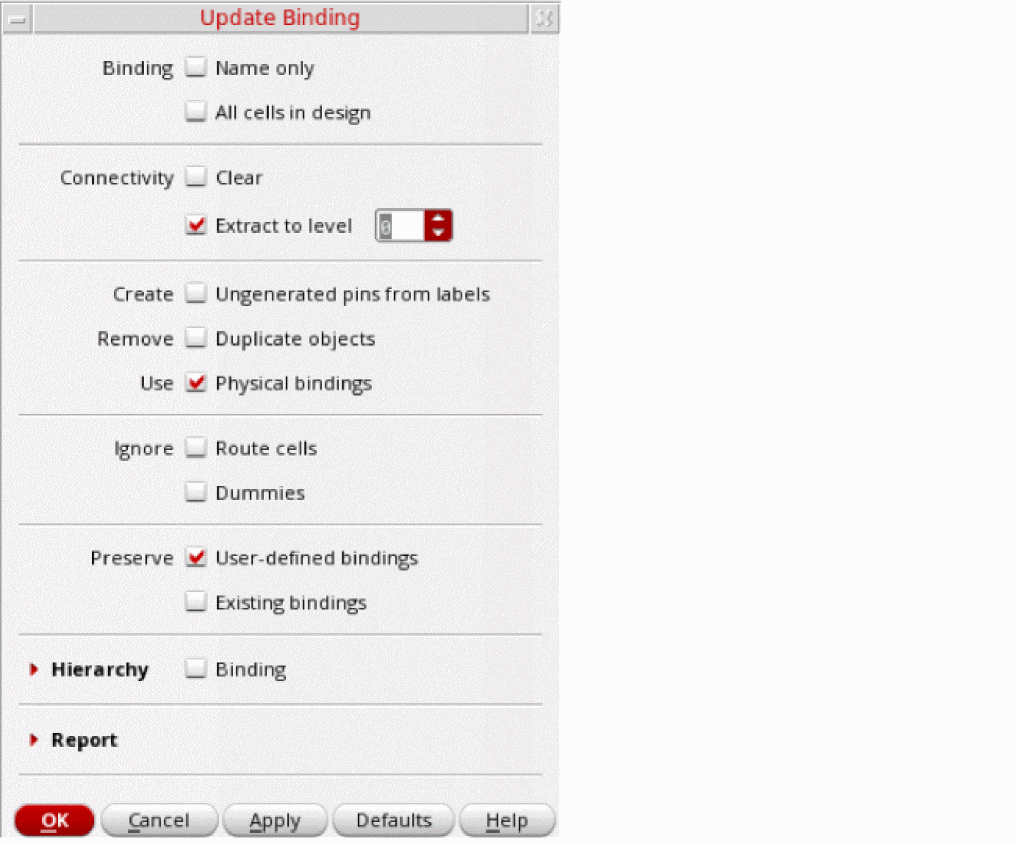
When the Update Binding command is called, by default, the binder re-runs in the
When binding at the current level, the binder binds the schematic and layout devices only at the current level of hierarchy. Current level binding is best suited for designs that have matching hierarchies. A design that has matching hierarchies but was not bound correctly using Name binding after a Schematic ECO can benefit from Current level binding. It is recommended to run Current level binding in this situation, prior to running the Update Components And Nets command.
A design does not need to be LVS clean to derive better results from Current level binding. Although, largely LVS-clean designs and designs that have mosaics with same connectivity are a good starting point for Current level binding.
Hierarchical binding, on the other hand, by default, binds the schematic and layout instances across the hierarchy, based on the physical bindings defined in the current physConfig view. This type of binding is recommended for LVS-clean designs, because the design is flattened and the physical connectivity extracted.
To avoid binding hierarchically by using the bindings defined in the current physConfig view, which is the default binding mechanism for hierarchical binding, deselect Use – Physical bindings.
When performing a hierarchical binding run, you can stop the binder from binding beyond a particular schematic or layout library cellview by setting the bindSourceStop or bindLayoutStop environment variable. By doing so, the binder considers the specified schematic (source) or layout cellview as a leaf-level instance and stops looking beyond the instance for any devices to bind.
If hierarchical binding is run with the Flatten layout instances option selected, Update Binding flattens the instances, if required, and creates leaf-level bindings. Since the leaf-level bindings have a one-to-one correspondence, full ECO capability is available for the design.
With the Flatten Layout Instances option selected, you can choose to retain the flattened instances as free objects, or choose to create a group or a synchronized family. By default, the flattened instances form a synchronized family.
For example, if you flatten an instance, I1, all the shapes that the instance flattens into form a figure group or a synchronized family. Therefore, for each flattened instance, a corresponding figure group or a synchronized family will be created. If hierarchical binding is run with the Flatten layout instances option deselected, the Update Binding command preserves the layout hierarchy and creates either
By default, the Update Binding command binds based on connectivity—both logical and physical.
However, the caveat with re-extracting through the hierarchy is that the extractor can extract through devices, causing shorts. To prevent this, you may need to define stopLayers in your technology file to indicate the layers that are being used for “Stopping” or “Cutting” the diffusion layers. The extractor will then ignore these layers for extraction and any false violations will not be reported. For more information about stopLayers and how you can set these up in your technology file, see validLayers – Stop Layers Specification
The Update Binding command also provides you the options to preserve any bindings that exist by using the Define Device Correspondence form. Conversely, you can also choose to delete all the existing device correspondences and create new bindings.
Contrary to using the hierarchical binder that flattens the schematic (physConfig) and layout hierarchies to the leaf level to determine the best bindings, which may not be at the leaf level, you can either specify a binding file that is derived from a PVS LVS run, or specify a PVS file that has the leaf-level binding information.
The binding file, updateBinding.bnd, is automatically generated by the binder if the instance cross-reference file (.ixf) and the extracted netlist file (.net or .spi) generated from the PVS run are specified.
However, if the generated binding file is empty, Update Binding cannot proceed.
-
The instance cross-reference file is created as a
.ixffile and the extracted netlist file is created as a.netfile in thesvdbdirectory of the PVS run directory, if you run PVS with the Create Quantus Input Data option selected. -
If you run PVS in LVS mode with the
-qrc_dataargument specified, the extracted netlist gets created in the form of a .spifile in the same directory as the .ixf file. The .spifile provides a normalized output for Quantus. Therefore, it is not the preferred input for generating the binding file required by Update Binding. But, a.spifile can be used if a.netfile cannot be generated for some reason.
Cadence recommends that you setlvs_keep_datatoyesin yourlvs.pvlrule file so that the extracted netlist output file is a .net file.
To ensure better binding, the Input Scale value set on the Update Binding form must be the same as that used for the PVS LVS run. If the scale at which PVS is run is different from the layout scale, you can use the PVS rule deck to determine the PVS input_scale. By default, the PVS scale is set to 0, which means the dbuPerUu for the layout is used.
See bindPVSScale.
If you are using the same Input Scale for Update Binding as used for the PVS LVS run, but your binding results are not as expected, it is likely that the layout was either updated since the last PVS LVS run, or PVS LVS was run with a different precision setting. Ensure that the layout is up-to-date with the PVS run.
For more information about running the PVS LVS and for generating the required .ixf, .net, and .spi files, see the Cadence Physical Verification User Guide.
Here is an example illustrating the format of a binding file:
I1/N0: Schematic hierarchy path
|I2/MN0: Corresponding layout hierarchy path
M3(1,0): Corresponding mosaic row/column
Irrespective of the method used—automatic hierarchy match or binding file—when the leaf-level binding information is available, the layout is extracted to the specified depth to update the connectivity, and the binder sets the correspondence between the updated layout instances and their schematic counterparts.
If the Ignore – Route cells option is selected and the extractor identifies any route cells—cells that do not contain any devices—the Update Binding command adds an ignore property to the instances of “route-only” cellviews to avoid binding to them. Any instances that have stop layers defined are not considered for the ignore property addition, as these instances are recognized as “devices” and, therefore, must be considered for binding during the Update Binding run.
During the update, the physConfig also gets updated to set the physical bindings and a force descend ensures that the masters of the devices being bound match, and that the layout instances are being bound to the correct level in the schematic. If the physConfig gets modified during the update, the CPH window automatically opens after the update is complete to enable you to save or discard the edits.
Pre-populating the Update Binding Form Using SKILL
You can pre-populate the Update Binding form if you define a SKILL procedure using the lxPreUpdateBinding function that can control the environment variables associated with the form. If the procedure is defined before opening the Update Binding form, a button is added to the Read File group box, as displayed in the figure below.
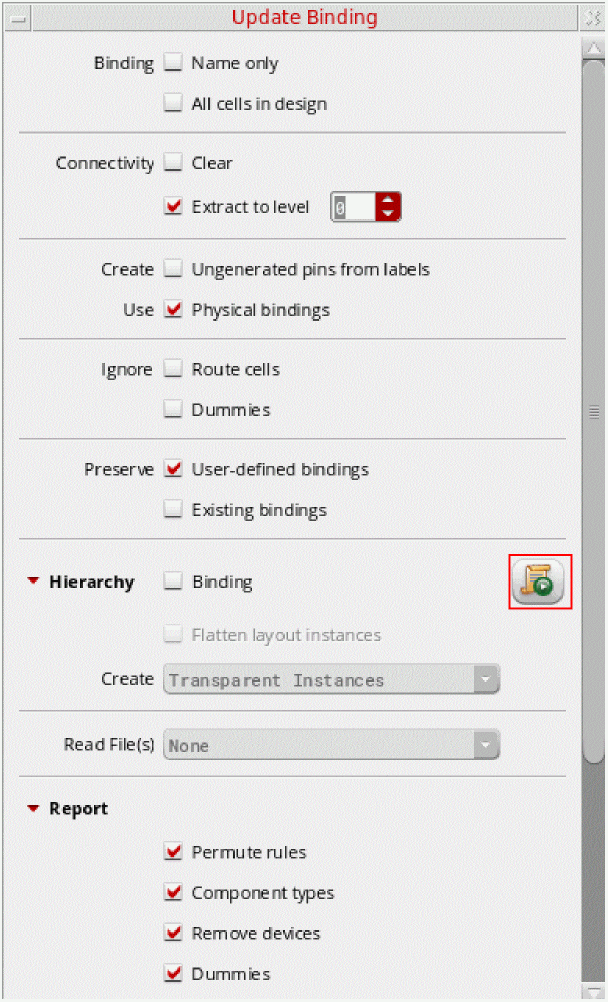
Click this button to call the user-defined SKILL procedure and reset the form based on the environment variable values defined in the procedure.
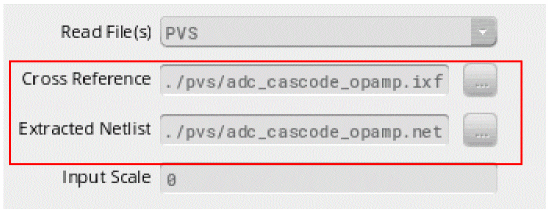
For example, instead of manually specifying the instance cross reference and netlist files to generate the binding file, you can define an lxPreUpdateBinding procedure, such as the one below, to pre-populate the form.
procedure(lxPreUpdateBinding(cv)
let((base)
base = strcat("./pvs/" cv~>cellName)
envSetVal("layoutXL" "bindCrossRefFile" 'string strcat(base ".ixf"))
envSetVal("layoutXL" "bindExtractedNetlistFile" 'string strcat(base
".net"))
)
)
When the above procedure is called, the Update Binding form opens pre-populated with data from a PVS LVS run.
Related Topics
validLayers – Stop Layers Specification.
Transparent Layout Hierarchy Generation
Issues Faced when Setting up the PDK to Improve Layout XL Compliance
Return to top