|
Field
|
Description
|
|
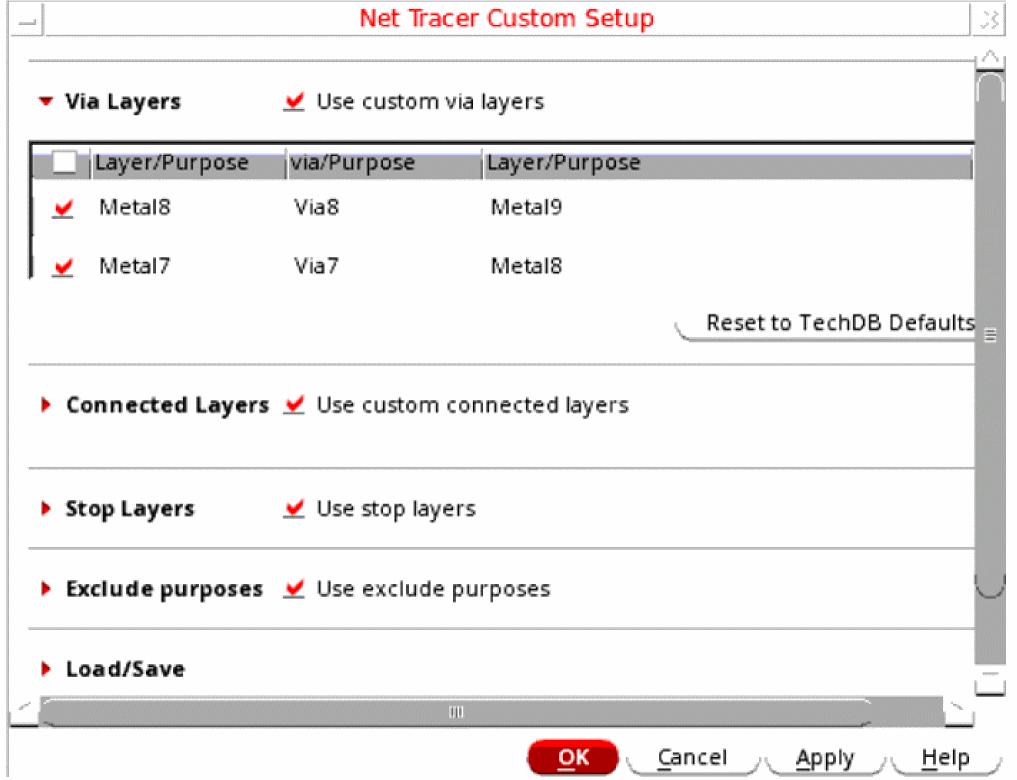
Via Layers
|
This section specifies the via layers.
|
|
Use custom via layers
|
Lets you specify the via layers to be used for tracing. When this option is selected, the layer1-via-layer2 lists displayed in the table below are enabled. The table lists all the via layers from the technology file and any via layers that you have added. Select the check boxes associated with the individual via layers that you want to use for tracing.
|
|
Reset to TechDB Defaults
|
Lets you use the via layers defined in the technology file. Clicking this button populates the list box with the via layers from the technology file and deletes any via layers that you may have added.
|
|
Connected Layers
|
This section specifies the connected layers.
|
|
Use custom connected layers
|
Lets you specify the connected layers to be used for tracing. When this option is selected, you can define connected layers in the (layer1 purpose) (layer2 purpose) format. The connected layers map to the equivalent layers defined in the technology file.If the option is deselected, connected layers are not used for tracing.
|
|
Reset to TechDB Defaults
|
Lets you use the connected layers defined in the technology file. Clicking this button populates the list box with the connected layers from the technology file and deletes any connected layers that you may have added.
|
|
Stop Layers
|
This section specifies the stop layers.
|
|
Use stop layers
|
Lets you define the layers on which the Net Tracer command must stop tracing a net. The stop criterion is specified in the layer stopLayer format, where both layers can be specified as LPPs. The Net Tracer command stops tracing the connected shapes on the layer LPP, if it finds an overlapping shape on the stopLayer LPP.
If the Use stop layers option is deselected, all the connected shapes selected in the Connected Layers widget are used for tracing.
|
|
Layer/Purpose and Stop Layer/Purpose pair
|
Displays the stop layers that you have defined. The Stop Layers table displays additional Color and Lock columns that specify the mask color and lock status to be considered for the stop layers used for tracing. If a non-colored stop layer is specified, the Color and Lock fields are grayed out.”
|
|
Exclude purposes
|
Use exclude purposes: Lets you specify the layer purposes to be excluded for tracing.
|
|
Load/Save
|
This section specifies the options to load and save a file.
|
|
File
|
Specifies the name of the file:
-
to which you can save the customized layer settings.
-
from which you can load the customized layer settings.
The File field displays a default filename. But, you can specify a filename, as required.
|
|
Browse
|
Opens the UNIX Browser window. Use this window to specify the name and location of the file
-
to which you want to save the customized layer settings.
-
from which you want to load the customized layer settings.
If you specify a file from which to load the customized layer settings; then all the via, connected, and stop layers are read from this file at the start of a new Virtuoso session.
|
|
Via layers
|
Lets you save (or load) via layer settings to (or from) the file specified in the Browse field.
|
|
Connected layers
|
Lets you save (or load) connected layer settings to (or from) the file specified in the Browse field.
|
|
Stop layers
|
Lets you save (or load) via layer settings to (or from) the file specified in the Browse field.
|
|
Exclude Purposes
|
Lets you save (or load) exclude purposes settings to (or from) the file specified in the Browse field.By default, settings for all the three layers — via, connected, and stop — are saved (and loaded) to (or from) the file specified in the Browse field.
|
|
Save
|
Saves the layer settings to the file specified in the Browse field.
|
|
Load
|
Populates the file specified in the Browse field with the via, connected, and stop layer settings to be used for tracing.
|