
Net Tracer Display Options Form
Use the Net Tracer Display Options form to control how traces are displayed on the canvas.
The Net Tracer Display Options form, displayed below, is available through the Options – Net Tracer command.
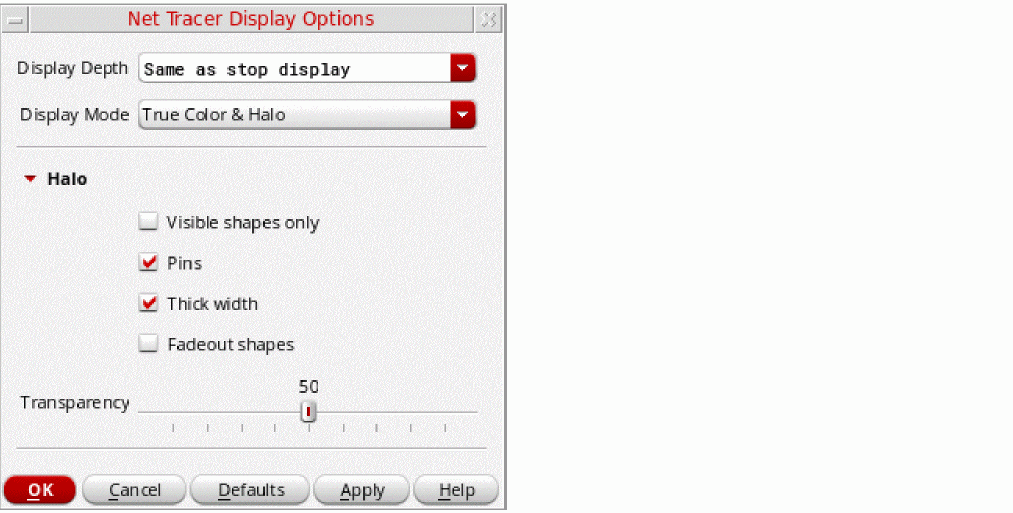
Alternatively, use the options in the Removing All Traces to control some of the trace display options.
| Field | Description |
|---|---|
|
Lets you specify the depth up to which the shapes for a traced net are displayed. By default, Display Depth is set to Same as stop display. This means that in the Display Options form, if the Display Levels – Stop value is set to 0, only the shapes belonging to the trace on level 0 are displayed. If you set the Display Depth to say 32 and Display Levels – Stop value in the Display Options form is still set to 0, all the shapes in the hierarchy belonging to the trace are displayed. Environment variable: netTracerDisplayDepth |
|
|
This section lets you control whether the traces over shapes, pins, and other objects associated with a traced net are displayed in true color, and whether a trace displays a halo. By default, traces are displayed in true color. Environment variable: netTracerDisplayMode |
|
|
Displays the traces in true shape color. 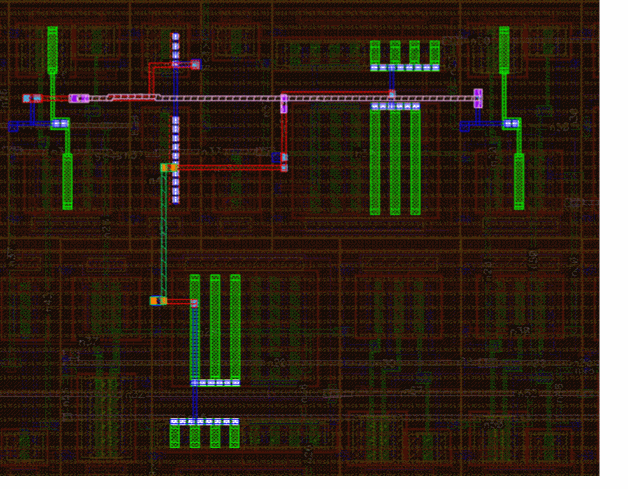 |
|
|
Displays only a halo around the shape. 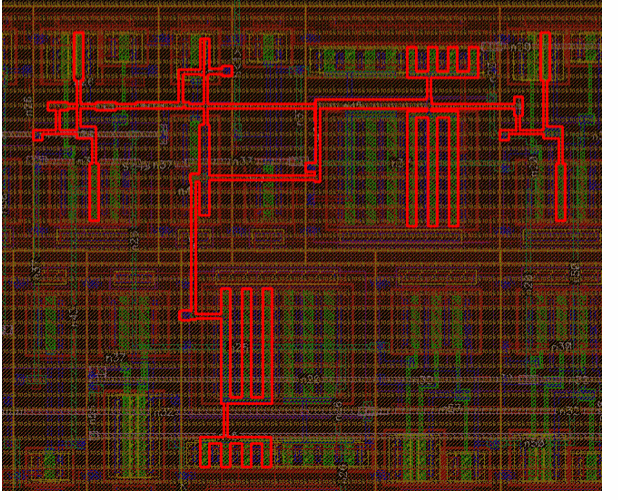 |
|
|
Displays the traces in true shape color and displays a halo around the shape. 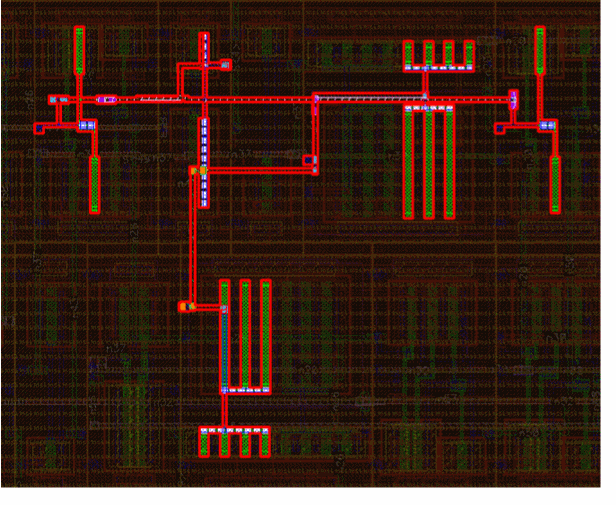 |
|
|
Displays the halo only around shapes that are on visible layers. Shapes on layers that are not displayed are not haloed. When the option is OFF, even those shapes that are not on the visible layers have their contours highlighted, as displayed in the figure below. By default, halos are created for all shapes. Environment variable: netTracerHaloForShapes 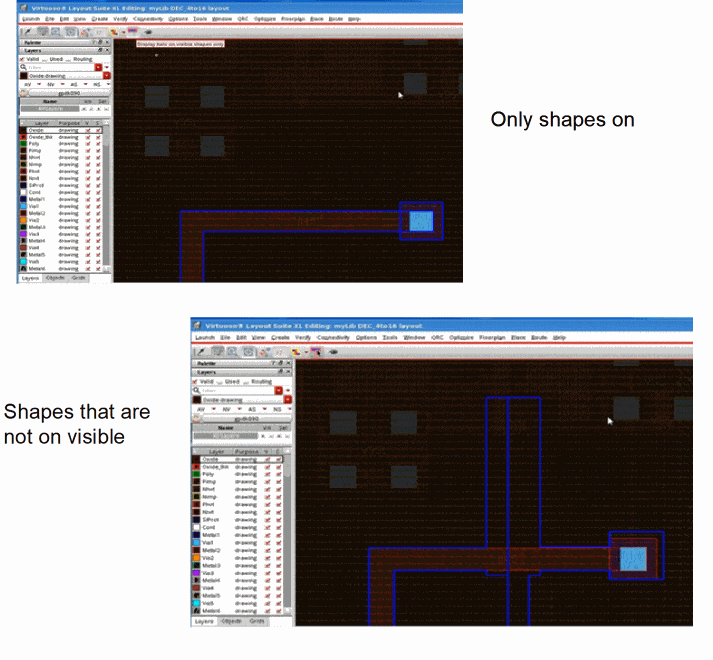 |
|
|
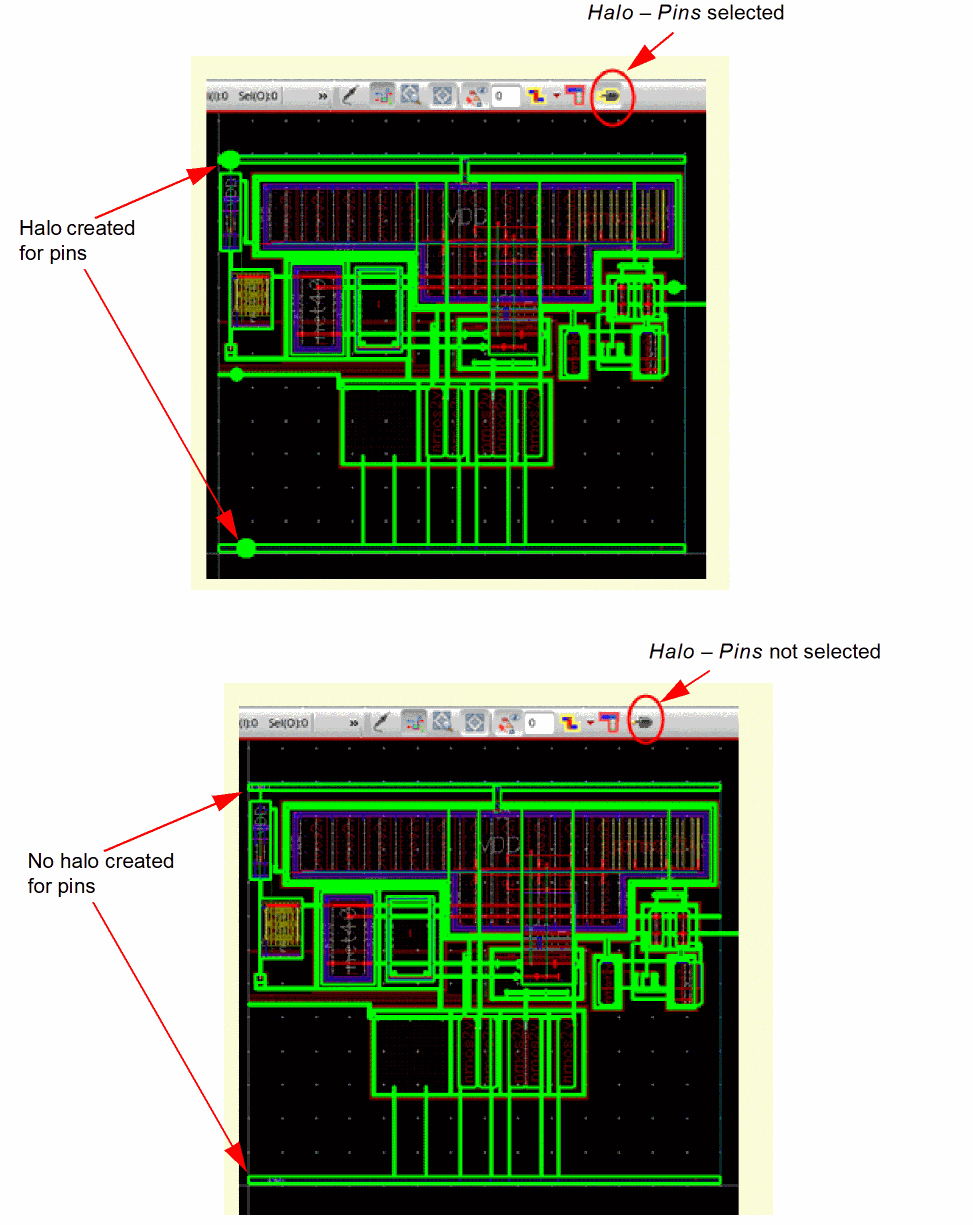
Creates halos around pin shapes. By default, halos are displayed for pins. Environment variable: netTracerHaloForPins |
|
 |
|
|
Creates a halo with a thicker width, making the halo more prominent. By default, halos are displayed with a thick width. Environment variable: netTracerHaloStyleThick 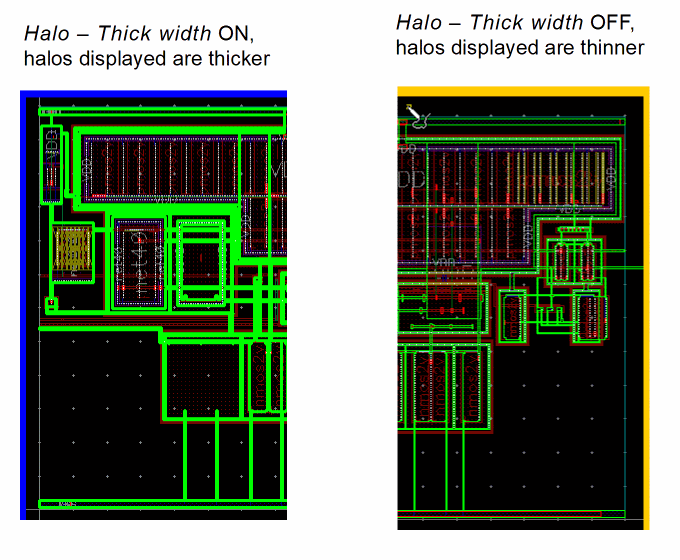 |
|
|
Creates a halo that is faded out. By default, halos are not faded out. You can use the Transparency slider at the bottom of the form to control the transparency of the displayed halo. Environment variable: netTracerHaloFadeoutShapes 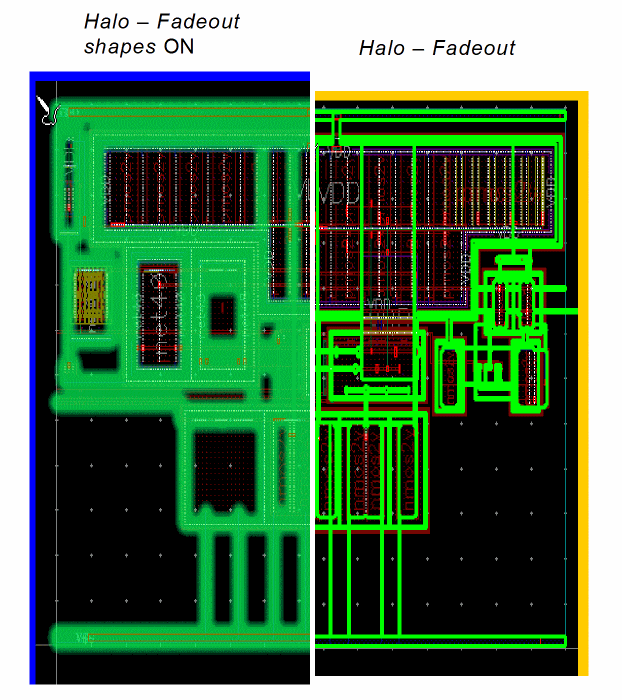 |
|
|
Enables you to control how transparent the displayed halo can be. The effect of this option is visible when the Fadeout shapes option is selected. By default, halos are set to be 50 percent transparent. But, you can move the slider from left to right to vary the halo transparency from 0 percent to 100 percent, as displayed in the figure below. 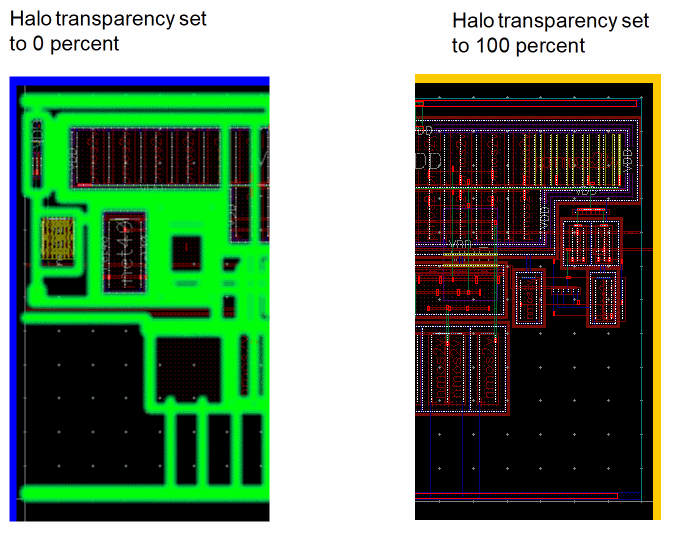 |
|
Related Topics
Return to top