
Net Tracer Options Form
Use the Net Tracer Options form to control the mode of tracing, the cellview region, and the Layout XL constraint group for creating the net traces, and to specify your preview preferences.
| Field | Description |
|---|---|
|
Lets you add traces to highlight how the nets are physically connected in a design. |
|
|
Lets you add traces to highlight how the nets are connected with the source schematic. |
|
|
Cross-highlights a net in the schematic cellview when that net is traced in the layout cellview. Environment variable: netTracerCrossHighlightNetInSchematic |
|
|
Lets you progressively highlight a trace in the layout canvas, each step tracing an additional set of shapes. You can choose to navigate back and forth along a step trace, and the canvas display of the trace changes accordingly. If both Step mode and From net are selected, Step mode is set as the preferred tracing mode. Environment variable: netTracerStepMode |
|
|
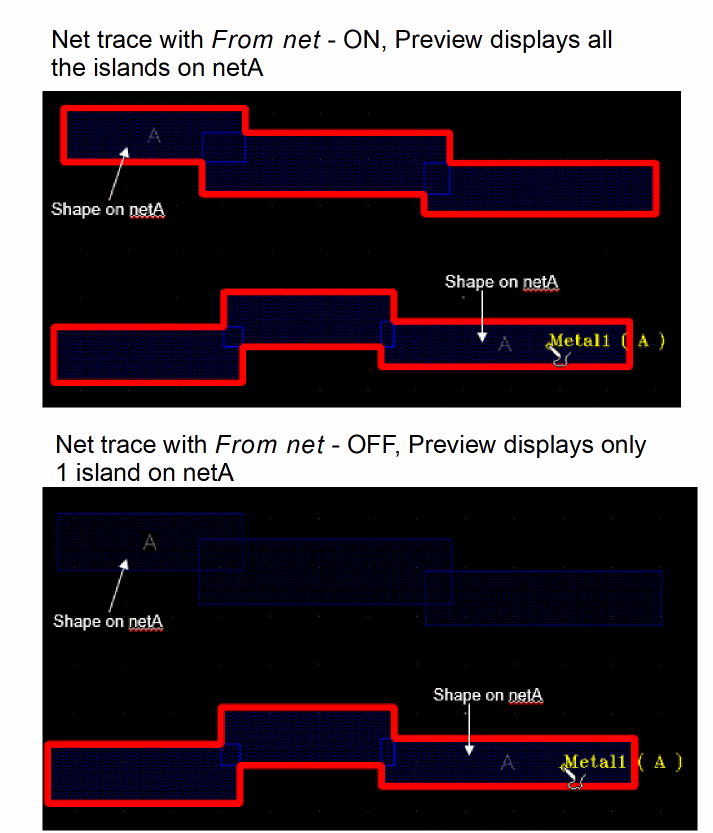
Lets you add traces to highlight all the shapes that are physically connected on the same net. Even with From net selected, the Net Tracer may not highlight all the islands on a net, if the traced shape does not contain the required net information. Before you click the shape to generate the trace, move the cursor over the shape to see if the information balloon displays both the layer name and the net name. If only the layer name is displayed, the shape in question may not have the net information available. So, tracing will be performed assuming From net is deselected. If both Step mode and From net are selected, Step mode is set as the preferred tracing mode. Environment variable: netTracerFromNet |
|
 |
|
|
Allows traces to pass through Pcells. This option is enabled only when Physical trace mode is selected. By default, the option is ON. |
|
|
Highlights the traced nets for connected shapes in increments of 10K shapes. For example, if a net has 50K connected shapes, the trace will be formed incrementally five times with 10K shapes at a time, until all the shapes are traced. Environment variable: netTracerUpdateIncrementally |
|
|
Displays the Choose LPP to Trace pop-up box when you click at multiple overlapping shapes. The pop-up box allows you to choose the layer-purpose pair for creating the trace. Environment variable: netTracerPopupSelectionWindow |
|
|
Displays a highlight dynamically around the shape over which the pointer is hovered. In addition, the preview displays the layer and net name on which the trace will be created, if the shape being hovered over is clicked. Irrespective of the value set in the Cut Shapes Extraction field, for performance reasons, a small number of cut shapes is chased and displayed in the preview. To cycle through the layers being hovered, use the Spacebar bindkey. Environment variable: netTracerShowPreview |
|
|
Lets you display each new trace in a color from the palette. If you choose Cycle, the first trace gets the color at the top of the palette. Any subsequent traces that are added get the next color in the sequence. Alternatively, you can choose a specific color for all the traces. Environment variable: netTracerColor |
|
|
This section lets you control the region in which nets are traced. |
|
|
Controls how deep in the hierarchy a trace is created. Choose from one of the predefined ranges, or choose User defined to set a hierarchy start and stop level. Environment variable: netTracerRange After a trace is created, you can use the Display Depth field in the Net Tracer Display Options Form to control the depth up to which the shapes belonging to the trace will be highlighted. |
|
|
Creates a trace on the selected net that passes through the entire hierarchy of the cellview. |
|
|
Creates a trace on the selected net that passes from the current level of hierarchy to the level specified in the Display Level To field in the Display Options form (stop level). |
|
|
Creates a trace on the selected net that passes from the level specified in the Display Level From field in the Display Options Form (start level) to the current level of hierarchy. |
|
|
Creates a trace on the selected net that passes from the top level in the hierarchy to the level specified in the Display Levels Stop field in the Display Options form (stop level). |
|
|
Creates a trace on the selected net that passes from the current level in the hierarchy to the level specified in the Display Levels Stop field in the Display Options Form (stop level). |
|
|
Enables the Start and Stop fields. Use these fields to set the hierarchy start and stop levels for tracing nets. |
|
|
Sets the hierarchy level at which the tracing starts. This field is editable only when Hierarchy Range is set to User defined. Environment variable: netTracerStartLevel |
|
|
Sets the level at which the tracing stops. This field is editable only when Hierarchy Range is set to User defined. Environment variable: netTracerStopLevel |
|
|
Controls the area in which nets are traced. Environment variable: netTracerRegion |
|
|
Traces nets in the entire cellview. This option is selected by default. |
|
|
Traces nets in the portion of the cellview that is displayed in the canvas at that instant. |
|
|
Lets you specify a rectangular or polygonal area for tracing nets. Click the appropriate button to specify the required area shape—rectangular or polygonal— and then click in the canvas to specify the vertices of the selected shape. |
|
|
Controls the number of cut shapes that are traced per overlap. Use the slider to choose the number of cut shapes that are traced. |
|
|
Environment variable: netTracerMaxCutShapes |
|
|
This section lets you specify the connection setup for the layer. |
|
|
Lets you choose a constraint group that defines the via layer, connected layer, and stop layers to be used for creating the traces. By default, the See Net Tracer Custom Setup Form. Environment variable: netTracerConstraintGroup |
|
|
Lets you specify a start layer and an end layer to narrow down to a smaller set of extractable layers to be used for tracing. The same layer can be used to define the start and end layer for tracing. This option is useful when creating a big trace, such as for a power or ground net. |
Related Topics
Net Tracer Display Options Form
Return to top