
Metal Density Options Form
The Metal Density Options form lets you specify the options for the metal density flow: checks, analysis, and fixing. The form contains the following tabs.
Layers
The following table describes the fields available on the Layers tab of the Metal Density Options form.
| Field | Description |
|---|---|
|
Enables selection of palette layers for slotting. Environment variable: usePaletteLayers |
|
|
Lets you select the layer category to be processed. Once a specific material is selected, only the corresponding valid layers are displayed in the Layers list box. Environment variable: material |
|
|
Lets you select the names of the layers that you want to process. You can select single or multiple layers from the list box by using the Environment variable: metalDensityLayers |
Slot Geometry
The following table describes the fields available on the Slot Geometry tab of the Metal Density Options form.
| Field | Description |
|---|---|
|
Specifies the length of the slot. Default is - Environment variable: slotLength |
|
|
Specifies the width of the slot. Default is - Environment variable: slotWidth |
|
|
Specifies the slot spacing along the length. Default is - Environment variable: lSpacing |
|
|
Specifies the slot spacing along the width. Default is - Environment variable: wSpacing |
|
|
Specifies the minimum distance from the slot to the edge. Default is - Environment variable: slotToEdge |
|
|
Specifies a cell name (specification cell). It is a cellview that contains, for each concerned layer, the representation of the directional slot shapes and the turn areas. The syntax for a specification cell is The check box next to the Specification Cell field is used to enable or disable the field. In case a list of contexts is defined using the sltSetContextSpecificationCells SKILL function, instead of the string field for the Specification Cell, the Context field is available, which lists the defined contexts. For more information, see Specification Cells. Environment variables: slotSpecCell, enableSlotSpecCell, useOneSlotSpecCell, and slottingContext |
Slotting Style
The following table describes the fields available on the Slotting Style tab of the Metal Density Options form.
| Field | Description |
|---|---|
|
Specifies the width to filter out the shapes with a width smaller than the one specified. Default is - Environment variable: widthThreshold |
|
|
Specifies a threshold ratio value that determines whether a slot must be created as a square or a rectangular shape. If the length-to-width ratio of the object is greater than the defined threshold, then a rectangular slot is created. If the length-to-width ratio of the object is less than or equal to the specified ratio, then a square slot is created. The default is Environment variable: lengthWidthRatio |
|
|
Enables you to define the offset mode used to add slots. If the option is deselected, slots are in line. However, if the option is selected, slots are staggered. By default the option is deselected. Environment variable: slotStaggered |
|
|
Enables slotting of vias. By default, this option is selected. Environment variable: slotVia |
|
|
Lets you exclude pin objects from being slotted. By default the option is deselected. Environment variable: excludePins |
|
|
Lets you only slot the shapes that violate the maximum density rules. The prerequisite is to make these rules available in the technology library file. Additionally, if any of the parameters, such as Length, Width, Length Spacing, Width Spacing, or Distance to Edge is specified as Environment variable: densityAwareMode |
|
|
Defines a slot pattern that is dropped in the direction of the current over the orthogonal portion of the shape. The direction is given by the from and to points of the wire. For other shapes, the direction is given by the longest dimension of the bounding box, the orthogonal portion.You can specify one of the following slot patterns:
Environment variable: directionalSlotPattern |
|
|
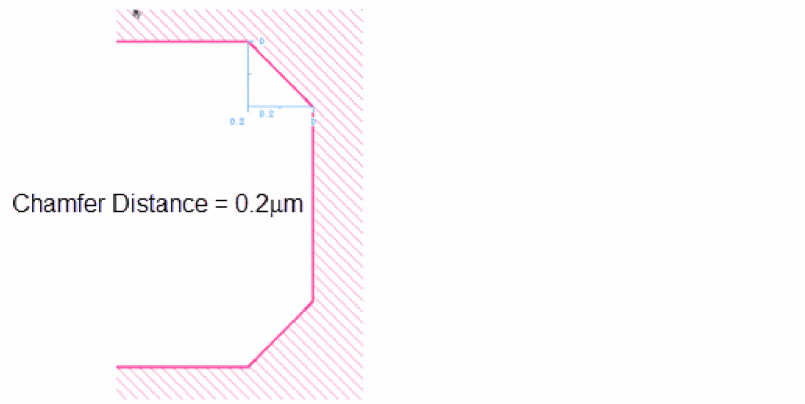
Lets you define a slot pattern at the turn of a wire by defining a list of points. You can select from one of the following slot patterns: Square, Points, Chamfer, and Radial. Environment variable: turnSlotPattern |
|
|
lets you define a slot orientation for the shapes to be slotted. You can select one of the following orientations for the slots: Default, Square, Diamond, Horizontal, Vertical, diagonalNE, and diagonalSE. If the slot orientation is other than default, then the slotting on an object respects the specified orientation and overrides the directional pattern as well as the pattern at turn. The following figure shows the various slot orientation patterns. 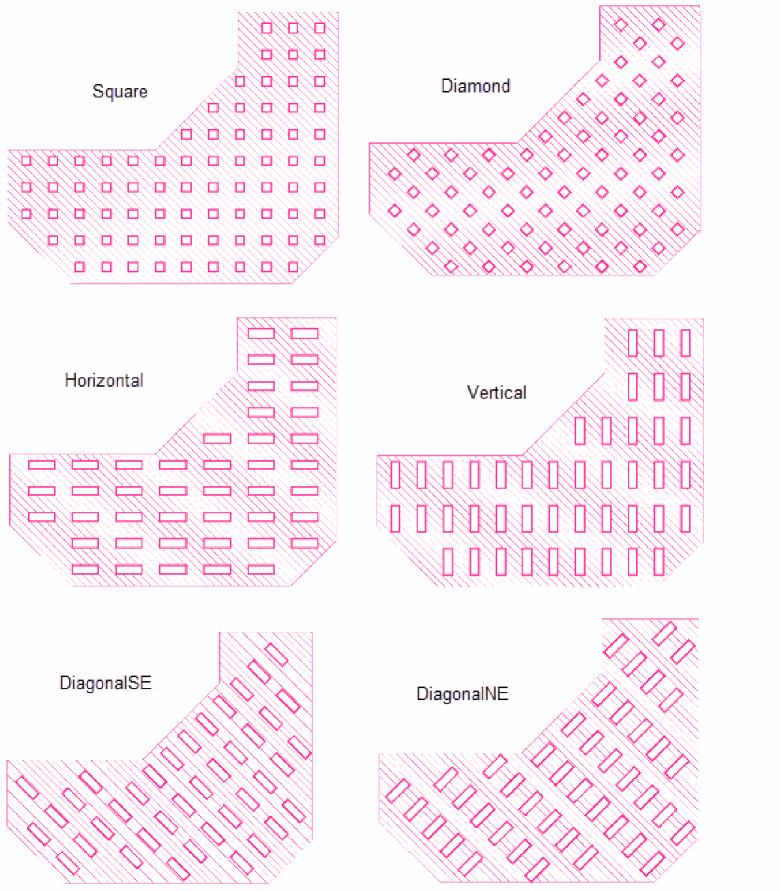 Environment variable: slotOrientationMode |
Slot Consistency
The following table describes the fields available on the Slot Consistency tab of the Metal Density Options form.
| Field | Description |
|---|---|
|
Reports the slot shapes that are not part of a slotting fig group. Slot shapes are added to slotting fig groups when they are created using the Slot Consistency form or the lxShapeSlotting function. |
|
|
Reports the slot shapes that overlap on the same layer and the blockage type is |
|
|
Reports the slot shapes that do not overlap a metal shape and are not connected. |
Fillet
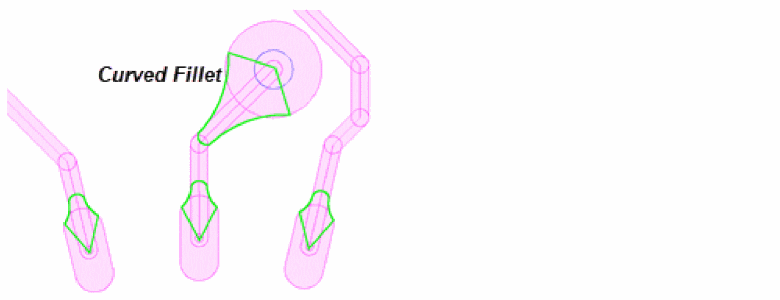
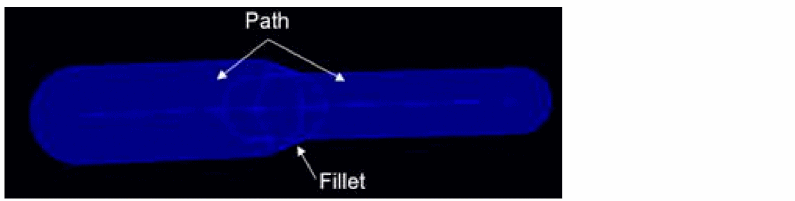
The Fillet tab lets you create and control where a fillet shape is inserted. You can select options to filter out shapes and objects and specify the parameters for fillet creation. This tab is only available for Virtuoso RF Solution. The license required for Virtuoso RF is 95560 Virtuoso_RF_Option.
The following table describes the fields available on the Fillet tab of the Metal Density Options form.
Slotting Button
A status button in the Metal Density Options form. The Slotting button has three states: Green, Yellow, and Red.
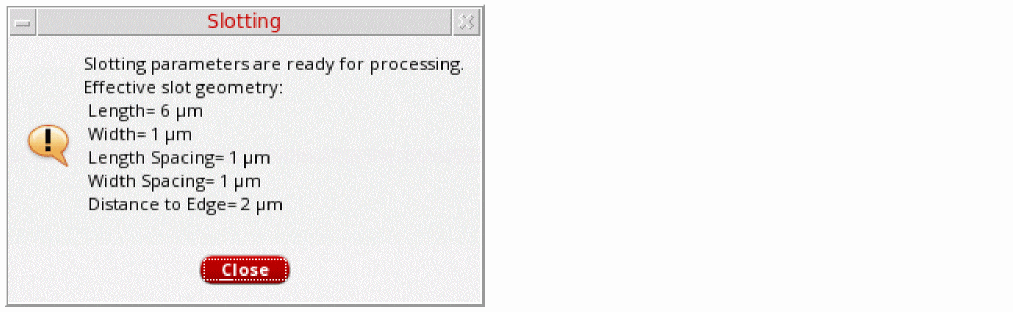
The green status indicates that slotting can be done. When you click the Slotting button with the green status, a Slotting message box appears mentioning the effective slot geometry parameters, as shown below.

The yellow status indicates that slotting can be done, but there is an undesired parameter, or value of a parameter. When you click the Slotting button with the yellow status, a warning message appears mentioning the undesired parameter, or the value of the parameter, as shown below.


The red status indicates that slotting cannot be done and parameters are missing. When you click the Slotting button with the red status, a message box appears mentioning the rationale behind the red status, as shown below.

Related Topics
Return to top