
Product Documentation
Virtuoso Interactive and Assisted Routing User Guide
Product Version IC23.1, September 2023

E


Routing Assistant - Interactive Mode

The Routing assistant is a simplified, consistent, flow-based assistant for all design types. It has the same look and feel as that of the automatic mode. The Routing assistant is a dockable assistant pane that provides various options to let you perform tasks related to interactive routing. The Routing Assistant for interactive mode is available in Layout EXL and higher tiers.

The Routing Assistant has the following components:

Routing Assistant Tabs

Lets you specify the options for running interactive routing commands.

Routing Assistant Command Buttons

Lets you access the buttons on each tab to compete an interactive routing task.

Routing Assistant Tabs

The following table lists the functions of the different tabs in the Routing assistant for the interactive mode:

Tab Description

Setup

Lets you specify the settings for routing in interactive mode.

Wire

Lets you specify the options for creating a wire.

Bus

Lets you specify the options for creating a bus.

CopyRoute

Lets you specify the options for copying routes.

Setup

The following table describes the fields available on the Setup tab of the Routing assistant for routing in interactive mode.

Field Description

General

Snap Mode

Controls how the cursor snaps to the grid when you create a bus.

  • anyangle: Creates wires at any angle. Can only be specified when using paths to create wires.
  • diagonal: Creates wires parallel to the X or Y axis or at a 45-degree angle to the axes.
  • orthogonal: Creates wires parallel to the X or Y axis.
  • L90XFirst: Creates orthogonal two-segment wires and creates the first line in the X direction.
  • L90YFirst: Creates orthogonal two-segment wires and creates the first line in the Y direction.

Environment variable: snapMode

Cover pin

Adjusts the wire segment to automatically cover the source and target pins. Otherwise, the wire segment is not adjusted and the wire terminates at a point you had chosen. By default, this option is deselected.

Environment variable: weCoverPin
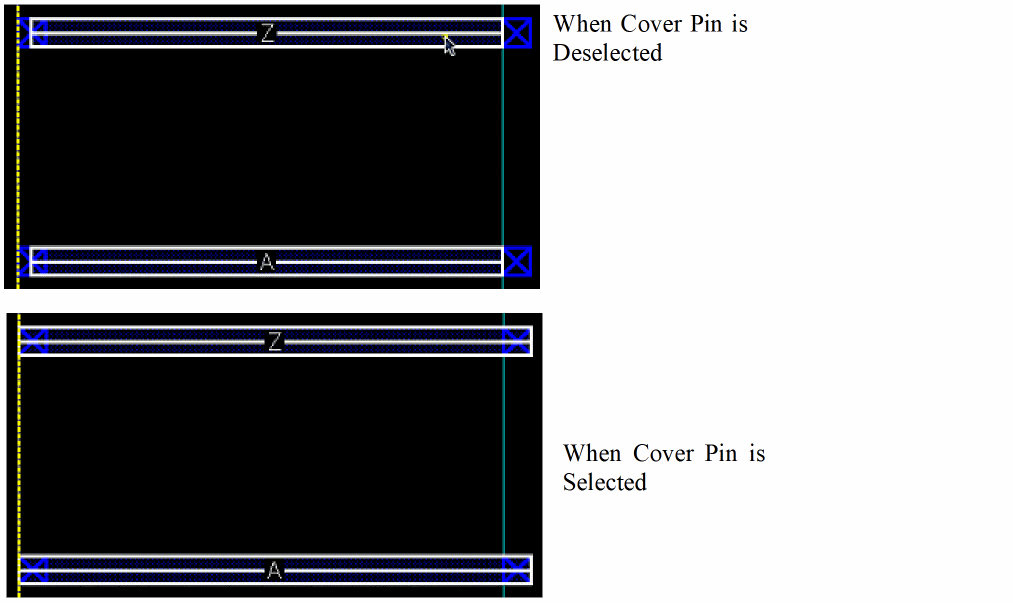
Auto terminate

Finishes the interactive routing command as soon as a point is digitized on a flightline target object (pin, existing wire, or via). All wires snap to the target pin.

Allow loops

Permits creation of loops when creating or editing wires. The option is off by default. When off, the Create Wire command does not allow the creation of loops on the same layer. When the layer is changed while wire creation, loop checking is reset and applies only to the new layer.

Environment variable: allowLoops

Auto merge wires

Automatically merges the connected paths and collinear pathsegs while creating or stretching a wire. The check box is selected by default. To prevent automatic merging of collinear (symbolic or geometric) wires, disable the Auto Merge Wires option.

Environment variable: weAutoMergeWires

Via

Adjust edited via params

Enables the re-calculation of via alignment of the vias if you stretch the wires connected to them. This check box is not selected by default.

Environment variable: adjustEditedViasParams

Override variants

Lets you specify a custom via alignment option that overrides the automatic alignment.

Cut Enclosure Minimum

Specifies the via cuts as minimum number of cuts for creating and editing wires. If the override value is less than either the technology rule or the current constraint group on the net or on the design, then the specified value is reset to the minimum value.

Cut Spacing

Lets you select the spacing for the number of cuts that can be added to a via. You can either select the minimum spacing between the via cuts or evenly distribute the via cuts.

Calculation Mode

Sets the calculation mode for via parameters to one of the following:

  • Min Rules & ViaDef : For all the via parameter fields, such as the number of cut rows and columns, and cut sizes, the minimum rule or the viaDef default values, whichever is greater, are used. If minimum rules are not defined, viaDef defaults are used. The spacing and enclosure values are calculated automatically from the minimum rules. The minimum rules are picked from the constraint group that you select from the Via list in the Create Via section. The calculated values for the spacing and enclosure fields are never less than the viaDef defaults. For example, if the minExtensionDistance rule is 0.05 and the default enclosure in viaDef is 0.1, 0.1 is used as the enclosure value in the Create Via form. Similarly, if the minSpacing rule is 0.2 and the default cut spacing in viaDef is 0.18, 0.2 is used as the cut spacing X and Y in the Create Via form.
  • Minimum Rules : For all the via parameter fields, only the minimum rules, such as minWidth and minSpacing, are used. For example, if the minExtensionDistance rule is 0.05 and the default enclosure in viaDef is 0.1, 0.05 is used as the enclosure value in the Create Via form. The viaDef default enclosure value is ignored.
  • ViaDef Defaults : For all the via parameter fields, viaDef defaults are used. When ViaDef Defaults option is selected, the via engine does not check any rules.

Via Alignment

Lets you align vias as they are digitized during wire or bus creation. You can choose to align a via either automatically or by selecting a custom alignment option. Vias are aligned between the edges of via enclosure shapes and the edges of the connecting wires on the same layer. For example, for a Metal1 to Metal2 via, the via location is adjusted in a way that the Metal1 wire edge is aligned with the Metal1 via enclosure and the Metal2 wire edge is aligned with the Metal2 via enclosure. The alignment offsets the via origin to maintain it at the intersection of the wire end points. If you are adding and aligning a via stack, the same via alignment is applied to all the vias in the stack.

You can also access the via alignment options from the Create Stranded Wire Form.

Environment variable: autoViaAlignment

Orthogonal Transitions

Controls alignment behavior for orthogonal transitions.

  • In and out layers: Aligns to the edges of both incoming and outgoing layers. This is the default option.
  • In layer only: aligns to the edge of the incoming layer only.
  • Out layer only: aligns to the edge of the outgoing layer only.
  • None: if selected no alignment is done for a via.

Environment variable: autoViaAlignmentOrthoTransitionBehavior

Collinear Transitions

For colinear transitions controls alignment behavior for colinear transitions.

  • In and out layers: Aligns to the edges of both incoming and outgoing layers. This is the default option.
  • None: If selected no alignment is done for a via.

Environment variable: autoViaAlignmentColinearTransitionBehavior

Halo

Select a scope for creating a halo.

  • End to Side EOL Spacing: Shows the end-to-side halo spacing for the minEndOfLineSpacing constraint.
  • End to End EOL Spacing: Shows the end-to-end halo spacing for the minEndOfLineSpacing constraint.
  • Both EOL Spacing: Shows both end-to-side and end-to-end halo spacing for the minEndOfLineSpacing constraint.

Environment variable: weHaloEOLSpacing

  • Min Same & Diff Maskcolor shows the minimum diffMask or the sameMask spacing for the minEndOfLineSpacing constraint.
  • Max Same and Diff Maskcolor shows the maximum diffMask or the sameMask spacing for the minEndOfLineSpacing constraint.
  • Both Maskcolors shows the minimum (diffMask, sameMask) spacing and the maximum (diffMask, sameMask) spacing of the available minEndOfLineSpacing constraint.

Environment variable: weHalo

Dashed

Creates a dashed halo around a wire, bus, or stranded wire while creating or editing an object that violates a spacing constraint. By default, this option is deselected.

Environment variable: weHaloDashStyle

True Color

Creates a halo in the color of that layer for each layer. By default, this option is deselected.

Environment variable: weHaloTrueColor

Display

Orthogonal WSP grid

Enables the display of grid end points to which the pathSeg is extended to while creating a wire, bus, and stretch.

Dynamic WSP

Enables the dynamic display of tracks, snapPatterns, and width spacing patterns.

Snap Pattern

Enables snap pattern snapping.

Environment variable: snapPatternSnapping

Path Display

Determines whether you see path borders and centerlines, path borders only, or path centerlines only.

Trim Shape

Trim Purpose

Specifies the purpose on which the trim shape should be inserted. If no value is specified for the purpose or if the purpose is invalid, the trim shape is inserted on the default purpose. The default purpose is drawing.

Environment variable: weTrimTrimPurpose

Bridge Purpose

Specifies the purpose on which the bridge should be inserted. If no value is specified for the purpose, the bridge is not inserted. However, if the specified purpose is invalid, the bridge is inserted on the default purpose. The default purpose is drawing.

Environment variable: weTrimBridgePurpose

Patch Purpose

Specifies the purpose on which the patch segment should be inserted. If no value is specified for the purpose or if the specified purpose is invalid, the patch segment is inserted on the default purpose. The default purpose is inherited from the wire or via purpose that extends up to the trim shape.

Environment variable: weTrimPatchPurpose

Wire

The following table describes the fields available on the Wire tab of the Routing assistant for routing in interactive mode.

Field Description

Constraint Group

Specifies the name of the constraint group that contains the foundry constraints.

Nets

The net name for the current wire.

Width

Width Mode

Sets the width mode to one of the following:

  • Same for all layers: Specifies to use the same wire width for all layers. The width value is determined by the value specified in the Width field of the Create Wire form. The constraint overrides for all layers are available in the Wire Assistant table.
  • Overrides by layer: Sets the wire width the same as the result of the constraint lookup for minWidth in the technology file when the layer is not used. Else, the width is determined by the last width used for the layer. The width value from the Wire Assistant table can also be used for the wires on each layer. You can also use the value specified in the Width field for the wires on each layer.
  • Default Constraints: Sets the wire width same as the result of the constraint lookup for minWidth in the technology file or in any applicable constraint group defined at the design or object level.
  • Source Objects: This is the default option. The source object can be pins or wires. It is specified to use the maximum width determined by the width of the tapped object. Selecting the Source Objects option for the first segment of a wire ensures that Tap Wires Width or Tap Pins Width is selected, depending on the source object. You can also select Source Objects even if the first segments of the wires does not have the source object width. In such a case, the Tap Wires Width and Tap Pins Width option does not change.
  • Target Object Narrow: This option matches the last segment wire width to the length of the shortest edge of the target pin. The width of the remaining wire is unaffected.
  • Target Object Wide: This option matches the last segment wire width to the length of the longest edge of the target pin. The width of the remaining wire is unaffected.

Width

Displays the width of the current wire. You can override this value.

Automatic Insertion

Via on WSP Crossing

Enables automatic insertion of via while crossing a WSP on a layer above or below.

Trim

Controls the interactive and post-edit insertion of trim shapes in interactive routing.

Via

DRC Fix

Lets you create DRC clean vias for wires.

minNumCuts

Specifies the minimum number of cuts that can be added to a via. You can override the minNumCut rule value for creating and editing wires. If the override value is less than either the technology rule or the current constraint group on the net or on the design, then the value is reset to the minimum value.

Row/col

Specifies the via cuts as the number of rows or the number of columns. By doing this, you can override the minNumCut rule with a more explicit configuration for creating and editing wires. The increase and decrease in the number of via row and column is dependent on the minimum number of via cuts.

number of via rows * number of via columns >= minimum number of via cuts. 

Maximize cuts

Lets you get a larger cut size depending on the added metal.

Snapping & Tapping

Smart Snapping

Controls how the cursor snaps when you create the wire.

Tap Layer

Taps the routing layer. Layers that can be tapped are determined from the technology file.

Tap Width Enable

Enables width tapping for objects: wire, via, and shapes and pins.

Wire

Taps an object's layers and attributes automatically when digitizing the first coordinate of a wire.

Via

Taps the width on the starting object for new wire when the starting object is a via. The edge of the via determines the width of the started wire.

Shape and pin

Taps a top-level shape, a top-level pin, or a level-1 instance layer and width attributes. The objects type is either a rectangle, a polygon, or a path. All valid routing layers can be tapped.

Snap To

Controls the snapping of wires to a grid.

  • Off Grid segments and vias can be created or moved anywhere without snapping.
  • Manufacturing Grid, snaps the wires to the manufacturing grid. This is the default option.
  • Routing Grid snaps the segments and vias other than the ones directly connecting to the off-grid pins to the routing grid.
  • Track Pattern snaps the segments and vias other than the ones directly connecting to the off-grid pins to track. The track patterns are saved on the design and so each design can have its own set of non-uniform track patterns.
  • Snap Pattern enables snapping of wires to the nearest snap pattern track.

Pin center

Snaps wires to the center of rectangular pins or of pins that are created as polygons and have rectangular shapes. If this check box is selected, wires snap to the starting and ending pins. The Pin Center check box is deselected by default.

Via center

Snaps wires to the center of vias. If this check box is selected and you click a via, the starting wire starts from the clicked point and two small segments are added to connect to the via origin. With this check box selected, tapping a via and a wire gives preference to the via. This check box is deselected by default.

Halo

Controls the display of halos in the layout canvas in order to make it easier to view them in the design.

Show hints

Controls the display of the Interactive Routing Bindkey hint box in Layout EXL when you start the Create Wire, Create Bus, or Create Stranded Wire commands. In Layout XL, the hint box is displayed only for the Create Stranded Wire command. The Interactive Routing Bindkey hint box describes the useful bindkeys and shortcuts for the interactive routing commands. This option is selected by default.

Alignment Markers

Dynamically displays an alignment arrow and an alignment marker. The arrow points to the closest object on the active flightline. The marker snaps the cursor to the target object edges and center as you move the cursor.

Environment variable: showAlignmentMarkers

Flightline

Controls the display of flightlines during wire creation. You can hide the display of flightlines by setting it to off or display only three flightlines for each bus by setting it to minimum. The default is on.

Bus

The following table describes the fields available on the Bus tab of the Routing assistant for interactive mode routing.

Field Description

Constraint Group

Specifies the name of the constraint group that contains the foundry constraints.

Nets

Lets you specify the net names for creating a bus. You can specify the net names in one of the following ways:

  • By specifying a bundle name, such as netA, netB, netC<1>, netD, where the net names are separated by commas.
  • By using the bus notation, such as net<0:3>. If you specify the net names in bus notation, the notation expands to display individual net names, such as net<0>, net<1>, net<2>, net<3>, in the Net Name field when you move the cursor to another field in the form. The number in the Number of Bits cyclic field updates based on the number of nets specified in the Net Name field. For example, the Number of Bits cyclic field updates to 4 for the bus notation net<0:3>.
  • By specifying a bus base name, such as netA or myBus, and additionally setting up the bus cardinality in the Number of Bits cyclic field. The bus base name expands to display individual net names in the Net Name field only after you start creating the bus. For example, if you start creating a bus by specifying the bus base name as netA and setting the Number of Bits cyclic field to 10, the bus creation begins with 10 wires that are assigned to the netA<0>, netA<1>, netA<2>, ... , netA<10> nets.

New nets are created if the ones specified do not already exist. If you start creating a bus from existing pins, the net names are automatically picked from the net of the pins. If you create the bus in free space without specifying any net names, the bus created is not assigned to any net and therefore, does not have any connectivity.

Environment variable: netName

Width

Number of Bits

Specifies the number of wires in an unassigned bus. The default value is 2.

  • In the Nets field, if you specify net names as a bundle name or by using the bus notation, the value in the Number of bits cyclic field automatically updates to match the number of nets specified. If net names are specified in the Nets field and you manually update the value in the Number of bits cyclic field, the net names specified in the Nets field are removed.
  • In the Nets field, if you specify the net names by using the bus base name, you can set up the cardinality of the bus by using the Number of bits cyclic field. The bus base name expands to display individual net names in the Net Name field only after you start creating the bus. If you update the Number of bits cyclic field after starting bus creation, the net names are removed from the Net Name field.
  • If you change the number of bits from the default value, which is 2, to any other value, and then specify the net name, the number of bits does not get reset to default value 2. The last changed value is retained in the Number of bits cyclic field.

Environment variable: weBusNumBits

Width Mode

Sets the width mode to one of the following:

  • Same for all layers: Specifies to use the same wire width for all layers. The width value is determined by the value specified in the Width field of the Create Wire form. The constraint overrides for all layers are available in the Wire Assistant table.
  • Overrides by layer: Sets the wire width the same as the result of the constraint lookup for minWidth in the technology file when the layer is not used. Else, the width is determined by the last width used for the layer. The width value from the Wire Assistant table can also be used for the wires on each layer. You can also use the value specified in the Width field for the wires on each layer.
  • Default Constraints: Sets the wire width same as the result of the constraint lookup for minWidth in the technology file or in any applicable constraint group defined at the design or object level.
  • Source Objects: This is the default option. The source object can be pins or wires. It is specified to use the maximum width determined by the width of the tapped object. Selecting the Source Objects option for the first segment of a wire ensures that Tap Wires Width or Tap Pins Width is selected, depending on the source object. You can also select Source Objects even if the first segments of the wires does not have the source object width. In such a case, the Tap Wires Width and Tap Pins Width option does not change.
  • Target Objects: Sets each bus wire to match the width of the same edge of each respective target pin. If the pins are vertically aligned to bus wires, the bus wire widths match the width of the vertical edges of the respective target pins. Similarly, if the pins are horizontally aligned to bus wires, the bus wire widths match the width of the horizontal edges of the respective target pins. The horizontal and vertical edges might correspond to narrow edges for some target pins and wide edges for other target pins. This option cannot be selected and you need to use the Target Pin Narrow Edge or Target Pin Wide Edge options depending on the edge whose width you want. The narrow and wide edges for target pins is only applicable in case of single wire creation.

Automatic Insertion

Via on WSP Crossing

Enables automatic insertion of via while crossing a WSP on a layer above or below.

Trim

Controls the interactive and post-edit insertion of trim shapes in interactive routing.

Via

minNumCuts

Specifies the minimum number of cuts that can be added to a via. You can override the minNumCut rule value for creating and editing wires. If the override value is less than either the technology rule or the current constraint group on the net or on the design, then the value is reset to the minimum value.

Row/col

Specifies the via cuts as the number of rows or the number of columns. By doing this, you can override the minNumCut rule with a more explicit configuration for creating and editing wires. The increase and decrease in the number of via row and column is dependent on the minimum number of via cuts.

number of via rows * number of via columns >= minimum number of via cuts. 

Maximize cuts

Lets you get a larger cut size depending on the added metal.

Snapping & Tapping

Smart Snapping

Controls how the cursor snaps when you create the wire.

Tap Layer

Taps the routing layer. Layers that can be tapped are determined from the technology file.

Tap Width Enable

Enables width tapping for objects: wire, via, and shapes and pins.

Wire

Taps an object's layers and attributes automatically when digitizing the first coordinate of a wire.

Via

Taps the width on the starting object for new wire when the starting object is a via. The edge of the via determines the width of the started wire.

Shape and pin

Taps a top-level shape, a top-level pin, or a level-1 instance layer and width attributes. The objects type is either a rectangle, a polygon, or a path. All valid routing layers can be tapped.

Snap To

Controls the snapping of wires to a grid.

  • Off Grid segments and vias can be created or moved anywhere without snapping.
  • Manufacturing Grid, snaps the wires to the manufacturing grid. This is the default option.
  • Routing Grid snaps the segments and vias other than the ones directly connecting to the off-grid pins to the routing grid.
  • Track Pattern snaps the segments and vias other than the ones directly connecting to the off-grid pins to track. The track patterns are saved on the design and so each design can have its own set of non-uniform track patterns.
  • Snap Pattern enables snapping of wires to the nearest snap pattern track.

Pin center

Snaps wires to the center of rectangular pins or of pins that are created as polygons and have rectangular shapes. If this check box is selected, wires snap to the starting and ending pins. The Pin Center check box is deselected by default.

Via center

Snaps wires to the center of vias. If this check box is selected and you click a via, the starting wire starts from the clicked point and two small segments are added to connect to the via origin. With this check box selected, tapping a via and a wire gives preference to the via. This check box is deselected by default.

Show hints

Controls the display of the Interactive Routing Bindkey hint box in Layout EXL when you start the Create Wire, Create Bus, or Create Stranded Wire commands. In Layout XL, the hint box is displayed only for the Create Stranded Wire command. The Interactive Routing Bindkey hint box describes the useful bindkeys and shortcuts for the interactive routing commands. This option is selected by default.

Alignment Markers

Dynamically displays an alignment arrow and an alignment marker. The arrow points to the closest object on the active flightline. The marker snaps the cursor to the target object edges and center as you move the cursor.

Environment variable: showAlignmentMarkers

Controlled wire only

Displays an alignment arrow and an alignment marker only if the control wire is aligned with its target pin. For more information about control wires, see Using the Control Wire. This checkbox is selected by default.

Environment Variable: weShowCtrlWireAlignMarkerOnly

Flightline

Controls the display of flightlines during wire creation. You can hide the display of flightlines by setting it to off or display only three flightlines for each bus by setting it to minimum. The default is on.

CopyRoute

The following table describes the fields available on the CopyRoute tab of the Routing assistant for routing in interactive mode.

Field Description

Mode

Describes the selected reference wire state. The target wires can have the following modes.

  • No ref wire: the reference wire is not yet selected.
  • Connected to Pins: the reference wire is either pin-to-space or pin-to-pin. You can switch to In Space mode and the result would be generated from space-to-space.
  • In Space: the reference wire is space-to-space.

Number of Copies

Defines the number of copies to be created when the first and last transitions of route copies are not connected to pins.

Environment variable: copyRouteNumCopiesInSpace

Copies Allow without matching pins

Selects and creates copies of the unpaired net pin.

Environment variable: copyRouteAllowCopiesWithoutMatchingPins

Copies Remove last transition

Removes the last dangling section of copy route.

Environment variable: copyRouteTrimmingFixer

Width

Lets you specify the width settings for the routes being copied.

Intermediate Sections

Defines the copy width mode for intermediate sections. Intermediate sections are the sections which are not connected to pins.

  • Same as reference: the copy width is exactly the same as the reference width. This is the default option.
  • From tech: uses minWidth value that is defined in the technology file.
  • From user: uses the value defined for copyRouteWidthOverrideAllLayers.
  • Same as pin: uses the pin width if the wire is starting from a pin.

Environment variable: copyRouteWidthMode

User

Specifies the width override value to be used for intermediate sections that are not connected to pins. This field is enabled only when the From user option is selected form the Intermediate Sections drop-down list.

Environment variable: copyRouteWidthOverrideAllLayers

Enable

Specifies whether the widths of the first and last sections are independent of the intermediate sections width. When this option is not selected, the widths of the first and last sections is set to the width of the intermediate sections.

Environment variable: copyRouteEnableWidthAtEnds

First/last Sections

Specifies the width of the connected pin sections.

  • Ref only: the width of the copies is exactly the same as the reference width. This is the default option.
  • Ref or pin: if the reference wire matches the pin width, then copies also match that pin width. Else the reference width is considered.
  • Tech only: the copies use the minWidth value that is defined in the technology file.
  • Tech or pin: if the reference wire matches the pin width, then copies also match that pin width. Else the minWidth defined in the technology file is considered.
  • User only: the copies use the value defined for copyRouteWidthOverrideAllLayersAtEnds.
  • User or pin: if the reference wire matches the pin width, then copies also match that pin width. Else, the copies use the value defined for copyRouteWidthOverrideAllLayersAtEnds.
  • Same as pin: the copies use the same width value as that of the pin.
  • Environment variable: copyRouteWidthModeAtEnds

User

Specifies the width value of the first and last sections. This field is enabled only when the User only option is selected from the First/last Sections drop-down list.

Environment variable: copyRouteWidthOverrideAllLayersAtEnds

Spacing

Lets you specify the spacing settings for the routes being copied.

Intermediate Sections

Defines the copy spacing mode for the intermediate sections.

  • From tech: uses minSpacing value defined in technology file. This is the default option.
  • From user: uses the value specified for copyRouteSpacingOverrideAllLayers.
  • From pins: follows the pin spacing for copy route.

Environment variable: copyRouteSpacingMode

User

Defines the spacing override value to be used for intermediate sections that are not connected to pins. This field is enabled only when the From user option is selected form the Intermediate Sections drop-down list.

Environment variable: copyRouteSpacingOverrideAllLayers

Enable

Enables spacing at the first and last sections.

Environment variable: copyRouteEnableSpacingAtEnds

First/last Sections

Specifies the spacing at the first and last sections that are not connected to pins.

  • From tech: uses minSpacing value defined in technology file. This is the default option.
  • From user: uses the value specified for copyRouteSpacingOverrideAllLayersAtEnds.

Environment variable: copyRouteSpacingModeAtEnds

User

Specifies the spacing value to be used at the first and last sections. This field is enabled only when the From user option is selected from the First/last Sections drop-down list.

Environment variable: copyRouteSpacingOverrideAllLayersAtEnds

Vias

Lets you specify the via settings for copy routes.

Preserve cut classes

Generates copies with the same cutClass as that of the reference wire.

Environment variable: copyRoutePreserveCutClasses

Ellipses button

Displays the Select Via Options form. This button is enabled only when the Preserve cut classes option is deselected.

Layers

Lets you specify the layer settings for copy routes.

Intermediate Sections

Specifies the layer mode for copy route.

  • Same as reference: This is a single layer mode that does not let you select pins whose layer is different from the reference pin. This is the default option.
  • Based on pins: Similar to Follow Reference Layer Pattern Except Pins, but the intermediate section layer is adjusted based on the pin layer difference.
  • Based on pattern: specifies the user-defined pattern.

Environment variable: copyRouteLayersMode

Pattern

Specifies the layer pattern to be followed for copy route. The layer pattern is a list of integers.

Environment variable: copyRouteLayerPattern

Preview

Lets you specify the preview settings for copy routes.

Show preview

Displays the preview of the copy route result.

Environment variable: copyRoutePreviewMode

Effort

You can select the effort as Low or High for the displayed preview.

  • Low: Displays a preview. The preview computation is faster than High but less accurate.
  • High: Displays a preview. The preview computation is more accurate than Low but slower.

Environment variable: copyRoutePreviewMode

Clear preview when cmd cancelled

Automatically clears the route preview when the copy route command is canceled.

Environment variable: copyRouteClearPreviewWhenEsc

Copies

Lets you specify the grouping options for copy routes.

In group

Creates the route copies in a fig group.

Environment variable: copyRouteCreateFigGroup

With Errors

Selects one of the following options for the copy route results with violations:

  • None: generates the result without any violations. The copy route is stopped as soon as there is a single violation.
  • All: generates the result no matter how many violations are present. This is the default option.
  • First Only: generates the result with any violation. The copy route is stopped as soon as there is a violation, but the first copy route with violations is kept.

Environment variable: copyRouteGenerateCopyWithErrors

Annotate Copies

Lets you specify the annotation settings for copy routes.

Out of layer range

Annotates layers that are outside the top and bottom layer range.

Top

Specifies the top layer for copy route.

Environment variable: copyRouteTopLayer

Bottom

Specifies the bottom layer for copy route.

Environment variable: copyRouteBottomLayer

Outside routing area

Annotates layers that are outside the user-defined layer-purpose pair area.

Environment variable: copyRouteEnableRoutingChannel

Layer

Lets you select the user-defined routing area layer-purpose pair area.

Environment variable: copyRouteRoutingChannelLPP

Routing Assistant Command Buttons

The following table lists the functions of the different command buttons on the Routing assistant for interactive mode.

Icon Command Description

Create Wire

The Create Wire icon on the Wire tab lets you create pathSegs and vias that are in routes.

SDR Checker Mode: Enforce

Estimates the current or resistance in the edited wire and vias according to the EAD settings (dataset, temperature, and current scaling) and automatically calculates the wire width and via cuts to avoid EM violations.

Automatically Connect Twigs

Toggles the twig modes between ON and OFF.

Create Bus

The Create Bus icon on the Bus tab lets you create a bus. All wires of the bus, referred to as bus bits, are created on the same layer.

Start Copy Route

Starts the copy route command.

Copy

Runs the copy route command. It is similar to pressing the Enter key.

Clear preview

Clears the preview of the copied routes.

Related Topics

Copy Route Form

Setting Copy Route Options

Copy Route Command

Copying Pin-to-Pin Routes

Variables to Customize the Settings for Copy Route


Return to top
 ⠀
X