
4
Modifying Simulation Information
Overview
Before you can simulate a component, you must enter information required by each of the simulators you intend to use. The Simulation Information tab in the Edit CDF form lists the simulators associated with a CDF description. Use this tab to enter detailed information for each simulator.
Simulation Information Tab
Unlike the parameter attributes that you enter in the Component Parameter tab, the information you enter into the Simulation Information tab is a set of directions, parameters, and terminal names used by the simulator when it simulates the cell.
Like other CDF information, you can specify CDF simulation information at the Base, User, and Effective levels. For details on these CDF levels, see “Levels of CDF Data”.
Each simulator requires a unique set of information. Not every field described in this tab appears for each simulator. Only those fields that are appropriate for the simulator you select are displayed. You can modify each of the fields in this tab.
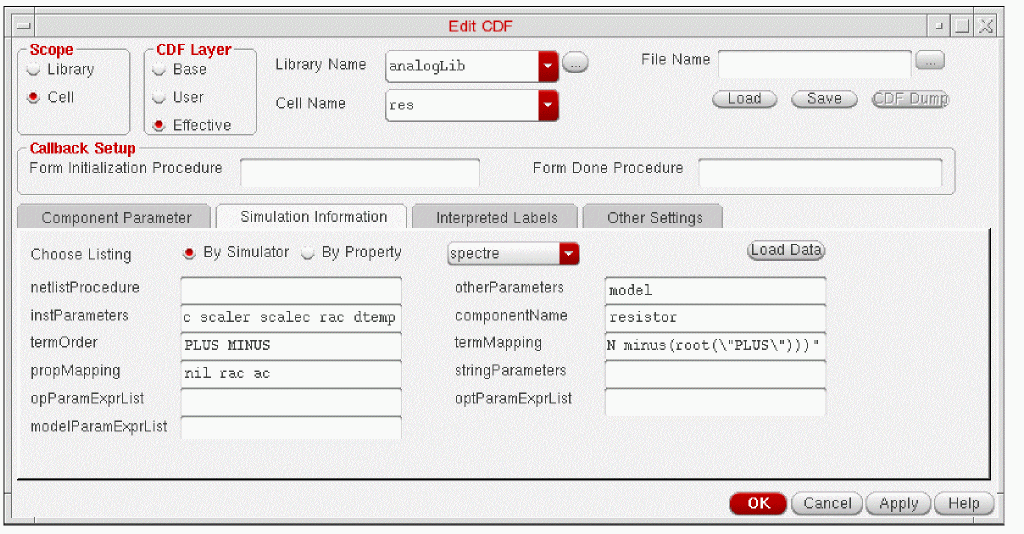
- By Simulator is a cyclic field that lets you select the simulator whose attributes you want to modify. When you select a new value, the form redisplays to show attributes for that simulator. After you change the attributes of one simulator, click Apply before you change the attributes of another simulator.
- By Property is a cyclic field that lets you select the attribute whose values you to modify for various simulators. When you select a new value, the form redisplays to show the value of that attribute for all simulators. After you change the value of the attribute, click Apply before you change the value of another attribute.
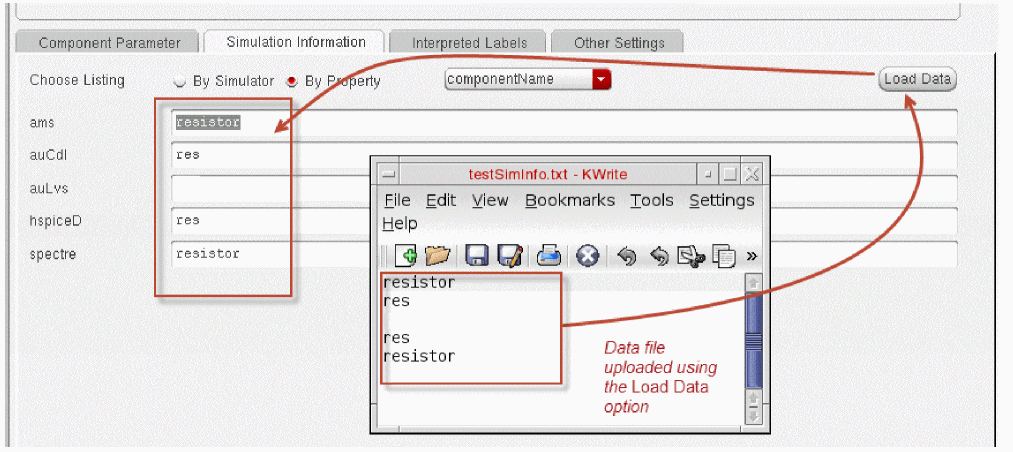
The Load Data button lets you load simulation information in the fields from a simple text file. Use this feature to load large strings and values maintained in a file.
- Choose the preferred listing. See Choose Listing .
- Ensure that the text file contains data in the correct order and sequence. The file must contain the values in the sequence in which the parameters appear in the form. If you want to leave a parameter value blank, add a blank line in the correct sequence.
- Click Load Data. The Choose a File form appears.
- Select the file from the Choose a File form, and click Open.
The data gets loaded in the fields, as illustrated in the following figure. It is possible to edit the values in the fields.
<your_install_dir>/tools/dfII/etc/context. You can also define your own procedures.
For the spectre interface, the netlister chooses a default netlist procedure if none is specified.
The netlist procedures for spectre that are supplied by Cadence start with spectre.
enumParameters are parameters of SPICE and Spectre primitives, where the values of the parameters are enumerations. The parameter names must be names recognized by the targeted simulator.
referenceParameters are parameters that have instance names as their values. The parameter names must be names recognized by the targeted simulator.
stringParameters are parameters that are treated as strings when they are written to the netlist. The parameter names must be names recognized by the targeted simulator.
arrayParameters are parameters that must be written to the netlist as arrays. The parameter names must be names recognized by the targeted simulator.
extraTerminals contains information for writing inherited connection terminals on instances. This information is used when the simulator view of an instance contains more terminals than are present on the symbol view.
otherParameters for spectre are parameters not defined in instParameters. These parameters are processed in a special way by the netlist procedure.
Typical values are macro, model, and bn. (The parameter names you list must reflect the property mapping you specify in the propMapping field.) If you use a tool filter, parameters that are not used by the tool are not displayed. Any field you specify in otherParameters, however, is displayed regardless of the tool filter (with the artParameterInToolDisplay function).
instParameters a list of simulator names of parameters that you want to include with this device in the netlist. (The parameter names you list must reflect the property mapping you specify in the propMapping field.)
Some simulators require that a property have a different name or different capitalization from the parameter name in the parameter definition. For LVS (Layout Versus Schematic), this depends on the parameter names used in the LVS rules in your technology file. For example, the capacitor parameter might be c, and the LVS rules can refer to the property C. You can set the propMapping field to map the value of c to C so that the parameters listed with each instance are C.
componentName is the type of component you are creating, such as BJT, JFET, and MOSFET.
For the spectre interface, if the "model" parameter ("Model Name") has a value, that value is used as the name of the model in the netlist. Otherwise, the value of this entry is used as the name of the model. If neither the model parameter nor the componentName entry has a value, the name of the cell is used as the name of the model.
When you are using auLVS and auCDL, component names can be anything. For other simulators, you must use lowercase component names similar to those used in analogLib. This is critical for SPICE types of netlists.
termOrder is a list of terminals that define the net order for your component. The nets are considered those nets connecting the terminals in the order given in this list.
You can also use programmable nodes to define the net order. The use of programmable nodes is discouraged in releases 4.4.3 and later. Instead, use inherited connections. You can use the conversion tools to convert your designs. Programmable nodes are not supported by spectre.
To do this, you need to define a bulk node property (usually bn). The following entry is an example of termOrder input:
PLUS MINUS progn(bn)
This indicates that the third net, progn, is defined by the bulk node property instead of by a connection to a pin. The property bn must have a default value when using LVS.
cdfId = cdfCreateBaseCellCDF( cellId )
.
.
.
cdfId->simInfo->spectre = ’(nil
    otherParameters (model)
    instParameters (w l as ad ps pd nrd nrs ld ls m trise region)
    termOrder ( a\<0\> a\<1\> )
    termMapping (nil D \:d G \:g S \:s B \:b )
    )
deviceTerminals lets you define the terminal names to be listed in the device definition line. If you leave this field blank, the terminals listed use the same names as those in the termOrder field. Used by auLVS only.
The entries in this field are usually different from those in the termOrder field when you have a programmable node (the bulk node). For example, if you used progn(bn) in the termOrder field for the three-terminal capacitor, you might see the following entry in deviceTerminals:
PLUS MINUS BULK
termMapping
is used when the simulator has different names for the component terminals than the cell schematic. It is set up as a disembodied property list. Therefore, the first entry in the list is nil. This is followed by a set of name-value pairs, where the first name is the terminal name on the symbol and the second name is its corresponding terminal name used by the simulator for the device.
For example, in the nbsim cell in analogLib, the terminals names D, G, and S are specified in uppercase. Although uppercase terminal names are appropriate for SPICE, the Spectre simulator expects the terminal names d, g, and s in lowercase. Therefore, in the SKILL version, to map between the two sets of terminal names for the Spectre simulator, you can enter the following code in the simInfo field:
termMapping(nil D \:d G \:g S \:s B \:b)
This is important when you use backannotation because the simulator saves the results under the terminal name that it recognizes.
propMapping
lets you enter
You specify an entry in the propMapping field in the following format:
nilsimParamName1CDFparamName1simParamName2CDFparamName2...
This format represents a disembodied property list, so the first element is always nil.
The LVS propMapping list is nil C c. The CDF parameter name is c, but under the LVS rules, it must be C. In another simulator, the same CDF parameter value might be referred to as F. In this case, the propMapping list for this simulator is nil F c. A third simulator might refer to this value as cap, making its propMapping list nil cap c.
modelName
permuteRule , used only in auLVS, lets you indicate the permutability of the pins, that is, whether pins can be swapped or if they must be fixed. For example, the capacitor in the propMapping definition shows that the PLUS and MINUS terminals are permutable.
namePrefix
lets you enter a
You can also use a function or expression to evaluate the prefix. Ensure that the function or expression returns a string value.
-
To use a function to evaluate the prefix, specify the prefix as:
FUNCTION myFunction
wheremyFunctionis the name of the function that returns the prefix value. The function must be defined in your.cdsinitor.cdsenvfile. -
To use an expression to evaluate the prefix, specify the prefix as:
FUNCTION myExpression
wheremyExpressionis any expression that returns a prefix value. For example, specify the following expression to use the value of themyPrefixproperty on an instance as the prefix:FUNCTION cdfGetInstCDF(hnlCurrentInst)->myPrefix->value
current lets you save the simulation and definition of the current plot set. This is not used by the spectre interface. The only choices for this field are port or nil. If you do not specify a choice, no currents are saved. You can choose to save or plot the current for the port of a device or through a component. For SPICE-based simulators, you cannot save currents on specific ports. Currents can be saved only on the component (for example, resistors). The Spectre simulator lets you save currents on specific ports. For devices (for example, an npn transistor), you probably want to save currents on a port.
Typically, only the positive port current of a component current is written to the simulation PSF file, and the Cadence Analog Design Environment software calculates the negative port by taking the negative of the positive port. To use this feature to extract component currents, you must set the termMapping field as follows:
termMapping =
    (nil PLUS \:p MINUS "(FUNCTION minus(root(\"PLUS\")))")
modelParameters
opParamExprList lets you specify DC operating point information.
optParamExprList lets you specify transient operating point information.
modelParamExprList lets you specify model parameters.
Simulator Options
The following table lists five simulators and the options that apply to them.
| Option | spectre | auLVS | ams | auCdl | hspiceD |
|---|---|---|---|---|---|
Editing Simulator Options
Setting simulator options can be a lengthy process. You should copy CDF simulator information from other components and libraries whenever possible. This section describes editing simulator options with the Edit CDF form and with SKILL functions.
Using the Edit CDF Form
Use the following procedure to set simulator options with the Edit CDF form:
- Click the Simulation Information tab in the Edit CDF form.
-
Do one of the following:
-
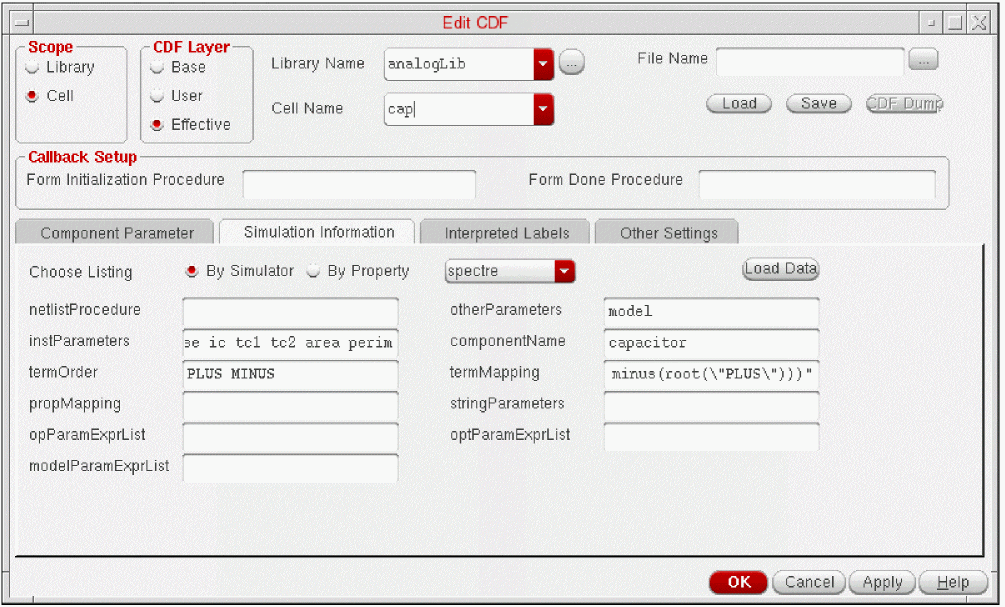
To specify the settings for a simulator, select the By Simulator radio button and choose the simulator in the Choose Listing cyclic field. Add or modify the simulator settings as needed.
-
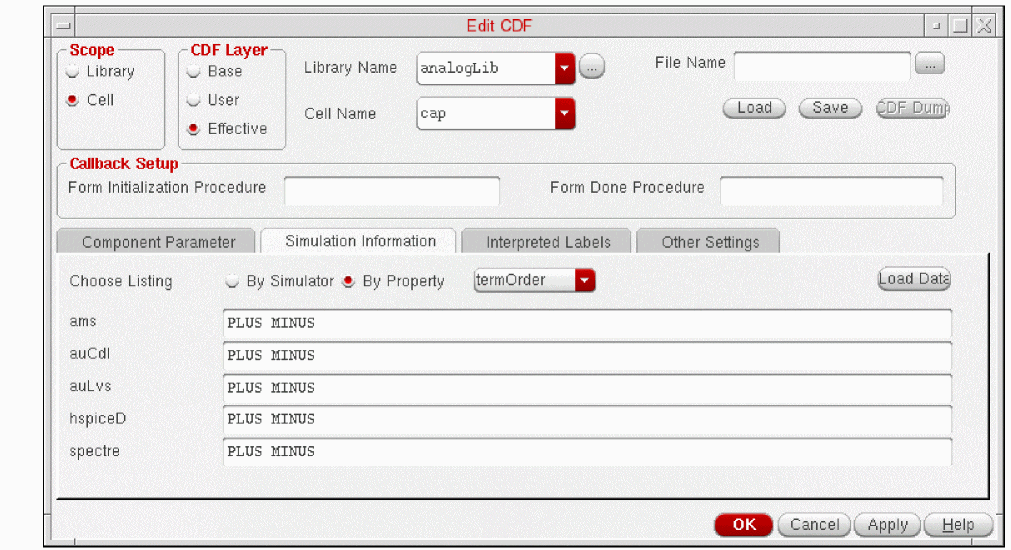
To specify the settings for a property, select the By Property radio button and choose the property in the Choose Listing cyclic field. Add or modify the settings for the property for each simulator as needed.
-
To specify the settings for a simulator, select the By Simulator radio button and choose the simulator in the Choose Listing cyclic field. Add or modify the simulator settings as needed.
- Click Apply.
- Click the Component Parameter tab to check that all simulator parameters are defined.
queryCDFtermOrder to nil. This will ensure that the CDF is automatically updated without checking for confirmation. You can undo the automatic update by setting this variable back to its default value, t.Using SKILL
You can use the SKILL variable cdfId and the right arrow (->) operator to specify simulator options. Enter the options for each simulator as elements of a disembodied property list.
For details, see CDF SKILL Summary in Virtuoso ADE L SKILL Reference.
The following SKILL expression sets the options for the Spectre (spectre) simulator:
cdfId = cdfCreateBaseCellCDF( cellId )
.
.
.
cdfId->simInfo->spectre = ’(nil
    otherParameters (model)
    instParameters (w l as ad ps pd nrd nrs ld ls m trise region)
    termOrder ( D G S B )
    termMapping (nil D \:d G \:g S \:s B \:b )
    )
The following SKILL expression sets the options for the Analog LVS (auLvs) simulator, given a definition for cellId:
cdfId = cdfCreateBaseCellCDF( cellId )
.
.
.
cdfId->simInfo->auLvs = ’(nil
    netlistProcedure ansLvsCompPrim
    instParameters (m l v)
    componentName n0bsim
    termOrder (D G S progn(bn))
    deviceTerminals (D G S B)
    propMapping (nil L l W w)
    permuteRule "(p D S)"
    namePrefix "Q")
The following SKILL expression sets the options for the Spectre simulator:
cdfId = cdfCreateBaseCellCDF( cellId )
.
.
.
cdfId->simInfo->spectre = ’(nil
    netlistProcedure ansSpectreDevPrim
    otherParameters (bn model)
    instParameters (w l as ad ps pd nrd nrs ld ls m trise)
    componentName bsim1
    namePrefix "S"
    current port)
The following SKILL expression sets the options for the Cadence SPICE (cdsSpice) simulator:
cdfId = cdfCreateBaseCellCDF( cellId )
.
.
.
cdfId->simInfo->cdsSpice = ’(nil
    netlistProcedure ansSpiceDevPrim
    otherParameters (model bn)
    instParameters (m w l ad as pd ps nrd
        nrs ld ls off vds vgs vbs)
    componentName bsim
    termOrder (D G S progn(bn))
    propmapping (nil vds Vds vgs Vgs vbs Vbs)
    namePrefix "S"
    current port)
Complex Pole Example
In this portion of the complex pole example, you use the Simulation Information tab to look at the simulation information provided with the complexPole1 component.
-
Click the Simulation Information tab on the Edit CDF form.
This tab shows the simulator-specific data. - Select the By Simulator radio button and choose a simulator in the Choose Listing cyclic field. See the details for each simulator.
-
In the Choose Listing cyclic field, select spectre.
The form displays all of the fields applicable to spectre. However, not all fields are required by different netlist procedures.
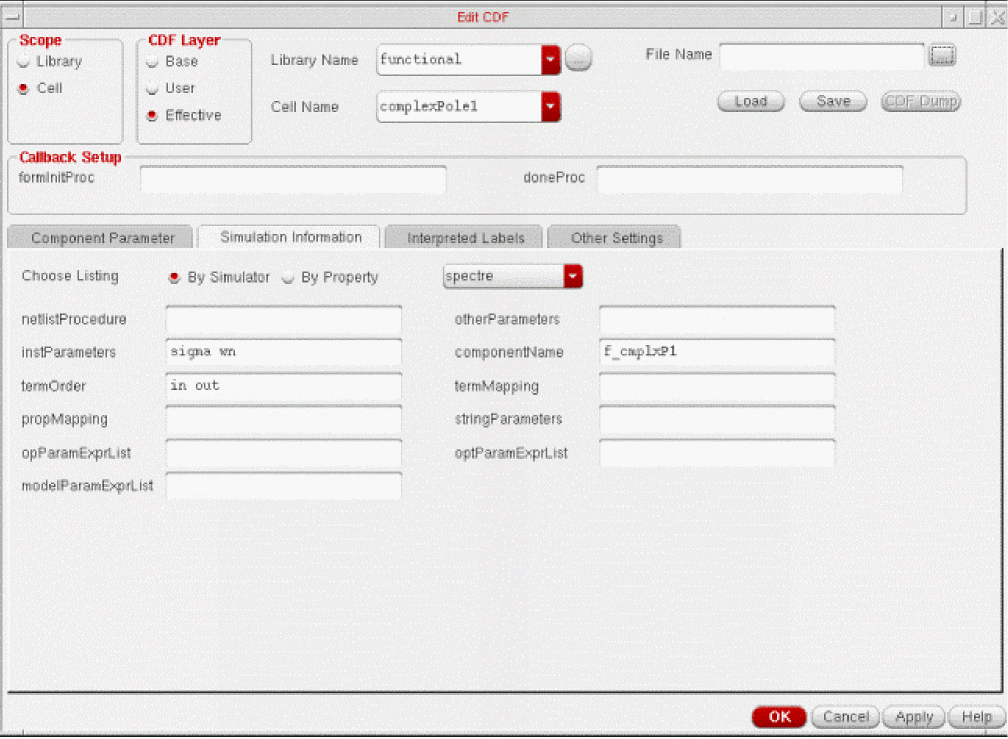
For spectre, complexPole1 requires no netlist procedure.
The other important fields are termOrder and instParameters. The termOrder field is an ordered list of the terminals as named on the symbol. The netlister uses this list. The order is important, especially if the component is defined by a subcircuit: the order in termOrder maps to the node numbers specified in the first line of the subcircuit.
Because complexPole1 uses a macro model (subcircuit definition) to define its operation, the CDF parameter model must have a value in the Component Parameters section for spectre. If you are using a schematic to describe the component, the model information is unnecessary.
For the spectre interface, the instParameters field determines the names of the parameters of all types of components, primitives, subcircuits, model cards, and Verilog-A modules. The subcircuit definition for f_cmplxP1 is
subckt f_cmplxP1 (1 2)
parameters sigma wn
E1 3 0 1 0 1E-6 (??)
R1 (4 5) resistor r=1
L1 (3 4) inductor l=(1/(-2*sigma))
C1 (5 0) capacitor c=(-2*(sigma))/((wn*wn)+(sigma*sigma))
ends
This model, and others used by the functional block library, are in the following file:
your_install_dir/tools/dfII/etc/cdslib/artist/spectre/functional.scs
The order of parameters is particularly important in the case of macro models. The first parameter in the list is assigned to the variable &2 in the subcircuit description, the second to &3, and so forth. In this example, complexPole1 is defined by a macro model and the parameters sigma and wn on the symbol instance are passed to the model file f_cmplxP1 as &2 and &3.
The model file (f_cmplxP1) for the complex pole is
.SUBCKT &1 1 2
E1 3 0 1 0 1E-6
R1 4 5 1
L1 3 4 (1/(-2*(&2)))
C1 5 0 (-2*((&2)))/(((&3)*(&3))+((&2)*(&2)))
.ENDS &1
This model, and others used by the functional block library, are in the following directory:
your_install_dir/tools/dfII/etc/cdslib/artist/cdsSpice/functional
NFET Example
Before proceeding with this example, open the Edit CDF form and set it to edit the nfet cell in the bicmos library. Click the Simulation Information tab.
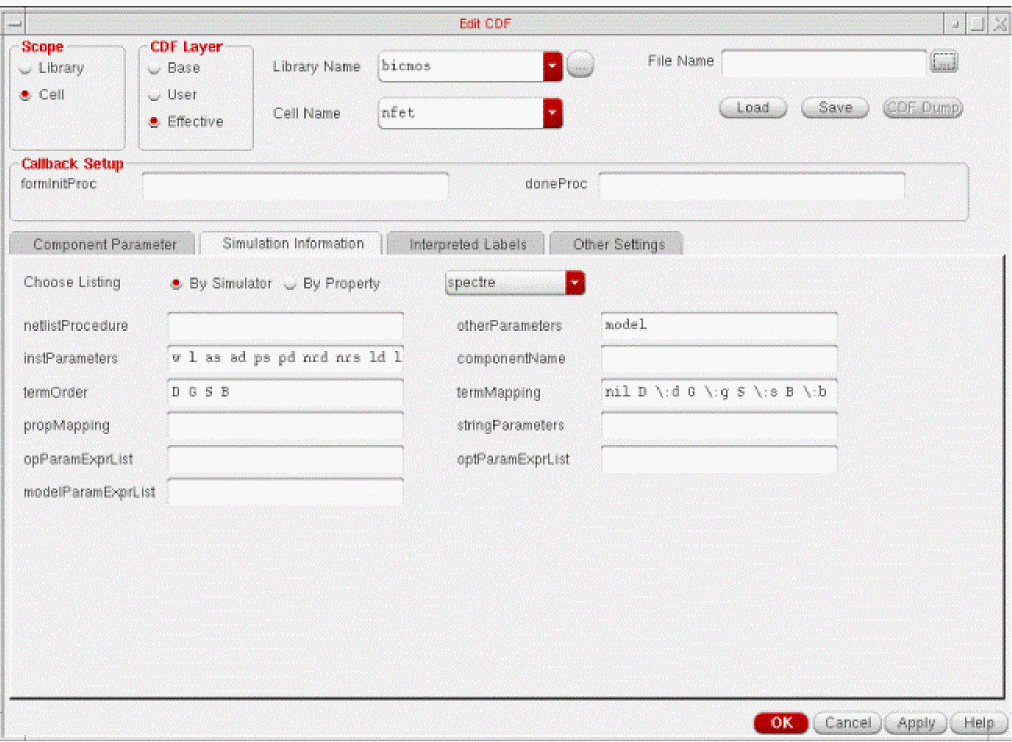
For this NFET example, the next step in CDF development is to select simulator options for the new component. Because you copied the CDF description for the NFET component from analogLib, there are five simulators with their options already defined, including auLvs and spectre.
For the Analog-Microwave LVS (auLvs) simulator, you need to define three parameters in the parameter section of the CDF description, m, l, and w. For the NFET example, these parameters were copied from the analogLib nbsim cell.
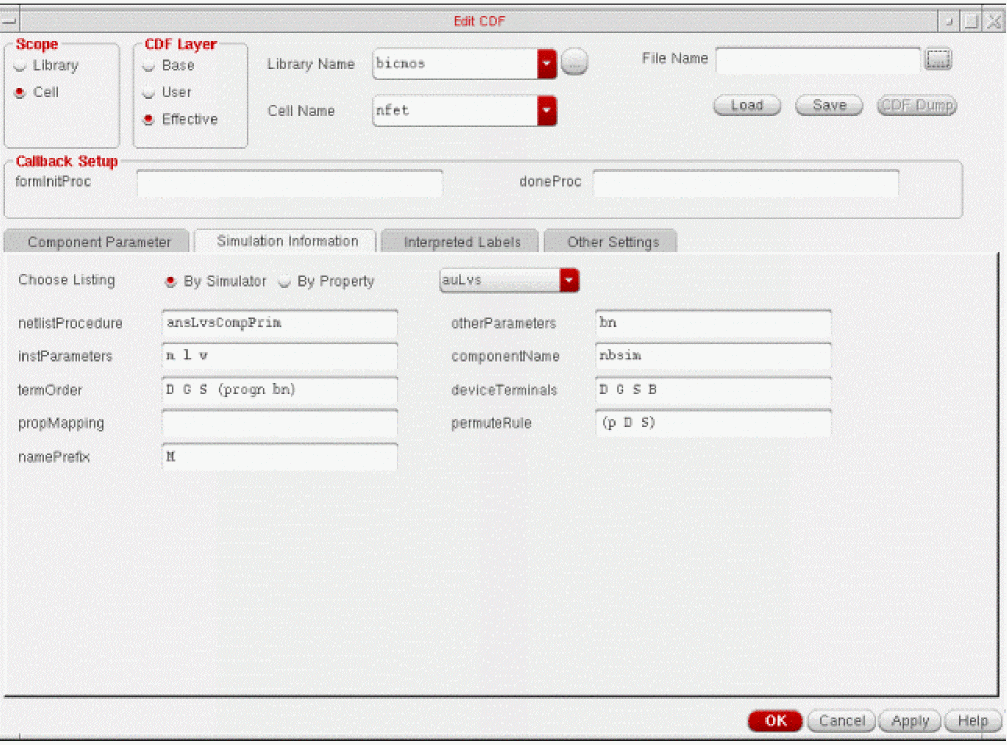
You also need parameters for the spectre interface but these are already defined in the original CDF that was copied. The Spectre simulator does not require property mapping.
Return to top