
1
Customizing Constraint Types Using a Configuration File
The Cadence® Virtuoso® unified custom constraint management system allows you to establish design needs, save them as constraints, and share those constraints across specification, simulation, and implementation to drive the accelerated layout solution with reduced errors. A constraint-driven design preserves the design intent by enabling efficient design collaboration.
The unified custom constraint management system is available in:
- Virtuoso® Schematic Editor XL (Schematics XL)
- Virtuoso® Layout Suite XL (Layout XL)
- Virtuoso® Layout Suite GXL (Layout GXL) (IC6.1.8 Only)
For more information, see the Virtuoso Unified Custom Constraints User Guide.
This configuration guide describes how to customize, configure and extend Cadence® Virtuoso® unified custom constraints (constraints) functionality in the Cadence® IC releases.
This configuration guide is aimed primarily at on-site CAD departments and assumes that you are familiar with:
- The Virtuoso Studio Design Environment and application infrastructure mechanisms designed to support consistent operations between all Cadence® tools.
- The applications used to design and develop integrated circuits in the Virtuoso Studio Design Environment, notably, the Virtuoso® Layout Suite, and Virtuoso® Schematic Editor.
- The Virtuoso Studio Design Environment technology file.
- Component description format (CDF), which lets you create and describe your own components for use with Layout XL.
In addition to config.xml. This file provides complete information about default and custom constraints, including their GUI displays.
The following topics in this chapter discuss the components of a config.xml file and how to use them to customize the system constraint types or create new custom constraint types:
- An Introduction to a Configuration File
- Understanding the XML Tags Used in a Configuration File
- Extending System Constraint Types
- Creating and Overriding Custom Constraint Types
- Creating New Versions of a Constraint Type
- Using Multiple Constraint Configuration Files
- Using Validation and Verification Callbacks
- Best Practices for Custom Constraint Type Definitions
- Adding a New Icon to the Constraint Manager Assistant
- Propagating Constraints to the Checks/Asserts Assistant
- Examples of Using the config.xml File
Licensing Requirements
Licensing Requirements for Virtuoso Unified Custom Constraints
To use the constraint functionality in:
| Virtuoso Tool | License Required |
|
|
For information on licensing in the Virtuoso Studio Design Environment, refer to Virtuoso Software Licensing and Configuration User Guide.
Depending on the advanced nodes feature being used, you will need one of the following licenses, in addition to the base product license:
-
Virtuoso_Adv_Node_Opt_Lay_Std(License Number 95512) -
Virtuoso_Adv_Node_Opt_Layout(License Number 95511)
For more information, see License Requirements for Advanced Node Features in Virtuoso Software Licensing and Configuration User Guide.
Licensing Requirements for PVS-CV
The following license is required for running PVS-CV in Virtuoso:
An Introduction to a Configuration File
The UI configuration file, config.xml, lets you manage the definition of constraint types including members, parameters, and other callbacks as well as the display of the constraints and parameters in the Constraint Manager assistant. By default, the definition of Cadence-provided system constraint types are stored in the config.xml file that can be found at the following path:
$CDSHOME/share/cdssetup/dfII/ci/config.xml
However, you can override this file by creating a new config.xml file that contains the desired customizations. If you save this new file in the .cadence/dfII/ci directory located on the Cadence Setup Search File (CSF) path, it will get picked automatically at the time of Constraint Browser initialization. If you have saved the config.xml file at a different location, use the ciLoadConfigXML SKILL function to load it at run time. However, the caveat here is that a config.xml file which is not on the CSF path needs to be loaded every time you start a new session of Virtuoso.
When the config.xml file containing the definition of a new constraint type is loaded, the Constraints Manager assistant displays the new constraint type in the Constraint Generator drop-down menu. When you create a constraint using this new constraint type, all associated parameters are displayed in the Constraint Parameter Editor.
In addition to creating new constraint types and its associated parameters, you can use a config.xml file to control their display in the Constraint Manager assistant. For example, you can rename a constraint type, hide a constraint type from the Constraint Generator drop-down menu, or control the display format of a constraint parameter.
Understanding the XML Tags Used in a Configuration File
For creating, extending, overriding, and formatting constraint types in a config.xml file, use the following XML tags:
- ConstraintType
- Name (Constraint Type Name)
- GUIName (Constraint Type Display Name)
- Version
- BaseType
- Categories
- CustomSimulationCheckCB
- Param
- MinMembers
- MaxMembers
- AllowedMemberTypes
- VerifyCB
- ValidateCB
A typical constraint type definition in the config.xml file looks like following:
<ConstraintType>
<Name>myCustomConstraint</Name>
<GUIName menu="Placement(DEFAULT)">myCustomConstraint</GUIName>
<Param>
<Name>myCustomParam</Name>
<GUIName summary="ValOnly">myCustomParam</GUIName>
<Type>int</Type>
<Scope>constraint</Scope>
<DefaultValue>4</DefaultValue>
<ValueRange>0 10</ValueRange>
</Param>
<MinMembers>1</MinMembers>
<MaxMembers>2</MaxMembers>
<AllowedMemberTypes>inst,net,instTerm,pin,cluster,modgen,shape,guide</AllowedMemberTypes>
<VerifyCB>CUSTExampleVerifyCB</VerifyCB>
<ValidateCB>CUSTExampleValidateCB</ValidateCB>
</ConstraintType>
ConstraintType
(Mandatory) Defines the name and parameters of a constraint type. The body of this XML tag contains the definitions of other XML tags explained in the sections below.
Name (Constraint Type Name)
(Mandatory) Defines the name of the constraint type, as shown below.
<Name>ConstTypeName</Name>
Cst for Customer.GUIName (Constraint Type Display Name)
Defines the display name of the constraint type.
<GUIName> tag, the constraint type name specified with the <Name> tag is used as the GUI display name.
The <GUIName> tag can have the following attribute:
|
Controls the placement of the constraint type in the Constraint Generator drop-down menu. It accepts the following values: |
||
|
The style of specifying this value determines how and where the constraint type will be displayed in the Constraint Generator drop-down menu. For information about the different styles and their impact on the GUI, see Styles of Using submenuName with the menu Attribute. |
||
|
When you specify <GUIName menu="Electrical(DEFAULT)">myCustomConstraint</GUIName> |
||
|
When you specify |
||
Styles of Using submenuName with the menu Attribute
With the menu attribute, you can specify a submenu name in different styles to determine how it should be displayed, that is, whether as new submenu, under an existing submenu, or as a hierarchical menu.
-
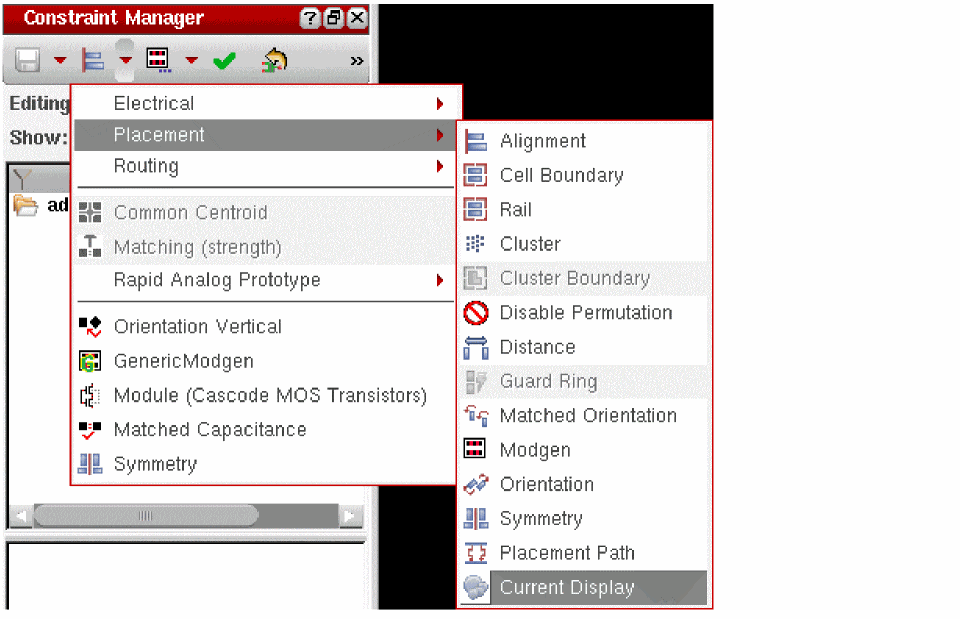
Specify the name of a submenu that already exists in the Constraint Generator drop-down menu. The new constraint type will get added as an option below that submenu. For example, if the new constraint type, Current Display, should be displayed in the existing Cadence-provided submenu, Placement, specify the following:
<GUIName menu="Placement">Current Display</GUIName>
The new constraint type will be displayed as follows:
-
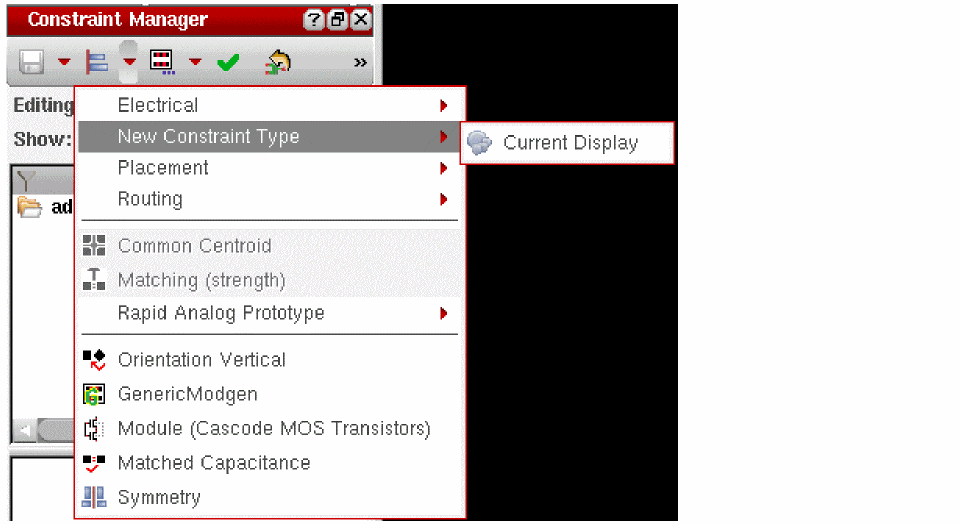
If the specified submenu does not exist, a new submenu by the given name gets created the Constraint Generator drop-down menu and the constraint type gets added below it. For example, if you want a new submenu, New Constraint Type, where the new constraint type, Current Display, should be displayed, specify the following:
<GUIName menu="New Constraint Type">Current Display</GUIName>
The new constraint type will be displayed as follows:
-
To create a hierarchy of menus, use forward slashes (
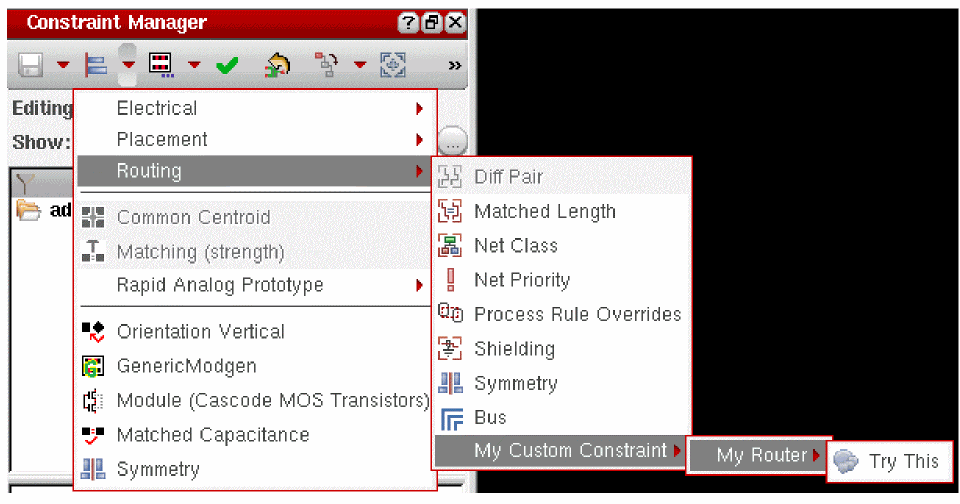
/) as separators while specifying a list of submenu names. For example, if you want to add the new constraint type, Try This, to be displayed below Routing (which is an existing Cadence-provided submenu) – My Custom Constraint – My Router, specify the following:<GUIName menu="Routing/My Custom Constraint/My Router">Try This</GUIName>
The new constraint type will be displayed as follows:
-
To add a constraint type to multiple submenus, use colon (
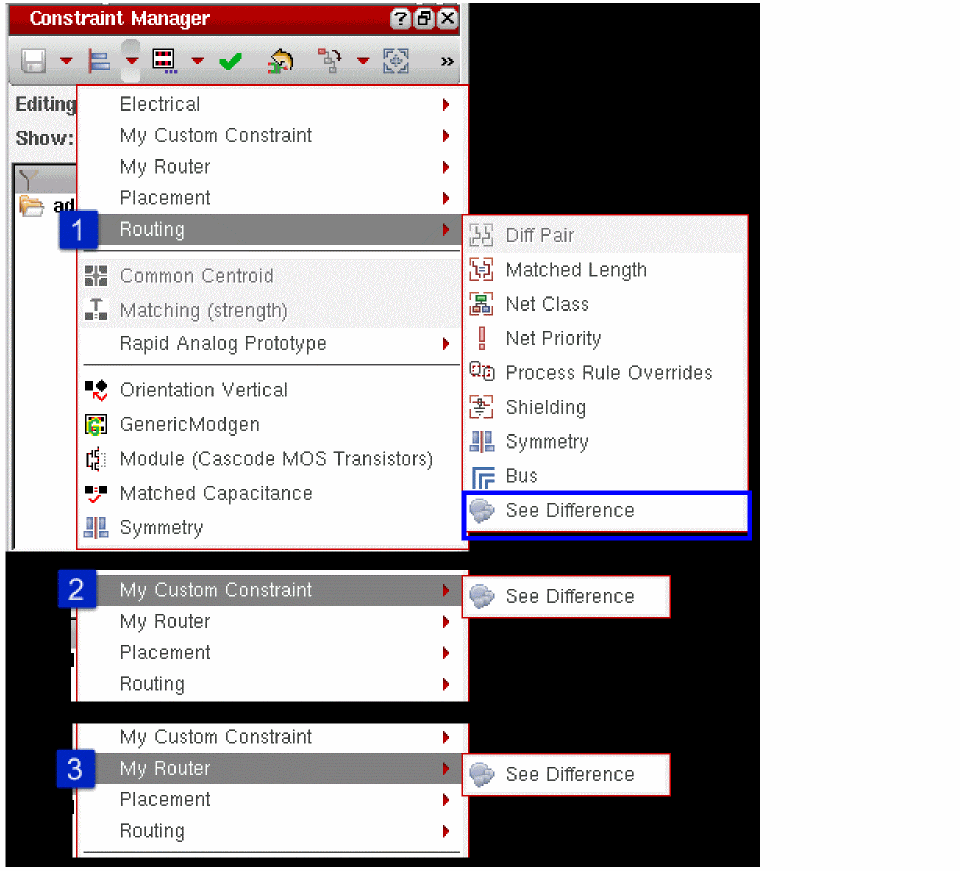
:) as separators while specifying a list of submenu names. For example, you want to add the new constraint type, See Difference, to be displayed below three submenus, which includes an existing Cadence-provided submenu, Routing, and two new user-defined submenus, My Custom Constraint and My Router. In this case, specify the following:<GUIName menu="Routing:My Custom Constraint:My Router">See Difference</GUIName>
The new constraint type will be displayed as follows:
Hiding Constraint Types in the Constraint Generator Menu
If needed, you can hide constraint types such as Symmetry, Orientation, and Alignment from the Constraint Generator menu in the Constraint Manager assistant. To do so, in the config.xml file, specify “{HIDE}” as the menu name in the GUIName tag for the constraint that needs to be hidden. The example below shows how to hide the Alignment constraint from the menu.
<ConstraintConfig>
<ConstraintType>
<Name>alignment</Name>
<GUIName menu="{HIDE}">Alignment</GUIName>
...
<Param>
<Name>Owner</Name>
<GUIName visibleInEditor="false">Owner</GUIName>
</Param>
...
<Param>
<Name>edgeNumber</Name>
<GUIName visibleInEditor="false">Edge</GUIName>
</Param>
...
</ConstraintType>
...
</ConstraintConfig>
config.xml file can also be created to hide specific constraint types from the menu and can be loaded using the ciLoadConfigXML function. Alternatively, you can use the ciLoadConfigXMLFromString function that does not require loading the config.xml files from certain search paths on the disk. With this capability of loading the config.xml files from a string, the config.xml strings can reside in SKILL files and be encrypted, if necessary.Version
(Optional) Specifies the version number of the constraint when multiple versions of a constraint exist. This tag is used in conjunction with the
BaseType
(Optional) Specifies the original constraint name. This tag is used in conjunction with the
Categories
(Optional) Specifies the category of constraint, as shown below.
<Categories>frontEnd,Physical</Categories>
Any custom or default system constraint created in the Constraint Manager assistant can be propagated automatically to the Virtuoso ADE Assembler the Checks/Asserts assistant, by including the value, customAssertion, in the <Categories> tag within the config.xml file, as shown in the example below.
<Categories>frontEnd,Physical,customAssertion</Categories>
For more details refer to Propagating Constraints to the Checks/Asserts Assistant.
CustomSimulationCheckCB
(Optional) For constraints belonging to the category customAssertion, specifies a custom callback in the config.xml file, as shown below.
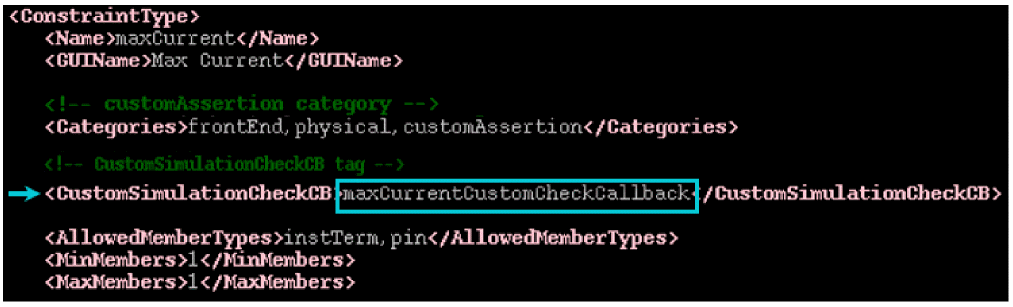
<CustomSimulationCheckCB>maxCurrentCustomCheckCallback</CustomSimulationCheckCB>
This allows customAssertion constraints to be netlisted as Spectre asserts along with the existing checks and asserts. For more details refer to Propagating Constraints to the Checks/Asserts Assistant.
Param
Defines the constraint parameters. Within the body of the ConstraintType tag, you can define multiple Param tags based on your requirement. The parameters defined in each body of a Param tag are added to a list of parameters that can be used for the given constraint type.
The following tags are defined within the body of a Param tag:
- Name (Constraint Parameter Name)
- GUIName (Constraint Parameter Display Name)
- Type
- DefaultValue
- ValueRange
- Scope
Name (Constraint Parameter Name)
Specifies the constraint parameter name. Ensure that a constraint parameter name is always unique and not reused.
GUIName (Constraint Parameter Display Name)
Defines the GUI display name of the constraint parameter.
<GUIName> tag, the constraint parameter name specified with the <Name> tag is used as the GUI display name.
The <GUIName> tag can have the following attributes:
Type
Defines the type of values the constraint type can accept. This tag accepts one of the following keywords: boolean, int, double, string, enum, or enumset.
ValueRange
Defines the value range based on the parameter type, as given below.
-
When
<Type>isintordouble, the<ValueRange>tag specifies the minimum and maximum acceptable value for the parameter. For example, the following definition in theconfig.xmlfile:<ValueRange>-
will be translated in the Constraint Parameter Editor pane as shown in below.5 9</ValueRange>
You can also specify multiple acceptable values in any order. The minimum and maximum values out of the given values will be picked automatically to define the range. For example, from the following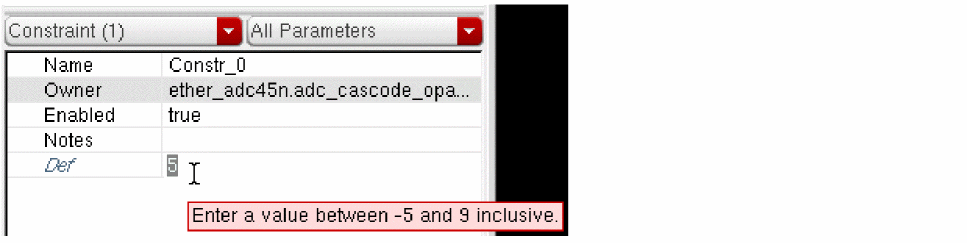
ValueRangestatement,9will be considered as the maximum value and-5as the minimum value:<Type>int</Type>
<ValueRange>0 7 9 -5</ValueRange>
-
When
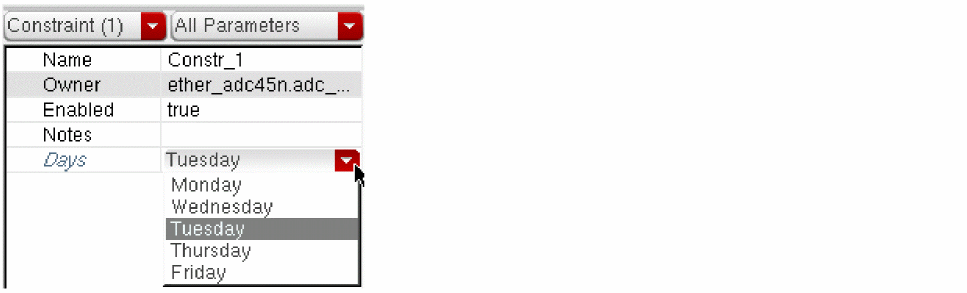
<Type>isenum, the<ValueRange>tag specifies the acceptable values for the parameter. The specified values appear in a drop-down list box and only one value out of those can be the default. For example, the following definitions in theconfig.xmlfile:<Type>enum</Type>
<ValueRange>Monday Wednesday Tuesday Thursday Friday</ValueRange>
<DefaultValue>Tuesday</DefaultValue>
will be translated in the Constraint Parameter Editor pane as shown in below.
-
When
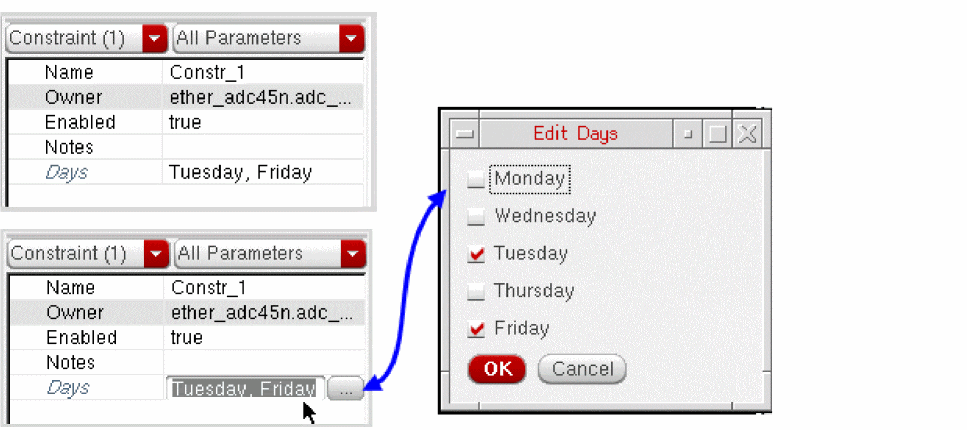
<Type>isenumset, the<ValueRange>tag specifies the acceptable values for the parameter. In this case, a field auto-populated with the default value is displayed adjacent to the parameter name. When you click this field, a button is displayed on its right. Clicking the button opens a form containing all acceptable values defined for the parameter with check boxes corresponding to each value to allow selection of the required values. For example, the following definitions in theconfig.xmlfile:<Type>enumset</Type>
<ValueRange>Monday Wednesday Tuesday Thursday Friday</ValueRange>
<DefaultValue>Tuesday Friday</DefaultValue>
will be translated in the Constraint Parameter Editor pane as shown in below.
DefaultValue
Defines the default value of a parameter.
DefaultValue tag, but no ValueRange tag, the specified DefaultValue and ValueRange are considered to be the same. However, for parameters of int or double type, the allowed ValueRange is between -999999999 to 999999999.
In addition, the following rules are applicable to definition of the DefaultValue tag:
-
For
intanddoubletype, the minimum ofValueRangewill be considered as the default value in the following scenarios: -
For
booleantype, if aDefaultValueis not specified,falseis selected by default in the parameter’s drop-down list box. -
For
stringtype, there are no restrictions related to default value. If nothing is specified with the<DefaultValue>tag, the default is taken to be blank.
Scope
Restricts the scope of a parameter, that is, defines whether a parameter is a constraint parameter or member parameter. It has the following syntax:
<Scope>validScopeValue</Scope>
This tag accepts one of the following valid values:
|
Consider the associated parameter as constraint parameter only. |
|
|
Consider the associated parameter as both constraint parameter and member parameter. |
If no value is given or the tag is missing, the constraint is treated as both constraint parameter and member parameter.
MinMembers
Specifies the minimum number of members needed for a constraint type.
The MinMembers tag defaults to 1, when one of the following conditions is true:
-
The values specified within the
AllowedMemberTypestag includemaster. -
The values specified within the
AllowedMemberTypestag do not includemaster.
The MinMembers tag defaults to 0 when only master is specified within the AllowedMemberTypes tag.
MaxMembers
Specifies the maximum number of members allowed for a constraint type. If the MaxMembers tag is not specified, by default, any number of members greater than or equal to MinMembers are allowed.
AllowedMemberTypes
(Mandatory) Specifies the type of members (objects) that can be included as part of your custom constraint. For defining the allowedMemberTypes tag, you can use one or more of the following values in any combination: inst, master, net, instTerm, pin, netTerm, netClass, modgen, boundary, cluster, shape, via, and guide.
You must complete this tag otherwise an error message will be displayed.
VerifyCB
Defines the name of the verify callback. It is a one word string. For example:
<VerifyCB>callbackName</VerifyCB>
See also Using Validation and Verification Callbacks.
ValidateCB
Defines the name of the validate callback. It is a one word string. For example:
<ValidateCB>validateCBName</ValidateCB>
See also Using Validation and Verification Callbacks.
IgnoreConstraintType
Controls whether a constraint type should be ignored when the config.xml file is read. It is a Boolean value, which is set to false by default. If this tag is set to true in the body of a custom constraint type definition, the constraint type is not created.
You can also use this tag within the constraint generator definitions, which might be present in the config.xml file for GUI customizations. This tag prevents creation of a custom constraint type for those constraint generators.
Extending System Constraint Types
To extend system constraint types, you can perform only the following actions:
-
Update the
GUINametag and themenuattributes (see GUIName (Constraint Type Display Name)) - Add or update parameters (see Param)
- Update VerifyCB and ValidateCB
The extended system constraint types can be loaded at startup, that is, before a Virtuoso session is launched, or during a running session.
If you have extended an existing system constraint type, the related modifications get merged to the corresponding entries in the config.xml file. If a constraint type is read for the first time from a config.xml, it gets added to the in-memory configuration. When an entry of the same constraint type is detected in the same config.xml file or any other config.xml file on the CSF path, its unique tags and parameters are appended to the constraint type already present in the in-memory configuration. For more information on CSF path, see
See also Example 1: Extending an Existing System Constraint Type.
At Startup
To extend a system constraint type at startup:
-
Create a
config.xmlfile in a.cadence/dfII/cidirectory located on the CSF path. - Incorporate the required updates for the system constraint type you want to extend.
When Virtuoso is launched, all config.xml in CSF paths are read and the relevant (unique) tags for the existing constraint type are appended to the in-memory configuration. If new parameters were added to config.xml, then at the startup, the parameters with unique names are picked and appended to the existing configuration.
During a Virtuoso Session
To extend an existing system constraint type during a running Virtuoso session:
-
Create a
config.xmlfile. - Incorporate the required updates for the system constraint type you want to extend.
-
Use the ciLoadConfigXML SKILL function to specify the path of the new
config.xmlfile as an argument. This modifies the impacted system constraint type(s) instantly.Alternatively, you can use the ciLoadConfigXMLFromString function that does not require loading theconfig.xmlfiles from certain search paths on the disk.
Creating and Overriding Custom Constraint Types
Creating New Custom Constraint Types
Custom constraint types can be created at startup, that is, before a Virtuoso session is launched, or during a running session.
See also Example 2: Creating a New Custom Constraint Type.
At Startup
To create a new constraint type at startup:
-
Create a
config.xmlfile in a.cadence/dfII/cidirectory located on the CSF path. - Add to this file a unique constraint type entry.
When Virtuoso is launched, all config.xml in CSF paths are read and therefore, the custom constraint type is created.
During a Virtuoso Session
To create a new constraint type during a running Virtuoso session:
-
Create a
config.xmlfile. - Add to this file the required constraint type entry.
-
Use the ciLoadConfigXML SKILL function to specify the path of the new
config.xmlfile as an argument.Alternatively, you can use the ciLoadConfigXMLFromString function that does not require loading theconfig.xmlfiles from certain search paths on the disk.
The newly created custom constraint type is available for use instantly.
Overriding Existing Custom Constraint Types
The existing custom constraint types can be overridden with new definition at startup or during a running Virtuoso session. In this case, the definition is not extended as is the case with Cadence-provided system constraint types. Instead, their definition is completely overridden with the new definition.
propdict.def, overriding does not work. They will be treated as system constraint type and cannot be extended or overridden using a new config.xml file definition.See also Example 3: Overriding an Existing Custom Constraint Type.
At Startup
To override a custom constraint type at startup:
-
Create a
config.xmlfile in a.cadence/dfII/cidirectory located on the CSF path. - Add to this file the new or updated parameters for an existing custom constraint type.
When Virtuoso is launched, all config.xml files in the CSF paths are read and the latest tags for a specific custom constraint type override its existing definitions, if already present in the in-memory configuration. Therefore, the last found definition of a custom constraint type is honored.
During Virtuoso Session
To override an existing custom constraint type during a running Virtuoso session:
-
Create a
config.xmlfile. - Add to this file the new or updated parameters for an existing custom constraint type.
-
Use the ciLoadConfigXML SKILL function to specify the path of the new
config.xmlfile as an argument. This overrides the impacted custom constraint type(s) instantly.Alternatively, you can use the ciLoadConfigXMLFromString function that does not require loading theconfig.xmlfiles from certain search paths on the disk.
Creating New Versions of a Constraint Type
You can create a new version of a constraint type, allowing multiple versions of a constraint type to exist while preserving the constraints that currently use an existing version.
The tags
Creating a New Version of a Constraint Type
You can replace an existing version of a custom constraint type with a new version, making the existing version obsolete while preserving the definitions used by existing constraints.
-
Identify the existing custom constraint type required. For example,
CurrentDisplay. -
Give the constraint type a new unique Name. For example,
CurrentDisplay_v1. -
In BaseType enter the original name of the constraint type. For example,
CurrentDisplay. -
In Version enter
1. -
(optional) Rename the constraint type’s GUI Name to distinguish this version of the constraint type from other versions displayed in the system. For example,
CurrentDisplay_v1.
The original version of this constraint type is now protected. -
Create a new constraint type and give it the original constraint type name. For example,
CurrentDisplay. -
In BaseType enter the same BaseType as that selected for the original version of the constraint type. For example,
CurrentDisplay. -
Set the Version to
2. -
(optional) Rename the constraint type’s GUI Name to distinguish this version of the constraint type from other versions displayed in the system. For example,
CurrentDisplay_v2.
The examples above would result in two versions of a constraint type with a base type ofCurrentDisplay: - Create any additional versions of the constraint type if required, incrementing the Version each time.
You can use the SKILL functions
Using Multiple Constraint Configuration Files
You can create multiple constraint configuration (config.xml) files and choose to save them on the CSF search path or elsewhere. If multiple config.xml files are found on the CSF search path, they will be loaded by the constraints system one-by-one, in append mode, based on the following rules:
- If any configuration file fails to load due to, for example, a parsing error, a warning will be displayed before proceeding to load the remaining configuration files.
-
If a distant configuration file has defined a particular
ConstraintType, while a closer configuration has not defined it, theConstraintTypewill be maintained in the current configuration (as the configuration files will be merged). - If two configuration files have defined the same system constraint type, but with different parameters, the mutually-exclusive parameters will be merged. However, for custom constraint types, if a corresponding definition already exists and you load another definition, then the newer definition overwrites the previous one. This means that the custom constraint type definitions can never be merged.
Using Validation and Verification Callbacks
In the config.xml file, you can use of the following two callbacks related for validating and verifying new and modified constraint types:
<VerifyCB>verifyCBName</VerifyCB>
<ValidateCB>validateCBName</ValidateCB>
Validating Constraints
The validate callback is called automatically on the layout side whenever a constraint is created or modified (as with constraint checking) and is used by CAE (Constraint Aware Editing) during interactive edits to test and mark the constraint as being enforced.
You can insert a constraint validation callback into the body of ConstraintType XML tag in the config.xml file. For example:
<ConstraintType>
<Name>symmetry</Name>
<ValidateCB>CstSymmetryCallback</ValidateCB>
</ConstraintType>
-
The SKILL function (
CstSymmetryCallbackin this case) must be defined at some point during the current working session. -
The
validateCBfunctions must be of the format function_name(d_cellView)and:
When the above validation callback is set in a config.xml file, any CstSymmetryCallback” function when the Constraint Aware Editing (CAE) validation code is run. Constraint status will also be updated when the Verify – Design command is run in Layout XL (and higher tiers) (the Process Rules tab is used to configure verification settings).
Verifying Constraints Consistency
To verify the consistency of the constraint members and parameters, the verify callback is called automatically when a constraint of a related type is created or modified. When a new constraint is created it will have all the attributes, members, and parameters properly populated. However, it will not be listed for those objects that refer to it until a constraint verification callback succeeds. The verify callback should use a SKILL API or the UT fields to verify whether the members and parameters are consistent. The SKILL callback has one single argument, the constraint ID.
If the callback returns nil, the verification fails with a warning message in the CIW, and the modification or creation is rejected. Any other value returned, including “FALSE”, is considered as a non-nil return and the changes will be accepted. See also
A typical usage of verification callback is to yield warning messages and return nil when invalid combination of parameter settings and member is used. For example, your verify callback can allow a parameter to be set on a certain type of member, say net member, or on the first member. Moreover, it can restrict that only the first member can be, for example, an instance. Any logical check, with respect to constraint members and parameters, can be performed using the VerifyCB callback to restrict parameter and member usage.
Example for VerifyCB
The following is an example of the use of VerifyCB, as set in the config.xml file.
<ConstraintType>
<Name>ExampleCon</Name>
<VerifyCB>CUSTExampleConVerifyCB</VerifyCB>
<Param>
<Name>param1</Name>
<ValueType>double</ValueType>
<DefaultValue>0.5</DefaultValue>
<ValueRange>0.0 1.0</ValueRange>
</Param>
</ConstraintType>
In a SKILL file loaded either in .cdsinit or in library libInit.il:
procedure(CUSTExampleConVerifyCB(con)
; This procedure validates that the right members and parameters are set on the constraint.
let(((retVal t))
when(length(ciConListMembers(con)) < 2
warn("Constraint type %s requires at least 2 members. Constraint %s has only %d members.\n" ciConGetType(con) ciConGetName(con) length(ciConListMembers(con)))
retVal = nil
)
foreach(mem ciConListMembers(con)
when(cadr(mem) != 'inst
warn("Constraint type %s requires instances as members. Member %s is of type %s.\n" ciConGetType(con) car(mem) cadr(mem))
retVal = nil
)
)
retVal
)
)
Best Practices for Custom Constraint Type Definitions
When creating a custom constraint type, the following should be considered:
- The database requires constraint parameter definitions to be unique and reserves some names. A conflict might occur if the same constraints, templates, or reserved parameters are specified with different types and a message will be displayed in the CIW.
- All constraint and template parameter definitions are checked for mismatched types at initialization and when the Constraint Manager assistant is opened. Prefixing parameters names with a unique identifier can be useful to avoid conflicts. For example, you could use your company name and constraint name as a prefix to make the constraint parameter names unique.
Adding a New Icon to the Constraint Manager Assistant
When you create a new constraint type, you also need an associated icon that will be displayed adjacent to it in the Constraint Manager assistant. This new icon should be an image of 16x16 bit size that is saved with a name of the format: <constraintName>.png
When you move the mouse cursor over the new icon in the Constraint Manager, a tooltip will display the text as defined in the config.xml file.
For your reference, a few examples are stored in the Cadence installation directory under:
./share/cdssetup/icons/16x16
For the Constraint Manager assistant to load a .png file, it must be located in the following directory:
.cadence/icons/16x16
.cadence directory must be on the file search path. For more information, see The Cadence Setup Search File: setup.loc Cadence Application Infrastructure User Guide.Propagating Constraints to the Checks/Asserts Assistant
Any custom or default system constraint created in the Constraint Manager assistant can be propagated automatically to the
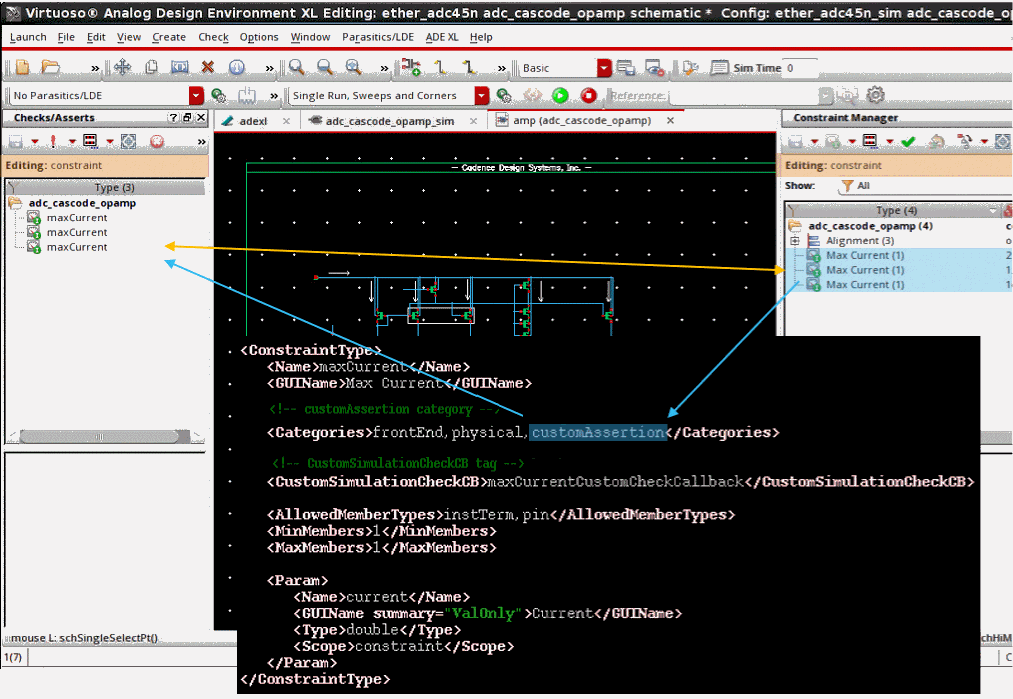
To enable this automatic propagation, update the <ConstraintType> definition in the config.xml file to include the value, customAssertion, in the <> tag, as shown in the example below.
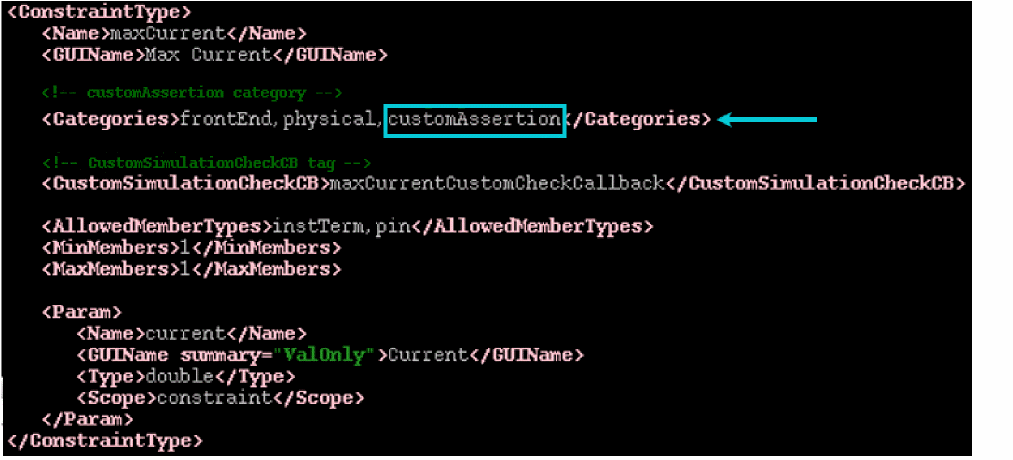
Consequently, when you create a constraint of this constraint type in the Constraint Manager assistant, the same constraint starts to show in the Checks/Asserts assistant too, as shown in the image below.
In addition, you can specify a custom callback, as shown below, in the config.xml file to allow the constraints to be netlisted as Spectre asserts along with the existing checks and asserts.
The following image illustrates the procedure for maxCurrentCustomCheckCallback used in the custom callback example above:
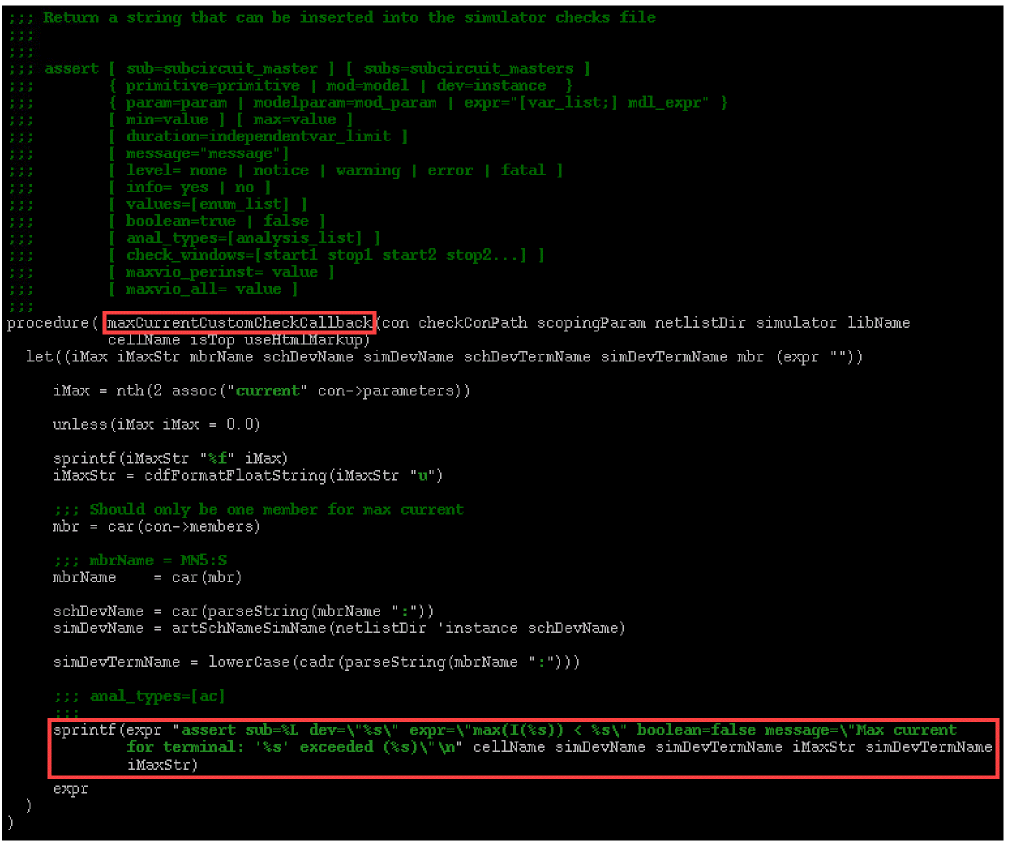
The arguments for maxCurrentCustomCheckCallback are as follows:
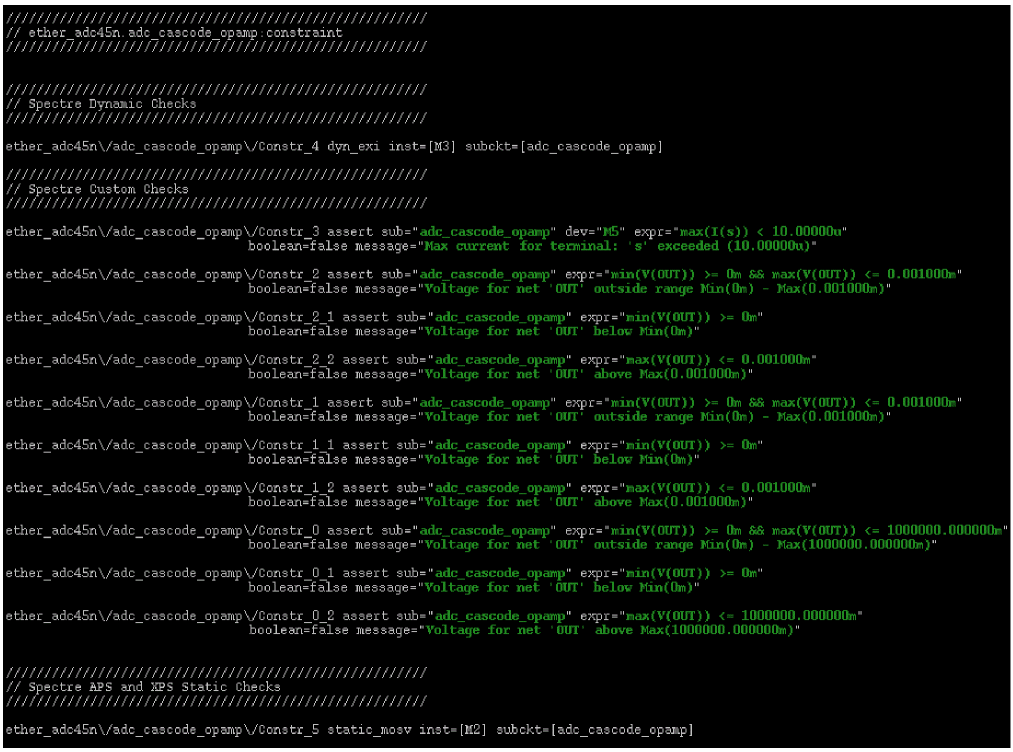
The following image illustrates how the constraints are netlisted as Spectre assert statements:
Examples of Using the config.xml File
Example 1: Extending an Existing System Constraint Type
The alignment constraint is a system constraint type. The user wants to add a new parameter alignment_custom_param_first to the alignment constraint. The original config.xml already contains an entry for the alignment constraint and it might not always be possible to modify it. So, the user can create a new config.xml with the following entry:
<ConstraintType>
<Name>alignment</Name>
<Param>
<Name>align_custom_param_first</Name>
<GUIName visibleInEditor="true">AlignmentCustomParamFirst</GUIName>
<Type>int</Type>
<ValueRange>0 7 9 -5</ValueRange>
<DefaultValue>5</DefaultValue>
<Scope>constraint</Scope>
</Param>
</ConstraintType>
When this config.xml is read, there are two children of the ConstraintType tag—Name and Param.
The Name tag is anyway a must tag and is present in the in-memory configuration of alignment constraint. Therefore, it is ignored. The align_custom_param_first parameter is found to be unique and is appended to the alignment constraint entry in the in-memory configuration. A dump of the in-memory configuration will show this parameter added to the alignment constraint entry.
Now, assume that the user created another config.xml file, with the following entry:
<ConstraintType>
<Name>alignment</Name>
<Param>
<Name>align_custom_param_second</Name>
<GUIName visibleInEditor="true">AlignmentCustomParamSecond</GUIName>
<Type>string</Type>
<DefaultValue>My custom string</DefaultValue>
<Scope>constraint</Scope>
</Param>
</ConstraintType>
When this second config.xml file is loaded, the align_custom_param_second parameter is also found to be unique and is appended to the alignment constraint entry in the in-memory configuration. So, a dump of the in-memory configuration will now show the two parameters, align_custom_param_first and align_custom_param_second, added to the alignment constraint entry.
Example 2: Creating a New Custom Constraint Type
The following is an example of a config.xml file containing a new constraint type:
<ConstraintType>
<Name>CstNoiseAndCrosstalk</Name>
<VerifyCB>CstVerifyCallback</VerifyCB>
<ValidateCB>CstValidateCB</ValidateCB>
<Param>
<Name>CstCrosstalkValue</Name>
<Type>double</Type>
<DefaultValue>0.5</DefaultValue>
</Param>
<Param>
<Name>CstMetalFillLayer</Name>
<Type>enum</Type>
<DefaultValue>Metal1</DefaultValue>
<ValueRange>Metal1 Metal2 Metal3 Metal4 Metal5 Metal6 Metal7 Metal8 Metal9</ValueRange>
</Param>
<Param>
<Name>CstParSameNet</Name>
<Type>int</Type>
<DefaultValue>0</DefaultValue>
</Param>
<Param>
<Name>CstReserveLayersForOverBlockRouting</Name>
<Type>string</Type>
<DefaultValue>Metal1 Metal2 Metal3 Metal4 Metal5 Metal6 Metal7 Metal8 Metal9</DefaultValue>
</Param>
<Param>
<Name>hierarchicalScope</Name>
<Type>enumset</Type>
<ValueRange>local below above</ValueRange>
<DefaultValue>local below</DefaultValue>
<Scope>constraint</Scope>
</Param>
</ConstraintType>
-
The only parameter
Typeallowed areint,double,string, andenum. -
The icon names must be, for example,
CstCrosstalkValue.pngandCstReserveLayersForOverBlockRouting.png.
For more information, see Adding a New Icon to the Constraint Manager Assistant. -
A private prefix and a unique name and type pair is required for each parameter.
The same constraint name cannot be reused as it cause additional parameters to be added to that existing constraint. For example,Csthas been used as the prefix in the example above for “customer”.
When you define aConstraintTypenamedsymmetry, parameters are added to the symmetry constraint, if required.
Virtuoso applications will only recognize pre-defined constraints and their pre-defined parameters, and not the extended set.Pre-defined constraint and parameter names have a reserved name space, that being any name starting with an alphabetic and lower-case character.See also Using Validation and Verification Callbacks. - Parameter names cannot be reused unless their definitions match perfectly. It is therefore not recommended that you reuse parameters names as it may lead to errors.
Example 3: Overriding an Existing Custom Constraint Type
Following are entries for a custom constraint type, custom_conType, in two different config.xml files:
<ConstraintType>
<Name>custom_conType</Name>
<GUIName >CustomConType</GUIName>
<Param>
<Name>customParam</Name>
<GUIName visibleInEditor="true">CustomParam</GUIName>
<Type>int</Type>
<ValueRange>0 7 9 -5</ValueRange>
<DefaultValue>5</DefaultValue>
<Scope>constraint</Scope>
</Param>
</ConstraintType>
<ConstraintType>
<Name>custom_conType</Name>
<GUIName >Custom Con Type</GUIName>
<Param>
<Name>customParam1</Name>
<GUIName visibleInEditor="true">CustomParam</GUIName>
<Type>int</Type>
<ValueRange>0 7 9 -5</ValueRange>
<DefaultValue>5</DefaultValue>
<Scope>constraint</Scope>
</Param>
<Param>
<Name>customParam2</Name>
<GUIName visibleInEditor="true">CustomParam</GUIName>
<Type>string</Type>
<DefaultValue>paramVal2</DefaultValue>
<Scope>constraint</Scope>
</Param>
<VerifyCB>myVerifyCB</VerifyCB>
</ConstraintType>
Here, first one is the closer config.xml (found earlier) and the second one is a distant one. When first one is loaded, a new constraint of the given type is created with the specified GUI name and a parameter, customParam. When the second one is loaded, the constraint type defined in the previous one is completely overridden with the new definition. Now, the constraint type has a new GUI name and two parameters, customParam1 and customParam2 along with a verification procedure.
Return to top