
Preface
This document describes how to verify a layout against physical design rules using the Virtuoso® Integrated Physical Verification System Option for Virtuoso Layout Suite (Virtuoso IPVS). Using Virtuoso IPVS, you can capture and validate design intent and ensure design convergence by performing in-design DRC checks on the layout immediately after editing the layout. These checks are performed using the PVS rule deck, which is a signoff rule deck. It allows you to analyze density for your design and generate metal fill in OA database.
The intent of this manual is to provide:
- In depth knowledge of setting Virtuoso IPVS
- Details of its verification capability
- Information of customize its rule sets
How This Manual is Organized
The chapters are organized as following:
- Getting Started: Specifies prerequisites for using VIPVS including design rules preparations and error browser setup.
- Virtuoso IPVS Toolbar: Describes how to customize toolbar and run option graphical interface that is best suit for your environment.
- All about Design Rules: Snapshot: Provides concepts of snapshots and how to create and manage them that reflects your intents.
- Invoke Design Rule Checking: Describes how to use Virtuoso IPVS to perform DRC on a layout in both of operate modes: Post-Edit and Verify-Design.
- Error Viewing: Describes how to use different browser utility provided by Virtuoso Layout Suite and PVS.
- Batch Commands: Describes batch commands used for snapshot creation
- Environment Variables: Describes Virtuoso IPVS environment variables.
Software Requirements
In order to run Virtuoso IPVS, both PVS and Virtuoso Layout Suite software need to be available. Its availability is based on the following versions of PVS and Virtuoso:
- Virtuoso L/XL/GXL:
- PVS:
-
Snapshots:
-
Version 13. VIPVS 15.22 supports both snapshots versions 7 and 8. If your snapshot is older than v7 then it will not be shown in the VIPVS toolbar. To make it available you have to upgrade it. If snapshot is generated with PVS15.17 or older then to make it work properly snapshot needs to be re-generated with current PVS version. See Snapshots Upgrade for details.
-
Version 13.
RHEL 5.x or newer version is required. Virtuoso IPVS is not supported on earlier versions of Redhat Linux, such as RHEL 4.x.Licenses Requirements and Behaviors
This section describes license requirements as well as license checkout and release behaviors.
Requirements
Basic Licenses:
| Name | Number | Description |
|---|---|---|
|
Virtuoso Integrated Physical Verification System Option for Virtuoso Layout Suite license. |
||
Advanced Licenses:
| Name | Number | Description |
|---|---|---|
|
Virtuoso® Integrated Physical Verification System Advanced Analysis Option. |
||
To run VIPVS, you must first have a snapshot. A snapshot is a collection of reference files that VIPVS refers during DRC. For details of these files, refer to All about Design Rules: Snapshot. Licenses requirements are documented within the snapshot. VIPVS uses this information to check out required licenses.
During the snapshot creation, license requirement(s) is documented as a part of the snapshot header information. At this stage, no license is checked out and Virtuoso IPVS only determinates license requirement based on the content of rule deck. However, the license validity check for Virtuoso_DRC_Opt is executed.
Following figure illustrates Mx_Only_ExcludeDecomp snapshot header information. It indicates that Virtuoso_DRC_Opt and Virtuoso_IPVS_Adv_Ana_Opt licenses are required for Virtuoso IPVS to run successfully.
Figure: Snapshot Header

License Handling while Running VIPVS
Virtuoso IPVS licenses checkout is one time process when running VIPVS for the first time. License checkout is printed in CIW:
Figure: License checkout for the first time
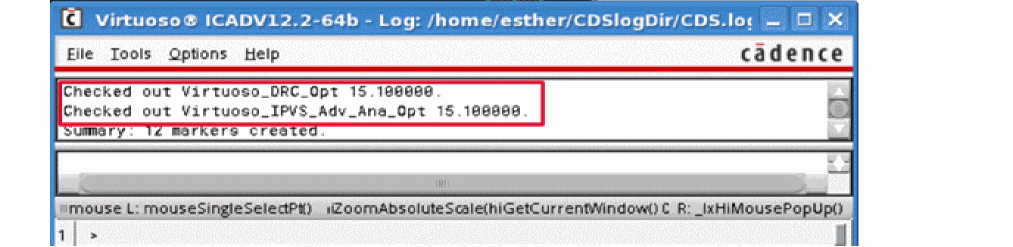
Unlike its sign-off DRC counterpart, license{s} is continuing checkout until any of following termination condition is met:
- Close all of layout within a Virtuoso Session
- Terminate Virtuoso session
- Interactive release license through Virtuoso IPVS Run Options GUI
- One hour of inactivity
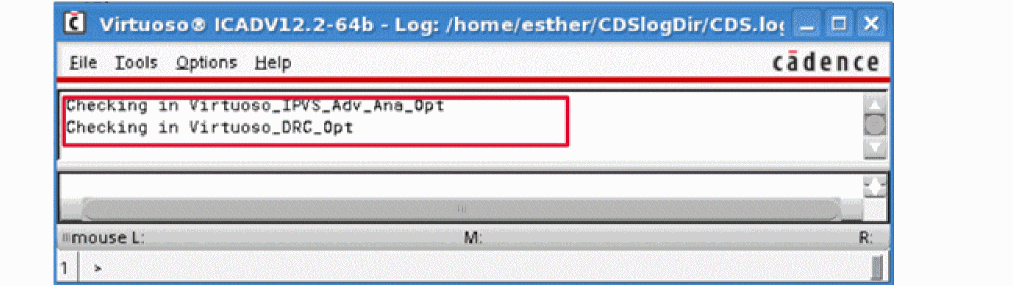
Similarly, license release status is printed in CIW.
Figure: License release status
Related Documents for Virtuoso IPVS
The following documents provide more information about the topics discussed in this guide.
Installation, Environment, and Infrastructure
- For information on installing Cadence products, see the Cadence Installation Guide.
- For information on the Virtuoso design environment, see the Virtuoso Design Environment User Guide.
- For information on database SKILL functions, including data access functions, see the Virtuoso Design Environment SKILL Reference.
- For information on library structure, the library definitions file, and name mapping for data shared by multiple Cadence tools, see the Cadence Application Infrastructure User Guide.
Technology Information
- For information on how to create and maintain a technology file and display resource file, see the Virtuoso Technology Data User Guide and the Virtuoso Technology Data ASCII Files Reference.
- For information on how to access the technology file using SKILL functions, see the Virtuoso Technology Data SKILL Reference.
Virtuoso Tools
- For information on design rule driven editing, see the Virtuoso Design Rule Driven Editing User Guide.
- For information on how to perform design tasks with the Virtuoso Layout Suite L layout editor, see the Virtuoso Layout Suite L User Guide
- For information on how to use the Virtuoso Layout Suite wire editing capability, see “Interactive Wire Editing” in the Virtuoso Space-based Router User Guide.
- For information on custom layout SKILL functions, see the Virtuoso Layout Suite SKILL Reference.
Additional Learning Resources
Cadence provides Rapid Adoption Kit (RAK) that allows you to quickly adopt Virtuoso IPVS in the user design flow. RAK contains design database and exercises that mimics various stages of the design flow. Ask your local Cadence support for how to access Virtuoso IPVS RAK.
Typographic and Syntax Conventions
The following typographic and syntax conventions are used in this manual.
Return to top