
- Overview of Quick Abstract Inference
- Why Abstracts Are Still Required for Standard Cells
- How QAI Works
7.1 Overview of Quick Abstract Inference
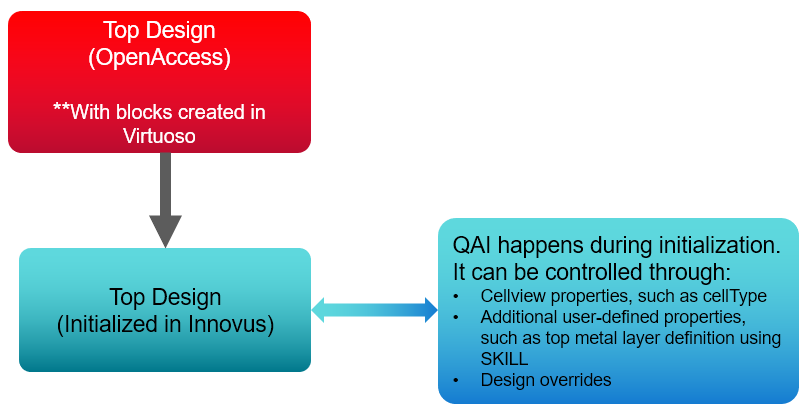
The Quick Abstract Inference (QAI) feature in Innovus is intended to support a specific use case in which a block-level designer in Virtuoso is working on a cellview and does not want to create a new abstract view after each update. The block designer will simply deliver the layout without abstract generation in Virtuoso. Innovus has the ability to create an on-the-fly abstract from a layout view if the abstract is not available in the OpenAccess database. The process of abstract generation happens during design initialization in Innovus, based on the physical data information in the cellview. Innovus can also control the abstract generation based on certain properties given either in the cellview or in the top OpenAccess design by the Virtuoso user.
7.2 Why Abstracts Are Still Required for Standard Cells
Many foundries create optimized standard cell abstracts, which are then included as part of the Virtuoso Process Design Kit (PDK) or added during the creation of an OpenAccess PDK (MSOA PDK). The standard cell abstracts are needed by tools in the Place-and-Route environment to optimize the performance of many steps, such as clock tree synthesis, placement, and routing. Other information in the standard cell abstracts is used by Innovus to perform various functions. For example, the properties of the standard cell abstracts help direct various implementation steps in Innovus. Here are some of the properties that are not generally present in the layout view of a standard cell, but are needed in the abstract to drive the Innovus implementation flow.
- The standard cell abstracts have
cellType == core. If this property is not present in the abstracts, Innovus will treat the cells asCLASS BLOCKinstead of core cells, which areCLASS CORE. - The standard cell abstracts have a siteDef which is required for the placement step in Innovus.
- Often, the antenna information is not included in the layout view of a standard cell. The antenna information is used by NanoRoute to detect and fix antenna violations during routing.
For information on creation of an MSOA PDK, refer to the Technology Data Preparation chapter.
7.3 How QAI Works
During design initialization, Innovus reads the library cells (LEF equivalent) from the list of reference libraries provided by the init_oa_ref_lib variable.
As there can be many views of a cell, the name of the abstract view to look for is provided by the init_abstract_view variable. The OAX reader reads all the cells present in the reference libraries, irrespective of whether or not these cells are used inside the design. This results in some performance penalty when there are many cells in the library that are not used in the design but are still read into Innovus. To avoid this performance issue, library cells are processed on demand. This means that if the library name of a particular cell is not defined in the list of reference libraries, Innovus reads that particular cell from its corresponding binding (lib/cell/view) in the OpenAccess design database. This on-demand processing helps improve performance by reading only those library cells that are actually required by the design. For example, IP block libraries are generally not provided in the reflib list and they are read using on-demand processing.
Another aspect of on-demand processing is determining the type of the view that is bound. The binding could point to an under-development IP (layout view) or its abstract equivalent. Innovus detects the view type automatically by applying heuristic methods. For the layout view, Innovus uses the Quick Abstract Inference (QAI) feature to infer internally the abstract equivalent from the layout information during design import. This process is called on-the-fly abstract inference.
A summary report is printed in the design.oaread.rpt file. This report contains the summary of all the blocks read by inferring the layout view of the block.
For automatic abstract inference, pin shapes and prBoundary must be available in the layout view.
Innovus supports dual views. A dual view is a layout view that also contains abstract information, such as prBoundary, antenna, site, symmetry, and cell type, in the same cellview. A dual view can be used both as a layout in Virtuoso and as an abstract in Innovus through QAI.
Note: You need not generate abstracts each time you change the layout view of the block. To generate detailed abstracts after finalizing the block design, use the Virtuoso Abstract Generator.
7.3.1 Rules for Abstract Inference
The following table describes the behavior of auto-abstract inference when the following data objects are present in the layout view. To know more about these data objects, refer to Detailed Description of Data Objects.
|
Data objects in the |
Behavior of Innovus if the data object is present |
Behavior of Innovus if the data object is not present |
|
All the top-level pin shapes are copied to the abstract view, along with shapes on the same layer that enclose the pin shapes. Check the QAI Pin Modeling section for details. |
No pins appear in the abstract view. Note: Create pins as required at the top level. |
|
|
The specified type is considered. Note: If the cell type is |
The default type |
|
|
Cover Obstruction Virtuoso commands for applying obstruction up to metal layer
|
Obstructions are created only on the routing layers up to the Gets ID of currently open cellview. Specifies the top metal layer to be obstructed. Removes the cover blockage created by |
The tool automatically determines the top metal layer used in the design hierarchy. All layers up to the top layer are blocked. |
|
Exact region as enclosed by |
If you do not specify |
|
|
The specified symmetry option is taken. Note: If the symmetry value is |
The default value |
|
|
The values specified in the layout are copied without any changes. |
If the For other cell types, it is left blank. |
|
|
The values specified in the layout are copied without any changes. |
A warning message is displayed. This message describes the number of cells and missing antenna values for |
7.3.2 Detailed Description of Data Objects
The following table describes the data objects that are used for inferring the abstracts:
|
Data Object |
Description |
Pin |
Specifies a physical shape through which one block connects to other blocks in a netlist. |
Cell type |
Specifies various cell types, such as |
|
Specifies the block boundary for place-and-route applications. Any shape or instance created for the block should be enclosed within the |
Symmetry |
Specifies the possible orientation of the block. |
Site |
Provides placement for the family of macros, such as I/O, core, block, analog, digital, short, tall, and so on, in a design. |
Antenna |
During deep sub-micron wafer fabrication, gate damage can occur when excessive static charges accumulate and discharge, passing high current through a gate. If the area of the layer connected directly to the gate or connected to the gate through lower layers is large relative to the area of the gate and the static charges are discharged through the gate, the discharge can damage the oxide that insulates the gate and cause the chip to fail. This phenomenon is called the process antenna effect (PAE). Run Virtuoso Abstract Generator to obtain the antenna value. For more information, see the . |
7.3.3 Blockage Modeling in QAI
During the abstract generation process, Innovus models blockages in the following two ways:
-
Detailed modeling - In this type of modeling, Innovus models each shape, such as a pin, wire, or blockage, exactly as it is in the generated abstract, and the Obstruction is limited to the bbox where shapes exist in the
prBoundary. - Full obstruction modeling - In this type of modeling, Innovus covers the whole block (excluding base layers) with an Obstruction over the
prBoundaryfor any shapes that appear in the layout.
7.3.3.1 Controlling QAI Through Cellview Properties
You can control how abstracts are generated during QAI by using cellview properties, such as cellType.
-
For
COREorCOVERcell types, Innovus applies detailed modeling to blockages/shapes during QAI, as shown below.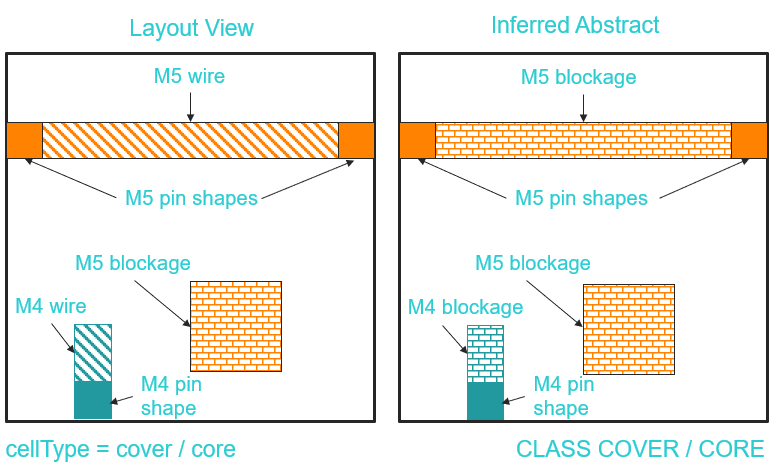
The modelling based oncellType = corecan be used to model standard cells.- Base layers, such as OD, POLY, and NWELL, will not appear in the inferred objects.
- QAI may not work correctly with the self-aligned double patterning (SADP) process in advanced nodes. For example, although trim layers work for parameterized cells (PCells), they are not taken care of currently for standard cells and blocks.
- For
BLOCKorNONEcell types, Innovus applies full obstruction modeling to blockages/shapes during QAI, as shown below.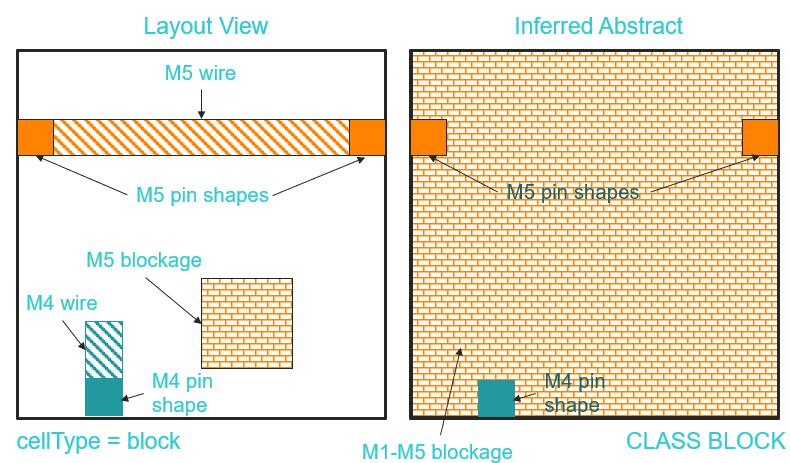
Blockages will be present up to the top layer (M5in the above diagram) in the inferred abstract.
7.3.3.2 Controlling QAI Through User-defined Properties
You can control how blockage modeling is done for BLOCK or DEFAULT cell type by specifying the top layer. When you do so, full obstruction modeling is limited to the specified top layer and detailed modeling is done on the layers above it. For example, consider the layout view below of a macro having cell type BLOCK. By default, the inferred abstract should have full obstruction up to M5. However, as the user-specified top layer is M3, the inferred abstract has full obstruction up to M3 and detailed modeling above it.
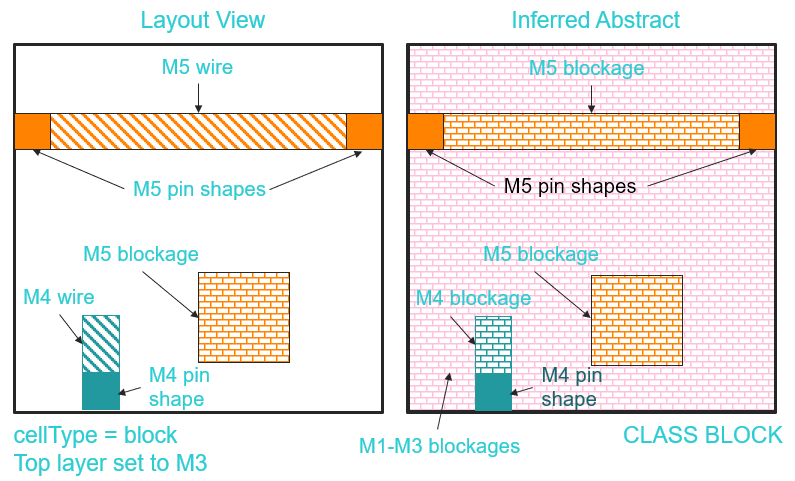
The top layer can be specified and COVER obstruction be set on the cell using the following SKILL command:
cv = geGetEditCellView()dbCreateCoverObstruction(cv~>prBoundary techGetLayerMaskNumber(techGetTechFile(cv) "M3"))
Specifying the top layer explicitly is useful in cases where routing is sparse on the upper layers. Specifying the top layer implies that the wiring on the layers above it is not sensitive to cross-coupling to the digital wiring that may be routed nearby and therefore detailed modeling would be applied to these layers. Without the detailed modeling on these layers, the top-level router would have to detour around the block for all of the layers in the cellview.
Detailed modeling is not recommended for all layers of a block due to potential cross-coupling impact on internal nodes.
QAI Behavior in Specific Use Cases
Keep in mind the following notes on QAI behavior in the specific use cases listed below:
- If you specify a cover obstruction on a
cellType = covercellview, the tool will give the following warning message and ignore the cover obstruction:WARN: (IMPOAX-1597): Cover Obstruction is defined for cell 'cellName'. Cell is of type core/cover. Cover Obstruction will be ignored by the tool - If you specify a cover obstruction above the used layers for a block, there will be obstruction from the first routing layer to the specified layer (no detailed obstruction modeling in this case).
- Any user-drawn layout blockages are ignored if they have the
+ PUSHDOWNattribute as they apply to the current level in the layout and not the level above. This is same as Innovus behavior and means that those blockages are not considered during QAI. - Consider the case below of a block with a missing sub-block. In the layout view below, B1 is the block inside top for which QAI is needed. Block B1 has pins/shapes in M4 and M5. Inside B1, B2 is a sub-block with missing master. If you try to create a quick abstract for Block B1 and:
- Block B1 is of cell type
BLOCK, the tool will not find the master for B2 during QAI. The tool will assume B2 has all the base tech metal layers, although B1 only has layers up to M5. In the abstract, full blockages (M0 to AP) will be dumped, as shown in Inferred Abstract (a). - Block B1 is of cell type
COVER, the tool does detailed modelling and assumes all the base tech metal layers in the instance area of the missing master, as shown in Inferred Abstract (b).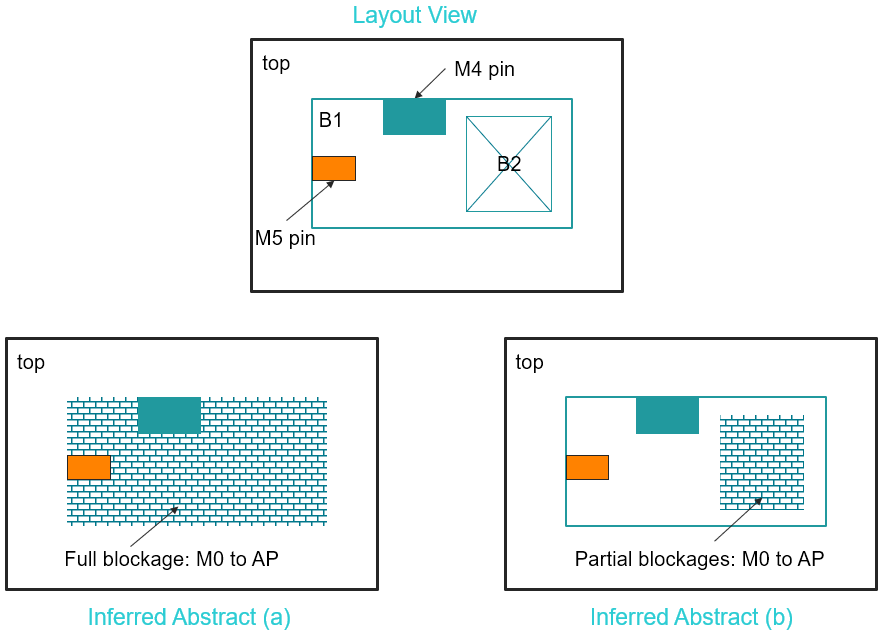
- Block B1 is of cell type
7.3.3.3 Controlling QAI Using Design Overrides
If you need to control the quick abstract generation but the block layout has been frozen, you may prefer to specify override information on the top design instead of editing the block or asking the block owner to update the block. Virtuoso/OpenAccess allows different overrides to be specified on different instances of the same cell. By storing the override information on the design cellview property, the same overrides can be applied to all instances of a given cell.
Use the INVS_QAI_CELL_OVERRIDE string property to specify all cell-based overrides. Apply this property on the design cellview, so that all instances of the specified cell(s) will have the same setting. Its string value has the following format:
[CELL cellName [TYPE cellType] [TOP_LAYER topLayer] [SYMMETRY symmetry] [SITE siteName]] ...
Here:
cellNameis the name of the cell to which you need to apply the overrides.cellTypespecifies the type of the cell. To check valid values, see Cell type.topLayeris the top layer name used fordbCreateCoverObstruction.symmetryspecifies orientation. See Symmetry.siteNamespecifies the name of the site. This applies only tocore,pad, andendcapcell types.
The string value can contain multiple cells, with each CELL keyword starting a new set. Each set can contain one or more of TYPE, TOP_LAYER, SYMMETRY, and SITE keyword-value pairs. For example, to set an override for two blocks, ring_osc and div_ckt, in a top design, you can write the override property as follows:
INVS_QAI_CELL_OVERRIDE CELL ring_osc TYPE block TOP_LAYER M5 CELL div_ckt TYPE block TOP_LAYER M3
How to Set the Override Property in a Design
Use the following steps to set the INVS_QAI_CELL_OVERRIDE property in a design:
- Open the top-level design in Virtuoso Layout Suite.
- Open the Edit CellView Properties form by pressing the
Shift+Qkeys.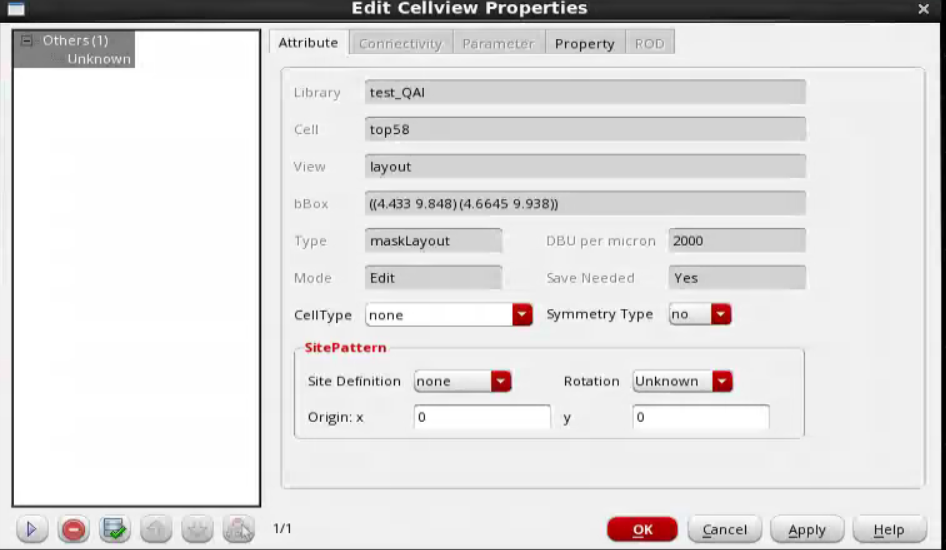
- Open the Property page and then click the Add button.
- In the Add Property form, specify
INVS_QAI_CELL_OVERRIDEas the property name and click OK.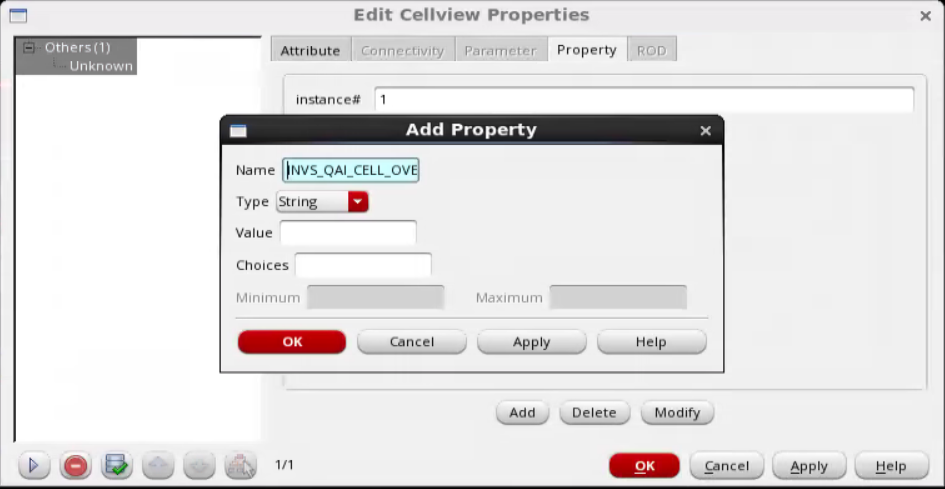
- In the
INVS_QAI_CELL_OVERRIDEproperty text box, specify the properties to override.
In this example, the value is:CELL INV54 TYPE CORE TOP_LAYER M3 SYMMETRY X.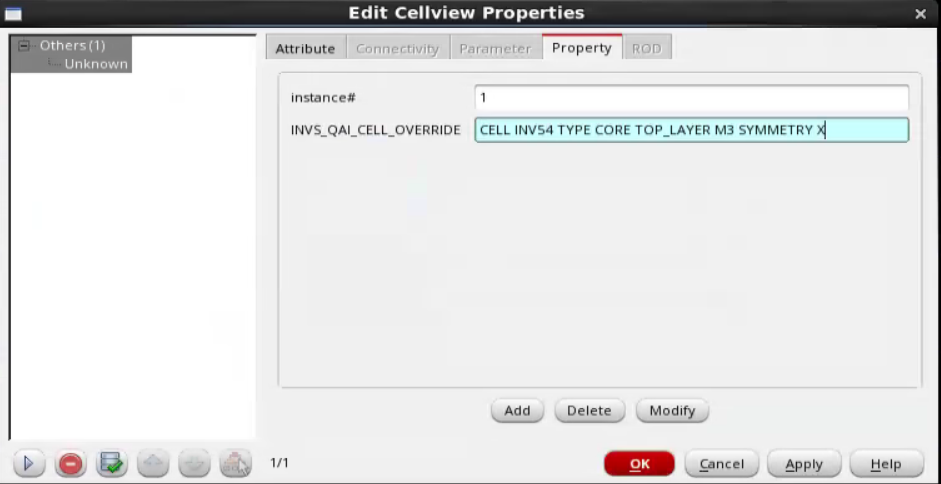
- Click OK to apply the property setting and close the Edit Cellview Properties form.
7.3.4 QAI Pin Modeling
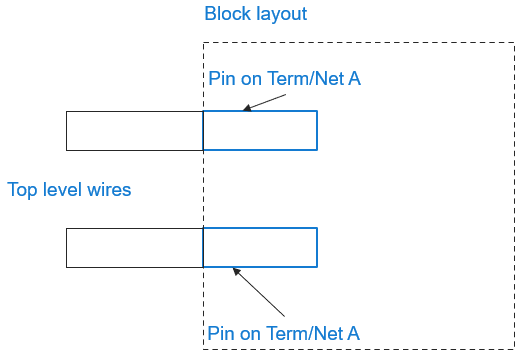
The pin modeling methodology has improved in the latest Innovus release. Previously, QAI just copied the terminal~>pin shapes to the Innovus abstract representation, resulting in opens when the pins in the layout were derived from label/text locations. For example, consider an input layout cellview in which the top-level wiring abuts to shapes in the block. Here, the upper pin is VXL compliant, and the lower pin could be from GDSII with the Create Pins from Text feature in Virtuoso or Virtuoso Layout Editor. As QAI would just copy the terminal~>pins, resulting in opens on connections to A and B in the Innovus view of the block.
| Input Layout Cellview | Innovus view of top level and block, as processed by QAI, in previous releases |
|---|---|
|
|
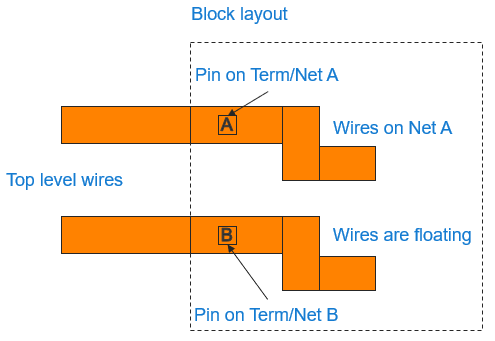
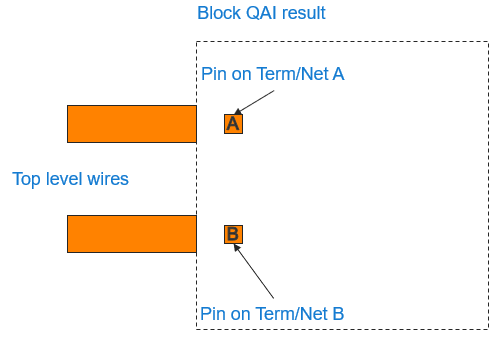
From the 21.10 release, QAI attempts to find additional wire shapes that enclose the pin shape and are on the same layer as the term~>pin shape. For instance, in this example, QAI assumes that the pin shapes are enclosed by the shape that touches the boundary , resulting in the following Innovus view of the top level and block with no opens:
| Innovus view of top level and block, as processed by QAI from this release |
|---|
|
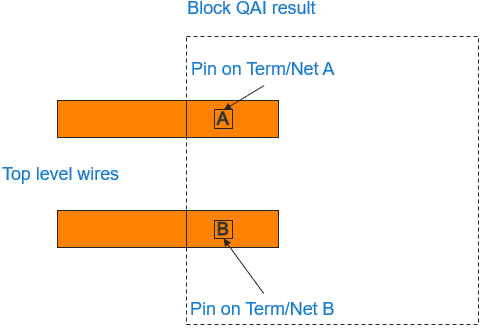
Note that the enhanced QAI pin modeling considers only level 0 shapes. There is no "shape tracing"; only the shapes that are on the same layer and that enclose the pin are added to the Innovus pin shapes.
This feature is on by default. If you do not want to include shapes that enclose the layout pin shapes as part of the pins during pin modeling, set the setOaxMode -encloseQuickAbstractPins parameter to false.
If there are completely overlapping pin port shapes on the same layer, QAI pin modeling merges the pin port shapes and creates one pin for NanoRoute. Consider the example below for processing terminals~>pins.
| Input layout cellview | Innovus view of top level and block, as processed by QAI from this release |
|---|---|
|
|
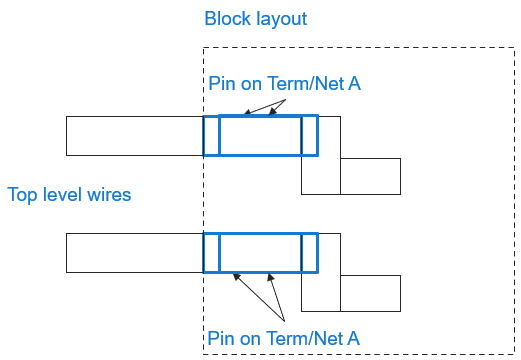
Merging of overlapping (including redundant) pin shapes occurs before the wiring enclosure step and is not impacted by the setOaxMode -encloseQuickAbstractPins parameter setting.
7.3.5 Antenna Annotation Utility for Creating Accurate Antenna Information for the Innovus Flow
As mentioned earlier in this section, when the Open Access flow is invoked in Innovus, if a macro block/cell does not have abstract views provided, Quick Abstract Inference (QAI) creates an abstract view on the fly, in addition to the already available layout view. This abstract has only the basic information for the block/cell, such as prBoundary, pin, and site information; it does not contain the process antenna information. The process antenna information is needed by routers, such as NanoRoute, to fix and repair the violations that are generated when using the process antenna information available on the pins. One way to process the antenna information accurately is to annotate the layout with the antenna. This can be done by specifying the layer, poly, gate, and oxide information through the antenna options file and then running the antenna annotation utility (antenna_annotate.csh script file) available in the directory below:
The antenna annotation utility (antenna_annotate.csh script file) is available in the directory below.
<Innovus Installation directory>/lnx86/share/innovus/gift/MixedSignal/Utilities/skill
You can execute the antenna annotation utility with the desired layout and the options file. This utility runs the Abstract Generator, which extracts the antenna information from the antenna options file and annotates it to the layout. When automatic abstract inference is done, the antenna information is included in the abstract created through abstract inference.
In addition to the antenna_annotate.csh script, the skill directory above has the readme file, annotate_antenna.readme.txt, which is necessary for creation of the options file. The readme file also contains the command usage of the script.
A sample test case named Antenna_annotation.tar.gz is also available for the users to test the utility. Please see the readme file inside the test case directory for more information.
Note: Before invoking the script, make sure that the Abstract Generator path is set and the necessary license is available.