
5
Customize Create Guard Ring Form
The Create Guard Ring form is an option-type form that facilitates interactive FGR creation. Triggers and SKILL APIs are available to enable you to customize this form to suit your custom FGR requirements. Once you select a Device from the list available on this form, values of the other fields are populated from the supermaster defaults.
The following types of customizations are possible on a Create Guard Ring form:
- Modifying the Existing Create Guard Ring Form
- Pitch Parameter Support in the Create Guard Ring Form
- Creating a New Create Guard Ring Form
- Using the Create Guard Ring Form
Modifying the Existing Create Guard Ring Form
The ability to modify the Create Guard Ring form provides you the control over the existing system-defined GUI components. It also enables you to add new user-defined GUI components, such as fields and buttons, and define callbacks for the specific ones you want to use on the form.
The sections below describe the Create Guard Ring form modification methodology.
Adding New User-Defined GUI Components to the Form
To add new user-defined GUI components to the Create Guard Ring form, you need to do the following:
- Write a procedure to define the vfoGRAddCreateFormFields trigger.
-
Use the
hiCreate*functions to add new GUI components on the Create Guard Ring form. -
Set the GUI component to a specific location on the form.
In the Create Guard Ring form, there are multiple global lists that enable you to add various form components. The common global list (also called common queue) defines the set of form components that are displayed on all four tabs (Wrap, Path, Rect, and Polygon) of this form. For example, the GUI components, such as Technology, Device, and Contact Rows, that are common on all tabs exist in the common queue area. To add a new component in this area, use the vfoGRAddFieldsInCommonQ queue.
However, if you want to update the GUI components on only a specific tab of the Create Guard Ring form, use the following queues: -
Use the vfoGRSetExtraArgument
(associativeList)SKILL function to make the data available for processing byextraArgumentsin the FGR infrastructure that resides in Virtuoso.
Each element of the associative list is a ‘keykeyis the name of the FGR device parameter andvalueis the value associated to it, that is,((<FGR_device_parameter_name> <value_of_GUI_component>) ...)
Updating the Existing GUI Components on the Form
To update the GUI components that are currently displayed on the Create Guard Ring form, you need to do the following:
-
Write a procedure to define the vfoGRUpdateCreateForm
(<formPointer>)trigger, where formPointer is a pointer to the Create Guard Ring form. -
Hide existing default fields from the form by using the vfoGRSetCreateFormAllFieldsInVisible
(flag)SKILL function.
You can use the vfoGetImplementationClassName(<libName> <deviceName>)SKILL function to identify the implementation class of different devices and hide the form fields only when the implementation class is notvfoGuardRing. -
Reset the properties of the fields or components displayed on the form by using the vfoGRSetCreateFormFieldProp
(<promptName> <propertyName> <propertyValue>)SKILL function. It supports the use of the following property values:value,defValue,editable, andinvisible.
Updating Properties of User-Defined GUI Components
If you add a user-defined GUI component in the common queue, you can access its pointer using the vfoGRGetCommonQPtr SKILL function to get or set the properties of its component. For example, to set the property of a newly added form field, UserSelectVertWidth, you can write the following procedure:
procedure( setCreateFormUserFieldProp(actField promptString property value)
let(( newField )
importSkillVar(vfoGRAddFieldsInCommonQ)
    evalstring( sprintf( nil "vfoGRGetCommonQPtr()->%s->%s = %s"
                UserSelectVertWidth->hiFieldSym property value )
)
))
Example: Hiding Existing Fields and Adding New Check Box to the Form
Consider a scenario where you want to hide all pre-defined GUI components except Technology and Device fields on the Create Guard Ring form, and add a new check box, User-defined Parameter instead (as depicted in the image below).
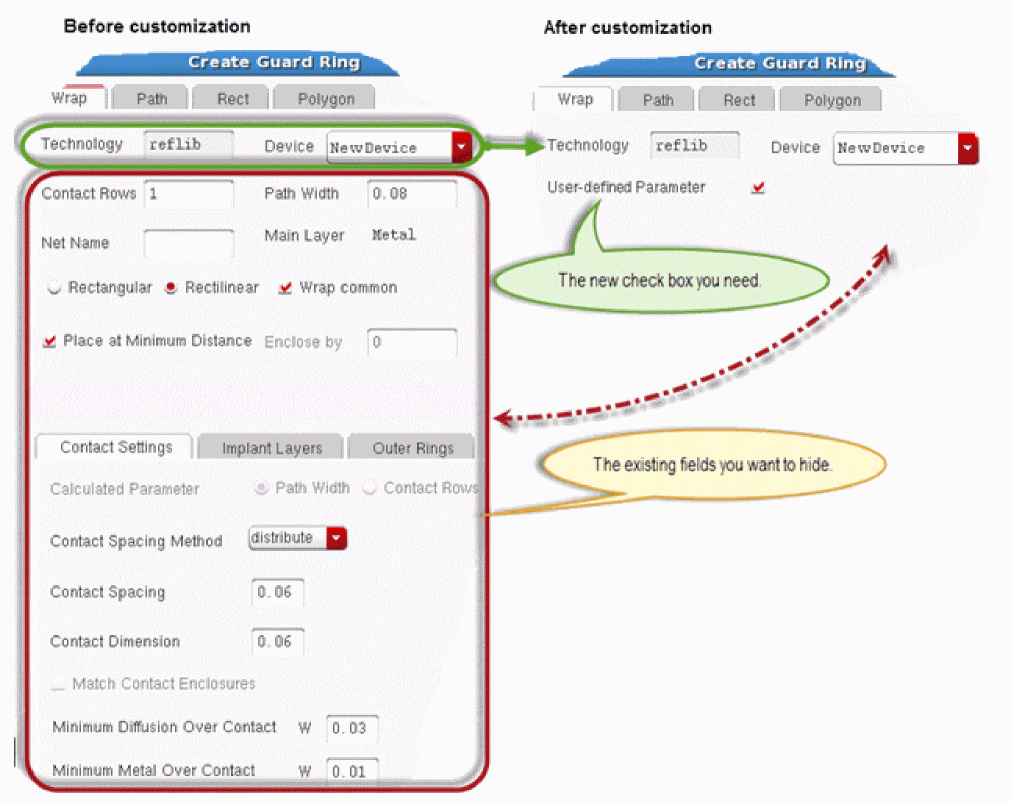
For the required customization, perform the following steps:
- Hide the existing form fields if the device selected is a custom FGR device.
-
Create a new user-defined Boolean field with prompt User-defined Parameter using the hiCreateBooleanButton function, add its name to the
vfoGRAddFieldsInCommonQlist and specify its location. -
Run the
vfoGRSetExtraArgumentSKILL function to make the values of the GUI components on the Create Guard Ring form available for processing byextraArgumentsin the FGR infrastructure.
For detailed information, refer to the
Pitch Parameter Support in the Create Guard Ring Form
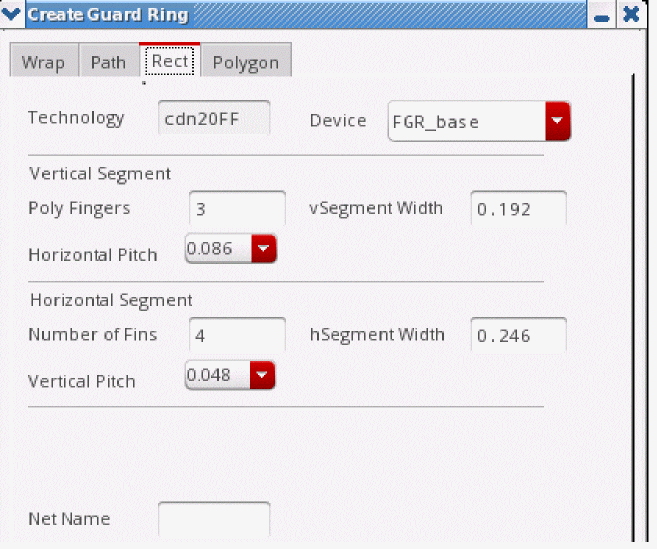
Corresponding to the pitch parameters, horizontalPitch, verticalPitch, horizontalSegWidth, and verticalSegWidth, new fields have been added to the Create Guard Ring Form. The field prompts are Horizontal Pitch, Vertical Pitch, Horizontal Segment Width, and Vertical Segment Width. By default, these fields are invisible and non-editable.
Horizontal Pitch provides the value of the horizontal direction pitch parameter and corresponds to the horizontalPitch formal parameter added in the FGR device definition.
Vertical Pitch provides the value of the vertical direction pitch parameter and corresponds to the verticalPitch formal parameter added in the FGR device definition.
Horizontal Segment Width is added to calculate the correct fluid shape segment length in the vertical direction. The value if this field should be a multiple of the value in the horizontalPitch parameter.
Vertical Segment Width is added to calculate the correct fluid shape segment length in the horizontal direction. The value of this field should be a multiple of the verticalPitch parameter.
The above fields are float type and accept only positive values. As these fields correspond to the VFO infrastructure parameters, these should not be exposed to the end-user. PDK developers should create new GUI fields to take inputs from the user and process the inputs using callbacks to provide value to infrastructure parameters. One example of the Create Guard Ring form is shown below:
Creating a New Create Guard Ring Form
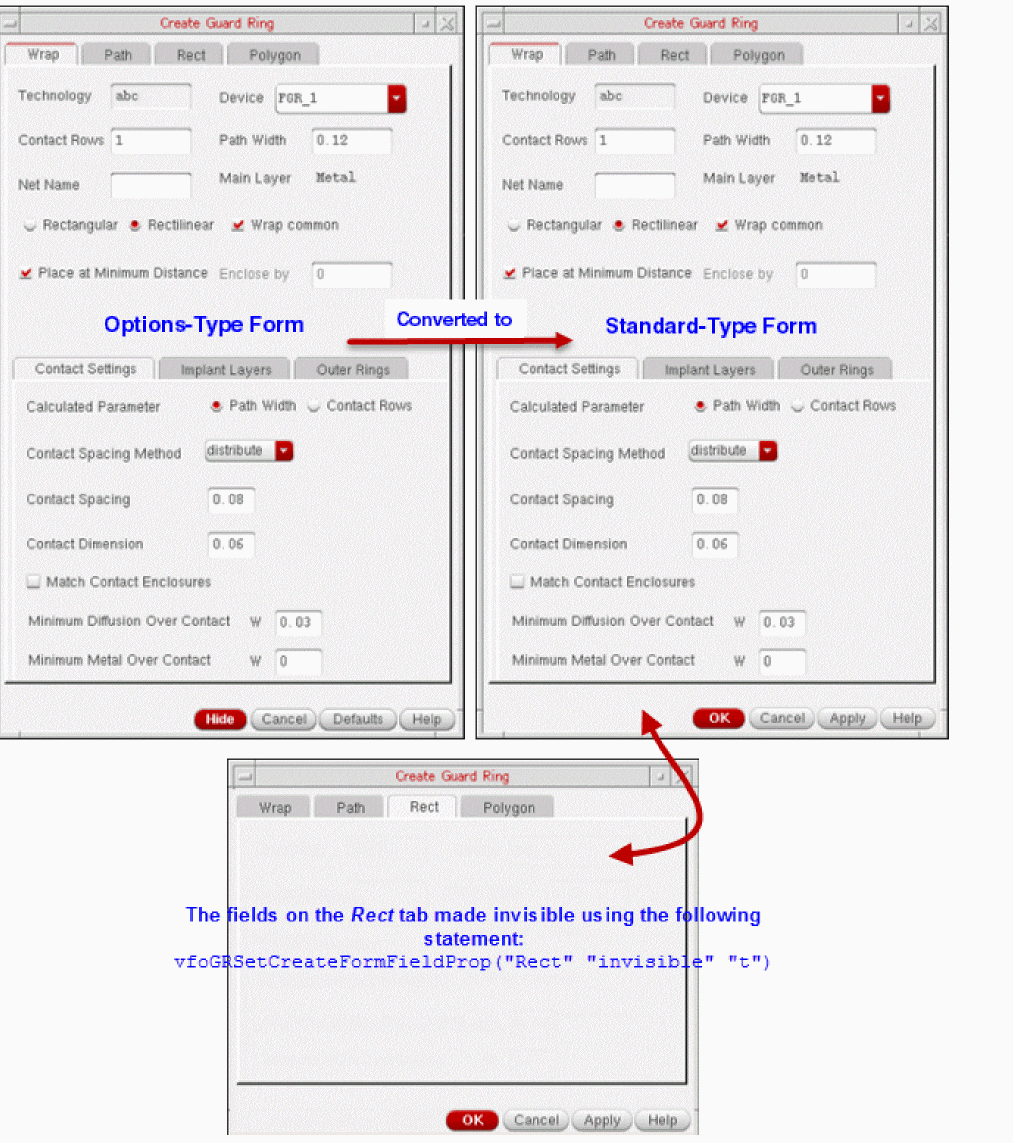
The Create Guard Ring form launched from the layout editor is an options-type form that displays the Hide, Cancel, and Defaults buttons. However, if you prefer to use a standard-type form with OK, Cancel, and Apply buttons, you have the flexibility to create such a Create Guard Ring form as well. The standard-type form can be run from other Virtuoso applications, like Module Generator (Modgen) and Constraint Manager.
The following steps describe the Create Guard Ring form creation process:
- Define a new form pointer along with unique fields and form symbol using the vfoGRNewCreateForm SKILL function.
- Register the customization procedure using the vfoGRRegCreateFormUpdateCallback SKILL function.
The following is an example of the above steps:
; create the new Create Guard Ring form and store its form pointer
form_modgen = vfoGRNewCreateForm ("MODGEN" 'OKCancelApply)
; register the callback for the given form pointer
vfoGRRegCreateFormUpdateCallback (form_modgen "vfoCustomize_modgen")
; define the callback
procedure (vfoCustomize_modgen (formPointer
; write your own method body here related
; to Create Guard Ring form updates
)
hiDisplayForm (form_modgen)
The following figure shows the visual impact of this customization code on the Create Guard Ring form:
For more information, refer to the
Using the Create Guard Ring Form
Use the Create Guard Ring form to specify the values to be considered while drawing an FGR instance on the layout canvas.
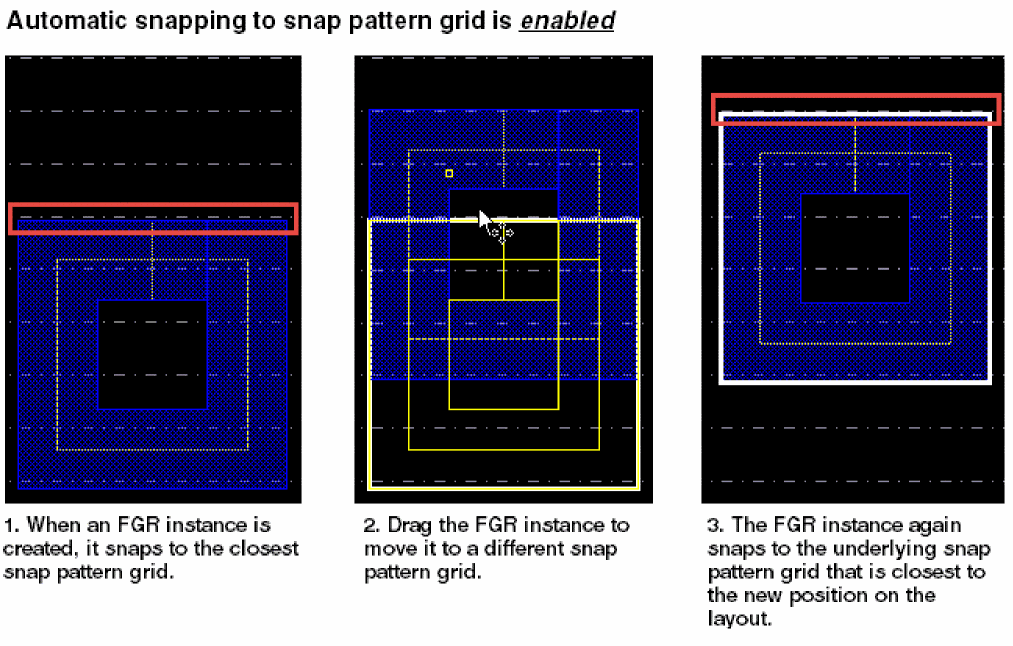
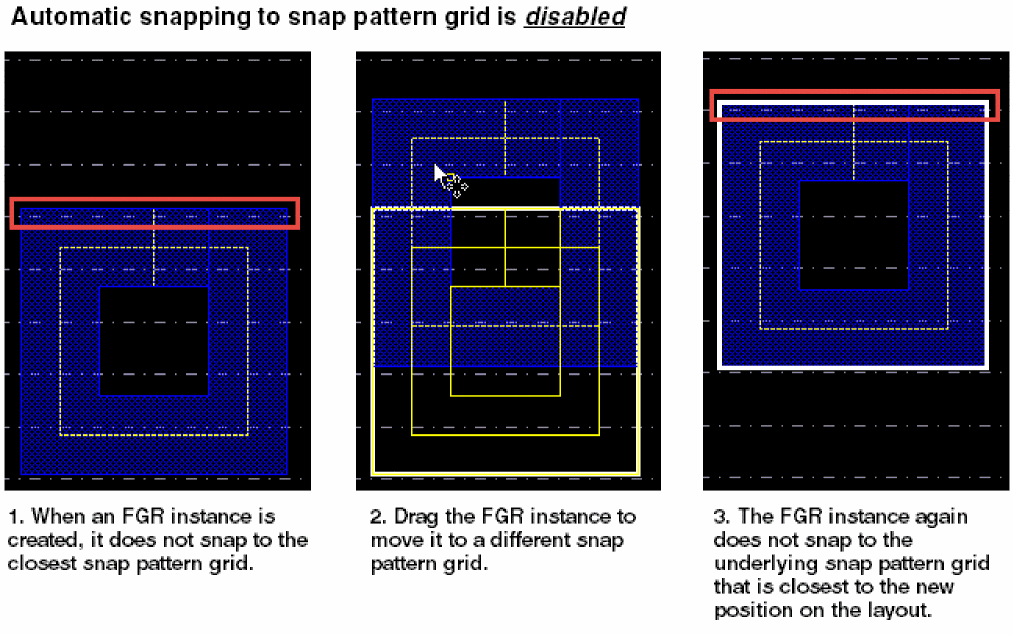
The VFO infrastructure supports automatic snapping of an FGR instance if snap pattern snapping is enabled in Layout L and relevant snap patterns are available on the canvas (just like snapping is available for any other instance in Layout L). When snapping is enabled, based on the snap pattern definitions, the FGR instance snaps to the closest snap pattern grid. For detailed information about snap pattern grids in Layout L, refer to the
The following images illustrate the difference in creating an FGR instance when automatic snapping is enabled or disabled in Layout L:
Other SKILL Functons for Create Form Modifications
Triggers
vfoGRUpdateCreateForm(formPointer)
Changes the properties of the GUI components. A formPointer argument is available through this trigger to update the GUI components on the form.
Using this trigger, you can set the GUI components as visible or invisible, make those editable or non-editable, and set the default initial values of each field and much more.
vfoGRUpdateCreateForm trigger can be used to make all pre-defined GUI components except the Technology and Device fields invisible and add new GUI components as per requirement. To make all pre-defined, including the Technology and Device fields, and user-defined GUI components invisible, use the following SKILL function:vfoGRSetCreateFormFieldProp(promptNamepropertyNamepropertyValue)
For possible values of the promptName argument of this SKILL function, see Field Prompts in vfoGRSetCreateFormFieldProp SKILL Function.
vfoGRAddCreateFormFields()
Adds more GUI components to the Create Guard Ring form.
The vfoGRAddCreateFormFields trigger contains definition of all hi* components. This trigger is called every time the Create Guard Ring form is created.
Queues
vfoGRAddFieldsInCommonQ
Displays the specified user-defined GUI components on the Create Guard Ring form when the vfoGRAddCreateFormFields trigger is called. The required user-defined GUI components should be added to a list in the following format:
vfoGRAddFieldsInCommonQ=list(
list(<GUI_component>
<xPosition>:<yPosition>
<width>:<height>
[promptBoxWidthOrTitleHeight]
)
)
-
xPosition- Specify the upper-leftXcoordinate in pixels of the field relative to the upper-left corner of the form. -
yPosition- Specify the upper-leftYcoordinate in pixels of the field relative to the upper-left corner of the form. -
width- Specify the width of the field in pixels. -
height- Specify the height of the field in pixels. -
promptBoxWidthOrTitleHeight- Specify the width of the prompt box in pixels for fields that have a prompt and are laid out horizontally, such as a string or spin box field. However, in case of fields that have a top-down layout, such as the report field and the scroll region field, it specifies the height of the title box in pixels (the title is displayed at the top of the title box).
vfoGRAddFieldsInCommonQ=list(
list(field1 10:50 180:20 120)
list(field2 10:90 180:20 120)
list(field3 10:130 180:20 120)
list(chkbox1 10:210 180:20 160)
)
Field Prompts in vfoGRSetCreateFormFieldProp SKILL Function
You can use the field prompts given in the table below with the promptName argument of the vfoGRSetCreateFormFieldProp SKILL function. These help you to change the property of the specified field according to the requirement, such as, hiding it, making it editable or non-editable, assigning some value to it, and so on.
| Field Description | Prompt Name |
|---|---|
|
Sub tabs i.e. Contact Setting, Implant Layers, and Outer Rings |
|
Return to top