5
Soft Blocks
You use the Floorplan – Soft Block Update commands to adjust soft blocks in a design.
You can use these commands to remove soft block overlaps, snap soft blocks to the routing grid or manufacturing grid, pull soft blocks to the core area, and to push the top-level implementation of power structures, including metal shapes and poly layers, into the block level.
The Floorplan – Soft Block Update menu provides the following sub-options :
|
Command
|
Description
|
|
Push Into Blocks
|
Pushes the top-level implementation of power structures to the block level.
|
|
Adjust Blocks/Pin
|
Adjusts the soft blocks by abutting and pushing the blocks.
|
|
Remove Block Overlap
|
Places overlapping hard blocks and soft blocks adjacent to each other. This command works on pre-selection as well as post-selection modes.
|
|
Snap Soft Blocks to Grid
|
Snaps the soft blocks to placement grid or the manufacturing grid. This command works on pre-selection as well as post-selection modes.
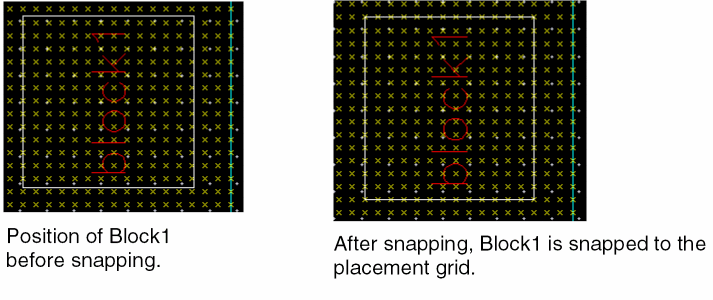
Digital soft block are snapped to the placement grid. Custom soft block are snapped to the manufacturing grid. In the following graphic, Block1 is a digital block. When the Snap Soft Blocks to Grid command is used, Block1 is snapped to the placement grid (represented by the x in the graphic).
|
|
Pull Soft Blocks inside PR Boundary
|
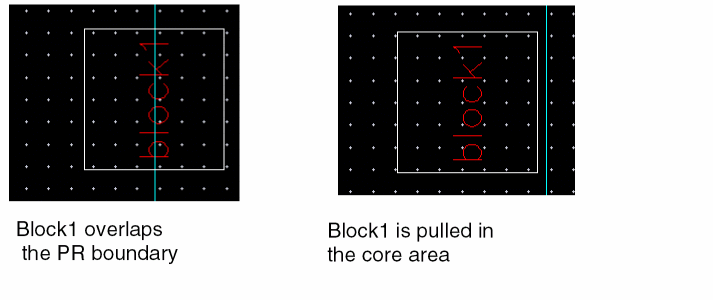
Pulls the soft blocks overlapping the PR boundary to the core area. If IO rows exist inside the PR boundary, the soft blocks are pulled inside the IO rows, which is the core area.
To pull a soft block in the core, select the soft blocks and then click Floorplan – Soft Block Update – Pull Soft Blocks inside PR Boundary. In Layout EXL, choose Plan – Block Planning – Pull Soft Blocks inside PR Boundary.
The following image shows the position of Block1 before and after the block is pulled.
|
|
Edit Soft Blocks
|
Modifies the attributes of individual soft blocks taking into account the placement and connectivity requirements in your design.
You can use this command to modify the following soft block attributes.
-
Type of soft block that will be created
-
Height, width, area, and shape of the PR boundary
-
Length, width, layer, and signal type of soft pins
-
Routing and placement of obstructions inside a block
|
Related Topics
Editing Soft Blocks
Pushing Top-level Power Structures into Soft Blocks
Push Into Blocks Form
Return to top