
Pushing Top-level Power Structures into Soft Blocks
To push the top-level power structures to the block level:
- Select the soft block to which the overlapping power geometries are to be pushed.
-
Choose Floorplan – Soft Block Update – Push Into Blocks.
In Layout EXL and higher tiers, choose Plan – Block Planning – Push Into Blocks. -
If soft blocks were not selected before invoking the form, select the required soft block instances. The Push Into Blocks form appears.
The preselected soft blocks are listed in the tree structure.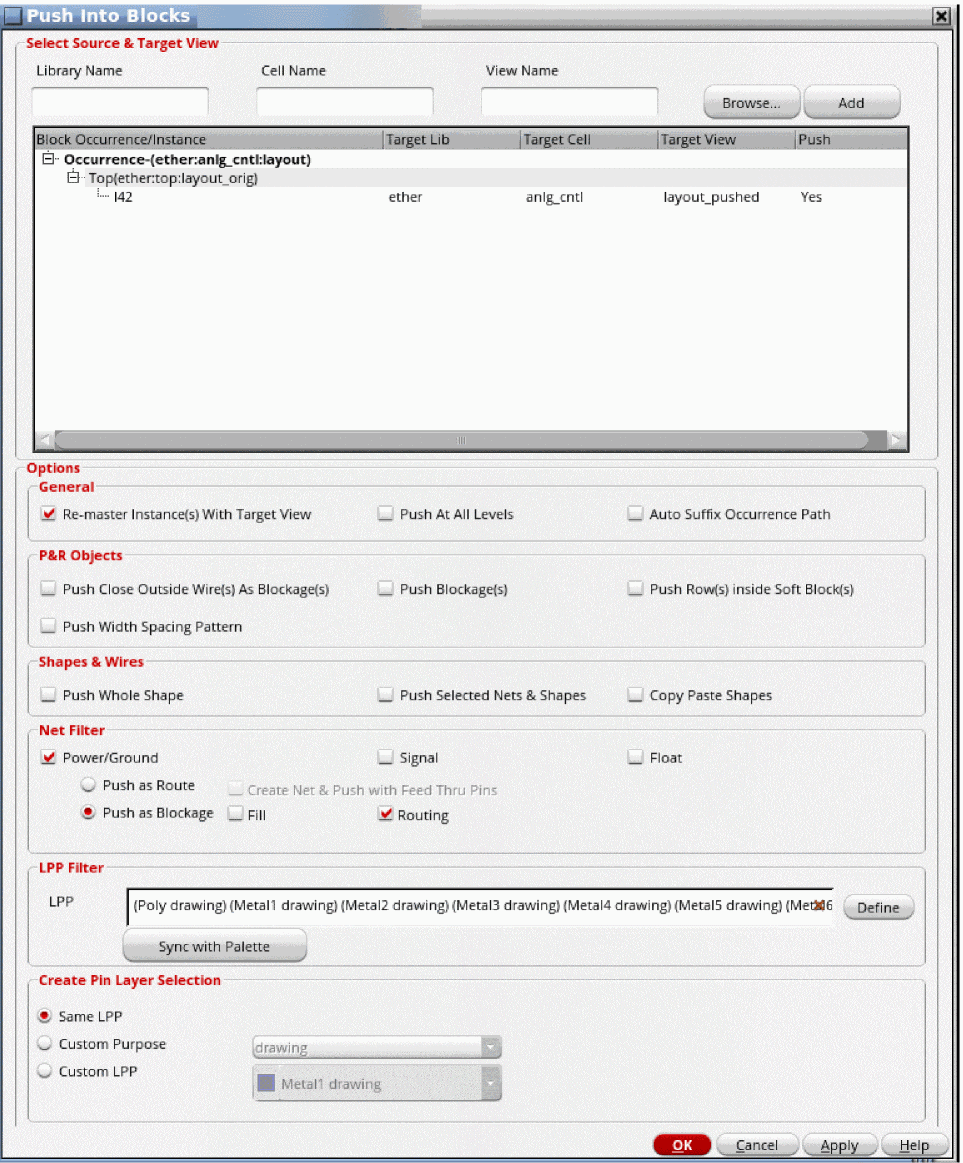
-
(Layout EXL and Higher Tiers) To add soft blocks:
- Click Browse.
-
Select the required cellview from the Library Browser.
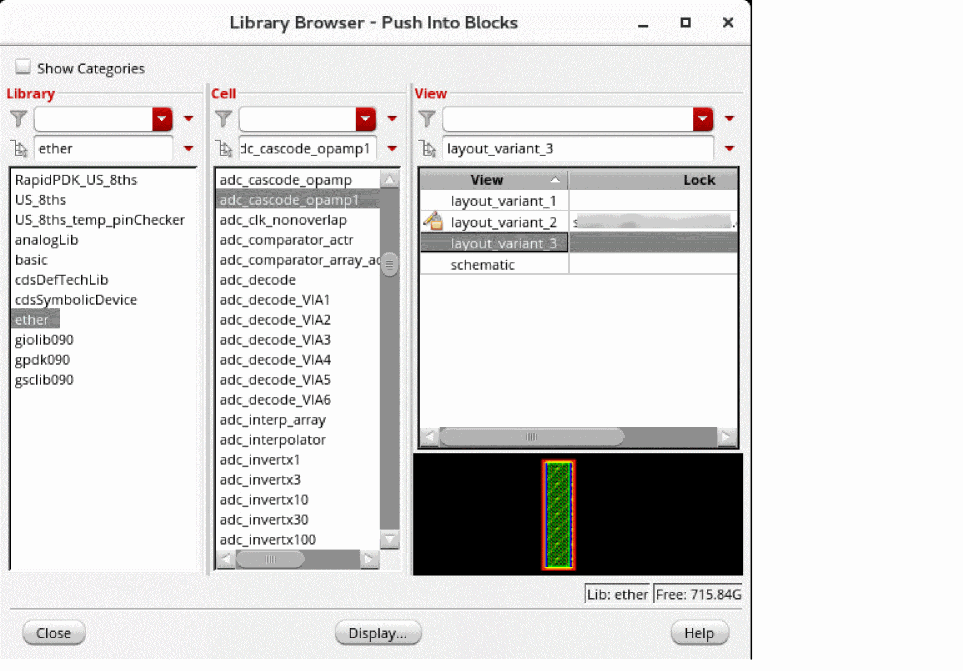
- Click Close to close the Library Browser.
- Click Add in the Push Into Blocks form.
Blocks from the selected cellview are listed in the tree structure.
To delete soft blocks from the tree:
Blocks from the selected cellview are deleted from the tree. - Edit the Target Lib, Target Cell, and Target View values directly in the table as per your requirement.
- Specify which soft blocks need to be pushed into blocks. By default, Push is set to Yes for all listed soft blocks. Change the value to No for the soft blocks you do not want to push.
- Specify the target cellview in the Target View section. If the form is invoked after selecting a soft block, the library, cell, and view names are populated by default.
- Select the required options from the Options section.
- Click OK.
Related Topics
Specifying General Options in Push Into Blocks
Specifying Shapes and Nets in Push Into Blocks
Specifying LPP and Pin Layers in Push Into Blocks
Return to top