
Device Instance Management In the Array Assistant
Use the Pattern Symbol Mapping region of the Array Assistant to view and change the mapping of instances and dummies.
The following figure explains the columns in the Pattern Symbol Mapping table.
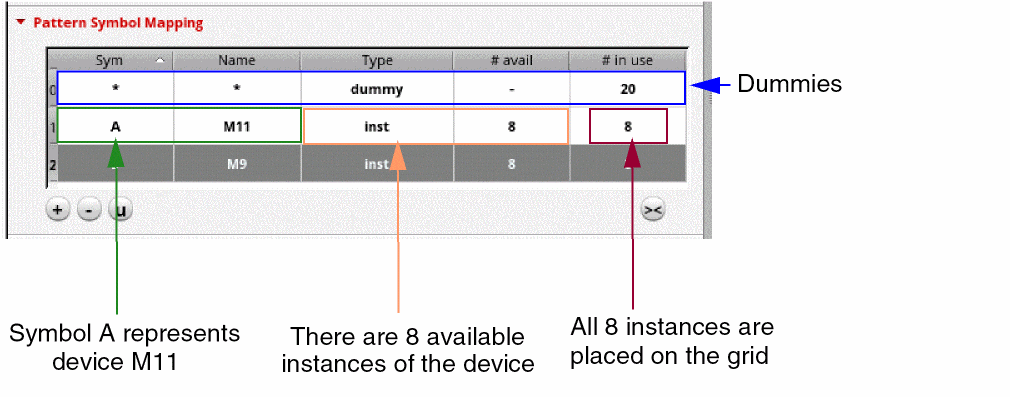
You can perform the following tasks in the Pattern Symbol Mapping table:
- Select Instances of a Device: When you select a device in the Pattern Symbol Mapping table, all instances of the device are highlighted in the layout canvas.
- Sort Devices: To sort the devices alphabetically, click the header of the column that you want to sort. Alternate clicks sort in ascending and descending order.
- Remap Instances: When you change the symbol of a device in the Pattern Symbol Mapping table, all instances of the device in the Pattern table are updated and remapped to the new symbol name.
-
Add and Remove Instances from Modgens: Use the
 and
and  buttons to add or remove selected instances from the active Modgen. You can add instances from the layout or schematic cellviews.
 -
Update Modgen Instances: Select the
 button to update the connectivity and nets on the instances in the Modgen. The device connectivity, parameters, and multipliers are refreshed from the corresponding schematic cellview.
 -
Reset Column Width: If you have altered the size of any column, click the auto-fit button
 to automatically fit the columns.
 -
Use the Shortcut Menu: Select a device and use the shortcut menu to do the following:
-
Paste on Grid: Select a few devices in the Pattern table before running this command. The selected devices are replaced by the device highlighted in the Pattern Symbol Mapping table.
In the following example, the Paste on Grid command is used to replace all the selected instances of device D with device A.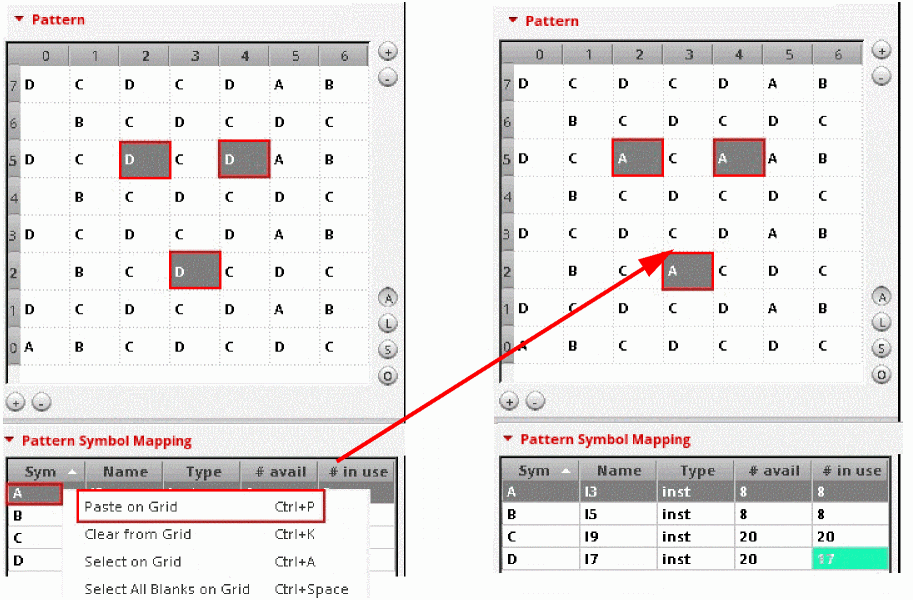
- Clear from Grid: All instances of the selected device in the Pattern Symbol Mapping table are deleted from the Pattern table.
- Select on Grid: All instances of the selected device in the Pattern Symbol Mapping table are selected in the Pattern table.
- Select All Blanks on Grid: All blank instances are selected in the Pattern table. Following this command, you can select another device in the Pattern Symbol Mapping table and choose Paste on Grid from the shortcut menu.
-
Assign Color: Assigns a color to the selected device in the Pattern Symbol Mapping table. The color is applied to all instances of the device in the Pattern table so that they are visually distinguishable. In the following image, all instances of device
Aare coloredcyan.You can select multiple entries in the Pattern Symbol Mapping table and apply the same color to all selected devices.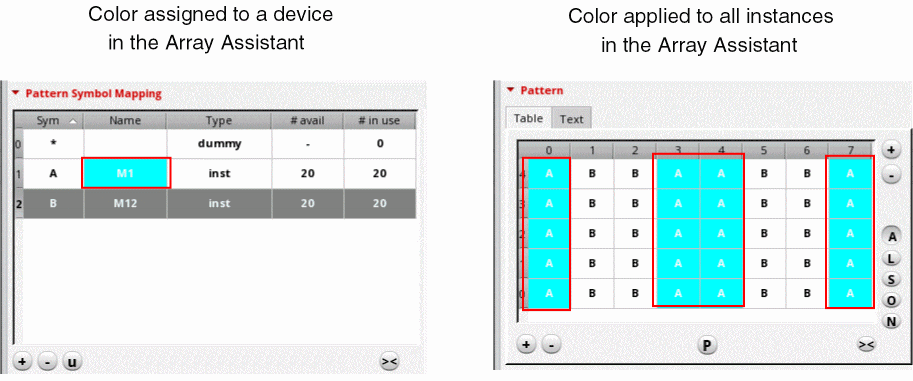
To remove coloring, select the required symbol in the Pattern Symbol Mapping table and choose Assign Color—Clear Color from the shortcut menu.
Colors assigned using this method could be overridden by Smart Display coloring, if enabled to work through the Modgen Editor. -
Paste on Grid: Select a few devices in the Pattern table before running this command. The selected devices are replaced by the device highlighted in the Pattern Symbol Mapping table.
Related Topics
Modgen Placement Settings in the Array Assistant
Methods to Add and Delete Rows and Columns in the Array Assistant
Display Names in Array Assistant
Return to top