
17
Postlayout Simulation
This chapter consists of the following topics:
Performance Improvement
For postlayout designs with RC parasitics, the +postlayout option enables various performance technologies to speed up the simulation, including RC reduction, efficient coupling capacitor handling, DC algorithms optimized for large post-layout circuits, along with other advanced numerical techniques.
To turn on postlayout simulation technologies, use the following command-line options:
% spectre +aps +postlayout ...
% spectre +aps +postlayout=hpa ...
% spectre +aps +postlayout=upa ...
The +postlayout option delivers best simulation performance, with acceptable accuracy, for custom digital designs, memory designs, and analog/mixed-signal designs where high simulation precision is not required. +postlayout=hpa provides higher simulation precision for analog/mixed-signal designs. +postlayout=upa delivers the ultimate post-layout simulation accuracy, similar to +postlayout=hpa, but with RC reduction completely disabled.
Even though not recommended, you can use the +rcnet_fmax=N command-line option to adjust simulation accuracy associated with +postlayout. The unit for N is in GHz and the default value is 125. N=25 is considered aggressive, whereas N=250 is considered conservative. The +rcnet_fmax option not only controls RC reduction accuracy with any local RC net, but also defines the accuracy/performance trade-off of other non-reduction based techniques.
The +postlayout command-line option enables RC reduction because of which some parasitic RC nodes are reduced. Therefore, if you have specified save statements in the netlist to save all internal RC nodes, some of these nodes are not saved. To save these nodes, set the value of the savefilter option to none in the netlist, as shown below.
opt options savefilter=none
You can use the preserve_inst option to preserve instances from any component reduction and parasitic reduction, as shown in example below:
simulationOptions options preserve_inst=[inst1, inst2, ...]
inst1 and inst2 can be the instances of any device or subcircuit; they will not be reduced by APS, or the parasitic reduction technology.
+parasitics option is now obsolete and should not be used. You can use the +postlayout=legacy option to get the same behavior as +parasitics. In addition, you can use the +postlayout=legacy_rf option for RF designs, which provides the same functionality as the +parasitics=rf option. The +postlayout=legacy and +postlayout=legacy_rf options will be removed in a future release.EMIR Analysis
With Spectre® APS, and Spectre® X, Cadence delivers a powerful transistor-level EMIR solution. This dynamic power net and signal net EMIR capability uses a patented technology and is designed to provide high capacity and high performance EMIR analyses. Within the same flow, Spectre APS and Spectre X can be used for high accuracy EMIR analyses; while Spectre X provides higher capacity and performance. The Spectre EMIR solution provides a set of advanced features covering dynamic EMIR, static EMIR, point-to-point resistance analysis, power gate support, differential IR drop, design resistor EM calculation, macro model generation, black boxing, and what-if analysis. The flow is fully integrated into Cadence Virtuoso® ADE environment. Results of the analysis can be visualized with Voltus-Fi XL).
This section discusses the following:
- Spectre EMIR Technology, Product, and Flow Overview
- Getting Started with Spectre EMIR Analysis
- Establishing an Accuracy Reference and Correlating EMIR Accuracy
- Optimizing EMIR Analysis for Accuracy and Performance
- Power Gate Support
- Handling the Complexity of DSPF/SPEF files
- Advanced Analyses
- Advanced EMIR Features
- Event Triggered EMIR Analysis
- Other Features
Spectre EMIR Technology, Product, and Flow Overview
Technology Overview
In an EMIR flow, a circuit is evaluated together with the parasitic resistor and capacitor network, which models the IR drop or the EM effect. There are two general approaches of solving such a problem:
- Direct EMIR analysis - When high accuracy is needed, a brute-force simulation of the entire system (circuit plus parasitic resistances and capacitances) can be performed to accurately calculate the EMIR of any net. The EMIR simulation performance and capacity is subject to the limitation of the circuit simulator being used.
-
Iterated EMIR analysis - In order to conduct EMIR simulation on circuits with much larger power and signal nets within a much shorter time, an alternative is to decouple the nonlinear circuit simulation from the linear RC net analysis. User can iterate the linear RC net analysis by modifying the layout, however, the nonlinear circuit simulation is performed only once. The decoupling of the linear RC nets from the nonlinear circuit is not mathematically equivalent to the original design and certain inaccuracy is introduced, however, the user receives the benefit of simulation performance and capacity.
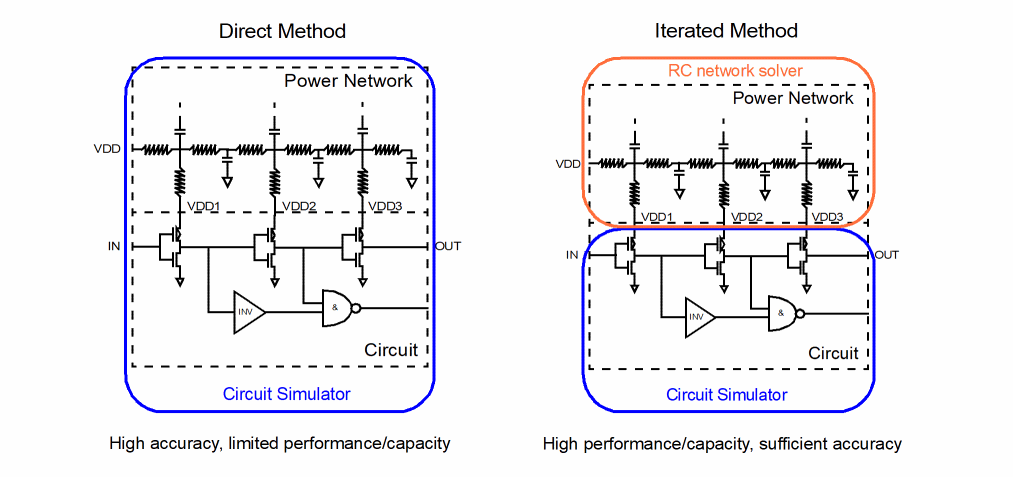
For high accuracy EMIR analysis of small design blocks, or designs with smaller numbers of RC nets, the Spectre® APS and Spectre X based direct EMIR analysis is recommended.
To gain higher performance and higher capacity on medium-to-large designs, the iterated EMIR analysis method is recommended. Both Spectre APS and Spectre X support iterated EMIR analysis.
The Spectre EMIR flow requires a complete testbench that contains the DSPF files (with the parasitic and instance sections describing the circuit to be analyzed) stimuli, device models, and so on. The EMIR analysis can be applied to a transient or DC analysis.
The presence of a +emir option on the Spectre command line enables the EMIR analysis during circuit simulation. The details of EMIR analysis - type of analyses, nets to be analyzed, output to be created - are specified using an EMIR configuration file.
Using either direct EMIR analysis or iterated EMIR analysis, the circuit simulation is performed first with various voltages and currents being calculated. Next, a standalone tool, emirreport/emirutil, is called to post-process the simulation results and generate the IR and EM reports. By default, the post-processing step is invoked automatically.
The output of the EMIR analysis is an EMIR text/html report, which lists the EM and/or IR information of all the nets requested. In addition, Voltus-Fi XL can be used to visualize the IR drop and EM current violations in Virtuoso Layout Editor.
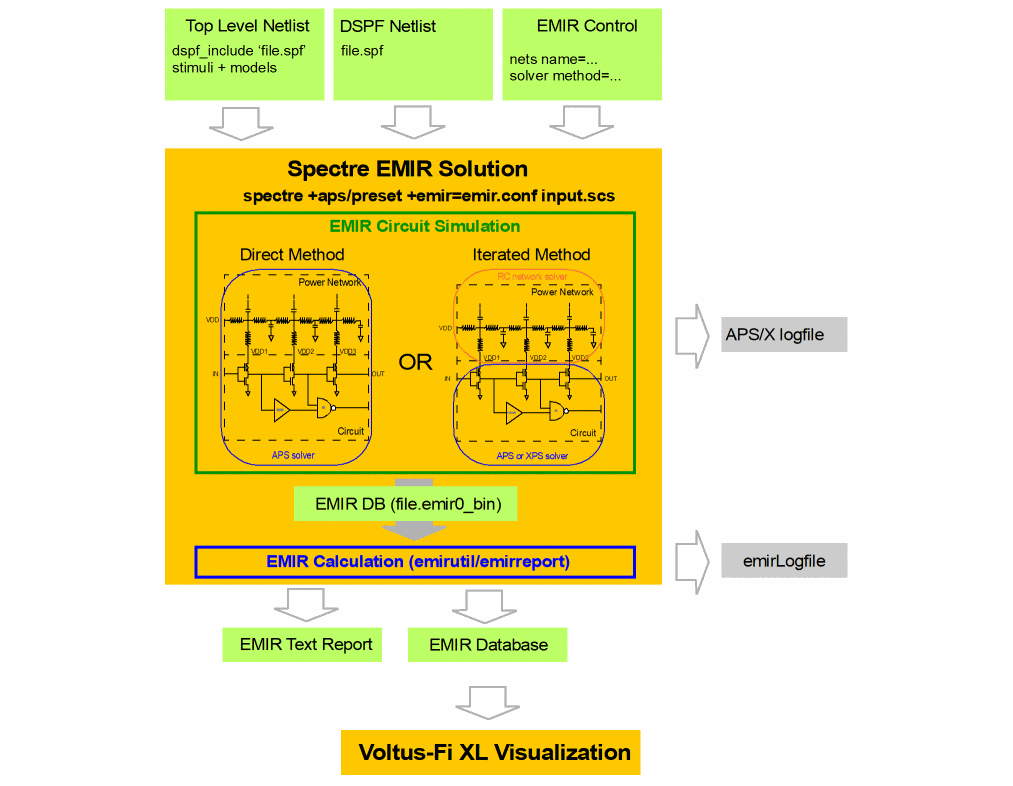
Note that while the Spectre EMIR flow uses the DSPF representation of the designs, it is not relying on any post-layout back-annotation or "stitching" capability. The flow covers designs with power gates and package models.
Product Overview and EMIR Flow
The EMIR product consists of the Spectre EMIR simulation and the Voltus-Fi XL visualization. The circuit and the RC network simulation are handled by Spectre EMIR. The result is stored in a binary database which contains the average, rms, max IR drop, and EM values. Voltus-Fi XL reads the information from the binary database, evaluates whether the currents are above the limits defined in the technology file, and visualizes the results in the layout.
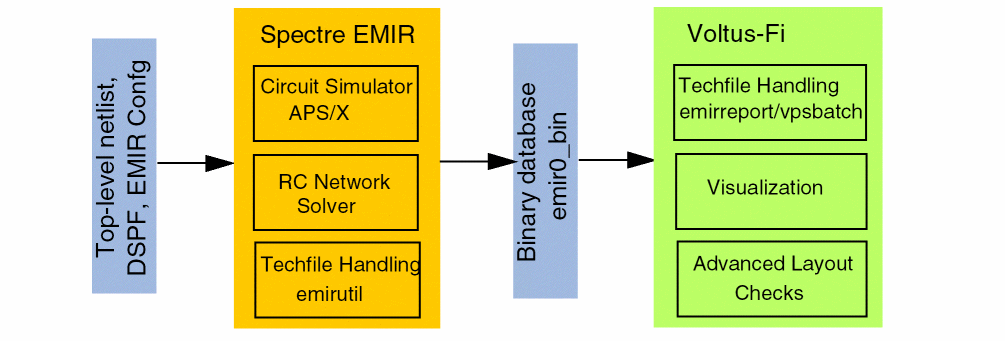
Different utilities are responsible for creating the IR drop and EM text reports. For advanced node designs for which the technology file format is ICT or qrctechfile, the utility emirreport (or vpsbatch) is used to generate the text report. For older technology nodes which use emdatafile format, the utility emirutil is used to create the text reports.
DSPF requirements
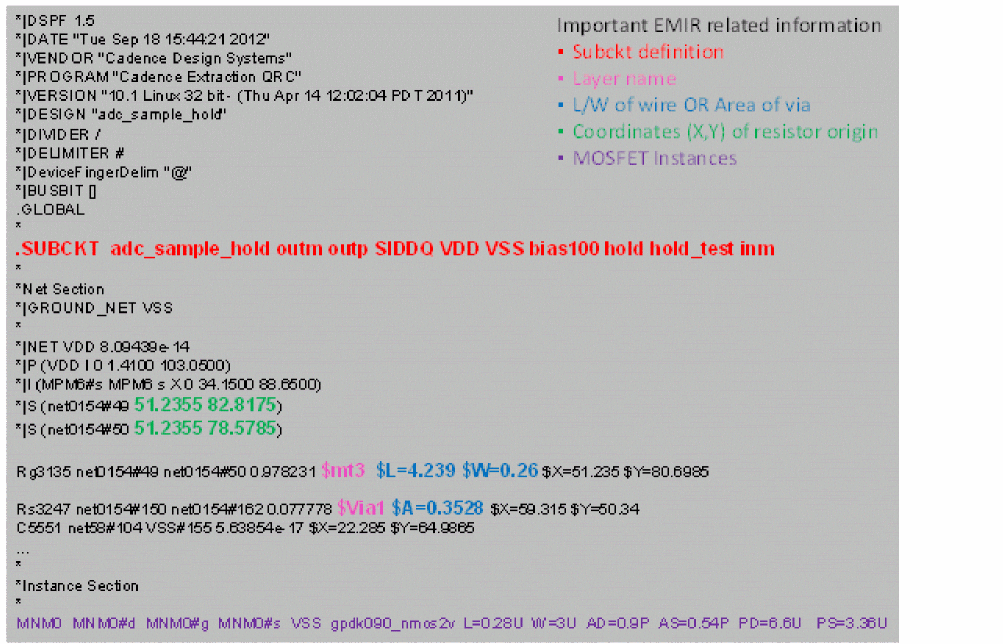
The Spectre EMIR flow is based on a DSPF representation of the analyzed design. The DSPF file is required to contain all electrical and geometric information needed for EMIR analysis. The following figure shows a representative DSPF netlist with all important information for EMIR being marked in color.
EM Rule Support
EM rules are defined in DRM, and part of the technology files. The Voltus-Fi XL– Spectre EMIR solution supports the following technology file formats.
Advanced node technologies require special EM rules that are only supported in ICT/ICT-EM and qrctechfile format. Refer to the Quantus QRC Techgen Reference Manual for details.
emdatafile format is used for legacy technology nodes. In future, it is expected to be replaced by ICT and qrctechfile format.
Various Cadence EMIR tools support only subsets of these techfile formats (for example, Voltus does not support ICT file, but supports ICT_em). ICT_em is the only format supported by all Cadence EMIR technologies, Voltus, EAD, and Voltus-Fi L and XL.
Getting Started with Spectre EMIR Analysis
To perform EMIR analysis, first create a complete simulation testbench with the DSPF files containing the postlayout data of the design. Specify the fingered devices in the instance section and the parasitic resistors and capacitors in the net section. Use the dspf_include statement to read the DSPF content, as shown below.
dspf_include "sram.spf " (Spectre syntax)
.dspf_include "sram.spf " (SPICE syntax)
dspf_include provides special features like port order adjustments, or handling of duplicated subcircuits, which are not available in include/.include. Therefore, do not use include/.include in the EMIR flow for including the DSPF file.
Large DSPF files may be split into multiple files, for example, sram.dspf, sram.dspf.1, sram.dspf.2, and so on. If the top-level DSPF file (sram.dspf) is included with the dspf_include statement, Spectre will search for any related file (sram.dspf.1, sram.dspf.2, ...) and read them automatically.
EMIR analysis can be applied to several subcircuits within the same design. Each block needs to be described with a DSPF file, and each DSPF file needs to be included with the dspf_include statement.
Setting up a correct postlayout simulation test bench is vital to successful EMIR analysis (see Handling the Complexity of DSPF/SPEF files).
Once the testbench is set up, you can perform a regular (non-EMIR) postlayout simulation with the spectre command to ensure that the testbench contains no error, and the circuit behavior is as expected.
% spectre ++aps=liberal input.scs //Spectre test bench
The Spectre command-line options can be used to adjust accuracy and performance. The command above initiates the simulation session with the ++aps engine and liberal errpreset setting.
To perform the same simulation with EMIR analysis added, you need to create and include an EMIR control file with the spectre command, as shown below.
% spectre ++aps=liberal +emir=emir.conf input.scs //Spectre test bench
The EMIR analyses is enabled by using the +emir Spectre command-line option. All EMIR-related commands are defined in the EMIR control file.
EMIR Control File
EMIR analysis is performed based on the first transient analysis statement in the netlist. An EMIR control file contains all of the settings and options that are relevant to an EMIR analysis. Some of the options that can be specified using the EMIR control file are: the names of the nets to be analyzed, the type of analyses to be performed, the EMIR analysis time window, choice of direct or iterated methods, settings for RC simulation, location of EM rule file, and so on.
The following sample control file describes EMIR analysis based on the X1 instance. A maximum IR drop analysis is performed on nets VDD and VSS, while RMS-based EM analysis is performed on all nets inside the X1 instance. The two-stage iterated method is used, and the current density limits for the EM report are referenced from file ./em_dir/40n_emfile.txt. Only one subcircuit instance is allowed for EMIR analysis for a Spectre run.
Example EMIR control file (emir.config)
net name=[X1.VDD X1.VSS] analysis=[vmax iavg]
net name=[X1.*] analysis=[irms]
solver method=iterated
emirutil techfile="./em_dir/40n_emfile.txt"
The EMIR control file supports the Spectre line continuation character + and comment-line characters * and //.
The following table summarizes the EMIR control file options:
The following table summarizes the supported EMIR control file options:
The EMIR control file supports the Spectre line continuation character +, and the comment lines start with character * or string //.
Checking the Progress of EMIR Analysis
As the simulation runs, Spectre sends messages to the screen and the simulation log file that show the progress of the simulation and provide statistical information. Following information may be significant to your EMIR analysis when you use the iterated method.
Hardware configuration and run-time machine loading
In the beginning of a simulation session, Spectre prints the hardware configuration (physical memory, CPU core specification) and the run-time machine status (available memory, CPU core operating frequency, CPU loading). Since EMIR analysis often involves large-scale designs with gigabytes of data, it is important to ensure that there is sufficient memory available, with CPU operating at full speed (not in power saving mode), and the machine loading is light.
User: user1 Host: lnx-user1 HostID: CD0A1190 PID: 26141
Memory available: 10.2268 GB physical: 16.6236 GB
CPU Type: Intel(R) Xeon(R) CPU E5-1650 0 @ 3.20GHz
Processor PhysicalID CoreID Frequency Load
0 0 0 3192.5 0.3
1 0 1 3192.5 0.2
2 0 2 3192.5 0.3
…
Reading the EMIR Control File
Spectre reads the EMIR control file before processing the circuit being simulated. All valid EMIR options are reported in the following section:
Reading EMIR configuration file: …/iterated.conf
~~~~~~~~~~~~~~~~~~~~~~~~~~~
EMIR Analysis Configuration
~~~~~~~~~~~~~~~~~~~~~~~~~~~
nets pwrgate = [i1.VDD i1.outp] analysis = [vmax]
nets name = [i1.VSS] analysis = [vmax]
nets name = [i1.*] analysis=[irms iavg]
spf aliasterm = "gpdk090_nmos2v 1=d 2=g 3=s"
…
emirutil techfile = emDataFile.txt
solver method = iterated
If one of the specified EMIR options is not displayed in the summary, check the related warnings, and correct the syntax.
Processing the DSPF Files
Spectre processes the DSPF files and prepares a reduced circuit to be simulated. This often includes identifying the power nets and reducing them to only include parasitic capacitors, as well as identifying the signal nets and reducing the parasitic resistors and capacitors according to accuracy requirement.
Time for Processing DSPF file: CPU = 128.981 ms, elapsed = 60.8708 s (1m 0.9s).
Time accumulated: CPU = 167.974 ms, elapsed = 60.8709 s (1m 0.9s).
Peak resident memory used = 42 Mbytes.
Time for Creating Parasitic Database: CPU = 0 s, elapsed = 403.166 us.
Time accumulated: CPU = 170.973 ms, elapsed = 60.874 s (1m 0.9s).
Peak resident memory used = 42.1 Mbytes.
All coupling capacitors with C<1e-16 are grounded, while others are preserved. The dspf_include option CapacitorSplitThreshold can be used to adjust the value. Direct method and first stage iterated method do not simplify coupling caps. The second stage iterated method includes coupling caps in individual net solving. It biases the other terminal of the coupling cap with a voltage waveform.
Running the Circuit Simulation to Produce Voltage Profiles
At this point, with the simplification of power and signal nets, Spectre is ready to simulate the nonlinear circuit and produce voltage profiles needed for iterated EMIR analyses. This step is similar to a regular circuit simulation, where Spectre first parses the circuit, reports circuit inventory, initiates a DC analysis, and finishes the step with a transient analysis.
Creating probes for EMIR analysis: 36 voltage probes, 0 current probes
Time for setting up EMIR tap devices: CPU = 10.0 ms (0h 0m 0s), elapsed = 10.0 ms (0h 0m 0s).
Time for setting up EMIR analysis: CPU = 30.0 ms (0h 0m 0s), elapsed = 30.0 ms (0h 0m 0s).
Peak resident memory used = 0.95 Mbytes
…
******************************************************
Transient Analysis `transient1': time = (0 s -> 20 ns)
******************************************************
…
......9......8......7......6......5......4......3......2......1......0
Number of accepted tran steps = 918
Initial condition solution time: CPU = 175.973 ms, elapsed = 176.348 ms.
Intrinsic tran analysis time: CPU = 352.946 ms, elapsed = 354.783 ms.
Total time required for tran analysis `transient1': CPU = 531.918 ms, elapsed = 557.204 ms.
Time accumulated: CPU = 873.866 ms, elapsed = 62.0641 s (1m 2.1s).
Peak resident memory used = 65.2 Mbytes.
Creating EMIR waveform profile …/iterated.emirtap.pwl
Time for creating waveform database: CPU = 30.0 ms (0h 0m 0s), elapsed = 40.0 ms (0h 0m 0s).
The reported transient time and the accumulated time are important measures to be considered when optimizing performance. The voltage profiles of the tap devices (active devices connecting to the power and signal RC nets) are stored in the pwl files, and used as input for the second stage EMIR simulation.
This step of EMIR simulation is fully multi-threaded. It uses the number of cores defined by the +mt command-line option.
Simulating the Parasitic RC Nets
In the second stage of the iterated EMIR analysis, the power and signal nets are simulated together with the tap devices. During the simulation, the tap device terminal voltages over time is taken from the voltage profiles created in the first stage. In the second stage, nets are solved individually, except for coupled nets, which are solved together.
The RC network solver writes all IR drop voltage and EM current values to the binary database with the extension emir0_bin. Important log file content is written to the EMIR PARASITICS ANNOTATION SUMMARY section, which provides information on the nets and R/C elements processed. In addition, the number of solved time steps per net, and the elapsed time for the RC solving are essential when optimizing performance.
*****************
EMIR RC Analysis
*****************
Reading EMIR configuration file: …/iterated.emirtap.conf
~~~~~~~~~~~~~~~~~~~~~~~~~~~
EMIR Analysis Configuration
~~~~~~~~~~~~~~~~~~~~~~~~~~~
solver method = iteronly inputwf = …/iterated.emirtap.pwl
Maximum grounded vsource value = 2.5v
Searching and processing cross coupling capacitors in SPF file
/grid/cic/nsdpe-2/stefanw/emir/logfile/./adc_sample_hold.dspf
.......9......8......7......6......5......4......3......2......1......0
Cross coupling capacitors found and processed: 0
Solving coupled nets "VDD outp": number of nodes = 594, time = (0n -> 20n)
.........9.........8.........7.........6.........5.........4.........3.........2.........1.........0
Total time required for EMIR RC analysis of coupled nets "VDD ... ": CPU = 480.0 ms (0h 0m 0s), elapsed = 240.0 ms (0h 0m 0s).
Completed transient analysis up to 100% at Tue Jan 12 03:53:44 2016
EMIR RC analysis accumulated time: CPU = 1.4 s (0h 0m 1s), elapsed = 1.0 s (0h 0m 1s).
Peak resident memory used = 68.40 Mbytes.
~~~~~~~~~~~~~~~~~~~~~~~~~~~~~~~~~~
EMIR PARASITICS ANNOTATION SUMMARY
~~~~~~~~~~~~~~~~~~~~~~~~~~~~~~~~~~
Nets: parsed 18 processed 18
Cross coupling capacitors: parsed 0 processed 0
Capacitors: parsed 0 processed 0
Resistors: parsed 3052 processed 2933
Nodes: parsed 2205 processed 2205
Nets annotated with C-only: 0 Nets annotated with RC: 18
Detailed annotation report written in file "iterated.raw/iterated.emirtap.spfrpt"
0 errors and 28 warnings(fixed errors)
Message statistics
===========================
Instance section detected 1
Small R/C excluded 96
Dangling R/C terminal 28
Notice from spectre.
EMIR binary file 'iterated.raw//iterated.emirtap.emir0_bin' is generated (start = 0, stop = 2e-08)..
Number of nets solved = 18
Number of accepted time steps = 3148 (average 174.889 per net)
Number of rejected time steps = 187 (average 10.3889 per net)
…
Total time required for EMIR RC analysis: CPU = 1.4 s (0h 0m 1s), elapsed = 1.0 s (0h 0m 1s).
Peak resident memory used = 68.4 Mbytes
This step of the EMIR simulation is fully multi-threaded. It uses the number of cores defined by the +mt command-line option.
After the EMIR data is available in the binary database, another step is performed to create the text reports for IR drop, EM currents, pin currents, and power gate information. The following output shows the related section in the log file (some content is only written to stdout):
Creating EMIR report, check '…/iterated.raw/iterated.emirtap.emirlog' for more information.
Time usage: elapsed: 150.0 ms (0h 0m 0s), CPU: 90.0 ms (0h 0m 0s)
Find PDB file (./logfile.emirtap.pdb)
Pin current report ./logfile.emirtap.rpt_pin created.
Power gate report .logfile.emirtap.rpt_pwg created.
Completed processing EM/IR data up to:10 %
Completed processing EM/IR data up to:20 %
Completed processing EM/IR data up to:30 %
Completed processing EM/IR data up to:40 %
Completed processing EM/IR data up to:50 %
Completed processing EM/IR data up to:60 %
Completed processing EM/IR data up to:70 %
Completed processing EM/IR data up to:80 %
Completed processing EM/IR data up to:90 %
Completed processing EM/IR data up to:100 %
text IR report successfully generated.
text EM report successfully generated.
text PIN current report successfully generated.
text Power gate report successfully generated.
Note, found 4 warning messages, and 4 warnings printed.
At the end of the simulation, Spectre reports the total simulation time and peak memory used.
Aggregate audit (3:53:45 AM, Tue Jan 12, 2016):
Time used: CPU = 2.38 s, elapsed = 63.3 s (1m 3.3s), util. = 3.76%.
Time spent in licensing: elapsed = 60.1 s (1m 0.1s), percentage of total = 94.8%.
Peak memory used = 68.8 Mbytes.
Viewing EMIR Results
Spectre EMIR writes the IR voltage and EM current values to a binary database with the extension emir0_bin. In addition, it automatically calls the emirreport or emirutil binary for creating the text or html reports.
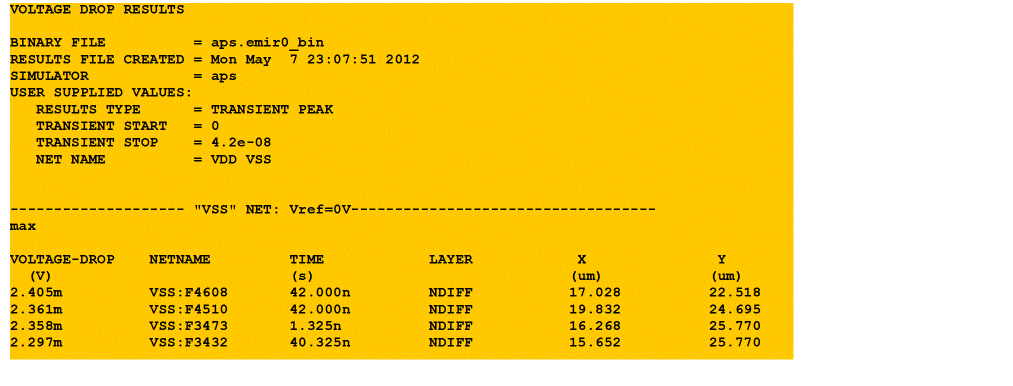
The textual/html IR drop report (file extension: rpt_ir/rpt_ir.html) lists the voltage drop per net (in the order of largest to smallest), and provides information about the time the maximum IR drop occurred, as well as the layer information and layer coordinates. An example section of an IR drop report is shown in the following figure:
The EM report (file extension: rpt_em/rpt_em.html) lists the pass/fail results for each resistor segment of a net, and provides information about the resistor name, layer, current, layer width, density (current divided by width), density limit, number of vias required, and the coordinates.

The EMIR text and html reports can also be created using an existing EMIR binary database using the following command:
$ emirutil -db aps.emir0_bin -control emir.conf
For more information on emirutil/vpsbatch utility for creating the reports, and for the visualization of the EMIR analysis results in the layout, refer to the Voltus-Fi user manual.
If there are multiple emir0_bin files created by the same Spectre EMIR simulation, it is sufficient to specify only the first binary database file with the -db option. The utility automatically identifies all other binary database files created by the Spectre EMIR simulation.
Data Flow
The data flow of the iterated EMIR flow is shown in the following flowchart. The first stage EMIR circuit simulation creates the tap device voltage profiles which are stored in the pwl files, and used in the second stage. The second stage RC network solver writes all IR drop and EM current values to a binary database with the extension emir0_bin. This binary database is used by emirutil/emirreport for creating the text/html reports, and by Voltus-Fi XL to visualize the results in the layout.
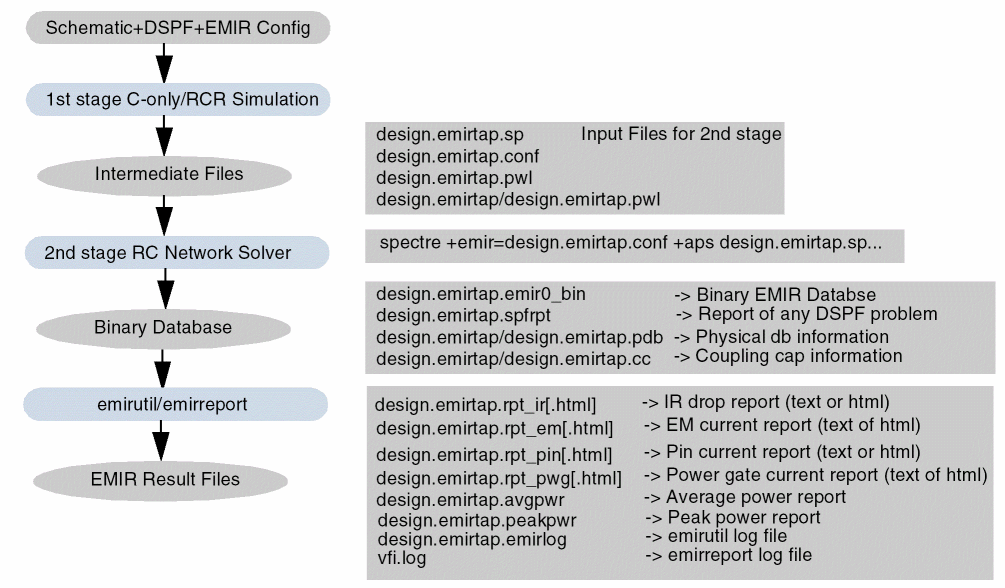
All intermediate and output files are written into the Spectre output (raw) directory. Some files shown in the figure are only created when the related feature is enabled in the EMIR config file.
If multiple EMIR windows are used in the same EMIR simulation, a set of files is created for each EMIR time window. For example:
Time window 1: emir0_bin, rpt_ir, rpt_em, …
Time window 2: emir1_bin, rpt_ir1, rpt_em1, …
The data flow for the APS direct method is the same except that the intermediate files are not created. Only the iterated method EMIR files have the emirtap file extension.
Direct method: design.emir0_bin, design.rpt_ir, design.rpt_em
Iterated method: design.emirtap.emir0_bin, design.emirtap.rpt_ir, design.emirtap.rpt_em
For large designs, the intermediate (pwl, pdb) and EMIR database files (emir0_bin) can be compressed by using the eisopt zipfiles=2 option in the EMIR config file.
Establishing an Accuracy Reference and Correlating EMIR Accuracy
To evaluate an EMIR solution and to select the appropriate level of accuracy and performance trade-off, it is important to establish a golden accuracy reference, and be able to correlate EMIR results compared to this reference.
Establishing an Accuracy Reference Using the APS Direct Method
For evaluating and optimizing the performance and accuracy of Spectre EMIR analysis results, a golden accuracy reference is required. It is recommended to select a representative small-to-medium sized design that can be simulated within reasonable time by using the APS direct method. APS direct method produces accurate EMIR golden accuracy. The following shows an example of APS direct method EMIR config:
net name=[X1.VDD X1.VSS] analysis=[vmax iavg]
net name=[X1.*] analysis=[irms]
solver method=direct
When correlating data between iterated and direct method, there is no need for including a technology file since only IR drop and EM current values are compared.
Correlating EMIR Accuracy
Once the iterated method is run on the same design, you can use the emirutil utility to compare the accuracy of iterated EMIR results with the golden APS direct EMIR results.
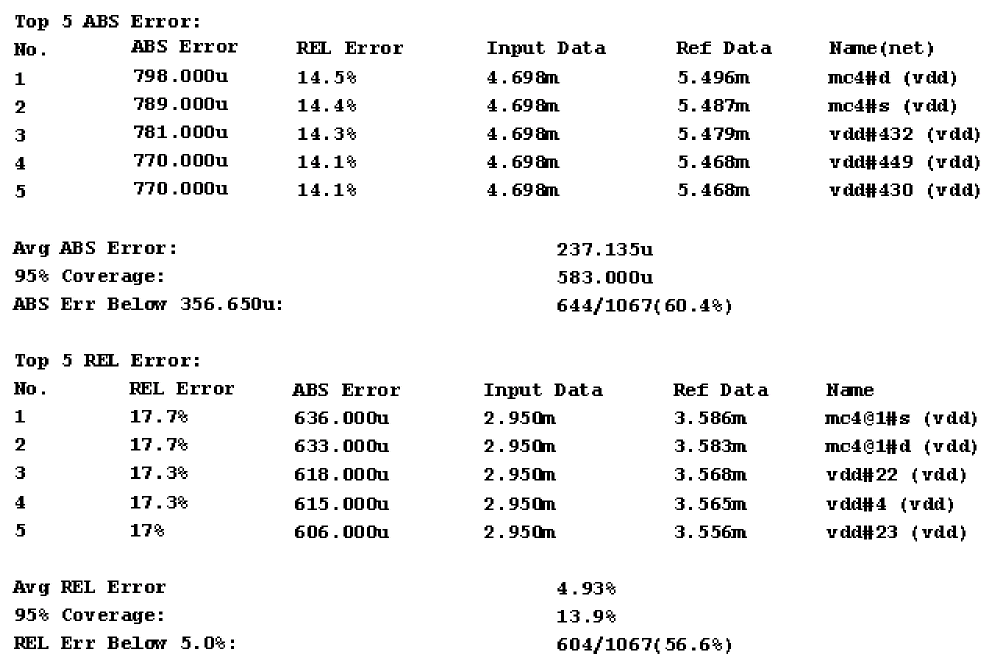
For example, the following command compares the IR drop results for the node vdd between the iterated and direct methods. All vdd tap points with more than 100mV and 1% of the maximum vdd IR drop are reported. The results are written to the file test.erclog in scientific notation.
emirutil -i iterated.rpt_ir -r direct.rpt_ir -o test -net "vdd"
-ir_abstol 100e-6 -ir_reltol 0.01 -maxrpt all -notation s
The following is an example of the comparison report:
Alternatively, a GNUPLOT graph can be generated, as shown below:
emirutil -i input.emirtap.rpt_em -r input.rpt_em -net VDD -g
This command creates a GNUPLOT command file (that is, out_VDD_em_max.plt), and a gnuplot database file (that is, out_VDD_em_max.dat). The plot can be shown in GNUPLOT using the following command.
gnuplot -persist default_VDD_ir_avg.plt
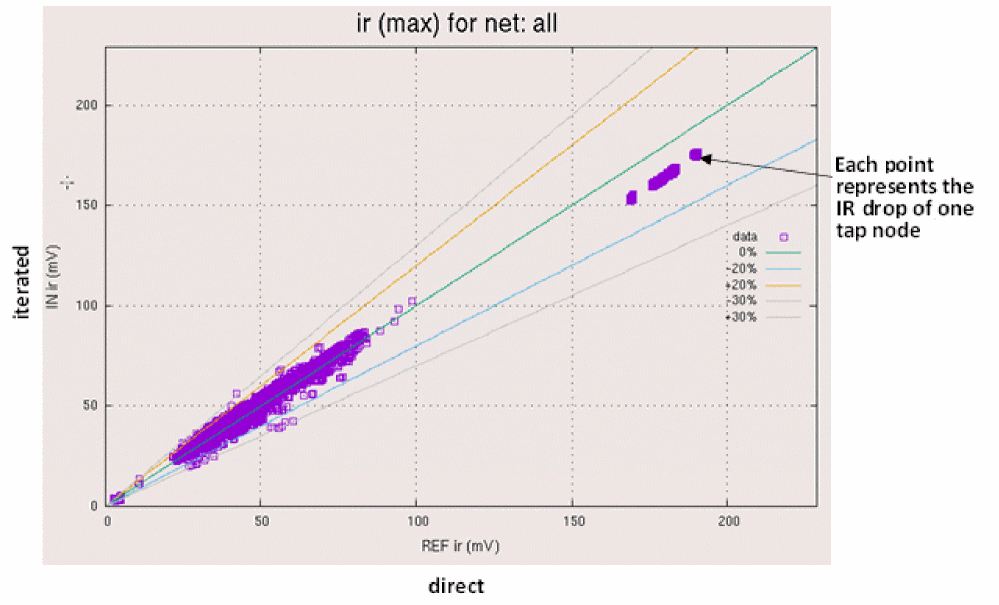
The following gnuplot graph compares the IR drop for all nets of the design between iterated and direct method.
The following table describes the emirutil command-line options.
All emirutil options can also be specified in a control file and included using the -c command-line option. The syntax in the control file does not require the dash.
The following is an example of specifying the emirutil options in a control file:
reference="/home/user/emir/direct/top2.rpt_ir"
input="/home/user/emir/iterated/top2.rpt_ir"
output=test
net="vdd avtr"
ir_abstol=1e-8
ir_reltol=0.01
maxrpt=all
notation=s
print_shell
The control file can be used with emirutil, as shown below.
emirutil -c control.txt
emirutil can be used not only to compare the direct EMIR analysis results with iterated EMIR analysis results, but also to compare the results of any two EMIR analyses.The outcome of the correlation between the iterated and direct methods provides a good understanding of the iterated method accuracy.
Optimizing EMIR Analysis for Accuracy and Performance
Understanding the Accuracy Impact and Performance Bottleneck
As discussed, the iterated method consists of a first stage circuit simulation with different simulation solver options (Spectre APS, Spectre X), and a second stage RC network solver analysis. Both stages can be optimized for accuracy and performance. The accuracy of the first stage can be improved by keeping some parasitics with the RC reduction option, in place of the default C-only simulation. Once the parasitics going into the first stage circuit simulation are decided, the performance and accuracy of the first stage circuit simulation is completely subject to the choice of simulation solver, and the solver accuracy setting (for example, errpreset, ++aps, +preset, +dcopt, +hsfe). The accuracy and performance trade-off in the second stage is defined by the speed option. A higher value of the speed option means higher performance, and a lower value means higher accuracy. For most designs, the default speed=5 provides the best accuracy/performance tradeoff.
The following figure shows the performance numbers for an individual EMIR analysis steps for a large representative design, and the options for trading between accuracy and performance.
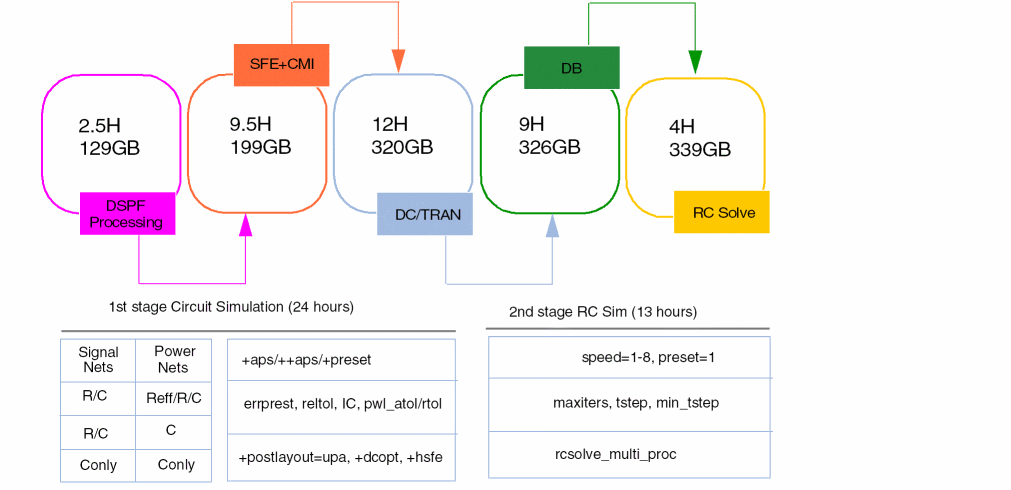
When optimizing performance, it is important to check whether it is the first stage or the second stage that dominates the overall performance. The elapsed time and time steps for each stage are reported in the Spectre log file, as shown below.
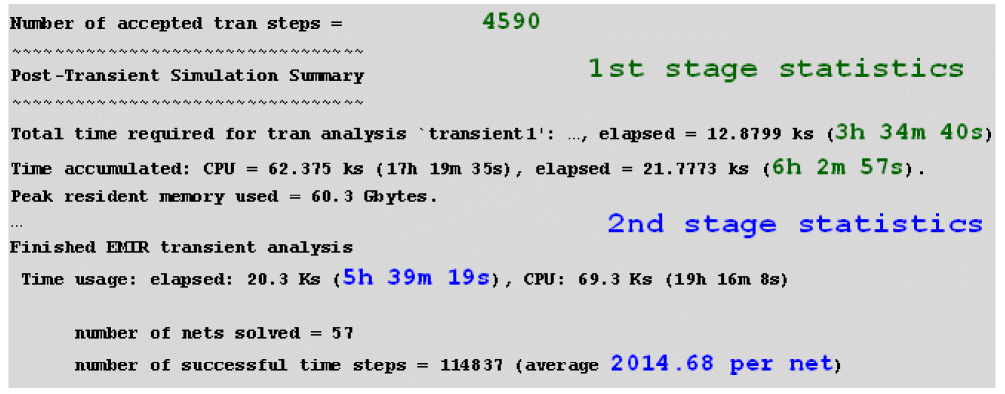
The number of time steps used in the second stage RC simulation should track the first stage circuit simulation to some extent.
Performance and Accuracy Trade-Off in the First Stage Circuit Simulation
Since the first stage involves circuit simulation, all Spectre-related simulation options can be used for optimizing accuracy or performance. For very large digital and SRAM designs, use the following command-line options to obtain good performance in APS:
++aps=liberal - high performance APS solver with errpreset=liberal
+hsfe - hierarchical Spectre parser for improved parsing performance
+dcopt=11 - high speed DC operating point calculation
+postlayout=upa - postlayout optimized simulation technology without RC reduction
Analog and mixed-signal designs typically require higher accuracy. The following options may provide good performance for such designs:
++aps=moderate - high performance APS solver with errpreset=moderate
+dcopt - high speed DC operating point calculation
+postlayout=upa - postlayout optimized simulation technology without RC reduction
Alternatively, Spectre X can be used with the equivalent +preset option. If Spectre X is used, then there is no need for specifying +hsfe or +postlayout=upa. The +dcopt option may still be used for optimizing the DC performance.
EMIR analysis can be accurate only if the circuit behaves correctly in first stage. Therefore, always check the first stage voltage waveforms for correct circuit behavior, before analyzing EMIR accuracy.
EMIR accuracy can be significantly improved by changing the first stage from the default C-only method to RC modeling methods. When this is needed, it is recommended to apply RC reduction to the signal nets and leave the power nets to be C-only. You can use the rcr_netsize option to define signal versus power nets. A typical value is rcr_netsize=30000, which means that all (power) nets with more than 30000 resistors are processed with C-only while all (signal) nets with less or equal 30000 resistors are processed with RC reduction. The default value of rcr_netsize is 30000.
The accuracy can be further improved by additionally using the RSNAP or Reff method for the power nets. However, this needs to be performed carefully because power nets can be huge and applying RCR may cause the degrade performance to be similar to the direct method. The recommended approach is to use RCR on the smaller global power nets, and Reff on the larger virtual power nets. This is a very conservative approach and is recommended only for advanced node designs.
The following figure shows the three methods.
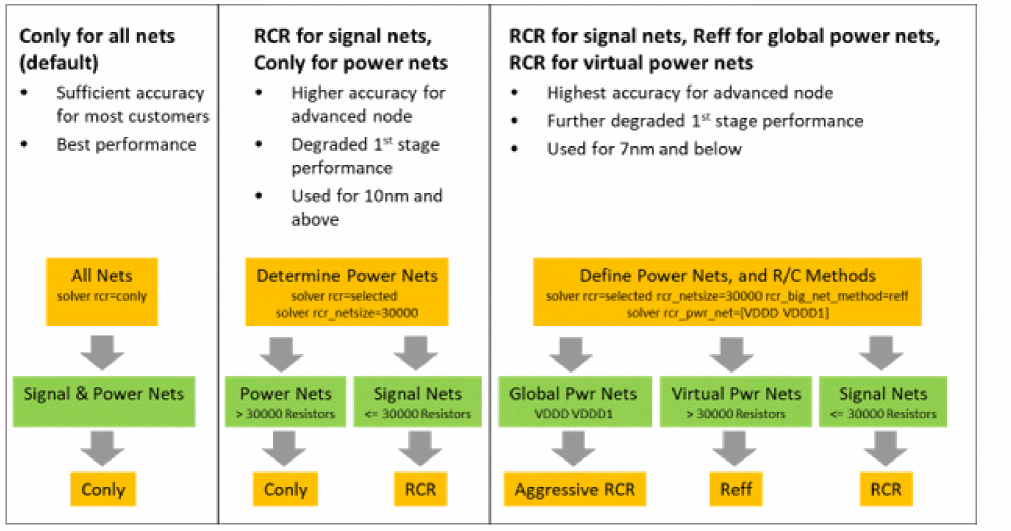
The first stage modeling method for the signal nets and power nets can be defined respectively using the options rcr_small_net_method and rcr_big_net_method. The advanced users may differentiate between the large and huge power nets by using the options rcr_huge_netsize (default is infinite). For huge nets, the Reff method is used.
Alternatively, there are options for assigning individual nets to the three categories of nets:
-
Conly nets:
solver c_net=[name 1 name2...] -
RC reduced signal nets:
solver rcr_net=[name1 name2...] -
Aggressive RC reduced power nets:
solver rcr_pwr_net=[name1 name2...] -
Reff power nets:
solver reff_pwr_net=[name1 name2...] -
Rsnap/Reff power nets:
solver rsnap_reff_pwr_net=[name1 name2]
The name-based options support wildcard and have higher priority than the size-based rcr_pwr_netsize setting.
The accuracy of the RC reduction methods can be adjusted by setting the cut-off frequency.
-
rcr_fmax=value - Cut-off frequency for the conservative signal net RC reduction (default is 20GHz) -
rcr_pwr_fmax=value - Cut-off frequency for the moderate power net RC reduction (default is 5GHz)
Speeding Up Second Stage RC Simulation
The speed option defines the accuracy and performance of the second stage RC network solver. speed=8 provides the highest performance while speed=1 provides the highest accuracy. speed=1-5 use adaptive time steps while speed=6-8 use fixed time steps.

For most designs, the default speed=5 provides the best accuracy/performance tradeoff. Only rare cases require you to adjust the speed option.
If (for debugging) a fixed time step is required, you can use the tstep option, as follows:
Also, the RC network solving performance can be improved by using multiple (forked) processes in addition to the default multi-threaded processing. Multi-processing can be enabled with the following option:
When enabled, the total number of cores at any time is defined by the +mt Spectre command-line option. Small nets (<rcsolve_1t_netsize) are solved first with eight forked single-thread processes. Medium nets are solved next with two forked four thread processes. Big nets (>rcsolve_4t_netsize) are solved with one main process using eight threads.
The overall EMIR performance can be improved by pipelining the first and second stage EMIR solving. By default, the Spectre EMIR flow runs the first and second stages sequentially. However, if both the stages are the dominant parts of the overall EMIR simulation, the second stage solving can be started while the first stage is still running. In the pipelined approach, the second stage solving reads the partial results from the first stage, and calculates the related EMIR data while the first stage continues in the transient simulation. You should define the large time-consuming (power) nets as pipelined nets, while smaller nets can be solved with the regular method. The pipelined processing can be enabled with the following option.
solver pipeline_nets = [net1 net2 …]
Pipelining is recommended when:
- Both first and second stages are both dominant parts of the overall EMIR simulation time
- Large net solving dominates the second stage solving
- Transient time and the EMIR time window are heavily overlapping
Spectre EMIR uses multiple processes when multi-processing and pipelining are enabled. Job distribution systems like lsf, rsh, and nc can be used to distribute EMIR subprocesses to a server farm.
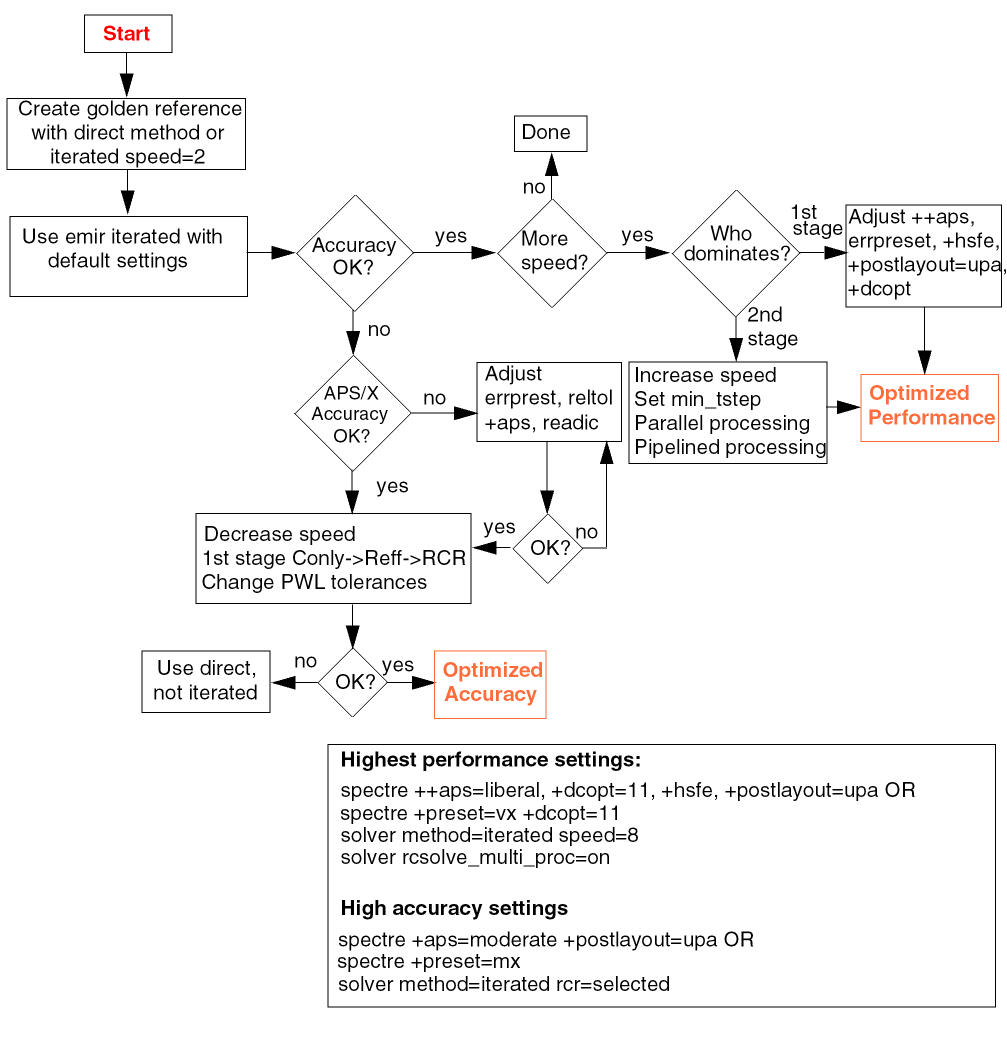
The following flowchart describes the overall flow about how to optimize the EMIR accuracy and performance:
Power Gate Support
Power networks may contain power gates (four-terminal MOSFET device) which enable or disable the power supply in the circuit. These power gates split the power supply RC network into two parts; the RC network driving the power gate, and the RC network being driven by the power gate. These nets are strongly coupled together and they should be simulated together in EMIR analysis.
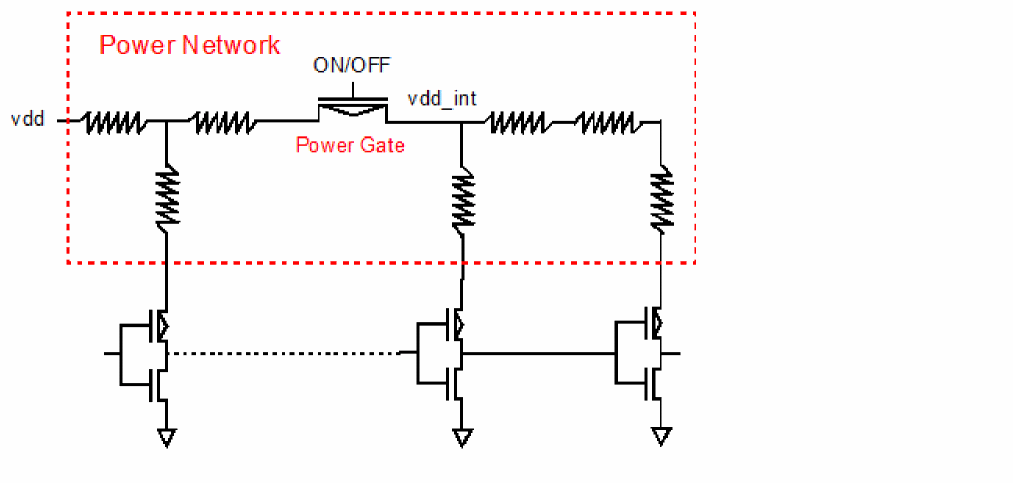
To invoke power gating handling, add the power gate setting in the EMIR control file (emir.config), as shown below.
net pwrgate=[vdd vdd_int] analysis=[vmax]
Both, the global power supply net vdd driving the power gates, and the virtual internal power supply net vdd_int driven by the power gates, need to be specified in the net statement in any order. Wildcards are supported for internal power supply nets, but not for power supply nets. If one power supply net drives multiple power gates, one statement with all power supply nets needs to be defined, as shown below.
net pwrgate=[vdd vdd_int1 vdd_int2] analysis=[vmax]
The IR drop report includes both the power supply net in the usual report file name, for example, input.rpt_ir and the internal power supply net is reported in a file, such as input.rpt_pwg or input.emirtap.rpt_pwg for direct and iterated methods respectively. The IR drop for the virtual power net includes the voltage drop on the global power net, the voltage over the power gate, and the voltage drop on the virtual power net. EM analysis is performed as usual, if specified.
In addition, an important parameter Ton is also reported in the .rpt_pwg file. It reports the time taken to power-up the terminal of the internal power supply net to 95% of the power supply level (VDD).
Each pwrgate statement allows you to define only one global power node and the related virtual power nodes. If a design contains multiple global nodes with power gates and virtual nodes, then, for each of them, a separate pwrgate statement is required.
Serial power gate structures are supported. For such gate structures, not only the top-level power supply net and the internal supply net, but also the net between the serial power gates needs to be specified.
Complex power gate subcircuits are supported if the subcircuit terminals 0, 1, 2, 3 connect to the MOSFET terminals d, g, s, b, and if subcircuit terminals 0 and 2 connect to the global and virtual power nets. Other two-terminal devices are allowed in the subcircuit, but controlled elements and current sources inside the subcircuit are not supported. You may manually define the MOSFET subcircuit, as shown below.
solver mosfet_subckt=[subckt_name1 …]
Handling the Complexity of DSPF/SPEF files
SPF Checker
The DSPF files are created with parasitic extraction tools like QRC. The content and format of a DSPF file is heavily dependent on the extraction tool and the settings. Very often, simulation problems occur due to problems in the DSPF file.
SPF Checker is a utility shipped as a part of MMSIM release which analyses a DSPF file, reports problems which may cause simulation problems, and creates an EMIR configuration file with the recommended mapping statements for EMIR analysis. In addition, it creates a configuration file for the Spectre DSPF parasitic backannotation flow (SPF).
The DSPF checker is a binary shipped with MMSIM under the location .../lnx86/bin/spfchecker). The following command line arguments are supported:
spfchecker SPF_FILE_NAME[-detail <value>] [-message <value>] [-logLOG_FILE_NAME] –c EMIR_CONF_NAME] [-ckt=subckt_name] [-ctl=filename] [+lorder licenseList] -force –help
The SPF checker creates the following files:
-
test.spf.chklog- Detailed SPF checker log file -
test.spf.spfinfo- DSPF element inventory -
test.spf.emir_conf- Recommended settings for EMIR config file -
test.spf.stitch_opts- Recommended (SPICE format) settings for DSPF back annotation
Before running any EMIR analyses, ensure that your DSPF file is clean. This can be achieved by running the spfchecker utility and by confirming that spfchecker does not report an error message in the *chklog file. Typical error messages in the chklog file are:
SPF-0003: 2 ERROR: NETs broken into pieces
SPF-0016: 6 ERROR:Instances with different connection from the NET Section
SPF-0019: 430 ERROR: NETs with sub-nodes not connecting to any parasitics
SPF-0028: 1 ERROR: Instance model terminal definition conflicts
SPF-0039: 3854807 ERROR: Layer is extracted as both via and metal layer
Simulating a DSPF file for which spfchecker reported errors may generate invalid EMIR simulation results. If spfchecker reports warnings and no errors, the DSPF file can be used in EMIR analysis.
Additionally, spfchecker prepares content for the EMIR config file into the *.emir_conf file. This content can either manually be copied into the EMIR config file, or included with an include statement:
include test.spf.emir_conf
Port Order Handling
When setting up the EMIR simulation, you need to ensure that the subcircuit port order in the DSPF file matches the port order of the instance call in the top-level netlist. Very often there may be cases where the port order between the top-level instance call and the DSPF subcircuit do not match. For such cases, the following three solutions are available:
- Manually change the port order of the instance call in the top-level netlist to match the port order in the DSPF subcircuit call.
-
When setting up the simulation in ADE, copy the port order from the DSPF file to the CDF
termOrderof the related cell and switch the cell view of this cell to the DSPF file using the Specify SPICE source File option. The netlister uses the CDFtermOrderand creates the same order in the instance call. -
Reuse the instance call from the pre-layout schematic netlist, and read in the pre-layout schematic netlist to the DSPF file. In addition, use the
.dspf_includecommand (instead of.include), which provides advanced functionality for port order mapping, as follows..dpsf_include file.spf port_order=[spf|sch] extra_port=[true|false] bus_delim="busdelim_schematic [busdelim_parasitic]" case_sensitive=[true|false] selected_inst="X1" shortPins=[yes|no]
If you use.dspf_include, the following rules apply:- By default, the subckt description is taken from the DSPF file independent on whether the same subckt description is available in the schematic netlist. If the same subckt is instantiated multiple times, and the subckt is defined in both, schematic netlist and DSPF, then the user can define which subckt definition to use in which instance.
-
Depending on the
port_orderoption, the port order of the subcircuit definition is taken from the pre-layout schematic netlist or from the DSPF file subcircuit definition, as shown below.-
port_order=sch– (Default). The port order is taken from schematic subcircuit definition. The same port number and names are required. If the schematic subcircuit definition is not available, a warning is issued in the log file, and DSPF port order is used. -
port_order=spf– The port order is taken from the DSPF subcircuit definition.
-
-
By default, the extra ports in the DSPF or schematic subcircuit definition cause the simulation to stop. However, the
extra_portoption enables a special handling of extra subcircuit ports.-
extra_port=false– (Default) The port number in the schematic and the DSPF file needs to be the same. If not, the simulation will stop. -
extra_port=true– The extra ports in the DSPF subcircuit call are changed to internal nodes. In addition, the extra ports in the schematic subcircuit definition are connected to nodes with the same name in the DSPF netlist, otherwise, they will be floating. A report is issued in the log file containing information on the subcircuit ports that do not match and how to handle them.
-
-
The
bus_delimoption enables you to map the bus delimiter between the schematic and DSPF|SPEF files. This option defines the bus delimiter in the schematic netlist, and optionally the bus delimiter in the DSPF file. By default, the bus delimiter of the DSPF file is automatically taken from the DSPF file header (that is,*|BUSBIT []or*|BUS_DELIMITER []). If the bus delimiter is not defined in the parasitic file header, you need to specify it in thedspf_includebus_delimstatement. If both are specified, then the parasitic file bus delimiter is taken from thedspf_includebus_delimoption. -
By default, the DSPF file is considered case insensitive (
case_sensitive=false). You can set thecase_sensitiveoption totrueto make the DSPF file case sensitive. You can use theduplicate_subckt=warn|ignoreoption to use the last definition. -
By default, Spectre uses the subcircuit definition for all instances of a subcircuit from the DSPF file even if it is also defined in the schematic. If a subcircuit is instantiated multiple times, you can specify the instances for which the subcircuit definition is to be used from the DSPF file. For all other instances, the definition is used from the schematic.
For example, ifselected_inst="X1 X2", Spectre uses the subcircuit definition for instances X1 and X2 from the DSPF file. For other instances, it uses the definition from the schematic. - If the same subcircuit is defined multiple times in one or multiple DSPF files, the simulation stops.
-
If the net contains multiple *| P split pins and if
+emiris used on the command line, the extra pins are shorted to the primary pin because when+emiris used,shortPinsis automatically set toyes. In the following example, pinVDD%1andVDD%2are shorted to primary pin VDD:*|NET VDD *|P VDD *|P VDD%1 *|P VDD%2
When+emiris not used on the command line,shortPinsis set tonoand the pins are not shorted.
The following table lists the differences between include and dspf_include:
Additionally, dspf_include reads all the DSPF lines starting with * (*|NET, *|I, *|P, *|S), while include considers all related lines as comments. This enables dspf_include to fix the connectivity of broken nets, which cannot be done with include.
SPEF Netlist Support
The Spectre EMIR solution also supports SPEF postlayout netlists. Unlike the DSPF files, the SPEF netlist always contains the combination of a schematic netlist with the active devices and the SPEF netlist with the parasitic element information. Mismatches on the subcircuit instance names related to leading X's are automatically detected and resolved. Use the spef_include statement to include an SPEF file in the schematic netlist, as shown below.
spef_include "example.spef" inst="I0" (Spectre Syntax)
.spef_include "example.spef" inst="I0" (SPICE Syntax)
The SPEF flow uses the same EMIR control file as in the DSPF flow. You also need to specify the control file on the Spectre command line with the +emir=emir.config statement.
Advanced Analyses
Voltage Generator (LDO) IR Drop Analysis
IR drop analysis (analysis=[vmax vavg]) is typically applied to power nets, they are driven by voltage sources which provides a constant reference voltage over the EMIR window. Nevertheless, designs may have internal generators or regulators. For the generator driven nets an IR drop analysis may be important. These nets behave like signal nets since their voltage value is changing over time.
The Spectre EMIR LDO feature enables the user to perform IR drop analysis on LDO nets like the VDD_LDO in the following graphic.
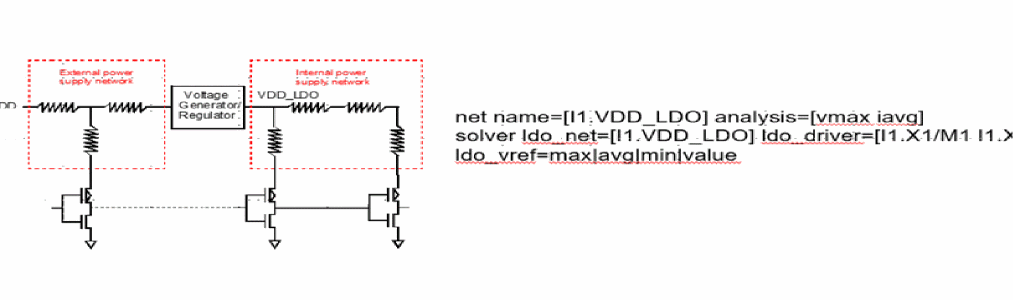
The LDO feature is enabled with the ldo_net solver option in the EMIR config file. It works in dynamic, and static EMIR, as well as in SPGS.
Dynamic LDO IR Drop Analysis
In dynamic EMIR the net VDD_LDO is handled like any signal net. Nevertheless, there is an IR drop report created. Based on the users setting the IR drop reference voltage can be the min, the max, or the average voltage of the ldo_driver nodes over the EMIR time window. Alternatively, the user can define a fixed reference value, i.e. ldo_vref=1.1.
net name=[I1.VDD_LDO] analysis=[vmax iavg]
solver ldo_net=[I1.VDD_LDO] ldo_driver=[I1.X1/M1 I1.X1/M2] ldo_vref=max|avg|min|value
Instead if defining the individual ldo_driver MOSFET devices, the user may define the LDO MOSFET instance name, i.e. ldo_inst=[I1.X1]. In that case all MOSFET's with I1.X1 in instance name are considered LDO driver MOSFET devices. While the ldo_driver option supports wildcarding on the name inside DSPF, the ldo_inst doesn't support wildcarding.
Static LDO IR Drop Analysis
In static EMIR the ldo_driver nodes are shorted together and connected to a vsource with the voltage value defined in ldo_vref.
net name=[I1.VDD_LDO] analysis=[vmax iavg]
static ldo_net=[I1.VDD_LDO] ldo_driver=[I1.X1/M1 I1.X1/M2] ldo_vref=1.0
The static EMIR current distribution for this net is same as for any other power net. The static current for the VDD_LDO net needs to be defined in the "static ifile".
I1 VDD_LDO 0.02
It is distributed to all tap devices but not the ldo_driver devices (I1.X1/M1 and I1.X1/M2). If VDD_LDO has a *|P, then no current will be assigned to this pin and no loading from this pin will be considered in the static EMIR analysis.
SPGS LDO Handling
In SPGS the ldo_driver nodes are shorted together and used as *|P. If there are other *|P on the VDD_LDO net, then they are changed to subnodes (*|S).
spgs ldo_net=[I1.VDD_LDO] ldo_driver=[X1/M1 X1/M2] ldo_voltage=1.0
The SPGS reff value for all tap devices is calculated in reference to shorted ldo_driver nodes. The voltage value used for the reff calculation is defined by the ldo_voltage option. Instead of the ldo_voltage the option ldo_vref may be used.
Signal Net IR Drop Analysis
With the introduction of the LDO IR drop analysis, the signal net IR drop analysis has become less important. The main question you need to ask is, what is the value of calculating IR drop for a signal net, when there is no clearly defined voltage reference since all node voltages are changing at all times. Furthermore, since the number of signal nets is typically large, the feature will cause the creation of lots of IR drop data which may not be needed or may be challenging to read.
The signal net IR drop analysis is enabled with the vmax or vavg analysis statement.
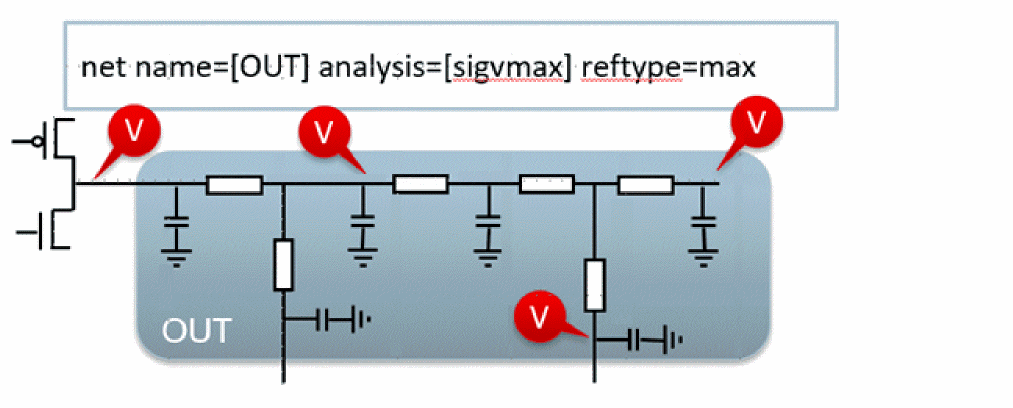
Different methods for defining the reference voltage are supported:
The following are supported for defining the reference voltage:
-
reftype=max- Use the maximum voltage of all nodes at each time point. -
reftype=avg- Use the average voltage over all nodes at each time point (default). -
reftype=pinfindsrc=true- For the given nets, use the vsource connected to*|Pnode. -
reftype=pinfindsrc=false- For the given nets, use the*|Pnode as the reference, and not vsource. -
refnode=name - Use the specified sub node of*|NETas reference. -
vref=value - Use the specified voltage as reference.
When using reftype=max for a net with three subnodes: net1:1 (1V), net1:2 (2V), and net1:3 (3V), the detected reference voltage will be 3V, and the IR drop calculated will be 2V for net1:1, 1V for net1:2, and 0V for net1:3. When using reftype=avg the reference voltage will be 2V, and the IR drop calculated will be 1V for net1:1, 0V for net1:2, and -1V for net1:3.
The signal net IR drop analysis is automatically changed to a regular IR drop analysis (vmax), if vref=value is specified, or if the net (during the EMIR time window) is driven by a constant voltage source.
Design Resistor EM Current Analysis
By default, the EM current analysis is only performed on parasitic resistors defined in the RC net section of the DSPF file. If required, Spectre EMIR solution allows the EM analysis to be performed for design resistors in the DSPF instance section, as shown below. This analysis can be applied to primitive resistor elements, or resistors defined with subcircuit definitions.
net design_res_models=[resistor] analysis=[iavg] (primitive resistor)
net design_res_models=[name=rhim] analysis=[iavg] (resistor subckt rhim)
For design resistors, the parameters $l, $w, and $lvl are expected to be defined for primitive resistor calls, and l and w for subcircuit resistor calls in the DSPF instance section. When the parameter names are inconsistent in the DSPF file, name mapping rules can be specified in the EMIR configuration file, as shown below.
net design_res_models=[name=rhim_m l=lr w=wr] analysis=[iavg]
Layer information and units for l and w can be defined in the EMIR configuration file, as shown below.
net design_res_models=[name=rhim_m layer=mt1 unit=1] analysis=[iavg]
The product of design resistor W/L * unit defines W/L in meter. The default value of unit is 1.
The EM results related to design resistor are reported in the design.rpt_em file, as shown below.

If the layer name is not specified, but a resistor model name is defined, then the resistor model name is reported as the layer name.
By default, Spectre EMIR evaluates the current on the first terminal of the design resistor. However, you can define the index of the design resistor terminal you want the current to be evaluated at, as shown below.
net design_res_models=[name=rhim_m term=3] analysis=[iavg]
Differential (Rail-to-Rail) IR Drop Analysis
The differential IR drop feature allows you to identify the worst-case IR drop between the specified power supply and the ground node. At each time point, it calculates the worst IR drop over all the power supply sub nodes, and the worst IR drop over all the ground sub nodes. At each time point, it also calculates and reports the worst case rail-to-rail voltage for the given EMIR time window.
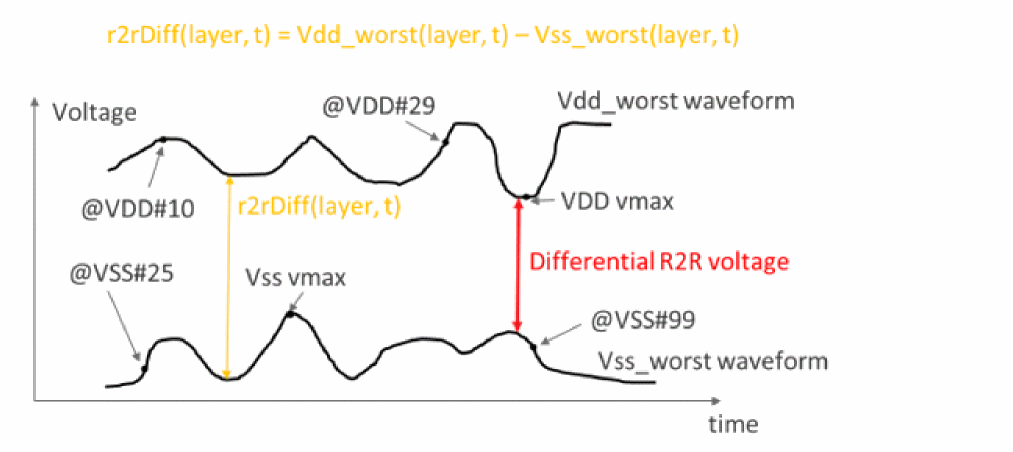
The differential IR drop analysis is enabled with the analysis=r2rvmin option. Multiple power supply nodes can be specified. If the ground node is not specified in the r2r_refnet statement, Spectre automatically detects the global ground node.
net name=[VDD] r2r_refnet=VSS analysis=[r2rvmin]
The following is an example of a differential IR drop report:
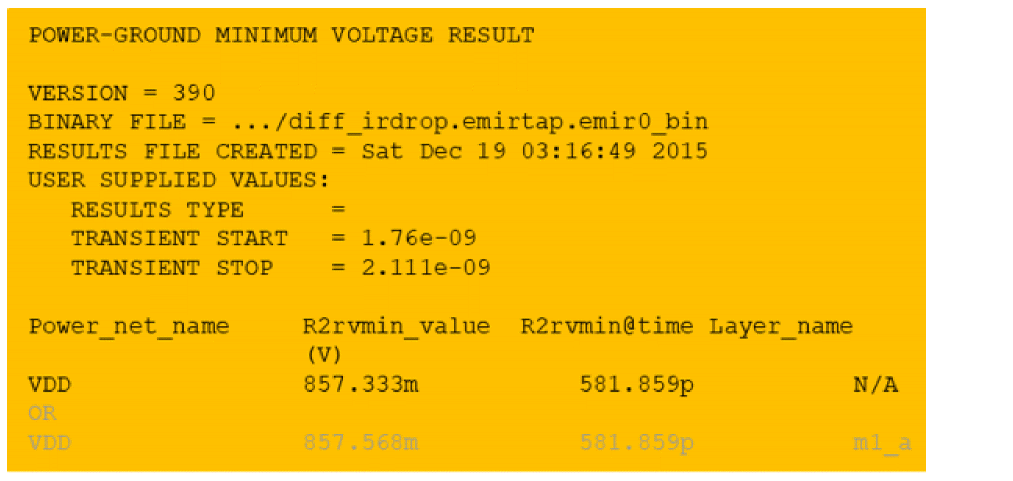
The r2rvmin feature allows you to apply the analysis only to selected layers, selected tap devices, tap devices of a user-defined model, and selected bounding boxes. Combinations are supported and combined with the AND behavior. Excluding tap nodes based on their layer, model, or instance information is also supported. To differentiate between multiple r2rvmin reports, you can apply the rule names to each r2rvmin statement (r2rvmin_rule_name). Refer to the r2rvmin option in the table under the EMIR Control File section for more information. The differential (rail-to-rail) IR drop analysis is only supported in the direct method.
Static EMIR Analysis
Static EMIR analysis enables you to evaluate IR drop and EM currents based on the specified current consumptions for subcircuit instances without running a transient or DC simulation. The specified currents are distributed to the tap devices based on the width and length ratios of devices in the design. The IR drop and EM current analysis is performed based on the current at each tap device.
To enable static EMIR analysis, you need to use the static ifile option in the EMIR configuration file, as shown below.
net name=[I1.VDD I1.VSS] analysis=[vavg iavg]
static ifile="static_currents.txt"
For static EMIR analysis, vmax and vavg for IR drop and imax, irms, and iavg values for EM currents remain the same, and therefore, just one can be selected in the statement.
The subcircuit instance currents are defined (in A) in the static_currents.txt file with the subcircuit instance name, subcircuit port name, and the current flowing in the port. This current is distributed to all MOSFET tap devices. No current distribution is done for non-MOSFET tap devices. In that case, these devices are excluded from the block-level based current distribution. The following is an example of the file:
I1 VDD 0.001
I1.I2 VDD 0.005
I1.I2/I3 VDD 0.00001
I1.I2.I3/I4 VDD 0.000005
I1 VSS -0.005
I1.MPM1@19 VDD 0                //exclude tap device from current assignment
I1.MPM3@15 VDD 0.0001           //define tap device current,exclude from current                                   assignment
x0.QQ0 VSS 0.1 b                //define current for non-MOSFET device and terminal
The accuracy of static EMIR analysis strongly depends on the detailed current information provided in static_ifile. Therefore, it is highly recommended to provide the current consumption for every subcircuit instance.
The results of static EMIR analysis are written to the same IR drop and EM current text reports, and into the same EM binary database as dynamic EMIR analysis.
dc and tran are ignored.
Static EMIR analysis can also be applied to designs with power gates. For this, you need to specify the pwrgate option, as follows:
net name=[I1.VDD] analysis=[vavg iavg]
static ifile="static_currents.txt"
net pwrgate=[I1.VDD I1.VDD_INT] analysis=[vavg iavg]
You need to specify the power gate current in the static_currents.txt file, as shown below.
I1 VDD 0.001
I1 VDD_INT 0.0005
The static EMIR current file for the top-level EMIR subcircuit can be generated while running a dynamic EMIR analysis by using the output=power option in the time window statement.
Static Power Grid Solver
Static Power Grid Solver (SPGS) can be used to calculate pin-to-tap resistances based on the description of a DSPF file and the options set in a EMIR configuration file. The resistances calculated by SPGS are electrically-equivalent resistances, and not the summation of resistors. The calculation assumes that all pins are connected together to form a global pin. After calculation, the resistance between the global pin and all taps is generated and listed based on the significance of their values.
The definition of pin, subnodes, and tap nodes is given in the DSPF file, as shown below:
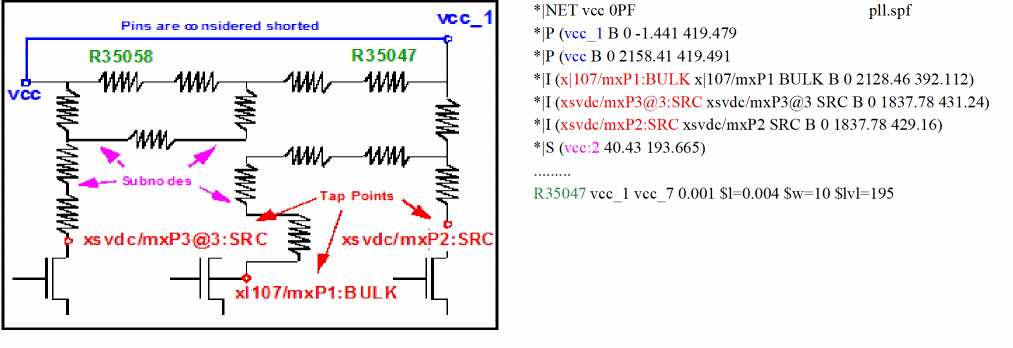
The static EMIR analysis is enabled with the spgs net=... statement in the EMIR configuration file. The net statement defines the power nets to be analyzed.
spgs net=[i1.vcc i1.vss]
spgs pwrgate = [i1.vcc i1.outp]
spgs maxrpt=200
spgs filter_res_threshold=50
If the power net contains a power gate, then the pwrgate option needs to be specified. You can optionally use the rshort option to short the resistors in the power net based on their resistor value. In addition, the report can be limited to the top 200 paths, and any path with less than 50 Ohms can be filtered out.
The SPGS flow requires the DSPF file to be included in the Spectre input file with the dspf_include statement, as shown below.
dspf_include "pll.spf"
The power nets need to be connected to the voltage sources, and the device models need to be defined for the devices in the instance section in the DSPF file. The SPGS feature is run as in the regular EMIR flow, as follows.
spectre +aps input.scs +emir=spgs.conf
The SPGS report provides a list of pin-to-tap node resistors ordered from highest to lowest. The W/L column either show the MOSFET W/L ratio or the NFIN/L ratio.
SPGS also supports the conversion between pin, tap node, and sub node. The following statements convert tap node MPM3@44:s of net I1.vdd to a pin, and sub node VDD:5 to a tap node.
spgs tap2pin net=[i1.vdd] include=[MPM3@44:s]
spgs sub2tap net=[i1.vdd] include=[VDD:5]
All conversion options are described in the EMIR configuration file option table. The conversion options are processed incrementally. This enables you to first move all tap nodes to subnodes, and to move nodes of interest back to tap nodes.
spgs tap2sub net=[i1.VSS] include=[VSS:*]
spgs sub2tap net=[i1.VSS] include=[VSS:82305002 VSS:63148225]
SPGS can be applied to signal nets. If the signal net contains a pin definition (*|P), then the effective resistance is calculated starting from the pin. If the signal net does not contain any pin definition, then the resistance calculation is started from the first tap device connection (*|I) for this net in the DSPF file. The conversion options also apply to signal nets.
By default, the SPGS flow requires the full EMIR simulation setup including the DSPF file, device models, stimuli, and power supply definitions. A higher performance simplified SPGS flow is available which just requires the DSPF file in addition to either an instance call of the DSPF subcircuit, or a +top option using the DSPF subcircuit name. The simplified flow does not require any device models, stimuli, or power supply definitions. It can be enabled with the following option:
spgs test_bench_less=1
By default, the SPGS flow solves nets in parallel (emirutil rcsolve_multi_proc=on). Individual nets are solved, either with single thread (small nets), or with multi-thread (large nets).
Advanced EMIR Features
Blackbox Handling
The Spectre EMIR flow supports the blackbox approach, which allows the exclusion of blocks from parasitic extraction and EMIR analysis. These blocks are represented in the simulation with a pre-layout netlist, and have only an instance call and an empty subcircuit definition in the DSPF netlist.
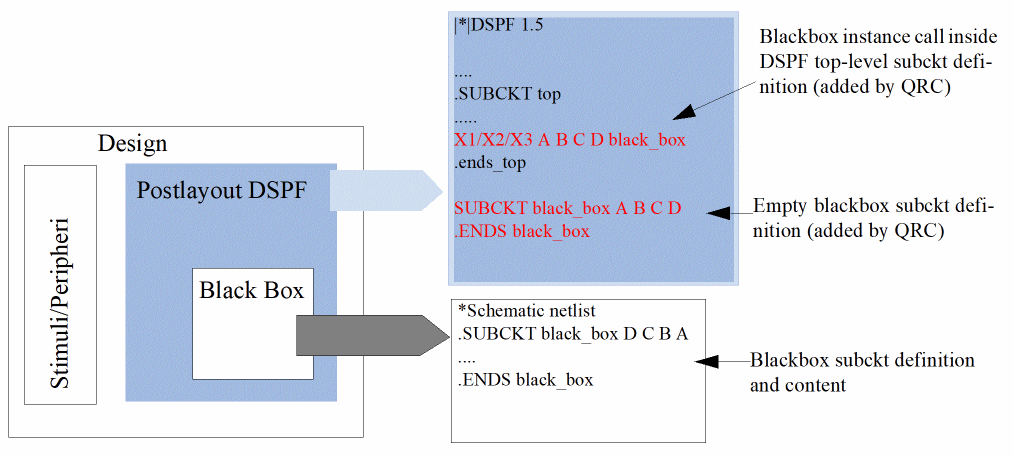
Blackbox handling is enabled by specifying the subcircuit name after the blackbox keyword in the dspf_include statement, as shown below.
.dpsf_include "top.spf" … blackbox="black_box"
For the blackbox subcircuit instances, Spectre takes the port order from the DSPF subcircuit definition, and the content from the schematic (blackbox) subcircuit definition. This behavior is fixed. The port_order option of the dspf_include statement has no impact on the blackbox port order.
extra_port option also applies to the blackbox subcircuit ports. Creating Power Macro Models
Spectre supports the creation of power macro models that can be used in the Spectre EMIR blackbox simulation flow. These macro models describe the subcircuit port current consumption and capacitive load. They are created in Spectre language and use the subcircuit definition. The macro model creation can be enabled either in a non-EMIR Spectre simulation, or in an Spectre EMIR simulation. Both dc and tran analyses are supported.
To create macro models, use the pwr_macro statement, as follows:
pwr_macro subckt=top port=[vdd X<0>] type=[avg rms] outdir=macrodir mode=1
pwr_macro inst=i1 port=[*] type=[max] outname=macro output=[subckt table] window=[10n 20n 80n 100n]
subckt - specifies that the macro model is created for all instances of this subcircuit.
inst - specifies that the macro model is created for the specified subcircuit instance.
port - specifies the subcircuit ports that are modeled. Wildcards are supported.
type - specifies the type of current measurement for defining the created port current DC source value. Supported values are max, avg, avgabs, and rms. Multiple entries are supported.
output - specifies the output to be created. If you specify output=subckt, then the subcircuit macro model is created. This is the default. If you specify output=table, then a port current/capacitance table is created.
outdir - specifies the output directory name (relative to simulation directory).
outname - specifies the macro model file name. The file has an extension .inst_name.subckt_name.type
mode - mode=1 creates the macro model with what/if for separate pull and push currents. This is the default. mode=0 creates the macro model with parallel resistors.
window - defines the time window for which the macro model is created. Multiple time windows are supported. One model is created for each time window. The first window has no additional extension. The second window uses 1 as additional extension, the third window uses 2, and so on. For example, *.1.avg, *.2.avg, and so on.
To create a power macro model in a regular (non-EMIR) Spectre simulation, the pwr_macro statements need to be defined in a configuration file which is read with the Spectre +pwr_macro command-line option. This flow also works in the Spectre EMIR flow.
spectre +aps +pwr_macro=pwr_macro.conf input.ckt
In addition, you can create the macro model in a Spectre EMIR simulation as part of EMIR configuration. In this case, the pwr_macro statements need to be defined in the EMIR configuration file which is included with the +emir command-line option.
spectre +aps +emir=emir.conf input.ckt
The following figure illustrates the macro modeling generation flow. Note that the figure shows only a simplified version of the model.
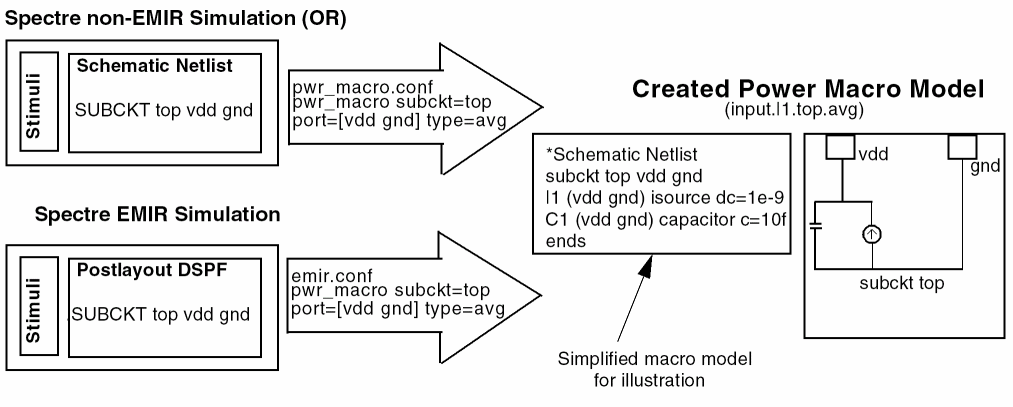
The created macro table model is written to a file for which the extension consists of the instance name, the subcircuit name, and the type of analysis of the subcircuit block. If multiple analyses are specified, multiple macro model files are created. For example, for a macro model for instance I1 of subcircuit adc_sample_hold, based on average current, the extension .I1.adc_sample_hold.avg will be used.
Macro models are generated in a regular (non-EMIR) simulation, direct EMIR analysis, and also in the first and second stages (extra emirtap in extension) of the iterated EMIR analysis.
The macro model created is slightly more complex than what is shown in the simplified figure above. Since the model is later used together with other macro models in a full chip simulation, there may be a problem that some of these models feed currents into the same net, but the sum of the currents does not satisfy Kirchhoff's law. To resolve such problems, the mode=1 macro model contains if/else sections that allow you to enable either driving (push) or driven (pull) currents. The following example shows a mode=1 macro model for a subcircuit for which vdd and gnd have been extracted:
// TITLE: Port Current Macro Model with Push and Pull Mode for subckt adc_sample_hold
simulator lang=spectre
// BB_MACRO_TOP PARAMETER DEFINITION
// 0 ... consider push and pull currents, may cause potential KCL problems
// 1 ... consider pull currents only (positive port current value)
// 2 ... consider push currents only (negative port current value)
// R_BB_MACRO_TOP defines internal serial resistor
// parameters bb_macro_top=0 r_bb_macro_top=10
subckt adc_sample_hold outm outp SIDDQ VDD VSS \
bias100 hold hold_test inm inm_test inp \
inp_test sample sample_test
parameters bb_macro=bb_macro_top r_bb_macro=r_bb_macro_top
wrongValue paramtest errorif=(bb_macro != 0 && bb_macro != 1 && bb_macro != 2) message="Unvalid bb_macro parameter value, valid values: 0, 1, 2"
// SIMULATION OF PULL AND PUSH PORT CURRENTS
if (bb_macro==0) {
Rport0 (VDD VDD_int) resistor r=r_bb_macro
Iport0 (VDD_int 0) isource dc=0.00153621
Cport0 (VDD 0) capacitor c=8.39577e-12
Rport1 (VSS VSS_int) resistor r=r_bb_macro
Iport1 (VSS_int 0) isource dc=-0.00160214
Cport1 (VSS 0) capacitor c=1.14779e-12
// SIMULATION OF PULL PORT CURRENTS ONLY
} elseif (bb_macro==1) {
Rport0 (VDD VDD_int) resistor r=r_bb_macro
Iport0 (VDD_int 0) isource dc=0.00153621
Cport0 (VDD 0) capacitor c=8.39577e-12
Rport1 (VSS VSS_int) resistor r=r_bb_macro
Vport1 (VSS_int 0) vsource dc=0
// SIMULATION OF PUSH PORT CURRENTS ONLY
} elseif (bb_macro==2) {
Rport0 (VDD VDD_int) resistor r=r_bb_macro
Vport0 (VDD_int 0) vsource dc=0
Rport1 (VSS VSS_int) resistor r=r_bb_macro
Iport1 (VSS_int 0) isource dc=-0.00160214
Cport1 (VSS 0) capacitor c=1.14779e-12
}
ends adc_sample_hold
You can specify the option bb_macro_top in your top-level netlist, and also specify which macro model mode to use. If bb_macro_top is set to 0, all macro model port currents are activated. If bb_macro_top is set to 1, only pull currents are modeled. If bb_macro_top is set to 2, only push currents are considered. In addition, the value of serial resistor r_bb_macro_top for the current and voltage sources in the macro model needs to be defined at the top level.
The alternative mode=0 macro model overcomes the potential KCL problem by adding a parallel resistor. The value of the parallel resistor and the voltage are extracted from the simulation during which the model is generated. The following example shows the mode=0 macro model for the same subcircuit.
simulator lang=spectre
pwr_macro_opt options preserve_subckt=[adc_sample_hold]
subckt adc_sample_hold outm outp SIDDQ VDD VSS \
bias100 hold hold_test inm inm_test inp \
inp_test sample sample_test
parameters vavg_VDD=2.5 rmacro_VDD=32.8738
Iport0 (VDD 0) isource dc=0.0015325 - vavg_VDD/rmacro_VDD
Cport0 (VDD 0) capacitor c=8.39538e-12
Rport0 (VDD 0) resistor r=rmacro_VDD
parameters vavg_VSS=0 rmacro_VSS=216.051
Iport1 (VSS 0) isource dc=-0.00158744 - vavg_VSS/rmacro_VSS
Cport1 (VSS 0) capacitor c=1.14816e-12
Rport1 (VSS 0) resistor r=rmacro_VSS
ends adc_sample_hold
In addition to the macro models, you can also generate a table with port current and capacitance values. The values are written to a file with the extension rpt_pwr_macro.
If the above table exists from a previous simulation, and the table contains all ports of the extracted subcircuit, you can use the following script to create a power macro model using the information from the table:
tbl2macro test.rpt_pwr_macro -inst I2.I1 -type avg -outdir test_pwr_macro
tbl2macro test.rpt_pwr_macro -subckt bus_nand -type avg rms
The script is available in the SPECTRE installation (.../tools.lnx86/bin/tbl2macro), and can be used as follows:
tbl2macro <rpt_pwr_macro> [options]
-inst <inst_name> - Name of the instance (OR)
-subckt <subckt_name> - Name of the subcircuit
-out <out_dir> - Name of the output directory name (default is .)
-type <list> -- List of max, avg, avgabs, and rms (default is all)
-fmt <spice|spectre> -- Output format (default is spectre)
-mode <0|1> - 0 means parallel resistor model, and 1 means what/if push-and-pull model (default is 1)
What-If EMIR Analysis
The What-If analysis enables you to analyze the impact of the potential layout changes without the need for implementing these changes in the layout, and to re-extract the DSPF file. These changes are also called ECO changes.
The What-If flow is supported in the regular EMIR flow using the direct or iterated method. There is also an incremental iterated flow that uses the itereco method. This flow reuses the circuit simulation results from a previous iterated mode EMIR analysis and reruns just the second stage EMIR analysis.
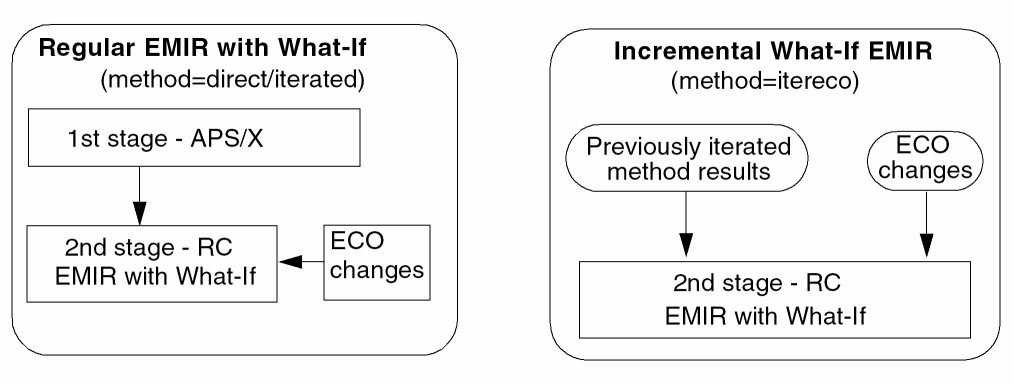
The What-If changes are defined in an ECO file which is included in the EMIR configuration file. All ECO changes are relative to the original DSPF content. In one What-If simulation, all changes defined in the ECO file are applied together at once, and then analyzed together in the second stage of the EMIR analysis.
Multiple incremental ECO runs are supported. For each run, the changes defined in the ECO file are applied to the original DSPF content. Changes from the previous ECO runs are not considered. In the incremental What-If analysis, only the nets with the ECO changes are analyzed.
All ECO changes for a specific What-If run are defined in one ECO file which is included in the EMIR configuration file. The following ECO commands are supported.
-
add_pin net=<net_name> name=[node1 node2 …] -
add_pin net=<net_name> layer=[dspf_layer_name] -
delete_pin net=<net_name> name=[node1 node2 …] -
add_cap net=<net_name> cap=[node1 cvalue1 node2 cvalue2 …] -
add_res net=<net_name> node=<node1 node2> r=<rvalue> (optional: $L, $W, $A, $N,$lvl) -
delete_res net=<net_name> name=<resistor1 resistor2 …> -
scale_res net=<net_name> name=<resistor1 resistor2 …. > scale=<scalefactor>
net_name is the name of the net as defined in DSPF *|net statement. Wildcard is not supported.
node1 node2 ... are the names of pin, sub, or tap nodes. Wildcard is not supported.
cvalue1 cvalue2.. are the values of the capacitance to be added. You can use a negative value for reducing net capacitance. The value is a floating number.
rvalue is the value of the resistor to be added. The value is a floating number
resistor1 resistor2... are the instance names of the resistors to be deleted or scaled.
scalefactor is the scaling factor. The value is a floating number
dspf_layer_name specifies that the nodes of all resistors on the specified layer are changed to pins.
The following is an example of an emir.co file:
add_pin    net=[VDD] name=[VDD#9]
del_res    net=[bias1] name=[Rj3652]
scale_res  net=[VDD] name=[Rg1 Rg2 Rg3 Rg4] scale=0.5
delete_res net=[VDD] name=[Rg5]
add_res    net=[VDD] node=[VDD#80 VDD#81] r=10 $l=10.0 $w=0.25 $lvl=mt1
add_cap    net=[VDD] cap=[VDD#80 10e-15 VDD#81 5e-15]
When performing a regular iterated method EMIR analysis with What-If, the only change required in the EMIR configuration file is the reference to the ECO file, as shown below.
solver method=iterated
eco file="emir.eco"
The following statements need to be defined in the EMIR configuration file to enable an incremental What-If EMIR analysis.
solver method=itereco inputwf="./input.emirtap.pwl"
eco file="emir.eco"
In an incremental EMIR analysis, Spectre loads the following database files from the previous EMIR simulation: <netlist>.emirtap.pdb, <netlist>.emirtap.cc, <netlist>.emirtap.pdb_2, and <netlist>.emirtap.pwl. You need to ensure that these files are available in the same directory as the <netlist>.emirtap.pwl file that you define in the solver statement.
All ECO changes are summarized in the ECO SUMMARY section of the Spectre log file. The What-If EMIR flow generates exactly the same text and binary database output as any other Spectre EMIR simulation. The only difference is that the result file names of the incremental What-If analyses use the filename of the ECO file as prefix. For example, if the ECO file name is emir.eco, then the EM current text report file will be named emir.eco.input.rpt_em.
The Spectre What-If EMIR flow also supports a pin location file for changing subnodes to pins. This special flow is important when all subnodes in a user-specified layout area should be changed to pins. The following statements can be used in the ECO file for defining the pin location files:
add_pin net=VDD loc_file=pinloc loc_threshold=0.1
add_pin net=VSS loc_file=pinloc_vss loc_threshold=0.1
The net statement defines the DSPF net to which the pin location file is applied to, while the loc_threshold (unit um, default value 0.1) defines the area in which all subnodes are changed to pin. The area is defined with: 
x- 
<x <x+ , 
y- 
<y <y+ .
The pin location files define the x and y coordinates, the layer name, and whether the type is POWER or GROUND. Following is an example of the pin location file for power net VDD:
#<pad_name> <X_loc> <Y_loc> <metal name-DEF> <POWER or GROUND>
VDD:2 30.0 103.0 mt3 POWER
VDD:3 20.2150 94.2250 mt1 POWER
Following is an example of the pin location file for the ground net VSS:
#<pad_name> <X_loc> <Y_loc> <metal name-DEF> <POWER or GROUND>
VSS:2 15.6000 27.9600 mt1 GROUND
Alternatively, all subnodes inside a bounding box may be changed to pins. This can be done by using the following option:
add_pin net=VDD bbox=[lx ly ux uy] layer=[dspf_layer_name]
add_pin net=I1.VDD bbox=[20 80 22 86] layer=[mt1]
An incremental pin addition is also supported. From a reference node [x,y] incrementally add/subtract 

add_pin net=VDD layer=metal5 ref_node=[x y] h_x=value h_y=value proxim_abstol=value
add_pin net=inm layer=mt3 ref_node=[105.0 105.0] h_x=8.0 h_y=-6.0 proxim_abstol=1
Event Triggered EMIR Analysis
Spectre EMIR enables you to control the EMIR time windows in the second stage of iterated method by first stage events. A measure statement may be used to define the first stage events, as shown below.
.meas tran blkout3 when v(TEST_INP)='vhi/2.0' td=30n fall=1
.meas tran blkout4 param='blkout3+20n'
The created events can be used to define the time windows in the EMIR config file, as shown below.
time window=[@blkout3 @blkout4] net=[I101.VDD] output=none
If an event is used but not available at the time of evaluation, Spectre EMIR generates an error and the simulation is stopped.
Other Features
- EMIR analysis is performed not only for transient but also for operating point and DC analysis. All measures (for example, avg, rms, and max) are analyzed the same way as in the transient EMIR analysis. This is available for both Spectre APS direct and Spectre APS iterated methods. If EMIR analysis is applied to a combined DC and transient analysis, it is applied to both.
- Probing of parasitic element currents, and parasitic node voltages is supported.
- Negative resistors in the power and signal nets are properly handled without shorting or removing them.
-
alterandaltergroupstatements are supported when using the direct method. For eachalterandaltergroupstatements, the EMIR analysis is invoked automatically and generates EMIR reports namedinput_tran1.rpt_ir,input_tran2.rpt_irand so on. -
The EMIR flow supports temperature-dependent resistor definitions (TC1, TC2) in the DSPF file
RRM14 a#1 a#12 0.516195 TC1=0.00265 TC2=-2.641e-07 …
The effective resistor value is calculated using the following equation:R=RNOM*(1 + TC1*(TEMP-TNOM)+ TC2*(TEMP-TNOM)(TEMP-TNOM))
If TNOM is defined in the DSPF file header with the following statement*|GLOBAL_TEMPERATURE 27
then TNOM is taken from the DSPF file, otherwise TNOM is taken from the Spectre netlist. TEMP is taken either fromdspf_includestatementdspf_include "./test.dspf" temp=100
or from the TEMP statement in the Spectre netlist.
The DSPF TNOM and thedspf_includeTEMP statement impact only the effective DSPF resistor calculation. They do not affect any other Spectre temperature dependency. -
The EMIR flow supports simple triple resistor DSPF definitions.
Example:*|NET C1_B 'C1*3.93132e-15+C2*3.86269e-15+C3*4.17145e-15' CA1 C1_B 0 'C1*1.97013e-16+C2*1.90427e-16+C3*2.08892e-16' $lvl=2 Ro_1_1 C1_B:81 C1_B:82 'C1*63.220882+C2*74.936630+C3*53.778004' $M2 $L=5.569 $W=0.06
The parameters C1, C2 and C3 need to be defined on the dspf_include line. They cannot be defined in the regular Spectre netlist.dspf_include "./test.dspf" param="C1=1 C2=0 C3=0"
-
The EMIR flow supports temperature-dependent EM rules. It reads the circuit temperature from the netlist statement, and applies it to the EM rules.
-
temperatureis a predefined keyword in theemDatafile. It may be used in equations to represent the circuit temperature. -
If
temperatureis defined in theemDatafile, and it does not match the temperature (tempvalue) in the netlist, an error message is generated. -
If
temperatureis not defined in theemDatafile, the tool uses the temperature defined in the netlist.
-
- The Spectre EMIR flow can handle inductor elements in both direct and iterated methods. Direct method supports all inductor elements. In iterated method, design inductors are handled in the first stage; inductors inside subcircuit tap devices are handled using their current waveforms from the first stage, package inductors connecting to DSPF subcircuit ports are solved together with the net in the second stage solver, and parasitic inductors (not typical for DSPF) are handled by the second stage solver.
Spectre EMIR Analysis Using Voltus-XFi
Voltus-XFi Custom Power Integrity Solution is used for transistor-level power and signal integrity analysis, which includes multi-mode simulation for EM and IR analysis. This solution combines Cadence® Quantus™ RC extraction, Spectre EMIR simulation, and Voltus-XFi visualization in the Cadence Virtuoso® platform. This combination of products simplifies the use model of the flow by using a common setup for all the tools. You do not have to run the flow in separate steps.
The Spectre EMIR Voltus-XFi solution provides two major enhancements over Spectre EMIR Voltus-Fi:
Simplified Use Model for the Iteration Method
The Spectre EMIR setup with Voltus-Fi requires you to set up options in the first and second stages of the iteration method to optimize the accuracy and performance of simulation.
However, in the Spectre EMIR Voltus-XFi solution, the +emirpreset command-line option simplifies the EMIR use model. This option predefines all first- and second-stage EMIR settings. This technology works only with the Spectre X solver.
Similar to the Spectre X technology, the value of the +emirpreset option can be cx, ax, mx, lx, and vx, where cx is the most conservative setting and vx is the setting for highest performance.
spectre +preset=ax +emirpreset=mx input.scs +emir=iterated.conf
The +emirpreset option internally sets the solver rcr and solver rcsolve_multi_proc settings. Therefore, when +emirpreset is set to enable the solution, Spectre ignores the following settings specified in the EMIR config file:
solver rcr=…
solver rcsolve_multi_proc=…
+emirpreset by using the -emirpreset_override option on the Spectre command line, as shown below.spectre +preset=ax +emirpreset=mx input.scs +emir=iterated.conf
-emirpreset_override
When running the direct EMIR method, as shown below, the use model, performance, and accuracy of Spectre EMIR Voltus-XFi solution is same as that of Spectre EMIR Voltus-Fi.
spectre +preset=ax input.scs +emir=direct.conf
Enhanced Distribution of EMIR Analysis
In the second stage of the iterated EMIR simulation, typically a few large power nets and a large set of smaller signal nets are solved individually.
The Spectre EMIR Voltus-XFi solution provides an enhanced mechanism to distribute RC net solving to multiple computers. This feature is based on the XPDB database solution. It optimizes the performance in the second stage.
To enable distribution of net solving to multiple computers:
-
Create the XPDB database by using the
-dump_xpdboption of thespfcheckercommand.
The following example creates theadc_sample_hold.dspf.xpdbfile:spfchecker -dump_xpdb adc_sample_hold.dspf
-
Specify that you need to use the XPDB database created in step 1.
You can do this in two ways:-
Run Spectre by using the
+xpdbcommand-line option to enable the use of the.xpdbfile.spectre +aps +xpdb adc_sample_hold.scs +emir=adc_sample_hold.conf
-
Use the
dspf_includecommand to include the XPDB database.dspf_include "adc_sample_hold.spf.xpdb"
If you use thedspf_includecommand, you do not need to specify the+xpdbin the command line.
-
Run Spectre by using the
-
(Optional) Use the
+mpand+mtcommand-line options to specify the number of processes and the number of cores per job. The individual RC net solving processes are managed by a scheduler that is launched by the master process.spectre +mp=N +mt=M +preset=ax +emirpreset=mx input.scs +emir=iterated.conf +xpdb
The following example distributes jobs usingrshto run 4 processes with 16 threads each onhostAandhostB:spectre +mp=rsh +mt=16 +hosts "hostA:1 hostB:2" +preset=ax …
The main process onhostAis not defined because it is automatically assigned.
You can distribute jobs on an LSF farm by using thebsubcommand, as shown below."bsub -n 16 <other_bsub_params> "spectre +mp=4 +mt=16 +preset=ax …"
Parasitic Backannotation of DSPF/SPEF/DPF Files
This section covers the following topics:
- Postlayout Simulation Methodologies
- Control Options for Parasitic Backannotation Flow
- Parasitic Backannotation Report
- Some Common Error and Warning Messages Related to Parasitic Backannotation
Postlayout Simulation Methodologies
In general, there are three postlayout simulation methodologies:
-
Flat RC Netlist File
A flat netlist containing a large number of elements and devices. For example, the netlist from Quantus QRC extracted view, which is often used in ADE. -
Hierarchical RC Netlist File
A netlist file that contains a hierarchy of extracted subcircuits. -
Backannotation of Parasitic Files
DSPF/SPEF/DPF files containing parasitic information. This methodology combines the parasitic information with the pre-layout netlist through backannotation. It enables Spectre to automatically plug in the parasitic elements during simulation. Compared to the flat and hierarchical RC netlist methodologies, the backannotation methodology has the following benefits:- It provides the ability to reuse the pre-layout simulation test-bench. There is no need to change the test-bench setup, save Ocean measurements, and so on.
- It can perform What-if analysis using selective backannotation.
The following figure shows the backannotation flow:
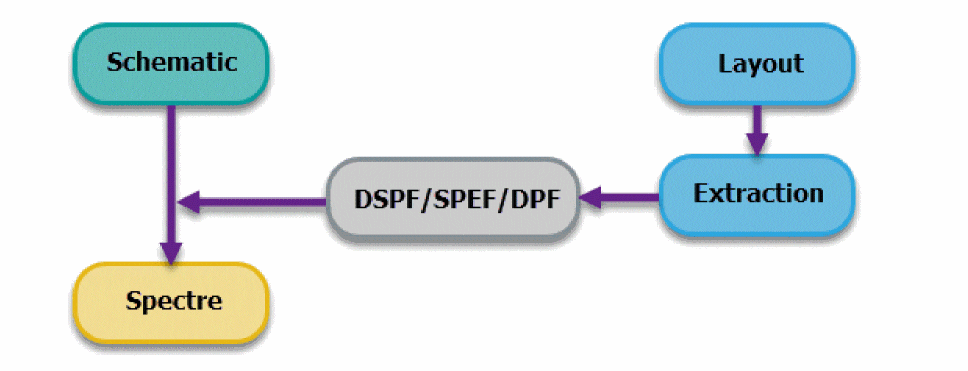
Parasitic Backannotation - Concept
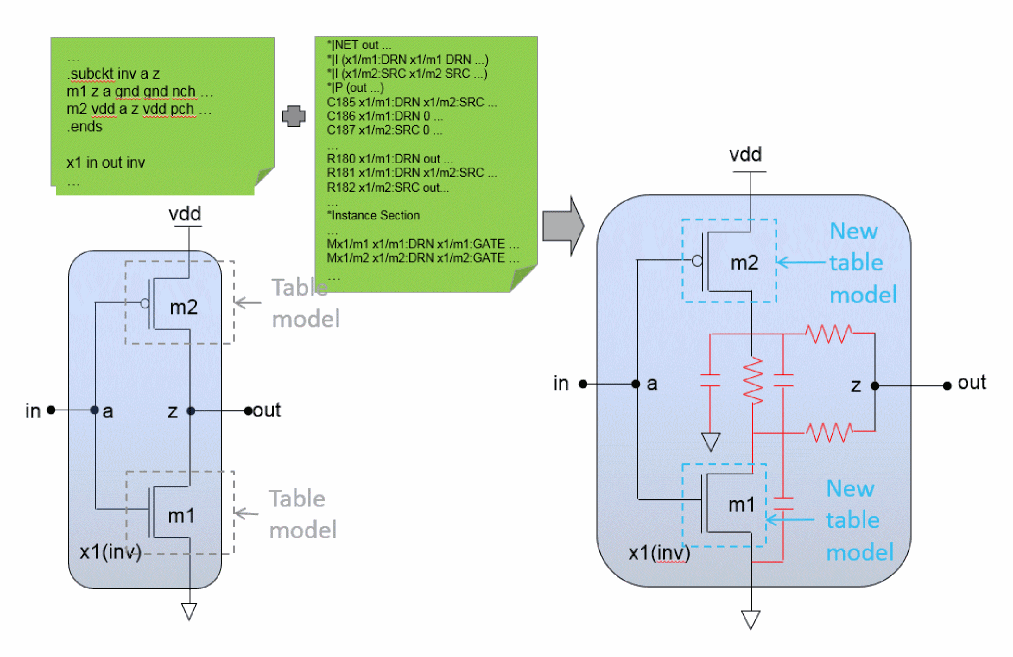
The simulation database is built upon the pre-layout netlist, as shown in the left of the figure. The parasitics from the parasitic files (DSPF/SPEF/DPF) are backannotated into the database, as shown in the right. The hierarchy and the net names from the pre-layout netlist are retained, and the device models are regenerated according to device parasitic information (DPF/Instance Section from the SPF). The nodes are backannotated with R and C from the SPEF/SPF Net section.
Control Options for Parasitic Backannotation Flow
The control options for the parasitic backannotation flow can be grouped under four categories:
- Parasitic File Loading Options
- Parsing Options Used in Backannotation
- Selective Backannotation Options
- Backannotation Message Control Options
The following table provides a summary of the options:
Parasitic File Loading Options
dpf
name options dpf="scopefilename"
.options dpf="scopefilename"
Specifies the DPF file that is to be backannotated and its scope. If you specify this option multiple times, all specified settings are considered.
Example
opt1 options dpf="X1.XPLL PLL.dpf" dpf="X1.XMEM mem.dpf"
.options dpf="X1.XPLL PLL.dpf" dpf="X1.XMEM mem.dpf"
tells the simulator that the PLL.dpf file is to be backannotated into the X1.XPLL instance and mem.dpf file is to be backannotated into the X1.XMEM instance.
spf
name options spf="scopefilename"
.options spf="scopefilename"
This option specifies the DSPF file that is to be backannotated and its scope. If you specify this option multiple times, all specified settings are considered.
opt1 options spf="mem mem.dspf"
.options spf="mem mem.dspf"
tells the simulator to stitch mem.dspf to subcircuit mem.
spef
name options spef="scopefilename"
.options spef="scopefilename"
Specifies the SPEF file that is to be backannotated and its scope. If you specify this option multiple times, all specified settings are considered.
opt1 options spef="adc a.spef"
.options spef="adc a.spef"
tells the simulator to stitch a.spef to the subcircuit adc.
Parsing Options Used in Backannotation
- spfswapterm
- spfxtorprefix
- spfaliasterm
- speftriplet
- spfrcr
- spfrcrfmax
- spfinstancesection
- spfbusdelim
- spfshortpin
- spfscale
- spfcaponly
- spfreppin
- sim_opt_probe_spf_node
- sim_opt_spf_probe_mode
- spfhierdelim
- dpfprefix
spfswapterm
name options spfswapterm="terminal1terminal2subcktname"
.options spfswapterm="terminal1terminal2subcktname".
Specifies the terminals of a subcircuit macro-model that can be swapped. In general, this is needed when devices are modeled by subcircuits. If you specify this option multiple times, all specified settings are considered.
opt1 options spfswapterm= "n1 n2 nch_mac"
.options spfswapterm= "n1 n2 nch_mac"
tells the simulator that terminals n1 and n2 of subcircuit nch_mac can be swapped.
spfxtorprefix
name options spfxtorprefix="substring[replacement_substring]"
.options spfxtorprefix="substring[replacement_substring]"
Specifies the prefix for the device and net names in the DSPF/SPEF/DPF file. The device names in the pre-layout netlist and the DSPF/SPEF file often do not match, and this option can be used to match them. If you specify this option multiple times, all specified settings are considered.
opt1 options spfxtorprefix="XM X"
.options spfxtorprefix="XM X"
Considering that XX1/XM1 exists in the pre-layout netlist but the corresponding device name in the DSPF file is XMX1/XM1, the above setting changes XM to X for successful backannotation.
spfaliasterm
name options spfaliasterm="model|subcktprelayout_term1=spf_alias1prelayout_term2=spf_alias2…prelayout_termN=spf_aliasN"
.options spfaliasterm="model|subcktprelayout_term1=spf_alias1prelayout_term2=spf_alias2…prelayout_termN=spf_aliasN"
Specifies an alias for the terminal names of devices. This option is useful when the terminal names of devices in DSPF/SPEF/DPF files are different from those in the simulation model library. The terminal names of devices can be different in technology nodes that use subcircuits to model devices. If you specify this option multiple times, all specified settings are considered.
opt1 options spfaliasterm="nfet_mac n1=D n2=G n3=S n4=B"
.options spfaliasterm="nfet_mac n1=D n2=G n3=S n4=B"
tells the simulator that in subcircuit nfet_mac, terminal n1 corresponds to terminal D in the DSPF file. Similarly, terminal n1 corresponds to terminal G, terminal n3 corresponds to terminal S, and terminal n4 corresponds to terminal B.
speftriplet
name options speftriplet=1|2|3
.options speftriplet=1|2|3
Specifies which value out of the triplet should be used for backannotation in the SPEF file. This option is effective only when the values in the SPEF file are represented as triplets (for example, 0.325:0.41:0.495). The default value is 2, which means that the second value will be used.
name options speftriplet=1
.options speftriplet=1
tells the simulator to choose the first value for backannotation from the triplet in the SPEF file.
spfrcr
name options spfrcr = 0 | 1
.options spfrcr = 0 | 1
Specifies whether RC reduction in parasitic backannotation be enabled. The default value is 1, which enables RC reduction. When spfrcr is set to 0, RC reduction is disabled. This options works independently of the +parasitics option.
opt1 options spfrcr = 0
.options spfrcr = 0
tells the simulator to disable RC reduction during parasitic backannotation.
spfrcrfmax
name options spfrcrmax = value
.options spfrcrmax = value
Defines the maximum frequency for RC reduction performed during parasitic backannotation. The unit is in GHz and the default value is 25GHz.
opt1 options spfrcrfmax=10
.options spfrcrfmax=10
The above statement sets the maximum frequency for parasitic backannotation RC reduction to 10GHz.
spfinstancesection
name options spfinstancesection = 0 | 1
.options spfinstancesection = 0 | 1
Controls the device parameter backannotation from the instance section of the DSPF file. If spfinstancesection is turned off (0), the instance section is ignored in backannotation. Default is on (1).
opt1 options spfinstancesection=0
.options spfinstancesection=0
The above statement disables the backannotation of the DSPF instance section device parameters.
spfbusdelim
name options spfbusdelim="schematic_busdelim [DSPF_busdelim]"
.options spfbusdelim="schematic_busdelim [DSPF_busdelim]"
Allows to map the bus delimiter between schematic and DSPF, SPEF, and cap file. The option defines the bus delimiter in the schematic netlist, and optionally the bus delimiter in the DSPF file.
By default, the bus delimiter of the DSPF file is taken from the DSPF file header (that is, *|BUSBIT [], *|BUS_BIT [], or *|BUS_DELIMITER []).
If the bus delimiter is not defined in the parasitic file header, you need specify it by using the spfbusdelim option in schematic netlist.
opt1 options spfbusdelim="<>"
.options spfbusdelim="<>"
A<1> is mapped to A_1 in the DSPF file, if the bus delimiter in the DSPF file is _.
opt1 options spfbusdelim="@ []"
.options spfbusdelim="@ []"
A@1 is mapped to A[1] in the DSPF file.
spfshortpin
name options spfshortpin=yes|no
.option spfshortpin=yes|no
Enables or disables the shorting of pins (*|P) for same net (*|NET). If the value of spfshortpin is set to yes, all *|P pins in the same net section are shorted. If the value is set to no, then pins are not shorted.
opt1 options spfshortpin=no
spfscale
name options spfscale=value
.options spfscale=value
Specifies the scaling factor of all instances in the parasitic file. The default value is 1.
Consider that the MOSFET width is defined as w=2 in the DSPF file.
opt1 options spfscale=1u
.options spfscale=1u
Scales the width of the MOSFET to 2u.
spfcaponly
name options spfcaponly=0|1
.options spfcaponly=0|1
Specifies whether only capacitors need to be backannotated (C-only stitching). The default value is 0 (both R and C are backannotated).
opt1 options spfcaponly=1
.options spfcaponly=1
Tells the simulator to backannotate capacitors only and discard the parasitic resistors.
spfreppin
name options spfreppin=0|1|2|3
.options spfreppin=0|1|2|3
Specifies whether to choose the first instance pin, last instance pin, first instance pin after sorting, or the last instance pin after sorting as the representative node. Default is 0, which means that the first instance pin is chosen as the representative mode.
opt1 options spfreppin=1
.options spfreppin=1
Tells the simulator to choose the last instance pin as the representative mode.
sim_opt_probe_spf_node
name options sim_opt_probe_spf_node=0|1|2|3|4
.options sim_opt_probe_spf_node=0|1|2|3|4
Controls the probing of backannotated nodes. This option is supported only in Spectre XPS.
0 - Do not probe backannotated nodes. This is the default.
1 - Probe the instance pins of the SPF net.
2 - Probe all instance pins internal nodes of the SPF net.
3 - Probe the instance pins of all device gates
4 - Probe the instance pins of the primary device gate (skip finger devices)
opt1 options sim_opt_probe_spf_node=1
.options sim_opt_probe_spf_node=1
tells the simulator to probe the instance pin of the SPF net.
sim_opt_spf_probe_mode
name options sim_opt_spf_probe_mode=0|1
.options sim_opt_spf_probe_mode=0|1
Controls the probe name of spf nodes. This option is supported only in Spectre XPS.
0 - Flattened node name in <net_name>#<flatten_nodename> format.
1 - Hierarchical node name following the net. This is default.
opt1 options sim_opt_spf_probe_mode=1
.options sim_opt_spf_probe_mode=1
Tells the simulator to probe signals in format <net_name>#<flatten_nodename>. For example, net074#xi0/xi0/xgi1/mna:g.
spfhierdelim
name options spfhierdelim=char
.options spfhierdelim=char
Specifies the hierarchical delimiter to be used in the SPF file. The default value is "."
opt1 options spfhierdelim=/
.options spfhierdelim=/
Tells the simulator to use / as the hierarchical delimiter in the SPF file.
dpfprefix
name options dpfprefix=char
.options dpfprefix=char
Backannotates the instances with the leading character(s) specified by this option. The default value is "."
opt1 options dpfprefix="m x"
.options dpfprefix="m x"
Tells the simulator to only backannotate the instances with leading char m or x.
Selective Backannotation Options
spfcnet
name options spfcnet=netname
.options spfcnet=netname
Backannotates the total capacitance of the specified net. All other parasitic components such as parasitic resistors that are associated with this net are ignored. The complete hierarchical net names should be specified. If you specify this option multiple times, all specified settings are considered.
Backannotation attaches only one grounded capacitor with value computed by the total capacitance (defined in *NET statement in the DSPF file) subtracted by the total capacitance of all cross-coupling capacitors of this net. All terminals of cross-coupling capacitors which are connected to the subnodes of the specified net are reconnected to the node of the net, and their values are subtracted from the total capacitance.
opt1 options spfcnet=X1.netA spfcnet=netB
.options spfcnet=X1.netA spfcnet=netB
tells the simulator to stitch only the total lumped capacitance to nets X1.netA and netB.
spfcnetfile
name options spfcnetfile=filename
.options spfcnetfile=filename
Specifies a text file, which contains a list of C-only backannotated nets. The format of the text file requires you to specify one net per line. This option stitches the lumped capacitance to the nets specified in the text file, similar to the spfcnet option. Only one file name can be specified per option. If you specify this option multiple times, all specified values are considered.
opt1 options spfcnetfile=nets.text
.options spfcnetfile=nets.text
Considering that the file nets.text contains:
netA
netB
netC
tells the simulator to stitch lumped total capacitance to netA, netB, and netC.
spfrcnet
name options spfrcnet=netname
.options spfrcnet=netname
Specifies the name of the net to be backannotated with parasitic resistors and capacitors. The other nets are backannotated with lumped total capacitances. Wildcards are supported and you can specify as many nets as needed. Full hierarchical net names are required.
opt1 options spfrcnet=netA
.options spfrcnet=netA
tells the simulator to stitch netA with parasitic resistors and capacitors. Also, if is the only spfrcnet option specified, backannotate other nets with lumped total capacitance.
spfrcnetfile
name options spfrcnetfile="filename"
options spfrcnetfile="filename"
Specifies a text file, which contains a list of RC backannotated nets. The format of the text file requires you to specify one net per line. The net names specified in the file are backannotated with parasitic resistors and capacitors, similar to the spfrcnet option. The other nets are backannotated with lumped total capacitances. Only one file name can be specified per option.
opt1 options spfrcnetfile=nets.text
.options spfrcnetfile=nets.text
netA
netB
netC
tells the simulator to stitch resistance and capacitance to nets netA, netB and netC, and stitch only capacitance to all other nets.
spfnetcmin
name options spfnetcmin=value
.options spfnetcmin=value
Selects the nets for backannotation using the value of their total node capacitance. If a net's total node capacitance exceeds the spfnetcmin value, all the parasitics associated with the net are backannotated correctly; otherwise, only the total capacitance is added to the net node.
op1 options spfnetcmin=1.0e-16.
options spfnetcmin=1.0e-16.
tells the simulator to stitch resistance and capacitance on the nets whose total capacitance is more than 1.0e-16, and only capacitance for the nets whose total capacitance is less than 1.0e-16.
spfskipnet
name options spfskipnet=netname
.options spfskipnet=netname
Specifies the nets that are to be skipped for backannotation, that is, none of the parasitic components of the nets are backannotated. Wildcards are supported. If you specify this option multiple times, all specified settings are considered.
opt1 options spfskipnet=X1.nodeA
.options spfskipnet=X1.nodeA
tells the simulator to skip backannotation of net X1.nodeA.
spfskipnetfile
name options spfskipnetfile=filename
options spfskipnetfile=filename
Specifies a text file, which contains the list of nets to be skipped for backannotation. The format of the text file requires you to specify one net per line. Only one file name can be specified per option setting.
opt1 options spfskipnetfile=nets.text
.options spfskipnetfile=nets.text
Considering nets.text file contains:
netA
netB
netC
tells the simulator to skip nets netA, netB and netC for backannotation.
Backannotation Message Control Options
spfmsglimit
name options spfmsglimit='numberSTITCH-ID_1STITCH-ID_2'
.options spfmsglimit='numberSTITCH-ID_1STITCH-ID_2'
Sets the maximum number of messages (message limit) for a specified message category identifier (STITCH-ID) to be printed in the .spfrpt file. When a STITCH-ID is not specified, the software assigns the maximum message number limit to all message categories. If you do not specify a number, the software assigns the maximum limit of 50 (default) messages for each message category.
opt1 options spfmsglimit="10 STITCH-0010"
.options spfmsglimit="10 STITCH-0010"
tells the simulator to print no more than 10 messages for the STITCH-0010 message category. For the other message categories, the default maximum limit of 50 messages will apply.
opt1 options spfmsglimit="1000000"
opt2 options spfmsglimit="5 STITCH-0020"
.options spfmsglimit="1000000"
.options spfmsglimit="5 STITCH-0020"
tells the simulator to print no more than 1000000 messages for all message categories except STITCH_0020 for which no more than 5 messages will be printed.
spfprintlargercnet
name options spfprintlargercnet=value
.options spfprintlargercnet=value
Sets the threshold for large RC nets by specifying the number of resistors and capacitors in one net. Spectre XPS writes the large RC net statistics information in the log file.
opt1 options spfprintlargercnet=100
.options spfprintlargercnet=100
Spectre XPS reports the large RC nets in the log file, as shown below.
Nets with number of RC > 100
================================================
123 out
261 x1.mid
132 in
3828 x1.vddp
……
In the report, the first column is the sum of the number of resistors and capacitors, and the second column is the name of RC net.
Frequently Asked Question
Why are the expanded ground capacitors more than the parsed ground capacitors?
During backannotation, certain cross-coupling capacitors are grounded and these capacitors are counted in the category of expanded ground capacitors. During backannotation, cross-coupling capacitors are grounded if:
- several cross-coupling capacitors attached to net A have no corresponding nets for their second terminal. In this case, all cross-coupling capacitors are lumped to ground as one grounded capacitor. Therefore, expanded grounded capacitors are more than those parsed.
- net A is erroneous. In this case, all parsed capacitors are discarded and one grounded total capacitor is expanded.
- a net is backannotated with C-only. In this case, no capacitors are parsed but one total grounded capacitor is expanded.
Parasitic Backannotation Report
The Spectre log file contains a section PARASITIC BACK-ANNOTATION SUMMARY that displays the following information:
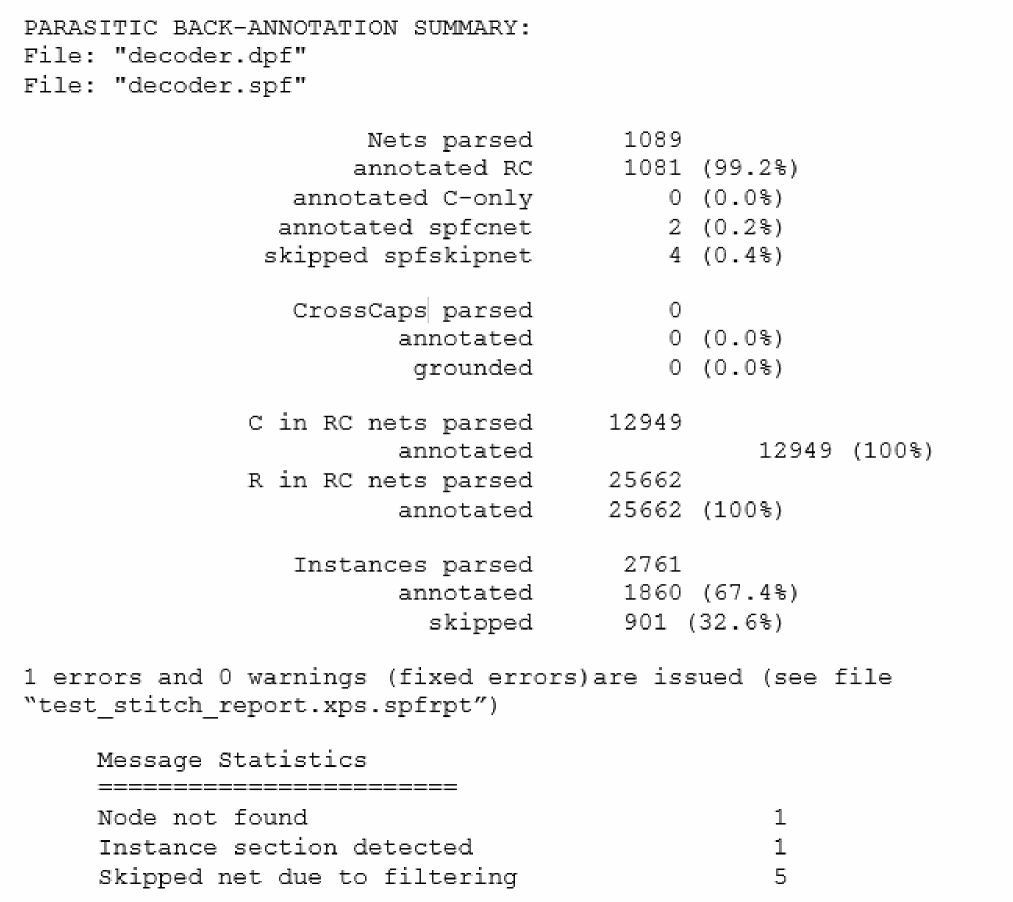
Description of the fields in the report is given below.
| Field | Description |
|
Number of coupling caps that are grounded for some reason (for example, one terminal is floating). |
|
Errors and warning messages can be located in the stitching report file .xps.spfrpt.
Some Common Error and Warning Messages Related to Parasitic Backannotation
ERROR (STITCH-0000)(:12): Node xio.xb1.n3 not found. Net is not expanded.
This error message is generated when the net name does not match the pre-layout name or the node does not exist.
To fix the net mismatch issue, use the spfxtorprefix option.
WARNING(STITCH-0039)(:49): Net x1.mid is skipped due to filtering
This message is generated when nets are skipped using the spfskipnet option.
For better performance, ensure that the total capacitance of the nets specified using the spfskipnet option is backannotated.
WARNING(STITCH-0011)(:32): Only total cap is attached to net net19.
This message is generated when C-only backannotation is enabled. For better performance, ensure that the total capacitance of the nets specified using the spfcnet option is backannotated.
WARNING(STITCH-0084)(:13): Cross-coupling capacitor "c12 (1.3e-17)" is lumped to ground (first node not found in the file scope).
This message is generated when one net of the coupling cap is not found in pre-layout.
WARNING(STITCH-0039)(:79): Net net46 is skipped because has zero C-only value
This message is generated when the NET section does not have parasitic capacitance defined.
Return to top