
1
Error Messages
This chapter discusses the following:
Dialog Boxes
As you use the VHDL Import
In general, when a dialog box opens, clicking OK or Cancel on the VHDL Import form closes the box.
File Name Does Not Exist
If you type a string into the File Name field that does not match an existing file or directory, or does not include any wild card characters, the following error message appears.

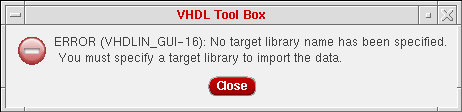
No Target Library Name Specified
If you click either OK or Apply on the VHDL Import form without filling in the Target Library Name field, the following error message appears.
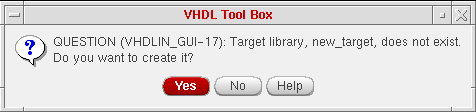
Library Name Not Found
If you enter a target library name that does not exist in the Target Library Name field, the following dialog box opens. It asks you if you want to create the library, or if you mistyped the library name. Clicking OK opens the Create Library form, which asks you for the location of the library.
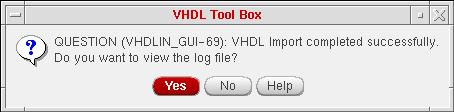
Import Completed Successfully
When the import process finishes successfully, the following dialog box opens. If you click OK, the VHDL Tool Box status
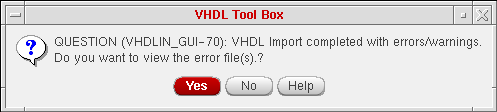
Import Completed with Errors/Warnings
When the import process finishes with errors or warnings, the following dialog box opens. If you click OK, the VHDL Tool Box status window opens, displaying the contents of the first error or warning file. You can also view the log file from this status window.
Import Aborted When Reached Maximum Errors
If the import process reaches the maximum number of errors, the process ends and the following dialog box opens. If you click OK, the VHDL Tool Box status window opens, displaying the contents of the first error or warning file. You can also view the log file from this status window.

Text String Error Messages
The following section summarizes the different text string error messages that you might receive while using VHDL In.
Overview
All text string error messages have the following syntax:
vhdlin: *<severityCode>,<errorNumber> <errMsgString>\n
[error Causing line] [(errorFileName), (lineNumber)]
The severityCode can be F, W, or C.
F indicates a fatal error, W indicates a warning, and C indicates a fatal error that allows you to continue processing. The import process finishes without importing the design on the following two conditions:
- On encountering the first fatal error
- If there is at least one error of severity C after analysis is finished
Line Command Errors
If you are using the standalone line command, and you type in one or more unknown or ambiguous command line options or functions, you receive an error message. The unknown or ambiguous option words are shown in parentheses. If the option is ambiguous, you must add additional characters to select a single option. Examples of command line error messages are
vhdlin: *F,5: unknown or ambiguous options (%s)
vhdlin: *F,5: Missing -param option,-param<parameter_filename>not given while invoking the tool.
vhdlin: *F,5: -PARAM option must be followed by parameter file name.
You can use the -help option to list all valid options.
Analyzer Errors
If the import process is unable to fork the VHDL analyzer, or if the VHDL analyzer terminates with an internal error, you might receive error messages like the following.
vhdlin: *F,5: cannot execute the VHDL analyzer (%s)
vhdlin: *F,5: VHDL analyzer execution error
If the import process is unable to run the VHDL analyzer on the design files that you want to import, then you might need to set your UNIX search path to include the location of the VHDL analyzer. The UNIX file name for the VHDL analyzer is indicated in the parentheses.
If you encounter an analyzer internal error, contact Cadence Customer Support.
Parameter File Parsing
A problem in the parameter file, such as an illegal parameter or an illegal parameter value, can cause a variety of error messages.
vhdlin: *F,5: invalid parameter specification (%s) in the parameter file
vhdlin: *F,5: %s argument(s) is/are expected for the parameter (%s)”
vhdlin: *F,5: invalid value (%s) specified for parameter (%s)”
vhdlin: *F,5: Parameter (%s) is expected but not specified in the parameter file
vhdlin: *F,5: parameter (%s) is required to have only integer value”
vhdlin: *F,5: parameter (%s) has valid integer range (%s), specified value lies outside this range”
vhdlin: *F,5: parameter (%s) is required to have only real value”
vhdlin: *F,5: parameter (%s) has valid real range (%s), specified value lies outside this range”
vhdlin: *F,5: parameter (%s) has valid values as (%s), specified value lies outside this range”
vhdlin: *W,5: parameter (%s) not in use”
Correct the parameter specification, and rerun the import process.
Virtuoso Design Library
If the system cannot correctly resolve references to the Virtuoso design library, it produces an error message similar to one of the following.
vhdlin: *W,5: Could not find view of type (%s) for the cell (%s) in the library (%s)
vhdlin: *W,5: Unable to open library %s in %s mode.”
vhdlin: *W,5: Unable to find View with name %s in the library %s.
Memory
If no more memory is available on your workstation, or the memory is corrupted, the import process ends and prints one of these messages:
vhdlin: *F,5: cannot allocate more memory
vhdlin: *F,5: Memory Allocation corrupted = %d.
vhdlin: *F,5: Dynamic Memory corrupted = %d.
Consult your system administrator to increase the size of memory on your machine. The import process should not corrupt your memory. If this happens, call Cadence Customer Support.
General Errors
If the system cannot open a file specified for reading or writing by the import process, you see this message.
vhdlin: *F,5: cannot open specified file (%s) for %sing.
Use the correct file or change access permissions on the file.
Using the VHDL Tool Box Status Window
Although the examples in this user guide have you only look at and close the VHDL Tool Box status window, the window has a set of commands that can help you debug problems or understand how your design is imported.
Whether you are looking at an error file or a log file, you can use the same menu of commands under File in the window menu banner.
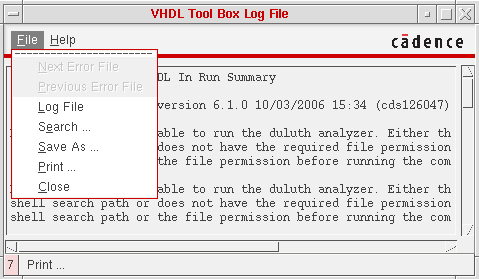
You have the choice of the following commands.
The first two commands are not available (shaded out) if you are looking at the log file of a successful importation, or if you are looking at the only error file.
Next Error File takes you to the next error file. If you are viewing a log file, this command takes you to the corresponding error file for the same design.
Previous Error File takes you to the previous error file.
Log File does nothing if you are already looking at the log file. This command takes you to the log file if you are looking at the error file.
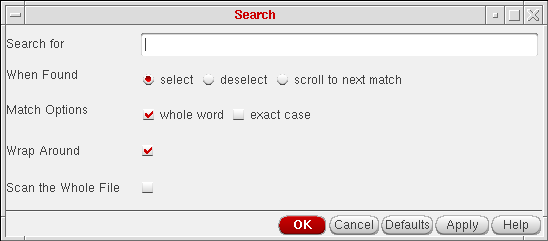
Search opens the following form, which prompts you for a character string to search for.
Save As opens the Save As form, which lets you type in a file name for saving the current data.
Print opens the Print form, which lets you print the error or log file.
Close closes the Errors/Warnings list window.
The most common errors are caused by the wrong combination of design files selected for importation. Typically, a critical file is missing, or you imported too many files.
Return to top