
Modifying the Number of Cells in a Group Array
You can increase or decrease the number of cells in a group array by modifying the number of rows or columns. You can use the Property Editor assistant, Edit Group Array Properties form, or the Stretch command. With the Stretch command, you can modify the number of cells in a group array interactively by using the mouse pointer.
To increase or decrease the number of cells in a group array by using the Edit Group Array Properties form:
- In the layout design window, select the group array you want to modify.
-
Choose Edit – Basic – Properties.
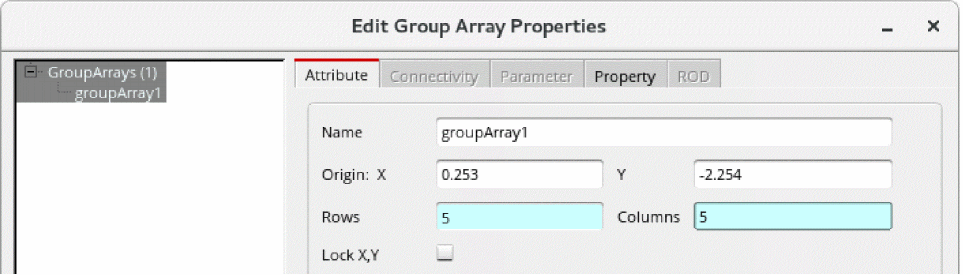
The Edit Group Array Properties form appears. - On the Attribute tab, in the Rows field, specify the number of cell rows you want in the group array.
-
In the Columns field, specify the number of cell columns you want in the group array.
-
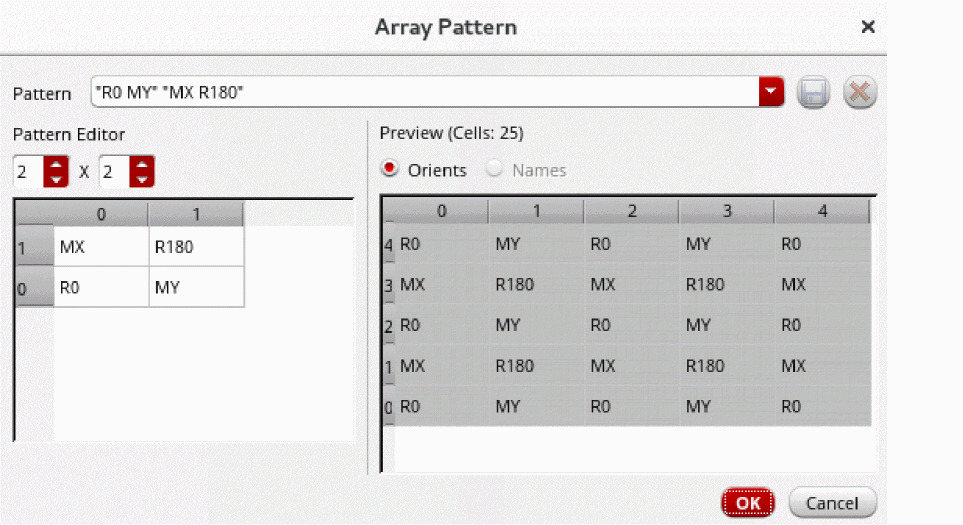
To preview the group array, click the Open Array Pattern editor button
 , which is next to the Array Pattern field.
In the following image, the Preview section in the Array Pattern form shows a sample 5x5 group array, with the updated number of rows and columns.
- Click OK.
-
Click OK.
The number of rows and columns in the group array are updated.
Related Topics
Attributes in the Edit Group Array Properties Form
Return to top