
Creating Holes in a Group Array
In a group array, you can choose to leave some cells empty to denote that there are no geometries underneath. Such cells are referred as holes. You can add a hole by specifying dash (-) as the orientation value of a cell while creating or editing a group array.
To create holes in a group array by using the Array Pattern form:
- In the layout design window:
-
Click the Open Array Pattern editor button
 , next to the Array Pattern field, to specify the orientation pattern.
The Array Pattern form appears. -
Optionally, select an existing pattern from the Pattern list if you want to modify the orientation pattern.
The selected array pattern is populated in the Pattern Editor section. - Optionally, use the spin boxes in the Pattern Editor section to modify the row and column count of the pattern.
-
In the orientation pattern table of the Pattern Editor section, double-click the cell that you want to keep as empty. Then, from the drop-down list, select dash (
-) as the orientation value.
The value is updated in the orientation tables, both in the Pattern Editor and Preview sections.
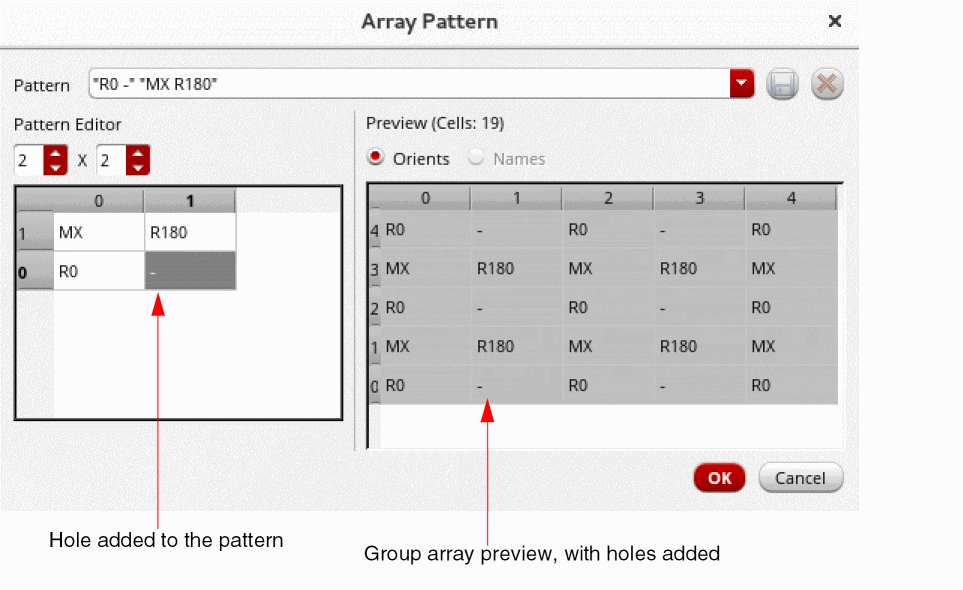
-
Repeat step 5 if you want to add more holes to the group array.
Instead of clicking each cell and selecting the orientation value, you can specify values in the Pattern text field directly. - Click OK in the Array Pattern form.
-
Click OK.
The holes are added to the group array.
You can also add holes by specifying the required orientation pattern directly in the Array Pattern field in the Copy form or the Edit Group Array Properties form.
Related Topics
Attributes in the Edit Group Array Properties Form
Return to top