
Creating a Layer Set
-
From the Palette context menu, choose Layer Set – Save As.
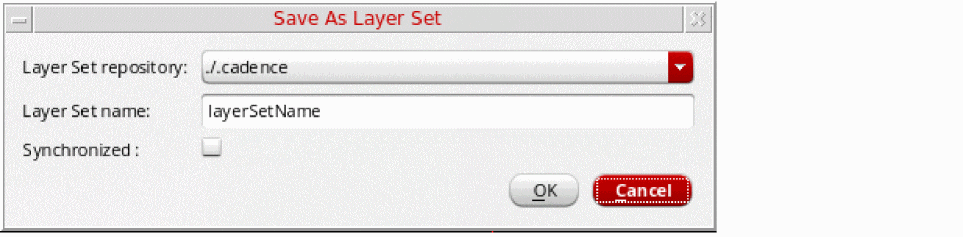
The Save As Layer Set form appears.
-
Select the repository or directory in which you want to save the layer set file by choosing from the Layer Set repository list. For example, if you select
./.cadence, the file is saved at the following location:
./.cadence/dfII/layerSets/<technology library name>The Palette assistant includes layer sets defined in several.cadencedirectories, for example, the present working directory, the home directory, and the shared directory. The list of candidate directories and their order of precedence is defined in thesetup.locfile. When displayed in the Layer Set Manager and the Layer Set list, a suffix comprising a number enclosed in parentheses is added to the layer set name to indicate where a layer set is defined. This helps avoid ambiguity if a layer set is saved with the same name in several directories. The order of precedence specified insetup.locdetermines the value of the suffix. An exception to this rule are the layer sets stored in the.cadencedirectory listed first in the order of precedence. These layer sets are displayed without the suffix (1). Thesetup.locfile is stored in the.cadencedirectory. -
Specify a layer set name in the Layer Set name field.
If you specify the layer set name asdefault, this layer set is set as the active layer set, instead of the All Layers layer set, when a cellview is first opened. Palette searches for the default layer set in the layer set repositories in the order specified in thesetup.locfile. If thesetup.locfile is unavailable, Palette searches for the default layer set in the.cadencerepository located in the present working directory. When the first layer set named default is found, the search stops. -
Select the Synchronized check box if you want to keep the layer set synchronized with the base layer set. As a result, any updates made to the base layer set are automatically reflected in your personalized layer set when you reload your layer set or start a new Virtuoso session.
The following figure shows the.layerSetfile for a synchronized layer set. Any layer-purpose pairs that you add or remove locally are listed in this file.
SKILL function: pteSaveAsSynchronizedLayerSet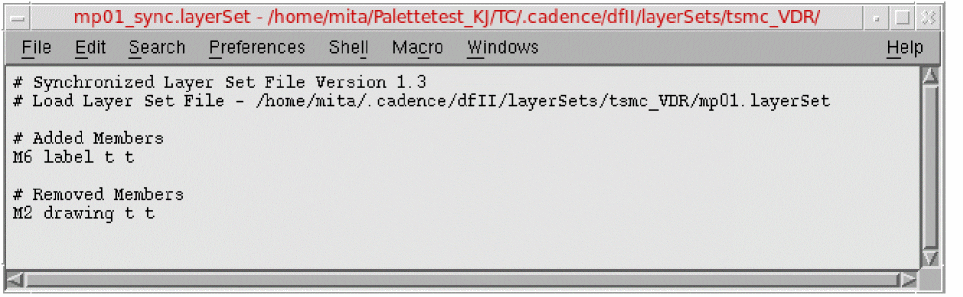
-
Click OK.
A layer set file is created with the specified name (<layersetname>.layerSet) in the selected layer set repository. The newly created layer set is automatically set as active and is displayed in the Layer Set list and Layer Set Manager.
SKILL function: pteSaveAsLayerSet
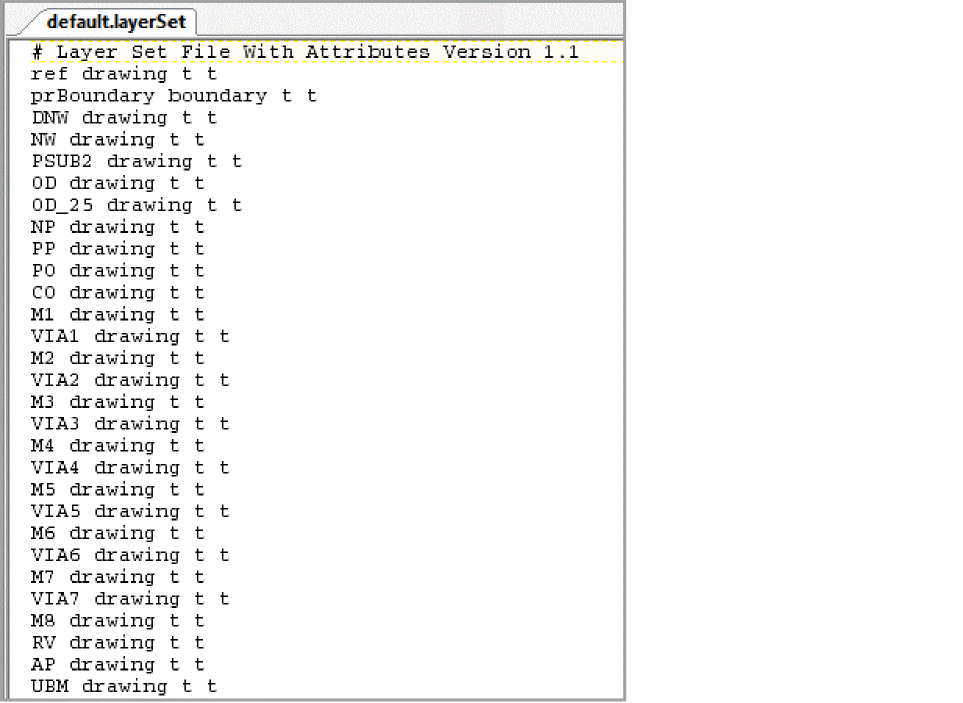
The following is a sample layer set file.
Related Topics
Return to top