
Specification To Check Parameters
The To Check field on the Parameters tab of the Attributes pane lets you specify the names of the schematic parameters to be checked by the Check Against Source command.
For designs that have a long list of layout-only parameters that need to be ignored during a Check Against Source run, it is more efficient to specify the parameters that need to be checked instead of specifying the ones that need to be ignored. This not only reduces the effort of setting the parameters, but also makes the check and update procedures more effective as there is a lesser number of parameters to process.
You can use the To Check field to specify the list of parameters to check. When the parameters to check list is specified, Layout XL uses that list instead of using the parameters to ignore during check list.
For example, in the figure displayed below, no parameters were set for ignore. Therefore, the instance info balloon displays only those parameters that were set for check.
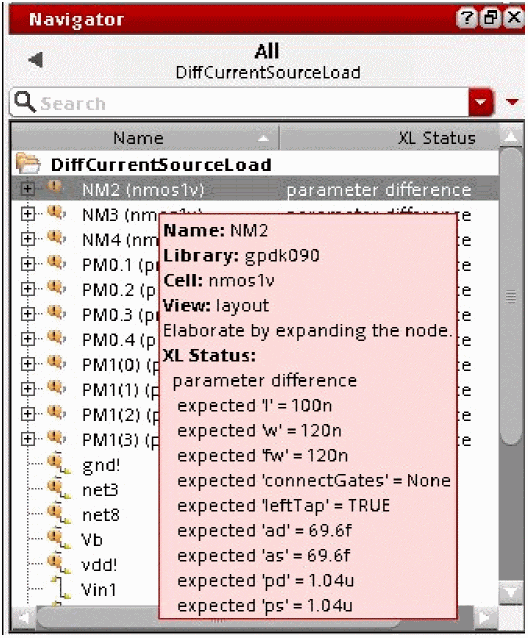
In Layout XL, the parameters to check can be specified using one of the following:
-
LAM file
- Cadence recommends that the parameters to check be defined in the LAM file. This ensures that the parameters to check are set at the library level and can benefit all the layout engineers using the particular cell in their design. However, any updates to the LAM file will need to be made by the CAD team engineers.
-
To Check field in the Parameters tab in the CPH attributes pane
- The To Check field displays the parameters set for checking, if defined in the LAM file. You can use the To Check field to modify the parameters to check for the current design. Any change in the CPH parameters to check list does not change the settings in the LAM file. The library-level settings remain the same, unless modified in LAM.
- Parameters to check option on the Parameters tab in the Connectivity form.
-
paramsToCheckenvironment variable
When the parameters to check list is set up, the parameters in the list are the only ones that are updated by the
Example
Let us now consider an example that illustrates a typical design scenario that uses the parameters to check list also for running the Update command.
Let us assume that you want to check the total width, w.
In this case, it is likely that you set for check only the total width (w)parameter and ignore the finger width (fw) parameter.
w = fingers * fw
If you only check and update the width (w) parameter, the Pcell does not change its finger width (fw), unless the CDF callbacks are fired. Therefore, if you only want to check the width parameter (w), but want to update both the width (w) and finger width (fw) parameters, you must set the lxEvalCDFCallbacks environment variable to t.
lxEvalCDFCallbacks cannot be set to true, ensure that the parameters to check list matches the parameters to update list.
For the current example, if CDF callback evaluation is not set, you must also include finger width (fw) as a parameter to check. This ensures that the lists of parameters to be checked and updated are in sync.
Alternatively, you can use the following options on the Parameters tab in the Connectivity form to set the parameters to check and update:
Related Topic
Checking a Parameter on a Cellview
Return to top